
Apple Pay domain name configuration
To perform Apple Pay payment integration, you must first configure and verify your Apple Pay domain name on Antom Dashboard. This operation is used for Apple Pay merchant authentication and is a core prerequisite for activating the Apple Pay payment method. The following integration modes require domain configuration and verification:
- One-time Payments Apple Pay Payment Element integration
- One-time Payments Apple Pay Checkout Page embedded mode integration
- Subscription Payment Apple Pay Payment Element integration
Note:
- The following modes do not require domain name configuration or verification:
- The following process applies to the production environment configuration in the live mode. If you need to conduct sandbox testing for Apple Pay integration, please provide your
DOMAIN_NAMEused to receive payments to Antom technical specialists and contact them to obtain the Apple Pay domain verification file for deployment.
Configuration preparations
Before configuration, please ensure the following prerequisites are met:
- Completed merchant onboarding on Antom Dashboard
- Completed Apple Pay payment method enablement
- Have administrative rights to the domain to be configured
- The configured domain meets the following technical requirements:
- HTTPS certificate deployed (mandatory for Apple Pay)
- SSL certificate deployed (non-self-signed and not expired)
- The domain is publicly accessible and does not require authentication
- The domain format supports both top-level domains and subdomains (e.g.,
example.comorpay.example.com)
Configuration steps
After ensuring all preparation conditions are met, follow these steps to configure the Apple Pay domain:
- Add Apple Pay domain
- Obtain domain verification file and deployment path
- Deploy domain verification file
Step 1: Add Apple Pay domain
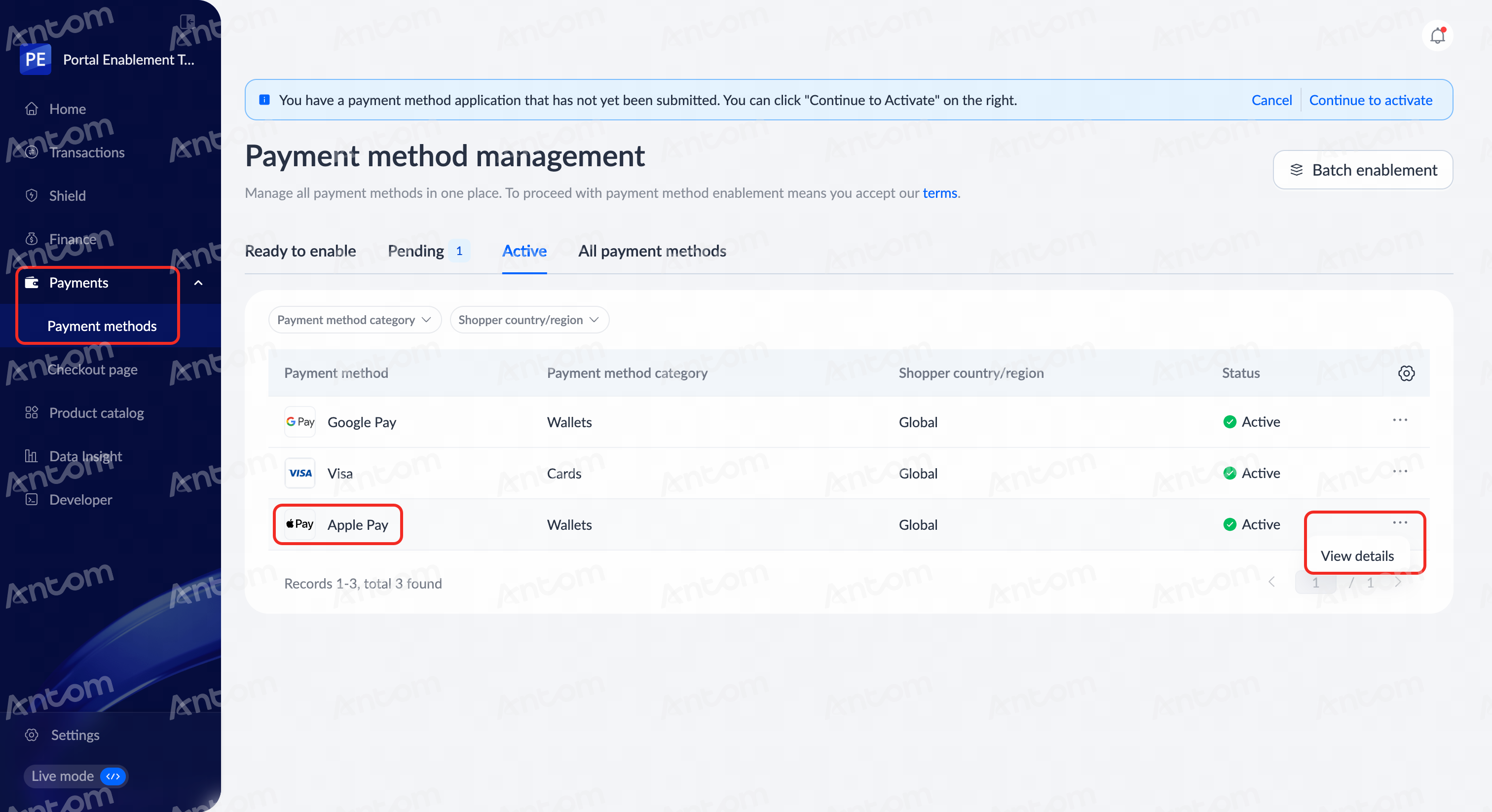
- Log in to Antom Dashboard and navigate to Payments > Payment Methods.
- Find Apple Pay in the list of Active payment methods and click View details to enter the payment method details page.

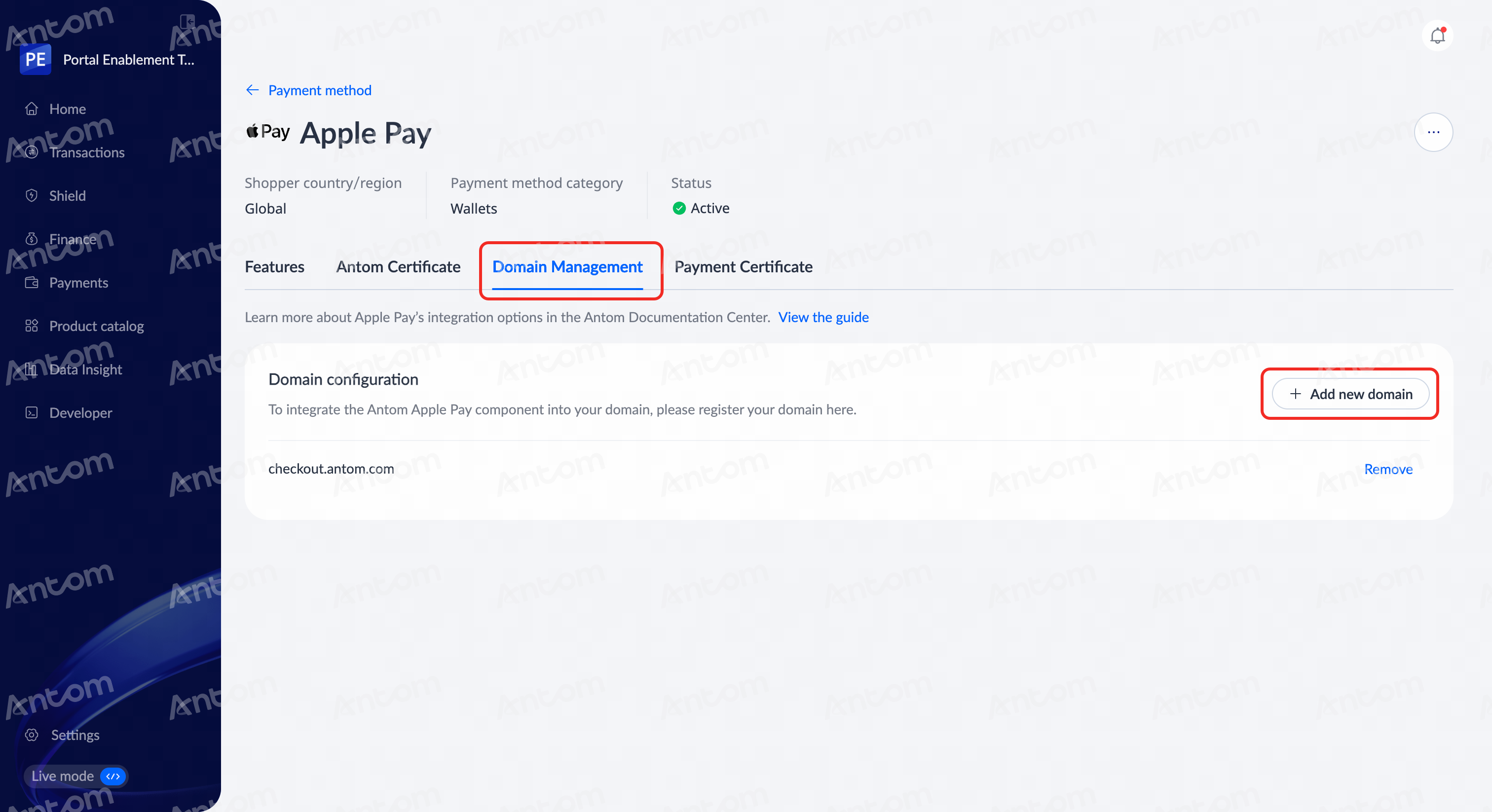
- On the Apple Pay payment method details page, click Domain Management > Add new domain. The Domain configuration pop-up window is displayed.
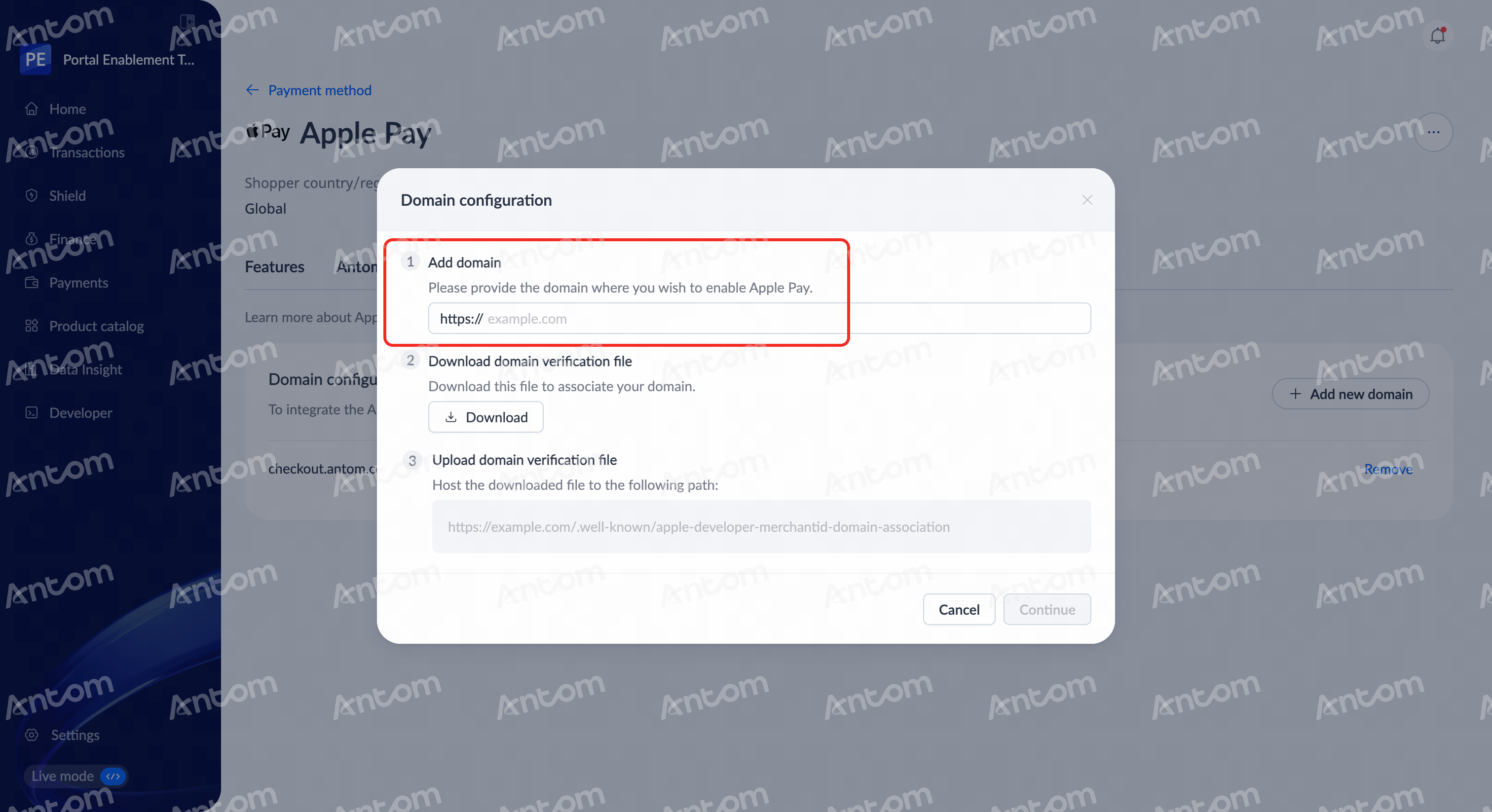
- In the Domain configuration pop-up, enter the domain to be enabled for Apple Pay (e.g.,
example.com).
Note: The system automatically fills in the https:// prefix. You do not need to enter it again.
|
|
Step 2: Obtain domain verification file and deployment path
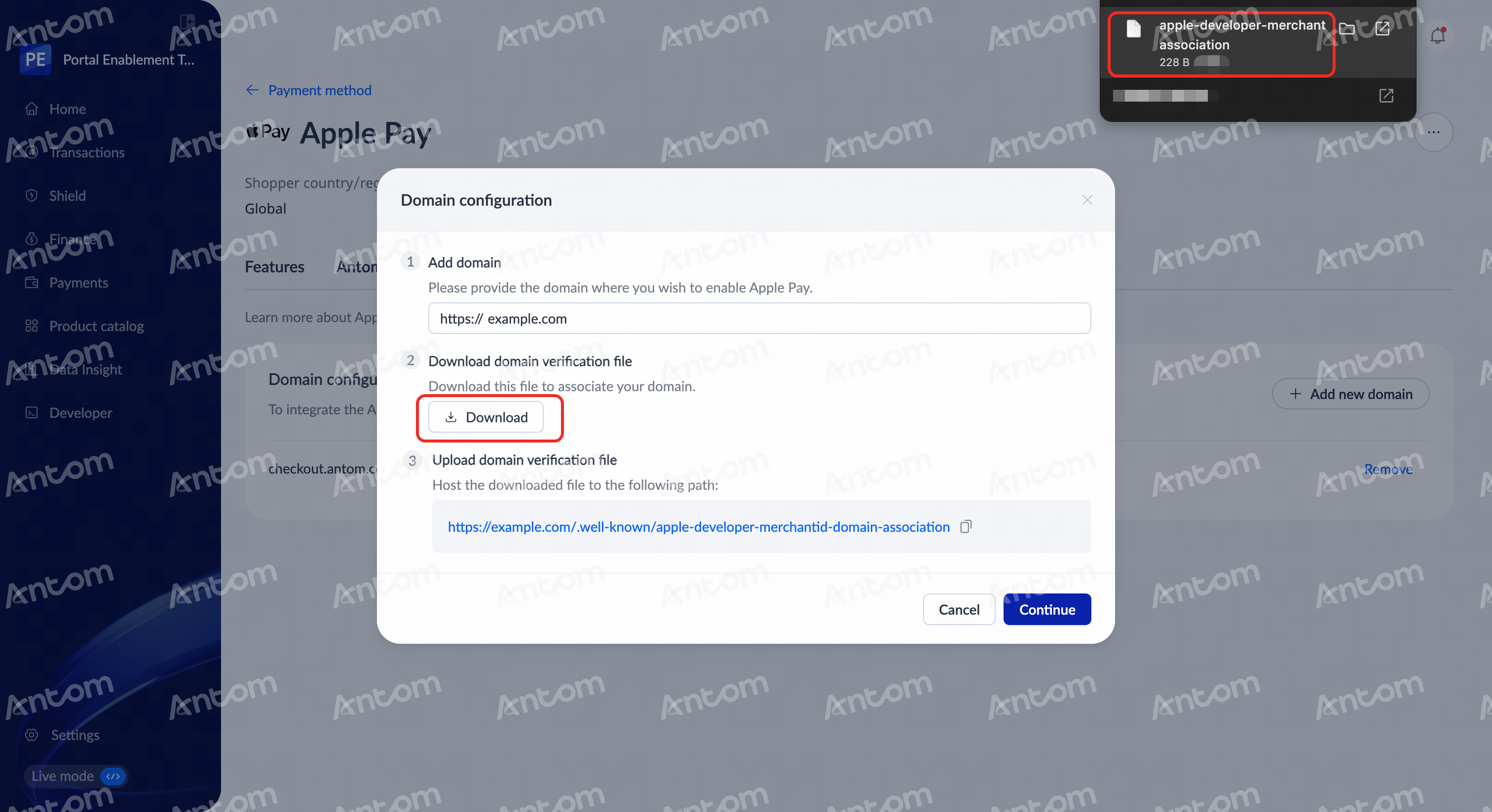
- In the Domain configuration pop-up, under Download domain verification file, click Download to obtain the file. The specifications of the verification file are as follows:
- File name: apple-developer-merchantid-domain-association
- File path: Placed in the /.well-known/ directory
- File content: Plain text
- Access permissions: Accessible without authentication
Note: The domain verification file contains a digital token for domain verification, which is unique and immutable. Do not modify the file contents during deployment to avoid verification failure.
- In the Upload domain verification file section, click the copy icon to copy the file deployment path.
|
|
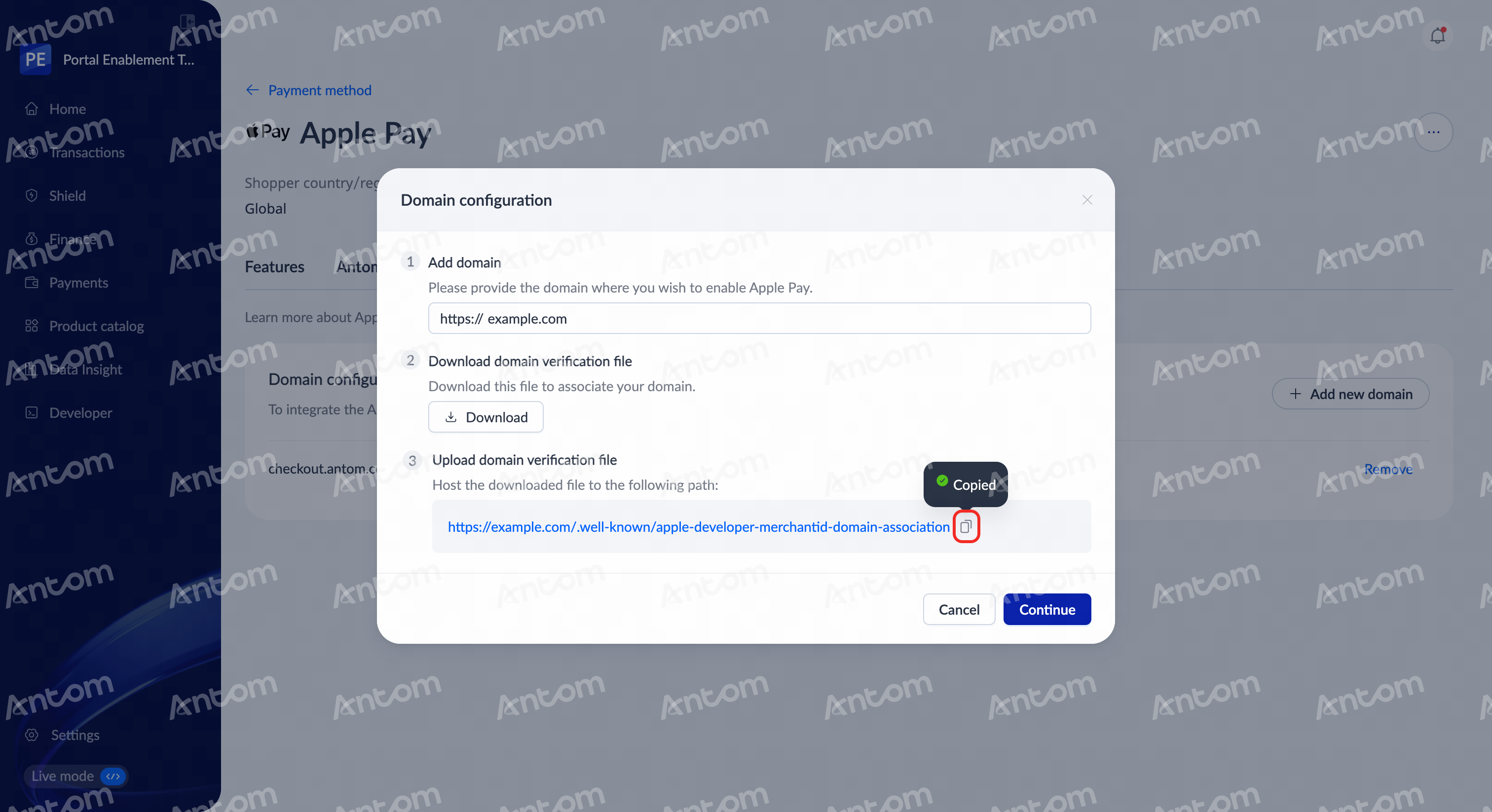
Step 3: Deploy domain verification file
Deploy the obtained verification file to your domain server (it is recommended to set the Content-Type to text/plain):
- Paste the file deployment path:
https://[DOMAIN_NAME]/.well-known/apple-developer-merchantid-domain-association- Verify successful file deployment:
# Use curl to verify whether the file is accessible
curl https://[DOMAIN_NAME]/.well-known/apple-developer-merchantid-domain-association
FAQs
Q: How to resolve the verification failure message indicating the domain verification file cannot be found?
A: Follow these steps to troubleshoot:
- Confirm the file path is correct:
https://[DOMAIN_NAME]/.well-known/apple-developer-merchantid-domain-association- Use a browser to directly access the URL and confirm the file is accessible.
- Check whether the server has URL rewrite rules configured, as this may affect file access.
Q: How to resolve HTTPS certificate issues?
A: Troubleshoot the following:
- The certificate chain is complete
- Test the certificate configuration using SSL Labs
- The certificate is not expired
Q: How to resolve the domain verification file downloaded from Antom Dashboard having a .p10 suffix?
A: When downloading the verification file from the Antom Dashboard, some browsers may automatically add suffixes like .p10 to the file. Remove the browser-added suffix when saving the file.
Note: If you encounter other issues during the configuration process, please contact the Antom technical support team.