Merchant onboarding
Antom provides an efficient process to help you onboard easily. Follow these four simple steps to set up your business and start conducting transactions quickly:
- Apply for an Antom Dashboard account
- Create an Antom Dashboard account
- Register a merchant account
- Activate your merchant account
Merchant onboarding
Step 1: Apply for an Antom Dashboard account
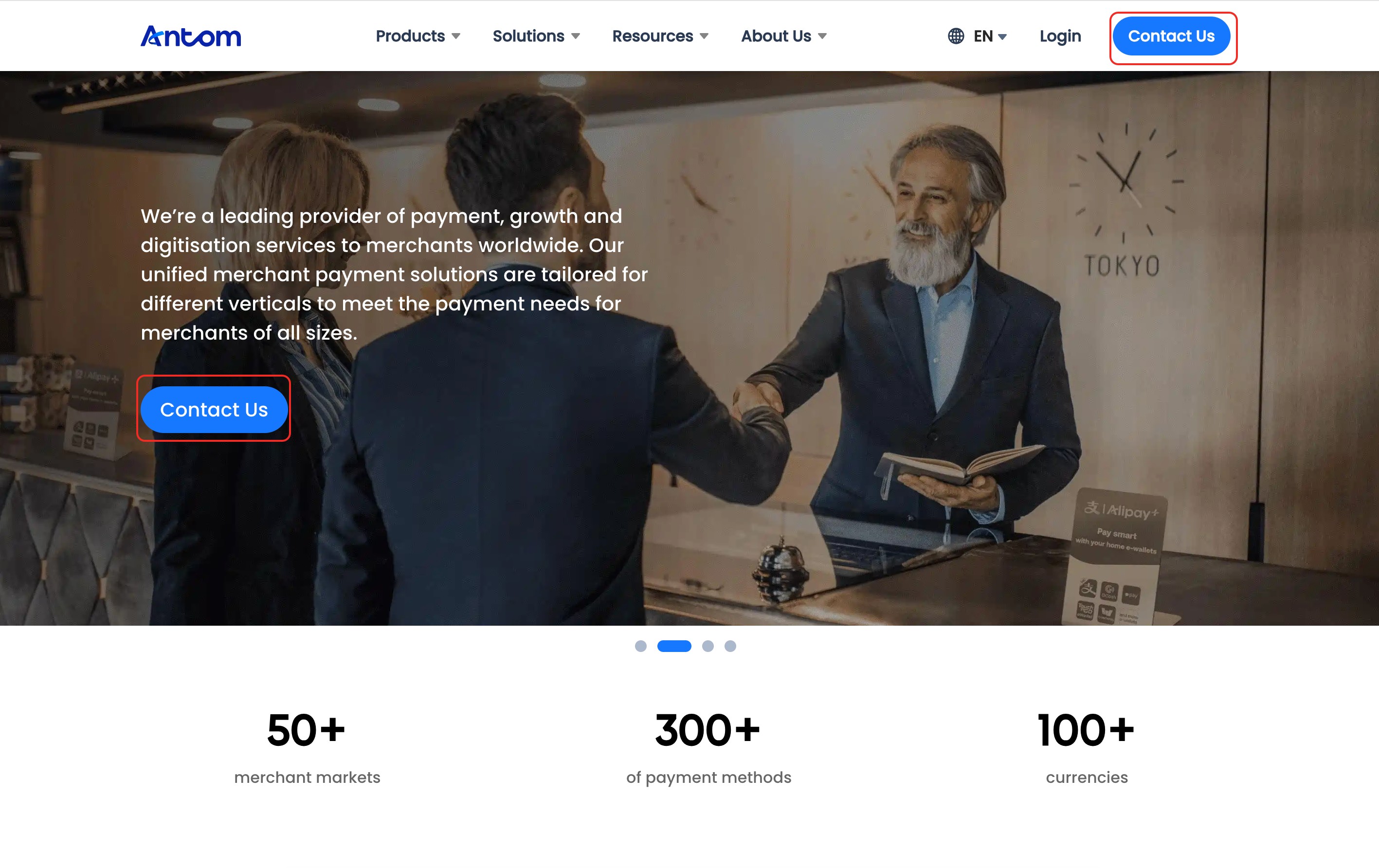
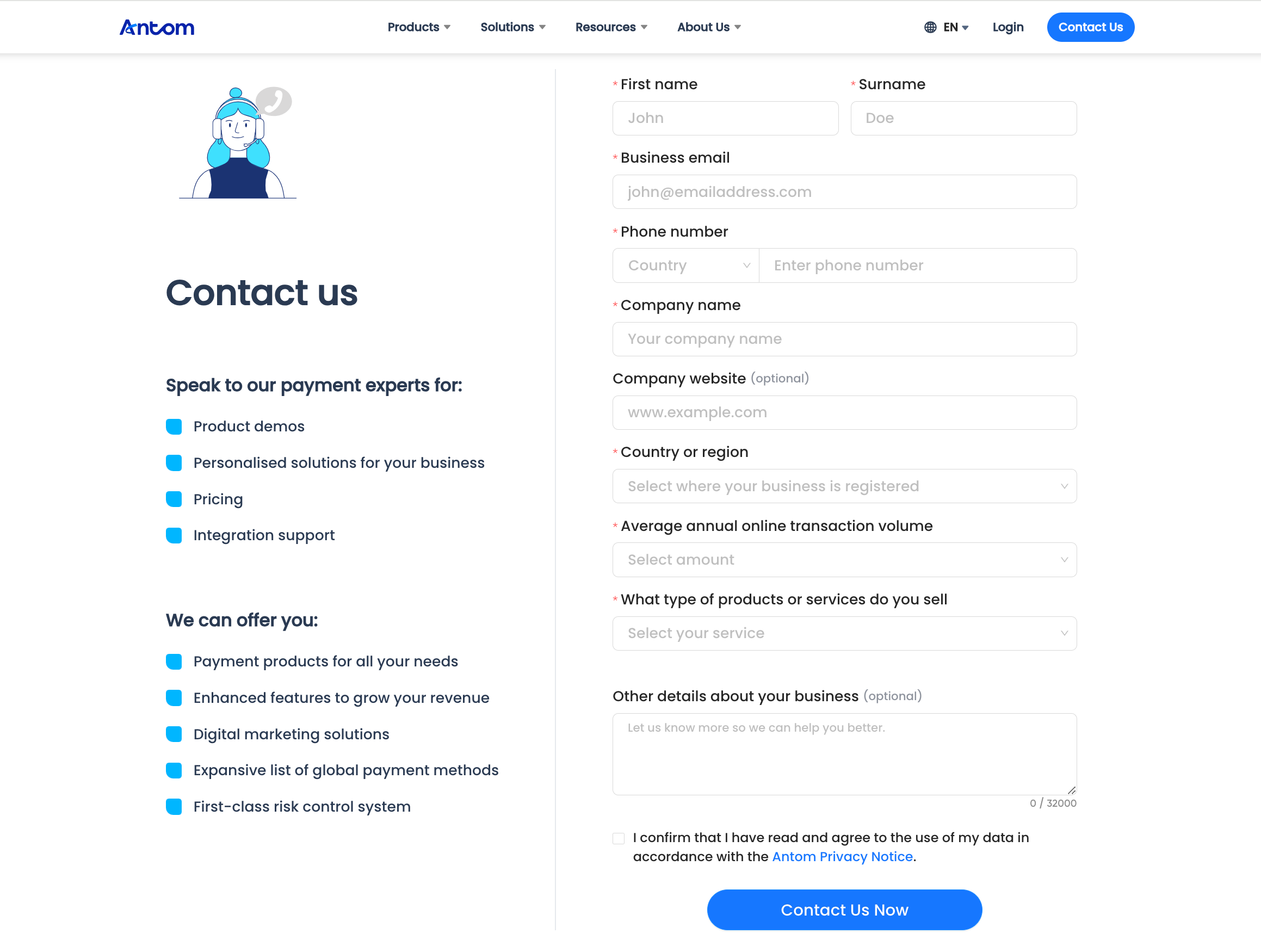
When you click Contact Us on the Antom website, you will be redirected to the Contact us form page. After submitting the form, you will be notified within 1 day.
|
|
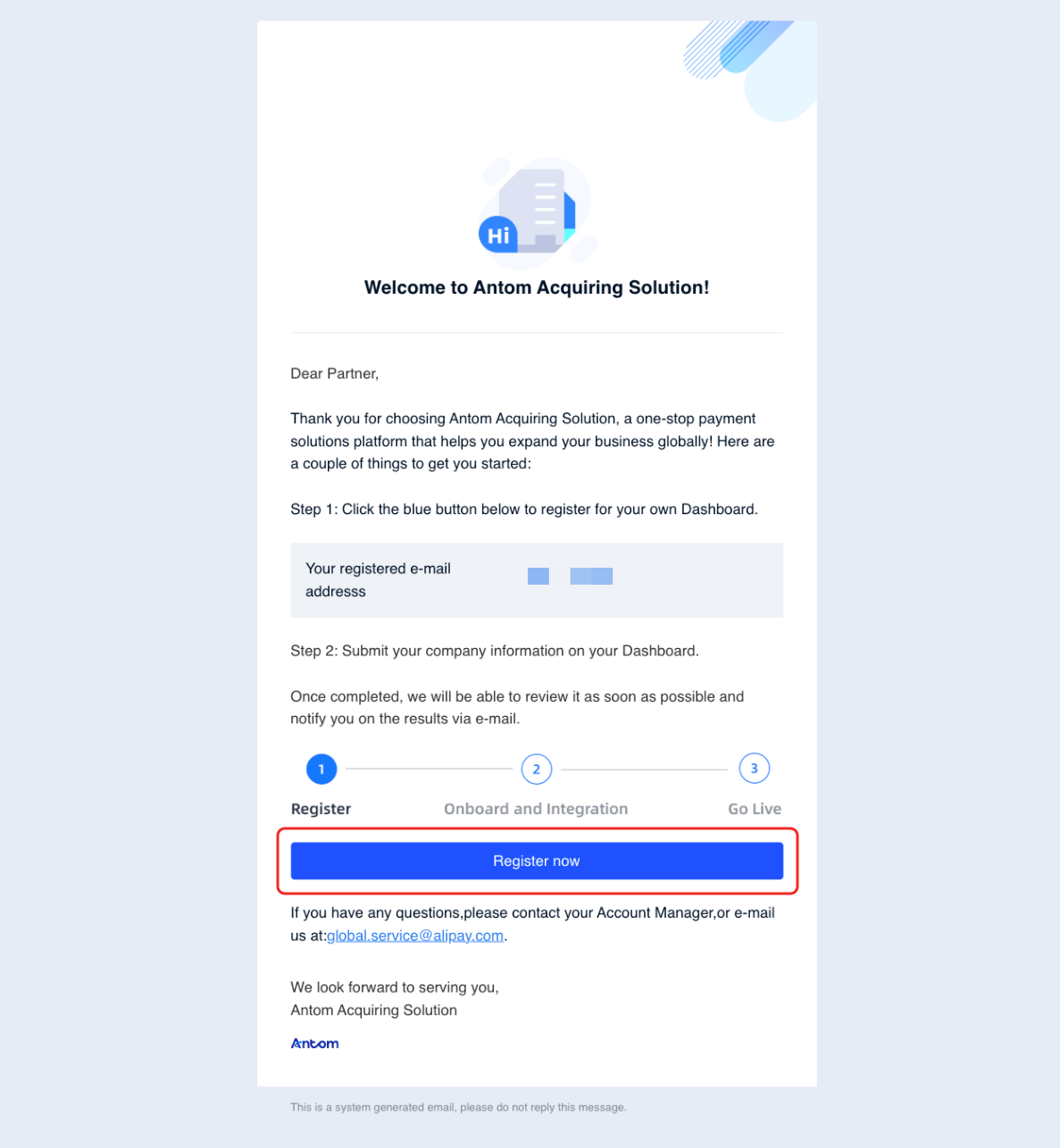
After receiving the invitation email from Antom, click Register now to start the registration process.
Step 2: Create an Antom Dashboard account
Go to the Register page and follow the prompts to fill in the relevant information. Click Register to complete the Antom Dashboard account creation.

Step 3: Register a merchant account
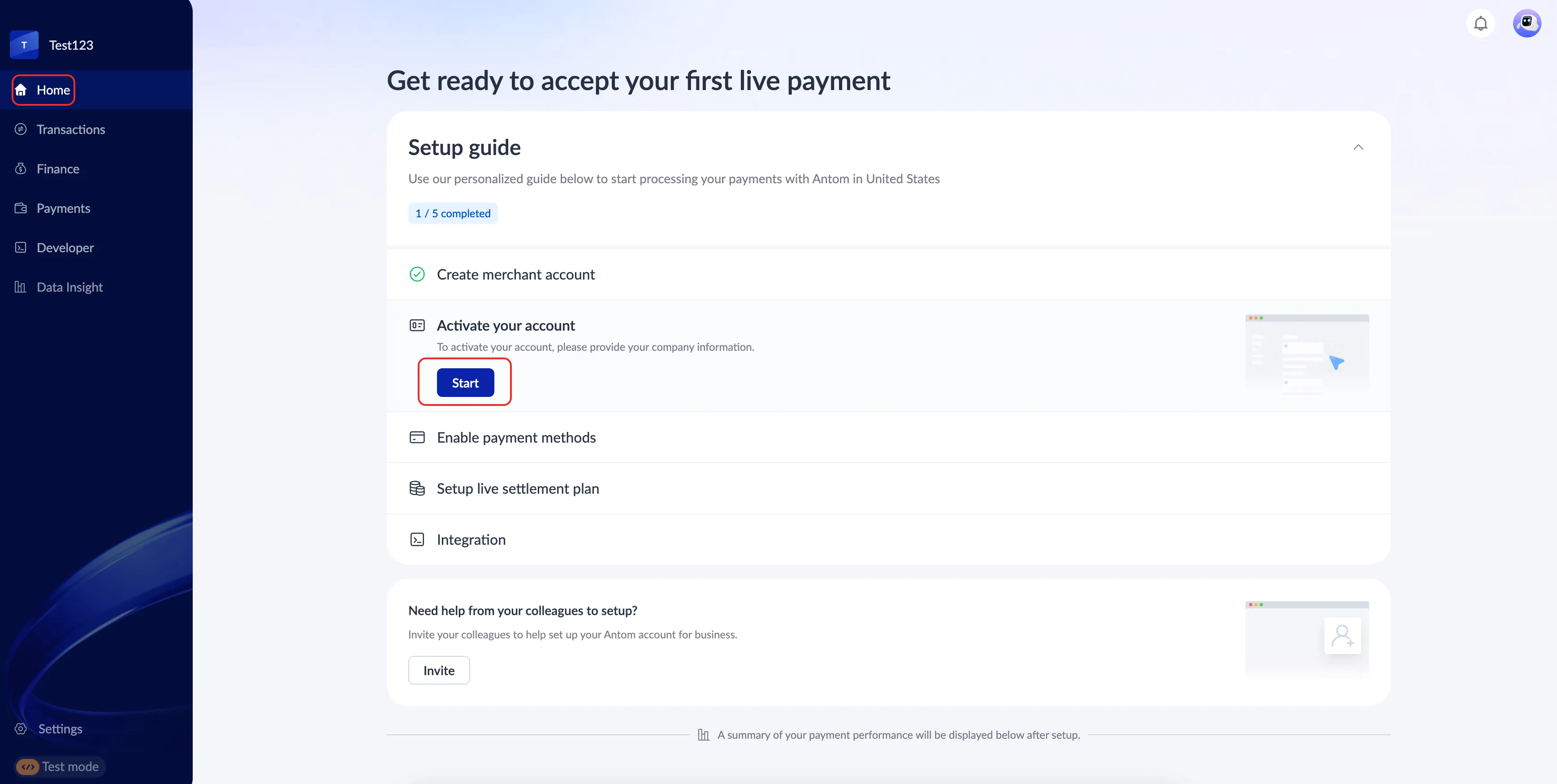
On the Antom Dashboard Home page, click Start to register a merchant account. You can proceed with the registration based on your merchant region.
For Singapore or Hong Kong (China) merchants
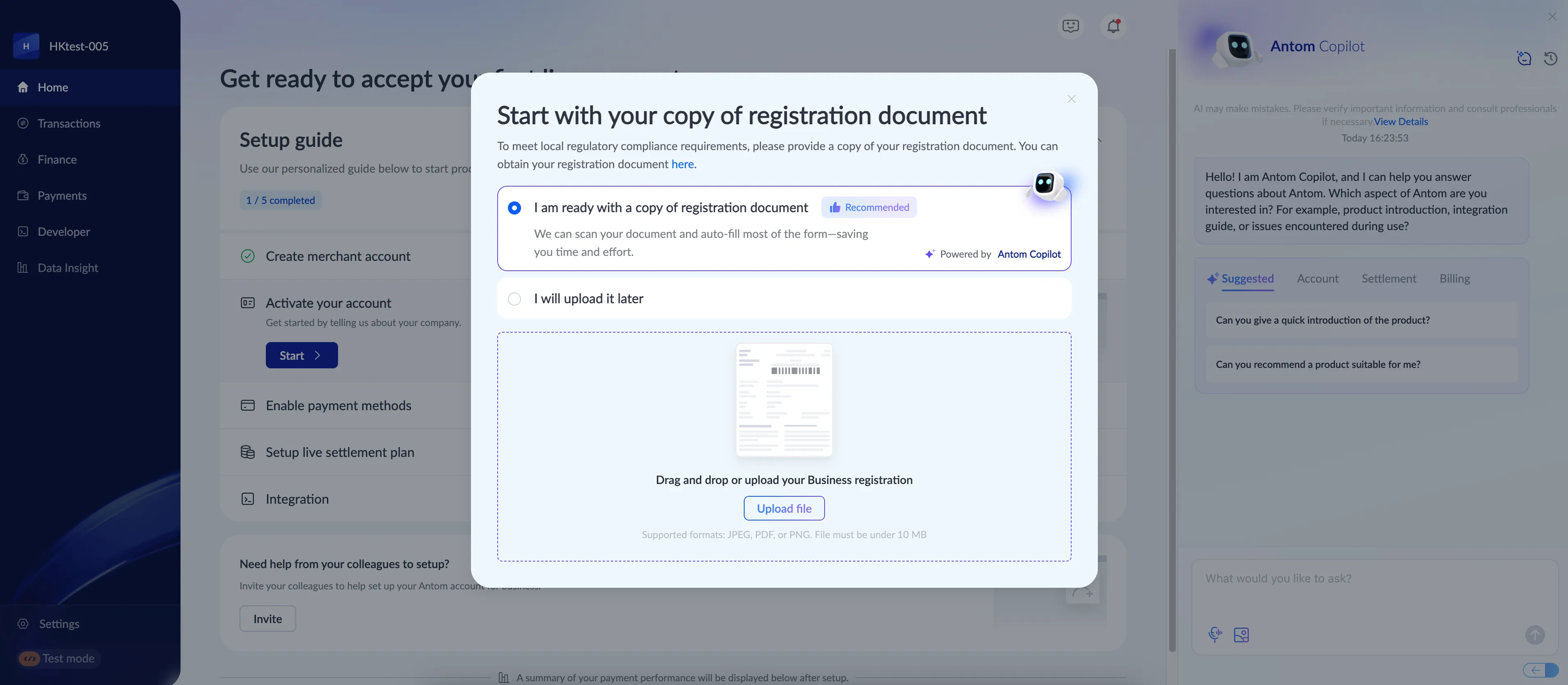
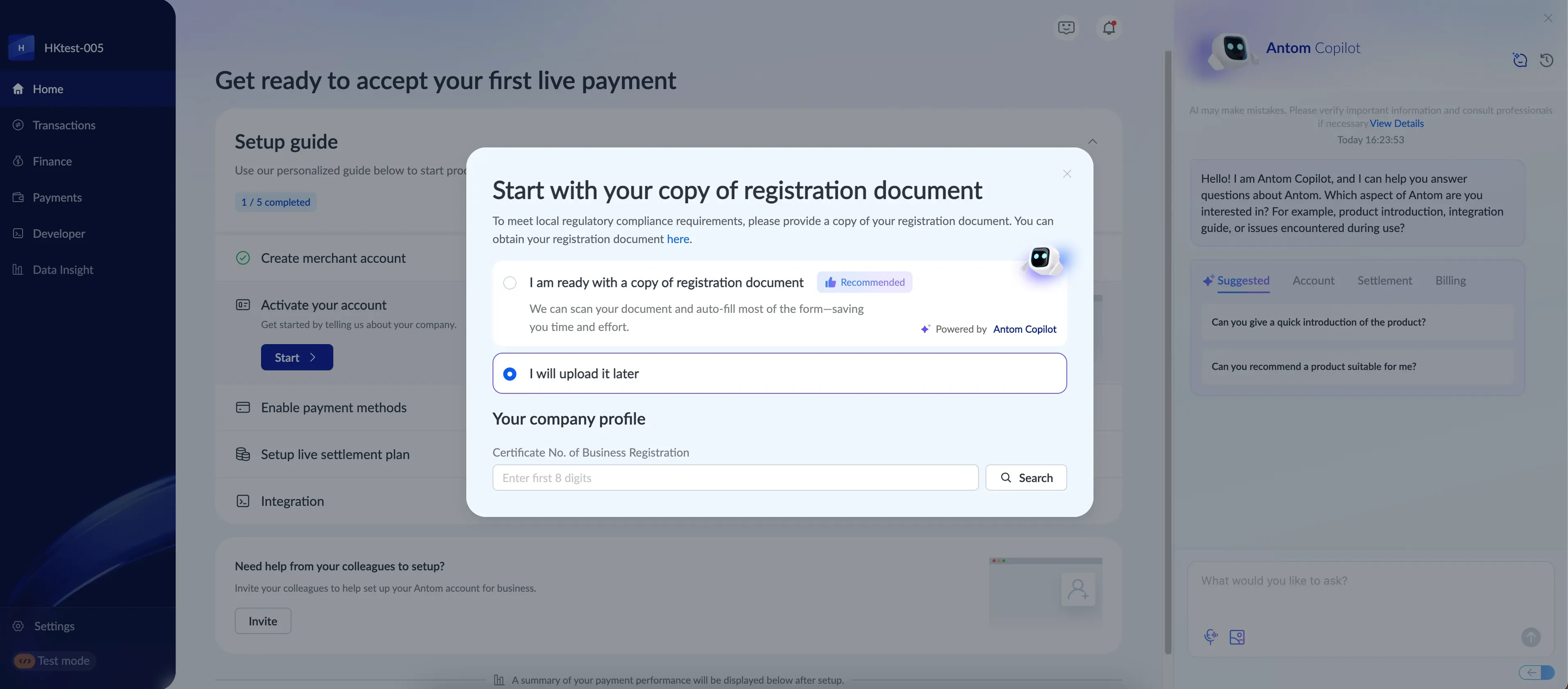
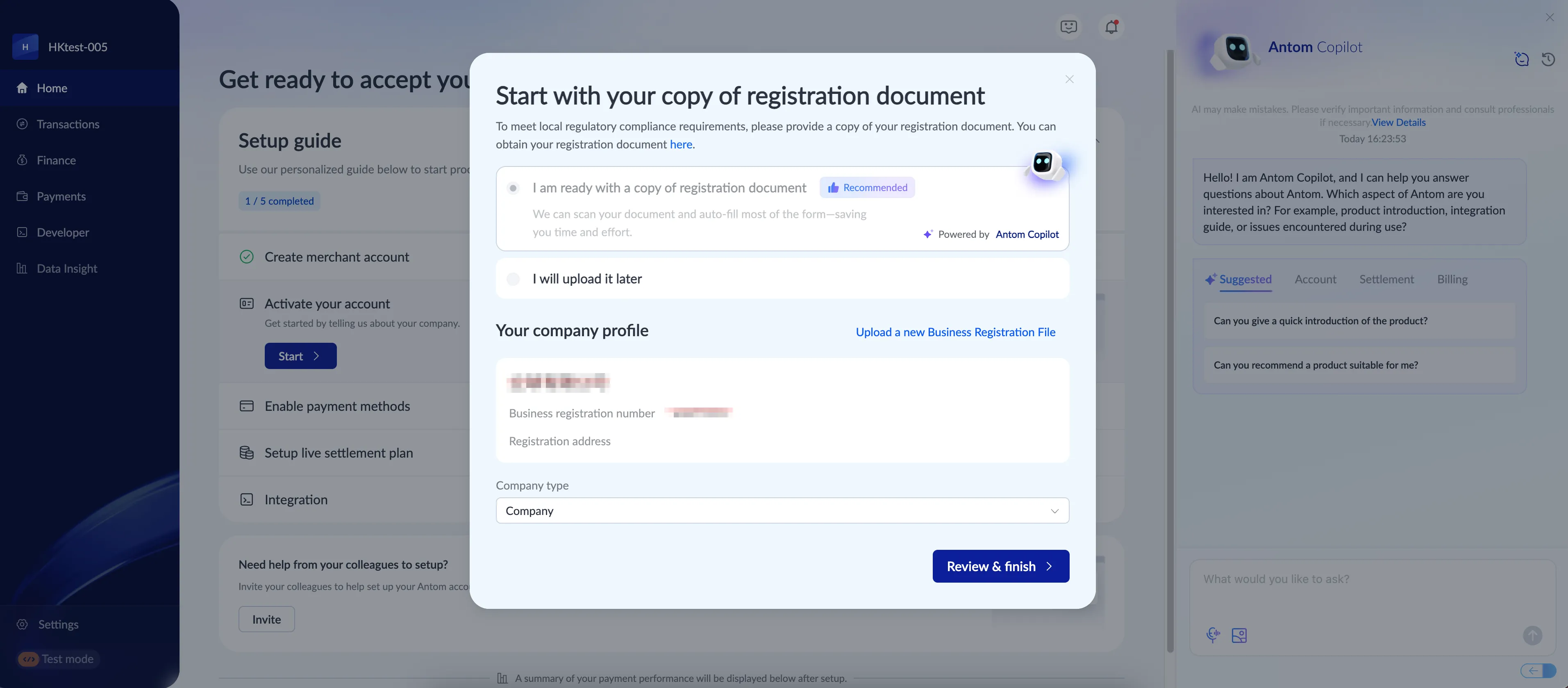
- After clicking Start on the Home page, the Start with your copy of registration document pop-up displays. You can follow one of the steps below:
- Upload your registration document: Click I am ready with a copy of registration document, and drag and drop or upload the necessary document. Antom Copilot will scan the uploaded document and auto-fill the information accordingly.
- Upload your registration document later: Click I will upload it later, and provide the Certificate No. of Business Registration information for Antom to auto-fill your information.
Note: Merchants are strongly recommended to provide a registration document or registration number, where Antom will auto-fill their business information in the registration form, which greatly reduce the manual input effort from the merchants.
|
|
- After your information is obtained, review and select Review & finish to proceed to the next step after verifying the information is correct.
Note: If the page fails to fetch and auto-fill any merchant information, you are still able to proceed by clicking the Review & finish button.
For other countries
- Click Start on the Home page, and a Business type window will pop up. Specify the Certificate No. of Business Registration (a required field) and other information in this window. Click Next to proceed.
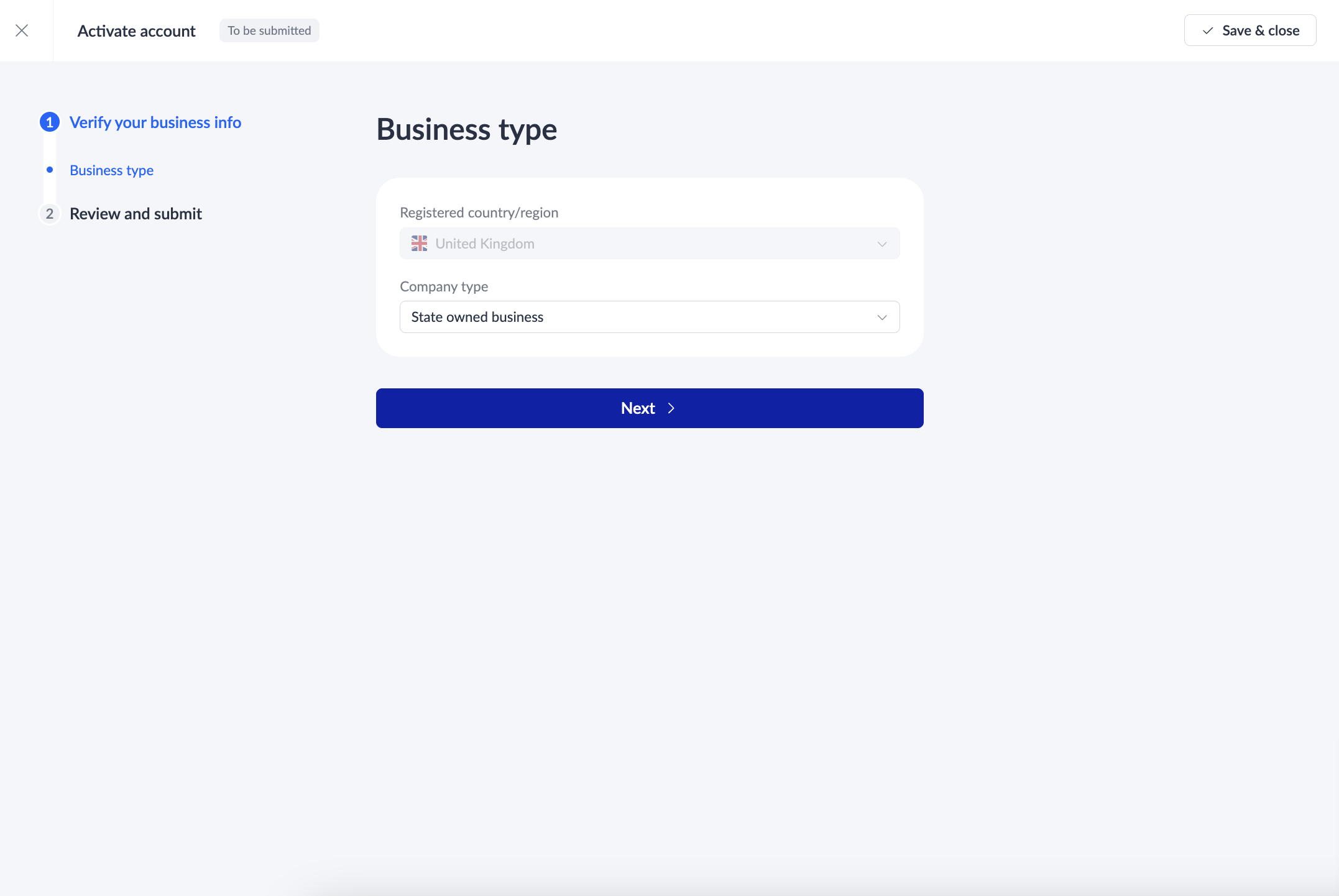
- Different countries or regions have different sets of modules to fill up. The example shown is for Luxembourg.
- If registering in Singapore or Hong Kong (China), you need to fill in Company info, Ultimate beneficial owners, Directors, Contacts, and Review and submit.
- If registering in the United States, you need to fill in Company info, Ultimate beneficial owners, Directors, Authorized person, Shareholder of entity, Contacts, and Review and submit.
|
|
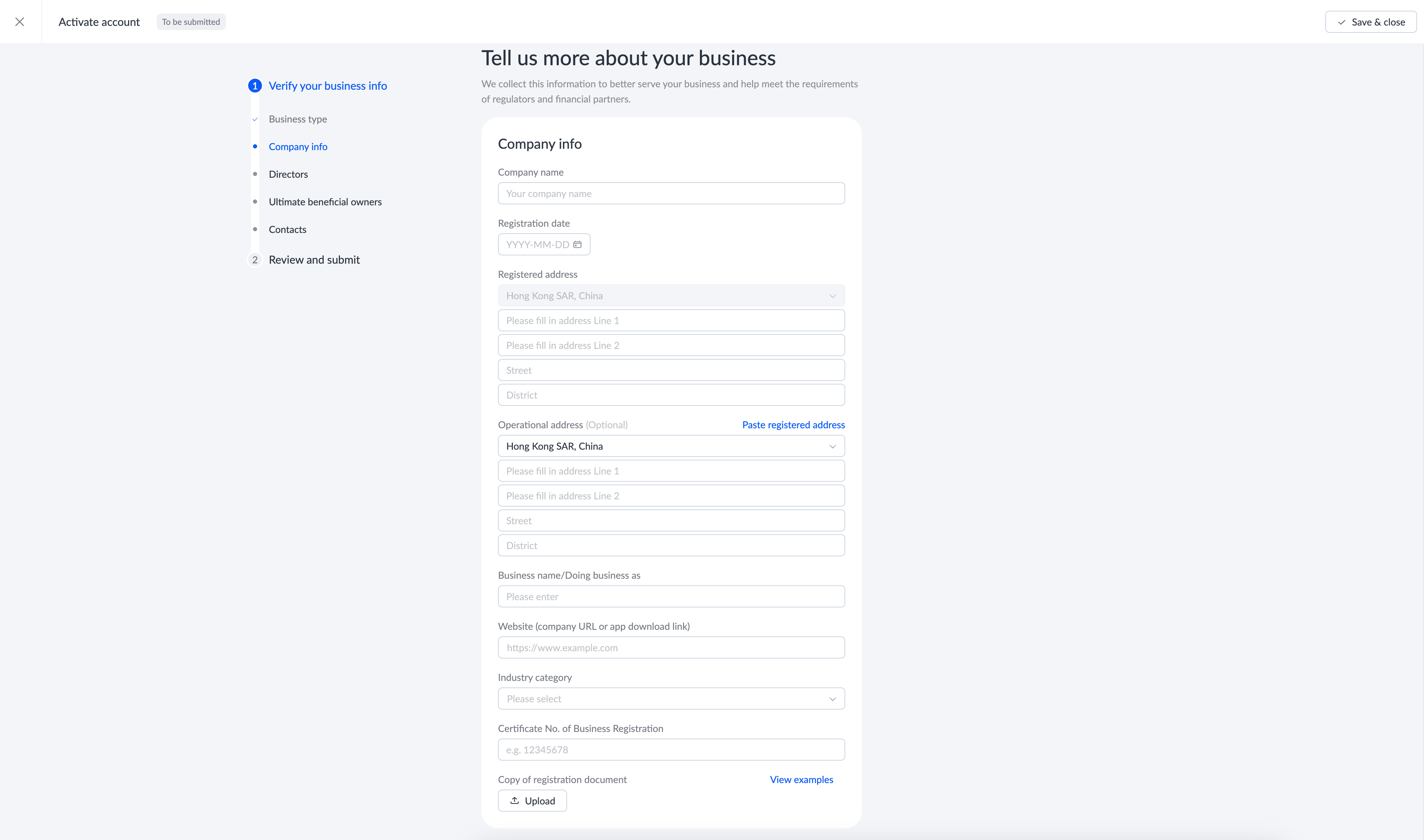
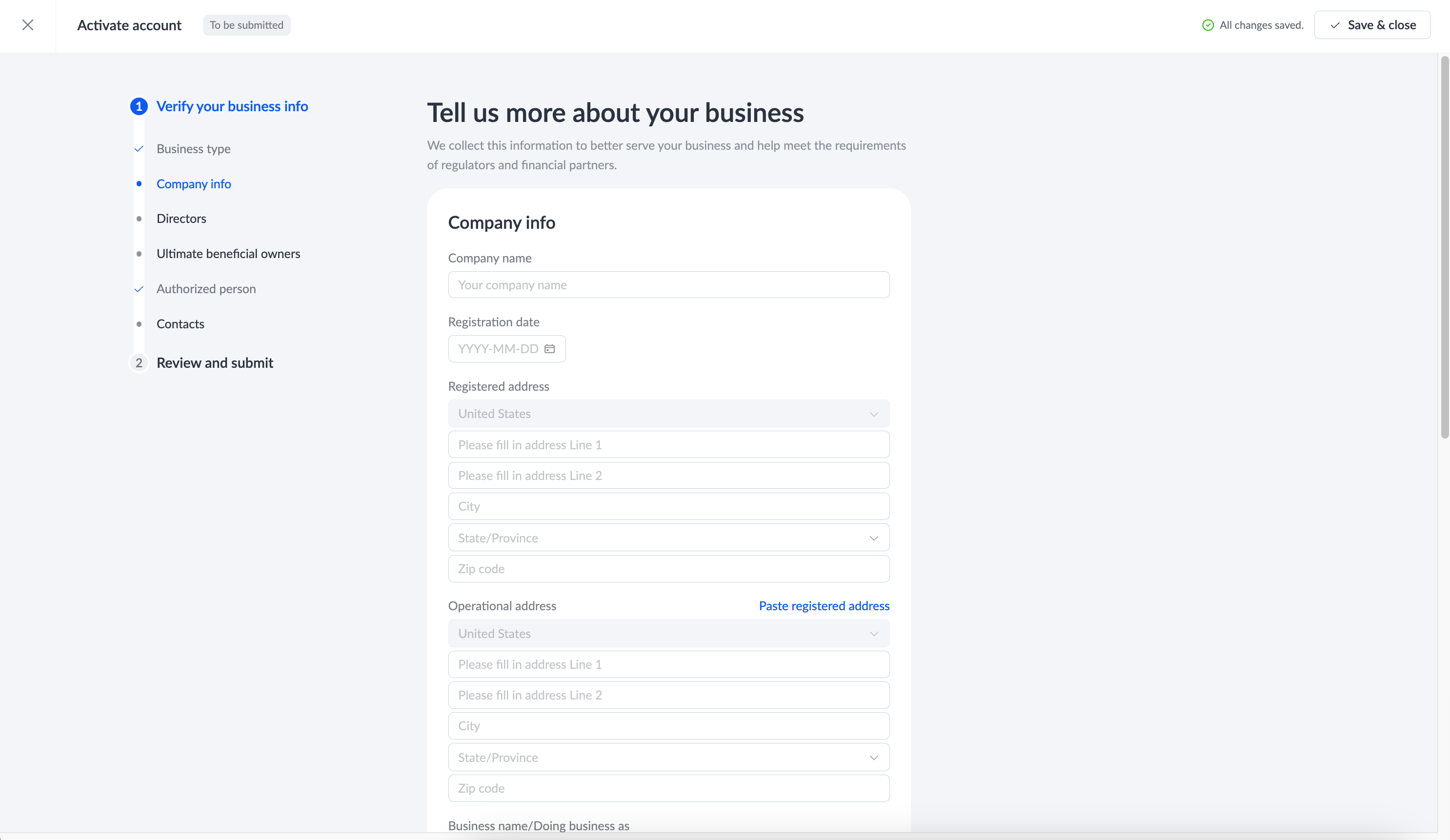
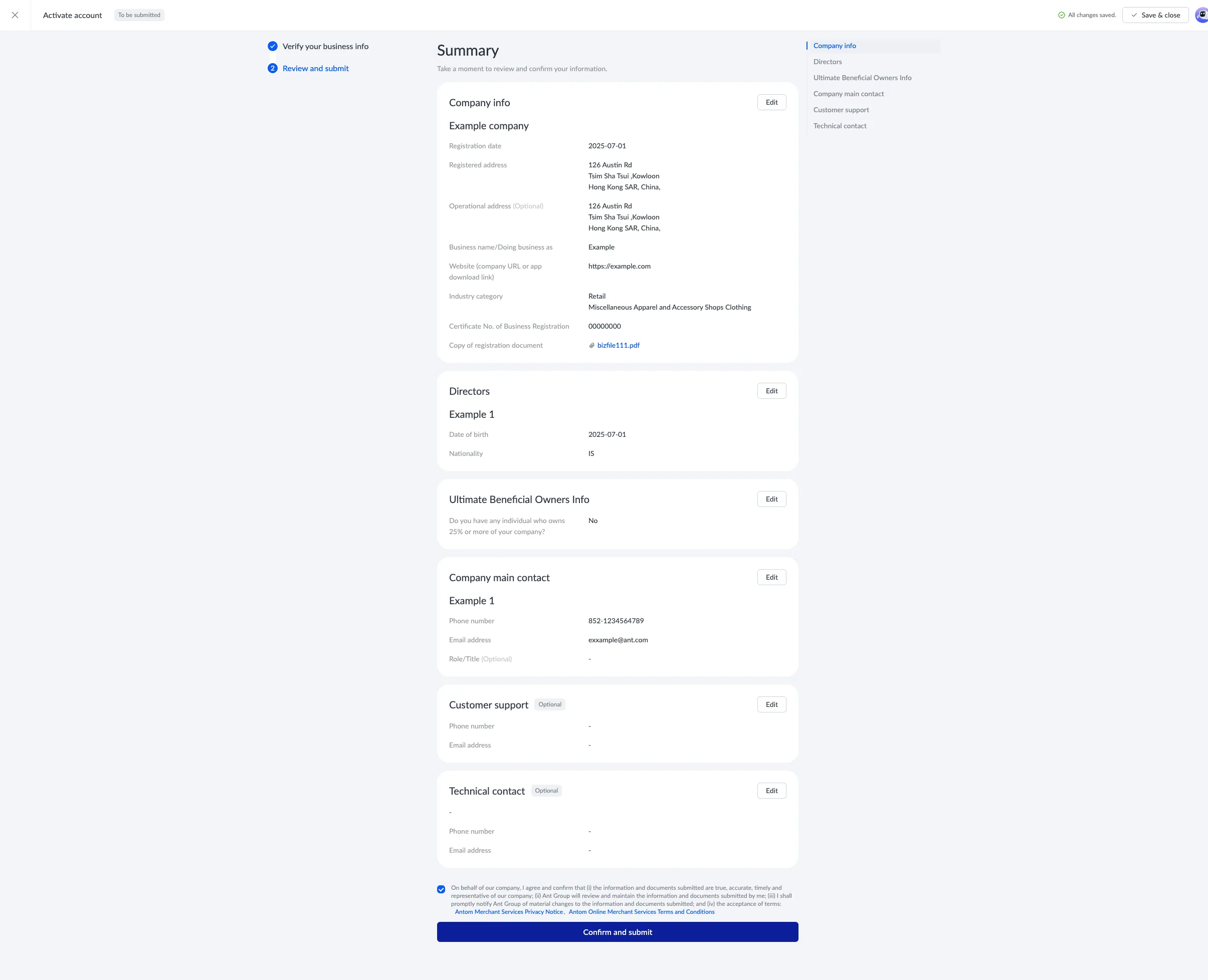
- Review the completed information in the Summary section, accept the Terms and Conditions, and click Confirm and submit to complete the information submission.
The Home page displays the progress of your current registration process. The review result may take up to 1 business day.
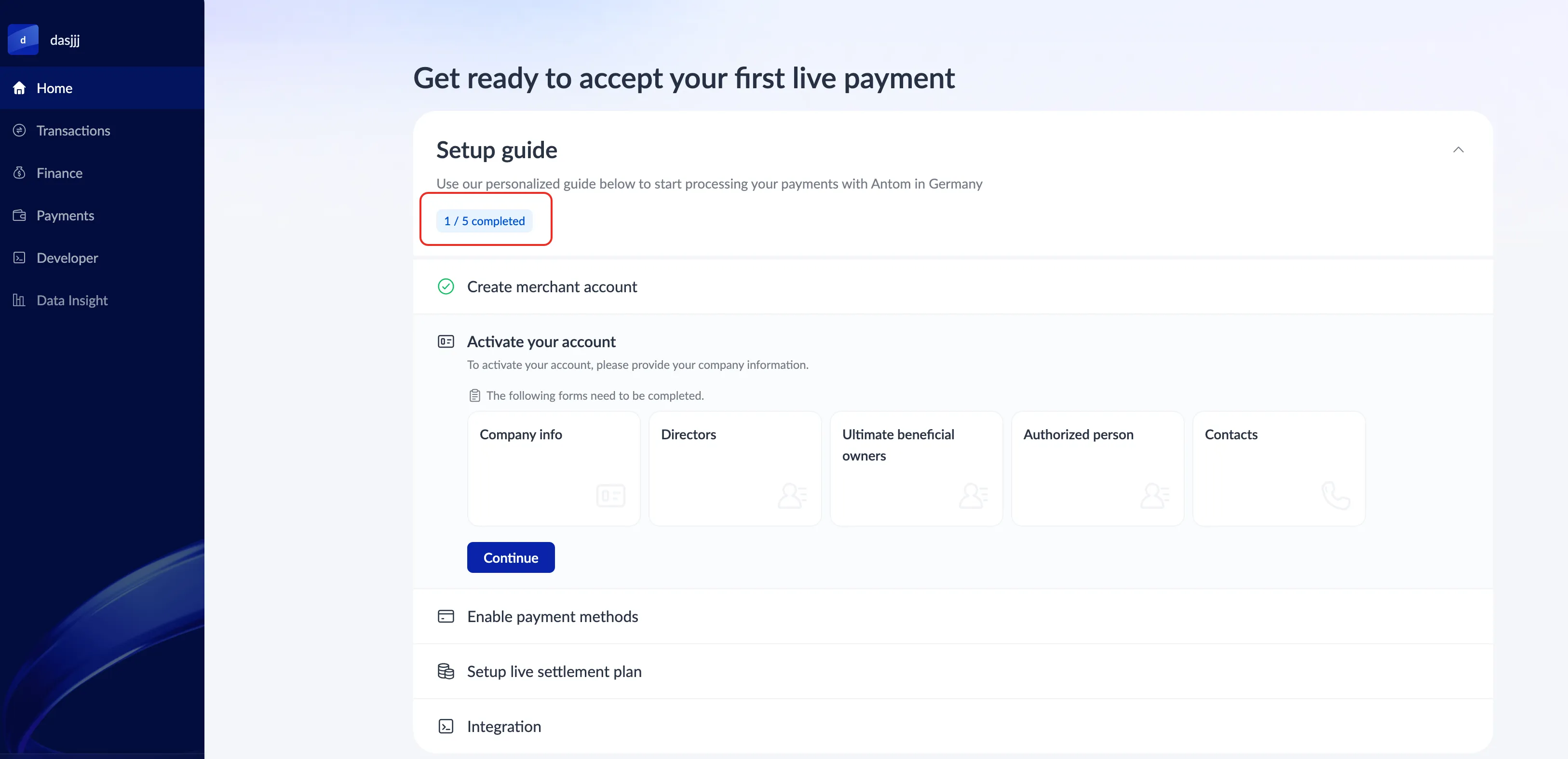
Step 4: Activate your merchant account
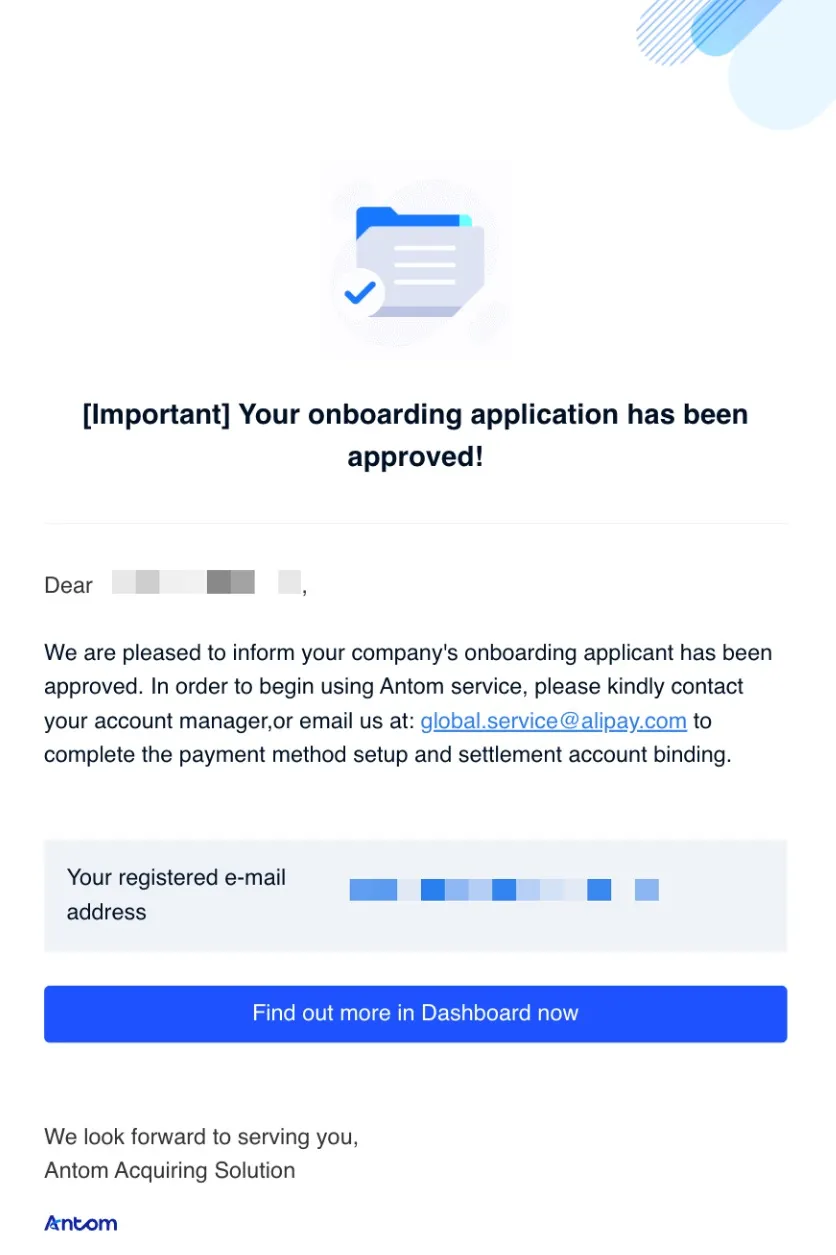
Once your merchant account application has been reviewed, Antom will send you an email.
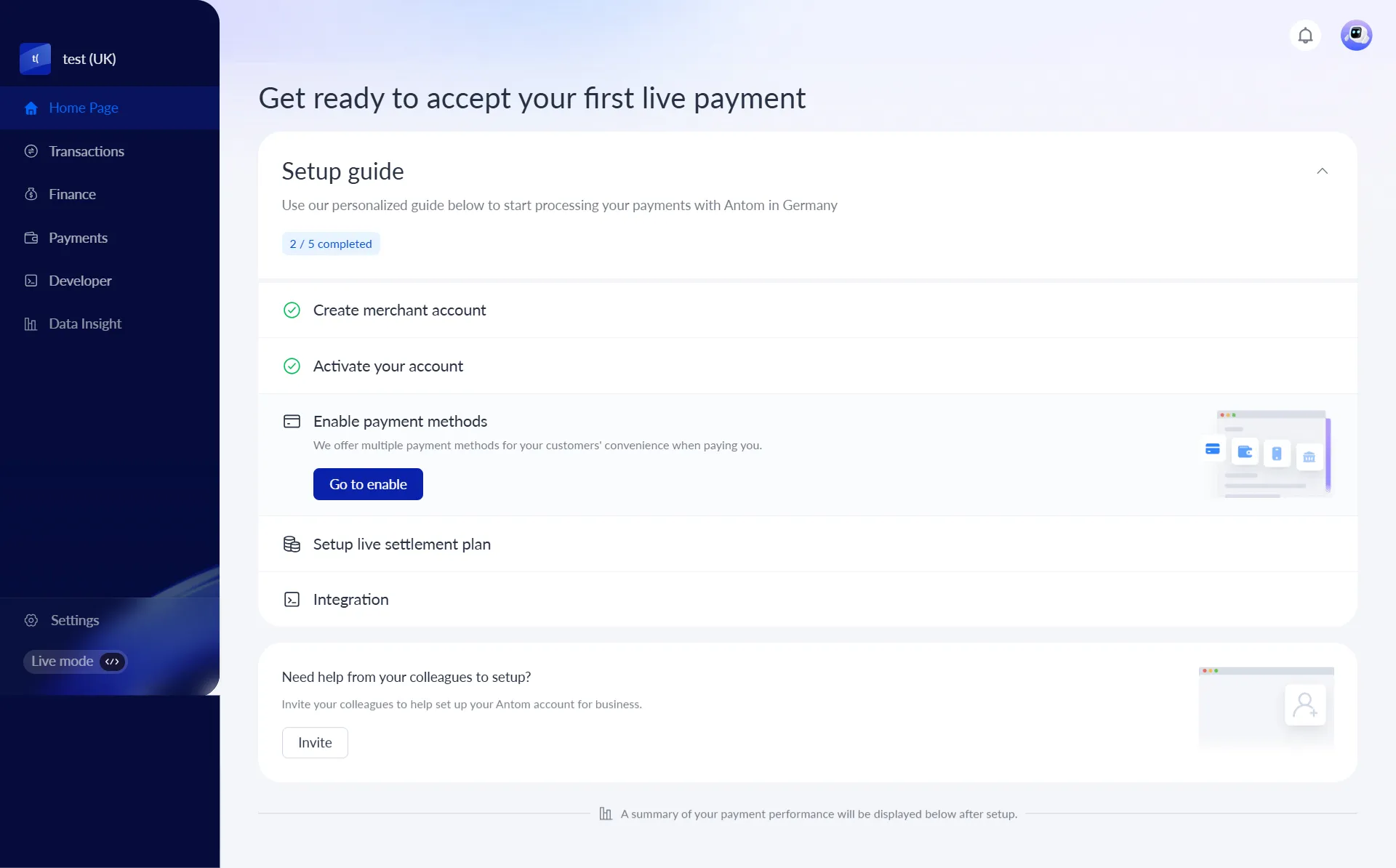
After the account is successfully activated, you can activate the corresponding payment method according to your business needs. For more information about the activation process of payment methods, refer to Enable payment methods.
Add more merchant accounts
Once you have completed the merchant account registration in Step 3, you can add one or more new merchant accounts using the steps below:
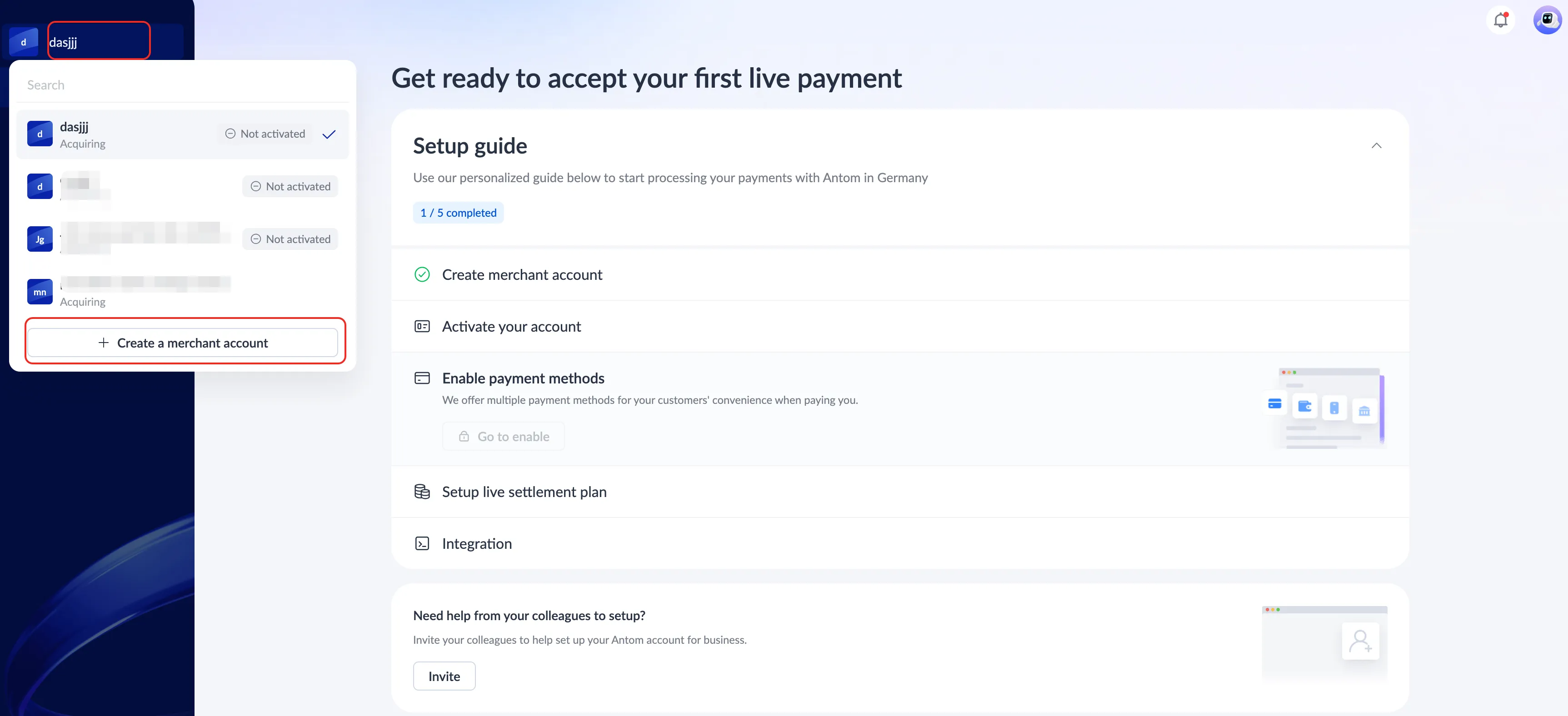
- Click the account icon and click + Create a merchant account to create a new merchant account.
Note: You can add up to 20 merchant accounts. The Create a merchant account option will be disabled if you have hit the merchant account upper limits.
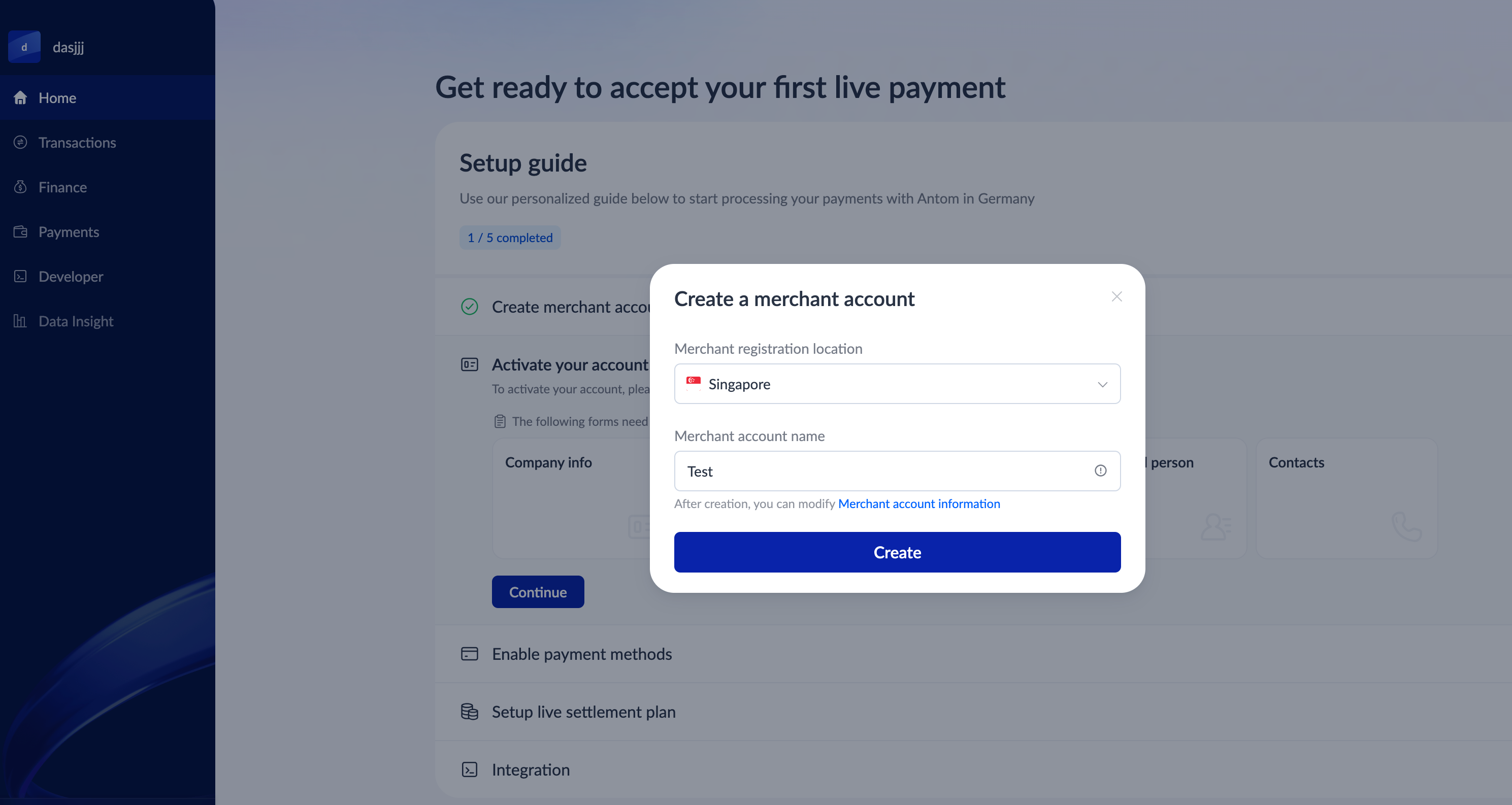
- Fill in the merchant account name and registration location on the pop-up page, then click Create. You will be automatically redirected to the Home page after successfully creating a new merchant account.
|
|
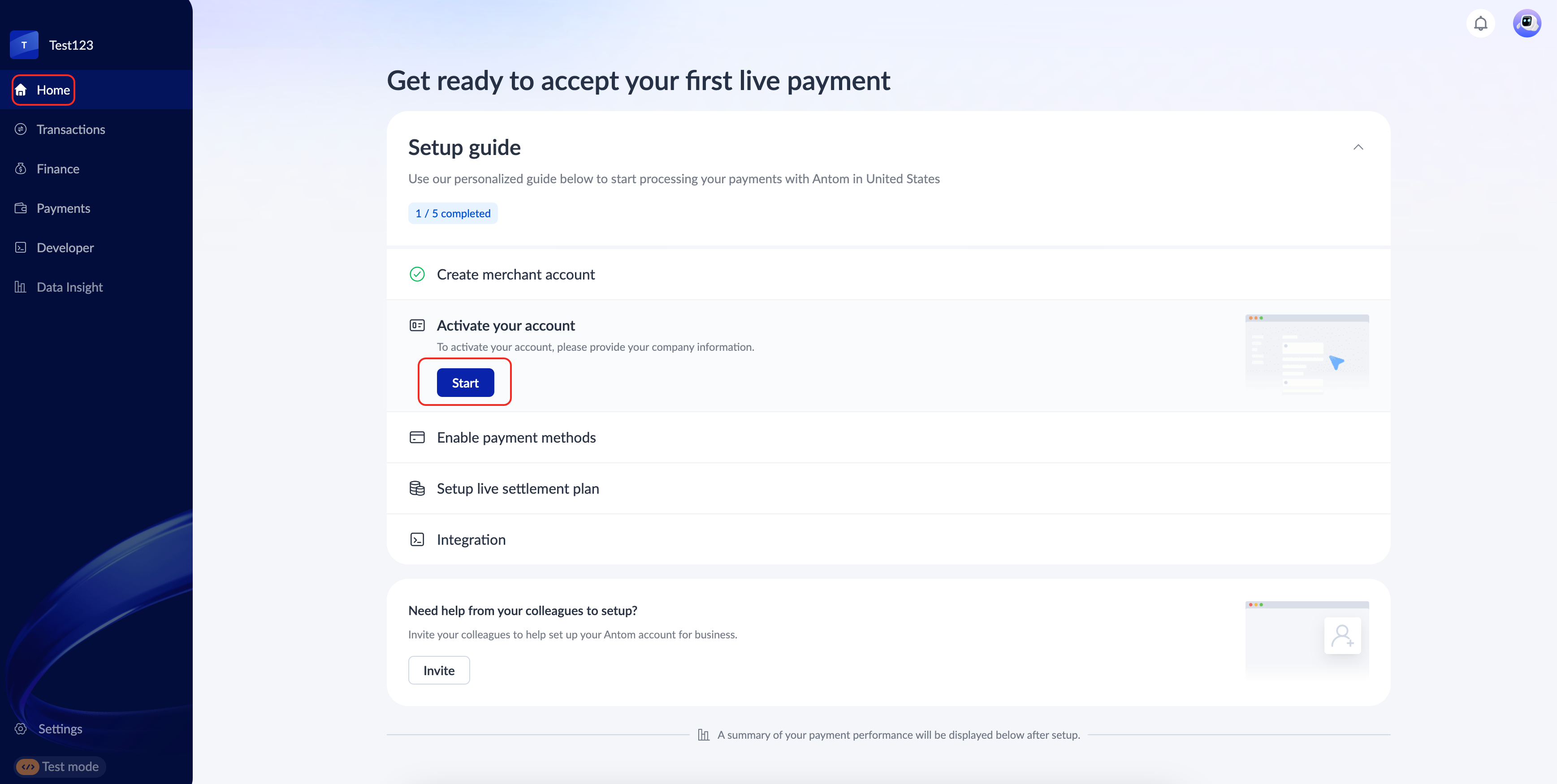
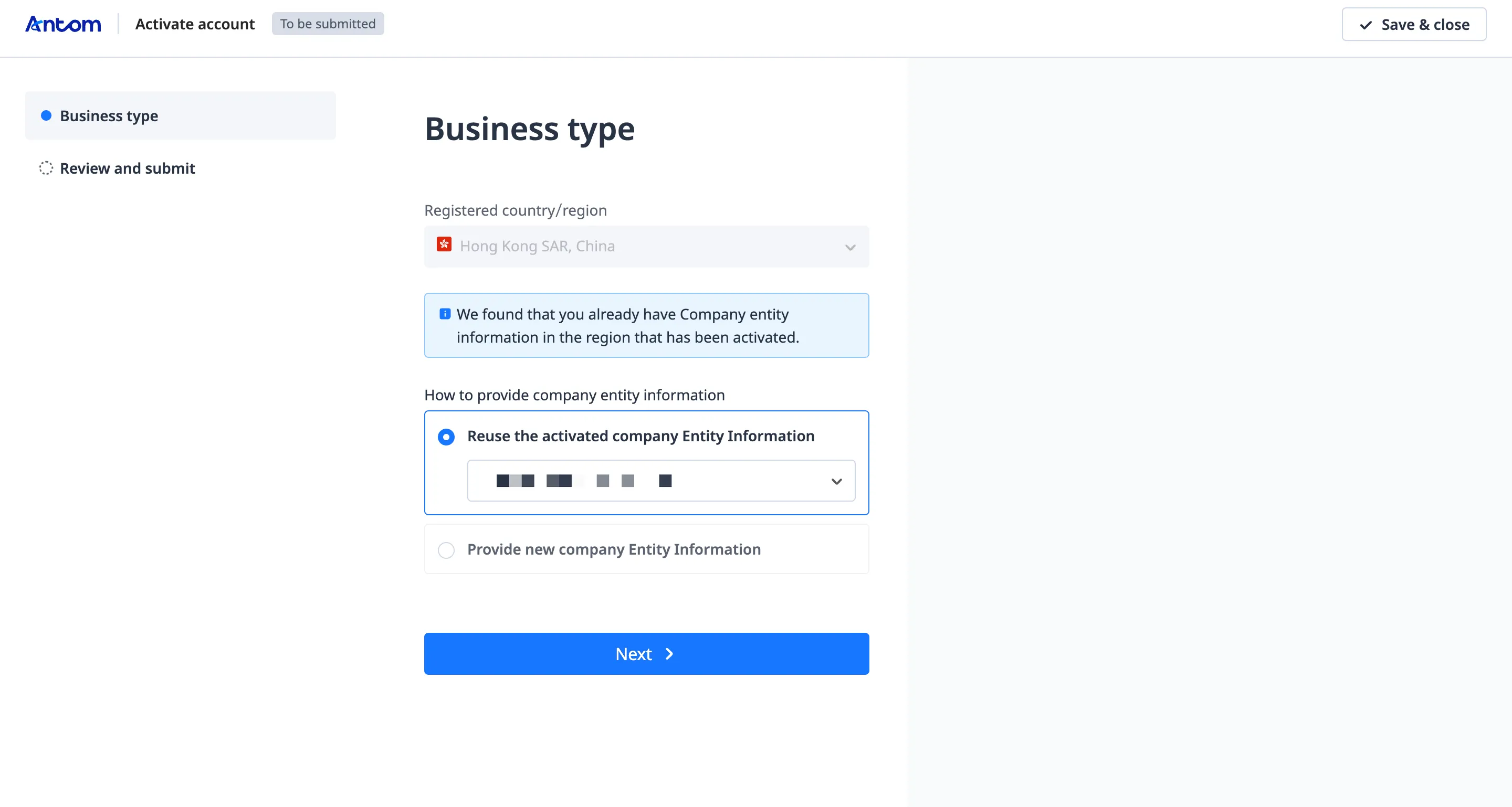
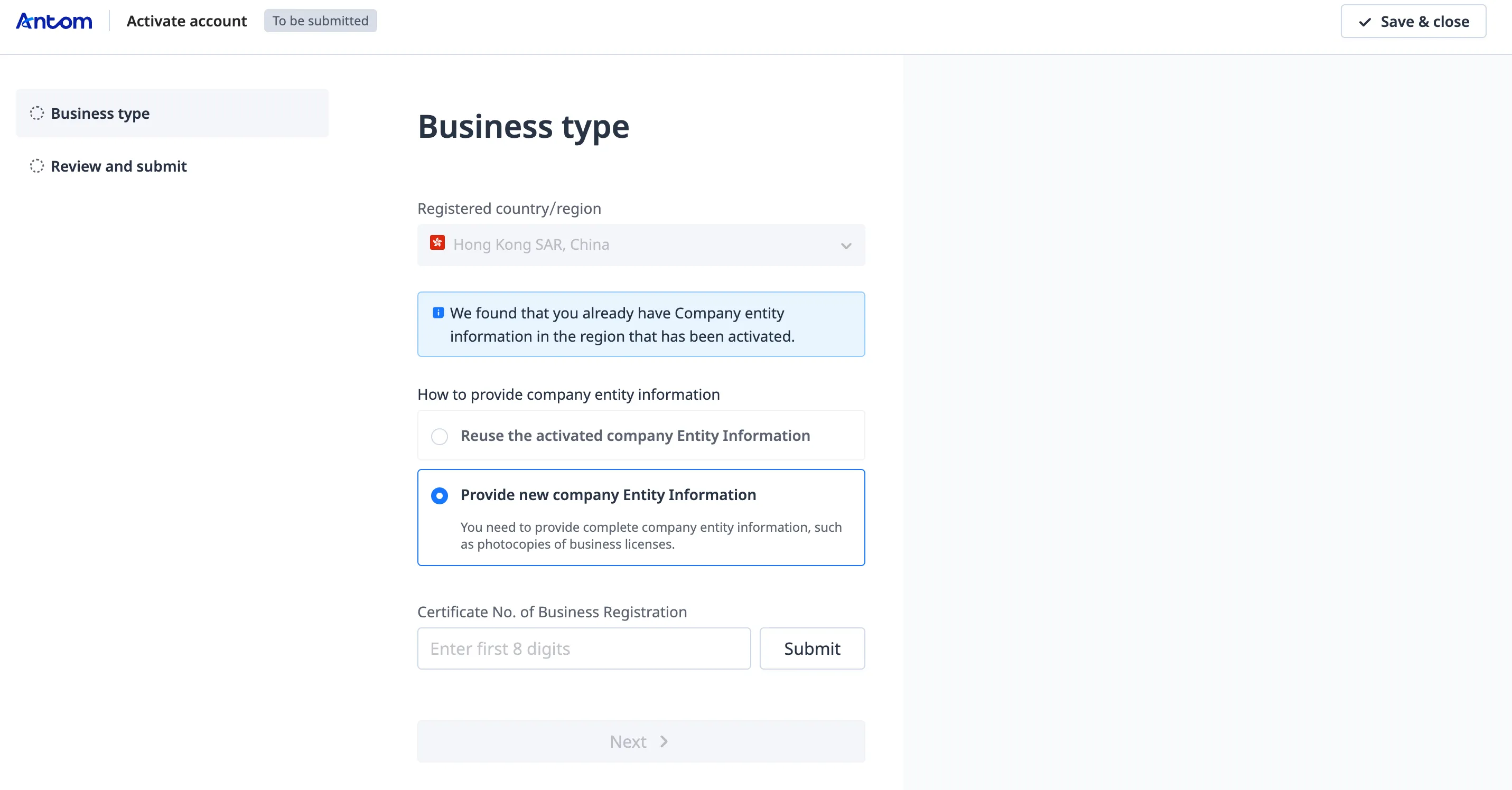
- Click Start on the Home Page to enter the Business type page. You may encounter the following two scenarios:
- If the region of the new merchant account is the same as the region of the activated merchant account, you can choose to reuse the company entity information. Click Next to view and modify the filled information, and submit it to complete the process.
- If you choose to provide new company entity information, repeat the process from Step 3 to complete the registration of your new merchant account.
|
|