
Home
Antom Dashboard Home provides you with the following functions:
- Check follow-up items
- View data insights
- Search all pages
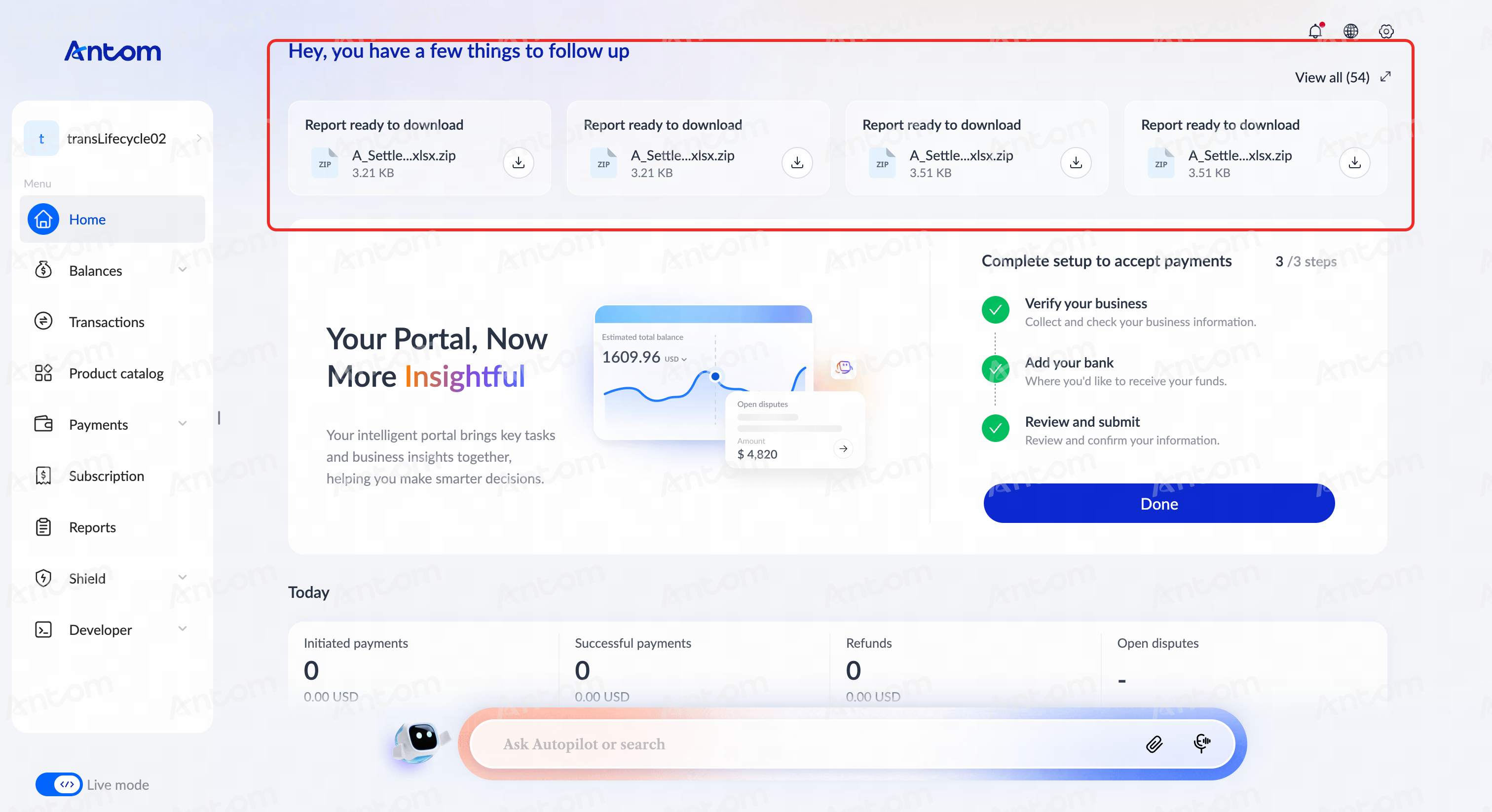
Check follow-up items
A proactive notification section displayed at the top of the Home page that surfaces time-sensitive items requiring merchant attention. The system automatically detects and displays actionable items based on account status and configuration changes. Click View all to check all follow-up items.
View data insights
Today transaction
A real-time metrics dashboard displaying today's payment activity at a glance. Provides merchants with immediate visibility into transaction volume, success rates, and potential issues requiring attention.

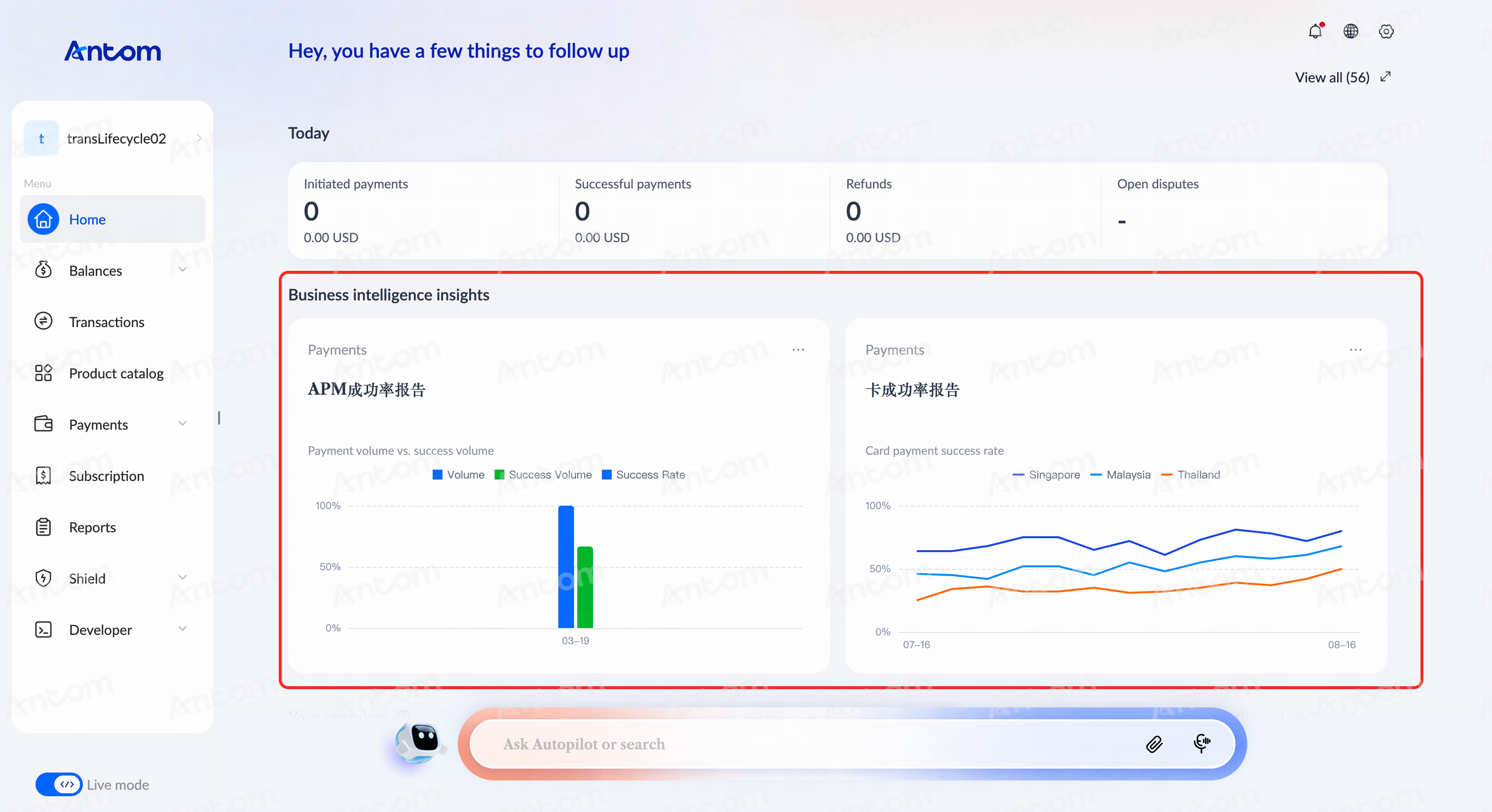
Business intelligence insights
For an understanding of your business performance, you can explore Payments metrics within the Business intelligence insights section. This area provides comprehensive analytics, including payment Volume, Success Volumn, and Success Rate, helping you make data-driven decisions.
Your overview
In Your overview section, you can quickly access key business data insights, supporting data display in four dimensions: Last 3 days, Last 7 days, Last 1 month, and Last 3 months. In a specific data card, after switching to Card or Non-card mode, click View more to enter the Data insight.

Edit data cards
In the Your overview section, you can customize the display of data indicators, and you can display up to 6 indicators at the same time. Add or delete data cards in the following ways:
- Delete data cards: Click Edit to enter the editing state, select an indicator card, and click X > Done to delete the card.
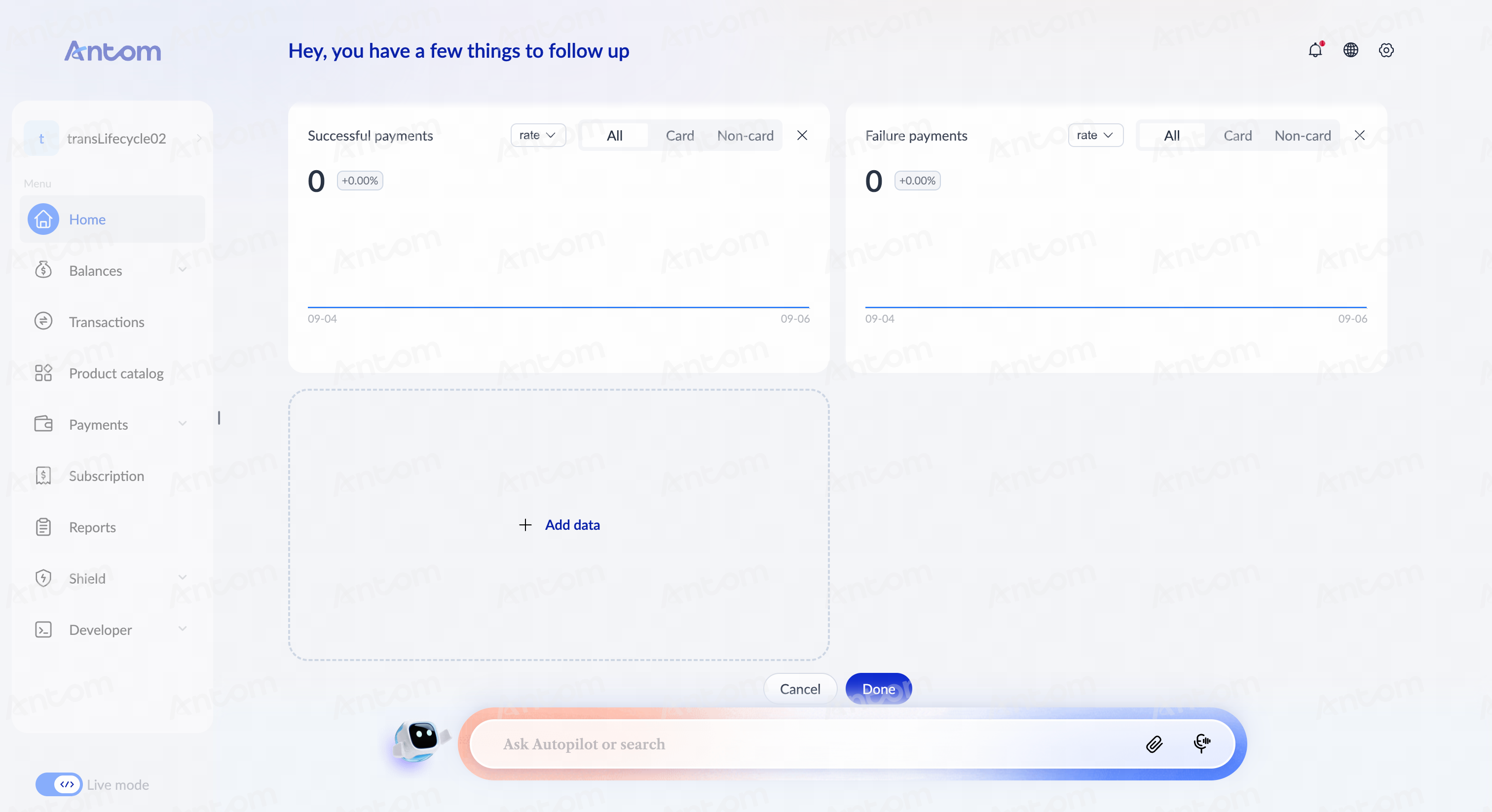
- Add data cards: Click Add data to view all supported data indicators in the All data insights pop-up window. Toggle on it in the upper right corner of the card, then click Apply > Done to display the card.

Search all pages
You can experience the search function at all pages. The search capabilities supported by content are as follows:
- Pure numbers: Supports searches in numeric forms such as transaction ID, invoice ID, phone number, IP address, card number, and amount.
- English: Supports case-insensitive searches in the form of English letters such as file name, user ID, email address, status and currency.
- Chinese: Supports searches for Chinese names such as function modules.
- Special symbols: Supports formats such as "-" in the date cycle and "." in the IP address.
Note: The search box will always appear on top regardless of whether you switch to any menu page in the left directory.
