
Reports
You can download real-time and historical Transactions, Settlement summary, and Settlement details under the Reports module in Antom Dashboard. Additionally, related accounts on the Balance page are displayed as Pending conversion details, To-be-settled details, and Reserve details.
Key features
The type of reports and their key features are described in the following table:
| Report type | Applicable transaction stage | Description |
| Transactions | Transaction initiation | Records changes in the payment lifecycle status of a transaction and serves as a source for verifying transaction details. |
| Pending conversion details | Pending conversion | Records changes in the transitional account used for temporarily holding funds when the transaction currency differs from the settlement currency. When a cross-currency transaction occurs and the exchange rate is not yet determined, the successfully transacted funds are temporarily held in the pending conversion account. On the next business day, after the exchange rate is obtained, the system automatically converts the funds into the settlement currency and transfers them to the to-be-settled account. The pending conversion details include the inflow and outflow ledger entries of the pending conversion account. The month-end balance of the pending conversion account typically consists of transaction funds that were successfully processed but have not yet been converted due to pending exchange rates before the last business days of the month. |
| To-be-settled details | To-be-settled | Records he inflow and outflow ledger entries of the to-be-settled account, reflecting the actual fund movements in the account. Inflows are typically transaction records; outflows are typically settlement payouts, collaterals or reserves, and fees that can only be deducted at the batch level rather than per transaction. |
| Settlement summary | Settlement completed | A summary file for settlement batches, used for viewing an overview of the settlement. |
| Settlement details | Settlement completed | The detailed settlement corresponding to a settlement batch, used for verifying the details of each settled transaction. |
| Reserve details | reserve movement | Records the inflow and outflow details of the reserve account funds, used for monitoring reserve account movements. |
Transaction stages and reports
The complete lifecycle of a transaction spans multiple stages. The fund movements at each stage are recorded in specific type of reports. The correspondence is shown in the following diagram:
 The correspondence between reports, fund flows, and their specific purposes is shown in the following table:
| Reports | Content | Corresponding fund flow | Purpose |
| Transactions | The original detailed report of all transactions: Records the complete lifecycle status of each transaction. It is the primary reference for verifying whether an order was actually initiated and completed, and whether there were refunds/chargebacks, etc. Includes transaction status such as:
| Objectively reflects transaction events, without directly tied to any fund flow. When a transaction is marked as Success, the corresponding amount will be simultaneously recorded in the pending conversion account and reflected in the Pending conversion details. | Used for daily operational monitoring, buyer service handling, risk control checks, and preliminary financial review. For example: Querying the refund or chargeback status of a transaction by order number helps you respond quickly to consumer inquiries. If a large number of unpaid orders are found, you may need to check your shopping cart and checkout page. |
| Pending conversion details | The temporary reservoir for transaction receipt funds: Records the ledger details of the pending conversion account. It is the key link connecting original currency income to target currency settlement. Contents include:
| Inflow: All successful transaction details from the Transactions. Outflow: After each detail is converted into your required settlement currency by Antom, the detailed amount will be simultaneously recorded in the to-be-settled account and reflected in the To-be-settled details. | Helps you track how many receipt details and amounts are currently pending conversion or have been converted, useful for predicting cash flow. |
| To-be-settled details | The last stop before settlement payout: Records the ledger details of the to-be-settled account. It is the preparatory stage for the final settlement payout. Contents include:
| Inflow:
Outflow:
| Helps you understand the exchange rate and transaction fees associated with the transactions, allowing for preliminary financial reconciliation. Also helps you identify the amount pending payout, facilitating the prediction of financial crediting and cash flow. |
| Settlement details & Settlement summary | Reports for expected incoming funds: Antom calculates the amount payable to you for the current period based on contract terms and provides a detailed breakdown. Contents include:
| Specifies the final amount Antom expects to initiate as a payout to your bank account and the composition of this specific amount, not directly linked to any fund flow. | These are core reports for your financial booking, bank reconciliation, and audit archiving:
|
You can also filter reports' transaction details by transaction type and use matching batch IDs to verify these transactions. Identify the transaction types included in each report through the following ways:
- Transactions: View the transactionType parameter in Transaction details report.
Note: You need to check the transaction status at different lifecycle stages on the All transactions page and export the transaction report. Transaction information changes in real-time, and the transaction reports exported at different times vary as transaction statuses change.
- Settlement details: View the transactionType parameter in Settlement details report.
- Settlement summary: View the summaryType parameter in the Settlement summary Report.
Example
Business scenario
Suppose you operate a business in Malaysia. Buyers pay for goods or services using the local mainstream wallet Touch'n Go eWallet (the currency is MYR). However, your company entity is in Hong Kong, and you want Antom to convert the transactions from the Malaysian market into HKD and payout to your entity bank account. You also need to perform reconciliation at various transaction stages.
Reconciliation
As your global acquirer, Antom independently sets up two exclusive multi-currency accounts for you:
| Account Type | Currency | Purpose |
| Pending conversion account | MYR | Receive buyer payments |
| To-be-settled account | HKD | Receive converted funds for bank settlement |
A transaction automatically undergoes the following process, flowing through different accounts until the final payout is initiated to your entity bank account:
- Buyer pays → Transaction successful; funds enter the pending conversion account (MYR).
- MYR is automatically converted to HKD at the exchange rate → Converted amount enters the to-be-settled account (HKD).
- Initiate payout according to the agreed contract cycle → Final funds are paid into your Hong Kong bank account (HKD).
For the above scenario, you can track the current stage of the transaction in different reports after a buyer completes a transaction:
- Transactions: You can view the successful records and the sales to settlements stage of the transaction.
- Pending conversion details: You can view the successful records of the transaction (MYR inflow) and the records of this transaction being used for conversion (MYR outflow).
- To-be-settled details: You can view the converted amount of the transaction (HKD inflow).
- Settlement details: Indicates that the transaction is ready for settlement payout. You can view the original MYR transaction composition, exchange rate, fee amount, etc., corresponding to this transaction.
All the above reports can be queried, downloaded, filtered, and exported in real-time from the Antom Dashboard. Through these statements, you can track every step from buyer payment to settlement payout, achieving refined financial management and efficient global settlement.
Generate reports
You can use one of the following methods to generate reports:
- Generate reports manually
- Generate reports automatically
Generate reports manually
All reports can be generated from the following pages:
- On the Reports page: Locate the report you want to query, and click Generate. You can select the file format and date range in the Generate report pop-up window. Click Generate report to enter the report list page of the selected report. After the report is generated, click the Download icon to obtain the file.
- On the report list page: Click any report on the Reports page to enter the report list page. On this page, you can view the report list of all reports and download generated reports. Click Generate report in the list's upper-right corner, select the file format and date range in the Generate report pop-up window, and click Generate report to generate a report. After the report is generated, click the Download icon to obtain the file.
|
|
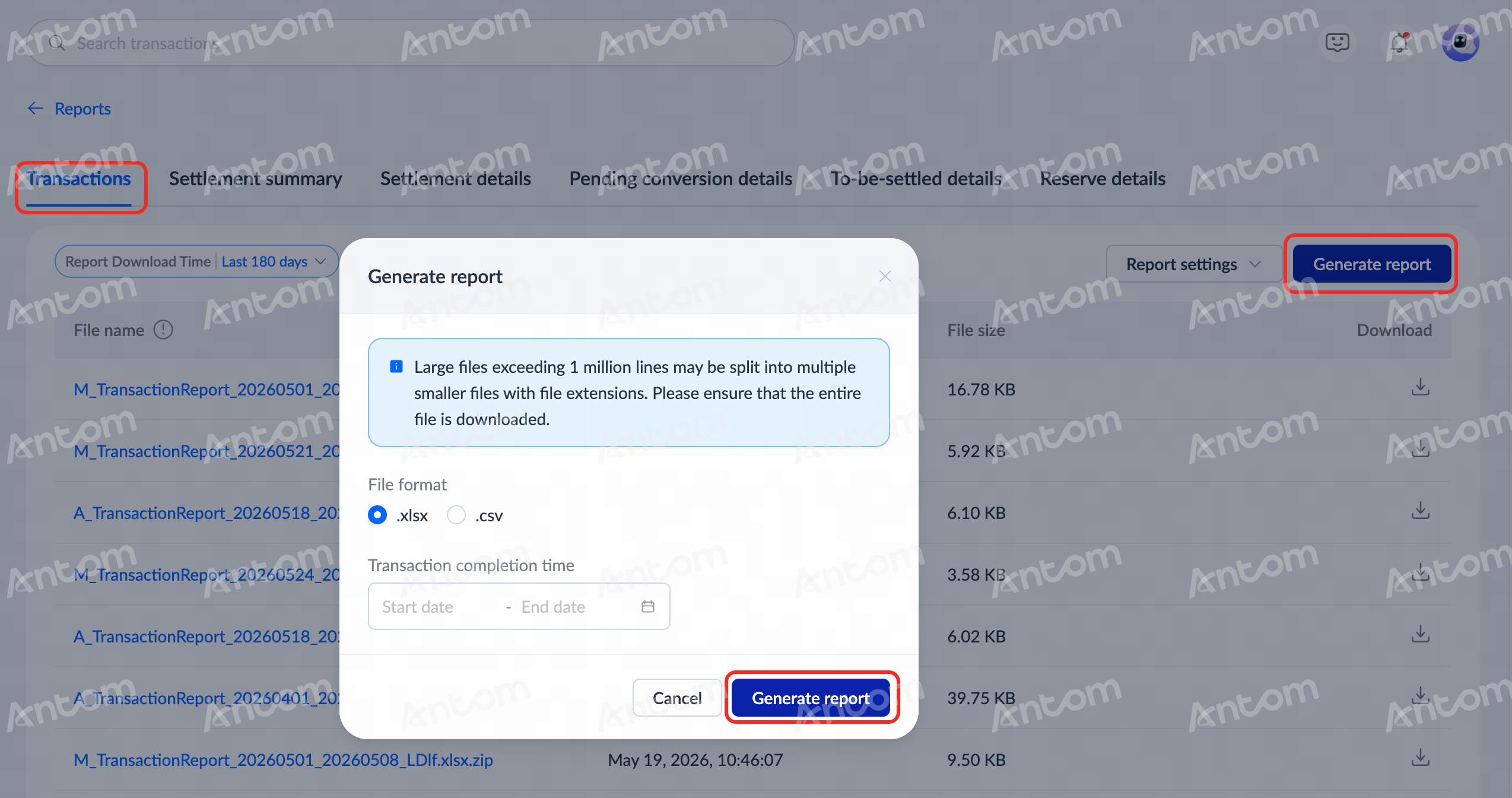
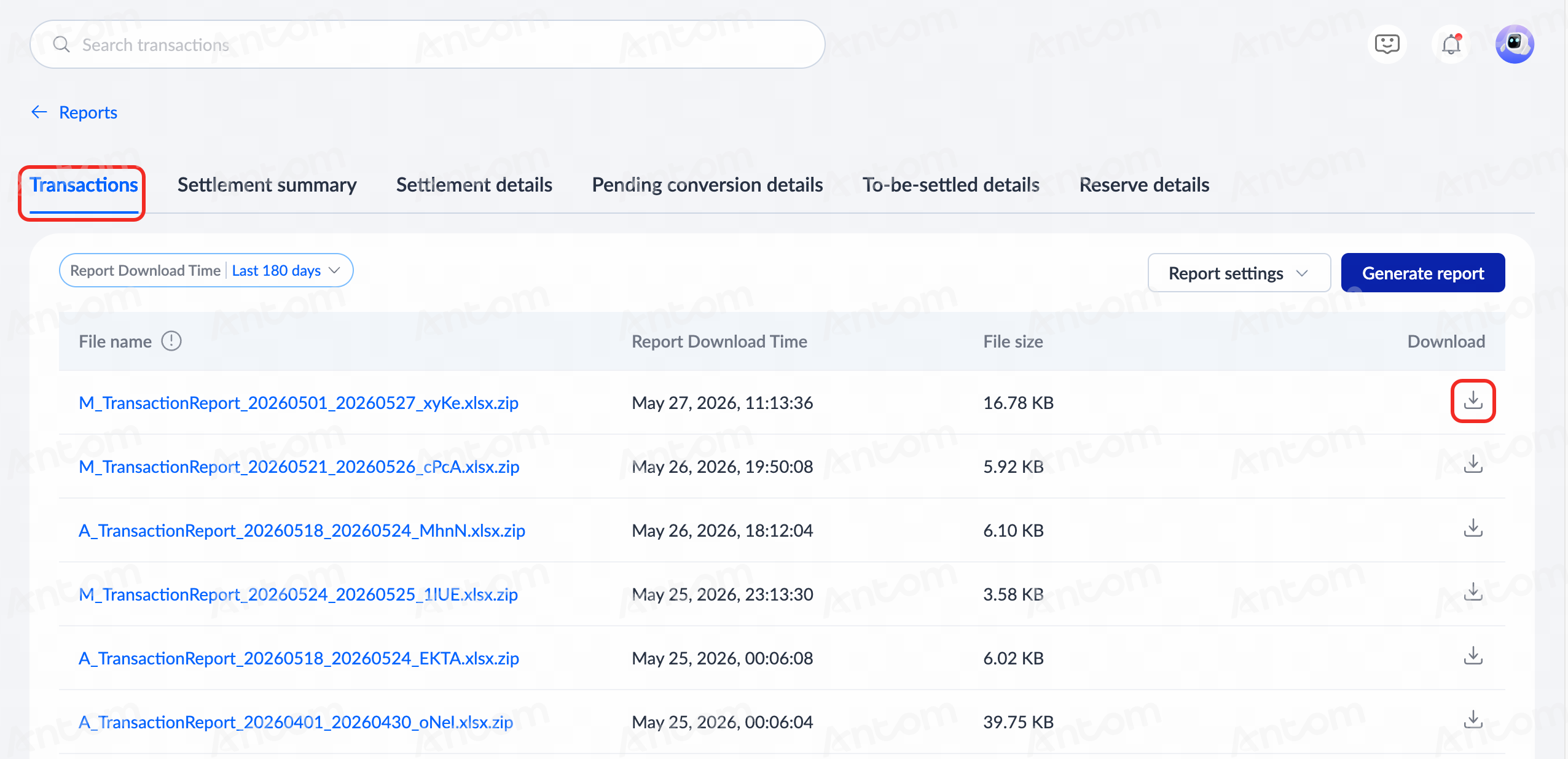
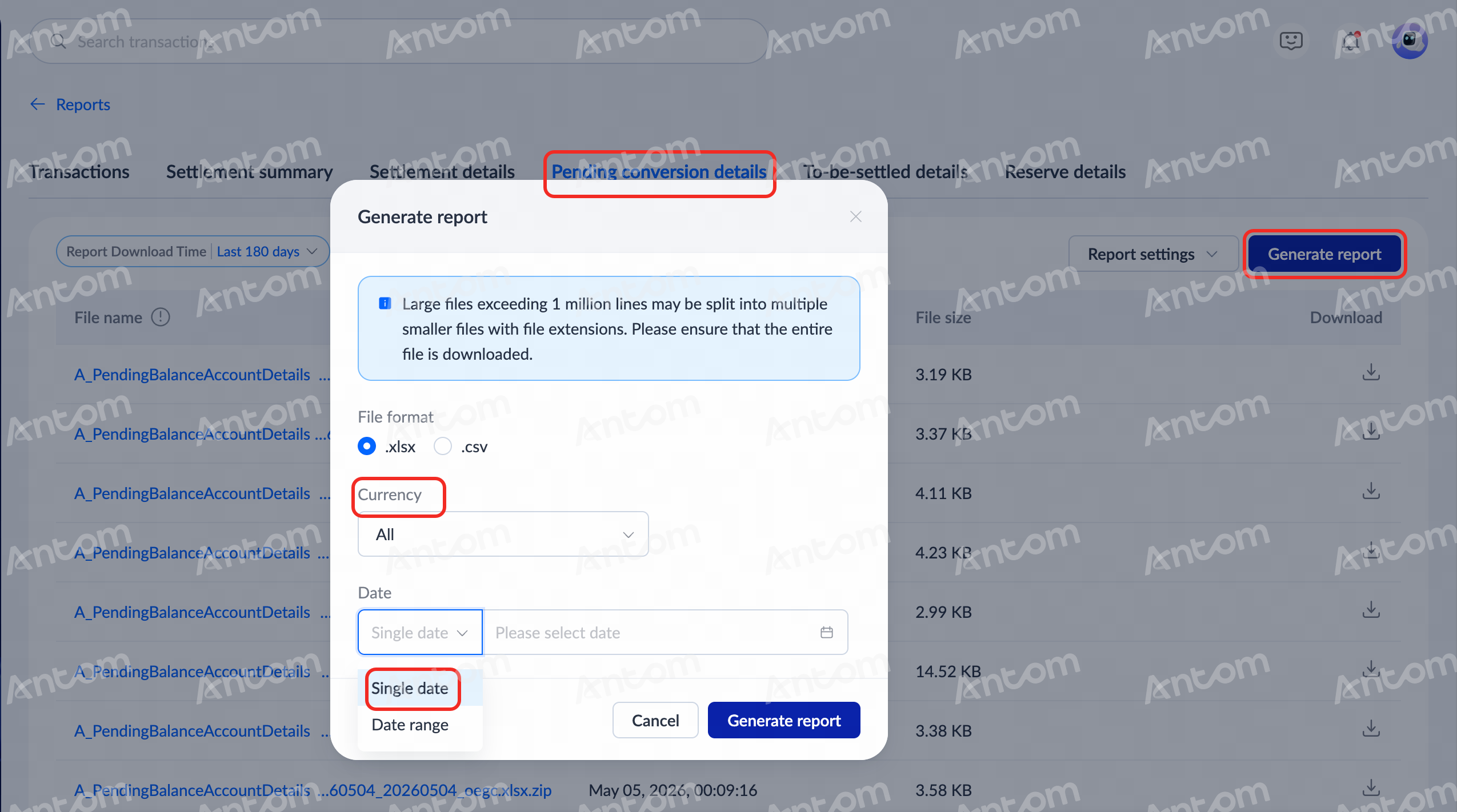
Note: For pending conversion, to-be-settled, and reserve details, the Generate report pop-up window also provides options for selecting currency and single date, in addition to selecting the file format and date range.
Generate reports automatically
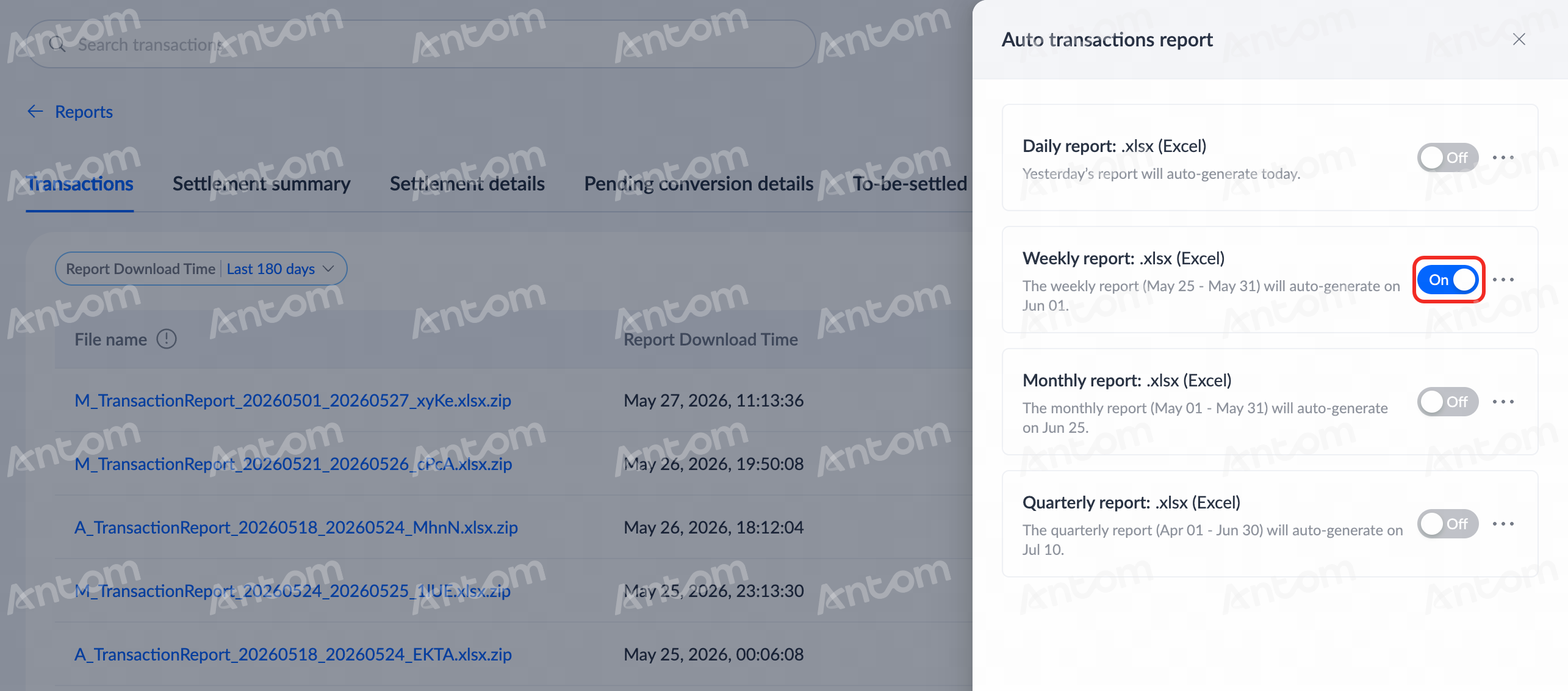
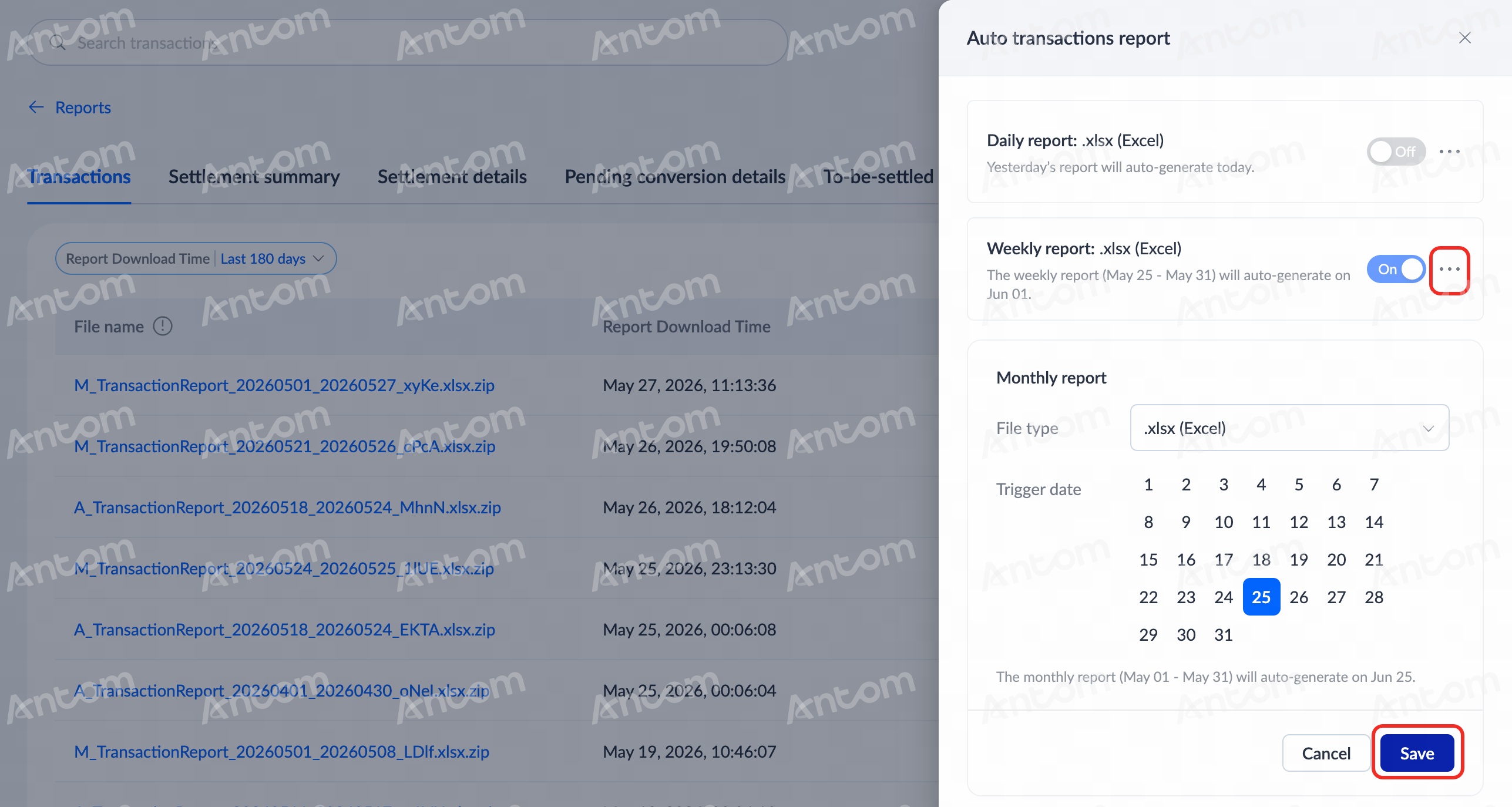
Click any report on the Reports page to enter the report list page. Click Report settings > Set schedule, and you can customize the settings of reports according to your own needs. Detailed steps are as follows:
- In the Auto transactions report window, click the corresponding On button to set the auto-generation schedule.
|
|
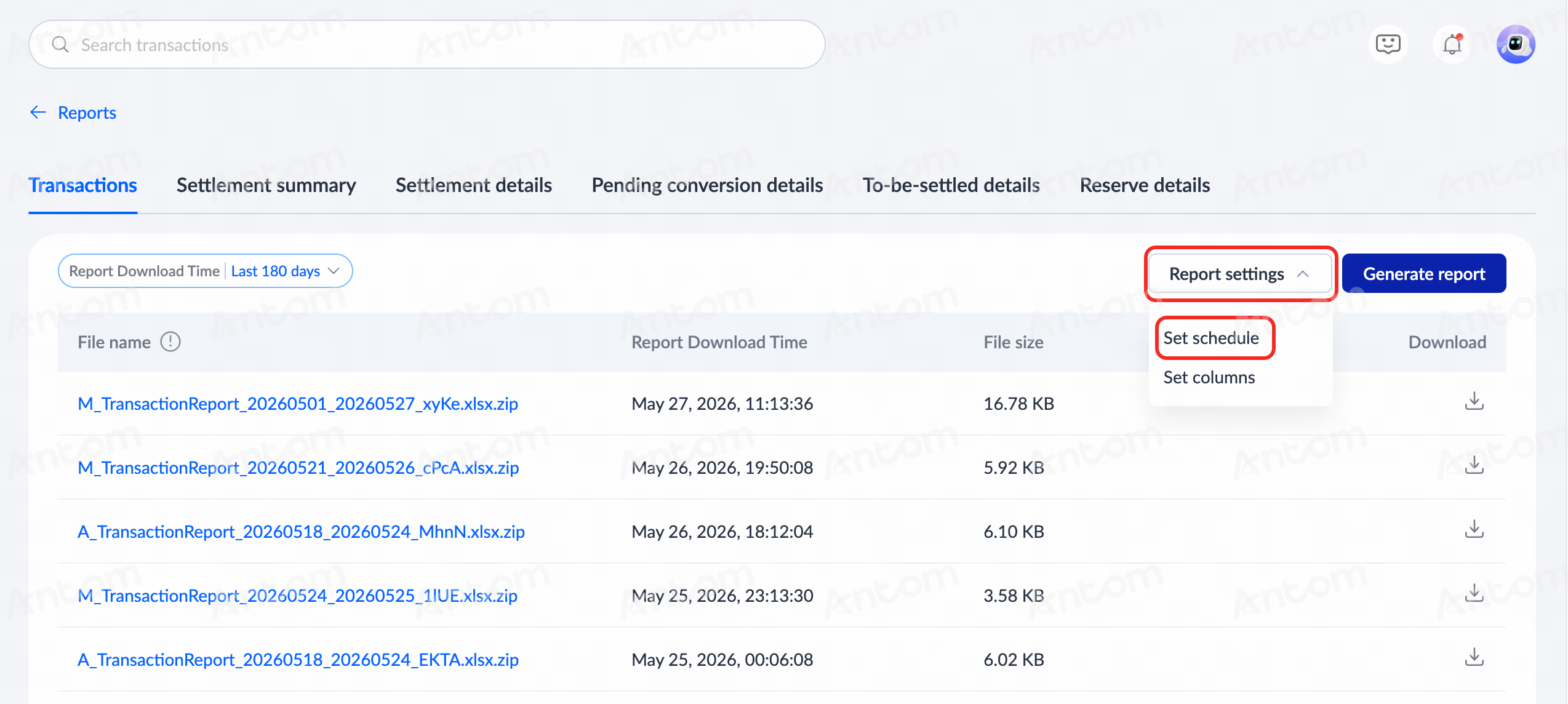
- Click Edit to set File type and Trigger date, and click Save to apply the settings. After completing these steps, reports will be generated automatically in the selected file type and on the set trigger date. You can view and download the auto reports on the report list page according to the time generated.
Customize reports
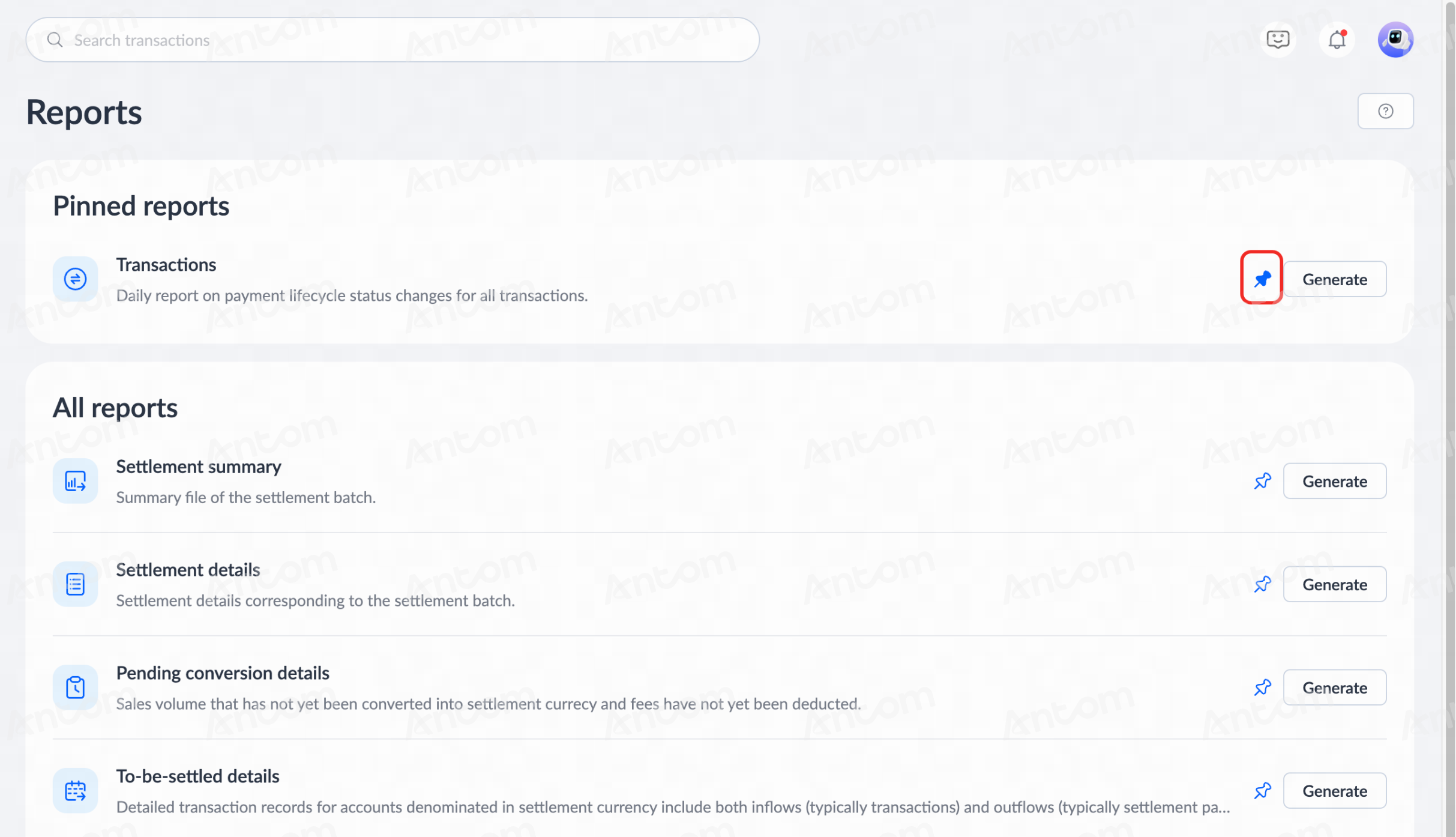
Customize pinning
On the Reports page, click the pin icon to display reports in the Pinned reports section. Other reports are displayed in the All reports section.
Customize report columns
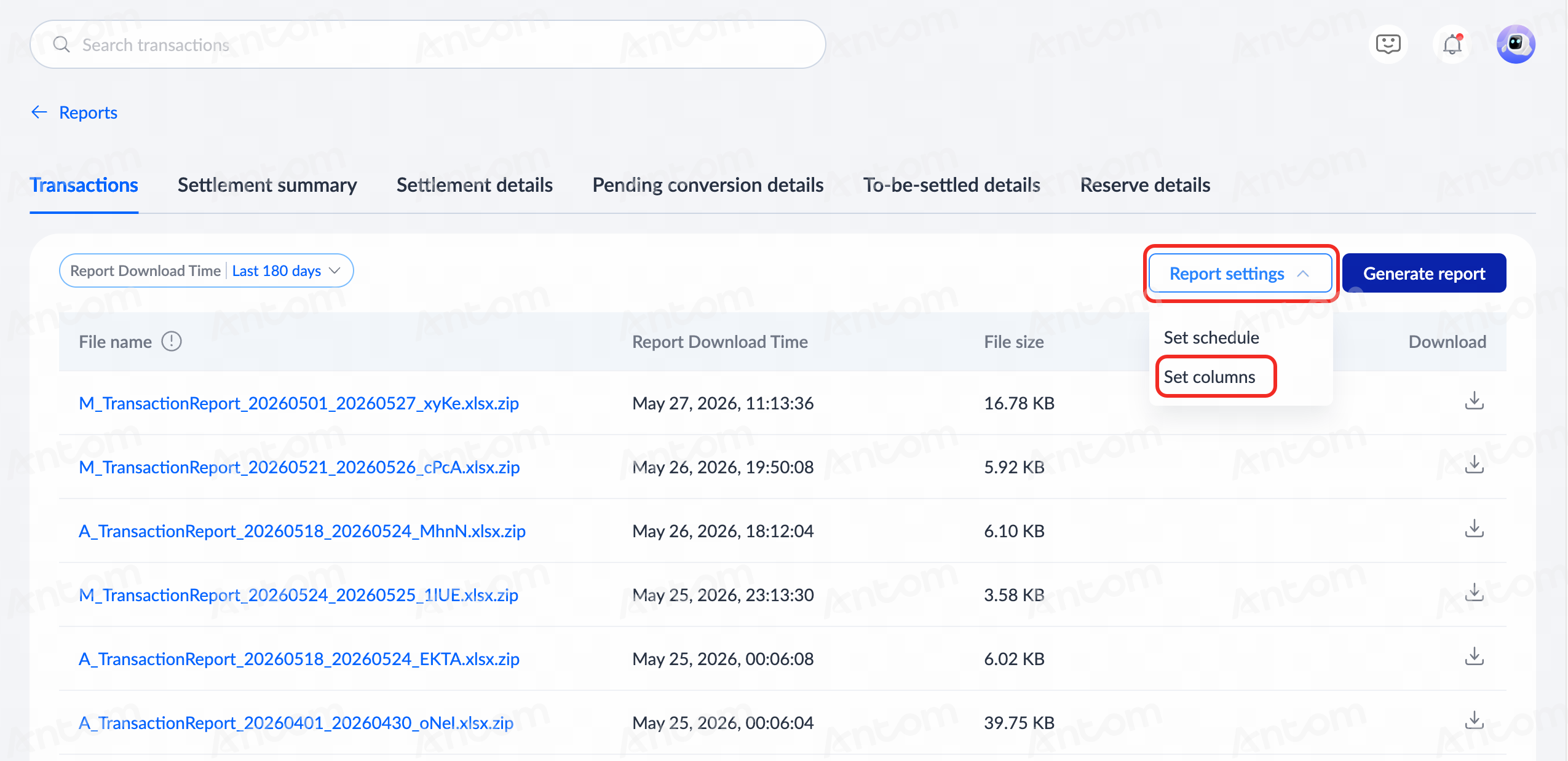
You can configure report column headers as needed. The following methods apply to all report pages:
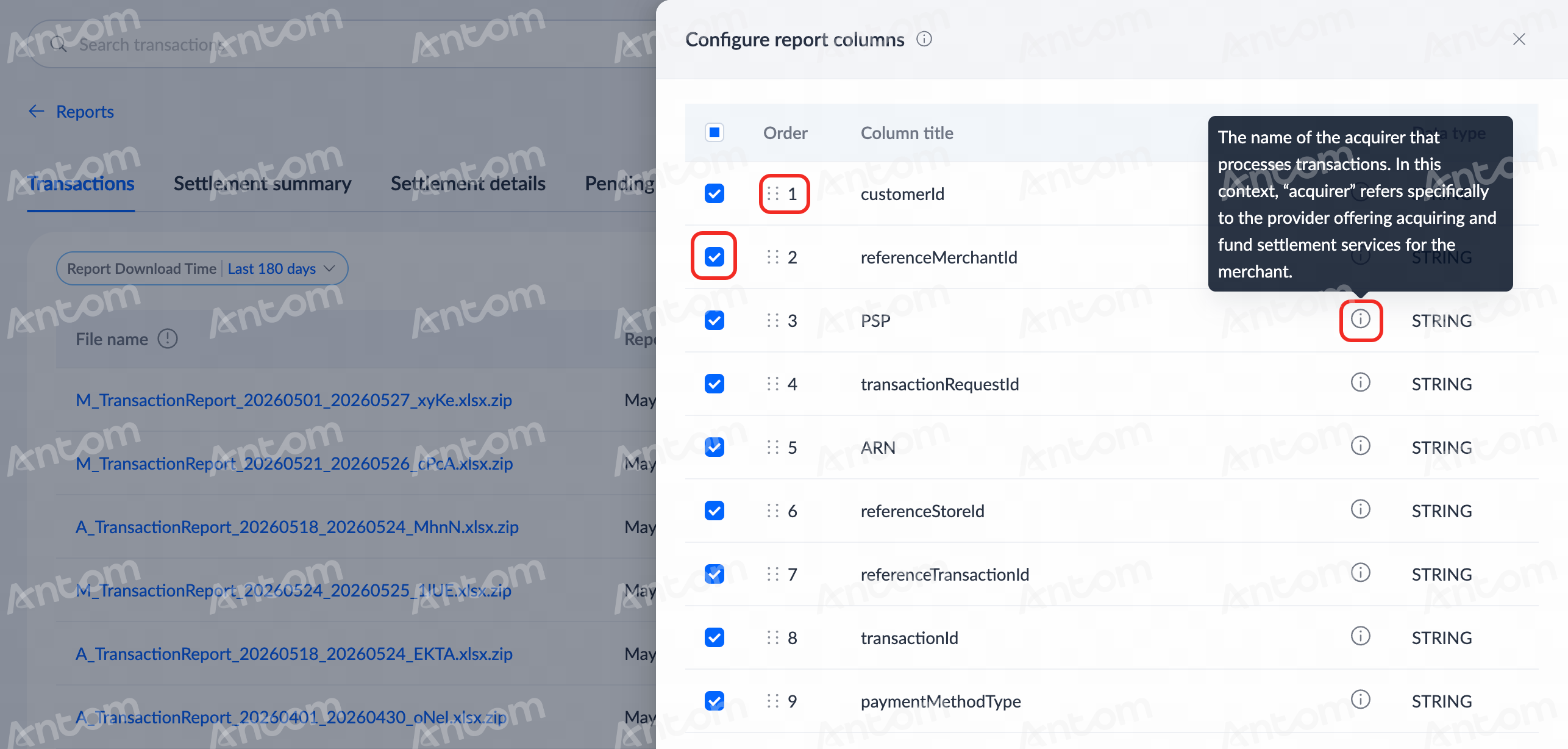
- On any report list page, click Report settings > Set columns. You can complete the column settings and perform the following actions on the Configure report columns page:
- View the order, column title, definition, and data type.
- Click the order icon and drag the column to adjust its display position in the generated report.
- Check the columns that you want to display in the reports. Only the checked columns will appear in the reports.
|
|
- Once the configuration is done, click Update to configure the columns for the next report generation.
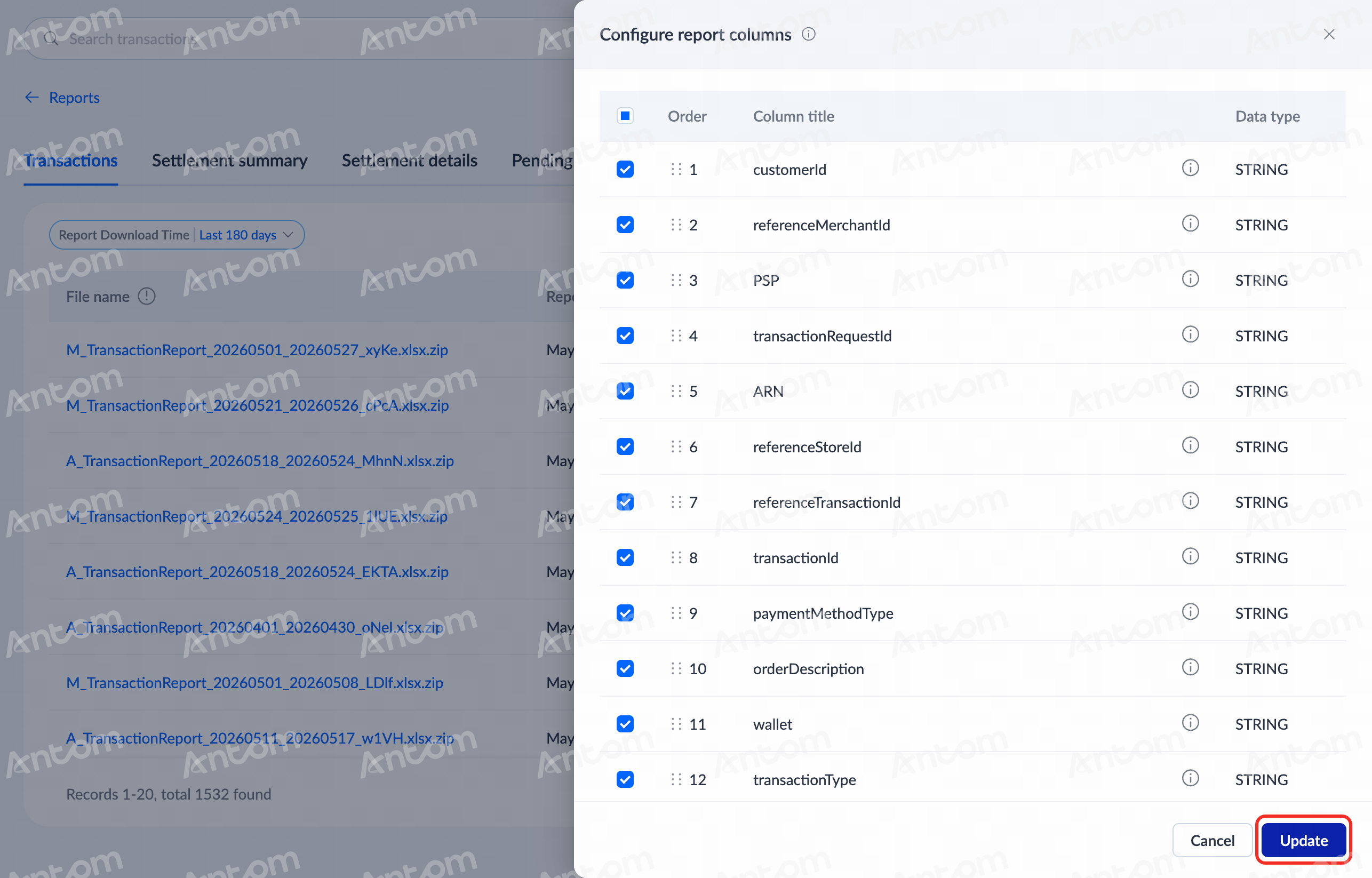
Note: Once applied, the configuration also takes effect on the corresponding report section on the Reports homepage.