Overview
You can complete the following tasks on the Overview, All activities, or Collateral pages in the Balances > Overview module:
- Overview: Check the balance, view settlement records, and download reports
- All activities: View all activities records
- Collateral: View and export collateral records
Overview
On the Overview page, you can check the balance, view settlement records, and download reports.
Check the balance
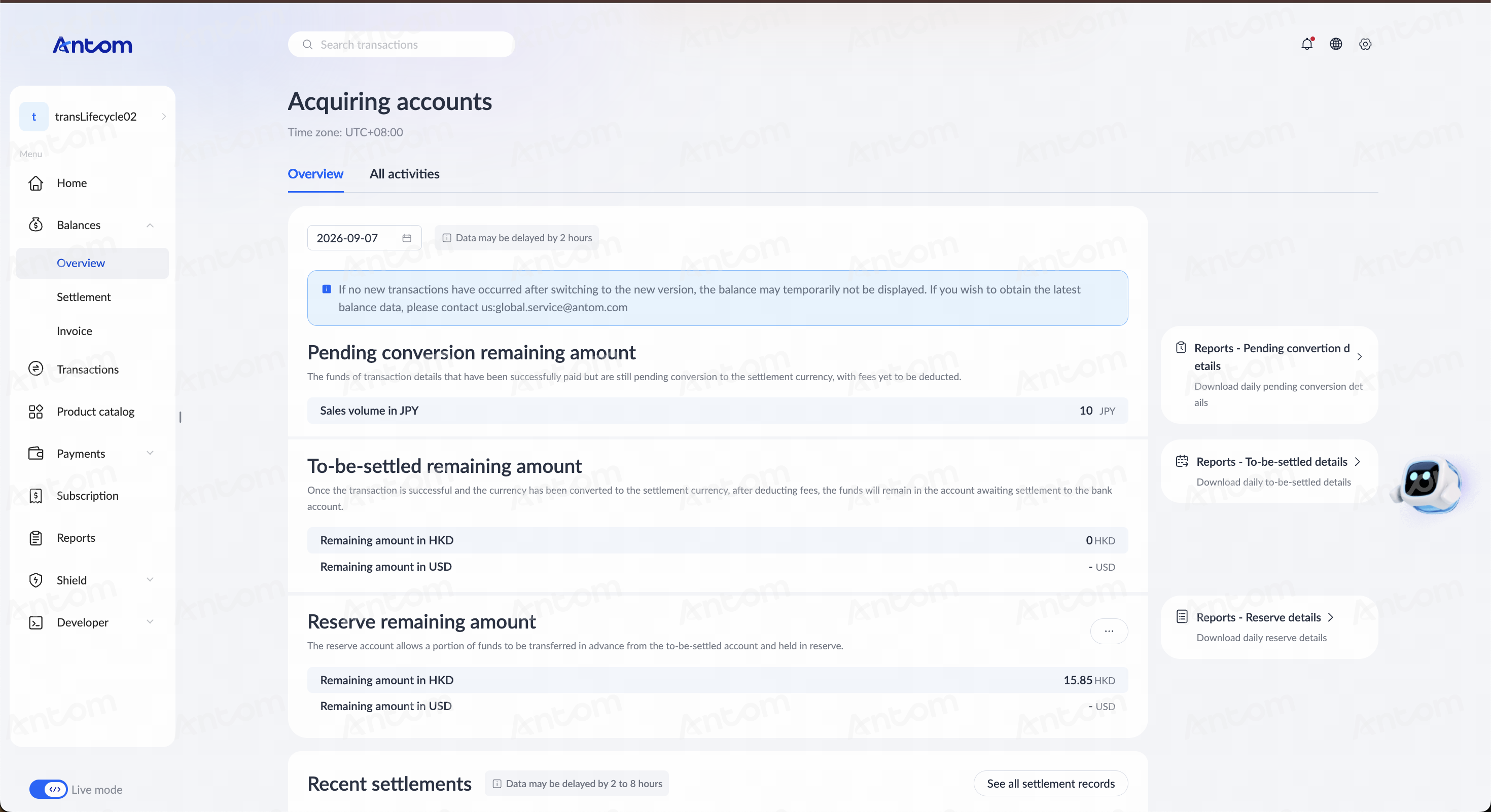
You can check the balance information of different accounts under Balances > Overview. There are mainly three types of account information:
- Pending conversion remaining amount: The funds of transaction details that have been successfully paid but are still pending conversion to the settlement currency, with fees yet to be deducted.
- To-be-setteled remaining amount: Once the transaction is successful and the currency has been converted to the settlement currency, after deducting fees, the funds will remain in the account awaiting settlement to the bank account.
- Reverse remaining amount: The reserve account allows a portion of funds to be transferred in advance from the to-be-settled account and held in reserve.
View settlement records
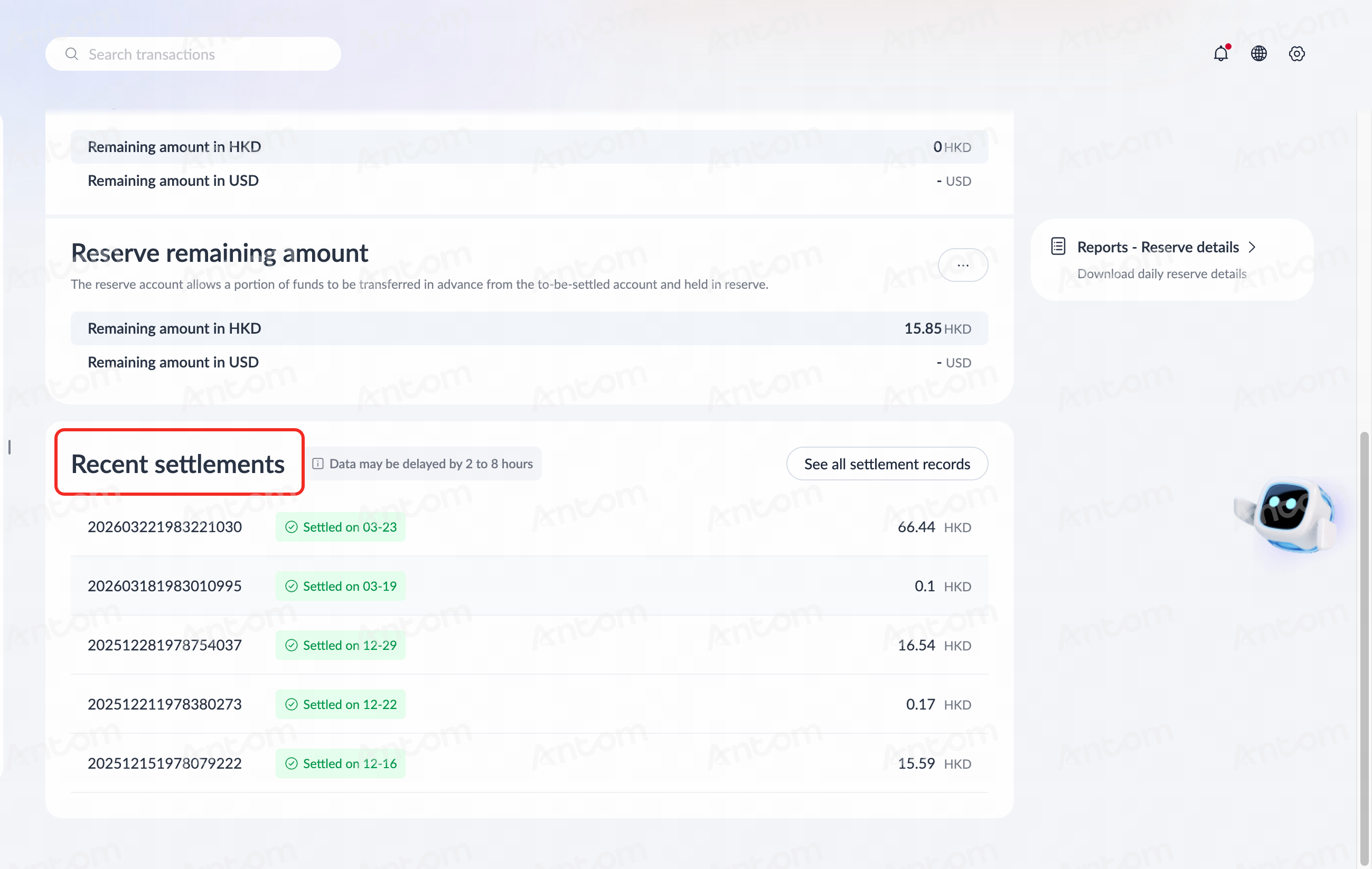
View the recent settlement records in the Recent settlements list on the Balances > Overview page. You can complete the following tasks:
- See a specific settlement record: In the Recent settlements list, click a record to enter the settlement history details page. On the details page, you can view Timeline, Transactions, Details, and Summary information related to the record.
- See all settlement records: Click See all settlement records to enter the Settlements page, where you can view all settlement records. Refer to Settlement for more information.
Download settlement records
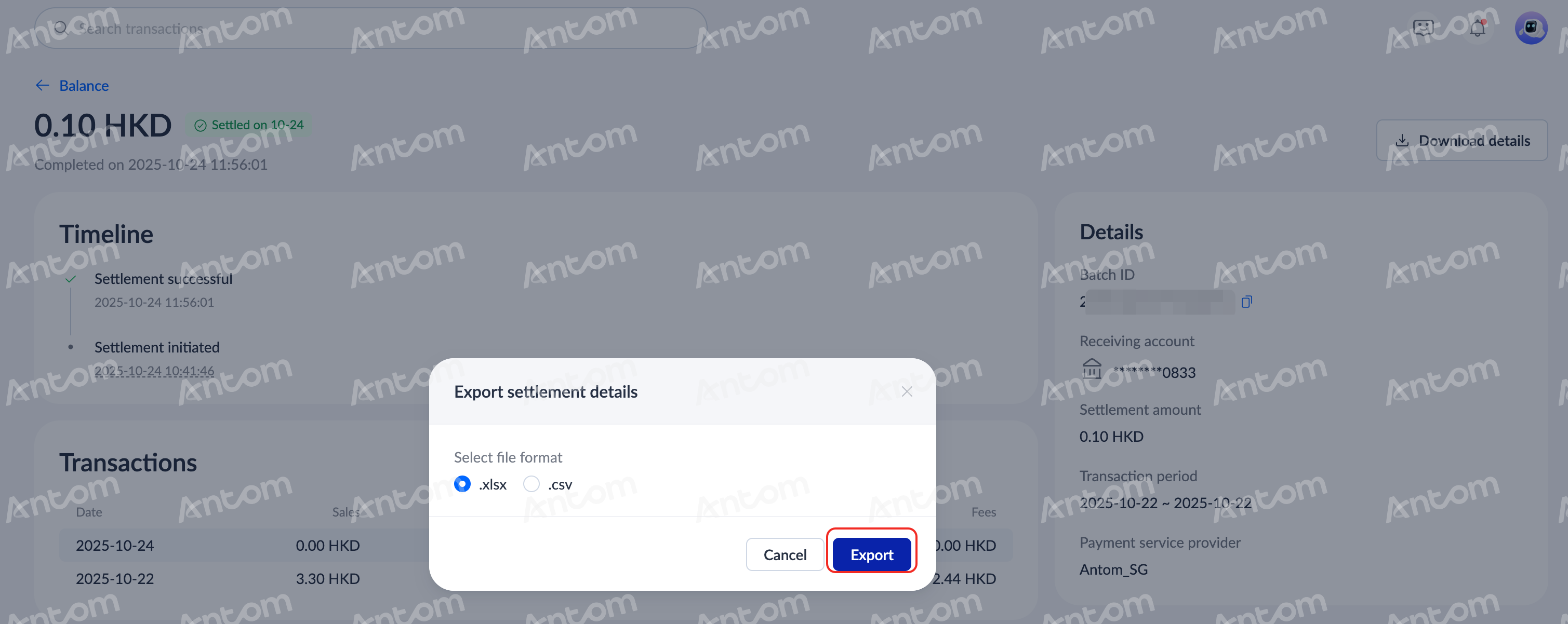
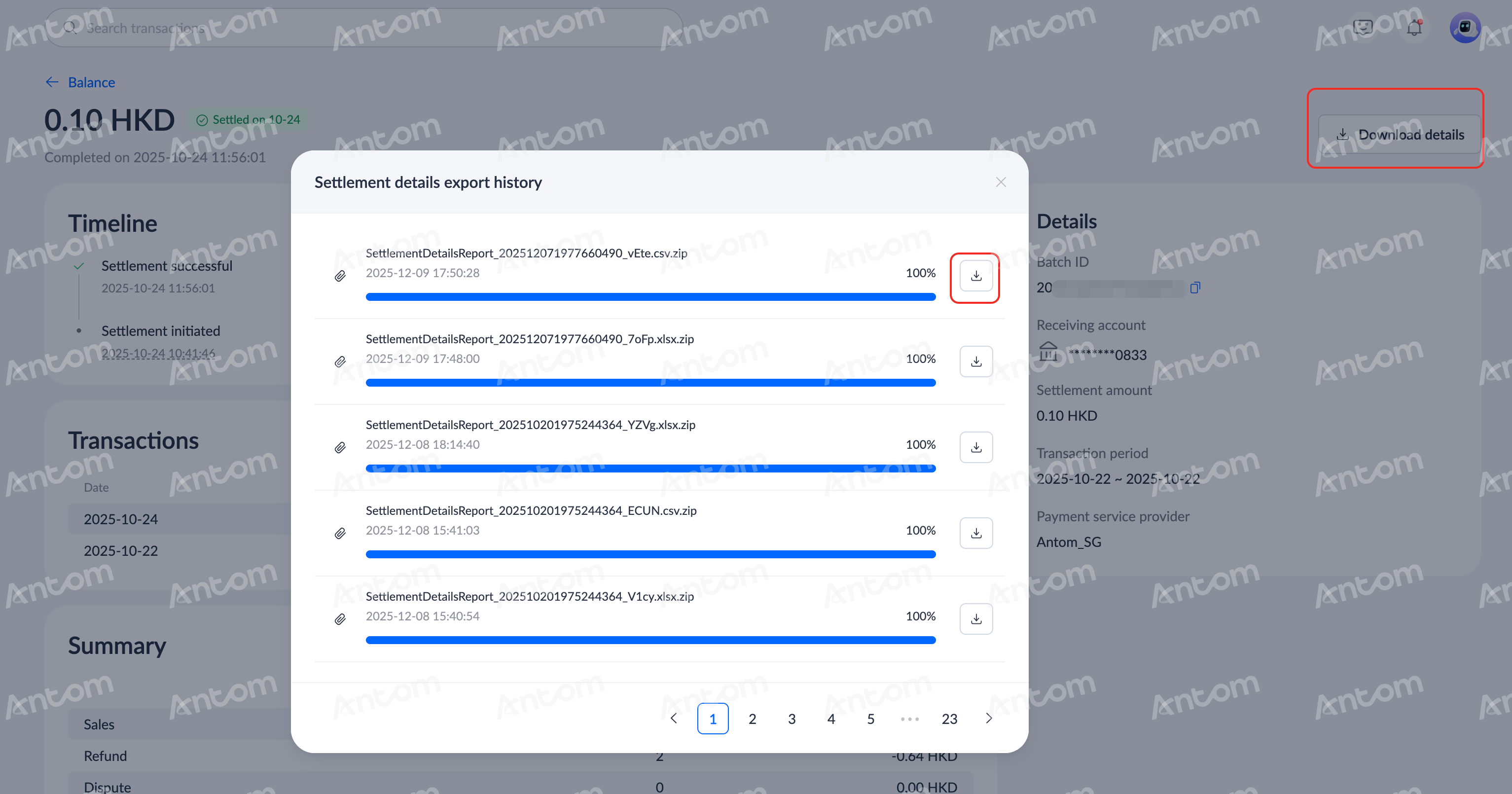
On the settlement history details page, you can click Download details and choose to perform any of the following operations:
- Export file: Click Download details > Export file, select the export format in the Export settlement details pop-up window, and click Export to complete the export.
|
|
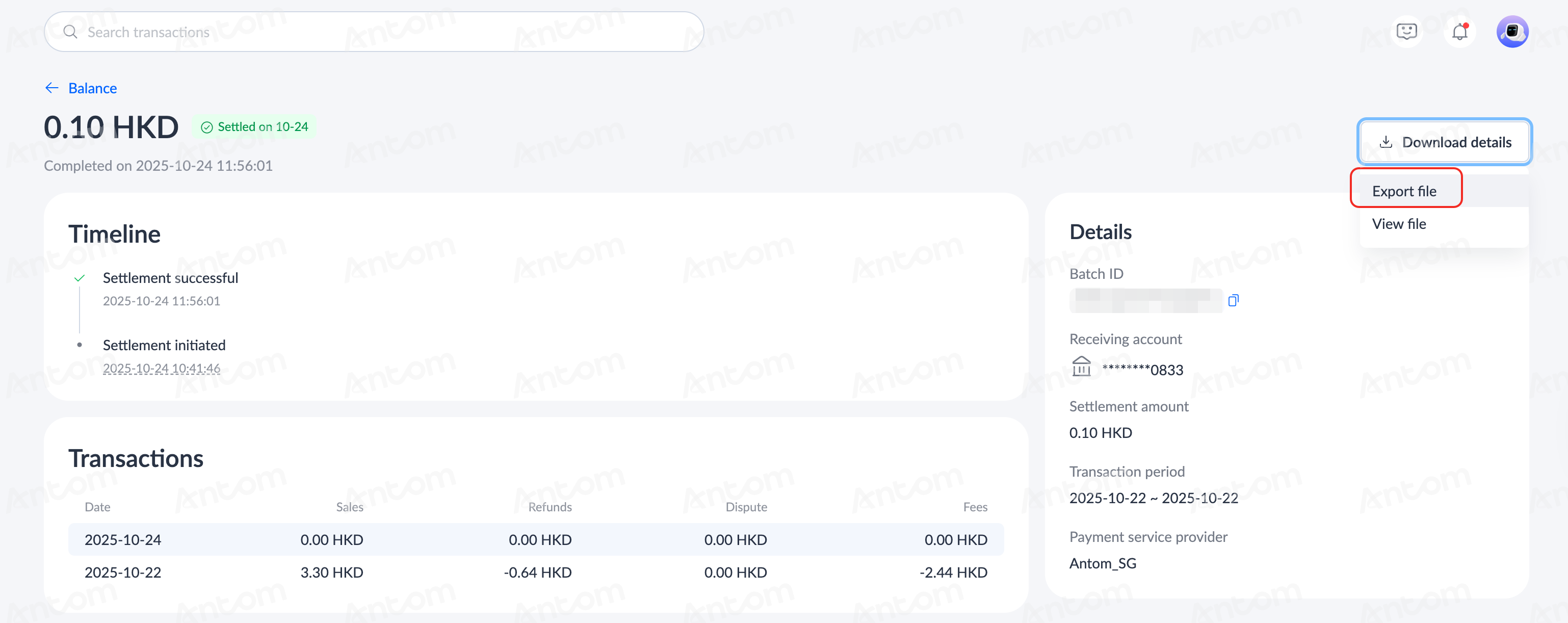
- View file: Click Download details > View file to view the Settlement details export history. When the download is completed, click the download icon in the pop-up window to view the exported record details.
Download reports
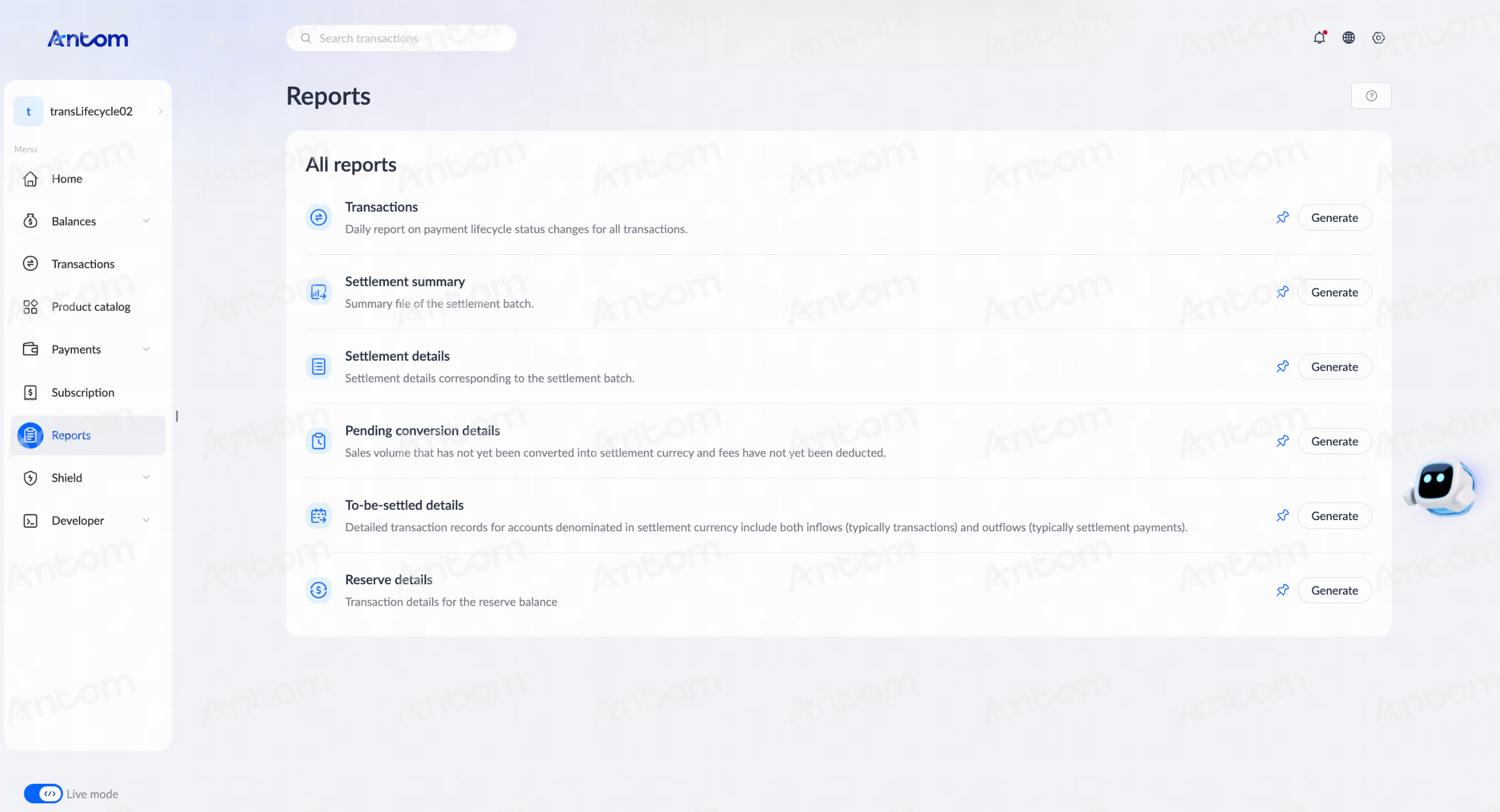
On the right side of the Balances > Overview page, you can find the Reports button. Click the corresponding account button to view the file download page for the account details of the corresponding account.
|
|


You can also click Reports in the left directory to enter the Reports page to view all file records. Refer to Reports for more information.
All activities
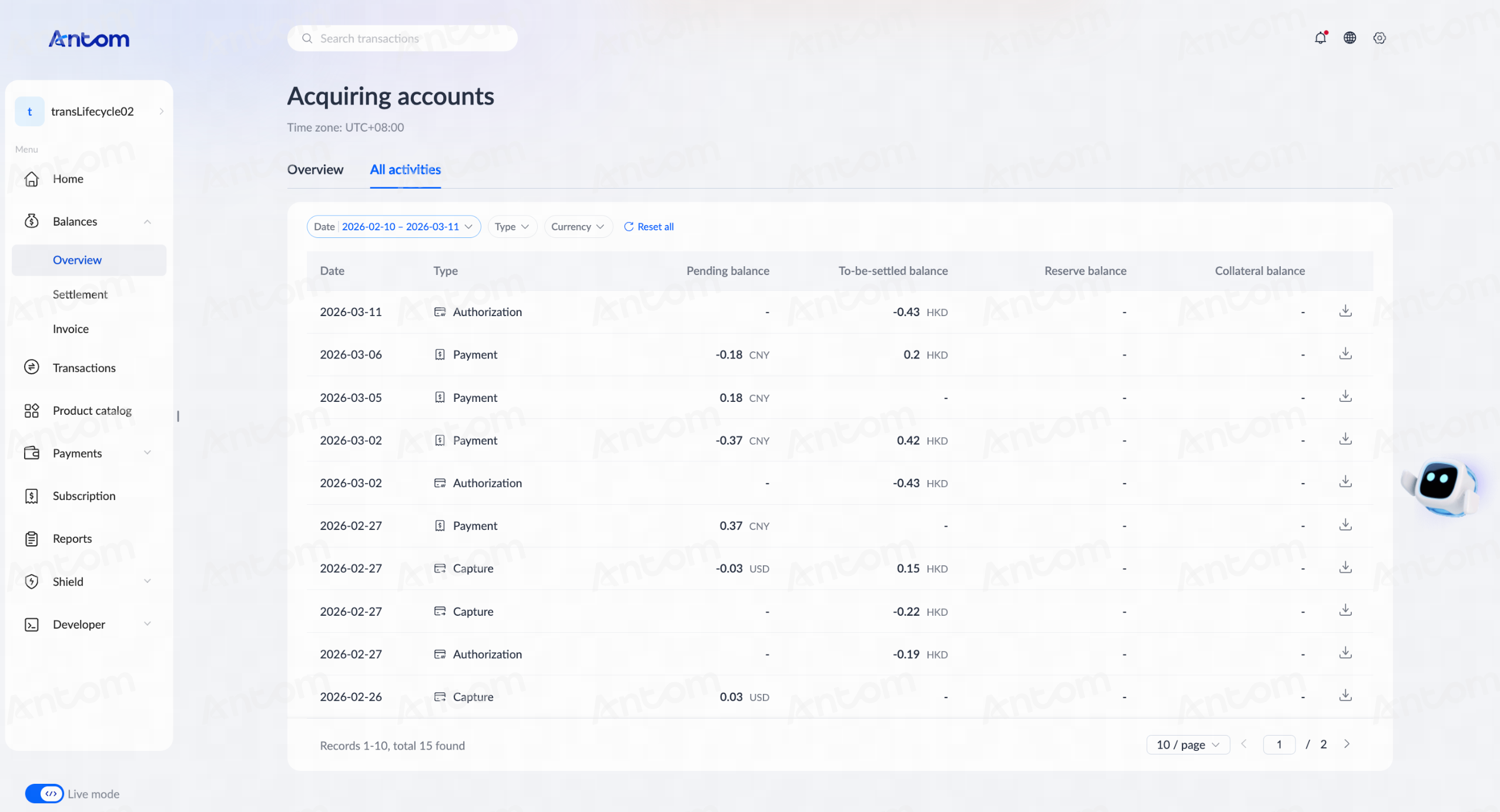
You can view the record details of various accounts on the All activities page, and click Date, Type and Currency to filter the corresponding records.
Note: This page only displays the details of the supported account types, and the "-" symbol will be displayed for unsupported accounts.
Download all activities records
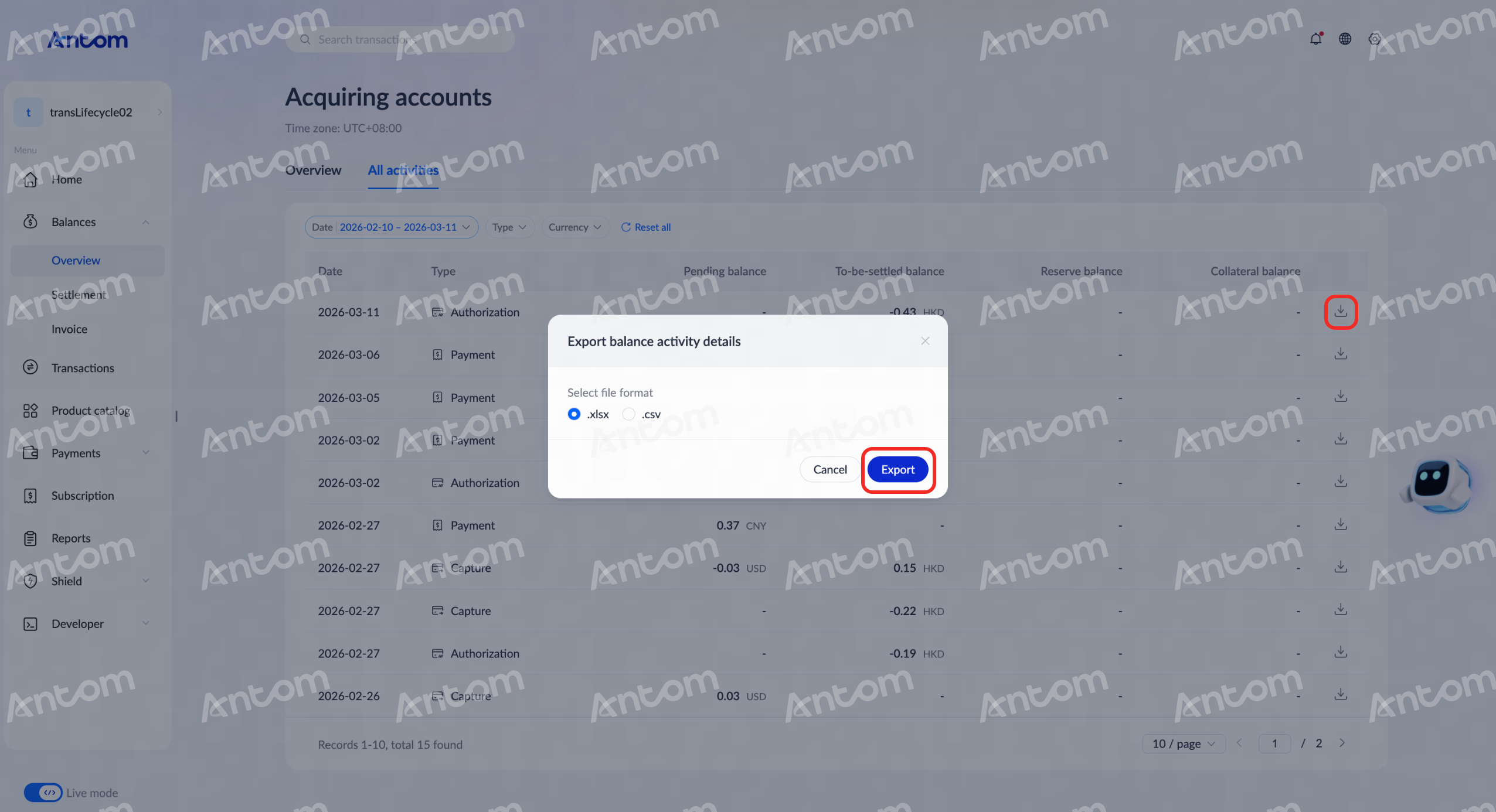
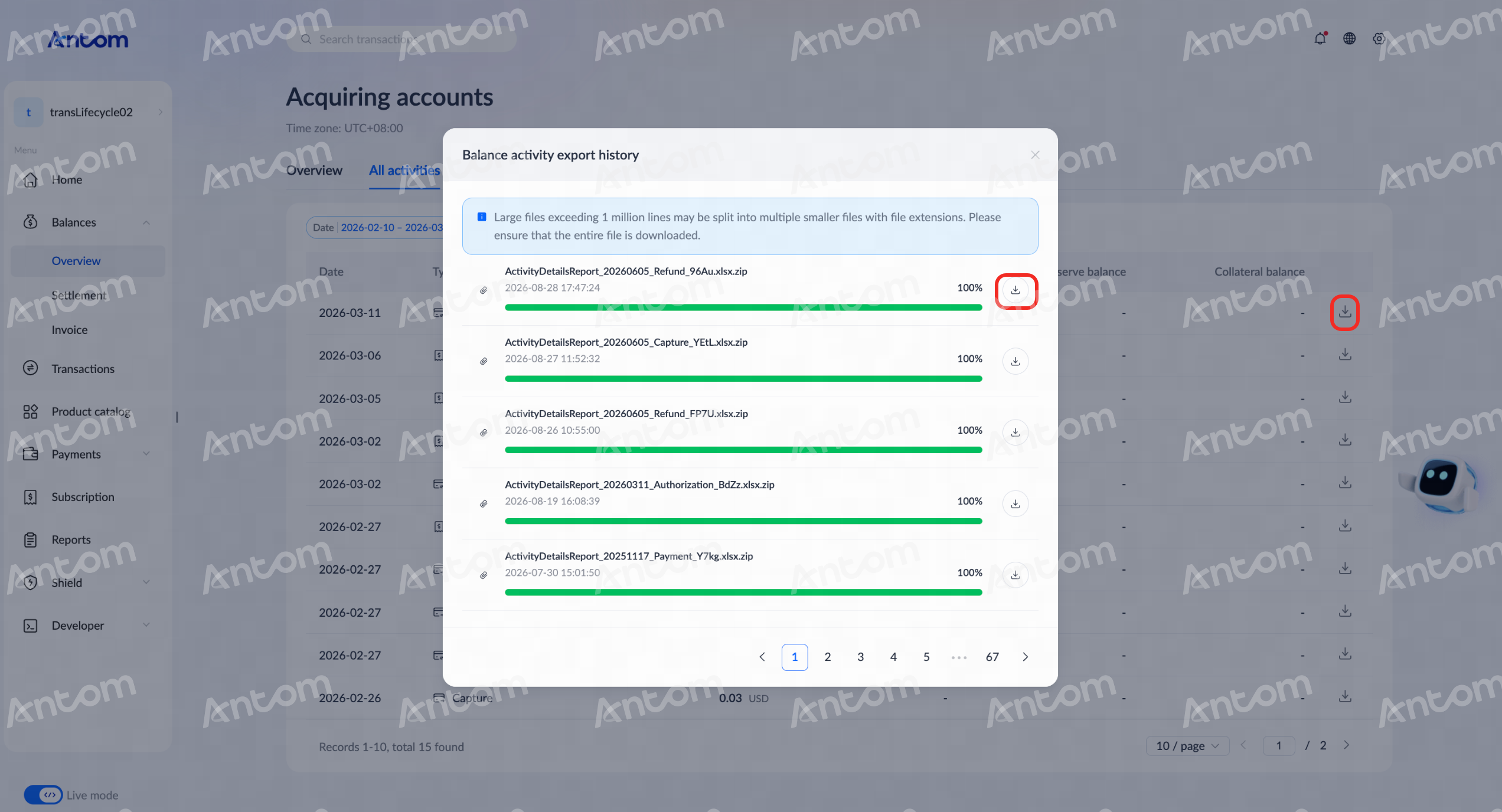
You can download the details of a specific type on a certain day, that is, the details of the changes in the account. Find a record you want to download, click Download details, and choose to perform any of the following operations:
- Export file: Click Download details > Export file, select the export format in the Export balance activity details pop-up window, and click Export to complete the export.
- View file: Click Download details > View file to view the Balance activity export history. When the download is completed, click the download icon in the pop-up window to view the exported record details.
Collateral
Collateral is a portion of the merchant's funds temporarily held by Antom during the cooperation period. It is intended to cover potential risks and losses, such as buyer chargebacks. The collection of collateral is a common industry practice used by acquirers. The specific amount of collateral charged by Antom is determined by the merchant's transaction volume, risk level, transaction type, and business type, and is managed in a dedicated account.
When a merchant accepts a payment from a buyer but fails to fulfill obligations, or if the buyer disputes the transaction or the merchant's services, the buyer may file a chargeback. The chargeback amount, as well as any fees that may be charged by the card scheme, is deducted first from the merchant's settlement balance account. However, the merchant's settlement balance account may be insufficient to cover the chargeback amount, in which case the amount is deducted from the collateral. Therefore, collateral serves as a protective measure against potential disputes and other reverse funding gaps that may occur, providing security for both the merchant and the buyer.
Collateral types
The table below describes the different types of collateral and how they are charged:
Type | Description | Charge method |
Fixed collateral | The amount of fixed collateral is set and is determined by Antom based on the merchant's transaction volume, risk level, transaction type, and business type. |
|
Rolling collateral | The amount of rolling collateral is dynamic. Antom deducts a certain percentage from the funds of each settlement batch as collateral and sets a rolling window. After the rolling window, the collateral is released and settled with the most recent settlement batch to the merchant. | Antom deducts collateral from the merchant's batch settlement funds. |
Note: When collateral is deducted from the merchant's batch settlement funds, the remaining balance after deducting the collateral must be equal to or greater than the minimum settlement amount. If this requirement is not met, the settlement funds will accumulate until the prerequisite is met.
Collateral release
- Fixed collateral can be released in the following situations:
- When the collateral charge standard for the merchant is lowered, the excess collateral amount is released to the merchant's batch settlement funds.
- After the merchant terminates the acquiring contract with Antom, the collateral will continue to be held for approximately 180 days to cover chargebacks and losses. If any collateral remains after the holding period, it will be returned to the merchant. If the collateral held during the holding period cannot cover the costs, the merchant will be required to compensate for the deficit.
- Rolling collateral is released periodically according to the rolling window. The rolling collateral deducted on a specific settlement batch is released after the rolling window and is settled in the latest settlement batch with the merchant.
Fixed collateral
In this example, 5,000 EUR is the fixed collateral amount Antom sets for a merchant. The following table shows how fixed collateral works when it is deducted from the merchant's batch settlement funds:
Date | Collateral details |
Effective date of collateral charge rule | The collateral balance is 0 EUR. |
Settlement date |
The collateral balance is 5,000 EUR. |
Suggestions for reducing collateral
Antom offers the following suggestions to reduce collateral charges. However, it is important to note that implementing these suggestions does not guarantee a reduction in collateral charges.
- Reduce order fulfillment time: For example, shorten the payment or delivery time to reduce the order fulfillment time.
- Reduce chargeback and return rates: For example, improve product quality to reduce chargeback and return rates, or offer refunds proactively to reduce chargebacks.
View collateral records
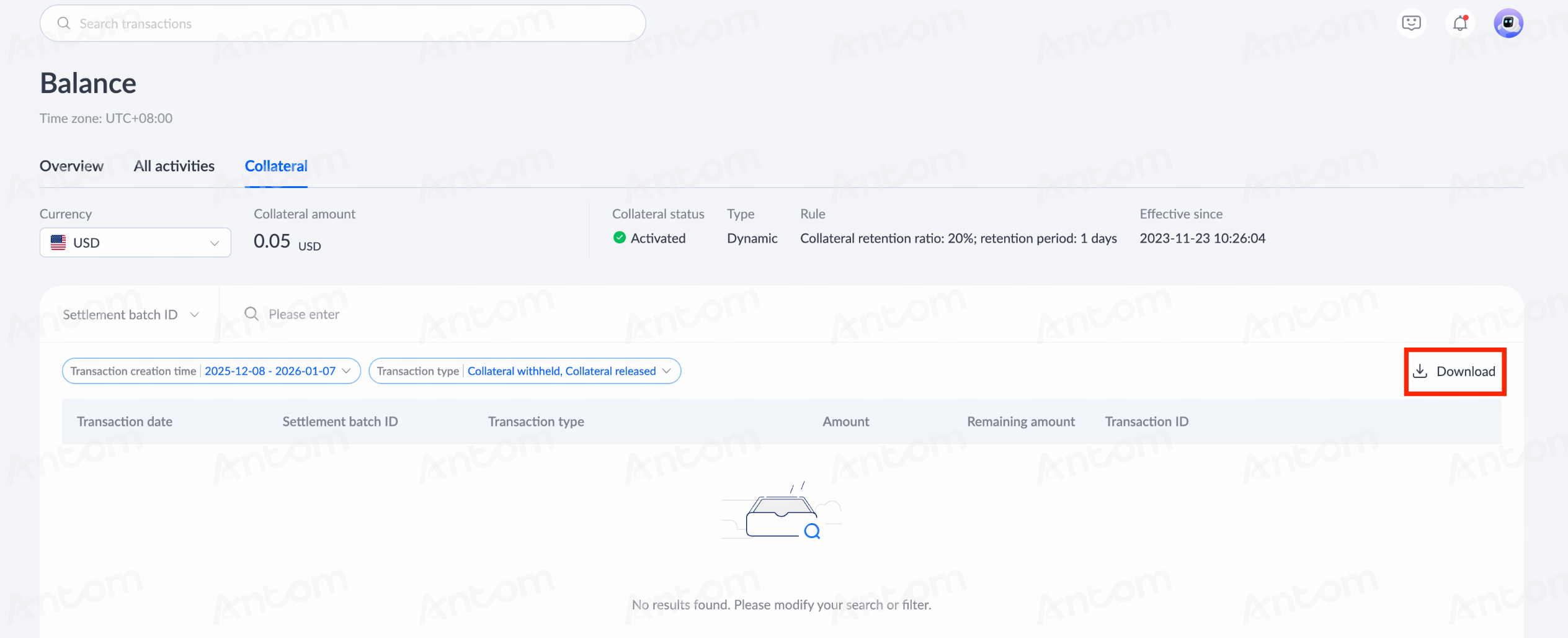
You can view and export the collateral on the Collateral page. If you have activated card payment methods, click Balances > Collateral to view the card-related transaction history. On the Collateral page, you can view supported currencies, collateral balances, status, types, and rules.
You can search for the batch number above the list area or filter collateral records by transaction time and type, and click Download to download the corresponding record file.