
Invoice
You can complete the following tasks under Balances:
- Search for and filter invoices
- Download invoices
- Download from the invoice list
- Download from the invoice details page
- Set the invoice date
View invoices
Antom will issue the invoice for the current month at the beginning of the following month. Go to the Balances > Invoice page, and the specific date of invoice generation is displayed in the upper left corner.
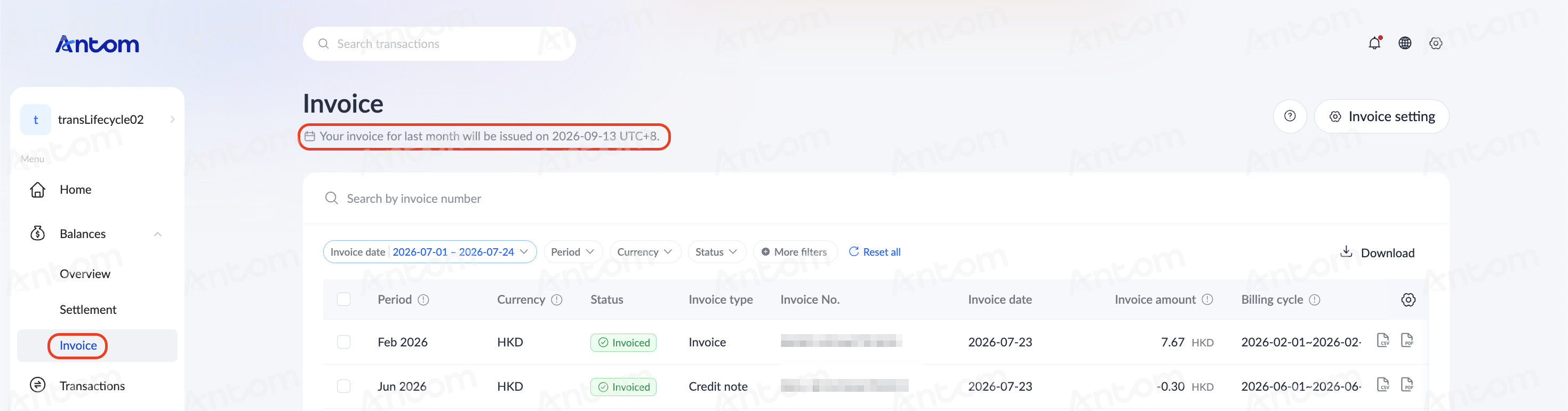
Filter the invoice list
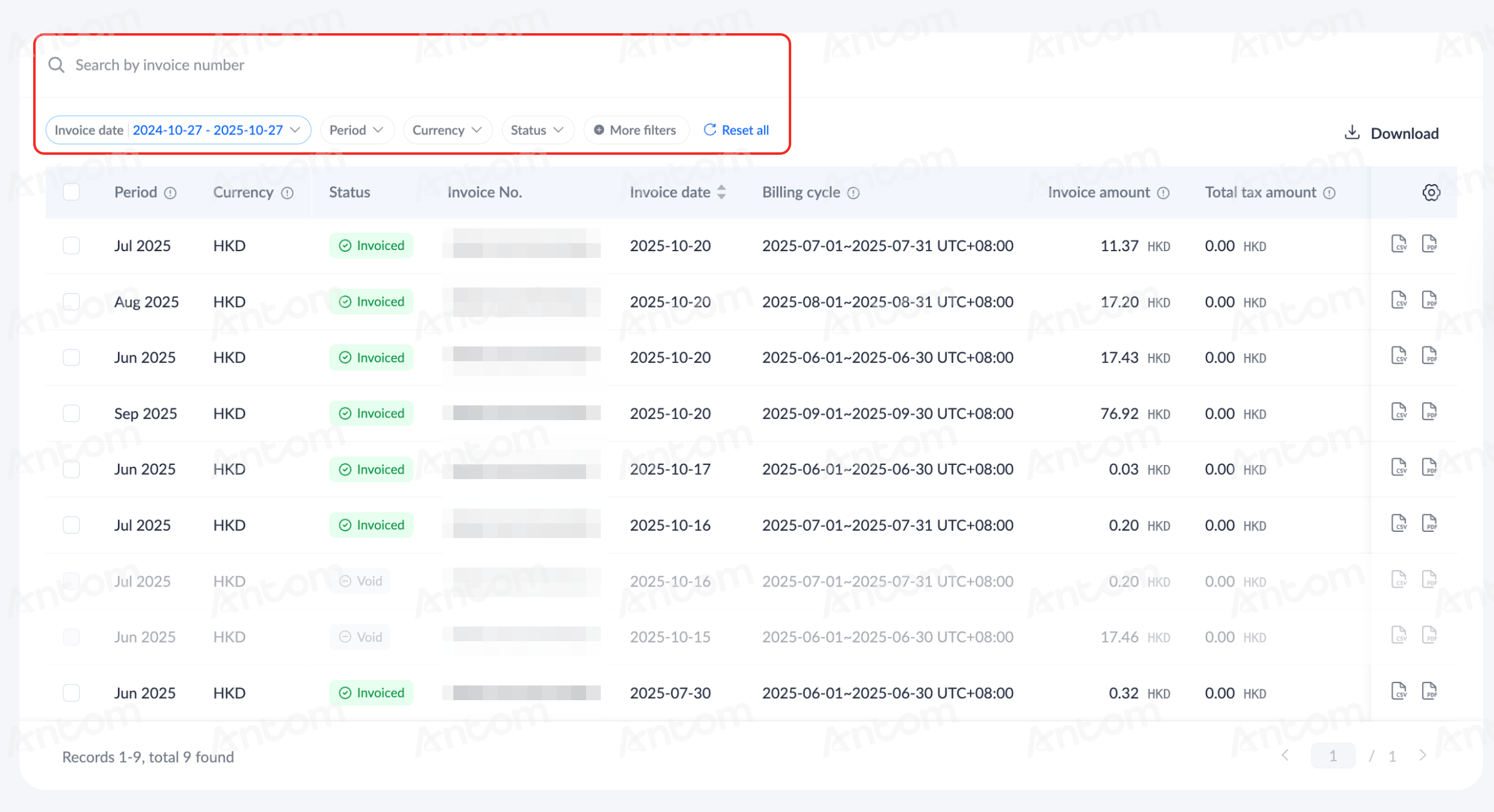
On the Invoice page, you can search for invoices by filtering various fields such as Invoice date, Period, Currency, and Status. The date range for filtering supports a time span of up to 180 days.
You can also do the following with filter configurations:
- Add more filters: Click More filters to customize the options in the filter fields, and the added options will be displayed after the default options.
- Reset filters: After configuring the filter settings, click Reset all to reset back to the default options.
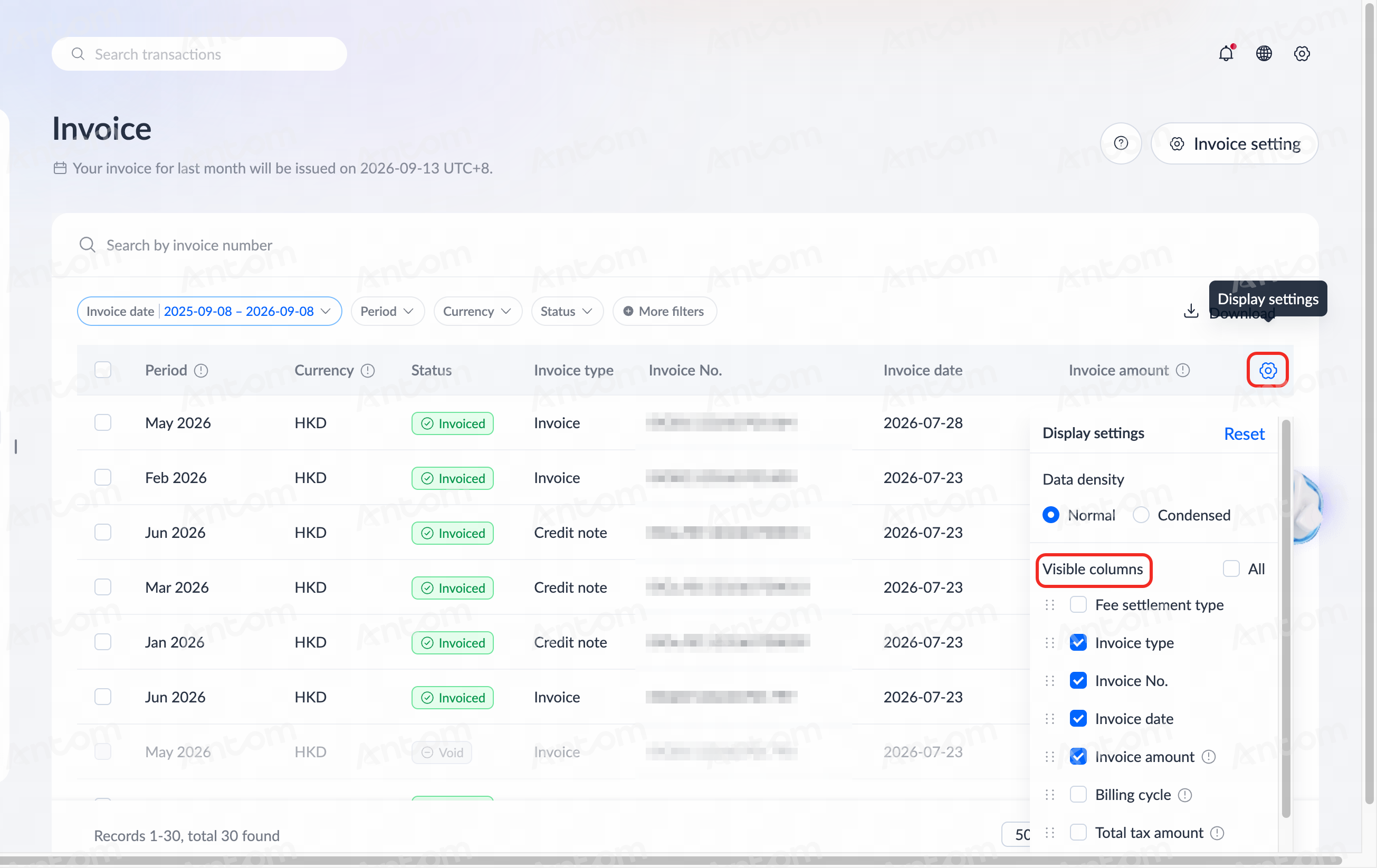
Customize invoice list fields
Click the Display settings icon in the top-right corner of the invoice list to set the interval status and display fields of the list, and the checked fields will be displayed in the list header. At the same time, drag a field to change the placement of the field in the list.
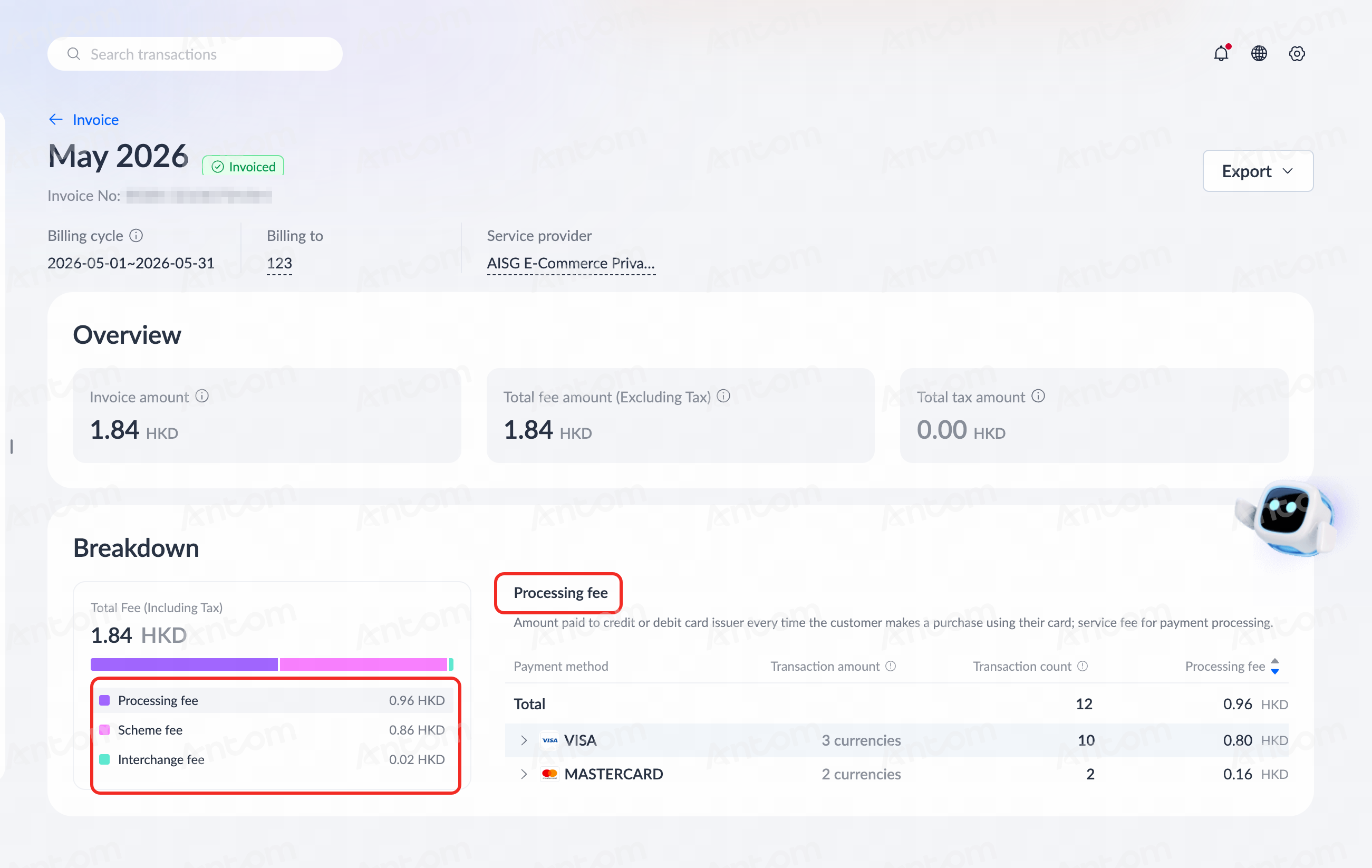
View the invoice details page
On the Invoice page, select a specific invoice to enter the invoice details page, where you can view the basic information, overview, and breakdown of the invoice.
In the Breakdown area, click different fee color blocks on the left, and the details of the corresponding fees will be displayed on the right.
Download invoices
You can download invoices in the following two ways:
- Download from the invoice list
- Download from the invoice details page
Download from the invoice list
You can download the invoice list data in the following formats according to actual needs. Note that only invoices with the Invoiced status can be downloaded:
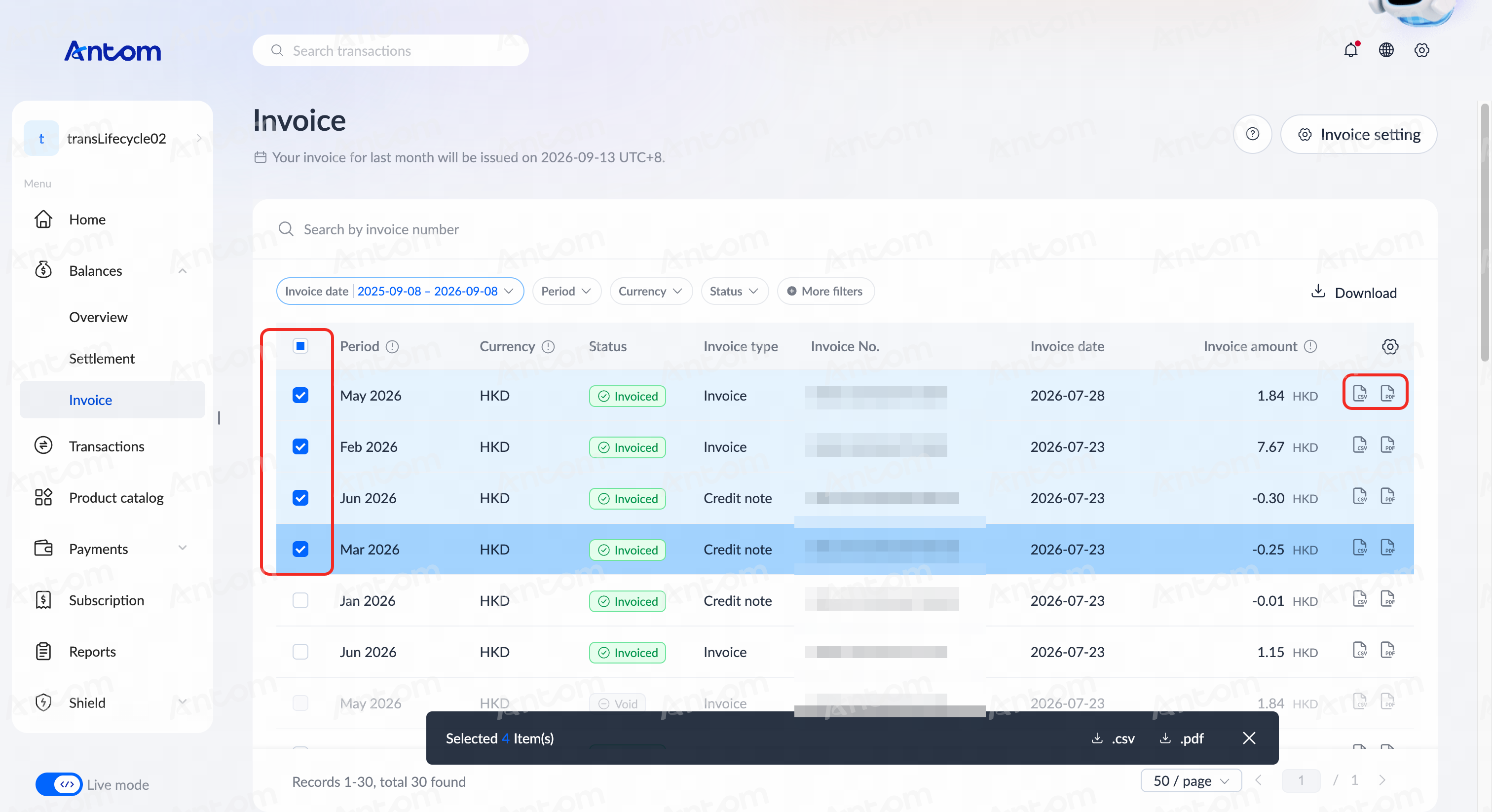
- Download a single invoice: Click the Download CSV or Download PDF icon on the rightmost column of the desired invoice.
- Download multiple invoices: Select multiple invoices from the invoice list, and click the .csv or .pdf icon to download the invoices in the desired format.
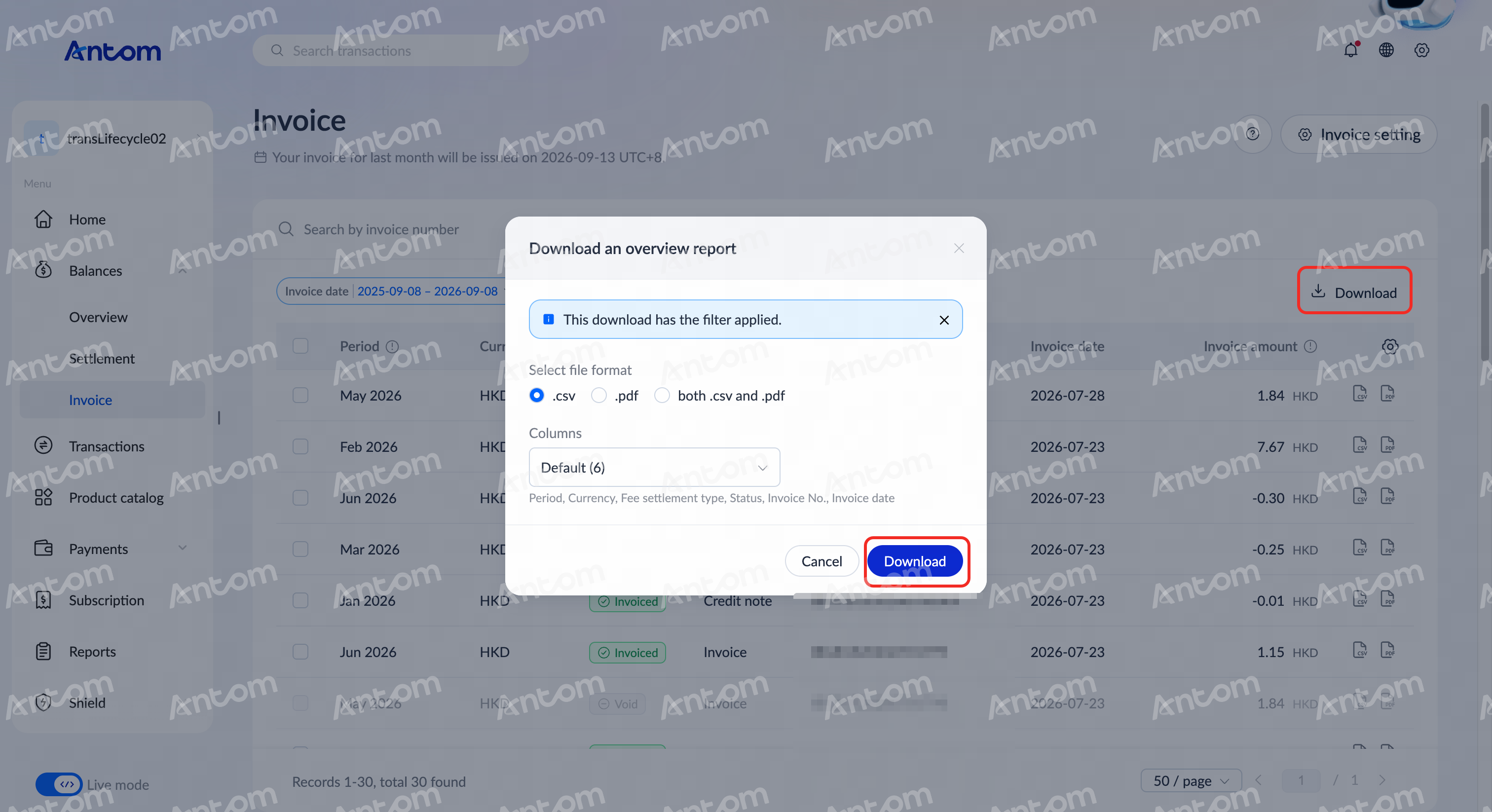
- Download an overview report: In the top-right corner of the invoice list, click Download. In the Download an overview report pop-up window, select the desired file format and columns of the invoice, and click Download.
The following are examples of different download formats:
Overview report


Download from the invoice details page
On the Invoice page, select a specific invoice to enter the invoice details page. Use the following options to export invoice information based on your needs:
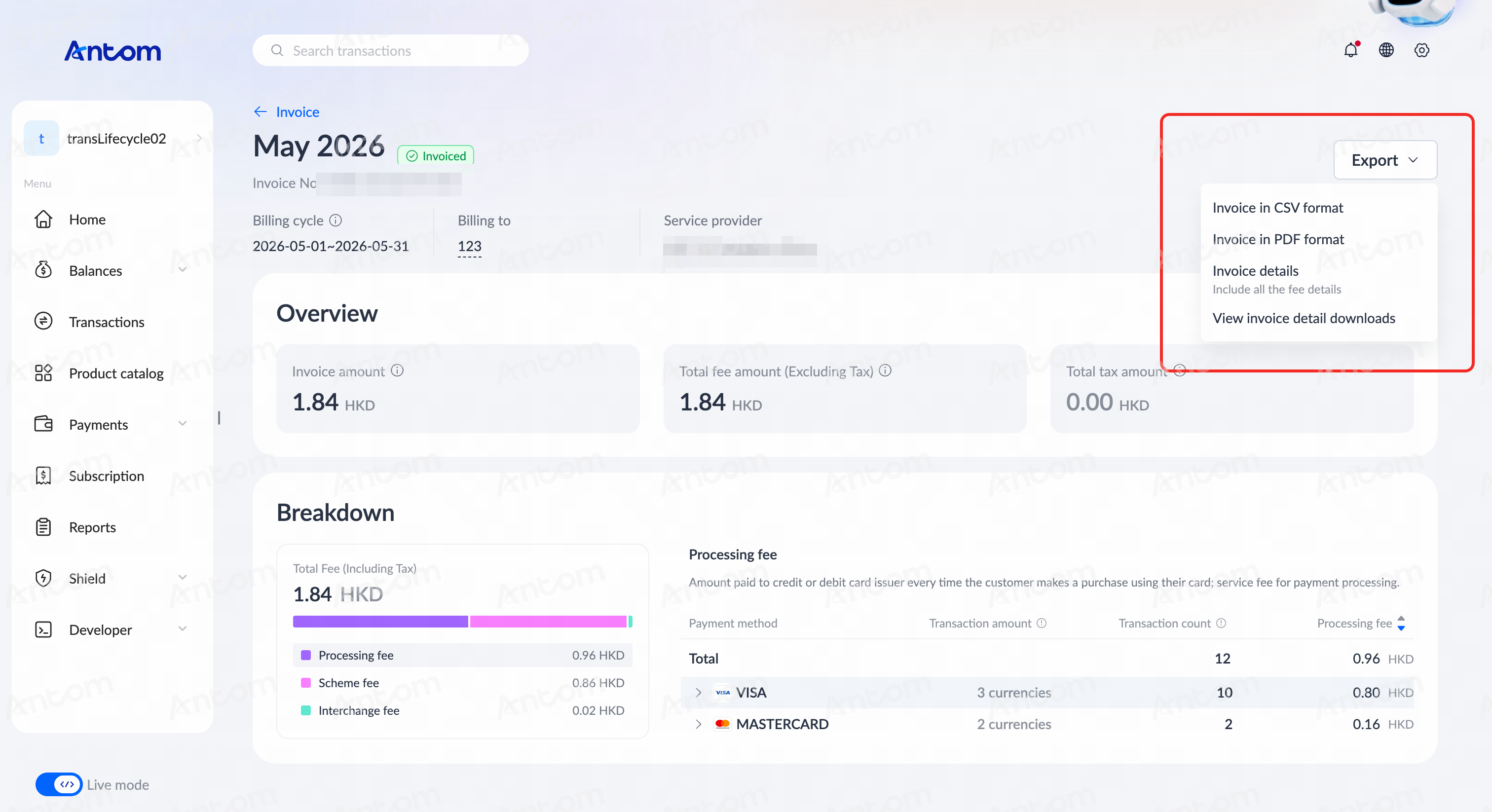
- Export a single invoice: On the invoice details page, click Export > Invoice in CSV/PDF format to export invoices in different formats. Note that the export information here is the same as downloading a single invoice.
- Export invoice details: On the invoice details page, click Export > Invoice details, and the Export detail pop-up window appears. Click View downloads to view the progress of the report export.
- View invoice detail downloads: You can also click Export > View invoice detail downloads to view the report export progress.
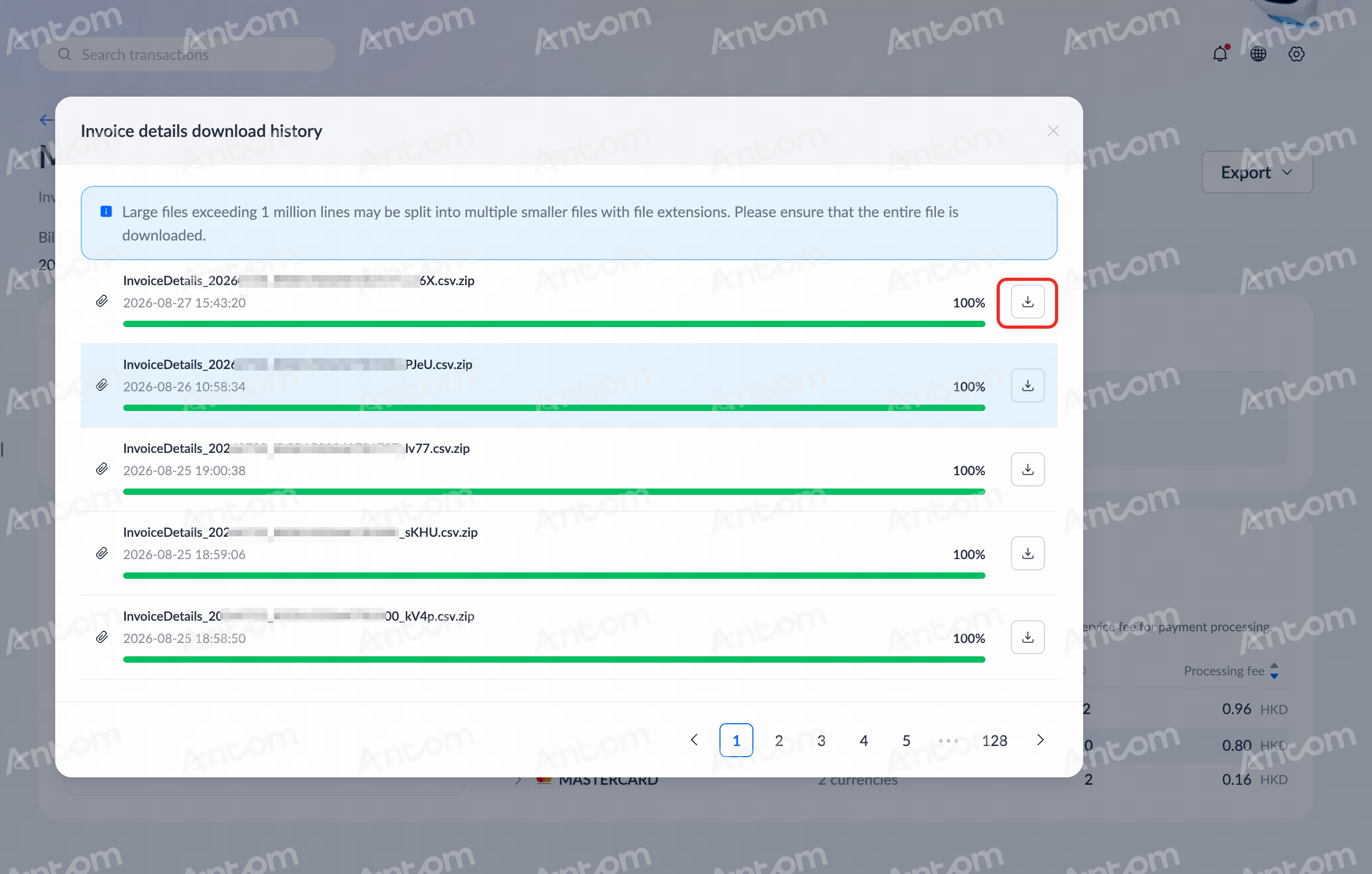
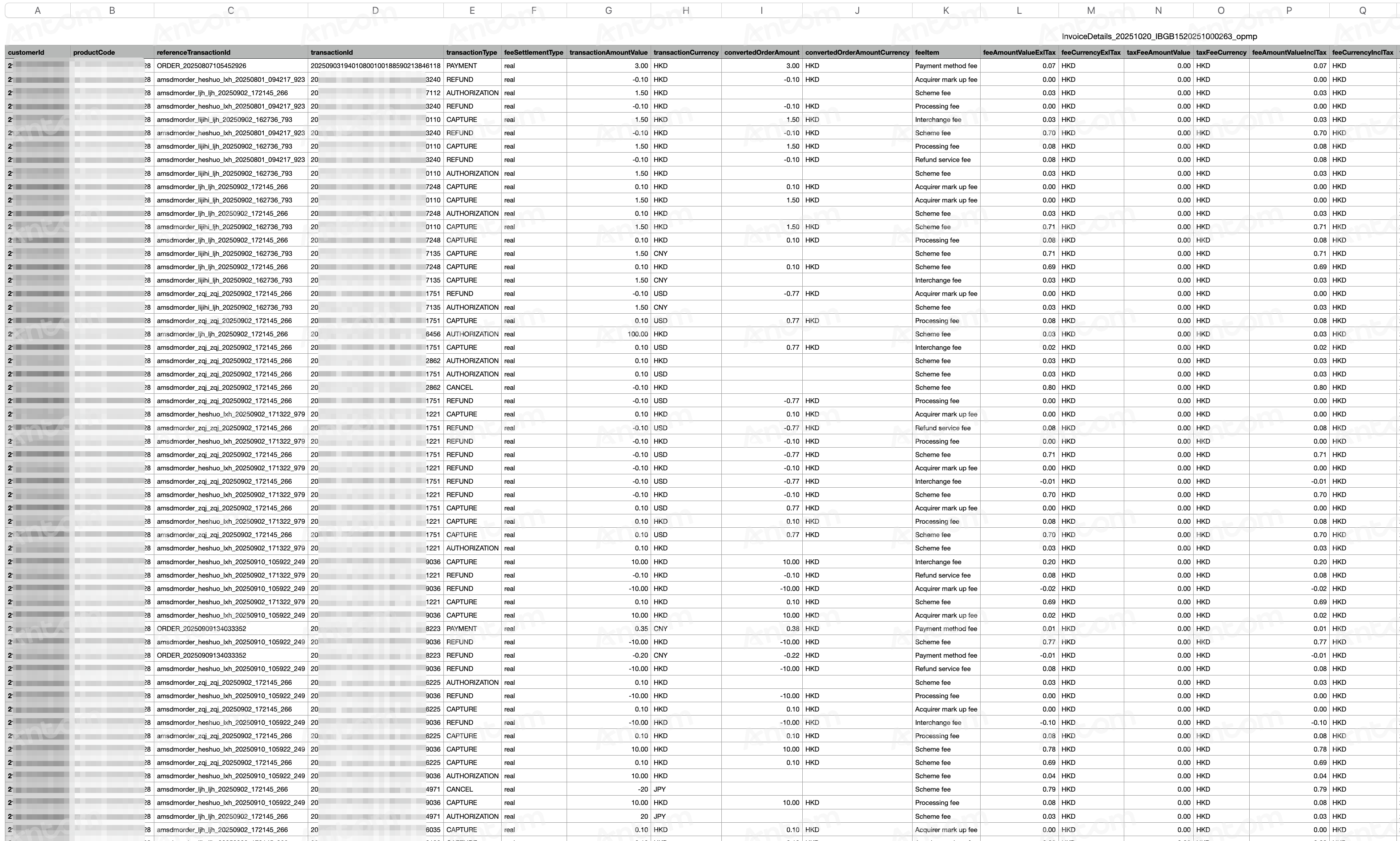
After the export is completed, select the records you want to export in the Invoice details download history pop-up window, and click the download icon to download the invoice details report. The following is an example of an invoice detail report:
|
|
Set the invoice date
Antom allows you to customize the invoice date, giving you greater flexibility in managing the date on which invoices are generated. Follow the steps below to set the invoice generation date:
- On the Invoice page, click Invoice setting in the top-right corner.
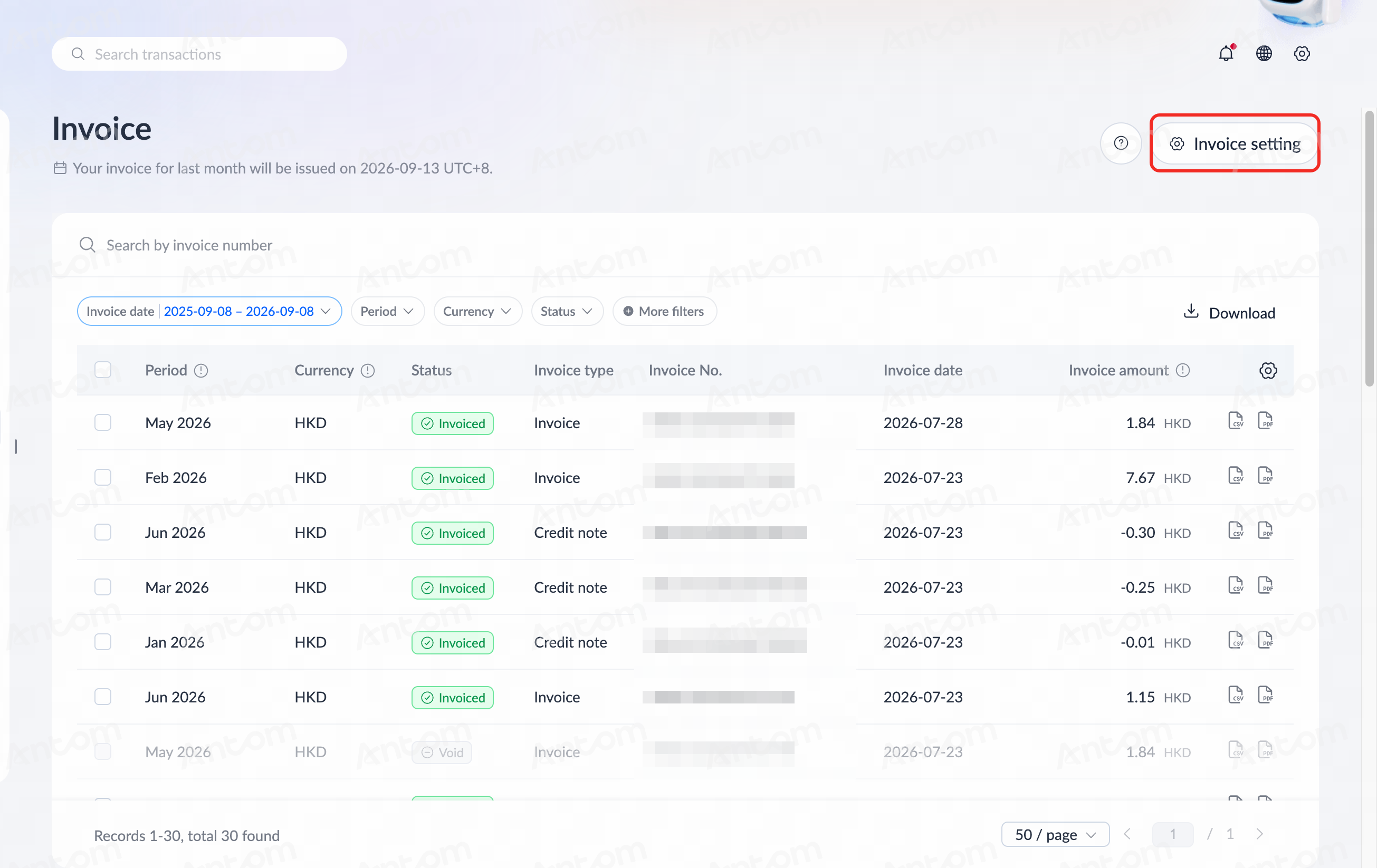
- In the pop-up window, choose a date as the invoice generation date based on the following guidance:
- Earliest date: the 3rd of each month
- Recommended date: between the 11th and the 28th
- Click Confirm to apply the changes. The invoice date will be updated immediately after confirmation.