Sales to settlements
You can complete the following tasks on the Sales or Settlements page under the Finance > Sales to settlements module:
- View sales
- View settlements
- Download the details report
Sales
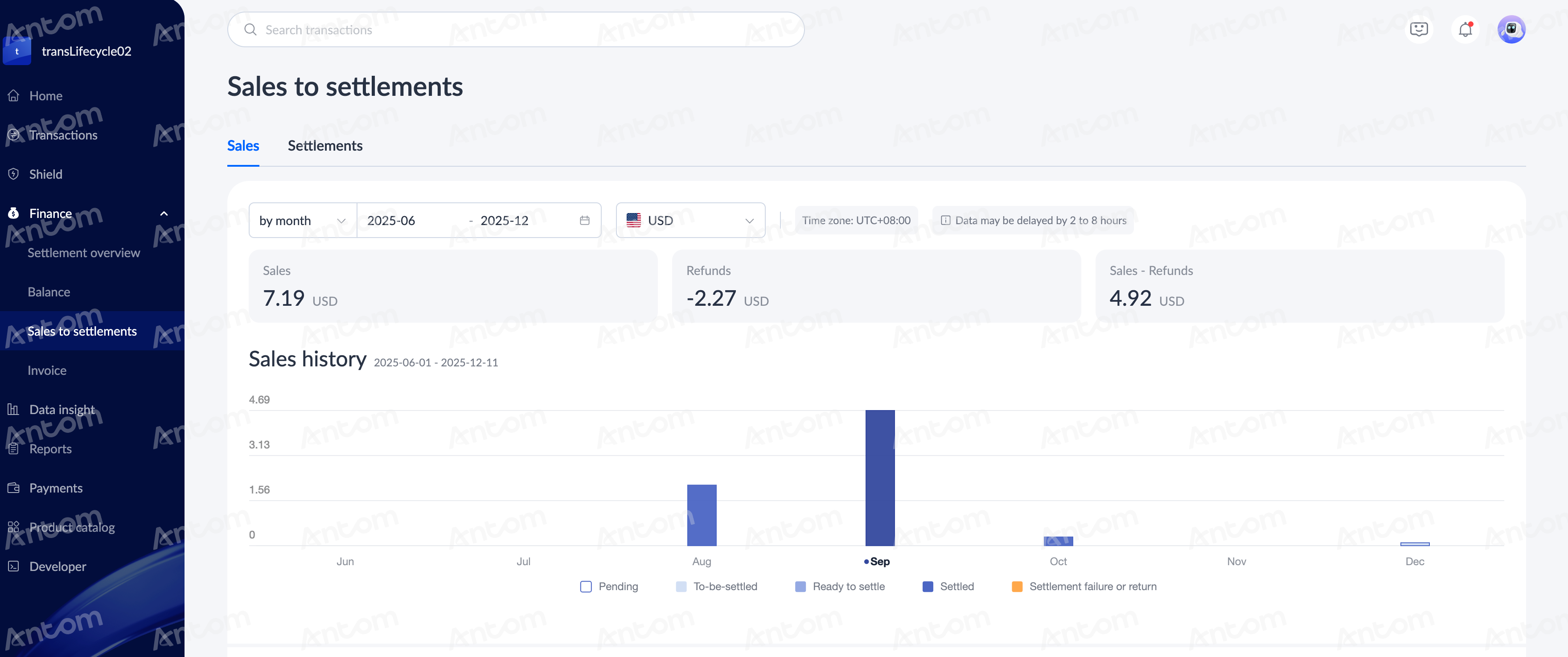
On the Finance > Sales to settlements > Sales page, you can view the statistical histogram of sales orders (payments or refunds) within a period. Segment according to transaction currency, and filter by day, week, month, and currency range. The different colors of the histogram represent the following meanings:
- Pending: When the transaction currency is not equal to the settlement currency and is quoted later, the transactions that occurred on that day will be in this status.
- To-be-settled: When the transaction currency is equal to the settlement currency, the transaction will enter this status after the payment is successful. In addition, on the second working day of the quotation, after obtaining the exchange rate, the transaction currency will be converted to the settlement currency, and it will also enter the To-be-settled status.
- Ready to settle: When transactions on a certain day or days are accumulated to the settlement date according to the settlement rules T+N, and settlement payment is initiated to the bank.
- Settled: After initiating settlement, this status will be updated when a successful bank receipt is received.
- Settlement failure or return: Receive a failed bank receipt after initiating a settlement, or receive a return from the bank after the settlement is successful.
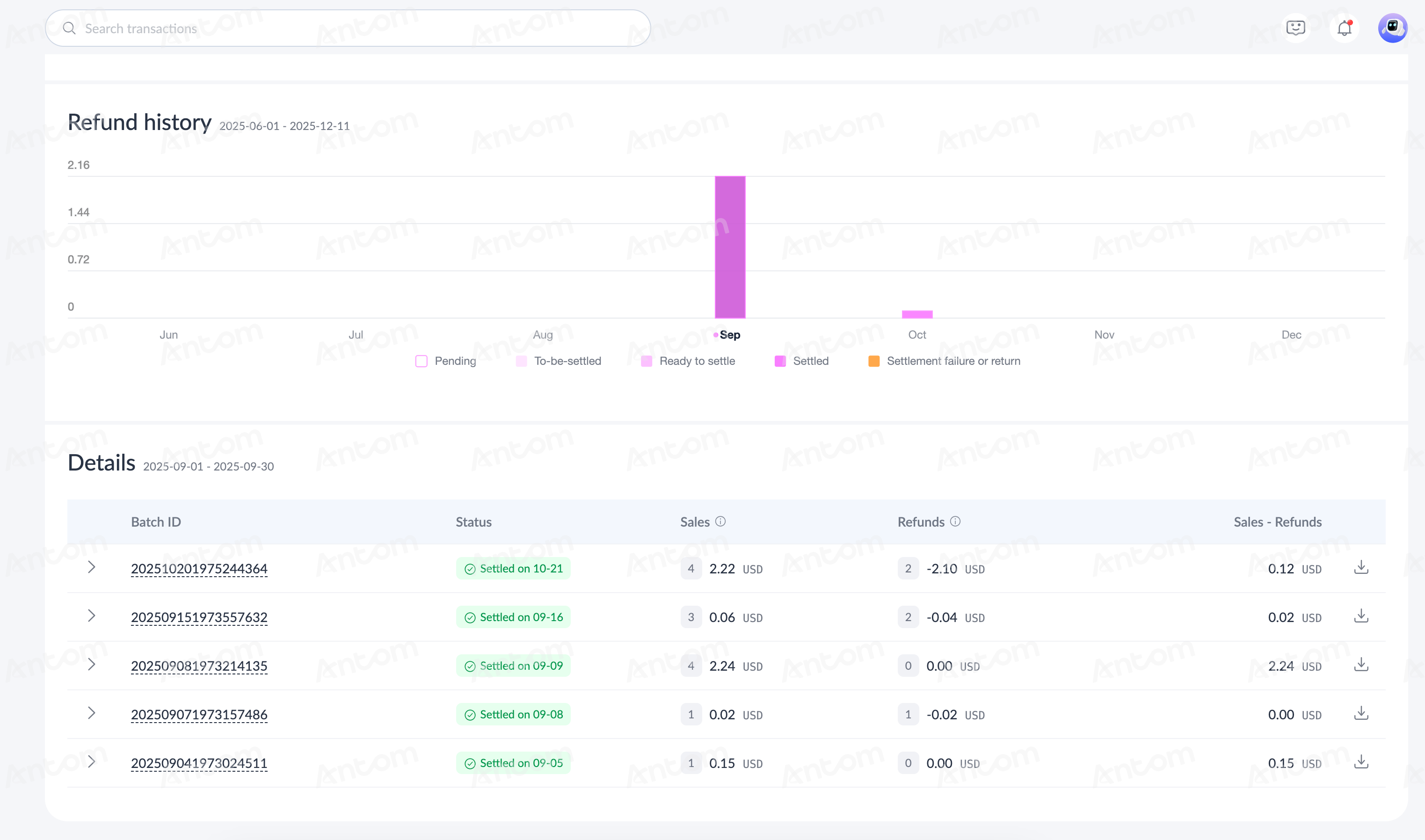
After clicking a certain column, the Details list below will display whether the transaction has been settled. If it has not been settled yet, there is no batch; if it has been settled, the specific settlement batch is displayed.
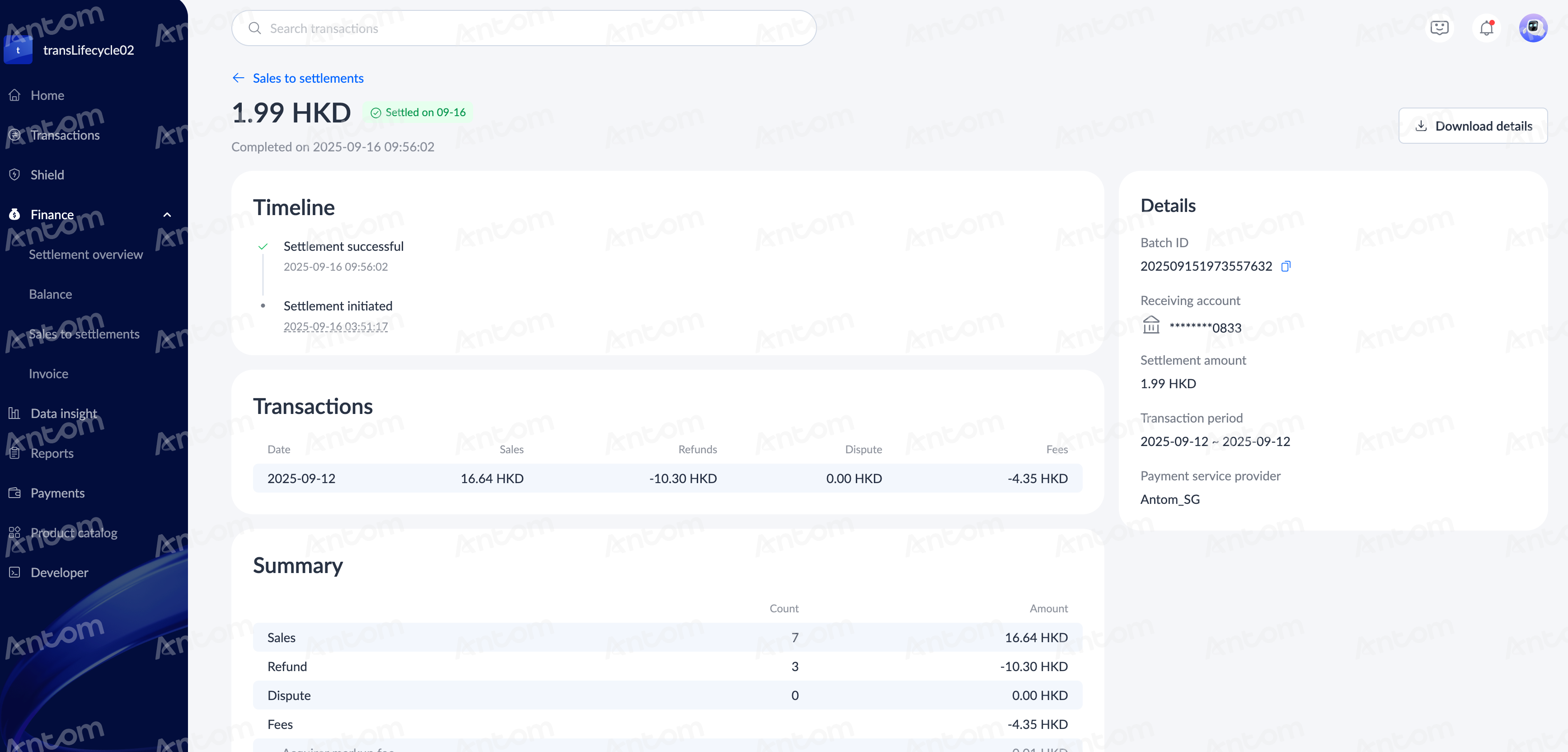
Click a record in the Details list to view the details page, including Timeline, Transactions, Details, and Summary. You can also download the detailed record from the Details list or the detailed page. Refer to Download the details report for specific steps.
Settlements
On the Finance > Sales to settlements > Settlements page, you can view the statistical histogram of settlements orders within a period. Segment according to transaction currency, and filter by day, week, month, and currency range. Settlement batches have the following three statuses:
- Ready to settle: When transactions on a certain day or days are accumulated to the settlement date according to the settlement rules T+N, and settlement payment is initiated to the bank.
- Settled: After initiating settlement, this status will be updated when a successful bank receipt is received.
- Settlement failure or return: Receive a failed bank receipt after initiating a settlement, or receive a return from the bank after the settlement is successful.
After clicking a certain column, the Details list below will display whether the transaction has been settled. If it has not been settled yet, there is no batch; if it has been settled, the specific settlement batch is displayed.
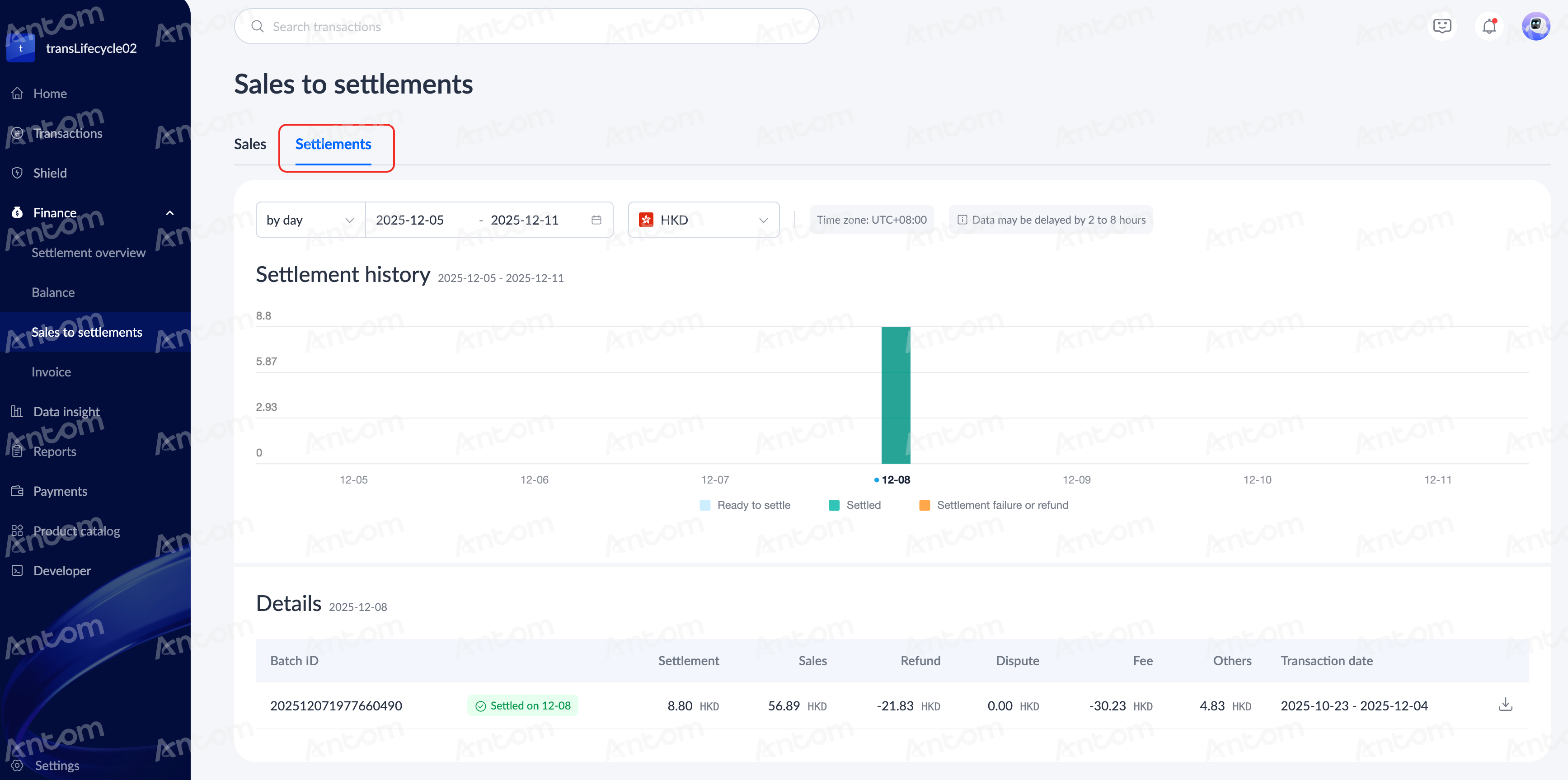
Click a record in the Details list to view the details page, including Timeline, Transactions, Details, and Summary. You can also download the detailed record from the Details list or the detailed page. Refer to Download the details report for specific steps.
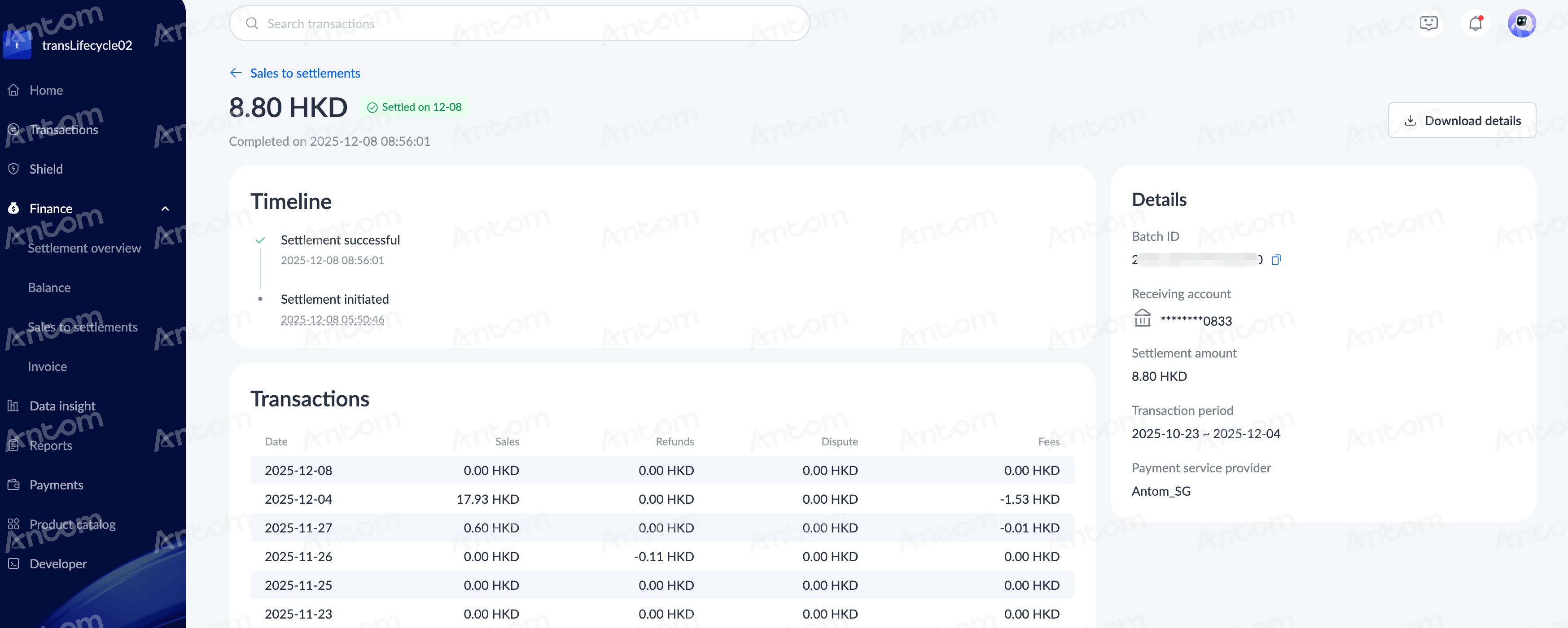
Download the details report
Both the Sales and Settlements pages support downloading detailed settlement reports. You can download the records of settled payments on the Sales or Settlements page in the following ways.
Download from Details list
On the Details list, you can click Download details and choose to perform any of the following operations:
- Export file: Click Download details > Export file, select the export format in the Export settlement details pop-up window, and click Export to complete the export.
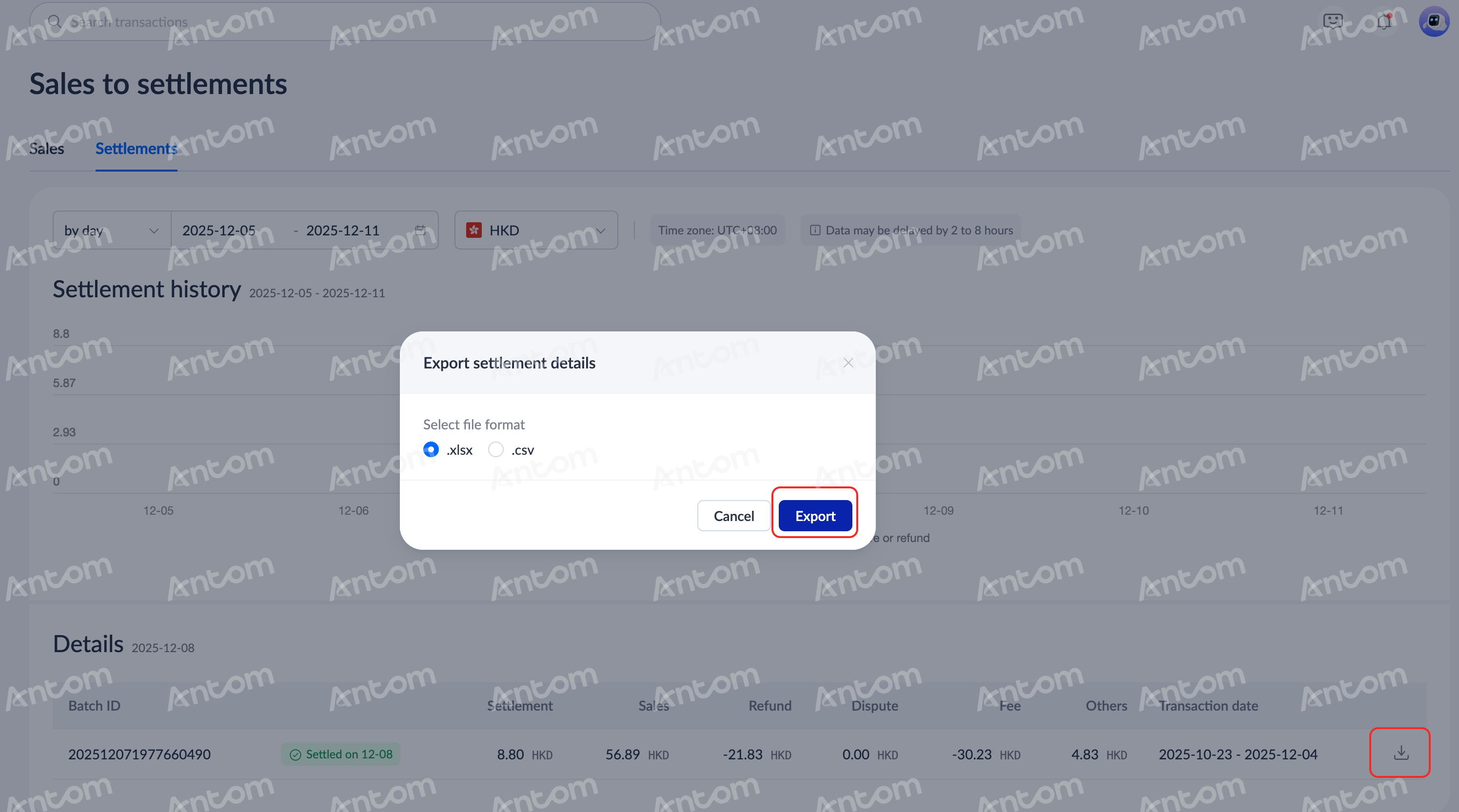
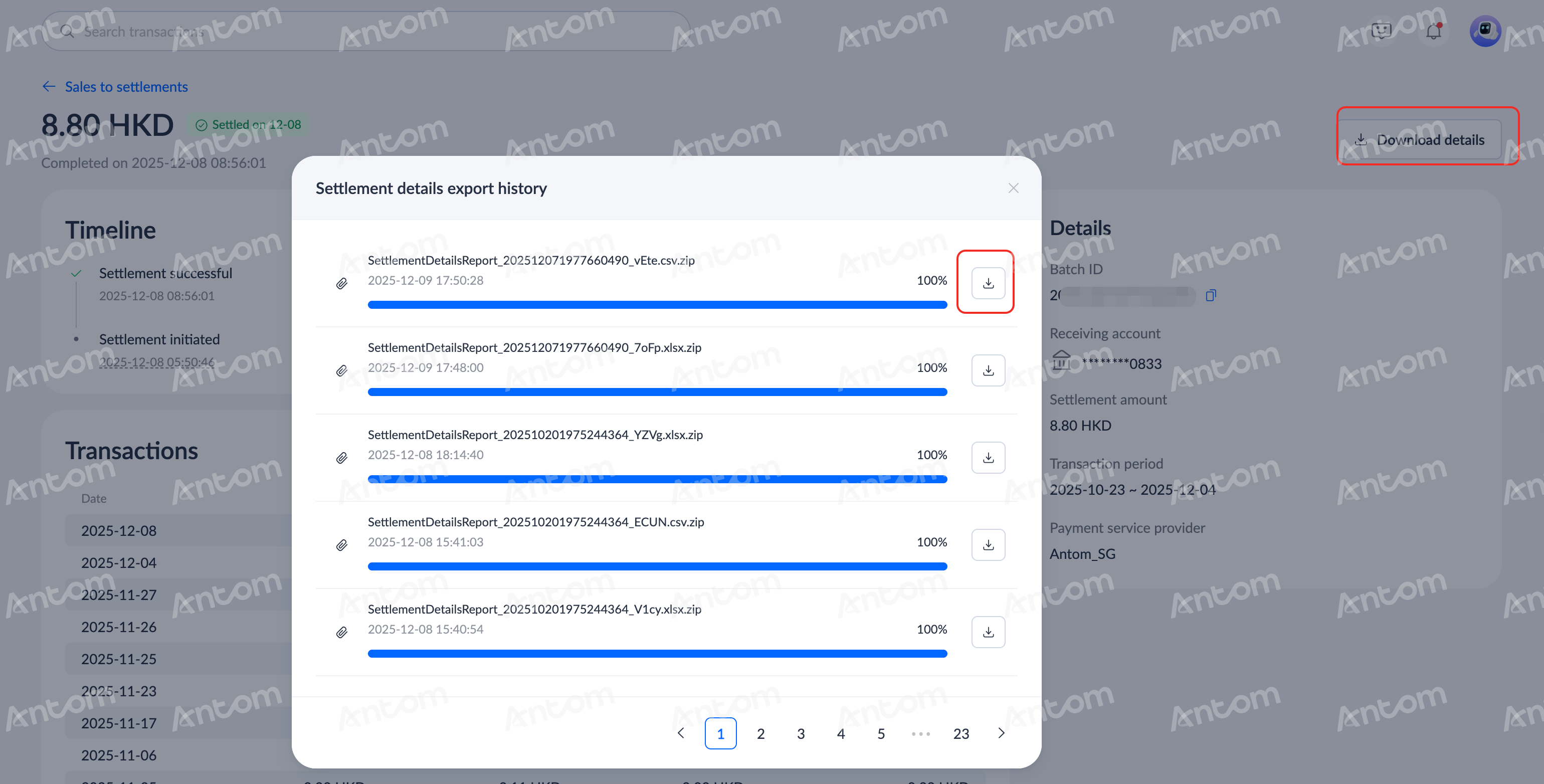
- View file: Click Download details > View file to view the Settlement details export history. When the download is completed, click the download icon in the pop-up window to view the exported record details.
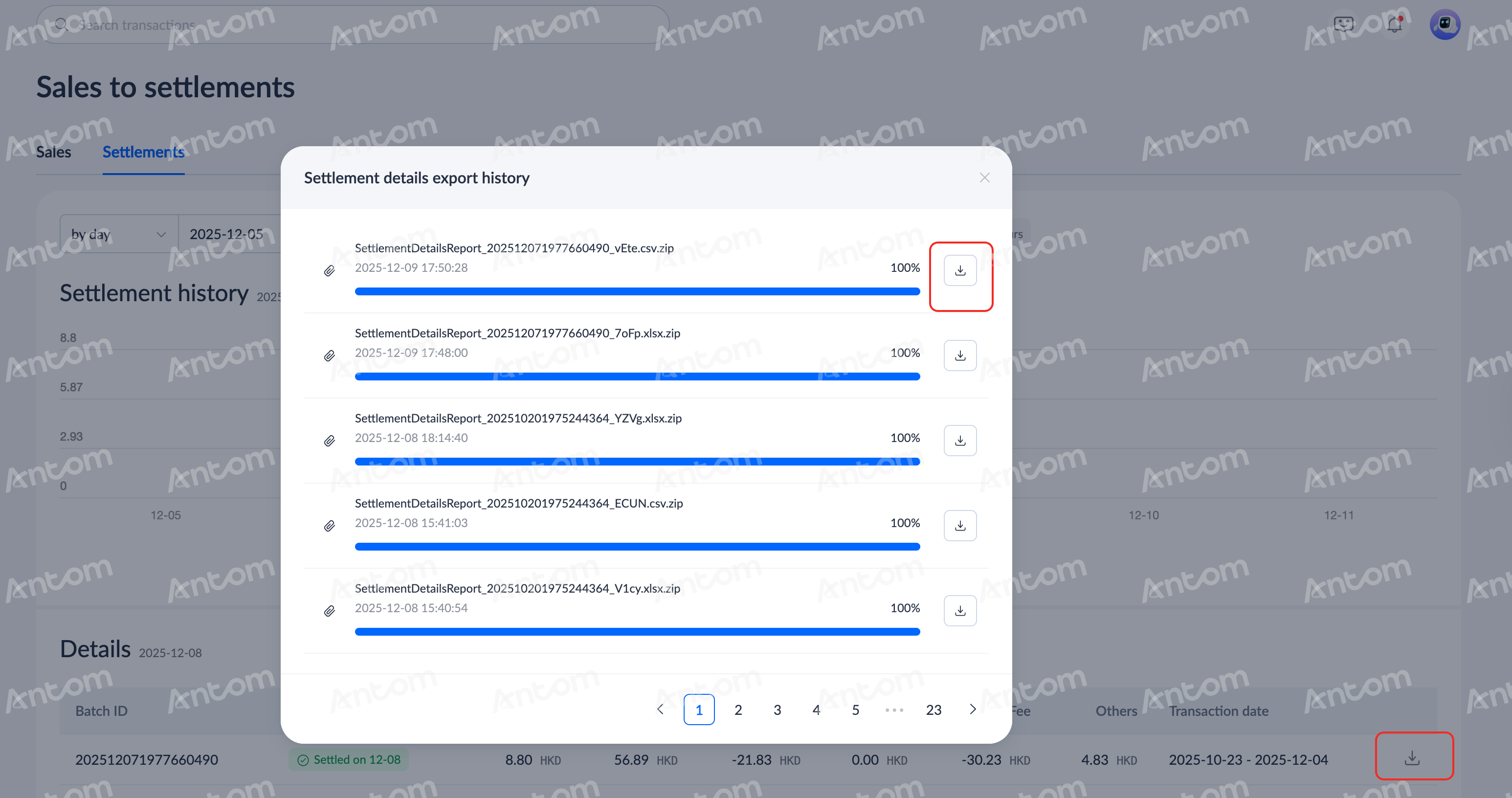
Download from the details page
You can click any record in the Details list to enter the details page. When entering the details page, you can click Download details and choose to perform any of the following operations:
- Export file: Click Download details > Export file, select the export format in the Export settlement details pop-up window, and click Export to complete the export.
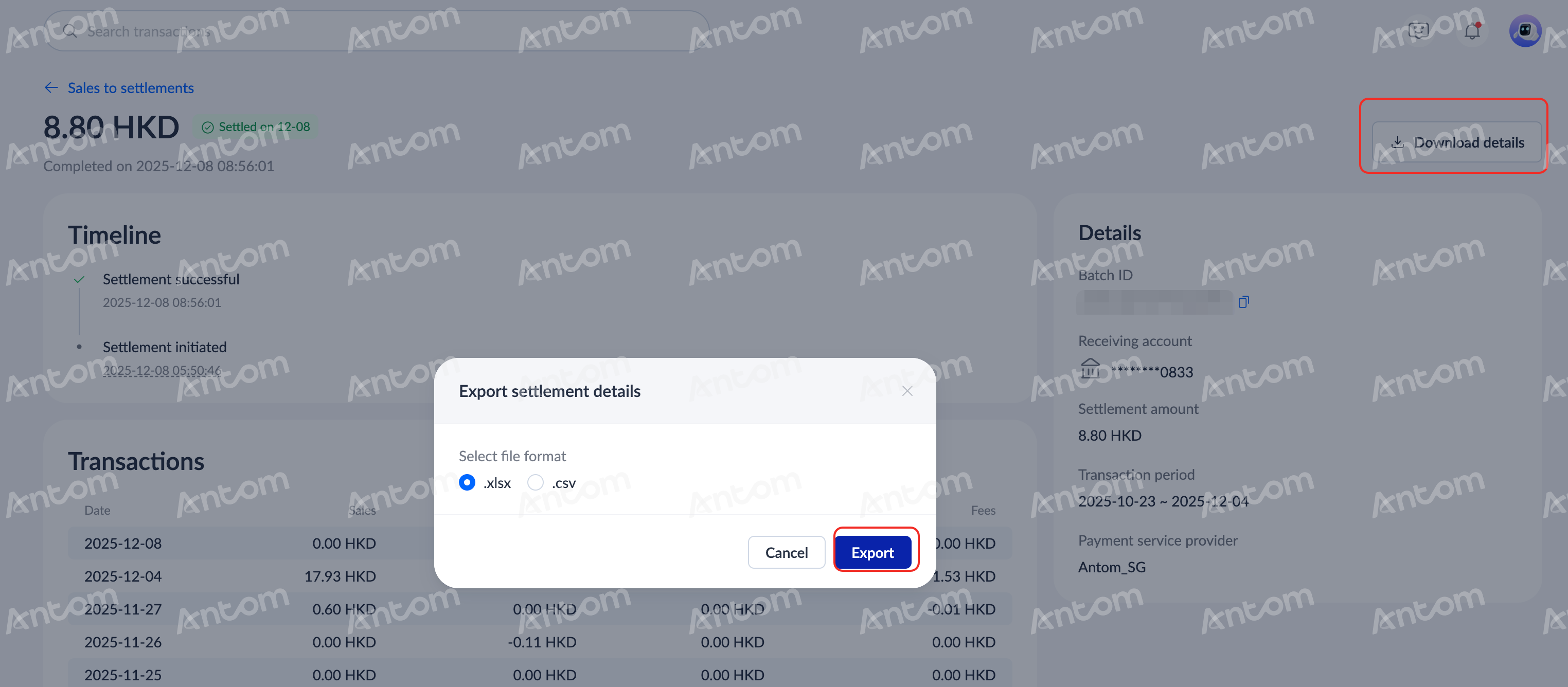
- View file: Click Download details > View file to view the Settlement details export history. When the download is completed, click the download icon in the pop-up window to view the exported record details.