
PayPay
For One-time Payments
For Tokenized Payment
Launched in 2018, PayPay has emerged as the leading mobile payment app in Japan, boasting a user base of over 62 million. The app's success can be attributed to its strategic marketing campaigns, user-friendly payment experience, diverse range of services, and seamless integration across online and offline platforms. Since its inception, PayPay has effectively steered local consumers away from traditional cash transactions towards the convenience of digital payments, making it an indispensable tool in the daily lives of Japanese individuals.
PayPay is integrated with bank accounts, credit cards, and debit cards, simplifying the process of topping up the PayPay wallet. Whether making online or in-store purchases, buyers can effortlessly complete transactions by scanning QR codes, barcodes, or entering the account information. With widespread acceptance throughout Japan, PayPay boasts a payment ratio exceeding 45%, surpassing other prominent digital wallets in the country.
PayPay offers a new addition of front-end-based integration methods in 2025, which allows merchants to invoke various PayPay features without transitioning to PayPay.
Properties
The properties of the PayPay payment method are shown in the following table:
[1] PayPay credit cards: PayPay does not allow other credit cards as a separate funding source, only allowing to top up balance for payments.
[2] Balance: Using of PayPay gift voucher and PayPay points is included in the balance limit.
User experience
Note: The following payment flows on different terminals are reference only, and represent this payment method's flow on different terminal types. For supported merchants' terminal types, consult Antom Technical Support.
The following screenshots show the journey of paying with PayPay in different scenarios:
One Time payment
Mobile
PC
App
WAP Login
WAP Front-end
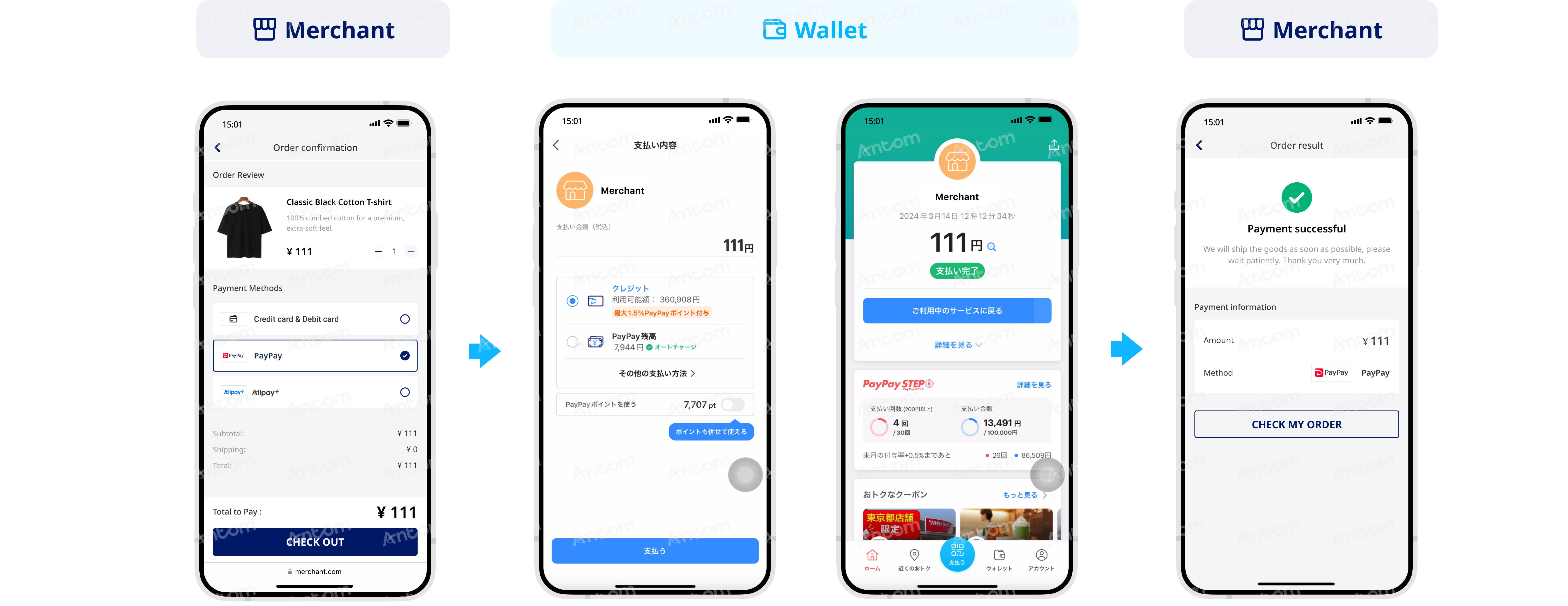
- The buyer selects PayPay to pay.
- The buyer is redirected to the PayPay app.
- The buyer selects the preferred payment funding source.
- Upon completion of payment, the buyer can return to the service page or view the purchase details.
Note: PayPay's Deeplink does not support the ability to downgrade to the normalUrl.
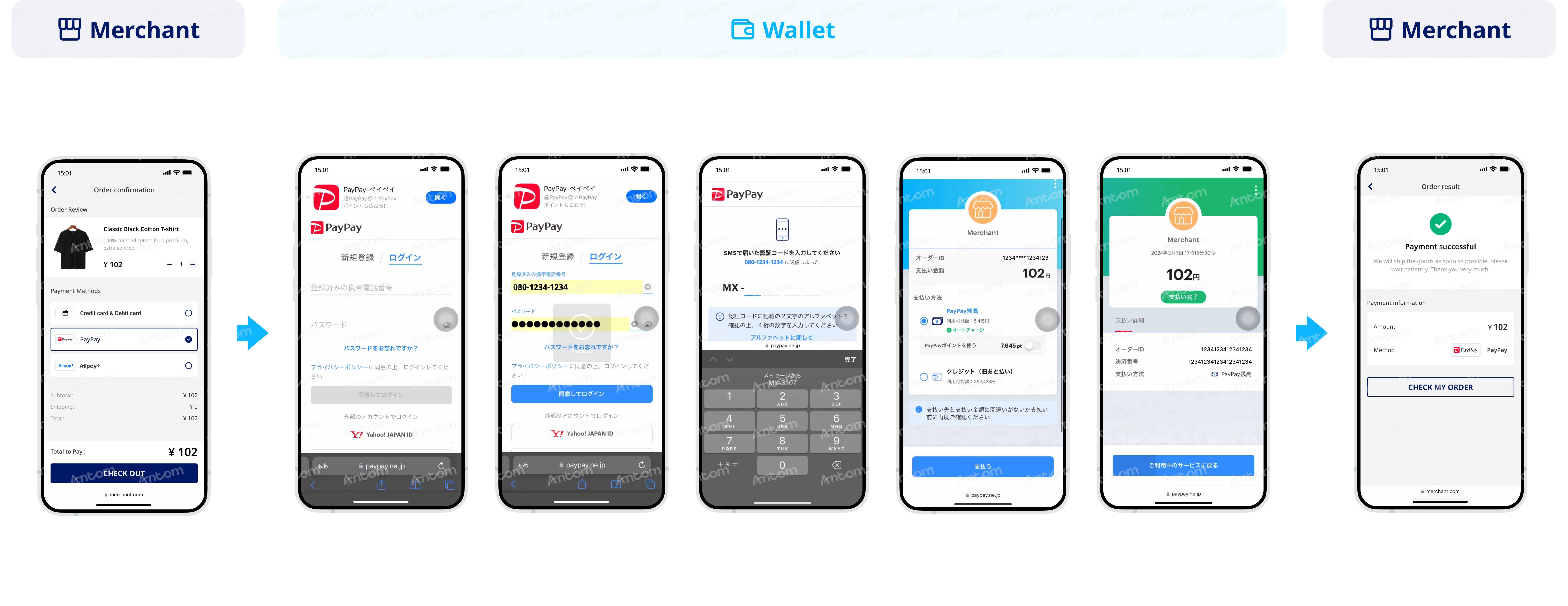
- The buyer selects PayPay to pay.
- The buyer is redirected to the PayPay wap page.
- The buyer enters the account and password to proceed. Alternatively, the buyer can opt to pay via the PayPay app (refer to the section WAP Front-end).
- The buyer must enter a 4-digit verification code received via SMS.
- The buyer reviews the order and selects the preferred funding source.
- The buyer confirms the payment.
- Upon completion of payment, the buyer can return to the service page or view the purchase details.
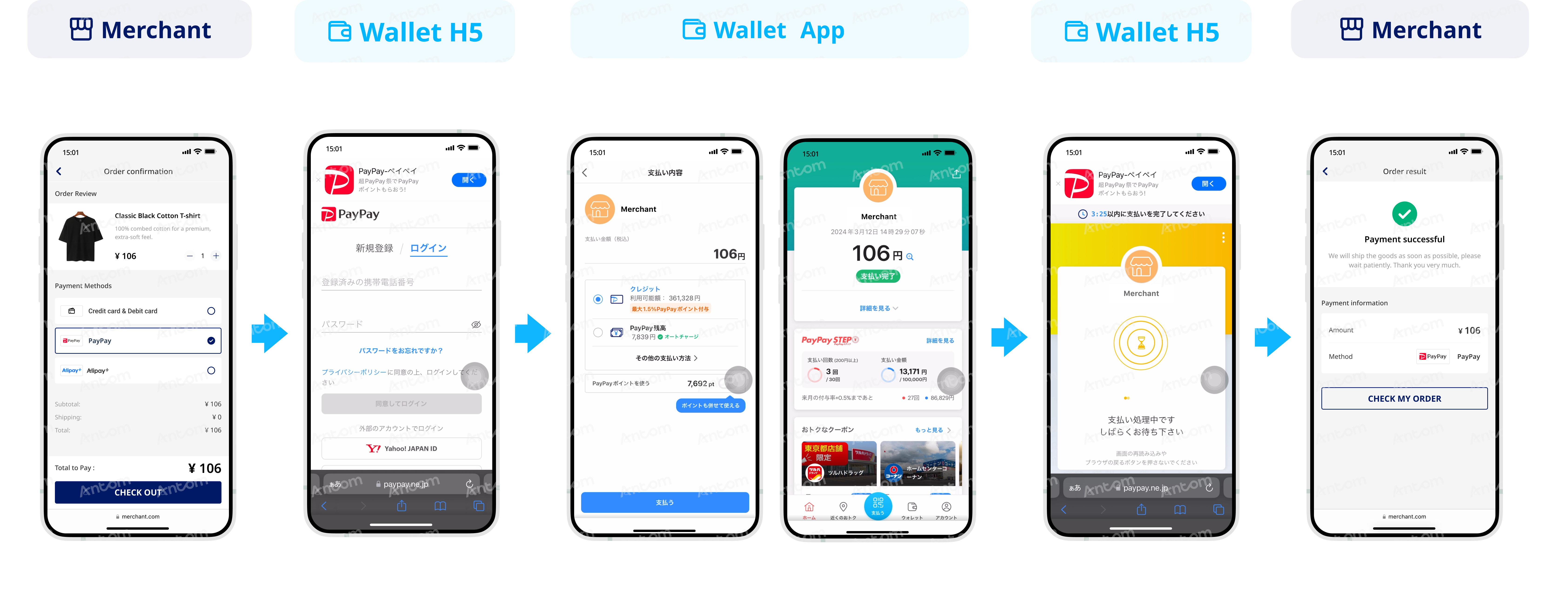
- The buyer selects PayPay to pay.
- The buyer is redirected to the PayPay wap page. (The buyer can also choose to pay via the app).
- The buyer will be directed to the PayPay app.
- The buyer checks the balance and selects the preferred funding source.
- The buyer confirms the payment.
- Upon completion of payment in the app, the buyer stays on the current page and needs to manually switch to the browser page.
- PayPay will redirect the buyer return to the service page or view the purchase details.
Scan QR code
Login
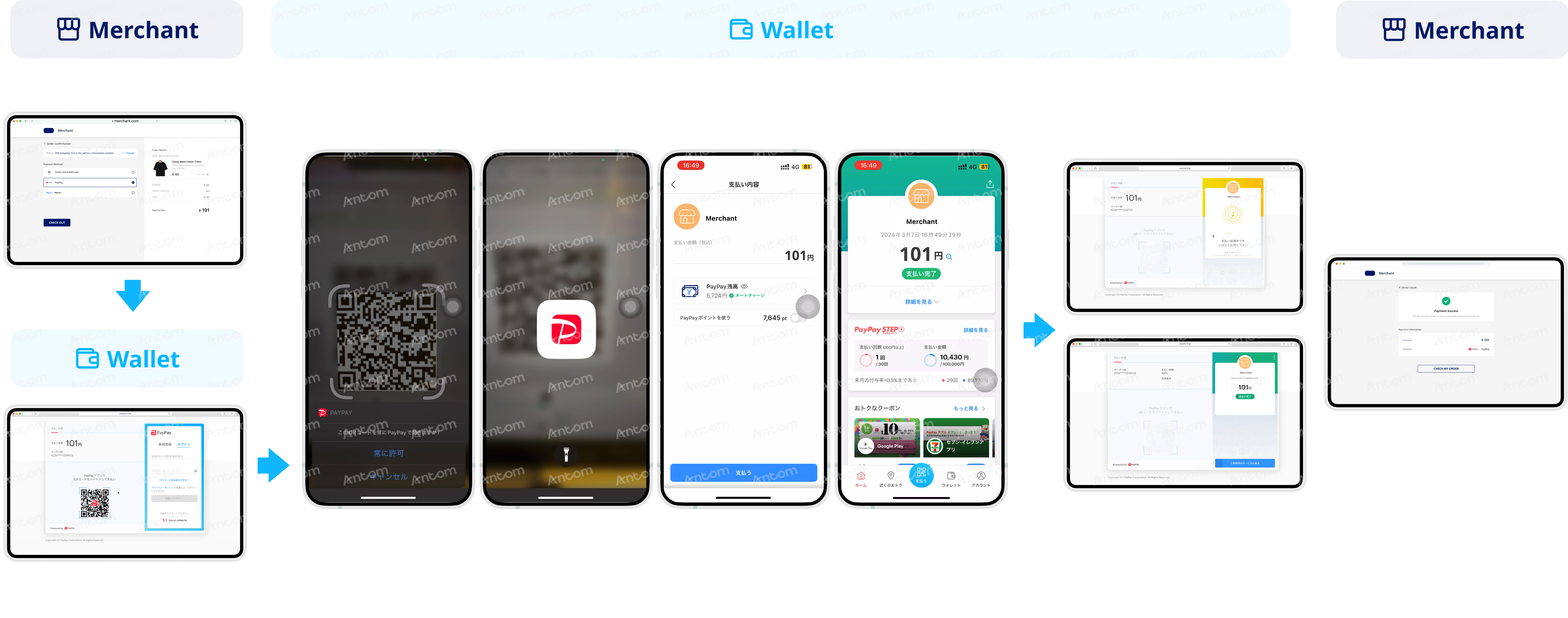
- The buyer selects PayPay to pay.
- The buyer is redirected to the PayPay web page.
- The buyer chooses to pay by scanning the PayPay QR code.
- The buyer scans the QR code displayed on the web page using the PayPay app.
- The buyer selects the preferred funding source and confirms the payment.
- Upon completion of payment, the buyer can return to the app or view the purchase details.
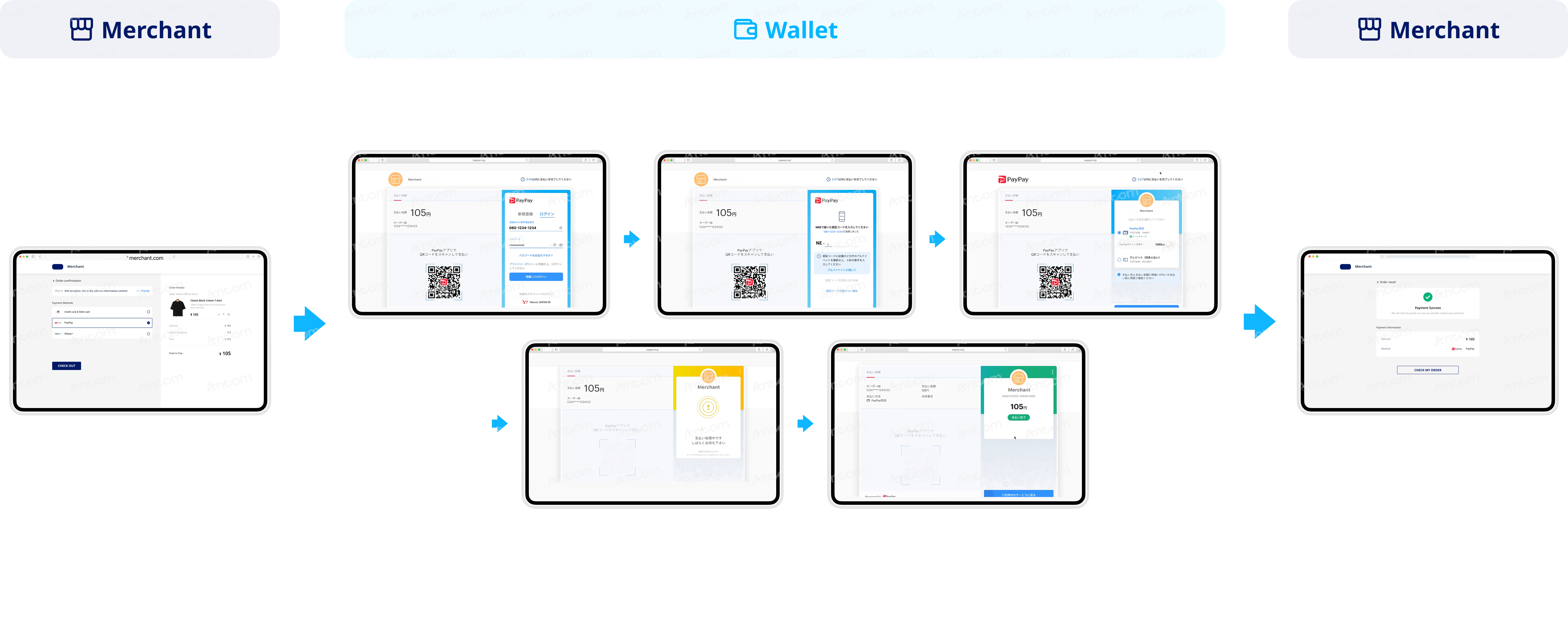
- The buyer selects PayPay to pay.
- The buyer is redirected to the PayPay web page and enters the mobile number and password associated with the PayPay account.
- The buyer must enter a 4-digit verification code received via SMS.
- The buyer selects the preferred funding source.
- Upon completion of payment, the buyer can return to the app or view the purchase details.
Smart Payment
Mobile
PC
App
WAP
First-time payment
Subsequent payments
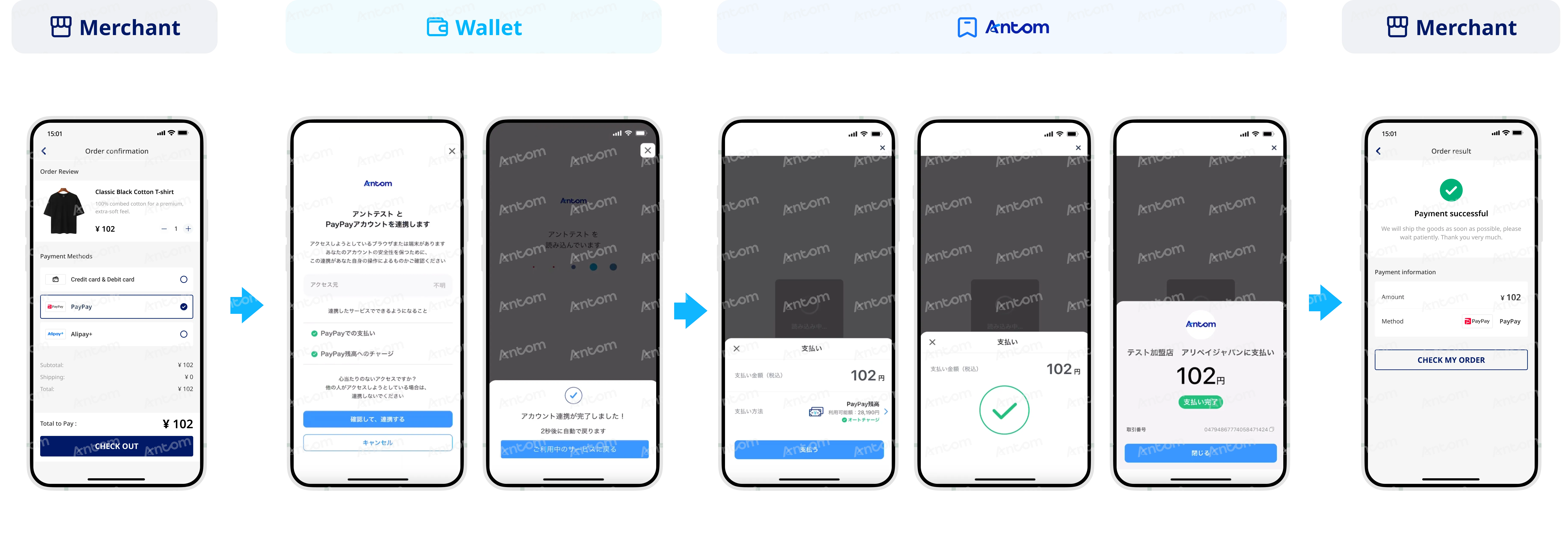
- The buyer selects PayPay to pay.
- The buyer is redirected to the PayPay app to check the authorization information.
- The buyer completes the authorization.
- The buyer is redirected to the Antom page, where Antom triggers PayPay's half-screen checkout. The buyer confirms the order amount and selects a funding source to pay.
- The buyer completes the payment.
- The buyer checks the payment result.
- The buyer is redirected back to the merchant result page.
Note: When making subsequent payments, the Smart Payment experience relies on the cookie of the buyer's browser. If the cookie expires or the buyer manually clears it, the transaction will be regarded as the first-time payment, and the buyer needs to restart the authorization process.
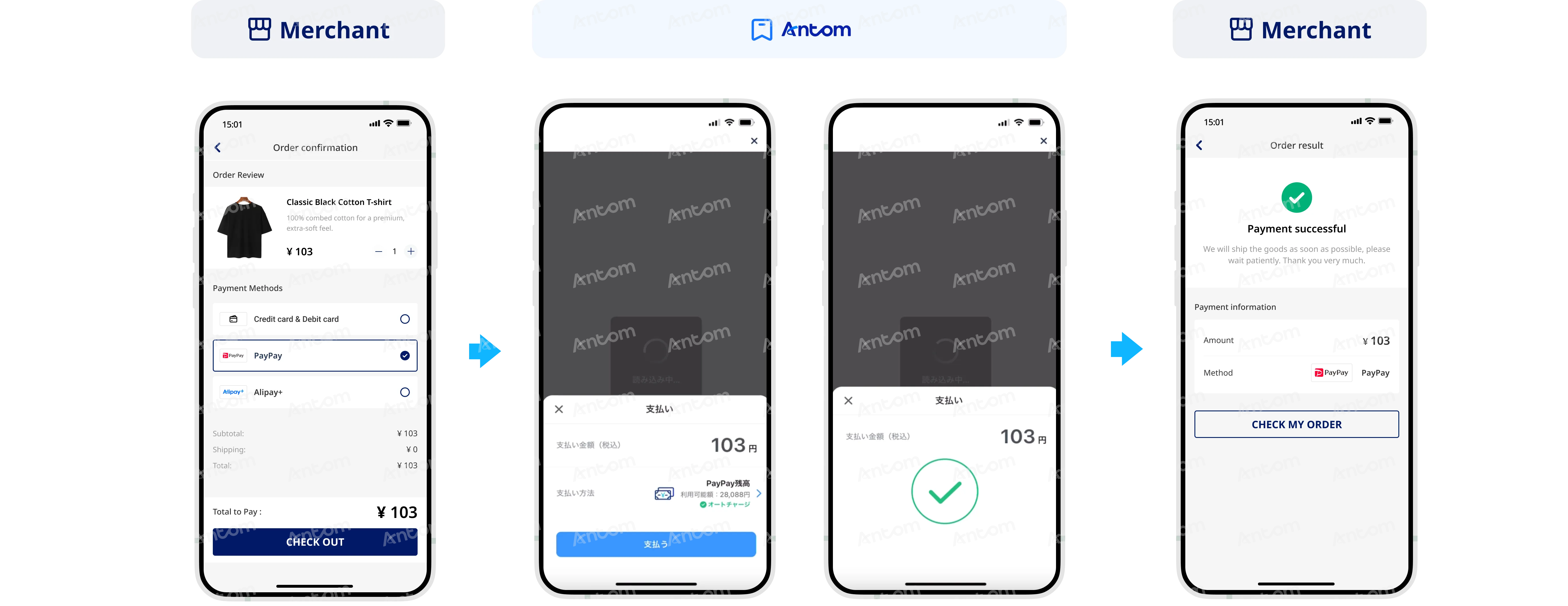
- The buyer selects PayPay to pay.
- The buyer is redirected to the Antom page, where Antom triggers PayPay's half-screen checkout. The buyer confirms the order amount and selects a funding source to pay.
- The buyer completes the payment.
- The buyer is redirected back to the merchant result page.
Note: When making subsequent payments, the Smart Payment experience relies on the cookie of the buyer's browser. If the cookie expires or the buyer manually clears it, the transaction will be regarded as the first-time payment, and the buyer needs to restart the authorization process.
PayPay app not installed
PayPay app installed
Subsequent payments
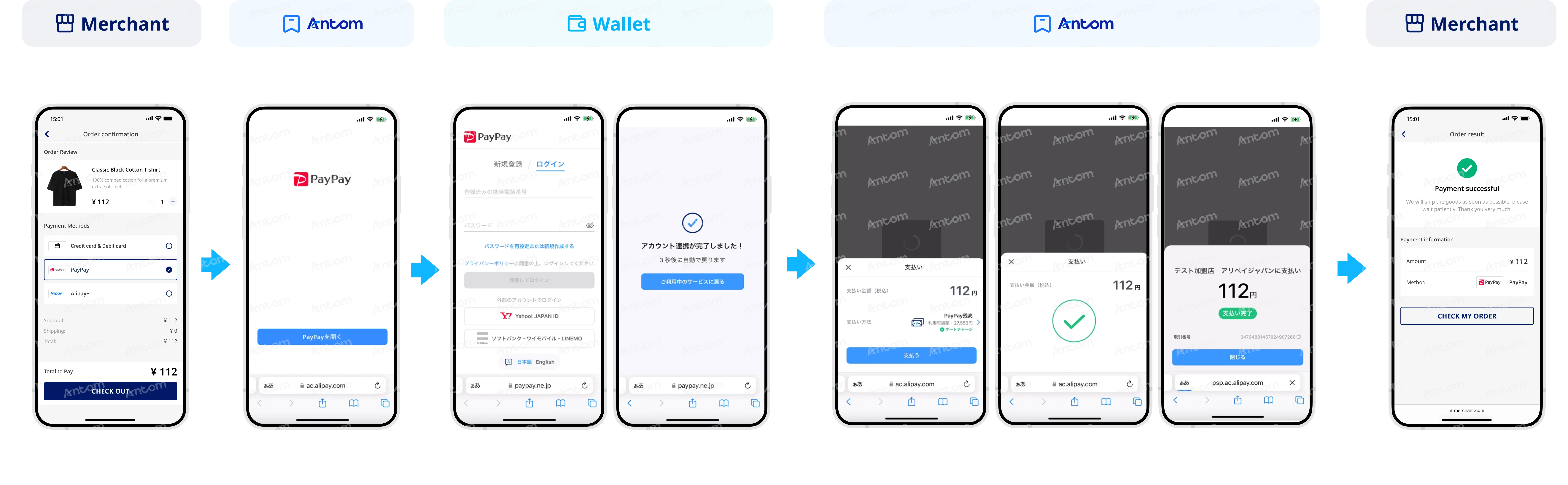
- The buyer selects PayPay to pay.
- The buyer is redirected to the Antom page to open PayPay.
- The buyer is redirected to the PayPay browser page and enters the mobile number and password to log in.
- The buyer completes the authorization.
- The buyer is redirected back to the Antom page, where Antom triggers PayPay's half-screen checkout. The buyer confirms the order amount and selects a funding source to pay.
- The buyer completes the payment.
- The buyer checks the payment result.
- The buyer is redirected back to the merchant result page.
Note: When making subsequent payments, the Smart Payment experience relies on the cookie of the buyer's browser. If the cookie expires or the buyer manually clears it, the transaction will be regarded as the first-time payment, and the buyer needs to restart the authorization process.
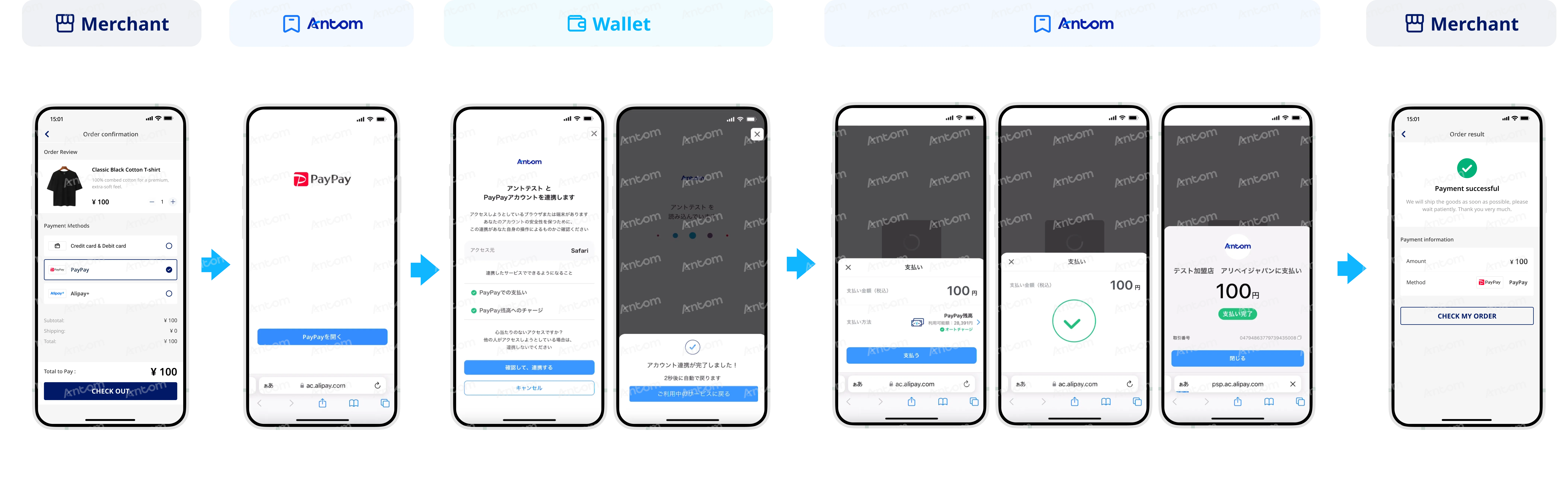
- The buyer selects PayPay to pay.
- The buyer is redirected to the Antom page to open PayPay.
- The buyer is redirected to the PayPay page to check the authorization information.
- The buyer completes the authorization.
- The buyer is redirected back to the Antom page, where Antom triggers PayPay's half-screen checkout. The buyer confirms the order amount and selects a funding source to pay.
- The buyer completes the payment.
- The buyer checks the payment result.
- The buyer is redirected back to the merchant result page.
Note: When making subsequent payments, the Smart Payment experience relies on the cookie of the buyer's browser. If the cookie expires or the buyer manually clears it, the transaction will be regarded as the first-time payment, and the buyer needs to restart the authorization process.
- The buyer selects PayPay to pay.
- The buyer is redirected to the Antom page, where Antom triggers PayPay's half-screen checkout. The buyer confirms the order amount and selects a funding source to pay.
- The buyer completes the payment.
- The buyer is redirected back to the merchant result page.
Note: When making subsequent payments, the Smart Payment experience relies on the cookie of the buyer's browser. If the cookie expires or the buyer manually clears it, the transaction will be regarded as the first-time payment, and the buyer needs to restart the authorization process.
First-time payment
Subsequent payments
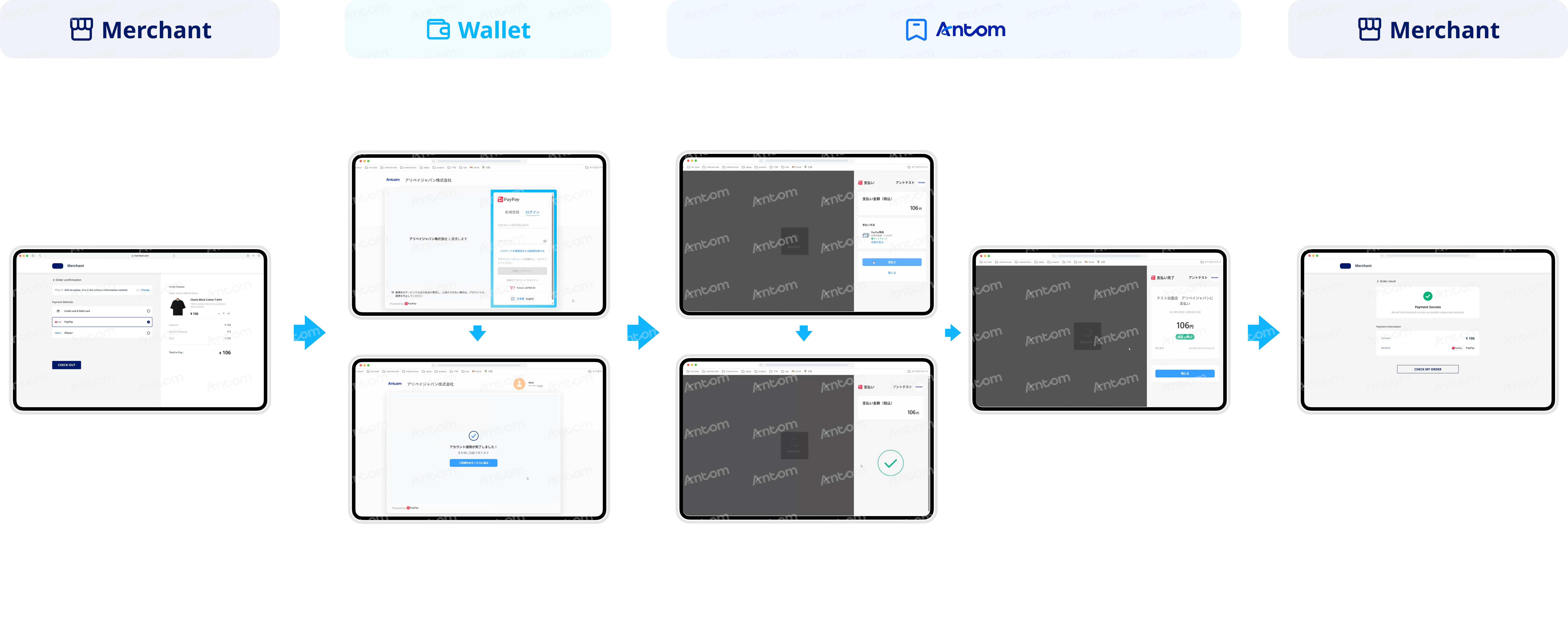
- The buyer selects PayPay to pay.
- The buyer is redirected to the PayPay page and enters the mobile number and password to log in.
- The buyer completes the authorization.
- The buyer is redirected to the Antom page, where Antom triggers PayPay checkout. The buyer confirms the order amount and selects a funding source to pay.
- The buyer completes the payment.
- The buyer checks the payment result.
- The buyer is redirected back to the merchant result page.
Note: When making subsequent payments, the Smart Payment experience relies on the cookie of the buyer's browser. If the cookie expires or the buyer manually clears it, the transaction will be regarded as the first-time payment, and the buyer needs to restart the authorization process.
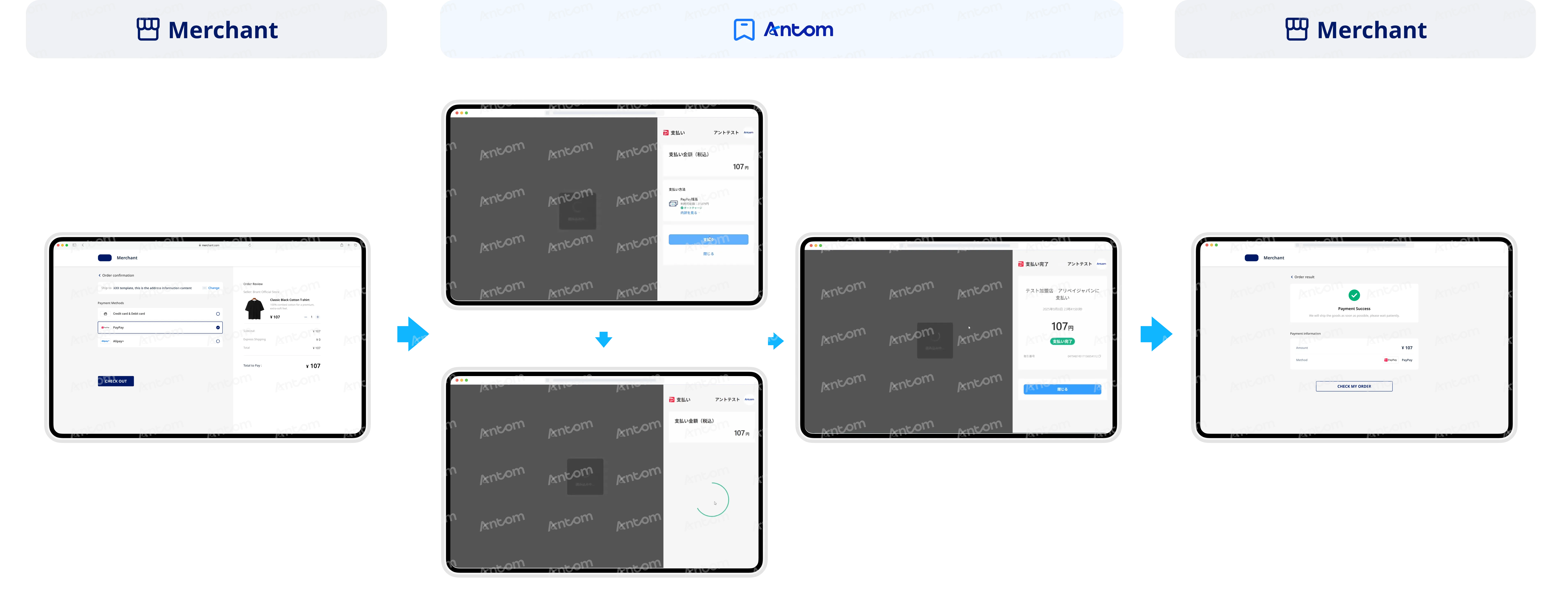
- The buyer selects PayPay to pay.
- The buyer is redirected to the Antom page, where Antom triggers PayPay checkout. The buyer confirms the order amount and selects a funding source to pay.
- The buyer completes the payment.
- The buyer checks the payment result.
- The buyer is redirected back to the merchant result page.
Note: When making subsequent payments, the Smart Payment experience relies on the cookie of the buyer's browser. If the cookie expires or the buyer manually clears it, the transaction will be regarded as the first-time payment, and the buyer needs to restart the authorization process.
Supported online payment integrations
Antom offers a range of integration options tailored to each payment method. Each payment method may support different online payment integration options, allowing for flexibility based on your business requirements. The table below provides detailed information about the specific integrations available for each payment method:
Not a customer yet?
Speak to our payment experts for product demos, personalised solutions, pricing, and fast integration support. Contact us now to discover a tailored payment experience for your business!
Launched in 2018, PayPay has emerged as the leading mobile payment app in Japan, boasting a user base of over 62 million. The app's success can be attributed to its strategic marketing campaigns, user-friendly payment experience, diverse range of services, and seamless integration across online and offline platforms. Since its inception, PayPay has effectively steered local consumers away from traditional cash transactions towards the convenience of digital payments, making it an indispensable tool in the daily lives of Japanese individuals.
PayPay is integrated with Wallet Balance and Points. With widespread acceptance throughout Japan, it boasts a payment ratio exceeding 45%, surpassing other prominent digital wallets in the country.
Properties
The properties of PayPay are shown in the following table:
[1] Balance: Using of PayPay gift voucher and PayPay points is included in the balance limit.
User experience
The following graphics show the PayPay authorization process, together with theauthorization revocation process from the wallet side:
Authorization (mobile)
WAP login
WAP front-end
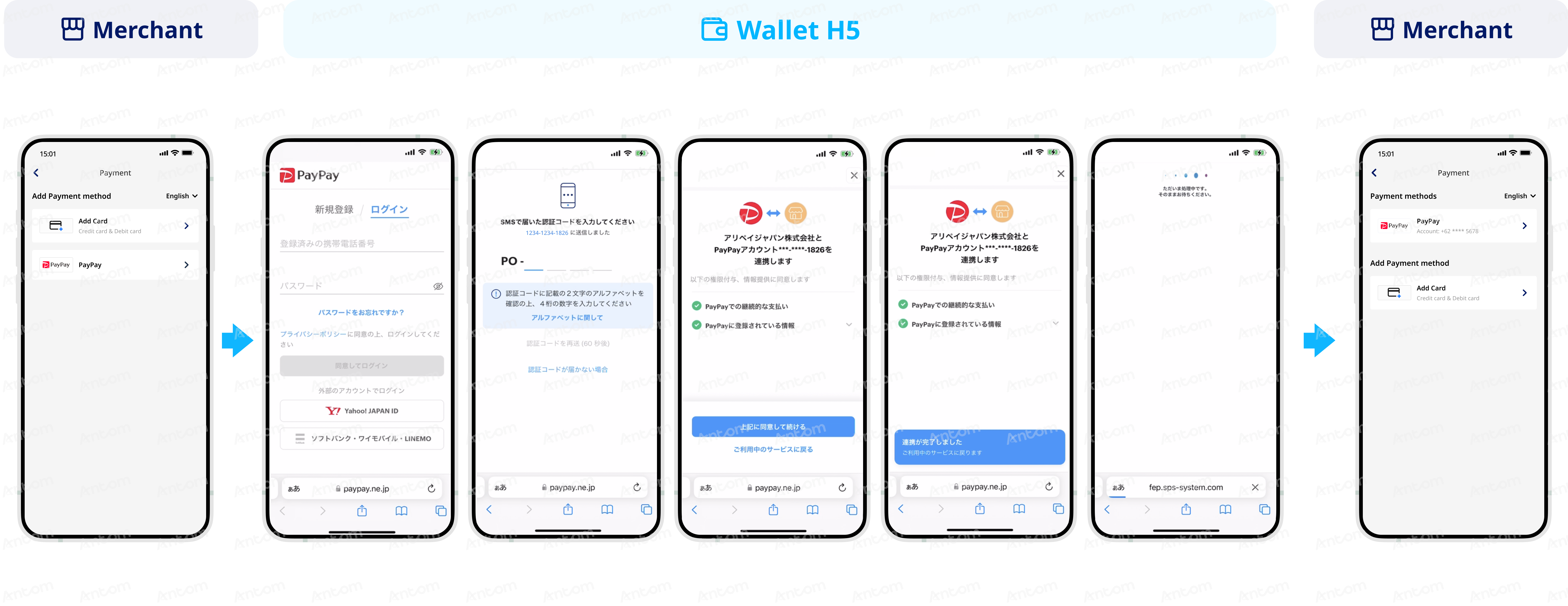
- The buyer chooses to sign up with PayPay.
- The buyer is redirected to the PayPay page and selects a login method.
- The buyer enters the OTP.
- The buyer reviews the authorization information and confirms it.
- The buyer checks the authorization result.
- The buyer is redirected to the merchant result page.
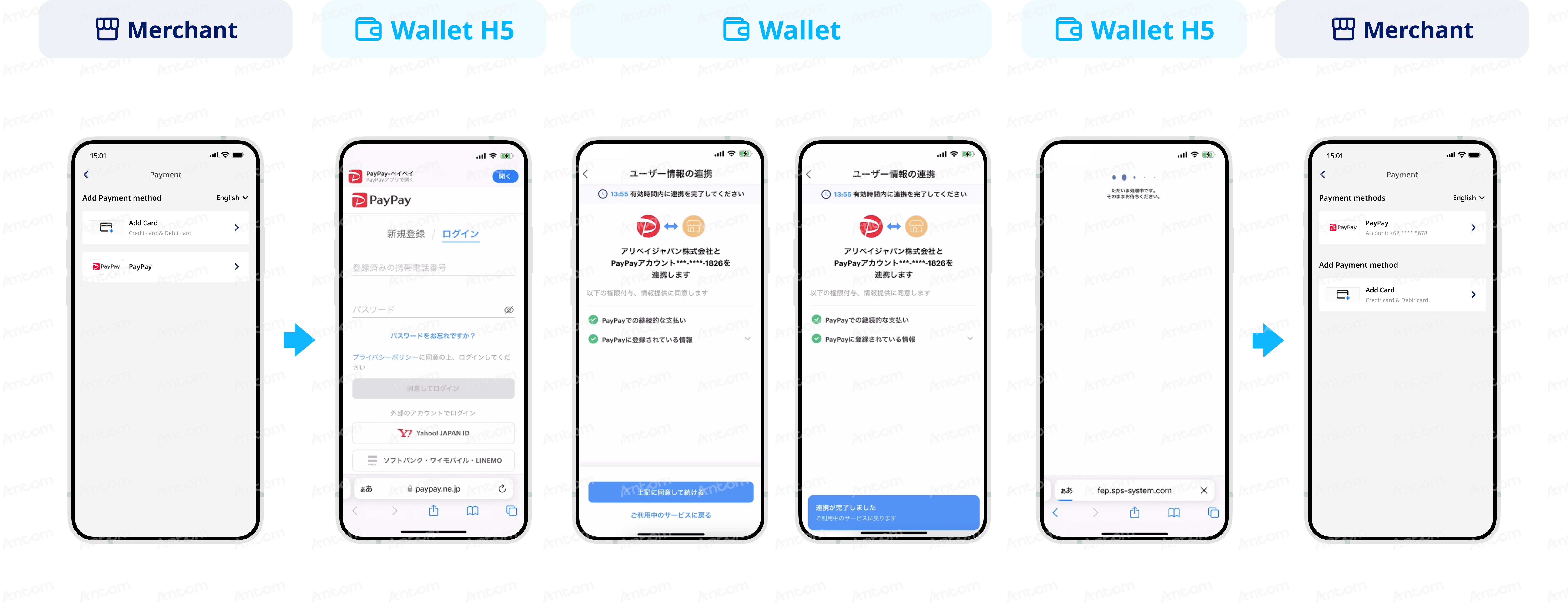
- The buyer chooses to sign up with PayPay.
- The buyer is redirected to the PayPay page. If the PayPay app is installed, the buyer clicks 開く to launch the app (after making the initial selection, PayPay supports default automatic launch).
- The buyer reviews the authorization information and confirms it.
- The buyer checks the authorization result.
- The buyer is redirected to the merchant result page.
Authorization (PC)
Login
Code scanning
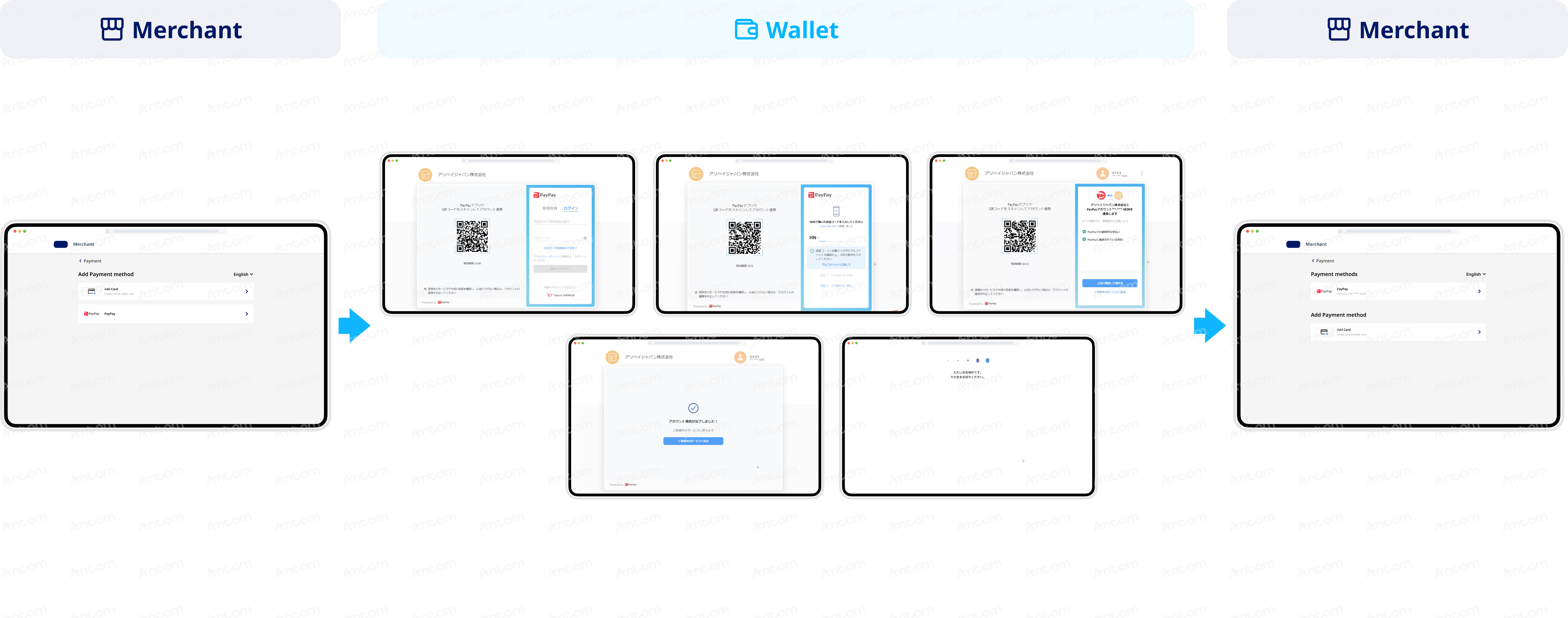
- The buyer chooses to sign up with PayPay.
- The buyer is redirected to the PayPay page and selects a login method.
- The buyer enters the OTP.
- The buyer reviews the authorization information and confirms it.
- The buyer checks the authorization result.
- The buyer is redirected to the merchant result page. (the buyer can click to redirect back or wait for PayPay to automatically redirect.)
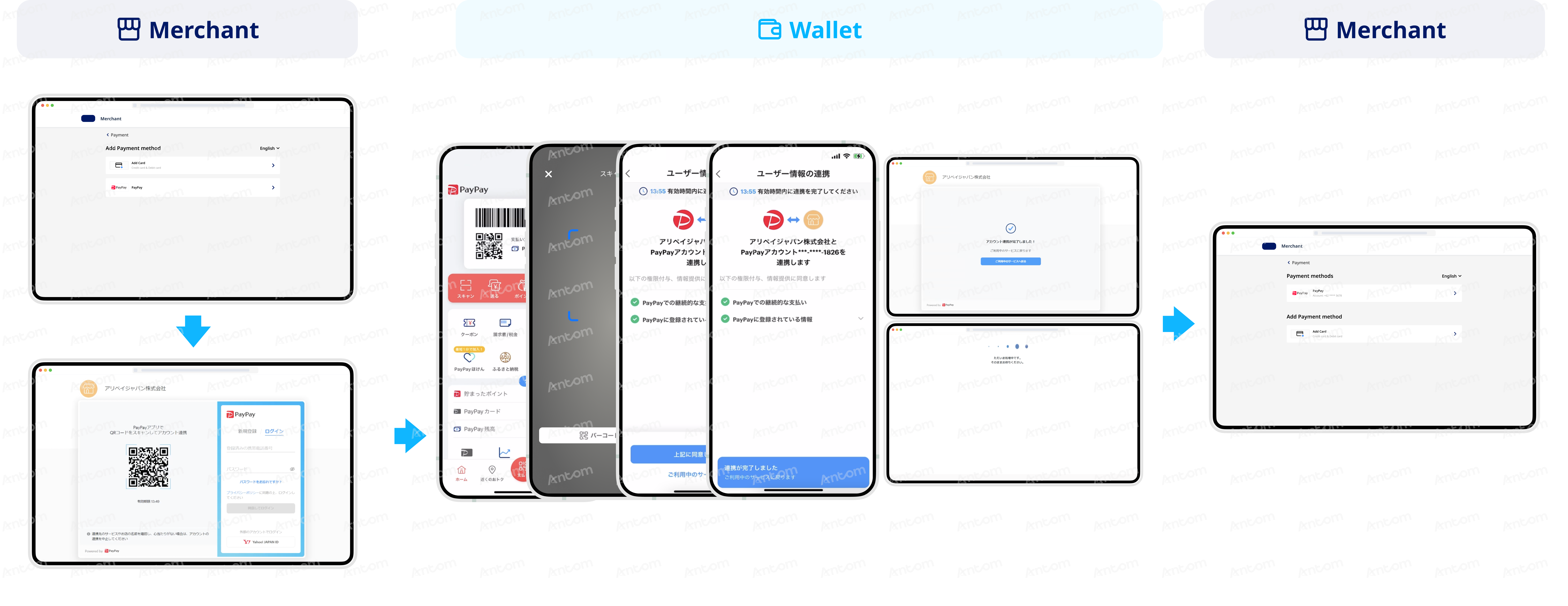
- The buyer chooses to sign up with PayPay.
- The buyer is redirected to the PayPay web page and selects the QR code scanning method.
- The buyer opens the PayPay app.
- The buyer completes the QR code scan using the PayPay app.
- The buyer reviews the authorization information and confirms it.
- The buyer checks the authorization result.
- The PayPay web page automatically refreshes the authorization completion results.
- The buyer is redirected to the merchant result page. (the buyer can click to redirect back or wait for PayPay to automatically redirect.)
Authorization revocation (wallet)
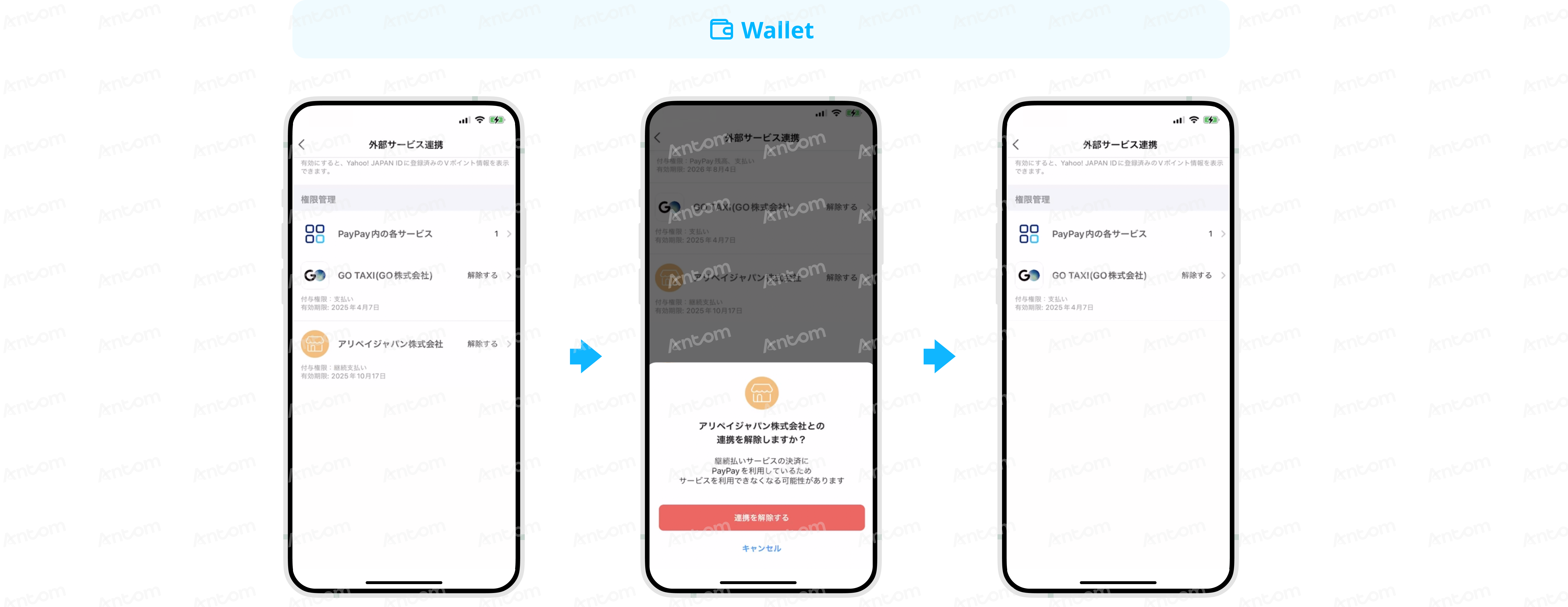
- The buyer selects the merchant to revoke in the “External Cooperation Service” of the PayPay app.
- The buyer confirms the authorization revocation.
- After successful revocation, the buyer returns directly to the "External Cooperation Service" page.
Authorization information page
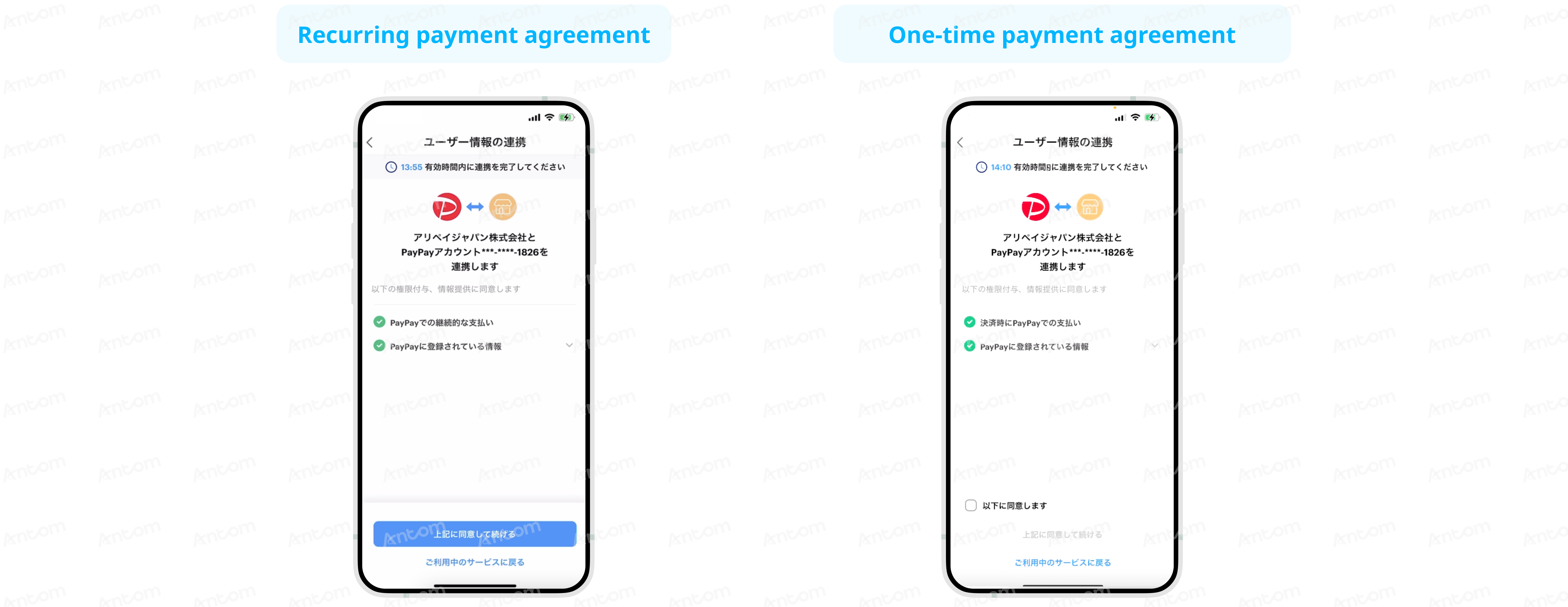
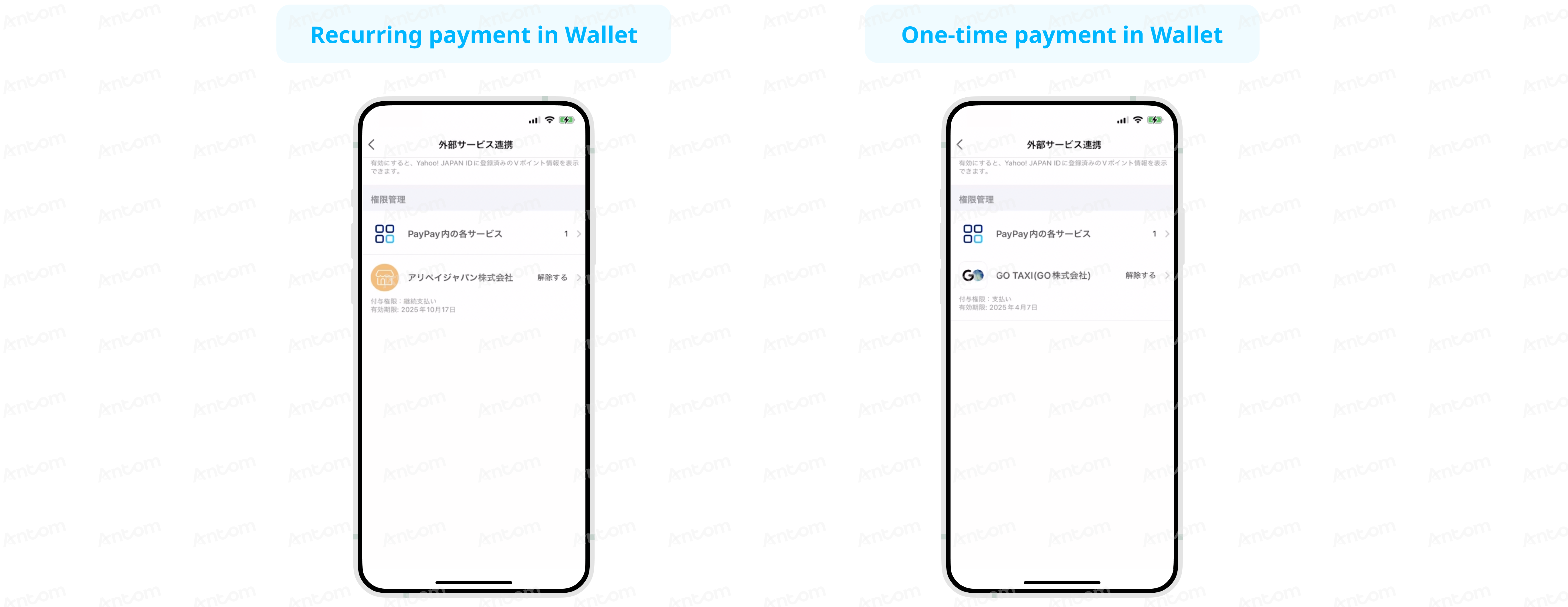
The following figures show the difference in the authorization information page between recurring payment and one-time payment:
Authorization
Revocation
Supported online payment integrations
Antom offers a range of integration options tailored to each payment method. Each payment method may support different online payment integration options, allowing for flexibility based on your business requirements. The table below provides detailed information about the specific integrations available for each payment method:
Integration considerations
The following section outlines integration considerations for various payment types, detailing customized integration solutions and payment method features.
Specify recurringPayment
When calling the consult API, the recurringPayment field indicates whether the auto debit is used for recurring payments. Valid values are:
- true: indicates the auto debit is for recurring payments.
- false: indicates the auto debit is not for recurring payments.
Note: Specify this parameter when the value of customerBelongsTo is
PAYPAY
. PayPay will continuously monitors the transaction. If the specified value does not align with the merchant's actual business, it may trigger a subsequent investigation by PayPay, potentially leading to the suspension of the transaction.About normalUrl
PayPay only supports the return of normalUrl. If this URL is opened on a mobile device, the buyer can click the 開く button in the upper right corner of the PayPay page to redirect to the app for authorization. After the initial selection, PayPay will remember the buyer's choice for default automatic redirection.
Note: PayPay Tokenized Payment supports one-time payments, contact Antom Technical Support for more information.