Smart engine
Smart engine provides comprehensive risk control capabilities ranging from list management to custom risk rules, supporting flexible policy construction and intelligent configuration to build a systematic risk prevention mechanism. Smart engine module supports the following main functions:
- Lists: Lists support creation and batch import of blocklists and allowlists. After buyer information is added to a list, the system will automatically execute decisions based on the priority hierarchy between lists and rules when a match occurs, enabling precise blocking or approval. Lists support:
- Custom rules: Antom Shield offers both default rules (available in Basic and Pro versions) and custom rule configuration (exclusive to the Pro version). Custom rules support the configuration of of decision actions such as rejection, 3DS, and acceptance rules, with evaluation conditions covering cumulative frequency, information conflicts, shield scores, raw variables, and other multi-dimensional criteria. This enables precise identification of specific risk scenarios and implements refined control. Custom rules support:
Lists
The list function is used to manage buyer information, supporting multi-dimensional list maintenance methods including list import, viewing and deletion. Please refer to Lists for more information.
List import
You can adopt manual import or Antom Autopilot intelligent import to add lists. After adding specified buyer information (such as user email) to a list, the system will automatically execute rules associated with that list.
The priority hierarchy of lists and rules from highest to lowest is: Blocklists > Allowlists > Rejection rules > 3D Secure rules > Acceptance rules. For example, according to the priority, if an email is added to an allowlist, all transactions using that email will be automatically approved, even if the transaction triggers other rejection rules.
Manual import
In the Shield > Smart engine module, click the Blocklists or Allowlists tab to process single type creation or batch list import. Specific operations are as follows:
Single type creation
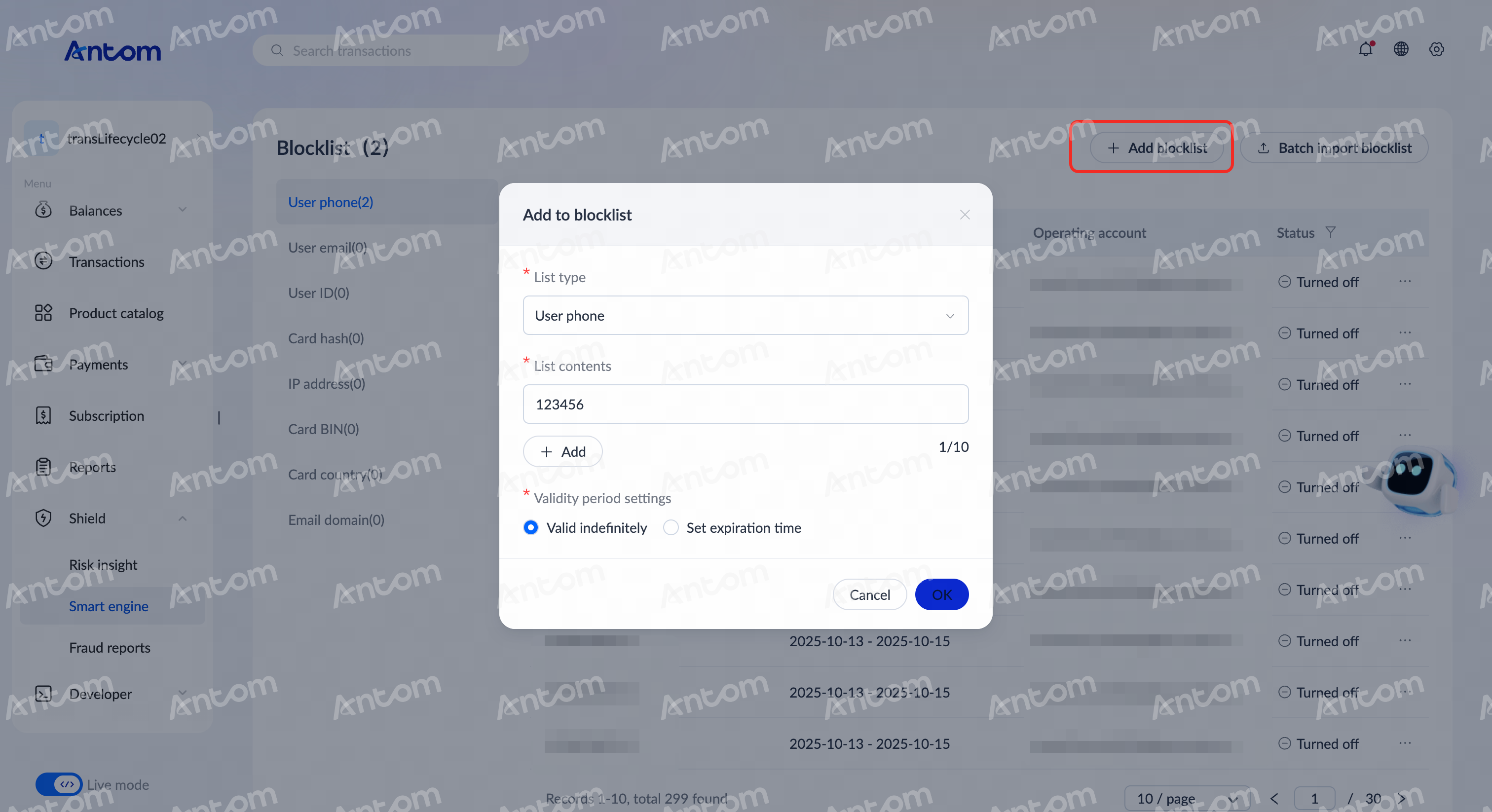
Single type creation supports importing single or multiple list entries under specific list types, suitable for quickly adding a small quantity of lists. In the Blocklists or Allowlists tab, click Add blocklist/Add allowlist and complete the following configurations in the pop-up window:
- In the Add blocklist/Add allowlist pop-up, select the specific List type (user email, user phone, IP address, etc.).
- Enter the List contents under the type (specific email, phone number, etc.).
- If you need to create multiple entries under this type, click Add to generate multiple List contents for multiple imports.
- Set Valid indefinitely or Set expiration time.
- After confirmation, click OK to create your list.
Batch list import
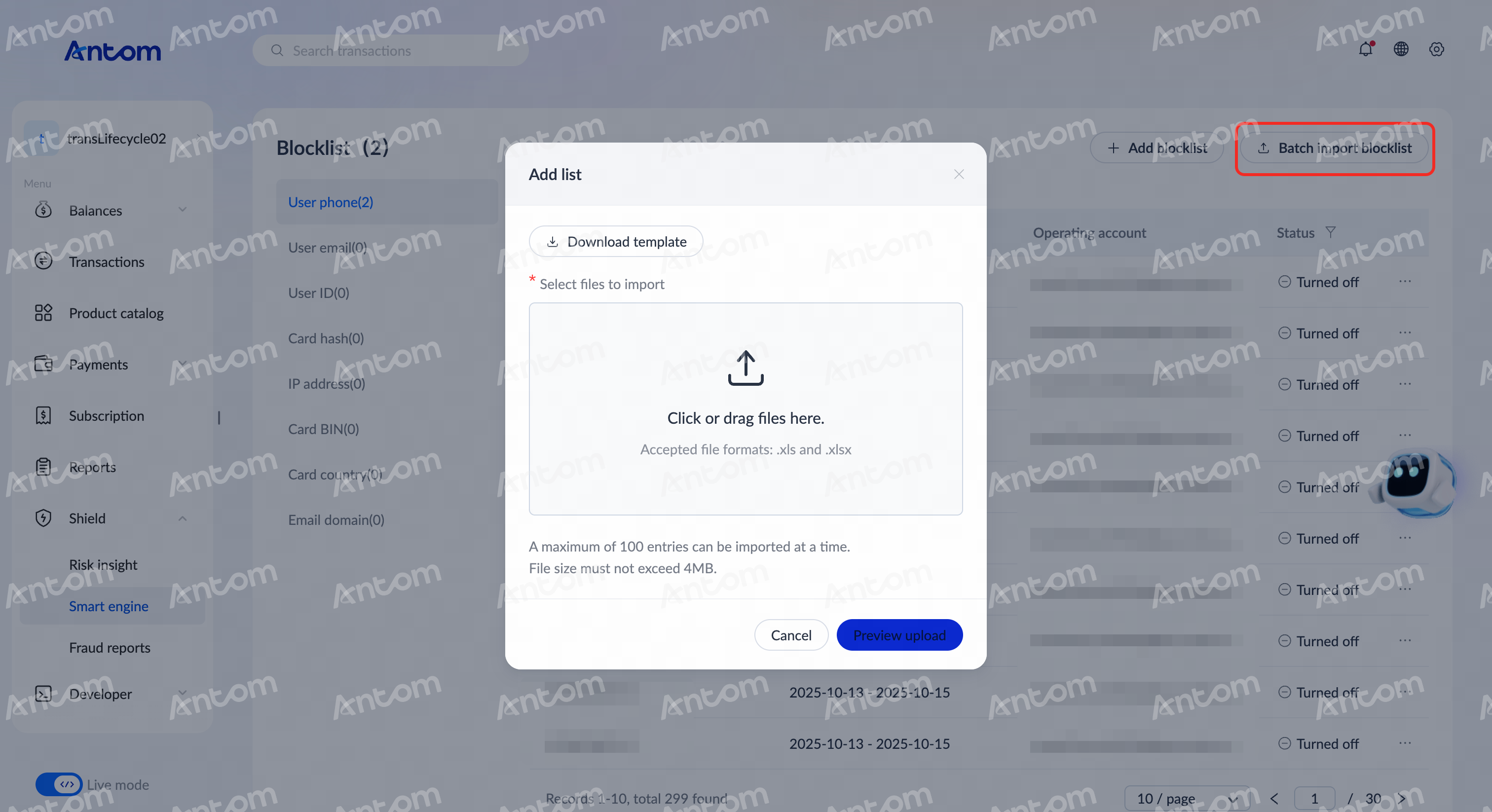
Batch list import supports importing multiple list types and contents simultaneously, suitable for efficiently processing large quantities of lists. In the Blocklists or Allowlists tab, click Batch import Blocklist/Batch import allowlist and complete the following configurations in the pop-up window:
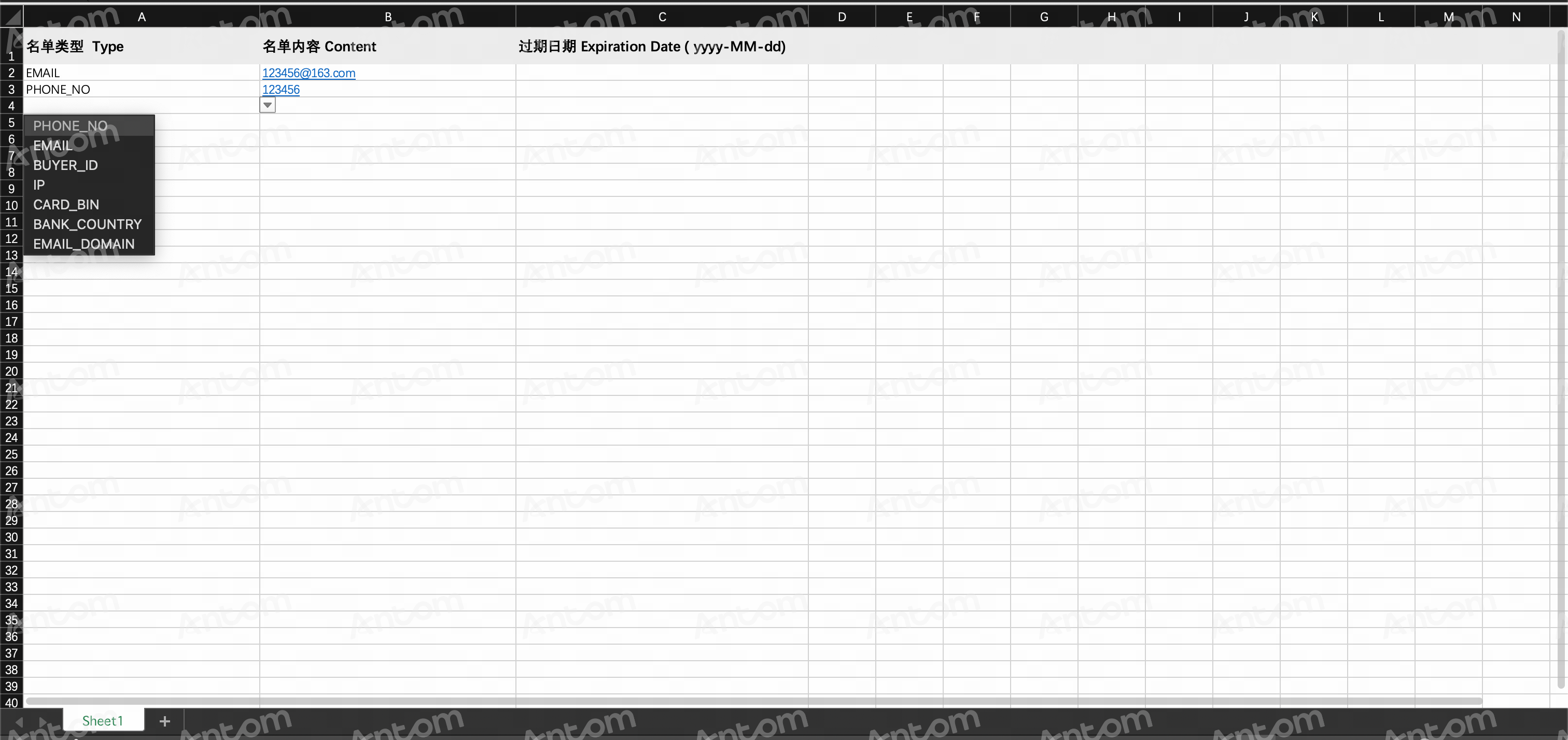
- In the Add list pop-up, click Download template to download the corresponding template for editing and uploading.
Note: It is recommended to use the template for editing and uploading. Uploading non-template files may cause recognition failures.
- Select multiple Type to add (user email, user phone, IP address, etc.).
- Enter the Content under each type (specific email, phone number, etc.) and save the file.
- Click to upload or drag and drop to import the file.
- After confirmation, click Preview upload to import your list. After the parsing is completed, the list information will be successfully added.
|
|
Antom Autopilot intelligent import
Antom Autopilot supports on-demand list import, allowing you to freely choose the import quantity (single/batch) and list types (one/multiple). To use Antom Autopilot intelligent import, please follow these steps:
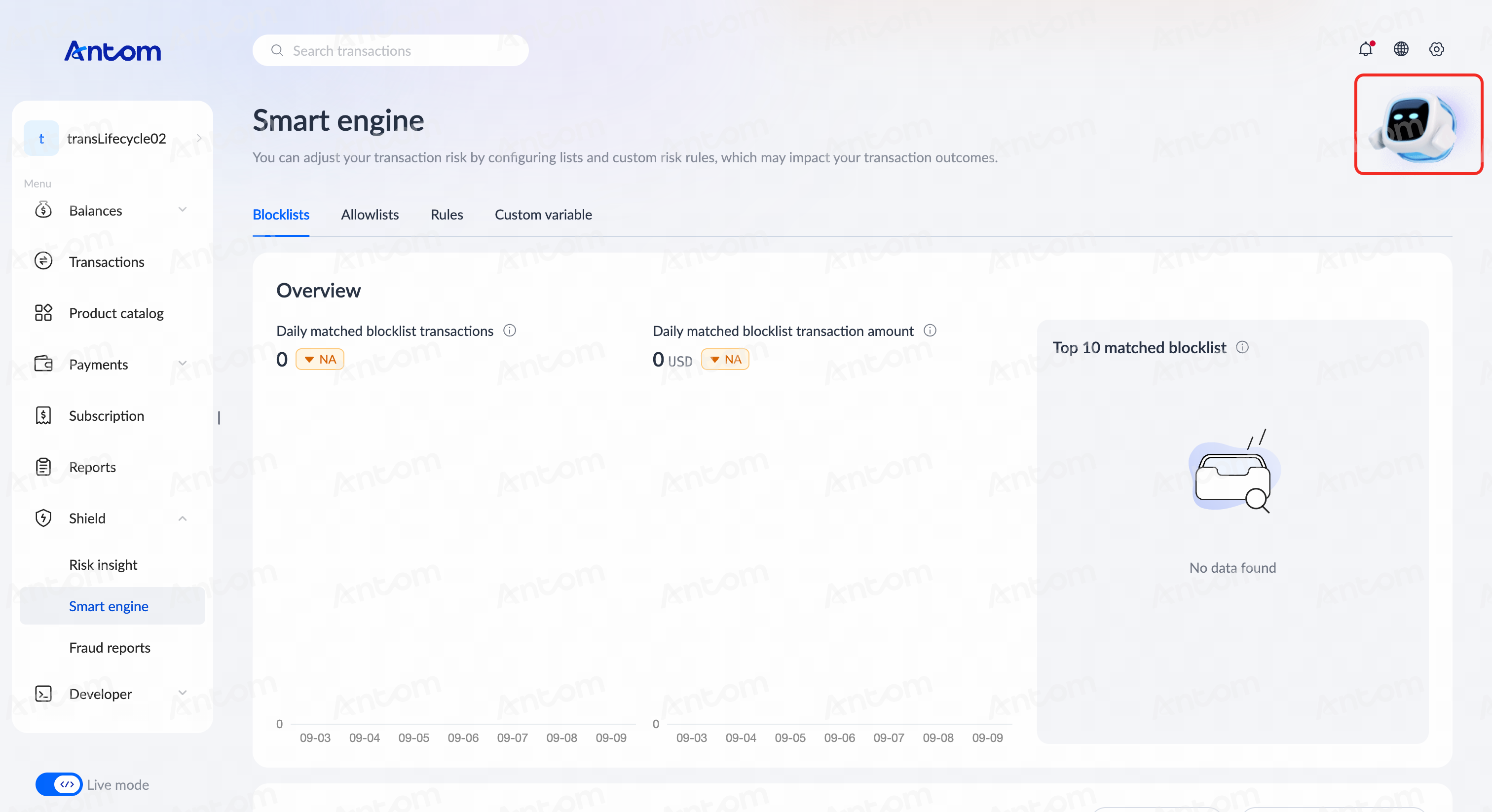
- Click the Antom Autopilot icon in the upper right corner of Antom Dashboard to enter the conversation interface.
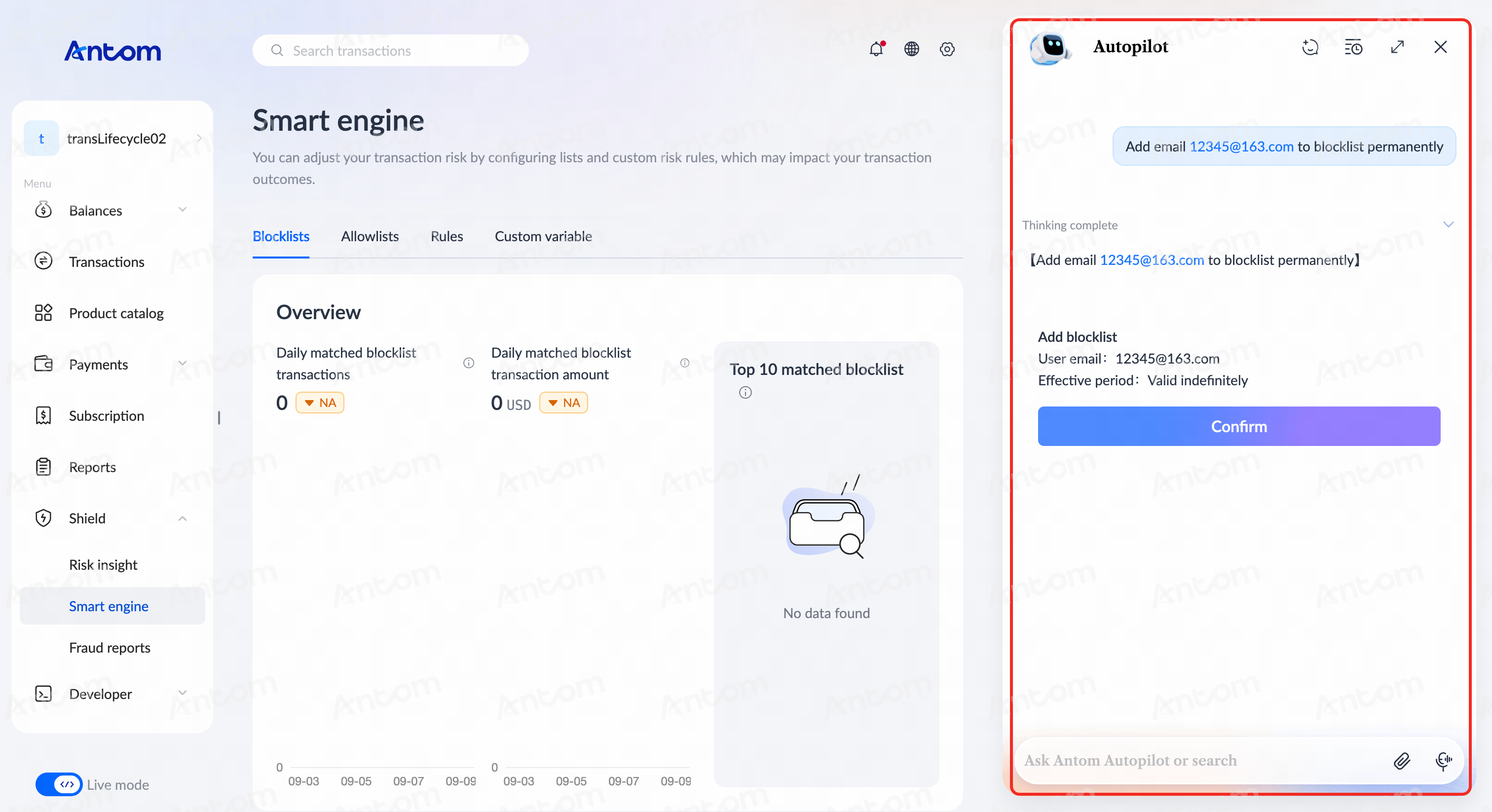
- On the Antom Autopilot conversation interface, input configuration commands, for example: "Please add user email 12345@163.com to the blocklist" (if no expiration time is specified, Antom Autopilot will automatically set it to permanent validity).
- After entering the command, the system will automatically extract list type, medium, validity period and other information, and generate a configuration preview. Click Confirm to complete list entry with one click.
List viewing or deletion
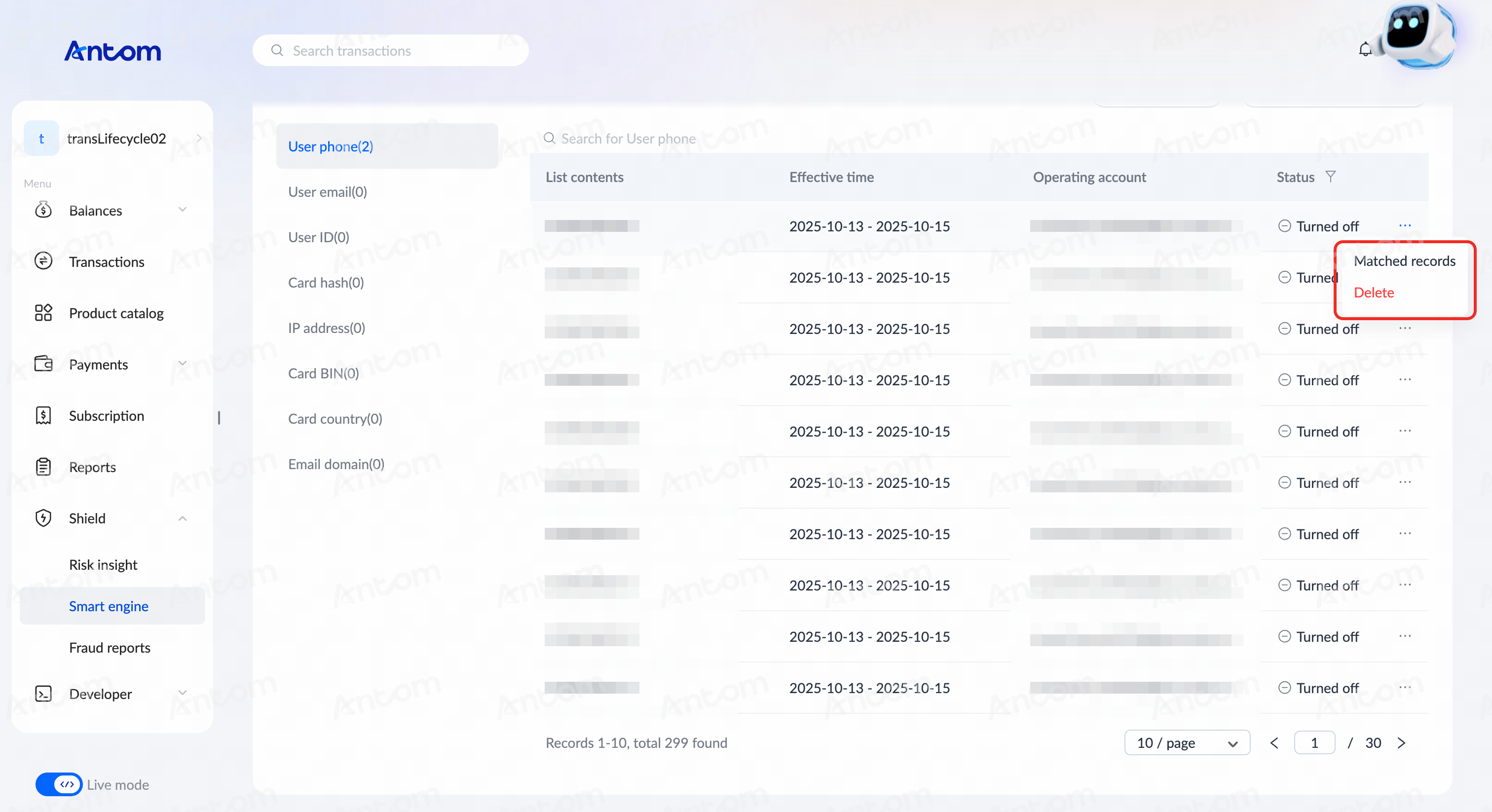
After lists are imported, you can view them on the Smart engine > Blocklist/Allowlist page. The Status of Turned on indicates that the imported list is effective. For effective lists, you can click Delete to remove the list or click Matched records to view matching transactions. Please refer to Matched records for more information.
Custom rules
Antom Shield Pro version provides manual configuration and Antom Autopilot intelligent configuration of custom rules, enabling you to flexibly build shield control strategies according to business needs, accurately identify and control specific shield scenarios, and achieve refined control over transactions. Please refer to Rules for more information.
Manual configuration
Antom Shield supports manual configuration of rules and shiled score.
Rules
Antom Shield Basic version merchants can only use Antom Shield's built-in default high-risk rejection rule. This rule uses risk_score as a variable, defaulting to 85 points (i.e., the system automatically blocks transactions with risk scores higher than 85). Basic version merchants can still adjust the high-risk score threshold (70-90) according to business needs to block risky transactions.
Antom Shield Pro version provides custom rule configuration, allowing merchants to flexibly build risk control strategies according to business needs, accurately identifying and controlling specific risk scenarios. You can create and manage custom rules through a visual interface, achieving refined control over transactions.
Custom risk rules support configuring the following rule types (prioritized from highest to lowest):
- Rejection rules: Payment requests matching these rules will be directly blocked.
- 3D Secure rules: Payment requests matching these rules will trigger 3D Secure authentication. It is recommended to proceed with the payment process only after authentication is passed.
- Acceptance rules: Payment requests matching these rules will be directly approved.
Note: Some payment methods do not support 3DS authentication. If a transaction hits a configured 3DS rule but the payment method used does not support 3DS authentication, the system will default to accepting the payment request instead of initiating 3DS authentication.
Please refer to the following steps to manually configure shield rules:
- Navigate to the Shiled > Smart engine module. Click the Rules tab.
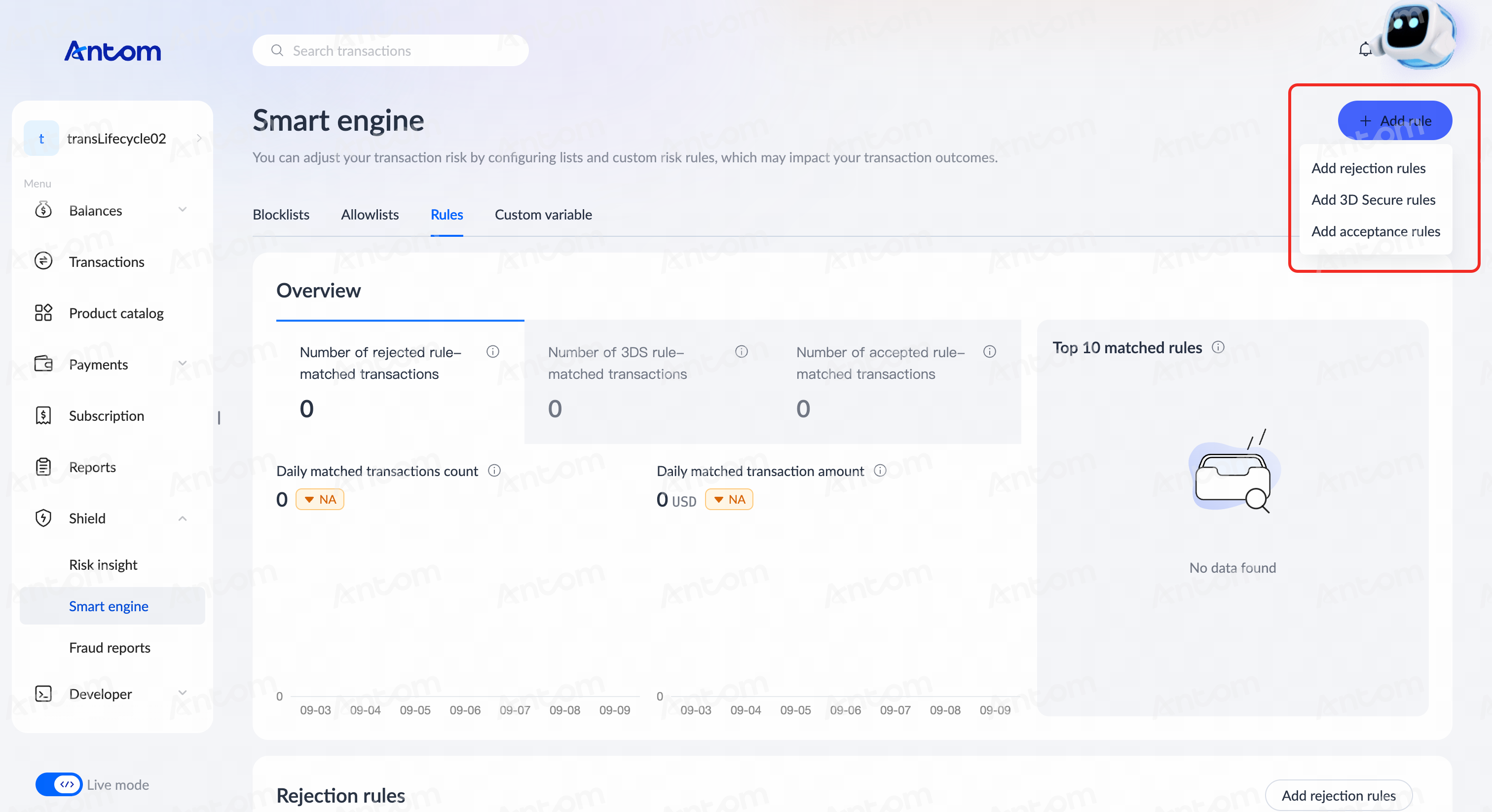
- Click Add rule. Select Add rejection rules/Add 3D Secure rules/Add acceptance rules as needed to enter the Add rule details page.
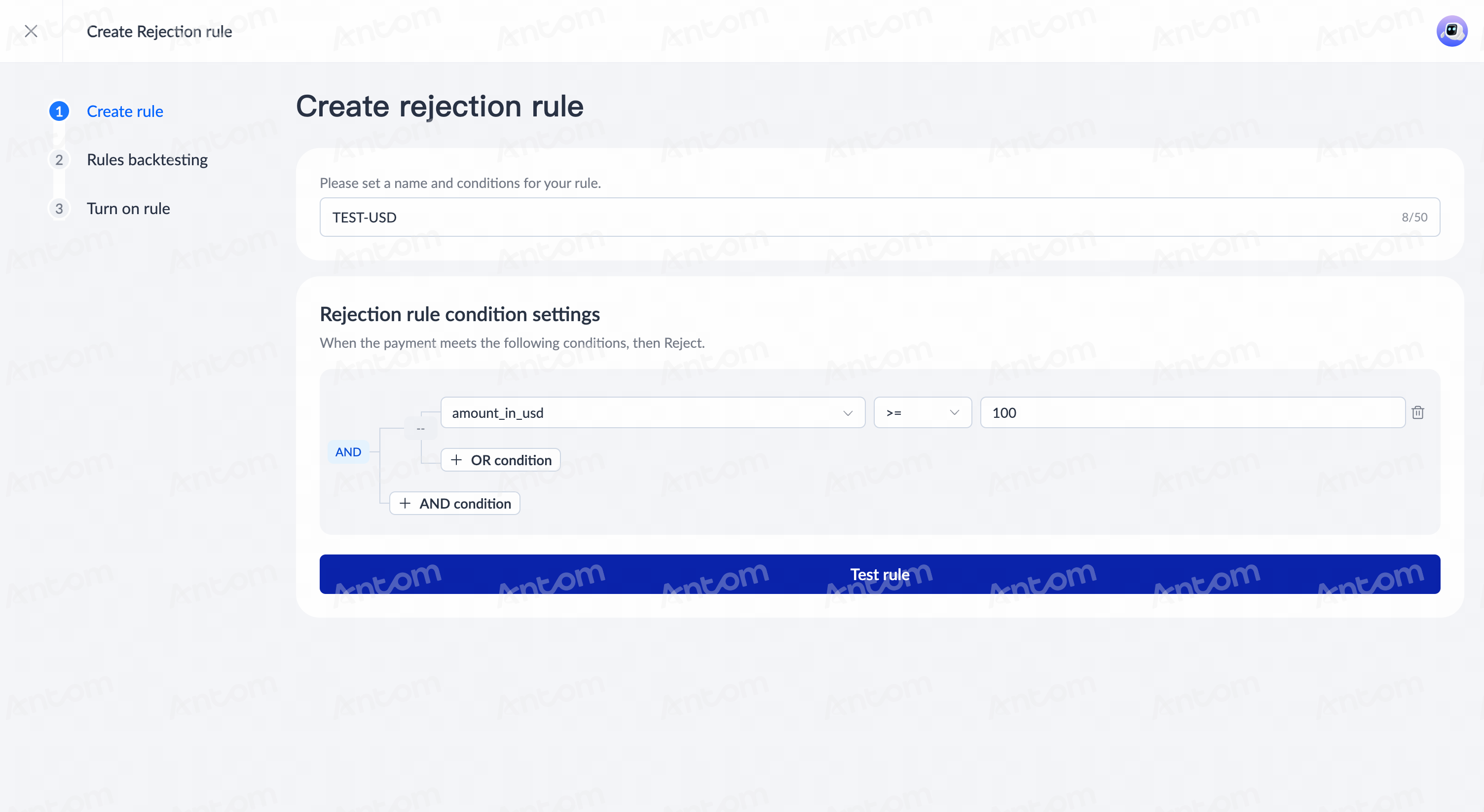
- On the Add rule details page, enter your rule name, and set rule conditions:
- Select corresponding Variable according to business needs to configure different types of rules. When building rules, refer to Rule classification for the variable execution.
- Select operators based on variable type and enter specific specified values. For example, when a rejection rule expression example is amount_in_usd >= "1", the system will output a rejection decision when the transaction amount (USD) is greater than or equal to 1.
- Add OR condition or AND condition as needed to set multiple variable conditions.
- After confirming the variable configuration is correct, click Test rule to enter the Rules backtesting page.
|
|
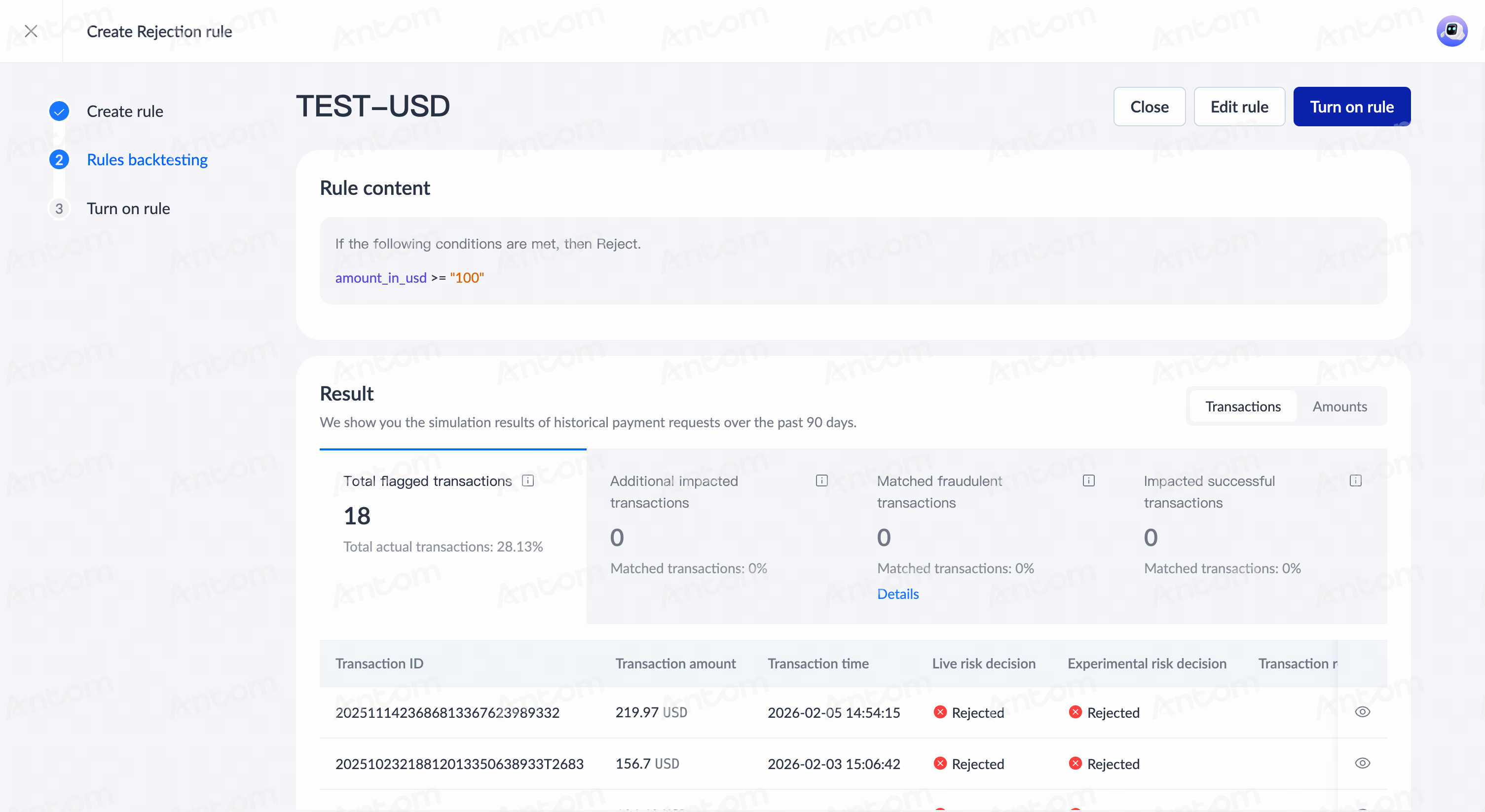
- On the Rules backtesting page, the system will automatically perform rule simulation based on historical transaction data from the past 90 days, simulating the rule's matched situation in actual scenarios. You can evaluate the potential impact of the rule on actual transactions accordingly, and after careful judgment, click Turn on rule.
View or manage rules
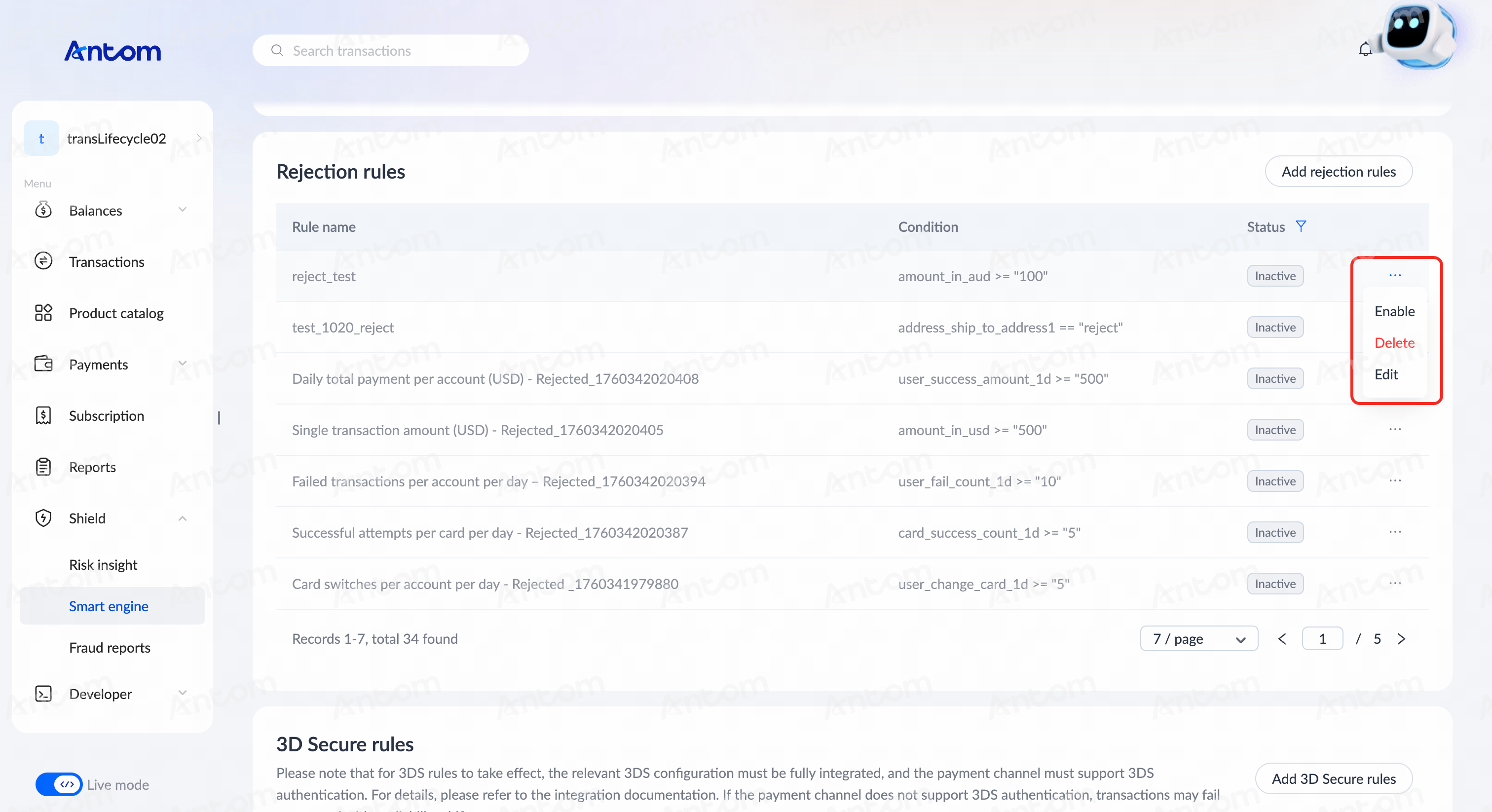
After rules are published, you can view them in the corresponding categories (Rejection rules/3D Secure rules/Acceptance rules) under Smart engine > Rules. The Status of Active indicates the rule is effective.
For active rules, you can click Disable to suspend the rule (the status will change to Inactive), or click Edit to modify the rule name and variable conditions. For inactive rules, you can click Enable to reuse the rule, Delete to remove the rule, or Edit to modify the rule name and variable conditions.
Note: To remove a rule, you must first change the rule to an inactive status before performing the Delete operation.
Shield score
Shield score is applied in transaction risk assessment. Each transaction's shield score ranges from 1 to 100. A higher risk score indicates a higher potential risk for the transaction assessed by Antom Shield. According to the default configuration, transactions with a shield score of 85 and above are identified as high-risk. The system will default to triggering the high-risk rejection rule, automatically blocking the corresponding transaction. Please refer to Shield score for more information.
You can manage shield score thresholds through rule configuration. Antom Shield supports the following two methods:
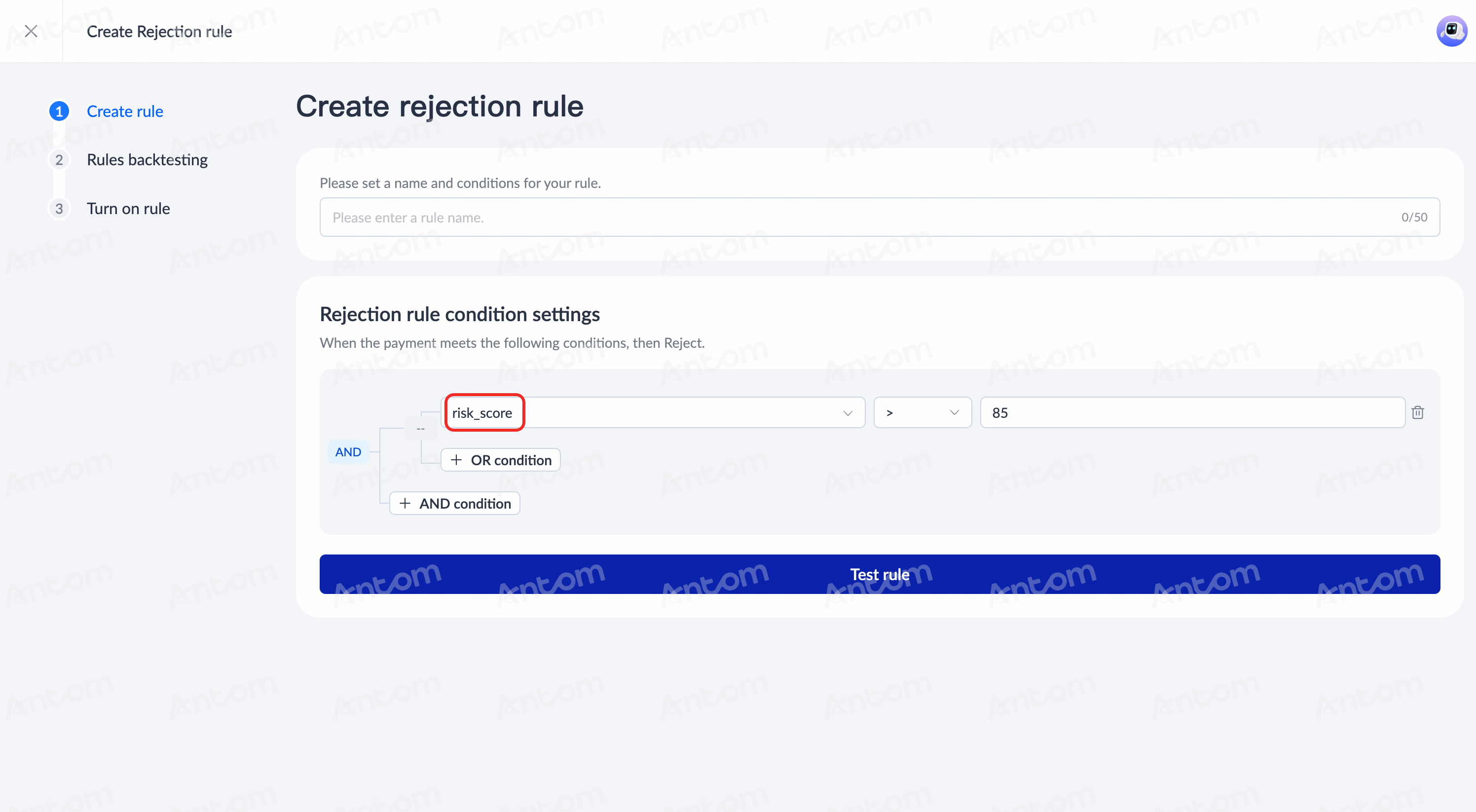
Refer to risk_score variable
The detailed operational steps are as follows:
- When configuring rules, select the risk_score variable.
- Choose the corresponding operator and specific threshold according to usage needs.
Note: The recommended threshold for actual shield scores varies depending on the rule type. Rejection rules typically use high-risk range thresholds (>85), 3DS rules typically use medium-risk range thresholds (50-85), and acceptance rules typically use low-risk range thresholds (<50). Please adjust and apply flexibly according to your business needs and other risk rules.
Configure shield score module
The detailed operational steps are as follows:
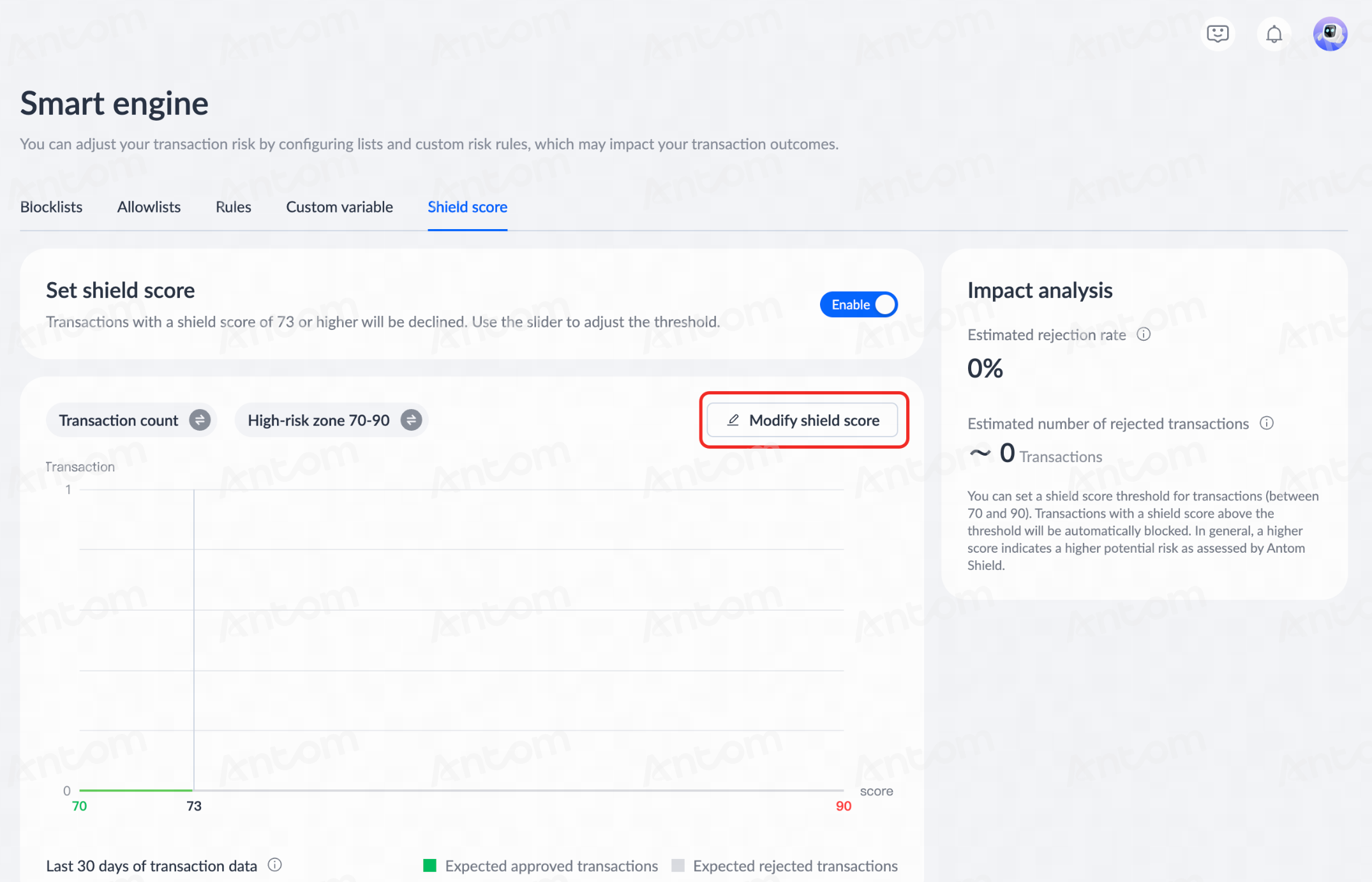
- Navigate to the Shield > Smart engine module. Click the Shield score tab.
- On the Shield score page, click Enable to activate high-risk rejection rule.
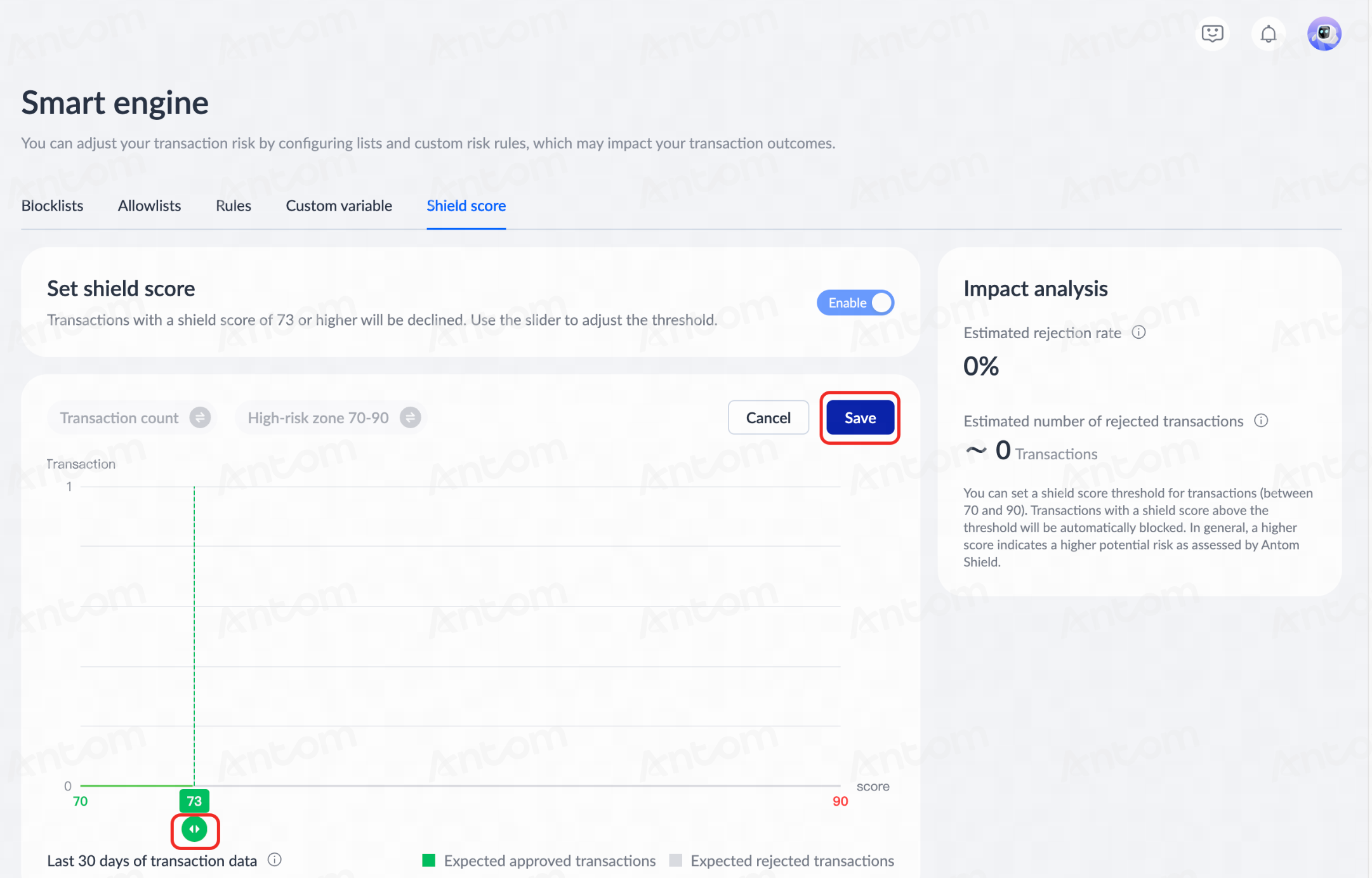
- Click Modify shield score and drag the slider to adjust the shield score (setting range is 70-90 points).
- Click Save to activate.
|
|
Antom Autopilot intelligent configuration
You can use the Antom Autopilot to configure custom rules. Specific operational steps are as follows:
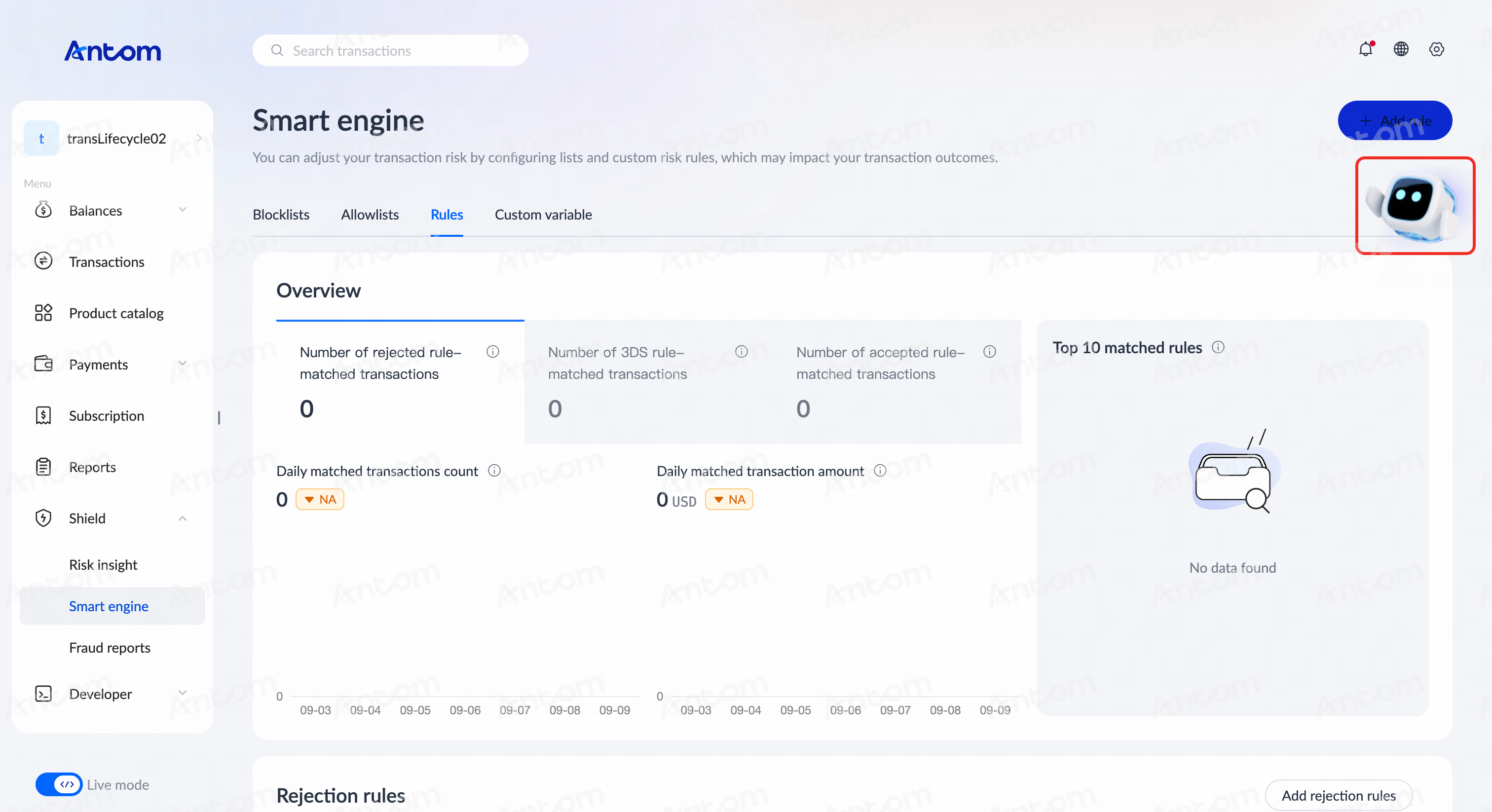
- Click the Antom Autopilot icon to enter the conversation interface.
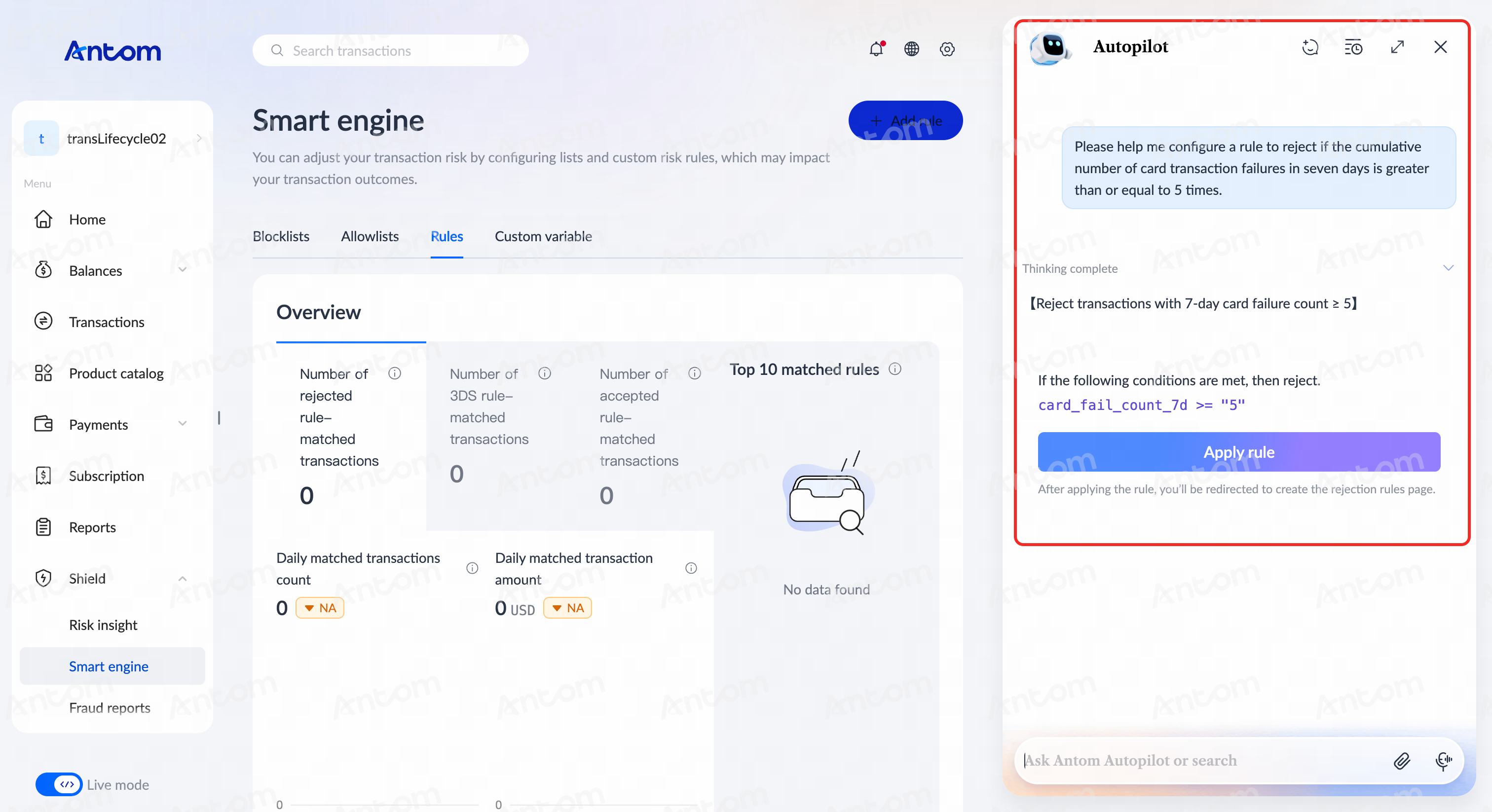
- On the Antom Autopilot conversation interface, input configuration commands, for example: "Please help me configure a rule to reject if the cumulative number of card transaction failures in seven days is greater than or equal to 5 times."
- After entering the command, the system will automatically extract rule type, variables, and other relevant information to generate a configuration preview. Click Apply rule to complete the rule configuration with one click.