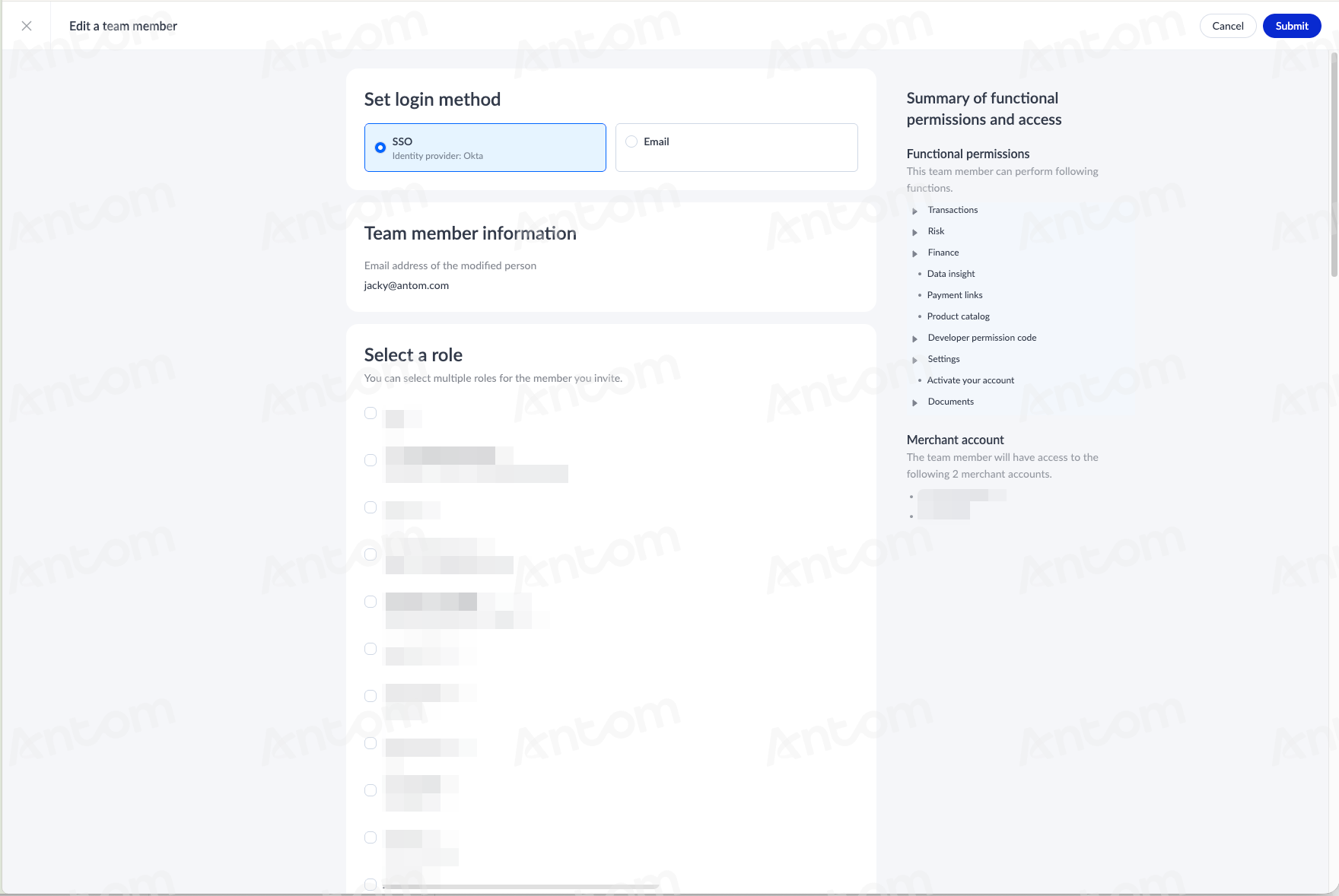
Single sign-on
This document is used to guide merchants through configuring Single Sign-On (SSO). You can use this feature to establish secure connections based on the SAML 2.0 protocol, add new members, and migrate existing users to SSO login.
Prerequisites
- Ensure you have Super Admin or Admin role permissions to configure SSO. See Multi-operator for more details on member roles.
- Ensure your identity provider (IdP) account (e.g., Okta or Google Workspace) is configured before enabling SSO in Antom Dashboard.
- Ensure your SSO solution provided by your IdP supports the SAML 2.0 protocol.
- Ensure one primary email account is designated for SSO configuration. All associated merchant accounts will inherit this configuration.
- Ensure an authorized representative accepts the SSO service agreement in Antom Dashboard.
- Ensure at least one administrator who logs in via standard credentials (non-SSO) is retained to facilitate troubleshooting if needed.
Supported identity provider (IdP)
Note: The metadata file must be permanently hosted on a publicly accessible cloud service and used as the Sign-on URL. Any other IdP that supports the fields listed above is also compatible.
SSO configuration
To configure SSO in Antom Dashboard, follow the steps below:
Step 1: Get Antom metadata URL
- Log in to Antom Dashboard.
- Click Settings > Team > Single sign-on and click Start configuration.
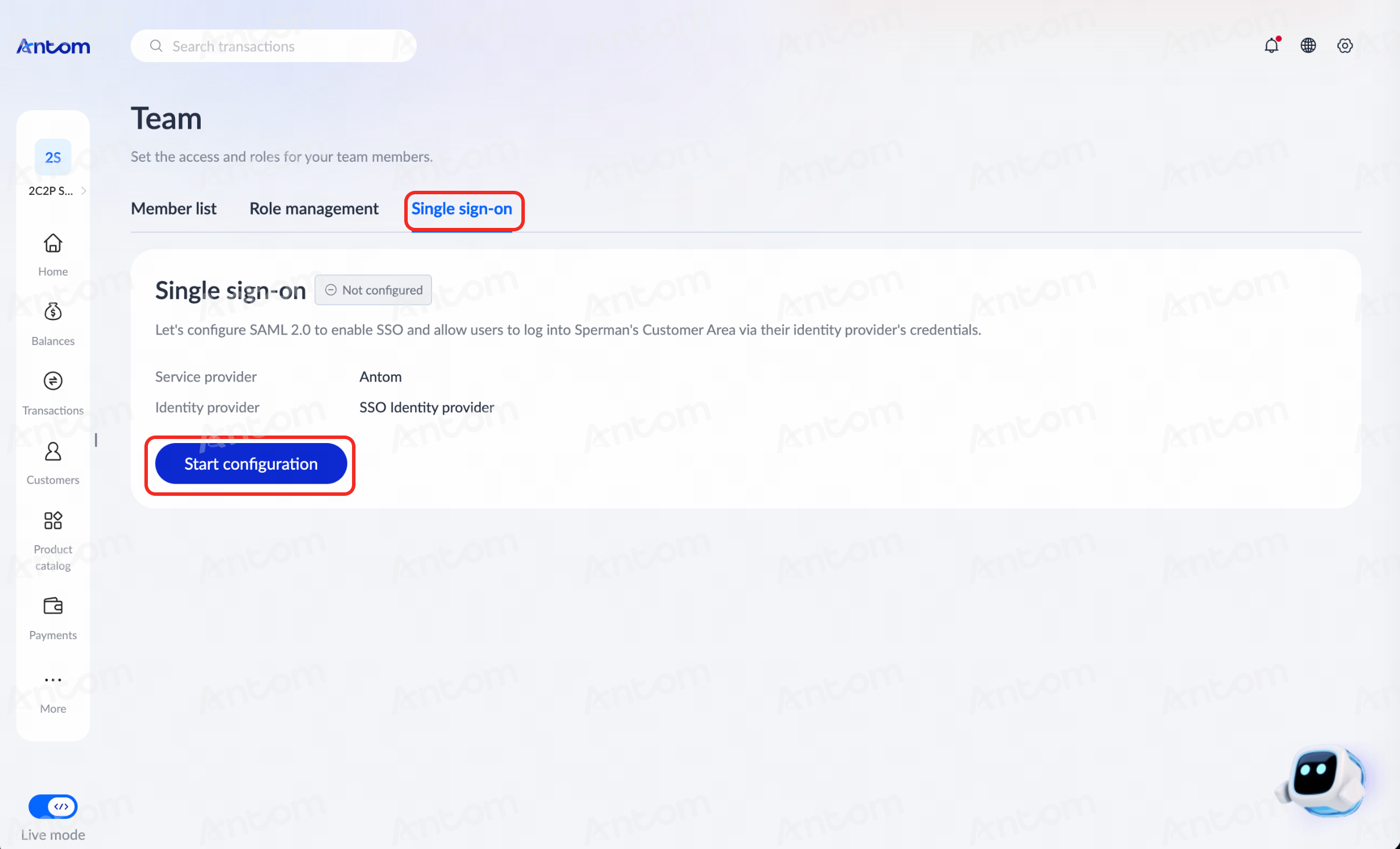
- Read and accept the terms and conditions.
- Once accepted, the SSO configuration will be displayed. Click the copy button next to the Metadata URL to configure your IdP.

Step 2: Configure your IdP
- Go to your IdP's admin console (e.g., Okta or Google Workspace), and paste the Metadata URL you copied from the Single sign-on page in the Antom Dashboard.
- Enable SAML 2.0 request and response signing. This is an Okta example.
Note: If a SubjectNameID field is present, enter an email address (e.g., user@company.com).


- Copy your IdP's Metadata URL. You will need this to configure the service provider on the Single sign-on page of Antom Dashboard.
Step 3: Finalize SSO configuration in Antom Dashboard
- Return to the Antom Dashboard SSO configuration window on the Single sign-on page, and click the Update identity provider icon.
- In the SSO configuration window, under Fetch identity provider, enter your IdP's metadata URL copied from Okta/Google Workspace. Click Fetch configuration.
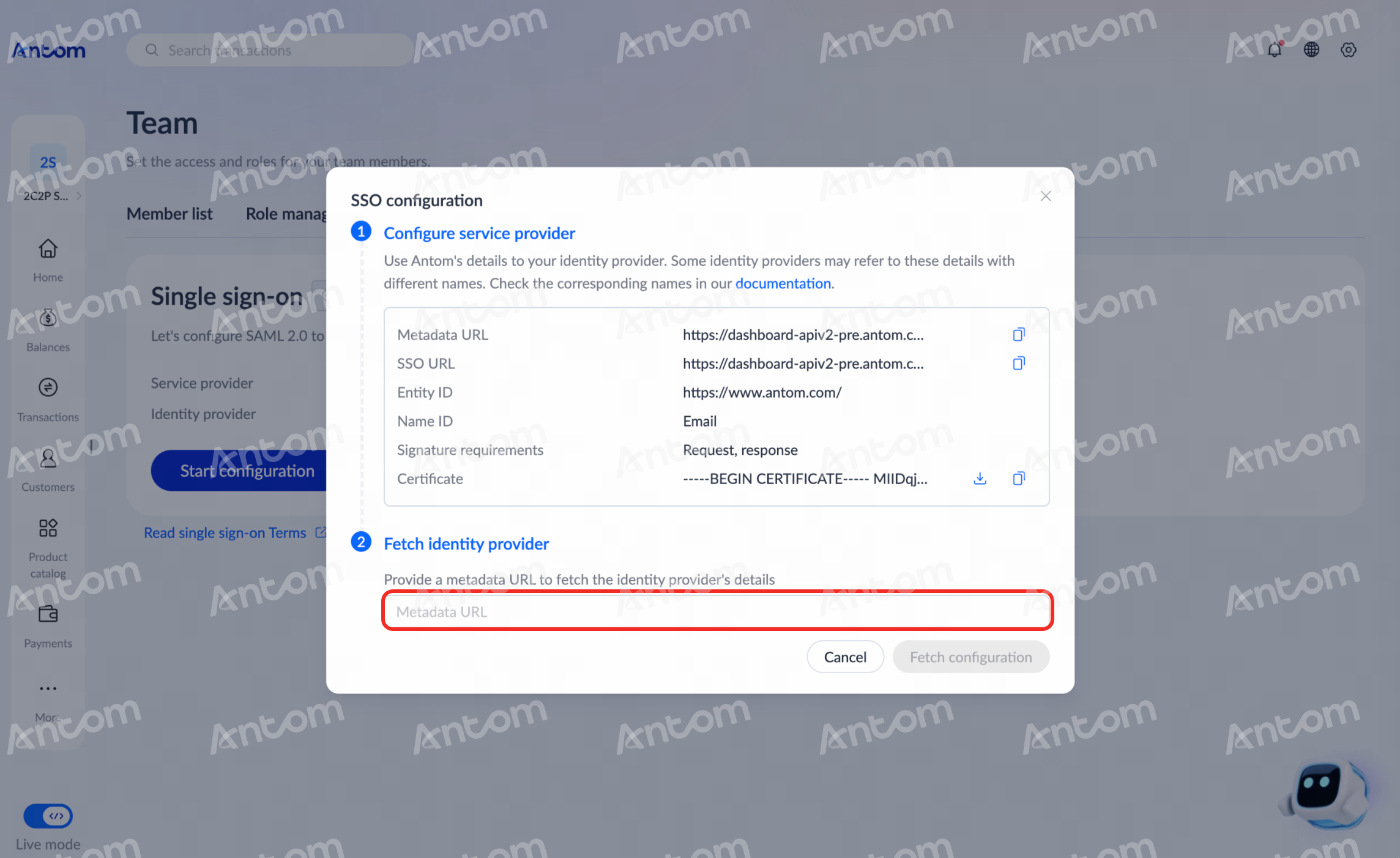
- Review the fetched details to ensure they are correct, and select Confirm and configure.
Team member SSO enablement
Once SSO configuration is complete, you can enable SSO for your team:
- Add new team members with SSO enabled
- Enable SSO for existing team members
Note: Existing members are not automatically enabled for SSO.
Add new team members with SSO enabled
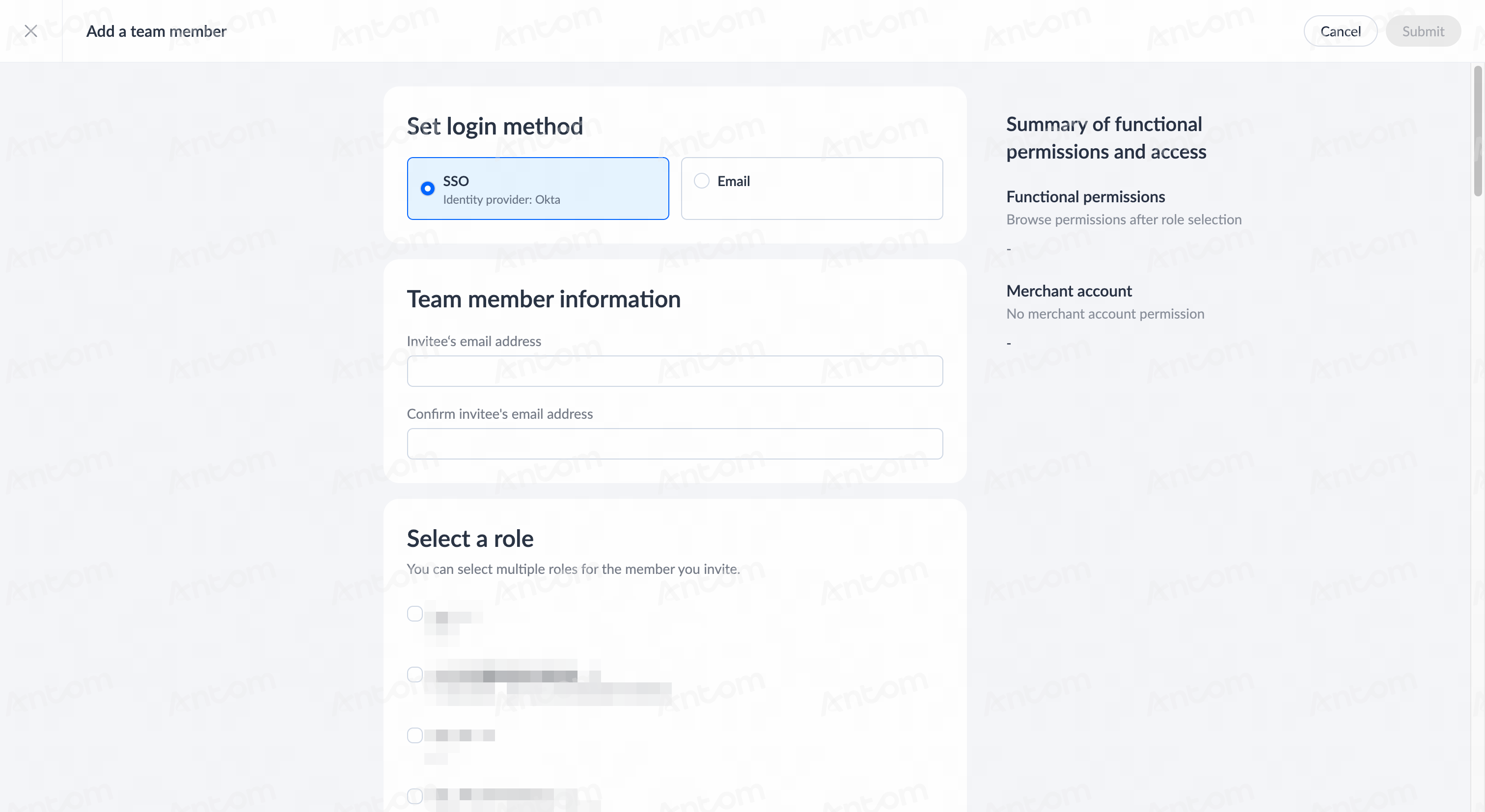
- Click Settings > Team, and click + Add a team member in Member list.
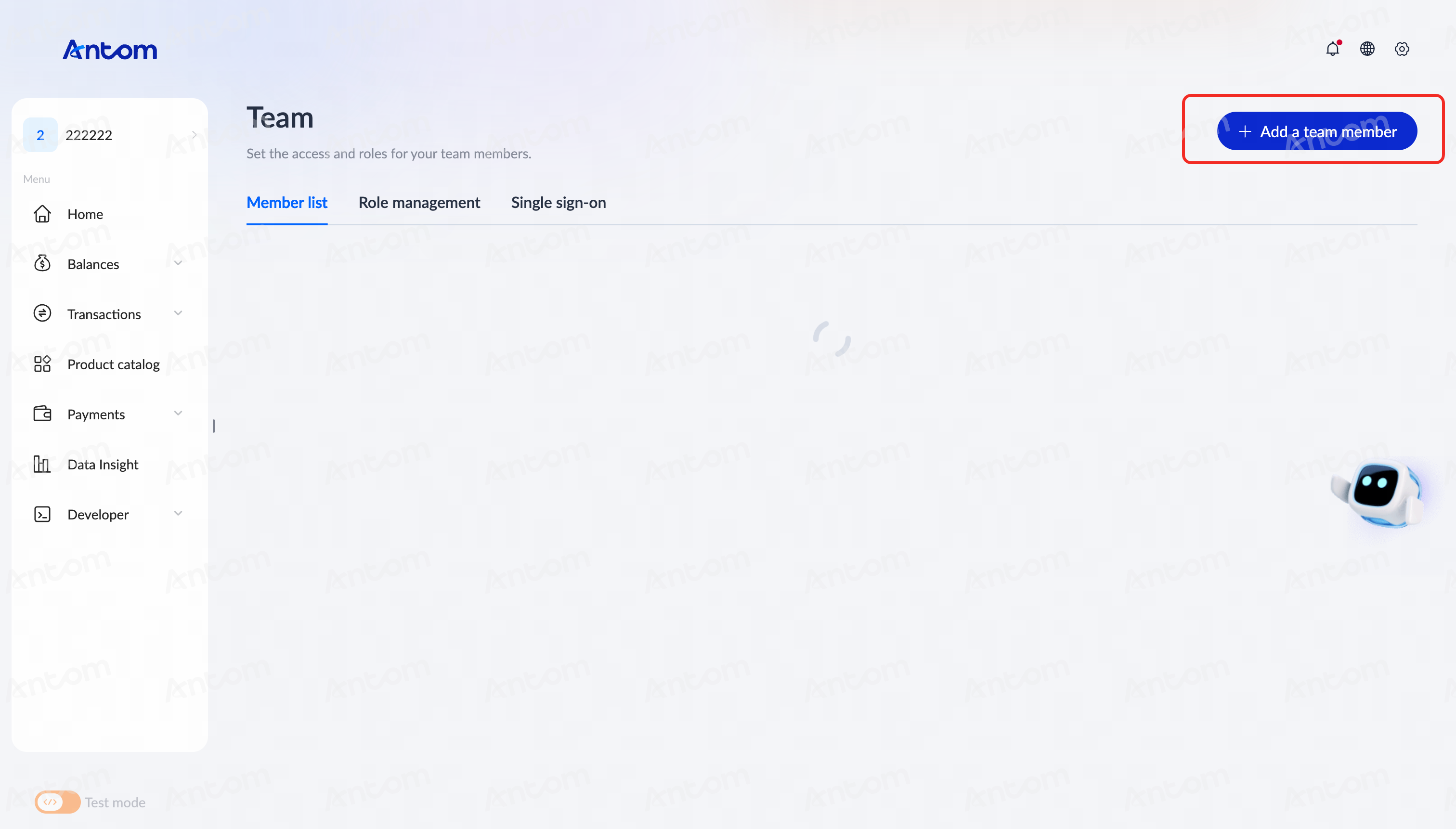
- On the Add a team member page, complete the following configurations:
- Set login method: Select the SSO for the member, the SSO option will only appear after the SSO configuration is complete.
- Team member information: Provide the new member's email address.
- Select a role: Select one or more roles (e.g., Admin, Finance, or Operations), and review their permissions in the summary panel on the right.
- Set access to merchant accounts: Select All access or Restricted access.
- For security reasons, an Email Verification window may appear.
- Enter the OTP code you received from the "Alipay OTP Verification" email, and click Confirm. A pop-up message is displayed to indicate that the notification was sent successfully to the new team member.
Enable SSO for existing team members
- Click Settings > Team > Member list, and click Modify member to change the member's sign-on access.
- Under Set login method, select SSO for the member, and click Submit.