Risk trading simulation
Risk trading simulation is a risk control simulation feature within Antom Dashboard's test mode. It provides a highly realistic and isolated sandbox environment that allows users to simulate authentic transaction initiation and risk assessment processes by submitting transaction data, thereby identifying and evaluating potential risks. For more information, refer to How to test risky payments.
Follow the steps below to enable testing and initiate a simulation:
Note: Test mode currently does not support the Risk lab and Fraud reports features.
Step 1: Switch to the test mode
- Log in to Antom Dashboard.
- Click the mode switch button in the lower left corner to switch to the Test mode. A test environment indicator is displayed at the top of the page.
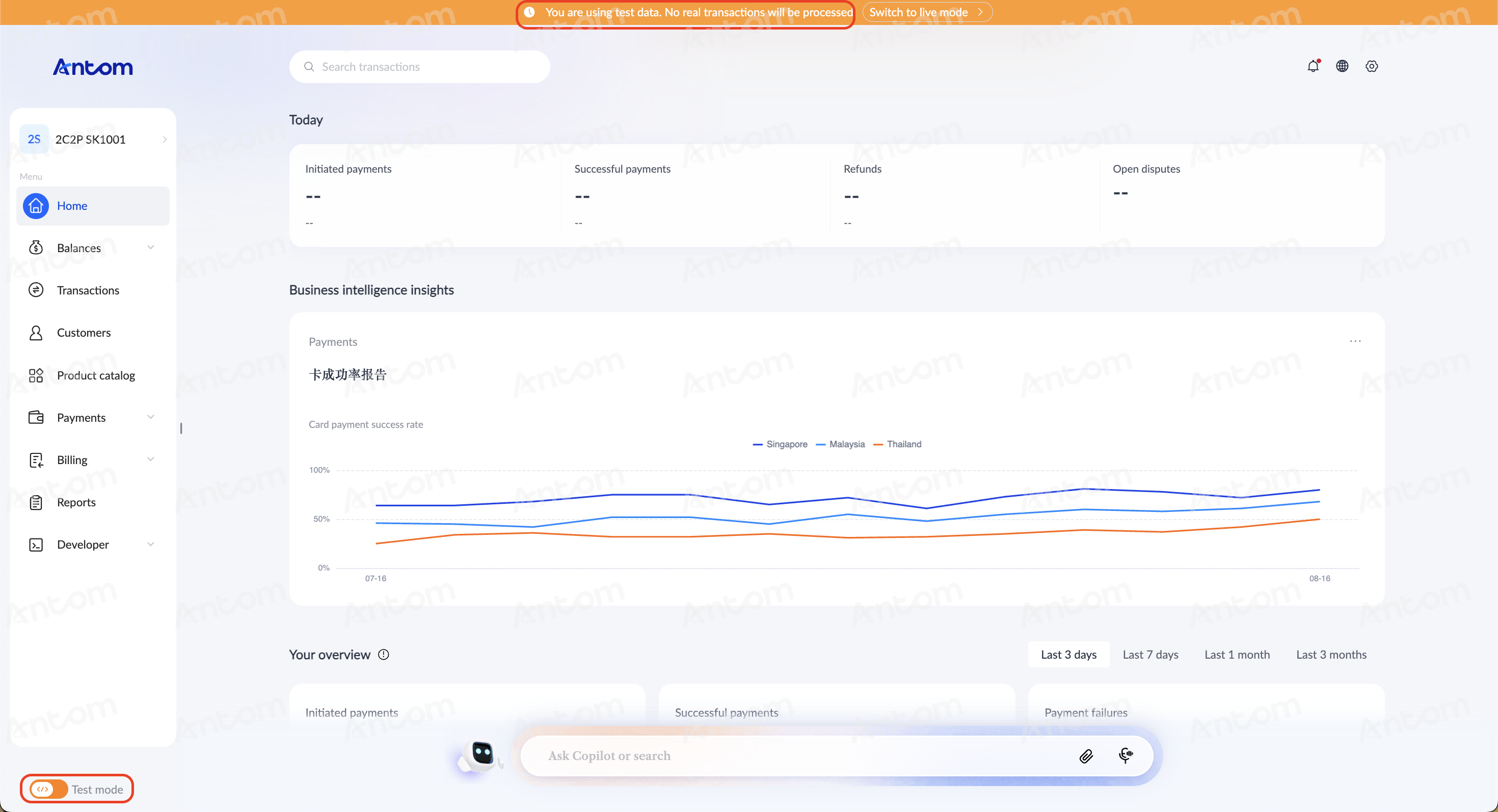
Notes:
- You can switch between test mode and live mode at any time. The interface state of each mode is separately preserved and remains independent of each other after switching.
- Simulation experiments, lists, rules, and other data created in test mode are only visible in the test environment and are not retained when switching back to live mode.
- Test data is for functional verification only and should not be used as a basis for production decisions.
- In the test mode, all transactions are simulated and do not involve real fund flows.
Step 2: Obtain the private key
The private key is used in risk trading simulation tests to sign the requests that you send to Antom, ensuring data security. Obtain the private key through the Developer > Key configuration page. For specific steps, refer to API key configuration.
Step 3: Configure lists and rules
To test transactions, first configure the corresponding test lists and rules in the test environment for the test transactions to match against. In the test mode, you can use the Antom Shield Pro version features to perform the following configurations:
Notes:
- Test lists are isolated from the production environment data.
- After saving rule configuration, a simulation test will be conducted automatically for the purpose of assessing the rule's performance and impact under real transaction conditions. Test rules are not retained when switching back to the live mode.
Step 4: Initiate a risk control test
In the test mode, enter the Risk trading simulation module to initiate a transaction test:
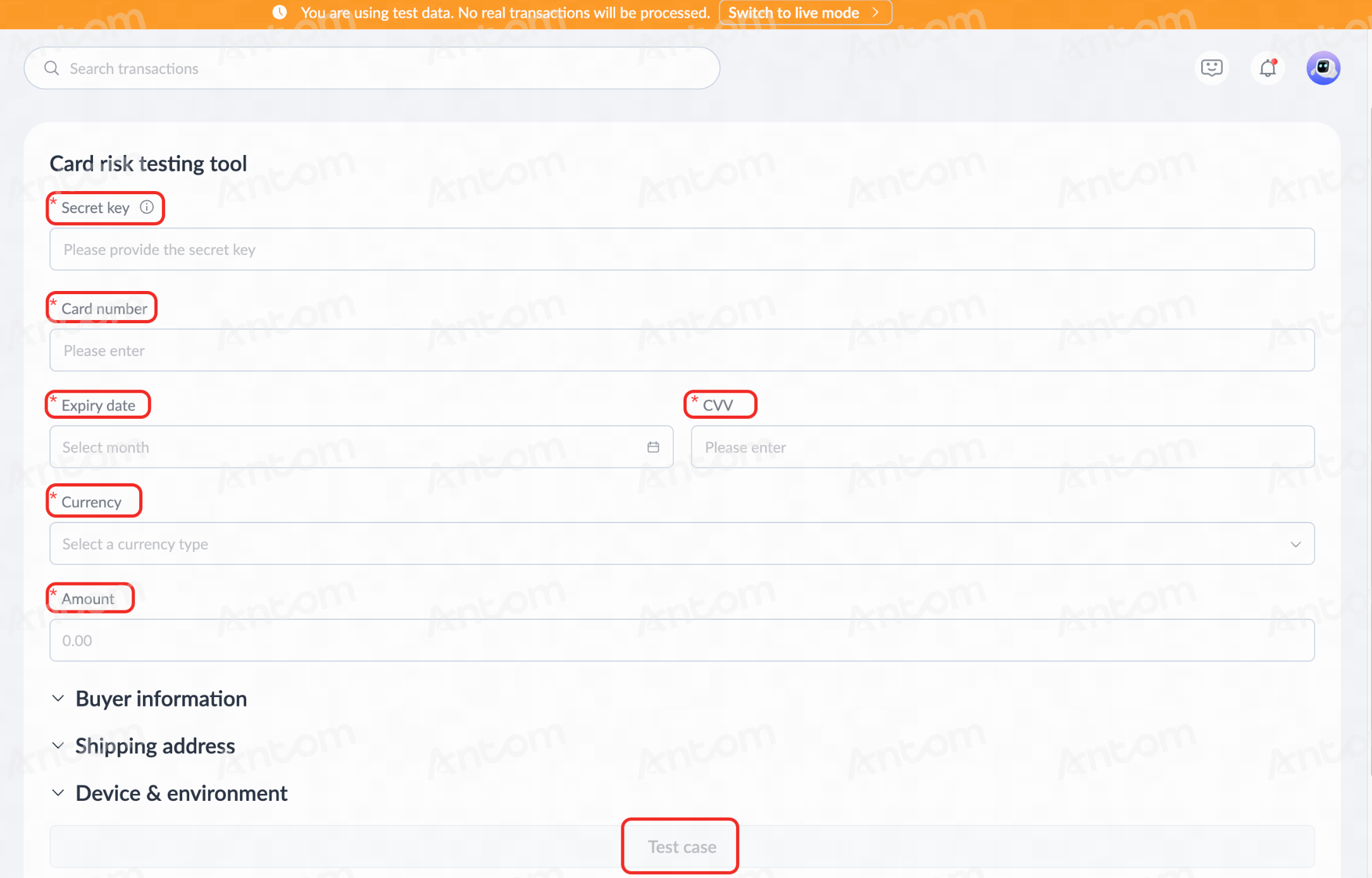
- Fill in the following test variables:
- Secret key: The obtained private key. Enter the private key for identity verification.
- Card number: Test-specific card numbers, supporting different card brands, e.g., 9490220011669217 (Mastercard test card), 4294097400915107 (Visa test card). You can view recommended test card numbers in How to test card payments, or contact Antom Technical Support for the complete test card number list.
- Expiry date: Card expiration date.
- CVV: 3-digit security code.
- Currency: Currency code (e.g., USD).
- Amount: Amount in the corresponding currency (test amount must be greater than 0).
- Other: Other information such as Buyer information, Shipping address, Device & environment, etc.
- After confirming the information is correct, click Test case to initiate the simulated payment.
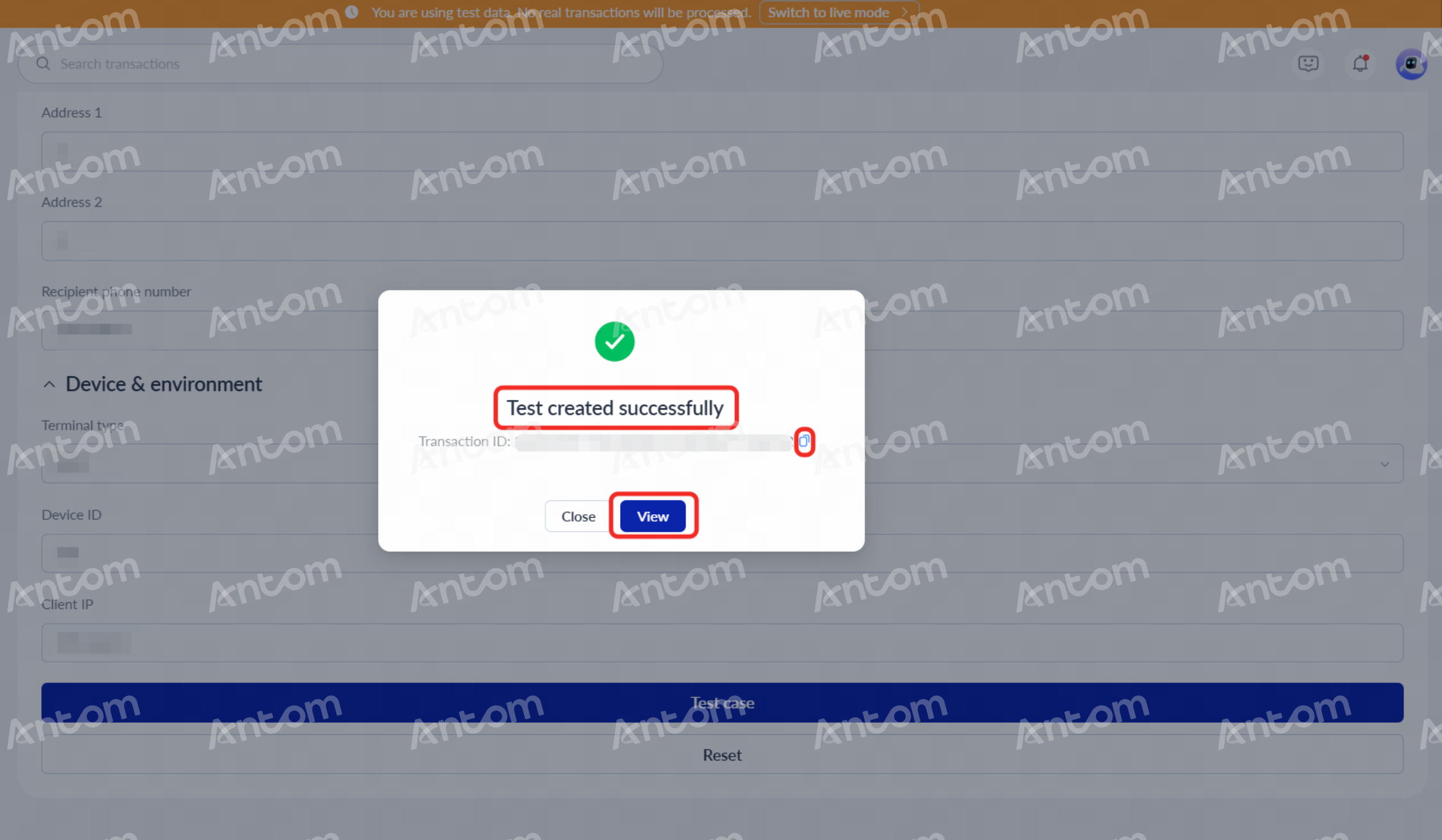
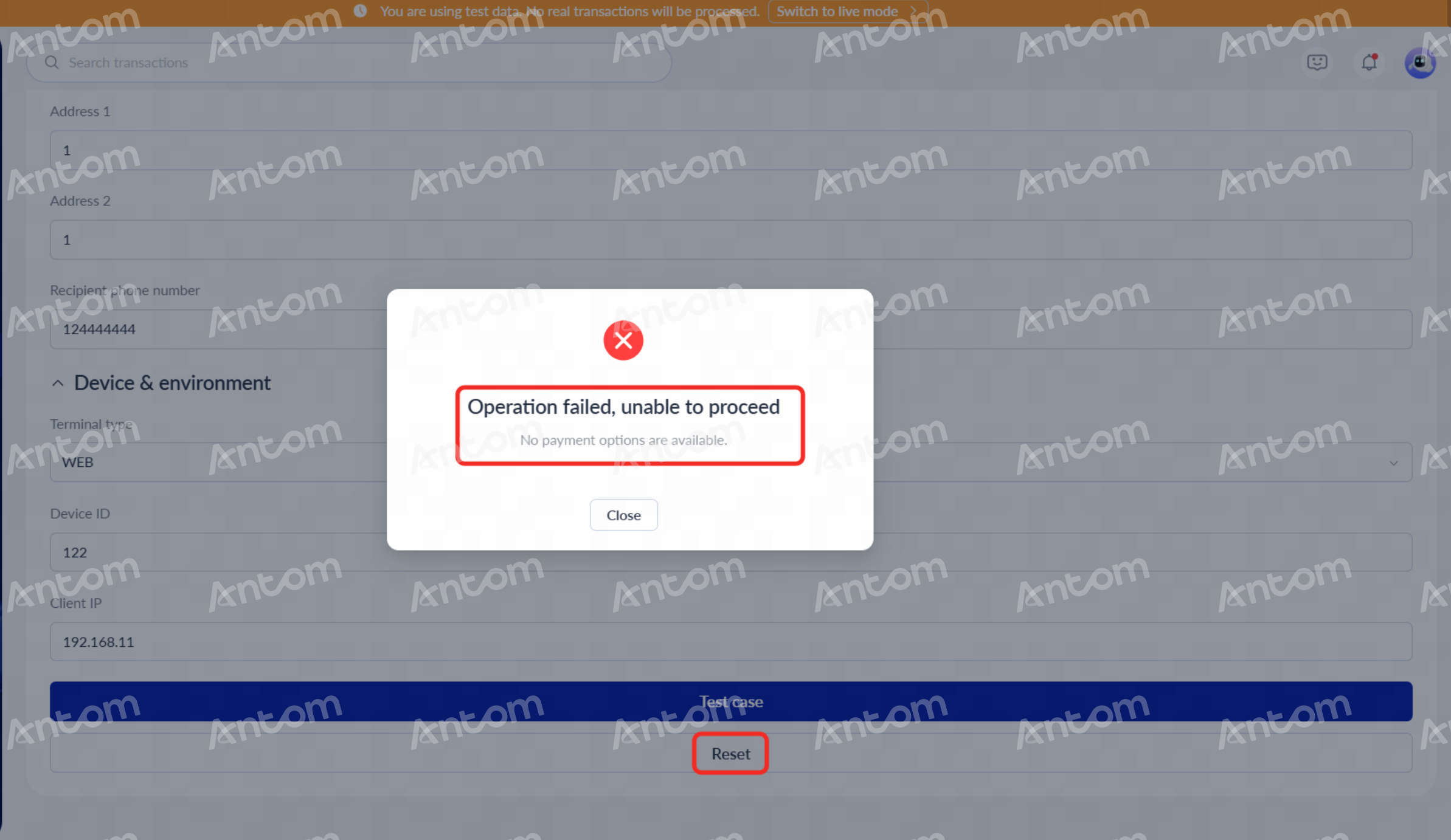
- The system returns the corresponding risk control result and displays a pop-up notification, showing Test created successfully or Operation failed, unable to proceed. Perform the corresponding operations based on the test result:
- If Test created successfully is returned:
- Copy the Transaction ID.
- Click View to redirect to the Risk transactions page to view test results.
- If Operation failed, unable to proceed is returned:
- In the result pop-up, check the failure reason and operation prompts.
- Perform the corresponding operations as needed. If you need to re-enter all information, click Reset to clear the current data (the private key must be deleted manually) and re-enter the test content.
|
|
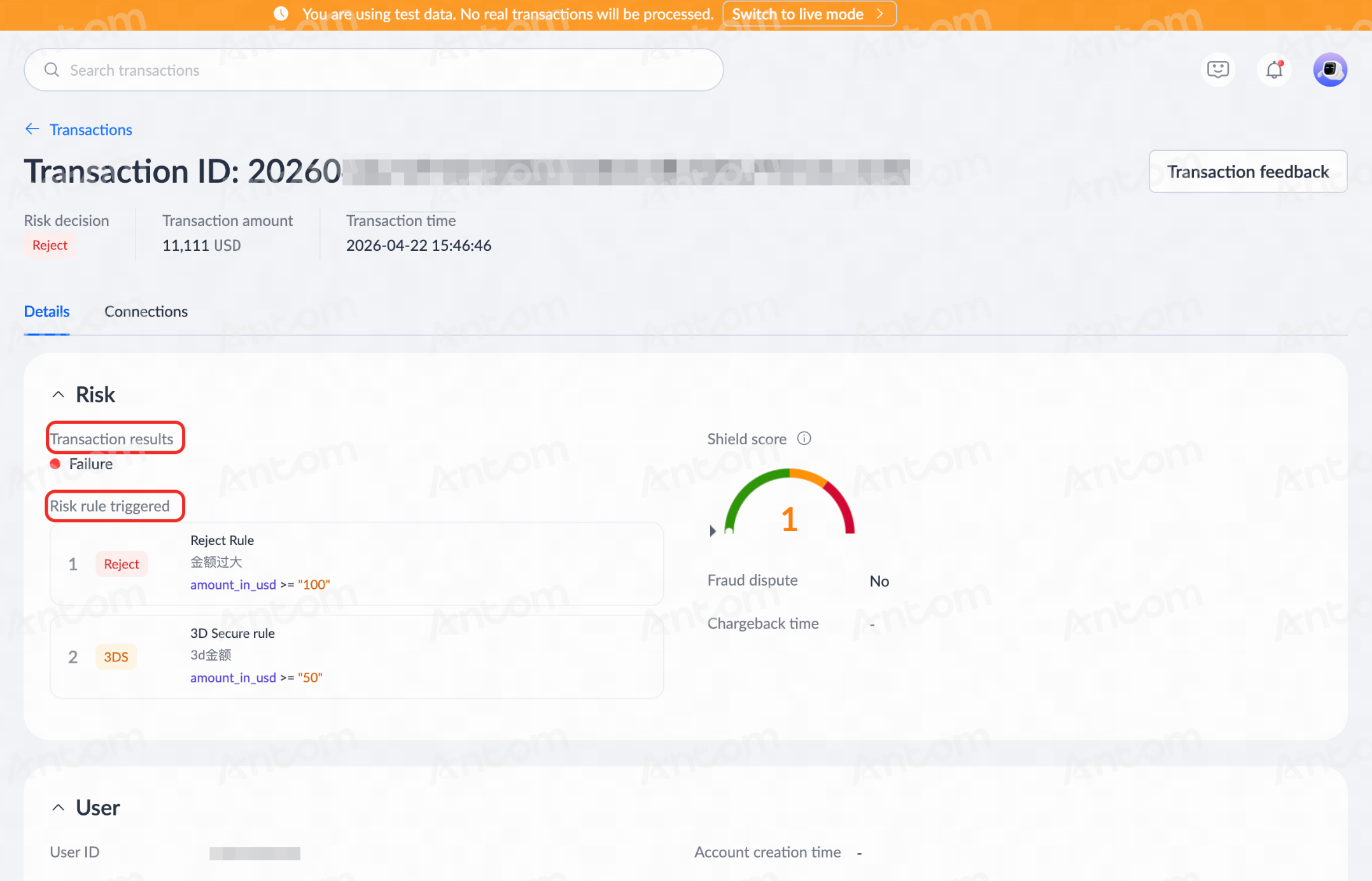
Step 5: View test results
After initiating the transaction test, go to the Risk transactions module. Click on the test Transaction ID to enter the transaction details page and view the Transaction results, Risk rule triggered, and other information.