
Antom Dashboard version migration
Transaction reports
What is the lifecycle status of a transaction report?
The lifecycle status of a transaction report refers to all possible state changes that a transaction goes through from initiation to completion. Card payments and non-card payments involve different transaction stages, with each stage encompassing multiple specific status changes, as illustrated in the following diagram:
Transaction stage | Card payments | Non-card payments |
Authorization | The possible statuses returned at this stage are as follows::
| Not involving |
Capture | The possible statuses returned at this stage are as follows:
| Not involving |
Payment | Not involving | The possible statuses returned at this stage are as follows:
|
Cancel | The possible statuses returned at this stage are as follows:
| The possible statuses returned at this stage are as follows:
|
Refund | The possible statuses returned at this stage are as follows:
| The possible statuses returned at this stage are as follows:
|
Dispute | The possible statuses returned at this stage are as follows:
| The possible statuses returned at this stage are as follows:
|
Dispute reversal | The possible statuses returned at this stage are as follows:
| The possible statuses returned at this stage are as follows:
|
Payment reversal | Not involving | The possible statuses returned at this stage are as follows:
|
Refund reversal | Not involving | The possible statuses returned at this stage are as follows:
|
RDR | The possible statuses returned at this stage are as follows:
| Not involving |
What are the differences between the new and classic versions of transaction reports?
The new and classic transaction reports have the following differences:
Transaction information | New version | Classic version |
Transaction result | Include both successful and failed transactions | Include only successful transactions |
Transaction amount | include not only the transaction amount, but also the associated fee amount, the transaction amount converted into the settlement currency, and the net settlement value. | Include only the transaction amount |
Transaction status | record the latest status of a transaction in real-time, including SUCCESS, TO_BE_SETTLED, or SETTLED. Transactions with a settled status include a settlement batch number. | Include only SUCCESS |
Antom transactionId | Same transactionId is used for both payments and refunds, requiring no further linkage. | The transactionId differs between payments and refunds. They are linked via the originalTransactionId. |
Time of transaction completion | Display: transactionCompletionTime | Display: paymentTime |
How to download transaction reports in the new version of Antom Dashboard?
You can download transaction reports by following the steps below:
- Log in to Antom Dashboard and click Reports > Transactions.
- On the Reports details page, click Generate Report to generate reports manually, or click Report settings to generate reports automatically. Once the report is successfully generated, click the icon in the Download column to obtain the corresponding transaction report file. Please refer to Reports for more information.
Settlement and to-be-settled reports
How to download settlement reports in the new version of Antom Dashboard?
You can download settlement reports by following the steps below:
- Log in to Antom Dashboard. On the Reports page, click Settlement summary or Settlement details.
- On the corresponding Reports details page, click Generate Report to generate reports manually, or click Report settings to generate reports automatically. Once the report is successfully generated, click the icon in the Download column to obtain the corresponding settlement report. For more information, please refer to Reports.
What are to-be-settled accounts and to-be-settled details?
A to-be-settled account is an account where funds are temporarily held after the transaction amount is converted into the settlement currency using the settlement exchange rate. If the transaction currency is the same as the settlement currency, the to-be-settled account represents the funds from successful transactions.
The To-be-settled details in the Antom Dashboard new version refers to the transaction records of fund movements in the account. Inflows typically consist of transaction records, while outflows usually include settlement disbursements, deposit/reserve funds, as well as certain fees that cannot be deducted at the transaction level and are only supported for deduction at the batch level.
Are the To-be-settled details the same as the Unsettled transactions in the classic Antom Dashboard version?
The To-be-settled details in the new Antom Dashboard version differ from the Unsettled transactions in the classic version. Classic version's Unsettled transactions display transaction records from the perspective of transaction status, showing to-be-settled records and constituting a pure log of transaction status changes. In contrast, new version's To-be-settled details represent inflows and outflows, and the actual fund movement activities of the account.
On the Reports > To-be-settled details page of Antom Dashboard new version, click Generate Report to generate reports manually, or click Report settings to generate reports automatically. Once the report is successfully generated, click the icon in the Download column to obtain the corresponding to-be-settled details file. Please refer to Reports for more information.
Why is the downloaded data of the To-be-settled details incomplete?
To-be-settled details are used to record the flow of funds in and out of the account. Currently, this report only provides incremental data, and the starting time for such data varies by merchant. Please log in to the Antom Dashboard to download and view the To-be-settled details. If you require historical transaction details of the to-be-settled account, please contact Antom business personnel (global.service@antom.com) to obtain them.
How to view the classic-version Unsettled transactions in the new version of Antom Dashboard?
- On the Reports > Transactions page, click Generate Report to generate reports manually, or click Report settings to generate reports automatically. Once the report is successfully generated, click the icon in the Download column to obtain the corresponding transaction report file. Please refer to Reports for more information.
- In the downloaded report, filter the transactions where the status column is TO_BE_SETTLED to view the latest Unsettled transactions up to the download time.
What is the difference between the Unsettled transactions in the classic and new Antom Dashboard versions?
The difference between the classic and new versions of Unsettled transactions is as follows:
New version | Classic version | |
Unsettled transactions | Record only transaction orders whose current status is TO_BE_SETTLED from a transaction perspective. | In addition to recording the TO_BE_SETTLED status of transactions, it also includes non-transactional fund activities such as deposit, reserve fund, settlement fees, and other to-be-settled data. |
Note: If you want to obtain to-be-settled data from the new Antom Dashboard version, Antom recommends using the To-be-settled details section. This report includes both inflows (typically from transactions) and outflows (usually from settlement disbursements, deposit deductions, or releases) of the to-be-settled account.
How to verify the month-end balance in the new Antom Dashboard version?
Month-end balance can be verified through the following two methods:
- Verify through the month-end balance provided by Antom. On the Balances > Overview page, click Reports - To-be-settled details on the right of To-be-settled remaining amount. The page will redirect to the Reports > To-be-settled details section. On the To-be-settled details page, customize the Time generated to the previous month. Click Generate report and download it. The downloaded report contains the account’s fund movement details, including transaction details, inflow payments, settlement disbursements, and one-time debit items such as deposit deductions. You can filter the transaction type in the file to review details of different business types such as income, refunds, chargebacks, and fees.
- If you choose not to use the month-end balance provided by Antom and prefer to calculate it internally based on the calendar month, you may refer to the data provided in the Antom transaction reports for computation. On the second business day of the following month, log in to Antom Dashboard and navigate to the Reports > Transactions page to download the previous month's transaction reports. After downloading, filter the data by setting transactionType to payment & capture & refund & dispute and the status column to SETTLED & SUCCESS & TO_BE_SETTLED to identify the valid transactions for the previous month.
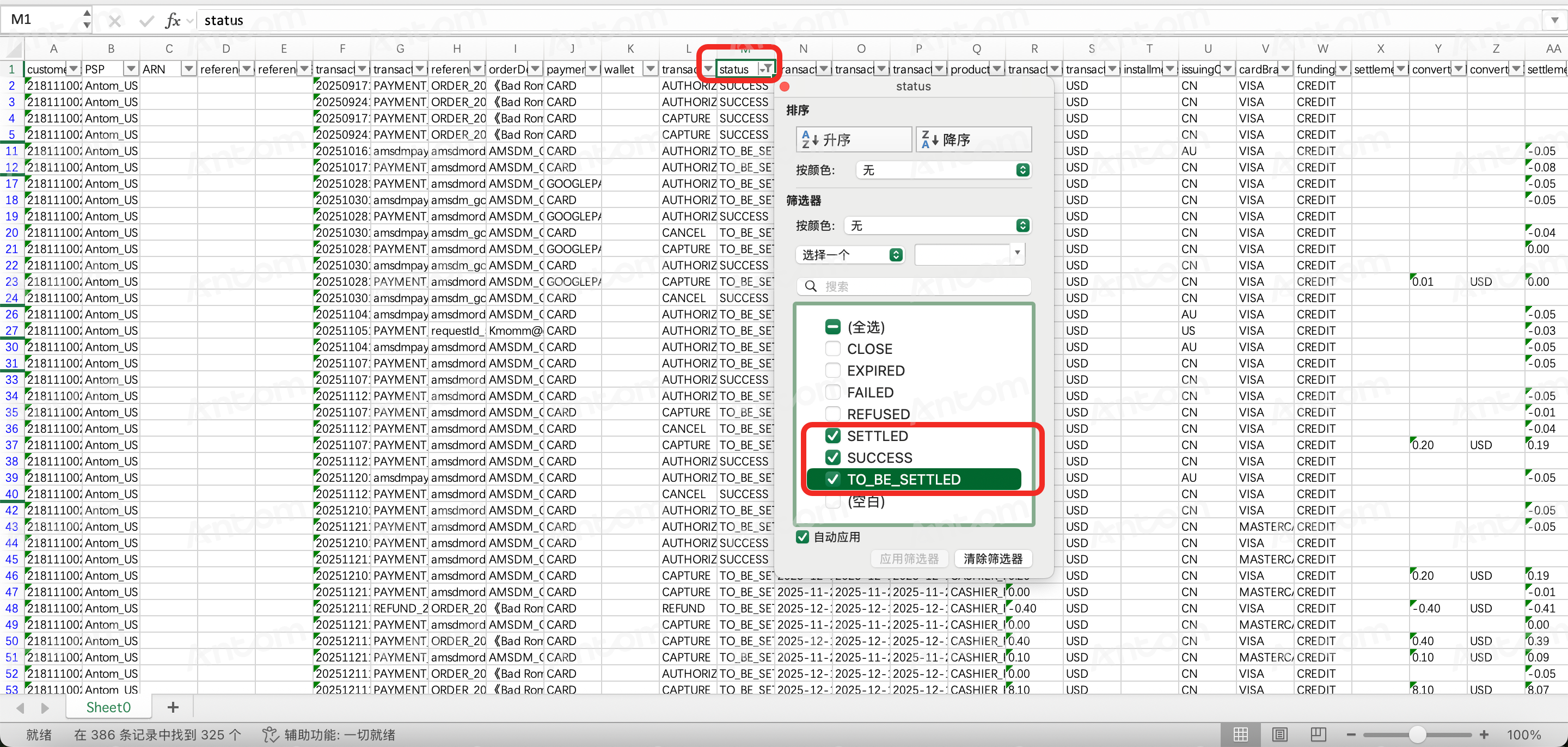
For detailed steps on verifying the month-end balance, please refer to the following example of December's month-end balance verification:
- On the Balance page, query the balances for November 30 (previous month-end) and December 31 (current month-end). The values serve as the opening balance and the closing balance for December respectively. The difference between them is the activity amount for the period.
- Download the to-be-settled details. After downloading, the file will contain two tables:
- The first table is of transaction dimension. The specific operational steps within are as follows:
- Filter transactionType as Payment & Capture (representing positive payments). The specific amount field to review is convertedTransactionAmountValue, which indicates the amount converted to the settlement currency before fees.
- Filter transactionType as Refund & Dispute & Dispute_reversal & RDR (representing data related to reverse transactions such as chargebacks and refunds).
- Sum the principal portion using the convertedTransactionAmountValue field. Select all transactionType and sum the differences between convertedTransactionAmountValue and settlementAmountValue to obtain the total fees.
|
|
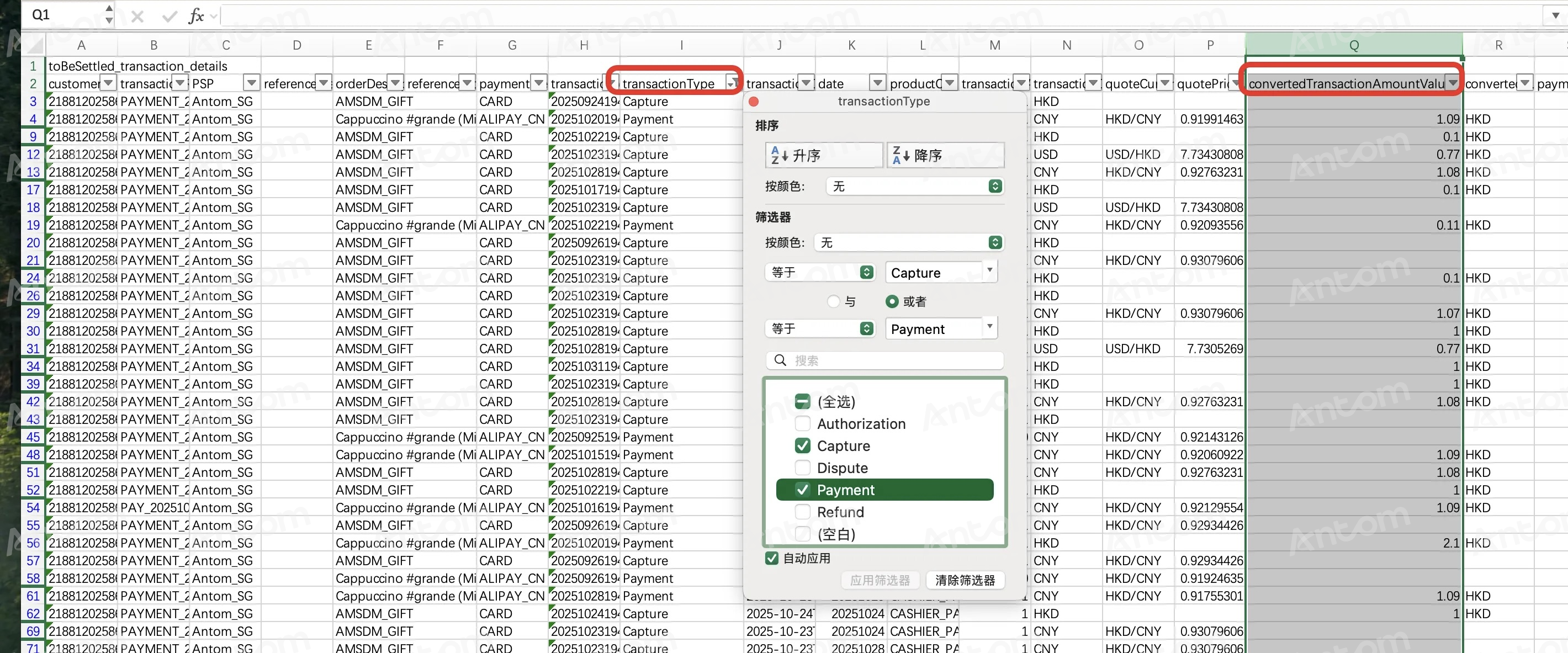
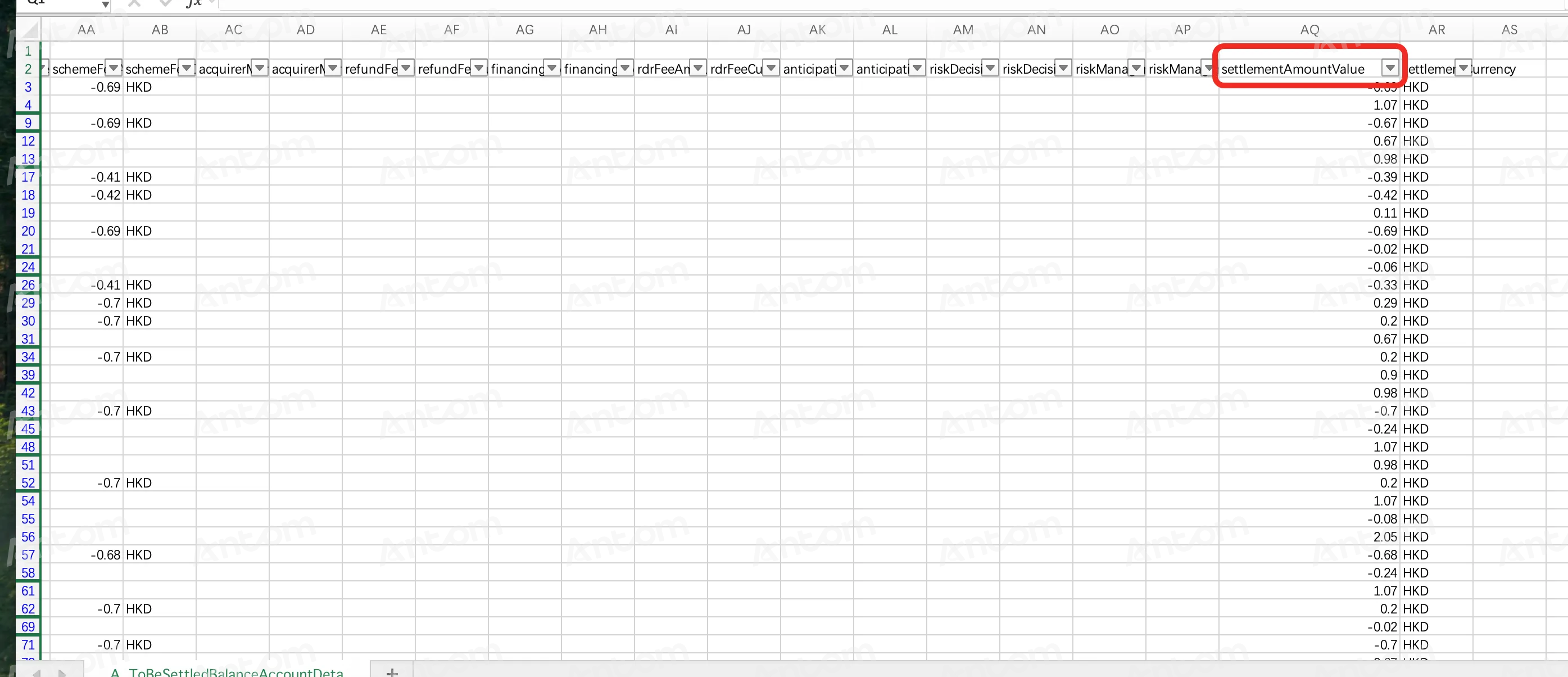
- The second table contains purely account-dimension fund data. In this table, filter the type column for Settlement, which represents the settlement disbursement outflows from the to-be-settled account during the month. Other settlement types may also exist, such as Collateral withheld (indicating deductions due to deposit withholding), and Collateral released (indicating funds added to the account from deposit release).
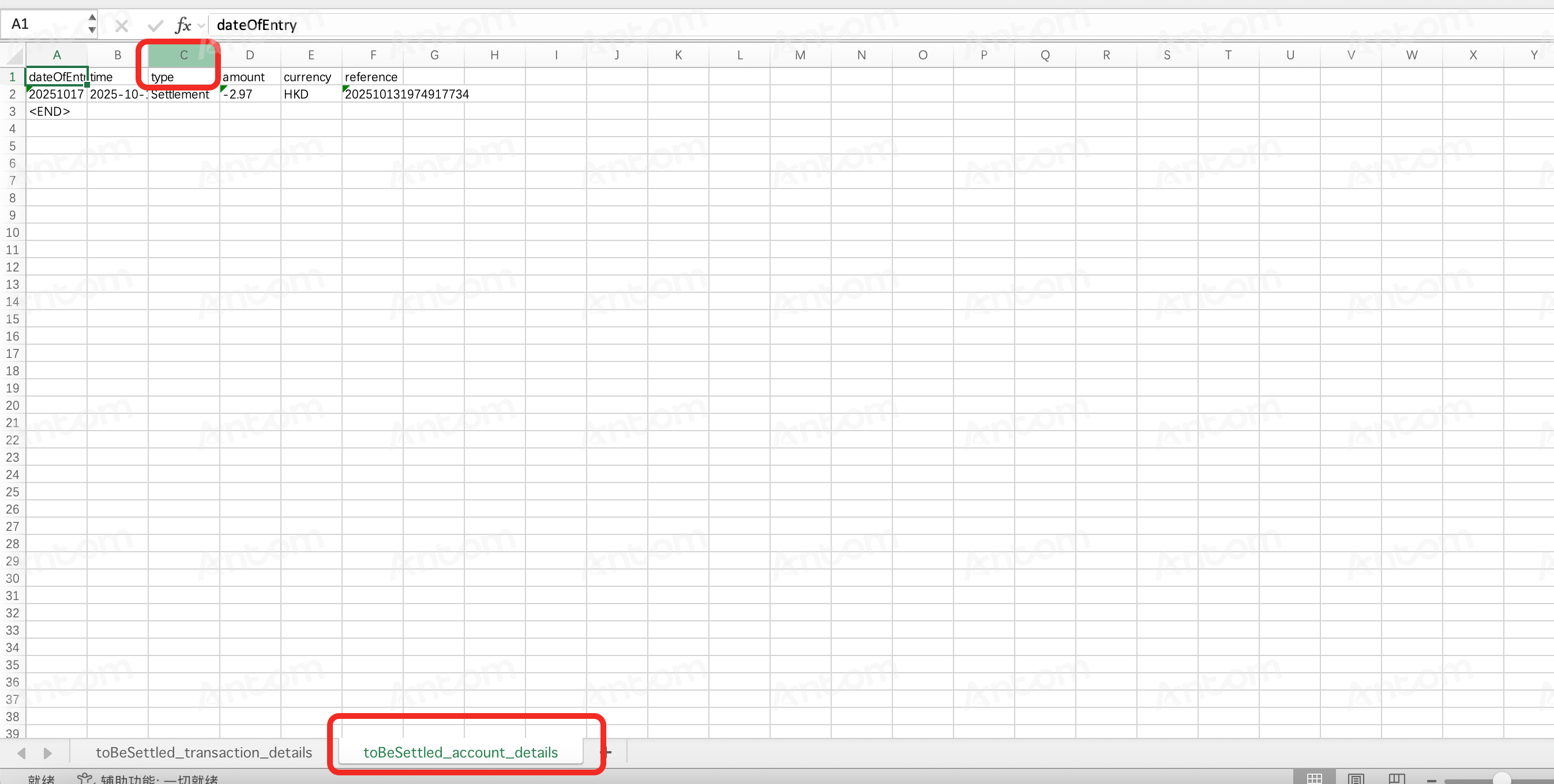
- After aggregating these data, the following equation should hold true: December closing balance = December opening balance + December activity amount (where activity amount includes: December positive transactions + reverse transactions + fees + disbursements + others). This confirms the successful verification of the month-end balance.
Pending conversion accounts
What are pending conversion accounts and pending conversion details?
Pending conversion accounts are transitional accounts used to temporarily hold funds when the transaction currency differs from the settlement currency. When cross-currency transactions occur, the successful transaction amounts are temporarily held in the pending conversion account due to pending exchange rate determination. On the next business day, after the exchange rate is obtained, Antom automatically converts the funds into the settlement currency and transfers them to the to-be-settled account.
Pending conversion details include all inflow and outflow records of the account. The month-end balance of the pending conversion account typically consists of funds from transactions that were successfully processed in the final days of the month but not yet converted due to unresolved exchange rates.
Invoice
When will the invoice of last month be generated in the new version of Antom Dashboard?
The generation time for last month's invoice in the new Antom Dashboard version varies depending on the region of the merchant account. Details are as follows:
- Non-European regions: Generated around the 10th or 11th of the following month.
- European regions:
- Spain: Generated on the 12th of the following month.
- Other regions: Generated on the 13th of the following month.
How to download the fee details corresponding to an invoice?
After an invoice file is generated on Antom Dashboard, you can go to the Finance > Invoice page and click the corresponding generated invoice file. On the Invoice details page, click Export > Invoice details or View invoice detail downloads to download and view the fee details of the invoice. Please refer to Invoice for more information.
Why does the fee amount display incorrectly in downloaded CSV invoice files?
For certain historical invoice CSV files, the thousand separators in numerical values may be misinterpreted as delimiters when opened directly, resulting in incorrect amount displays. You can address this issue through either of the following methods:
- Open the CSV file with a text editor. Remove the thousand separators from the amount values, and open it with Excel.
- If you want to avoid manual processing, download the PDF format file instead. PDF files display amounts correctly without formatting errors.
Note: The abnormal display issue no longer occurs in invoice data starting from January 2026.
General
How to search for transactions in the new version of Antom Dashboard?
Click Transactions > All transactions. On the All transactions page, you can search for details of the corresponding transactions. Please refer to Search for transactions for more information.
Does the new version of Antom Dashboard retain the refund feature?
Yes, the new Antom Dashboard version still retains the refund feature. You can initiate a refund through the following path:
- Click Transactions > All Transactions.
- On the All Transactions page, you can choose from the following refund methods according to your needs:
- Initiate a single refund: Click the corresponding Transaction ID to enter the transaction details page. Click Refund in the upper right corner to initiate a single refund.
- Initiate a batch refund: Click Batch Refund directly on the page to initiate a batch refund.
For more detailed information, please refer to the Refund transactions.