
Rules
To meet diverse risk management needs across different business scenarios, Antom Shield provides both default interception rules and the flexibility for merchants to configure customized risk control policies based on their actual requirements. This article introduces the specific functions of default and custom rules respectively.
Default rules
Antom performs a comprehensive risk assessment on each transaction using machine learning models and generates a corresponding shield score. According to the system settings, transactions with a score higher than 85 are identified as high‑risk transactions. Such high‑risk transactions will appear as an individual rejection rule in your rule list. By default, the system automatically intercepts transactions with high‑risk scores, effectively preventing potential financial losses caused by large‑scale fraud attacks.
Custom rules
The Antom Shield Pro version supports custom rule configuration, allowing merchants to flexibly build risk control strategies tailored to their business needs and accurately address specific risk scenarios. Through an intuitive visual interface, you can easily create and configure custom risk control rules to achieve precise detection and management of transaction risks.
Rule type
On the Antom Dashboard, select Shield from the menu bar, then click Smart engine to add rules. You can configure the following rule types:
- 3D Secure (3DS) rule: The risk control outputs the 3DS authentication request. It is generally recommended that the 3DS verify the request before proceeding with the payment process.
- Acceptance rule: The risk control directly allows payment requests that meet the rule.
- Rejection rule: The risk control directly blocks payment requests that meet this rule.
Note:
- When a payment request meets multiple rule conditions, Antom will output the final decision result in the priority order of reject > 3DS authentication > accept.
- When the same payment request meets your configured list and rule conditions, the list takes precedence over the rule.
- Configuring an overly simple approval rule means that all transactions that meet the rule will be directly accepted, which may pose additional risks. Therefore, please ensure that the rules are thoroughly evaluated by you before deployment.
Rule classification
When creating rules, you can refer to the following risk control rule categories:
- Cumulative rule: The cumulative rule is evaluated based on the frequency of variables matched within a specific time window, which can be set to different time periods, such as daily, weekly or monthly. Examples of rules include:
- High-frequency trading alert: Triggers 3DS authentication if a user attempts to pay more than 5 times in a day.
- Repeat purchase alert: If the same shipping address is used by more than 5 users for payment, the transaction will be rejected.
- Conflict rules: Rules that check for inconsistencies in transaction information, such as:
- Receiving address verification: Triggers 3DS authentication if the billing address is inconsistent with the shipping address.
- Card issuing country validation: Triggers 3DS authentication if the order's receiving country does not match the country of the credit card issuing bank.
- Risk scoring rules: Using machine learning models, Antom comprehensively evaluates trade information and generates risk score recommendations. Based on the score, you can decide whether you need further verification or reject the transaction. For example:
- Transactions with a machine learning model score of more than 80 points will be considered as high-risk transactions, and thus rejected.
- Transactions with a risk score between 50 and 80 will trigger 3DS authentication.
- Original variable rule: The rule is set directly based on specific fields in the transaction data (such as card BIN, user mailbox, etc.). For example:
- Card BIN: If the transaction comes from a list of known malicious card BIN attacks, the transaction is rejected.
- Trusted mailbox: If the user's mailbox is detected to match a known trusted mailbox, the transaction is allowed to go through.
Rule configuration
You can flexibly create and configure custom risk‑control rules through the visual interface based on your business needs, enabling precise identification and management of transaction risks.
Rule Configuration Logic
Each risk‑control rule consists of one or more conditions, which can be combined using logical relationships “AND” or “OR” to build complex business decision logic. Each condition includes the following key elements. You can configure a rule by selecting risk variables, defining under what circumstances these variables constitute a risk (for example, when the amount exceeds a certain value or when the geographical location does not match), and linking the corresponding action to trigger (such as rejecting the transaction or triggering 3‑D Secure verification).
- Risk variable: Key signal or indicator used by the system to assess transaction or buyer behavior risk.
- Operator: Logical symbol used to compare the relationship between a variable and a specified value.
- Specified value: Threshold or matching value that triggers the rule.
Risk Variable
Risk variables are the fundamental elements for building risk‑control rules. They represent the specific data points or behavioral features referenced by the system during risk assessment. For details of supported configuration variables in Antom Shield, see Supported attributes.
You can quickly locate the required variable in the following ways:
- Use the dropdown menu for category filtering.
- Use global keyword search to find the target field.
Operator
To ensure accurate rule judgment, choose the proper operator according to the data type of the variable.
| Operator | Meaning | Supported data types |
| > | Greater than | NUMBER |
| >= | Greater than or equal to | NUMBER |
| < | Less than | NUMBER |
| <= | Less than or equal to | NUMBER |
| == | Equal to | All types |
| != | Not equal to | All types |
| like | Fuzzy match | STRING, INSENSITIVE_STRING |
| in | In list | STRING, INSENSITIVE_STRING |
Usage notes:
- like: supports the % wildcard, following MySQL semantics.
Example: "abc%" matches strings starting with "abc". - in: compares values separated by |. If the variable value equals any listed item, the rule is triggered.
Example: country in "US|CA|AU".
Specified value
A specified value is the threshold that triggers the rule and must be set during configuration. Supported data types include:
| Type | Description | Example |
| STRING | Case‑sensitive string | "Abcde" ≠ "abcde" |
| INSENSITIVE_STRING | Case‑insensitive string | "Abcde" = "ABCDE" |
| NUMBER | Numeric value including: • LONG (integer) • FLOAT (decimal) |
|
| BOOLEAN | Boolean value |
|
Steps to Configure Rules
Antom Shield Pro version supports custom rule configuration. Please refer to Custom rules for detailed operation guides.
Note:
- To simplify the configuration process, Antom Shield integrates AI models with industry expert experience to provide industry‑specific rule templates tailored to the unique risk‑control needs of typical scenarios such as e‑commerce, digital entertainment, and travel. With Antom Shield Pro, you can directly select the corresponding template and quickly complete industry‑adapted rule configuration by adjusting key thresholds, significantly improving the efficiency of risk‑control strategy deployment.
- The maximum number of rules that can be configured under a single account is 100. It is recommended to clean up inactive or ineffective rules regularly.
- To prevent conflicts between new and existing decision logics, it is recommended to use the Risk lab to verify the effectiveness of risk control in multi‑rule overlay scenarios.
- Some payment methods do not support 3DS authentication. If a transaction triggers a configured 3DS rule but the chosen payment method does not support 3DS verification, the system will automatically accept the payment request instead of initiating a 3DS verification.
Best practices
To maximize the effectiveness of the risk control rules, Antom recommend the following best practice strategies.
Combined application of multiple rules
The use of a combination of the same or different types of rules, such as a combination of cumulative rules and risk scoring rules, can effectively monitor the frequency of abnormal transactions and use intelligent algorithms to assess risk. You can refer to the following examples:
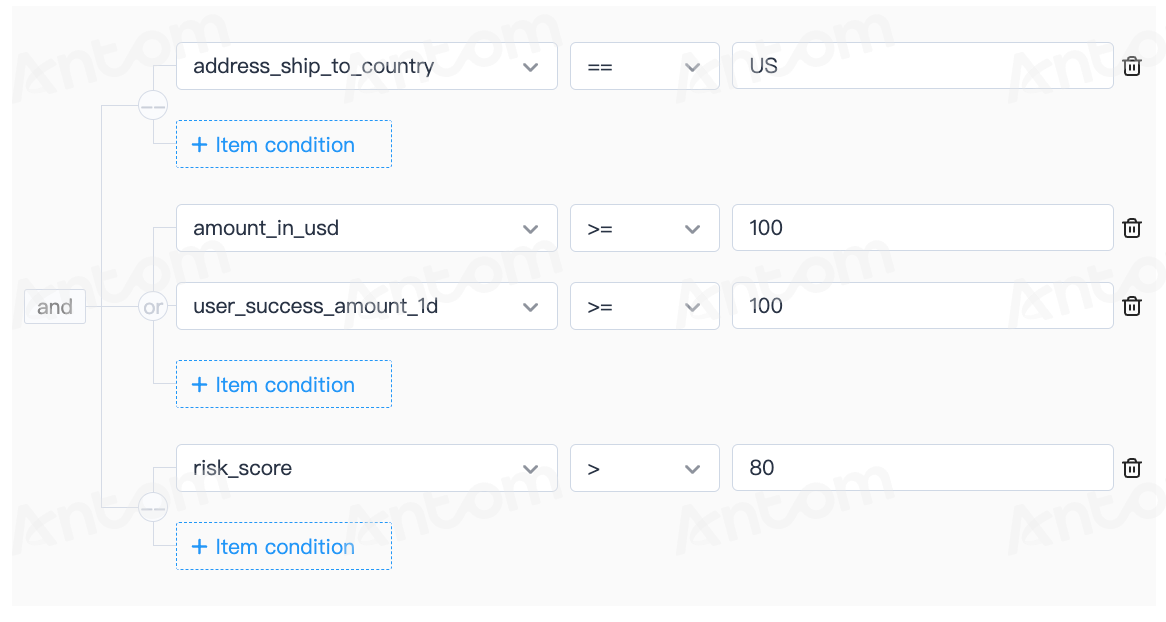
When your store has a fraudulent chargeback order from the United States, it usually shows up as a single transaction amount or a user's cumulative payment amount exceeds $500 in a single day. To reduce similar fraudulent transactions, you can configure the following reject rules:
- For orders with mailing addresses in the United States, when the user's single order amount exceeds $100, or the user's cumulative payment in a day exceeds $100, and the risk score is higher than 80, the transaction is rejected. The transaction is rejected if the following conditions are met:
Continuous optimization of rule sets
As the business grows, risk patterns faced by the business continue to change. Periodically review the performance of existing rules, and adjust rule parameters based on the latest market trends and technological developments.
Monitor rule hit rate
Pay close attention to the matched rates of each rule, remove rules that hasn't been matched in a while to maintain system efficiency.
Rule configuration with Antom Autopilot
Antom Autopilot, powered by natural language processing technology, supports quick list configuration through conversational interaction. You can describe your business requirements in everyday language, and the system will automatically parse your intention, identify the list type and validity period, and generate executable configuration suggestions that can be applied with one click — significantly improving configuration efficiency. Refer to Antom Autopilot intelligent configuration for detailed operation guides.