
Accept payments
Tokenized Payment enables you to build an online automatic deduction feature on your website or application. After the buyer completes authorization during the first payment, subsequent payments can be made with just one click or directly deducted by your system without buyer's action. It is suitable for the following business scenarios:
- Recurring payments: For example, subscription or membership services, where the payment deduction cycle is managed by you.
- Small-amount, high-frequency payments or high repurchase-rate scenarios: For example, gaming and e-commerce, where you can provide your buyers with a convenient and seamless payment experience.
The Tokenized Payment product supports integration on various terminal types (Web/WAP/App), and requires only a single integration to connect with multiple payment methods, such as e-wallets and bank transfers.
Web/WAP
iOS
Android
User experience
The following figures show the buyer's experience during the authorization and payment process:
Authorization
Web
WAP
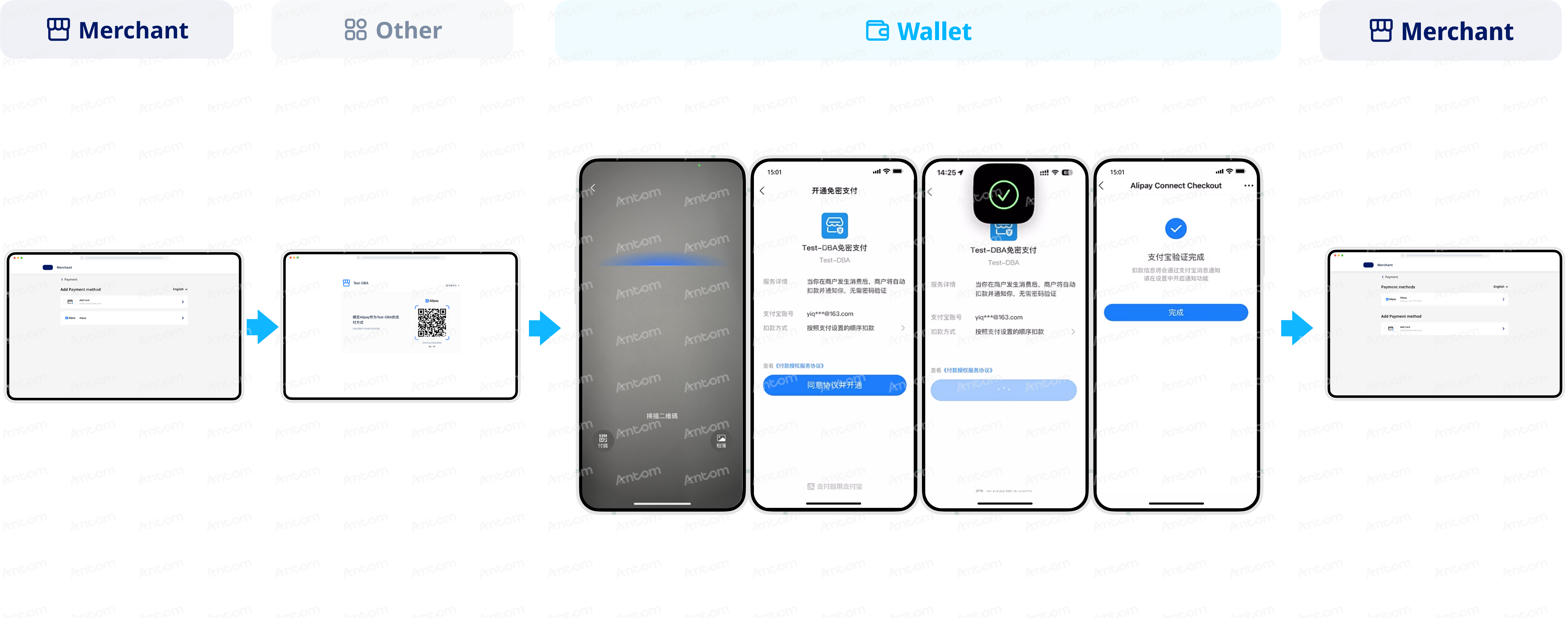
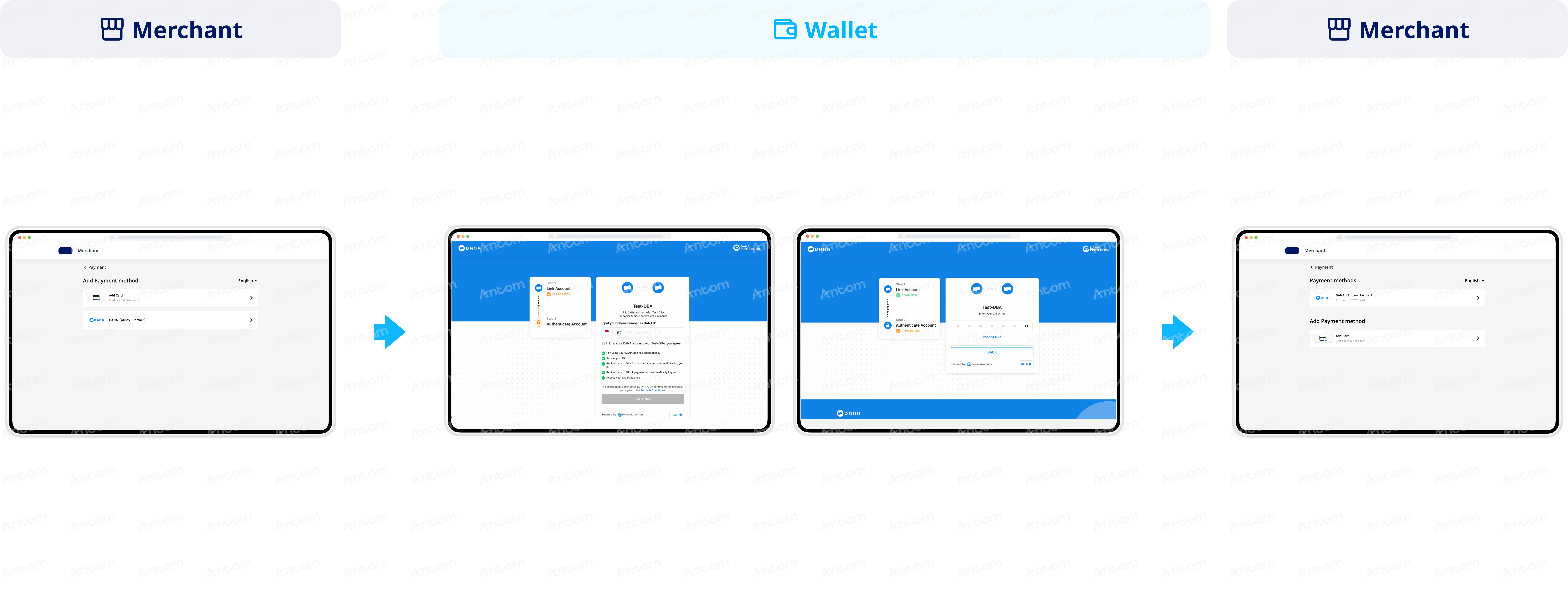
Antom provides two authorization methods: QR code authorization and login authorization. The experience may vary depending on the payment method.
QR code authorization
Login authorization
The buyer is redirected to the payment method webpage, where they complete authorization by scanning the QR code displayed on the page.
The buyer is redirected to the payment method webpage, where they complete authorization by entering their account credentials.
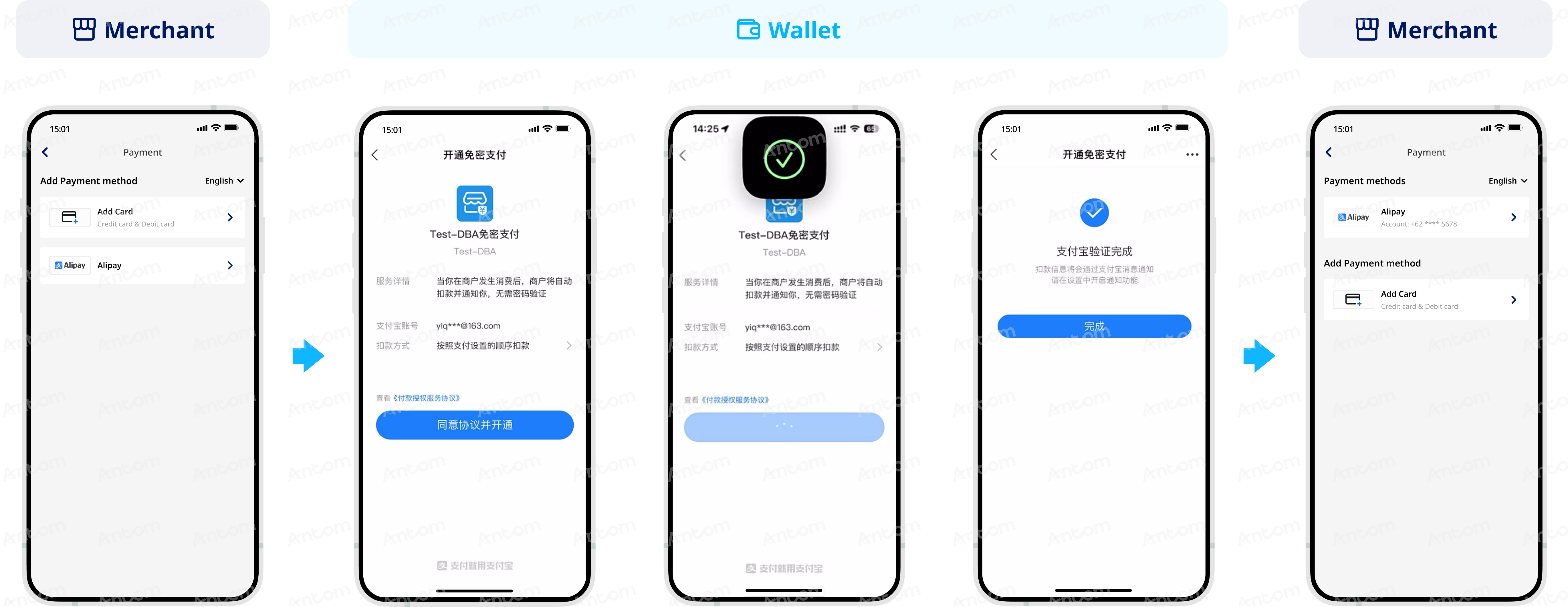
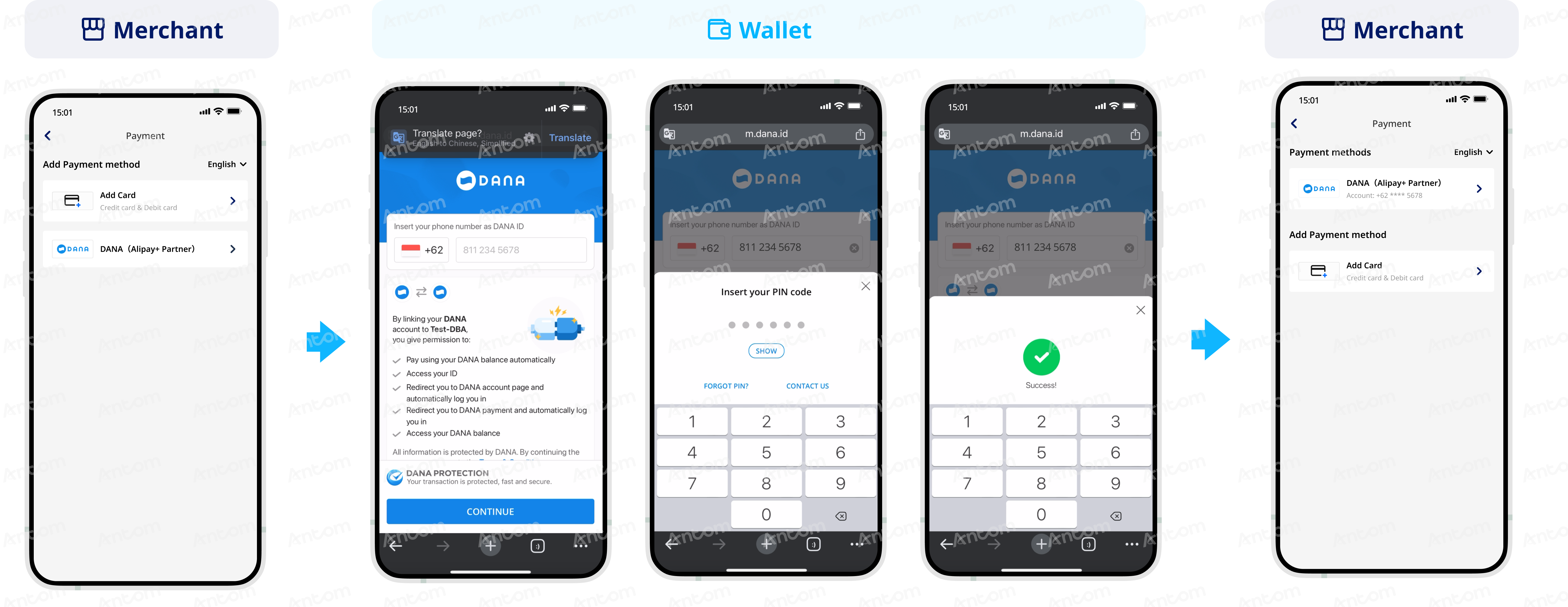
Antom provides two authorization methods: App authorization and login authorization. The experience may vary depending on the payment method.
App authorization
Login authorization
The buyer is redirected to the payment method app to complete the authorization process.
The buyer is redirected to the payment method's H5 page, where they complete authorization by entering their account credentials.
Payment
After the buyer clicks to pay, the user experience for initiating the deduction is shown as below:
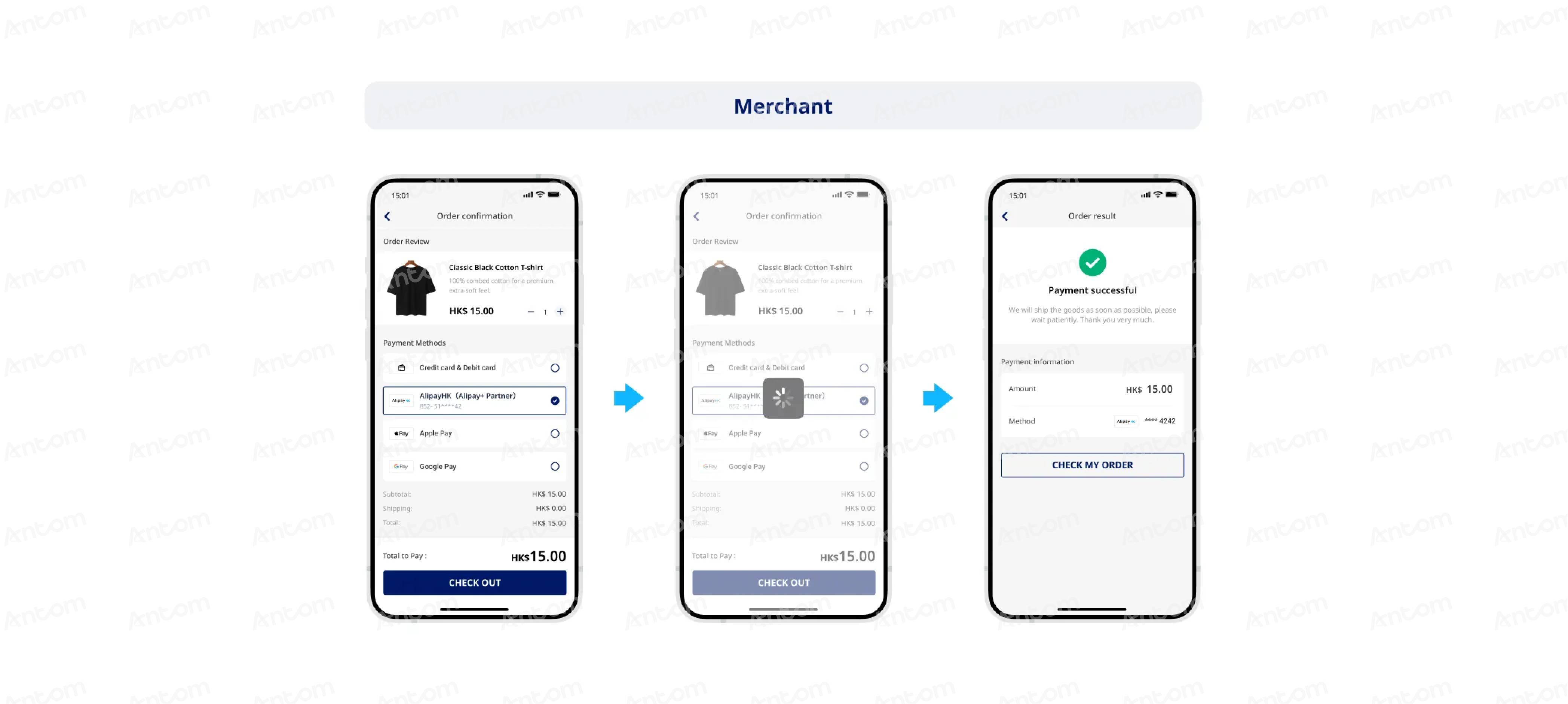
Subsequent recurring payments do not require any buyer actions and can be directly deducted by your system.
Payment flow
Before the first tokenized payment, you need to obtain the buyer's authorization. After the buyer authorizes, you can use the authorization code (authCode) to obtain the payment token (accessToken) and directly initiate the tokenization service. Authorization is not required for subsequent payments. The authorization and payment flow is outlined below:
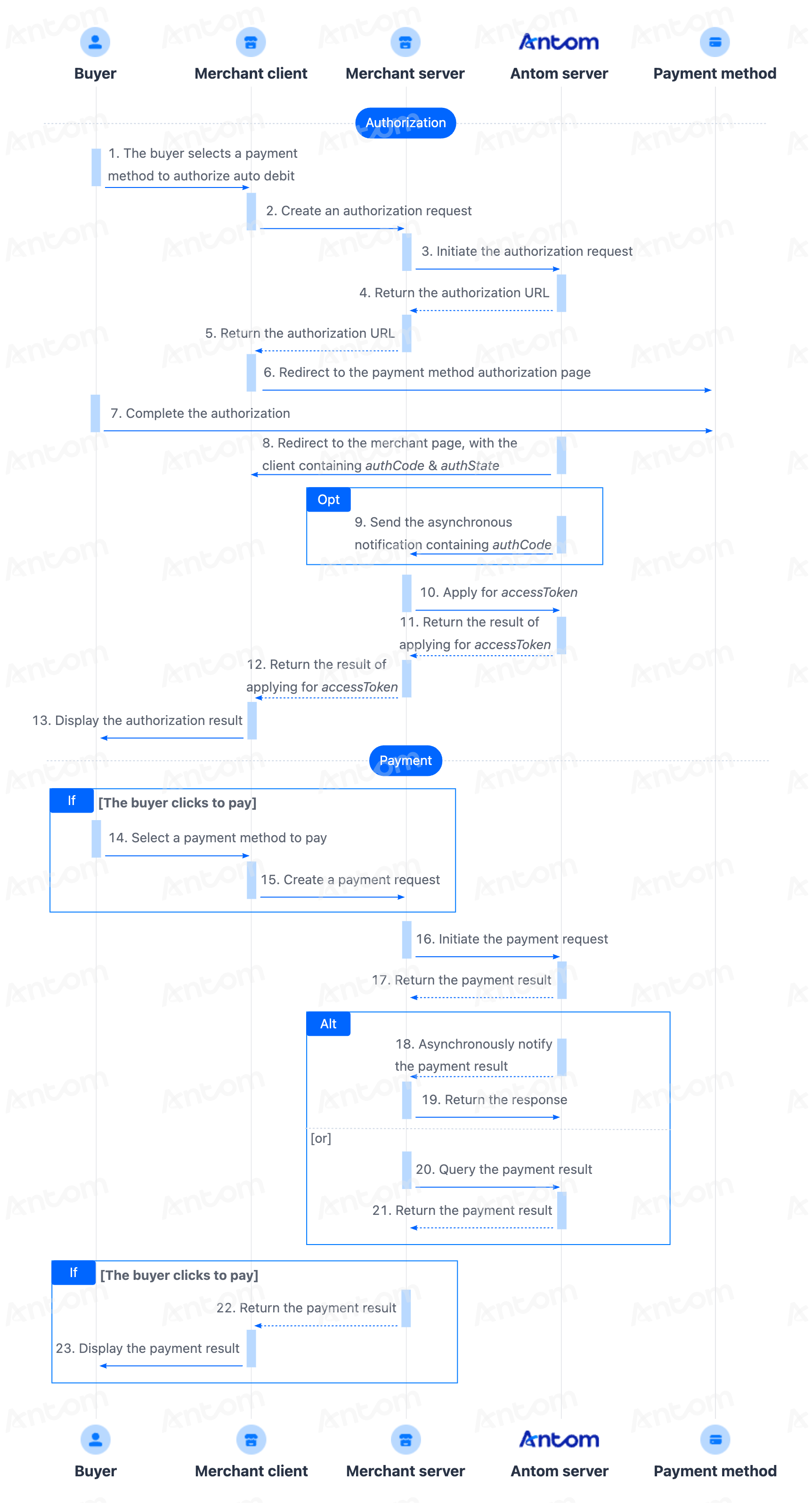
- The buyer lands on the checkout page.
- Obtain the authorization URL.
After the buyer selects a payment method, call the consult API to obtain the authorization URL.
- Obtain the authorization result.
You can obtain the authorization result through the reconstructed URL returned by the payment method or through asynchronous notification.
- Apply for the payment token.
Call the applyToken API to apply for the payment token (accessToken), and store the corresponding token after obtaining it.
- Initiate a payment.
After obtaining the buyer's authorization, you can directly call the pay (Tokenized Payment) API to initiate the tokenization service.
- Obtain the payment result.
Obtain the payment result by using one of the following two methods:
- Asynchronous notification: Specify paymentNotifyUrl in the pay (Tokenized Payment) API to set the address for receiving asynchronous notifications. When the payment is successful or failed, Antom will use notifyPayment to send asynchronous notifications to you.
- Synchronous inquiry: Call the inquiryPayment API to check the payment status.
Integration steps
To obtain the buyer's authorization and perform tokenized payment, please complete the following integration steps:
- Obtain the authorization URL
- Redirect to the payment method page for authorization
- Obtain the authorization result
- Apply for payment token
- Initiate a payment
Step 1: Obtain the authorization URL Server-side
You need to first obtain the authorization URL and then redirect the buyer to the authorization URL to complete authorization. For web integration, the authorization URL can be obtained from normalUrl in the response of the consult API.
Antom provides server-side API libraries for multiple languages. The following Java code examples require Java 6 or later:
1. Install an API library
<dependency>
<groupId>com.alipay.global.sdk</groupId>
<artifactId>global-open-sdk-java</artifactId>
<version>{latest_version}</version>
</dependency>
2. Initialize the request instance
import com.alipay.global.api.AlipayClient;
import com.alipay.global.api.DefaultAlipayClient;
import com.alipay.global.api.model.constants.EndPointConstants;

public class Sample {
  public static final String        CLIENT_ID            = "";
  public static final String        ANTOM_PUBLIC_KEY     = "";
  public static final String        MERCHANT_PRIVATE_KEY = "";

  private final static AlipayClient CLIENT               = new DefaultAlipayClient(
      EndPointConstants.SG, MERCHANT_PRIVATE_KEY, ANTOM_PUBLIC_KEY, CLIENT_ID);

}
3. Initiate a recurring payment authorization request
Parameter name | Required | Description |
authRedirectUrl | Yes | URL used to redirect the buyer back to the merchant's page after the authorization is completed. |
authState | Yes | A string passed to identify the authorization request. |
customerBelongsTo | Yes | The target payment method for the authorization request. |
scopes | Yes | Fixed as AGREEMENT_PAY for recurring payment authorization. |
terminalType | Yes | Terminal type of which the merchant service applies to. Valid values are:
|
osType | No | The operating system type. Valid values are:
Note: This field is required when terminalType is WAP . |
public static void authorizationConsult() {
  AlipayAuthConsultRequest alipayAuthConsultRequest = new AlipayAuthConsultRequest();

  // replace with your authState
  String authState = UUID.randomUUID().toString();
  alipayAuthConsultRequest.setAuthState(authState);

  // set the target payment method for which you are requesting authorization
  alipayAuthConsultRequest.setCustomerBelongsTo(CustomerBelongsTo.TOSSPAY);

  // set the authorization scope
  alipayAuthConsultRequest.setScopes(new ScopeType[]{ScopeType.AGREEMENT_PAY});

  // set terminalType
  alipayAuthConsultRequest.setTerminalType(TerminalType.WEB);

  // replace with your authRedirectUrl
  alipayAuthConsultRequest.setAuthRedirectUrl("http://www.yourRedirectUrl.com");

  // consult authorization
  AlipayAuthConsultResponse alipayAuthConsultResponse;
  try {
      alipayAuthConsultResponse = CLIENT.execute(alipayAuthConsultRequest);
  } catch (AlipayApiException e) {
      String errorMsg = e.getMessage();
      // handle error condition
  }
}
The following code shows a sample of the request message:
Web
WAP
{
  "authRedirectUrl": "http://www.yourRedirectUrl.com",
  "authState": "556c1e32-3723-4b02-88ed-8c46087540ca",
  "customerBelongsTo": "TOSSPAY",
  "scopes": [
      "AGREEMENT_PAY"
  ],
  "terminalType": "WEB"
}
{
"authRedirectUrl": "https://kademo.intlalipay.cn/melitigo/Test_113.html",
"authState": "STATE_20250325101650291",
"customerBelongsTo": "TOSSPAY",
"scopes": [
"AGREEMENT_PAY"
],
"terminalType": "WAP",
"osType": "ANDROID"
}4. Receive the consult response
The response from the consult API contains the authorization URL to redirect the buyer to proceed with authorization:
Web
WAP
{
  "authUrl": "https://pay.toss.im/payfront/web/billing?billingKey=5RMRHqdZPPaSr5AP4wkw43&source=AlipayConnect&needCallback=false",
  "normalUrl": "https://pay.toss.im/payfront/web/billing?billingKey=5RMRHqdZPPaSr5AP4wkw43&source=AlipayConnect&needCallback=false",
  "webRequestMethod": "GET",
  "result": {
      "resultCode": "SUCCESS",
      "resultMessage": "success.",
      "resultStatus": "S"
  }
}
{
"appIdentifier": "viva.republica.toss",
"authUrl": "https://pay.toss.im/payfront/web/billing?billingKey=moeoiG8rm2PUPawM3ZrXde&source=AlipayConnect&needCallback=false",
"normalUrl": "https://pay.toss.im/payfront/web/billing?billingKey=moeoiG8rm2PUPawM3ZrXde&source=AlipayConnect&needCallback=false",
"webRequestMethod": "GET",
"result": {
"resultCode": "SUCCESS",
"resultMessage": "success.",
"resultStatus": "S"
}
}The table below shows the possible values of result.resultStatus in the consult response. Please handle the result according to the guidance provided:
result.resultStatus | Message | Further action |
S | The request was successful. | Successfully obtained the authorization URL (one or more of applinkUrl/normalUrl/schemeUrl). For detailed information of each URL, refer to Best practices for configuring the authorization URL. |
U | Unknown error. | Please use a new authState and call the API again. If the issue persists, contact Antom Technical Support. |
F | The request failed. | Please check and verify whether the current API required request fields (including header fields and body fields) are correctly passed and valid. |
Note: If no response is received, it may indicate a network timeout. Please use a new authState and call the API again. If the issue persists, contact Antom Technical Support.
Common questions
A: For different payment methods and terminal types, Antom may return one or more of the following links: normalUrl, applinkUrl, or schemeUrl. The merchant server needs to pass these URLs to the merchant front-end for redirection. For detailed information of each URL, refer to Best practices for configuring the authorization URL.
Q: How to set terminalType?
A: The valid values of terminalType are:
- If the buyer initiates a transaction from a PC browser, the terminalType needs to be specified as WEB.
- If the buyer initiates a transaction from the mobile browser, the terminalType needs to be specified as WAP. Add the osType parameter and fill in the corresponding system parametersANDROIDorIOSaccording to the buyer's device.
You must pass the correct terminalType to obtain the correct redirect URL. Passing an incorrect value may impact the authorization success rate.
Q: Can I use Chinese characters in the value of the request parameters?
A: To avoid incompatibility of certain payment methods, do not use Chinese characters for fields in the request.
Q: What should I do after receiving the returned normalUrl?
A: For transactions performed in PC browsers, Antom returns the normalUrl parameter in the consult response. Your server needs to pass this URL to the client for redirection. Do not cache the returned normalUrl. When re-initiating authorization, you need to obtain a new normalUrl for redirection.
Step 2: Redirect to the payment method page for authorization Client-side
After the server obtains the authorization URL, it needs to pass this URL to the client. Your client will redirect the buyer to the recurring payment authorization page. The code below shows an example of loading the URL in the client (the URL refers to applinkUrl, schemeUrl, or normalUrl returned by the consult response):
Web
WAP
if (URL != null) {
window.open(URL, '_blank');
}
window.location.href = URL;For more information on the URLs returned by different payment methods, see URLs returned for some payment methods and refer to Best practices for configuring the authorization URL to learn how to use these URLs.
Common questions
Q: How to handle different payment experiences?
A: Authorization experiences vary by the URL type. Some URLs redirect buyers to the payment method's native app, while others complete authorization within an H5 page. For details, see URLs returned for some payment methods.
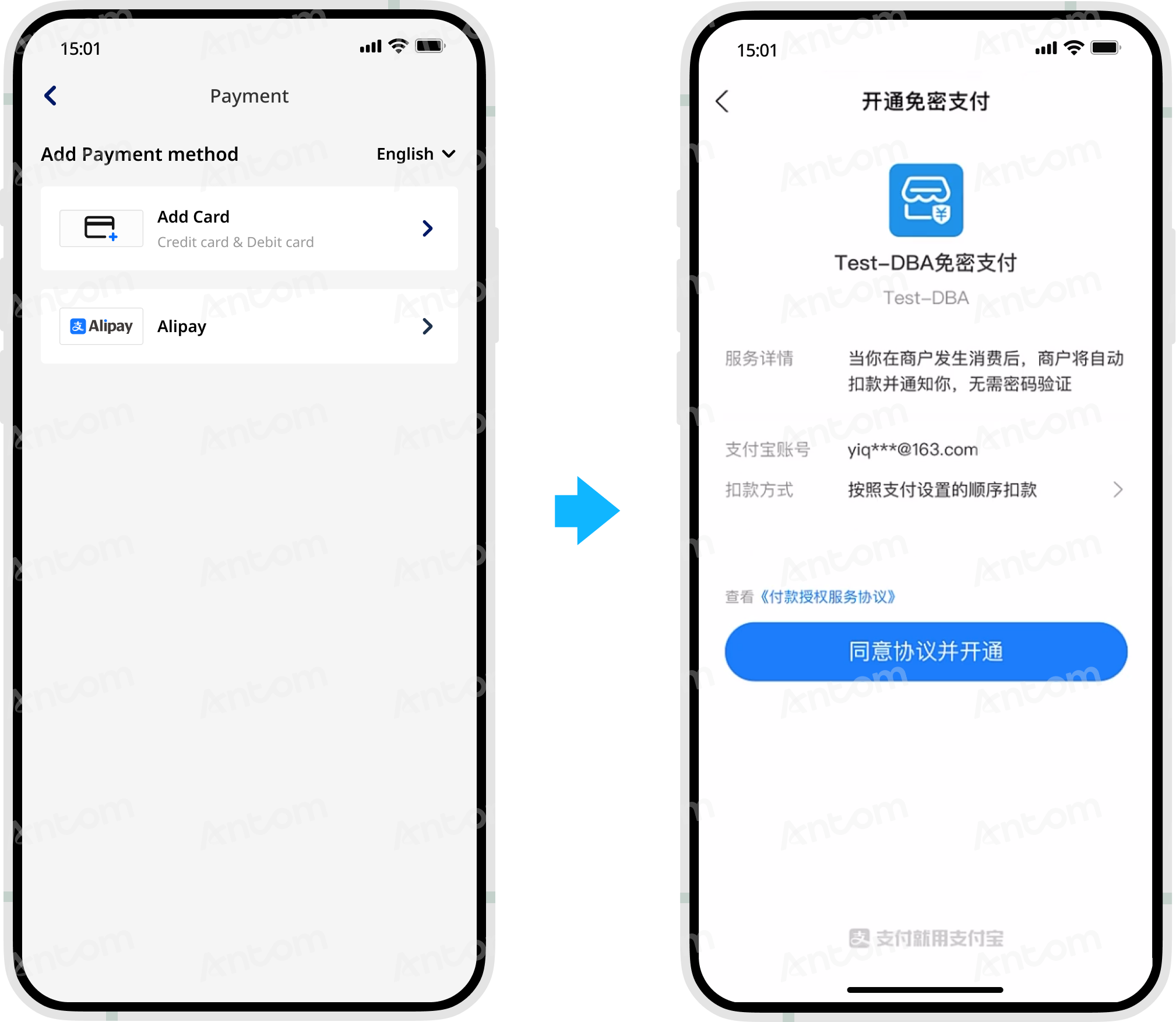
The following figure shows the rendering effect of the payment method authorization page:
Step 3: Obtain the authorization result
1. Redirect to the merchant page
When the buyer performs authorization on the relevant payment method authorization page, the authorization may be successful or fail. In the event of authorization success or failure, the following describes the subsequent redirects:
- Authorization success: If the authorization is successful, the buyer will be redirected back to the merchant page. The merchant page address is a reconstructed URL consisting of authRediectUrl, authCode, and authState. However, the redirection may fail due to network issues or buyer actions.
- Authorization failure:
- If the buyer cancels the authorization or exits the authorization page, some payment methods will redirect the buyer back to the merchant page. The merchant page address is determined by authRediectUrl.
- If the buyer does not authorize before the timeout or authorization fails, the buyer will not be redirected back to the merchant page.
Note:
- The authorization URL can only be used once. If the authorization fails, you need to call the consult API again and provide a new authState value.
- For Boost, if redirection to the merchant page is required, contact Antom Technical Support for configuration.
2. Obtain the authorization code
After the buyer completes authorization in Step 2, you can obtain the authorization code (authCode) through one of the following methods:
- Obtain authCode from the reconstructed URL returned by the payment method.
- Obtain authCode from the asynchronous notification of authorization sent by Antom.
Obtain authCode from the reconstructed URL
Obtain authCode from the asynchronous notification
Obtain authCode from the reconstructed URL
Client-side
After successful authorization, the buyer will be redirected to the reconstructed URL returned by the payment method. This URL consists of three parts:
- The value of authRedirectUrl passed in the consult API, for example, https://www.alipay.com/.
- The value of authState passed in the consult API, for example, 663A8FA9-D836-48EE-8AA1-1FF682989DC7.
- The authCode returned by the payment method, for example, 281004138596827069301079.
The code below shows an example of a reconstructed URL:
https://www.alipay.com/&authState=663A8FA9-D836-48EE-8AA1-1FF682989DC7&authCode=281004138596827069301079You can obtain the authCode value from the reconstructed URL. Before using the authCode, please verify that the authState value in the reconstructed URL matches the authState value passed in the consult API, and do one of the following:
- If the authState values do not match, the reconstructed URL is considered untrustworthy, as malicious events such as attacks may have occurred during the redirection process. In this case, the authCode value in the URL cannot be used.
- If the authState values match, use the authCode value to apply for the payment token using the applyToken API.
Obtain authCode from the asynchronous notification
Server-side
If you cannot get the reconstructed URL due to network issues or other reasons, you can follow the steps below to obtain the authorization code (authCode) from the asynchronous notification of authorization sent by Antom:
- Configure the webhook URL to receive the asynchronous notification of authorization. Go to Antom Dashboard > Developer > Notification URL, and add the notification address for the alipay.ams.authorizations.notify API. For detailed steps, refer to Notification URL.
- After the buyer completes authorization, Antom sends you an asynchronous notification through the notifyAuthorization API. When you receive the asyncrhonous notification, you are required to return the response in the Sample code format, but you do not need to countersign the response.The following code shows an example of the asynchronous notification request:
{
"authCode": "28100113_1631148338197000019ba74",
"authState": "489767958497",
"authorizationNotifyType": "AUTHCODE_CREATED",
"result": {
  "resultCode": "SUCCESS",
  "resultMessage": "success",
  "resultStatus": "S"
}
}
Obtain the authorization code (authCode) based on the value of result.resultStatus (only returns
S
) in the authorization notification request:- S: Indicates the authorization was successful and returns the following fields:
- authState: The unique ID generated for the authorization request. Verify that this value matches the authState specified in the consult request.
- authorizationNotifyType: Only returns AUTHCODE_CREATEDin this scenario, indicating the buyer successfully initiated authorization for the tokenized payment on the merchant's client.
- authCode: The authorization code generated after successful authorization. Use this code to request a payment token.
- You need to verify the signature of the authorization notification sent by Antom:
@PostMapping("/receiveAuthNotify")
@ResponseBody
public Result receiveAuthNotify(HttpServletRequest request, @RequestBody String notifyBody) {
  // retrieve the required parameters from http request
  String requestUri = request.getRequestURI();
  String requestMethod = request.getMethod();

  // retrieve the required parameters from request header
  String requestTime = request.getHeader("request-time");
  String clientId = request.getHeader("client-id");
  String signature = request.getHeader("signature");

  try {
      // verify the signature of notification
      boolean verifyResult = WebhookTool.checkSignature(requestUri, requestMethod, clientId,
              requestTime, signature, notifyBody, ANTOM_PUBLIC_KEY);
      if (!verifyResult) {
          throw new RuntimeException("Invalid notify signature");
      }

      // deserialize the notification body
      AlipayAuthNotify authNotify = JSON.parseObject(notifyBody, AlipayAuthNotify.class);

      if (authNotify != null && "SUCCESS".equals(authNotify.getResult().getResultCode())) {
          // get authCode for applyToken
          return Result.builder().resultCode("SUCCESS").resultMessage("success.").resultStatus(ResultStatusType.S).build();
      }

  } catch (Exception e) {
      return Result.builder().resultCode("FAIL").resultMessage("fail.").resultStatus(ResultStatusType.F).build();
  }

  return Result.builder().resultCode("SYSTEM_ERROR").resultMessage("system error.").resultStatus(ResultStatusType.F).build();
}
- Whether the authorization is successful or not, each notification request must be responded to in the format specified below. Otherwise, Antom will resend the asynchronous notification.
{
"result": {
  "resultCode": "SUCCESS",
  "resultStatus": "S",
  "resultMessage": "success"
}
}
Common questions
Q: Can both methods (reconstructed URL and asynchronous notification) be used to obtain authCode?
A: Yes. If multiple authCode values are received, use the first one received. Do not reuse the same authCode when requesting a payment token.
Q: When will the notification be sent?
A: After the buyer's authorization is completed, Antom sends an asynchronous notification to you.
Q: Will the asynchronous notification be re-sent?
A: Yes, the asynchronous notification will be re-sent automatically within 24 hours for the following cases:
- If you didn't receive the asynchronous notification due to network reasons.
- If you receive an asynchronous notification from Antom, but you did not respond to the notification in the Sample code format.
The notification can be resent up to 8 times or until a correct response is received to terminate delivery. The sending intervals are as follows: 0 minutes, 2 minutes, 10 minutes, 10 minutes, 1 hour, 2 hours, 6 hours, and 15 hours.
Q: When responding to an asynchronous notification, do I need to add a digital signature?
A: If you receive an asynchronous notification from Antom, you are required to return the response in the Sample code format, but you do not need to countersign the response.
Q: How to determine authorization failure?
A: If you do not receive authCode within 15 minutes, the authorization can be considered failed. You can guide the buyer to re-initiate authorization.
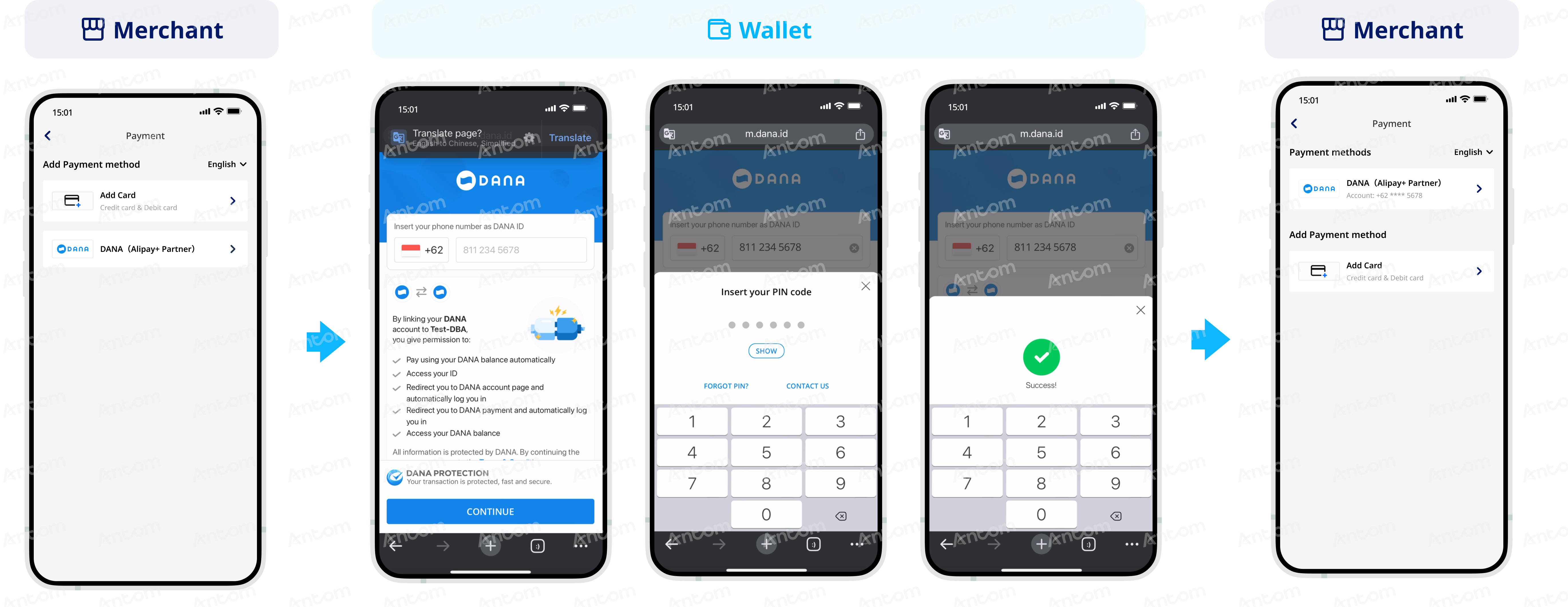
User experience
The following figures show the buyer's experience during the authorization and payment process:
Authorization
Antom provides two authorization methods: App authorization and login authorization. The experience may vary depending on the payment method.
App authorization
Login authorization
The buyer is redirected to the payment method app to complete the authorization process.
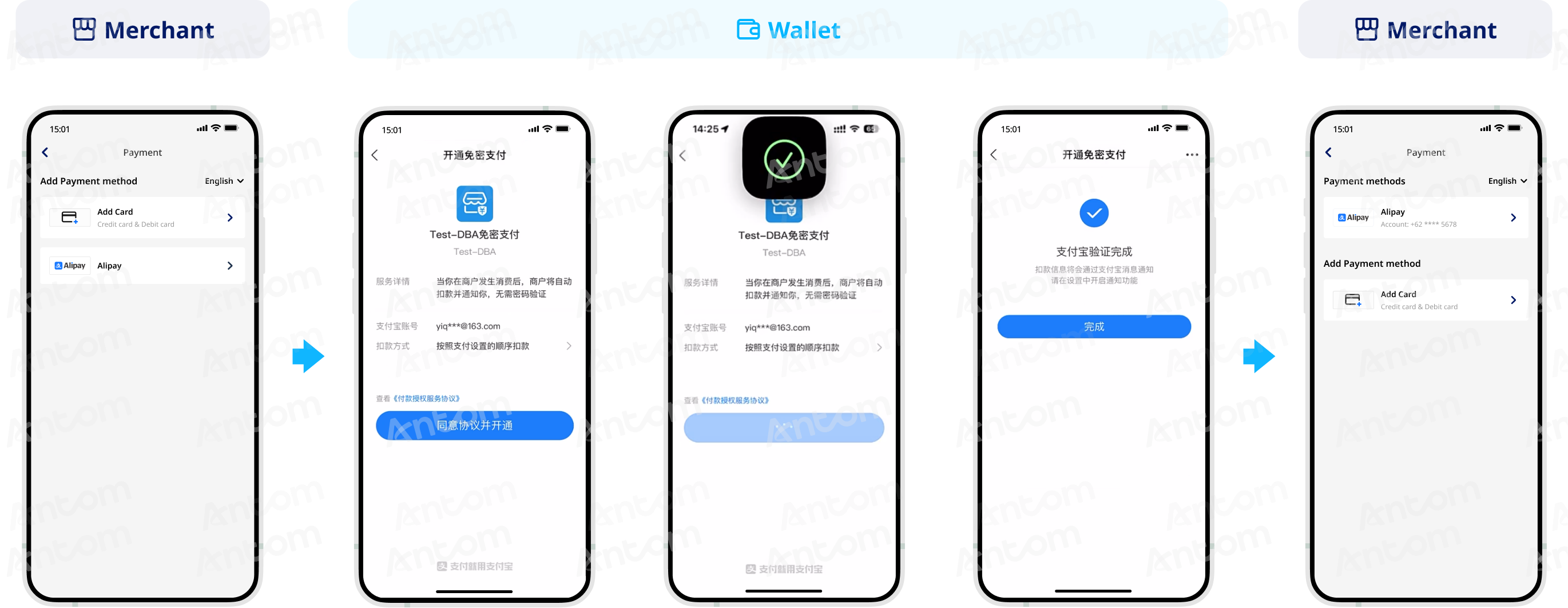
The buyer is redirected to the payment method's H5 page, where they complete authorization by entering their account credentials.
Payment
After the buyer clicks to pay, the user experience for initiating the deduction is shown as below:
Subsequent recurring payments do not require any buyer actions and can be directly deducted by your system.
Payment flow
Before the first tokenized payment, you need to obtain the buyer's authorization. After the buyer authorizes, you can use the authorization code (authCode) to obtain the payment token (accessToken) and directly initiate the tokenization service. Authorization is not required for subsequent payments. The authorization and payment flow is outlined below:
- The buyer lands on the checkout page.
- Obtain the authorization URL.
After the buyer selects a payment method, call the consult API to obtain the authorization URL.
- Obtain the authorization result.
You can obtain the authorization result through the reconstructed URL returned by the payment method or through asynchronous notification.
- Apply for the payment token.
Call the applyToken API to apply for the payment token (accessToken), and store the corresponding token after obtaining it.
- Initiate a payment.
After obtaining the buyer's authorization, you can directly call the pay (Tokenized Payment) API to initiate the tokenization service.
- Obtain the payment result.
Obtain the payment result by using one of the following two methods:
- Asynchronous notification: Specify paymentNotifyUrl in the pay (Tokenized Payment) API to set the address for receiving asynchronous notifications. When the payment is successful or failed, Antom will use notifyPayment to send asynchronous notifications to you.
- Synchronous inquiry: Call the inquiryPayment API to check the payment status.
Integration steps
To obtain the buyer's authorization and perform tokenized payment, please complete the following integration steps:
- Obtain the authorization URL
- Redirect to the payment method page for authorization
- Obtain the authorization result
- Apply for payment token
- Initiate a payment
Step 1: Obtain the authorization URL Server-side
You need to first obtain the authorization URL and then redirect the buyer to the authorization URL to complete authorization. For web integration, the authorization URL can be obtained from normalUrl in the response of the consult API.
Antom provides server-side API libraries for multiple languages. The following Java code examples require Java 6 or later:
1. Install an API library
<dependency>
<groupId>com.alipay.global.sdk</groupId>
<artifactId>global-open-sdk-java</artifactId>
<version>{latest_version}</version>
</dependency>
2. Initialize the request instance
import com.alipay.global.api.AlipayClient;
import com.alipay.global.api.DefaultAlipayClient;
import com.alipay.global.api.model.constants.EndPointConstants;

public class Sample {
  public static final String        CLIENT_ID            = "";
  public static final String        ANTOM_PUBLIC_KEY     = "";
  public static final String        MERCHANT_PRIVATE_KEY = "";

  private final static AlipayClient CLIENT               = new DefaultAlipayClient(
      EndPointConstants.SG, MERCHANT_PRIVATE_KEY, ANTOM_PUBLIC_KEY, CLIENT_ID);

}
3. Initiate a recurring payment authorization request
Parameter name | Required | Description |
authRedirectUrl | Yes | URL used to redirect the buyer back to the merchant's page after the authorization is completed. |
authState | Yes | A string passed to identify the authorization request. |
customerBelongsTo | Yes | The target payment method for the authorization request. |
scopes | Yes | Fixed as AGREEMENT_PAY for recurring payment authorization. |
terminalType | Yes | Terminal type of which the merchant service applies to. Valid values are:
|
osType | No | The operating system type. Valid values are:
Note: This field is required when terminalType is APP . |
public static void authorizationConsult() {
  AlipayAuthConsultRequest alipayAuthConsultRequest = new AlipayAuthConsultRequest();

  // replace with your authState
  String authState = UUID.randomUUID().toString();
  alipayAuthConsultRequest.setAuthState(authState);

  // set the target payment method for which you are requesting authorization
  alipayAuthConsultRequest.setCustomerBelongsTo(CustomerBelongsTo.TOSSPAY);

  // set the authorization scope
  alipayAuthConsultRequest.setScopes(new ScopeType[]{ScopeType.AGREEMENT_PAY});

  // set terminalType
  alipayAuthConsultRequest.setTerminalType(TerminalType.WEB);

  // replace with your authRedirectUrl
  alipayAuthConsultRequest.setAuthRedirectUrl("http://www.yourRedirectUrl.com");

  // consult authorization
  AlipayAuthConsultResponse alipayAuthConsultResponse;
  try {
      alipayAuthConsultResponse = CLIENT.execute(alipayAuthConsultRequest);
  } catch (AlipayApiException e) {
      String errorMsg = e.getMessage();
      // handle error condition
  }
}
The following code shows a sample of the request message:
{
  "authRedirectUrl": "kademo://auth",
  "authState": "STATE_20250325101702257",
  "customerBelongsTo": "TOSSPAY",
  "scopes": [
      "AGREEMENT_PAY"
  ],
  "terminalType": "APP",
  "osType": "IOS"
}
4. Receive the consult response
The response from the consult API contains the authorization URL to redirect the buyer to proceed with authorization:
{
  "appIdentifier": "viva.republica.toss",
  "applinkUrl": "https://toss.onelink.me/3563614660?pid=referral&af_force_deeplink=true&af_dp=supertoss%3A%2F%2Fpay%2FbillingKey%3FbillingKey%3D0a5acO7999DSjKgJM8Kxf9%26skipResult%3Dfalse%26shouldAutoClose%3Dfalse&source=AlipayConnect&needCallback=false",
  "authUrl": "https://toss.onelink.me/3563614660?pid=referral&af_force_deeplink=true&af_dp=supertoss%3A%2F%2Fpay%2FbillingKey%3FbillingKey%3D0a5acO7999DSjKgJM8Kxf9%26skipResult%3Dfalse%26shouldAutoClose%3Dfalse&source=AlipayConnect&needCallback=false",
  "normalUrl": "https://pay.toss.im/payfront/web/billing?billingKey=0a5acO7999DSjKgJM8Kxf9&source=AlipayConnect&needCallback=false",
  "schemeUrl": "supertoss://pay/billingKey?billingKey=0a5acO7999DSjKgJM8Kxf9&source=AlipayConnect&needCallback=false",
  "webRequestMethod": "GET",
  "result": {
      "resultCode": "SUCCESS",
      "resultMessage": "success.",
      "resultStatus": "S"
  }
}
The table below shows the possible values of result.resultStatus in the consult response. Please handle the result according to the guidance provided:
result.resultStatus | Message | Further action |
S | The request was successful. | Successfully obtained the authorization URL (one or more of applinkUrl/normalUrl/schemeUrl). For detailed information of each URL, refer to Best practices for configuring the authorization URL. |
U | Unknown error. | Please use a new authState and call the API again. If the issue persists, contact Antom Technical Support. |
F | The request failed. | Please check and verify whether the current API required request fields (including header fields and body fields) are correctly passed and valid. |
Note: If no response is received, it may indicate a network timeout. Please use a new authState and call the API again. If the issue persists, contact Antom Technical Support.
Common questions
A: For different payment methods and terminal types, Antom may return one or more of the following links: normalUrl, applinkUrl, or schemeUrl. The merchant server needs to pass these URLs to the merchant front-end for redirection. For detailed information of each URL, refer to Best practices for configuring the authorization URL.
Q: How to set terminalType?
A: The valid values of terminalType are:
- If the buyer initiates a transaction from a mobile app, the terminalType needs to be specified as APP. Add the osType parameter and fill in the corresponding system parametersANDROIDorIOSaccording to the buyer's mobile device.
You must pass the correct terminalType to obtain the correct redirect URL. Passing an incorrect value may impact the authorization success rate.
Q: Can I use Chinese characters in the value of the request parameters?
A: To avoid incompatibility of certain payment methods, do not use Chinese characters for fields in the request.
Q: What should I do after receiving the returned normalUrl?
A: For transactions performed in PC browsers, Antom returns the normalUrl parameter in the consult response. Your server needs to pass this URL to the client for redirection. Do not cache the returned normalUrl. When re-initiating authorization, you need to obtain a new normalUrl for redirection.
Step 2: Redirect to the payment method page for authorization Client-side
After the server obtains the authorization URL, it needs to pass this URL to the client. Your client will redirect the buyer to the recurring payment authorization page. The code below shows an example of loading the URL in the client (the URL refers to applinkUrl, schemeUrl, or normalUrl returned by the consult response):
if ([[[UIDevice currentDevice] systemVersion] floatValue] >= 10.0) {
  [[UIApplication sharedApplication] openURL:[NSURL URLWithString:Url] options:@{} completionHandler:nil];
}else{
  [[UIApplication sharedApplication] openURL:[NSURL URLWithString:Url]];
}
For more information on the URLs returned by different payment methods, see URLs returned for some payment methods and refer to Best practices for configuring the authorization URL to learn how to use these URLs.
Common questions
Q: How to handle different payment experiences?
A: Authorization experiences vary by the URL type. Some URLs redirect buyers to the payment method's native app, while others complete authorization within an H5 page. For details, see URLs returned for some payment methods.
The following figure shows the rendering effect of the payment method authorization page:
Step 3: Obtain the authorization result
1. Redirect to the merchant page
When the buyer performs authorization on the relevant payment method authorization page, the authorization may be successful or fail. In the event of authorization success or failure, the following describes the subsequent redirects:
- Authorization success: If the authorization is successful, the buyer will be redirected back to the merchant page. The merchant page address is a reconstructed URL consisting of authRediectUrl, authCode, and authState. However, the redirection may fail due to network issues or buyer actions.
- Authorization failure:
- If the buyer cancels the authorization or exits the authorization page, some payment methods will redirect the buyer back to the merchant page. The merchant page address is determined by authRediectUrl.
- If the buyer does not authorize before the timeout or authorization fails, the buyer will not be redirected back to the merchant page.
Note:
- The authorization URL can only be used once. If the authorization fails, you need to call the consult API again and provide a new authState value.
- For Boost, if redirection to the merchant page is required, contact Antom Technical Support for configuration.
2. Obtain the authorization code
After the buyer completes authorization in Step 2, you can obtain the authorization code (authCode) through one of the following methods:
- Obtain authCode from the reconstructed URL returned by the payment method.
- Obtain authCode from the asynchronous notification of authorization sent by Antom.
Obtain authCode from the reconstructed URL
Obtain authCode from the asynchronous notification
Obtain authCode from the reconstructed URL
Client-side
After successful authorization, the buyer will be redirected to the reconstructed URL returned by the payment method. This URL consists of three parts:
- The value of authRedirectUrl passed in the consult API, for example, https://www.alipay.com/.
- The value of authState passed in the consult API, for example, 663A8FA9-D836-48EE-8AA1-1FF682989DC7.
- The authCode returned by the payment method, for example, 281004138596827069301079.
The code below shows an example of a reconstructed URL:
https://www.alipay.com/&authState=663A8FA9-D836-48EE-8AA1-1FF682989DC7&authCode=281004138596827069301079You can obtain the authCode value from the reconstructed URL. Before using the authCode, please verify that the authState value in the reconstructed URL matches the authState value passed in the consult API, and do one of the following:
- If the authState values do not match, the reconstructed URL is considered untrustworthy, as malicious events such as attacks may have occurred during the redirection process. In this case, the authCode value in the URL cannot be used.
- If the authState values match, use the authCode value to apply for the payment token using the applyToken API.
Obtain authCode from the asynchronous notification
Server-side
If you cannot get the reconstructed URL due to network issues or other reasons, you can follow the steps below to obtain the authorization code (authCode) from the asynchronous notification of authorization sent by Antom:
- Configure the webhook URL to receive the asynchronous notification of authorization. Go to Antom Dashboard > Developer > Notification URL, and add the notification address for the alipay.ams.authorizations.notify API. For detailed steps, refer to Notification URL.
- After the buyer completes authorization, Antom sends you an asynchronous notification through the notifyAuthorization API. When you receive the asyncrhonous notification, you are required to return the response in the Sample code format, but you do not need to countersign the response.The following code shows an example of the asynchronous notification request:
{
"authCode": "28100113_1631148338197000019ba74",
"authState": "489767958497",
"authorizationNotifyType": "AUTHCODE_CREATED",
"result": {
  "resultCode": "SUCCESS",
  "resultMessage": "success",
  "resultStatus": "S"
}
}
Obtain the authorization code (authCode) based on the value of result.resultStatus (only returns
S
) in the authorization notification request:- S: Indicates the authorization was successful and returns the following fields:
- authState: The unique ID generated for the authorization request. Verify that this value matches the authState specified in the consult request.
- authorizationNotifyType: Only returns AUTHCODE_CREATEDin this scenario, indicating the buyer successfully initiated authorization for the tokenized payment on the merchant's client.
- authCode: The authorization code generated after successful authorization. Use this code to request a payment token.
- You need to verify the signature of the authorization notification sent by Antom:
@PostMapping("/receiveAuthNotify")
@ResponseBody
public Result receiveAuthNotify(HttpServletRequest request, @RequestBody String notifyBody) {
  // retrieve the required parameters from http request
  String requestUri = request.getRequestURI();
  String requestMethod = request.getMethod();

  // retrieve the required parameters from request header
  String requestTime = request.getHeader("request-time");
  String clientId = request.getHeader("client-id");
  String signature = request.getHeader("signature");

  try {
      // verify the signature of notification
      boolean verifyResult = WebhookTool.checkSignature(requestUri, requestMethod, clientId,
              requestTime, signature, notifyBody, ANTOM_PUBLIC_KEY);
      if (!verifyResult) {
          throw new RuntimeException("Invalid notify signature");
      }

      // deserialize the notification body
      AlipayAuthNotify authNotify = JSON.parseObject(notifyBody, AlipayAuthNotify.class);

      if (authNotify != null && "SUCCESS".equals(authNotify.getResult().getResultCode())) {
          // get authCode for applyToken
          return Result.builder().resultCode("SUCCESS").resultMessage("success.").resultStatus(ResultStatusType.S).build();
      }

  } catch (Exception e) {
      return Result.builder().resultCode("FAIL").resultMessage("fail.").resultStatus(ResultStatusType.F).build();
  }

  return Result.builder().resultCode("SYSTEM_ERROR").resultMessage("system error.").resultStatus(ResultStatusType.F).build();
}
- Whether the authorization is successful or not, each notification request must be responded to in the format specified below. Otherwise, Antom will resend the asynchronous notification.
{
"result": {
  "resultCode": "SUCCESS",
  "resultStatus": "S",
  "resultMessage": "success"
}
}
Common questions
Q: Can both methods (reconstructed URL and asynchronous notification) be used to obtain authCode?
A: Yes. If multiple authCode values are received, use the first one received. Do not reuse the same authCode when requesting a payment token.
Q: When will the notification be sent?
A: After the buyer's authorization is completed, Antom sends an asynchronous notification to you.
Q: Will the asynchronous notification be re-sent?
A: Yes, the asynchronous notification will be re-sent automatically within 24 hours for the following cases:
- If you didn't receive the asynchronous notification due to network reasons.
- If you receive an asynchronous notification from Antom, but you did not respond to the notification in the Sample code format.
The notification can be resent up to 8 times or until a correct response is received to terminate delivery. The sending intervals are as follows: 0 minutes, 2 minutes, 10 minutes, 10 minutes, 1 hour, 2 hours, 6 hours, and 15 hours.
Q: When responding to an asynchronous notification, do I need to add a digital signature?
A: If you receive an asynchronous notification from Antom, you are required to return the response in the Sample code format, but you do not need to countersign the response.
Q: How to determine authorization failure?
A: If you do not receive authCode within 15 minutes, the authorization can be considered failed. You can guide the buyer to re-initiate authorization.
User experience
The following figures show the buyer's experience during the authorization and payment process:
Authorization
Antom provides two authorization methods: App authorization and login authorization. The experience may vary depending on the payment method.
App authorization
Login authorization
The buyer is redirected to the payment method app to complete the authorization process.
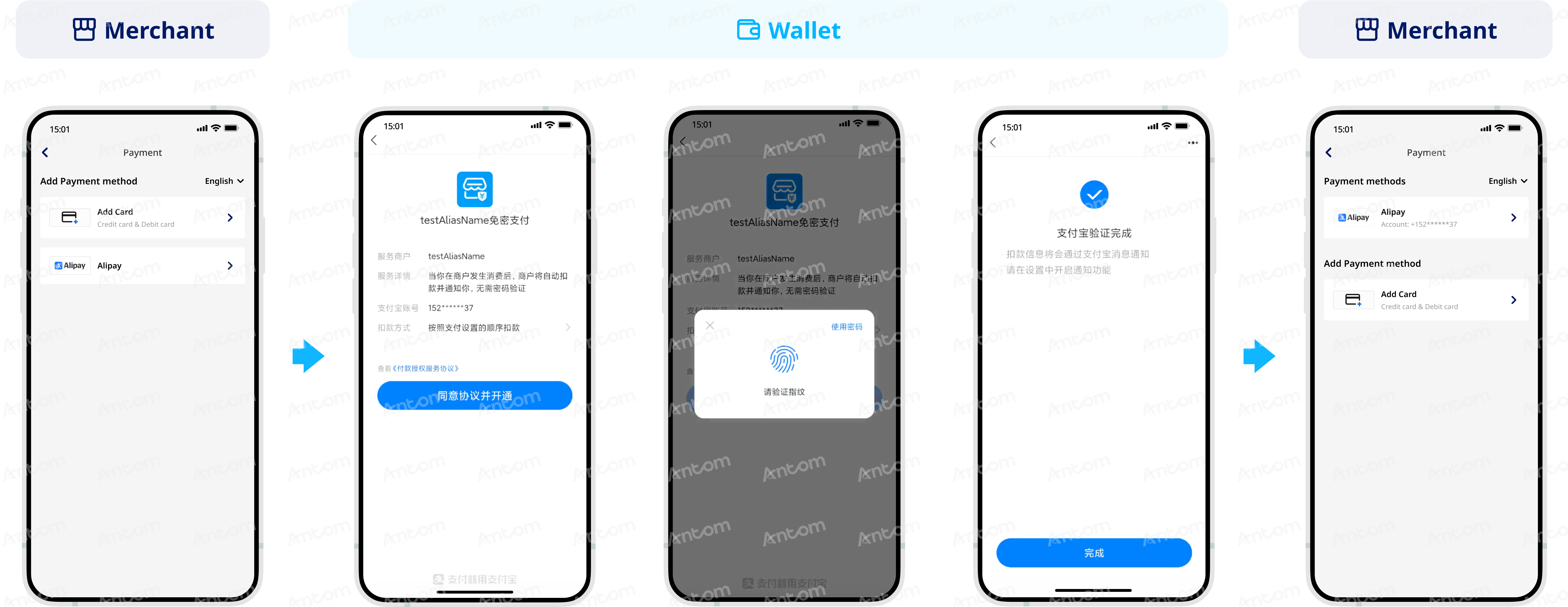
The buyer is redirected to the payment method's H5 page, where they complete authorization by entering their account credentials.
Payment
After the buyer clicks to pay, the user experience for initiating the deduction is shown as below:
Subsequent recurring payments do not require any buyer actions and can be directly deducted by your system.
Payment flow
Before the first tokenized payment, you need to obtain the buyer's authorization. After the buyer authorizes, you can use the authorization code (authCode) to obtain the payment token (accessToken) and directly initiate the tokenization service. Authorization is not required for subsequent payments. The authorization and payment flow is outlined below:
- The buyer lands on the checkout page.
- Obtain the authorization URL.
After the buyer selects a payment method, call the consult API to obtain the authorization URL.
- Obtain the authorization result.
You can obtain the authorization result through the reconstructed URL returned by the payment method or through asynchronous notification.
- Apply for the payment token.
Call the applyToken API to apply for the payment token (accessToken), and store the corresponding token after obtaining it.
- Initiate a payment.
After obtaining the buyer's authorization, you can directly call the pay (Tokenized Payment) API to initiate the tokenization service.
- Obtain the payment result.
Obtain the payment result by using one of the following two methods:
- Asynchronous notification: Specify paymentNotifyUrl in the pay (Tokenized Payment) API to set the address for receiving asynchronous notifications. When the payment is successful or failed, Antom will use notifyPayment to send asynchronous notifications to you.
- Synchronous inquiry: Call the inquiryPayment API to check the payment status.
Integration steps
To obtain the buyer's authorization and perform tokenized payment, please complete the following integration steps:
- Obtain the authorization URL
- Redirect to the payment method page for authorization
- Obtain the authorization result
- Apply for payment token
- Initiate a payment
Step 1: Obtain the authorization URL Server-side
You need to first obtain the authorization URL and then redirect the buyer to the authorization URL to complete authorization. For web integration, the authorization URL can be obtained from normalUrl in the response of the consult API.
Antom provides server-side API libraries for multiple languages. The following Java code examples require Java 6 or later:
1. Install an API library
<dependency>
<groupId>com.alipay.global.sdk</groupId>
<artifactId>global-open-sdk-java</artifactId>
<version>{latest_version}</version>
</dependency>
2. Initialize the request instance
import com.alipay.global.api.AlipayClient;
import com.alipay.global.api.DefaultAlipayClient;
import com.alipay.global.api.model.constants.EndPointConstants;

public class Sample {
  public static final String        CLIENT_ID            = "";
  public static final String        ANTOM_PUBLIC_KEY     = "";
  public static final String        MERCHANT_PRIVATE_KEY = "";

  private final static AlipayClient CLIENT               = new DefaultAlipayClient(
      EndPointConstants.SG, MERCHANT_PRIVATE_KEY, ANTOM_PUBLIC_KEY, CLIENT_ID);

}
3. Initiate a recurring payment authorization request
Parameter name | Required | Description |
authRedirectUrl | Yes | URL used to redirect the buyer back to the merchant's page after the authorization is completed. |
authState | Yes | A string passed to identify the authorization request. |
customerBelongsTo | Yes | The target payment method for the authorization request. |
scopes | Yes | Fixed as AGREEMENT_PAY for recurring payment authorization. |
terminalType | Yes | Terminal type of which the merchant service applies to. Valid values are:
|
osType | No | The operating system type. Valid values are:
Note: This field is required when terminalType is APP . |
public static void authorizationConsult() {
  AlipayAuthConsultRequest alipayAuthConsultRequest = new AlipayAuthConsultRequest();

  // replace with your authState
  String authState = UUID.randomUUID().toString();
  alipayAuthConsultRequest.setAuthState(authState);

  // set the target payment method for which you are requesting authorization
  alipayAuthConsultRequest.setCustomerBelongsTo(CustomerBelongsTo.TOSSPAY);

  // set the authorization scope
  alipayAuthConsultRequest.setScopes(new ScopeType[]{ScopeType.AGREEMENT_PAY});

  // set terminalType
  alipayAuthConsultRequest.setTerminalType(TerminalType.WEB);

  // replace with your authRedirectUrl
  alipayAuthConsultRequest.setAuthRedirectUrl("http://www.yourRedirectUrl.com");

  // consult authorization
  AlipayAuthConsultResponse alipayAuthConsultResponse;
  try {
      alipayAuthConsultResponse = CLIENT.execute(alipayAuthConsultRequest);
  } catch (AlipayApiException e) {
      String errorMsg = e.getMessage();
      // handle error condition
  }
}
The following code shows a sample of the request message:
{
  "authRedirectUrl": "kademo://auth",
  "authState": "STATE_20250325101702257",
  "customerBelongsTo": "TOSSPAY",
  "scopes": [
      "AGREEMENT_PAY"
  ],
  "terminalType": "APP",
  "osType": "ANDROID"
}
4. Receive the consult response
The response from the consult API contains the authorization URL to redirect the buyer to proceed with authorization:
{
  "appIdentifier": "viva.republica.toss",
  "applinkUrl": "https://toss.onelink.me/3563614660?pid=referral&af_force_deeplink=true&af_dp=supertoss%3A%2F%2Fpay%2FbillingKey%3FbillingKey%3D0a5acO7999DSjKgJM8Kxf9%26skipResult%3Dfalse%26shouldAutoClose%3Dfalse&source=AlipayConnect&needCallback=false",
  "authUrl": "https://toss.onelink.me/3563614660?pid=referral&af_force_deeplink=true&af_dp=supertoss%3A%2F%2Fpay%2FbillingKey%3FbillingKey%3D0a5acO7999DSjKgJM8Kxf9%26skipResult%3Dfalse%26shouldAutoClose%3Dfalse&source=AlipayConnect&needCallback=false",
  "normalUrl": "https://pay.toss.im/payfront/web/billing?billingKey=0a5acO7999DSjKgJM8Kxf9&source=AlipayConnect&needCallback=false",
  "schemeUrl": "supertoss://pay/billingKey?billingKey=0a5acO7999DSjKgJM8Kxf9&source=AlipayConnect&needCallback=false",
  "webRequestMethod": "GET",
  "result": {
      "resultCode": "SUCCESS",
      "resultMessage": "success.",
      "resultStatus": "S"
  }
}
The table below shows the possible values of result.resultStatus in the consult response. Please handle the result according to the guidance provided:
result.resultStatus | Message | Further action |
S | The request was successful. | Successfully obtained the authorization URL (one or more of applinkUrl/normalUrl/schemeUrl). For detailed information of each URL, refer to Best practices for configuring the authorization URL. |
U | Unknown error. | Please use a new authState and call the API again. If the issue persists, contact Antom Technical Support. |
F | The request failed. | Please check and verify whether the current API required request fields (including header fields and body fields) are correctly passed and valid. |
Note: If no response is received, it may indicate a network timeout. Please use a new authState and call the API again. If the issue persists, contact Antom Technical Support.
Common questions
A: For different payment methods and terminal types, Antom may return one or more of the following links: normalUrl, applinkUrl, or schemeUrl. The merchant server needs to pass these URLs to the merchant front-end for redirection. For detailed information of each URL, refer to Best practices for configuring the authorization URL.
Q: How to set terminalType?
A: The valid values of terminalType are:
- If the buyer initiates a transaction from a mobile app, the terminalType needs to be specified as APP. Add the osType parameter and fill in the corresponding system parametersANDROIDorIOSaccording to the buyer's mobile device.
You must pass the correct terminalType to obtain the correct redirect URL. Passing an incorrect value may impact the authorization success rate.
Q: Can I use Chinese characters in the value of the request parameters?
A: To avoid incompatibility of certain payment methods, do not use Chinese characters for fields in the request.
Q: What should I do after receiving the returned normalUrl?
A: For transactions performed in PC browsers, Antom returns the normalUrl parameter in the consult response. Your server needs to pass this URL to the client for redirection. Do not cache the returned normalUrl. When re-initiating authorization, you need to obtain a new normalUrl for redirection.
Step 2: Redirect to the payment method page for authorization Client-side
After the server obtains the authorization URL, it needs to pass this URL to the client. Your client will redirect the buyer to the recurring payment authorization page. The code below shows an example of loading the URL in the client (the URL refers to applinkUrl, schemeUrl, or normalUrl returned by the consult response):
try {
  Intent intent = new Intent(Intent.ACTION_VIEW, Uri.parse(URL));
  intent.addFlags(Intent.FLAG_ACTIVITY_NEW_TASK);
  // use the startActivity function to redirect to the wallet app
  startActivity(intent);
} catch (Exception e) {
  e.printStackTrace();
}
For more information on the URLs returned by different payment methods, see URLs returned for some payment methods and refer to Best practices for configuring the authorization URL to learn how to use these URLs.
Common questions
Q: How to handle different payment experiences?
A: Authorization experiences vary by the URL type. Some URLs redirect buyers to the payment method's native app, while others complete authorization within an H5 page. For details, see URLs returned for some payment methods.
The following figure shows the rendering effect of the payment method authorization page:
Step 3: Obtain the authorization result
1. Redirect to the merchant page
When the buyer performs authorization on the relevant payment method authorization page, the authorization may be successful or fail. In the event of authorization success or failure, the following describes the subsequent redirects:
- Authorization success: If the authorization is successful, the buyer will be redirected back to the merchant page. The merchant page address is a reconstructed URL consisting of authRediectUrl, authCode, and authState. However, the redirection may fail due to network issues or buyer actions.
- Authorization failure:
- If the buyer cancels the authorization or exits the authorization page, some payment methods will redirect the buyer back to the merchant page. The merchant page address is determined by authRediectUrl.
- If the buyer does not authorize before the timeout or authorization fails, the buyer will not be redirected back to the merchant page.
Note:
- The authorization URL can only be used once. If the authorization fails, you need to call the consult API again and provide a new authState value.
- For Boost, if redirection to the merchant page is required, contact Antom Technical Support for configuration.
2. Obtain the authorization code
After the buyer completes authorization in Step 2, you can obtain the authorization code (authCode) through one of the following methods:
- Obtain authCode from the reconstructed URL returned by the payment method.
- Obtain authCode from the asynchronous notification of authorization sent by Antom.
Obtain authCode from the reconstructed URL
Obtain authCode from the asynchronous notification
Obtain authCode from the reconstructed URL
Client-side
After successful authorization, the buyer will be redirected to the reconstructed URL returned by the payment method. This URL consists of three parts:
- The value of authRedirectUrl passed in the consult API, for example, https://www.alipay.com/.
- The value of authState passed in the consult API, for example, 663A8FA9-D836-48EE-8AA1-1FF682989DC7.
- The authCode returned by the payment method, for example, 281004138596827069301079.
The code below shows an example of a reconstructed URL:
https://www.alipay.com/&authState=663A8FA9-D836-48EE-8AA1-1FF682989DC7&authCode=281004138596827069301079You can obtain the authCode value from the reconstructed URL. Before using the authCode, please verify that the authState value in the reconstructed URL matches the authState value passed in the consult API, and do one of the following:
- If the authState values do not match, the reconstructed URL is considered untrustworthy, as malicious events such as attacks may have occurred during the redirection process. In this case, the authCode value in the URL cannot be used.
- If the authState values match, use the authCode value to apply for the payment token using the applyToken API.
Obtain authCode from the asynchronous notification
Server-side
If you cannot get the reconstructed URL due to network issues or other reasons, you can follow the steps below to obtain the authorization code (authCode) from the asynchronous notification of authorization sent by Antom:
- Configure the webhook URL to receive the asynchronous notification of authorization. Go to Antom Dashboard > Developer > Notification URL, and add the notification address for the alipay.ams.authorizations.notify API. For detailed steps, refer to Notification URL.
- After the buyer completes authorization, Antom sends you an asynchronous notification through the notifyAuthorization API. When you receive the asyncrhonous notification, you are required to return the response in the Sample code format, but you do not need to countersign the response.The following code shows an example of the asynchronous notification request:
{
"authCode": "28100113_1631148338197000019ba74",
"authState": "489767958497",
"authorizationNotifyType": "AUTHCODE_CREATED",
"result": {
  "resultCode": "SUCCESS",
  "resultMessage": "success",
  "resultStatus": "S"
}
}
Obtain the authorization code (authCode) based on the value of result.resultStatus (only returns
S
) in the authorization notification request:- S: Indicates the authorization was successful and returns the following fields:
- authState: The unique ID generated for the authorization request. Verify that this value matches the authState specified in the consult request.
- authorizationNotifyType: Only returns AUTHCODE_CREATEDin this scenario, indicating the buyer successfully initiated authorization for the tokenized payment on the merchant's client.
- authCode: The authorization code generated after successful authorization. Use this code to request a payment token.
- You need to verify the signature of the authorization notification sent by Antom:
@PostMapping("/receiveAuthNotify")
@ResponseBody
public Result receiveAuthNotify(HttpServletRequest request, @RequestBody String notifyBody) {
  // retrieve the required parameters from http request
  String requestUri = request.getRequestURI();
  String requestMethod = request.getMethod();

  // retrieve the required parameters from request header
  String requestTime = request.getHeader("request-time");
  String clientId = request.getHeader("client-id");
  String signature = request.getHeader("signature");

  try {
      // verify the signature of notification
      boolean verifyResult = WebhookTool.checkSignature(requestUri, requestMethod, clientId,
              requestTime, signature, notifyBody, ANTOM_PUBLIC_KEY);
      if (!verifyResult) {
          throw new RuntimeException("Invalid notify signature");
      }

      // deserialize the notification body
      AlipayAuthNotify authNotify = JSON.parseObject(notifyBody, AlipayAuthNotify.class);

      if (authNotify != null && "SUCCESS".equals(authNotify.getResult().getResultCode())) {
          // get authCode for applyToken
          return Result.builder().resultCode("SUCCESS").resultMessage("success.").resultStatus(ResultStatusType.S).build();
      }

  } catch (Exception e) {
      return Result.builder().resultCode("FAIL").resultMessage("fail.").resultStatus(ResultStatusType.F).build();
  }

  return Result.builder().resultCode("SYSTEM_ERROR").resultMessage("system error.").resultStatus(ResultStatusType.F).build();
}
- Whether the authorization is successful or not, each notification request must be responded to in the format specified below. Otherwise, Antom will resend the asynchronous notification.
{
"result": {
  "resultCode": "SUCCESS",
  "resultStatus": "S",
  "resultMessage": "success"
}
}
Common questions
Q: Can both methods (reconstructed URL and asynchronous notification) be used to obtain authCode?
A: Yes. If multiple authCode values are received, use the first one received. Do not reuse the same authCode when requesting a payment token.
Q: When will the notification be sent?
A: After the buyer's authorization is completed, Antom sends an asynchronous notification to you.
Q: Will the asynchronous notification be re-sent?
A: Yes, the asynchronous notification will be re-sent automatically within 24 hours for the following cases:
- If you didn't receive the asynchronous notification due to network reasons.
- If you receive an asynchronous notification from Antom, but you did not respond to the notification in the Sample code format.
The notification can be resent up to 8 times or until a correct response is received to terminate delivery. The sending intervals are as follows: 0 minutes, 2 minutes, 10 minutes, 10 minutes, 1 hour, 2 hours, 6 hours, and 15 hours.
Q: When responding to an asynchronous notification, do I need to add a digital signature?
A: If you receive an asynchronous notification from Antom, you are required to return the response in the Sample code format, but you do not need to countersign the response.
Q: How to determine authorization failure?
A: If you do not receive authCode within 15 minutes, the authorization can be considered failed. You can guide the buyer to re-initiate authorization.
Step 4: Apply for payment token Server-side
After obtaining the authorization code (authCode), you must call the applyToken API within one minute to request a payment token (accessToken). Otherwise, the authCode will expire and become invalid. Only after obtaining accessToken can subsequent tokenized payments be made from the buyer's account.
When calling the applyToken API, ensure the following parameters are correctly passed in the request:
Parameter name | Required | Description |
grantType | Yes | Pass in the fixed value AUTHORIZATION_CODE . |
customerBelongsTo | Yes | Specify the target payment method for which you are requesting authorization. |
authCode | Yes | Pass in the value of authcode that you obtained in Step 3. |
public static void applyToken() {
  String authCode = "yourAuthCode";
  AlipayAuthApplyTokenRequest alipayPayRequest = new AlipayAuthApplyTokenRequest();

  // set grantType
  alipayPayRequest.setGrantType(GrantType.AUTHORIZATION_CODE);
  // set the target payment method for which you are requesting authorization
  alipayPayRequest.setCustomerBelongsTo(CustomerBelongsTo.GCASH);
  // set authCode
  alipayPayRequest.setAuthCode(authCode);

  // apply for the token
  AlipayAuthApplyTokenResponse authApplyTokenResponse;
  try {
      authApplyTokenResponse = CLIENT.execute(alipayPayRequest);
  } catch (AlipayApiException e) {
      String errorMsg = e.getMessage();
      // handle error condition
  }
}
The following sample code shows a request message of applying for the payment token:
{
"authCode": "663A8FA9D83648EE8AA11FF68298XXXX",
"customerBelongsTo": "GCASH",
"grantType": "AUTHORIZATION_CODE"
}
The following sample code shows a response message of applying for the payment token:
{
"accessToken": "281011030220200914TLsu9RhgUv87Lf1111****",
"accessTokenExpiryTime": "2022-09-14T17:14:16+08:00",
"extendInfo": "{"userId":"100000111111****","userLoginId":"6017271****"}",
"result": {
  "resultCode": "SUCCESS",
  "resultMessage": "Success",
  "resultStatus": "S"
},
"userLoginId": "6017271****"
}
The following table shows the possible values of result.resultStatus in the response message for applying for the payment token. Please handle the result according to the guidance provided:
result.resultStatus | Message | Further action |
S | The request was successful. | Successfully obtained accessToken, and the following fields are returned:
|
U | Unknown error. | Please call the API again with the same parameters. If the issue persists, contact Antom Technical Support. |
F | The request failed. | Please handle the relevant issues based on result.resultCode message. |
Note: If no response is received, it may indicate a network timeout. Please call the API again with the same parameters. If the issue persists, contact Antom Technical Support.
Common questions
Q: Can authCode be reused?
A: No. authCode can only be used once.
A: No. authCode can only be used once.
Q: How long is the validity period of authCode?
A: 1 minute for common scenarios. Ensure the payment token is requested within 1 minute.
Q: Can I obtain the payment token through asynchronous notifications?
A: No. The payment token can only be applied for by calling the applyToken API.
A: No. The payment token can only be applied for by calling the applyToken API.
Validity period of payment token
Regarding the payment methods supported by Tokenized Payment, the validity period of payment token (accessToken) is shown in the following table:
Payment method | Validity period of accessToken |
92 years | |
100 years | |
100 years | |
100 years | |
100 years | |
100 years | |
100 years | |
1 yearNote | |
2 years | |
100 years | |
76 years | |
76 years | |
10 years | |
10 years | |
100 years | |
100 years | |
100 years | |
14 years | |
10 years |
Note: After successfully completing the initial authorization with PayPay, the token is valid for one year. If any successful transaction occurs within the validity period, the token's validity will automatically extend by an additional year, starting from the date of the successful transaction.
Step 5: Initiate a payment Server-side
With a successful authorization, you can provide the buyer with tokenization services. Funds will be automatically deducted for subsequent purchases without requiring the buyer to re-enter payment information.
Specify the following parameters when initiating a payment:
Parameter name | Required | Description |
productCode | Yes | The payment product that is being used. For Tokenized Payment, the value is fixed as AGREEMENT_PAYMENT . |
paymentRequestId | Yes | The unique ID generated by the merchant for each payment request. |
paymentAmount | Yes | The payment amount in the smallest currency unit. For example, CNY in cents, KRW in won. |
paymentMethod | Yes | The payment method that is used. |
paymentMethod.paymentMethodId | Yes | |
paymentNotifyUrl | No | The address for receiving payment result notifications. It can be set through the API or or set as a fixed value through Antom Dashboard. |
settlementStrategy | No | The settlement strategy for the payment request. |
order | Yes | Order information, including order amount, order ID, and order description. |
env | Yes | Terminal type where the transaction was initiated. For example, when the transaction is initiated from the merchant's PC browser, the value of env.terminalType is WEB . |
The above parameters are the basic parameters for initiating a payment, refer to pay (Tokenized Payment) for full parameters and additional requirements for certain payment methods.
public static void pay() {
  AlipayPayRequest alipayPayRequest = new AlipayPayRequest();
  alipayPayRequest.setProductCode(ProductCodeType.AGREEMENT_PAYMENT);

  // replace with your paymentRequestId
  String paymentRequestId = UUID.randomUUID().toString();
  alipayPayRequest.setPaymentRequestId(paymentRequestId);

  // set amount
  // you should convert amount unit(in practice, amount should be calculated on your serverside)
  Amount amount = Amount.builder().currency("SGD").value("550000").build();
  alipayPayRequest.setPaymentAmount(amount);

  // set paymentMethod
  PaymentMethod paymentMethod = PaymentMethod.builder().paymentMethodType("GCASH").
  paymentMethodId("2828XXX77801726307481000Iba1Pm20IU171000179").build();
  alipayPayRequest.setPaymentMethod(paymentMethod);

  // set buyer info
  Buyer buyer = Buyer.builder().referenceBuyerId("yourBuyerId").build();

  // replace with your orderId
  String orderId = UUID.randomUUID().toString();
  // set order Info
  Order order = Order.builder().referenceOrderId(orderId).
  orderDescription("antom api testing order").orderAmount(amount).buyer(buyer).build();
  alipayPayRequest.setOrder(order);

  // set env info
  Env env = Env.builder().terminalType(TerminalType.WEB).clientIp("114.121.121.01").build();
  alipayPayRequest.setEnv(env);

  // replace with your notify url
  alipayPayRequest.setPaymentNotifyUrl("http://www.yourNotifyUrl.com");

  AlipayPayResponse alipayPayResponse;
  try {
      alipayPayResponse = CLIENT.execute(alipayPayRequest);
  } catch (AlipayApiException e) {
      String errorMsg = e.getMessage();
      // handle error condition
  }
}
The following code shows a sample of the request message:
{
"env": {
  "clientIp": "114.121.121.01",
  "terminalType": "WEB"
},
"order": {
  "buyer": {
    "referenceBuyerId": "yourBuyerId"
  },
  "orderAmount": {
    "currency": "SGD",
    "value": "550000"
  },
  "orderDescription": "antom api testing order",
  "referenceOrderId": "f69cb774-8d47-4da9-bf91-08c656581cdf"
},
"paymentAmount": {
  "currency": "SGD",
  "value": "550000"
},
"paymentMethod": {
  "paymentMethodId": "2828XXX77801726307481000Iba1Pm20IU171000179",
  "paymentMethodType": "GCASH"
},
"paymentNotifyUrl": "http://www.yourNotifyUrl.com",
"paymentRequestId": "AGREEMENT_PAYMENT_REQUEST_2020070316170XXXX",
"productCode": "AGREEMENT_PAYMENT"
}
The following code shows a sample of the response message:
{
"paymentAmount": {
  "currency": "SGD",
  "value": "550000"
},
"paymentCreateTime": "2020-07-03T01:17:50-07:00",
"paymentId": "2020070311401080010018840027964XXXX",
"paymentRequestId": "AGREEMENT_PAYMENT_REQUEST_2020070316170XXXX",
"result": {
  "resultCode": "SUCCESS",
  "resultMessage": "Success",
  "resultStatus": "S"
}
}
The following table shows the possible values of result.resultStatus in the response message. Please handle the result according to the guidance provided:
result.resultStatus | Message | Further action |
S | Payment was successful. | No further action is needed. |
U | Payment is being processed. | Please poll the inquiryPayment API or wait for the asynchronous notification from notifyPayment for the payment result. |
F | Payment failed. |
|
Note: If no response is received, it may indicate a network timeout. Please use the same paymentRequestId and call the API again. If the issue persists, contact Antom Technical Support.
Common questions
Q: How to set terminalType?
A: The valid values of terminalType are:
- If the buyer initiates a transaction from a PC browser, the terminalType needs to be specified as WEB.
- If the buyer initiates a transaction from the mobile browser, the terminalType needs to be specified as WAP. Add the osType parameter and fill in the corresponding system parametersANDROIDorIOSaccording to the buyer's mobile device.
Q: Can I use Chinese characters in the value of the request parameters?
A: To avoid incompatibility of certain payment methods, do not use Chinese characters for fields in the request.
Q: How to set the address to receive payment notification?
A: Specify paymentNotifyUrl in the pay (Tokenized Payment) API to receive the asynchronous notification about the payment result (notifyPayment), or configure the receiving URL in Antom Dashboard. If the URL is specified in both the request and Antom Dashboard, the value specified in the request takes precedence.
Obtain payment result
You can obtain the payment result using one of the following methods:
- Receive asynchronous notifications from Antom
- Inquire about the payment result
Receive asynchronous notifications
Inquire about the result
1. Configure the webhook URL to receive asynchronous notifications
When the payment reaches a final status of success or failure, Antom will send an asynchronous notification to the webhook URL you set. You can choose one of the following two methods to configure the webhook URL for receiving notifications:
- If each of your orders has a unique notification URL, it is recommended to set the webhook URL in each request. You can pass the asynchronous notification receiving URL for the specific order through paymentNotifyUrl in the pay (Tokenized Payment) API.
- If all your orders share a unified notification URL, you can set the webhook URL on Antom Dashboard through Developer > Notification URL. For detailed steps, refer to Notification URL.
The following code shows a sample of the asynchronous notification request:
{
"actualPaymentAmount": {
  "currency": "HKD",
  "value": "98080"
},
"customsDeclarationAmount": {},
"notifyType": "PAYMENT_RESULT",
"paymentAmount": {
  "currency": "HKD",
  "value": "98080"
},
"paymentCreateTime": "2024-09-27T00:23:36-07:00",
"paymentId": "202409271940108001001881E0211235544",
"paymentRequestId": "bc93d19e-e1f6-4b68-b6b1-3d6ddc2a792a",
"paymentTime": "2024-09-27T00:23:46-07:00",
"pspCustomerInfo": {
  "pspCustomerId": "20881221121****",
  "pspName": "ALIPAY_HK"
},
"result": {
  "resultCode": "SUCCESS",
  "resultMessage": "success.",
  "resultStatus": "S"
}
}
The following table shows the possible values of result.resultStatus in the notification request of payment result. Please handle the result according to the guidance provided:
result.resultStatus | Message | Further action |
S | Payment was successful. | You can obtain the following field information:
|
F | Payment failed. | Please guide the buyer to retry payment. |
2. Verify the asynchronous notification
When you receive an asynchronous notification from Antom, you are required to return the response in the Sample code format, but you do not need to countersign the response.
You need to verify the signature of the payment notification sent by Antom:
/**
* receive notify
*
* @param request    request
* @param notifyBody notify body
* @return Result
*/
@PostMapping("/receiveNotify")
@ResponseBody
public Result receiveNotify(HttpServletRequest request, @RequestBody String notifyBody) {
  // retrieve the required parameters from http request
  String requestUri = request.getRequestURI();
  String requestMethod = request.getMethod();

  // retrieve the required parameters from request header
  String requestTime = request.getHeader("request-time");
  String clientId = request.getHeader("client-id");
  String signature = request.getHeader("signature");

  try {
      // verify the signature of notification
      boolean verifyResult = WebhookTool.checkSignature(requestUri, requestMethod, clientId,
                                                        requestTime, signature, notifyBody, ANTOM_PUBLIC_KEY);
      if (!verifyResult) {
          throw new RuntimeException("Invalid notify signature");
      }
      // deserialize the notification body
      JSONObject jsonObject = JSON.parseObject(notifyBody);
      String notifyType = (String)jsonObject.get("notifyType");
      if("PAYMENT_RESULT".equals(notifyType)){
          AlipayPayResultNotify paymentNotify = jsonObject.toJavaObject(AlipayPayResultNotify.class);
          if (paymentNotify != null && "SUCCESS".equals(paymentNotify.getResult().getResultCode())) {
              // handle your own business logic
              // e.g. The relationship between payment information and users is kept in the database
              System.out.println("receive payment notify: " + JSON.toJSONString(paymentNotify));
              return Result.builder().resultCode("SUCCESS").resultMessage("success.").resultStatus(ResultStatusType.S).build();
          }
      }

  } catch (Exception e) {
      return Result.builder().resultCode("FAIL").resultMessage("fail.").resultStatus(ResultStatusType.F).build();
  }

  return Result.builder().resultCode("SYSTEM_ERROR").resultMessage("system error.").resultStatus(ResultStatusType.F).build();
}
Whether the payment is successful or not, each notification request must be responded to in the format specified below. Otherwise, Antom will resend the asynchronous notification.
{
  "result": {
      "resultCode": "SUCCESS",
      "resultStatus": "S",
      "resultMessage": "success"
  }
}
Common questions
Q: When will the notification be sent?
A: It depends on whether the payment is completed:
- If the payment is successfully completed, Antom will send you an asynchronous notification within 3 to 5 seconds. For some payment methods like OTC, the notification might take a bit longer.
- If the payment is not completed, Antom needs to close the order first before sending an asynchronous notification. The time it takes for different payment methods to close the order varies, usually defaulting to 14 minutes.
Q: Will the asynchronous notification be re-sent?
A: Yes, the asynchronous notification will be re-sent automatically within 24 hours for the following cases:
- If you didn't receive the asynchronous notification due to network reasons.
- If you receive an asynchronous notification from Antom, but you did not respond to the notification in the Sample code format.
The notification can be resent up to 8 times or until a correct response is received to terminate delivery. The sending intervals are as follows: 0 minutes, 2 minutes, 10 minutes, 10 minutes, 1 hour, 2 hours, 6 hours, and 15 hours.
Q: When responding to an asynchronous notification, do I need to add a digital signature?
A: If you receive an asynchronous notification from Antom, you are required to return the response in the Sample code format, but you do not need to countersign the response.
You can also inquire about the payment result by calling the inquiryPayment API using paymentRequestId from the payment request.
Parameter name | Required | Description |
paymentRequestId | No | The payment request ID generated by the merchant. |
public static void inquiryPayment() {
  AlipayPayQueryRequest alipayPayQueryRequest = new AlipayPayQueryRequest();

  // replace with your paymentRequestId
  alipayPayQueryRequest.setPaymentRequestId("yourPaymentRequestId");

  AlipayPayQueryResponse alipayPayQueryResponse = null;
  try {
      alipayPayQueryResponse = CLIENT.execute(alipayPayQueryRequest);
  } catch (AlipayApiException e) {
      String errorMsg = e.getMessage();
      // handle error condition
  }
}{
"actualPaymentAmount": {
"currency": "USD",
"value": "1"
},
"customsDeclarationAmount": {
"currency": "CNY",
"value": "7"
},
"paymentAmount": {
"currency": "USD",
"value": "1"
},
"paymentId": "20250305194010800100188690281017336",
"paymentMethodType": "ALIPAY_CN",
"paymentRedirectUrl": "https://checkout.antom.com/checkout-page/pages/payment/index.html?sessionData=%2BCUim8L0KviXagaygm9xBL5jZ%2F75w6gAX1nn8pcuFuGkIsMoHtD6U88YSyMrMJvorbwnBg5uQv8e6pyvIpjDQQ%3D%3D%26%26SG%26%26188%26%26eyJleHRlbmRJbmZvIjoie1wiT1BFTl9NVUxUSV9QQVlNRU5UX0FCSUxJVFlcIjpcInRydWVcIixcImxvY2FsZVwiOlwiZW5fVVNcIixcImRpc3BsYXlBbnRvbUxvZ29cIjpcInRydWVcIn0iLCJwYXltZW50U2Vzc2lvbkNvbmZpZyI6eyJwYXltZW50TWV0aG9kQ2F0ZWdvcnlUeXBlIjoiQUxMIiwicHJvZHVjdFNjZW5lIjoiQ0hFQ0tPVVRfUEFZTUVOVCIsInByb2R1Y3RTY2VuZVZlcnNpb24iOiIxLjAifSwic2VjdXJpdHlDb25maWciOnsiYXBwSWQiOiIiLCJhcHBOYW1lIjoiT25lQWNjb3VudCIsImJpelRva2VuIjoiNlRjZGJyMnJGM3JQWXg0aGtWckhxYnZqIiwiZ2F0ZXdheSI6Imh0dHBzOi8vaW1ncy1zZWEuYWxpcGF5LmNvbS9tZ3cuaHRtIiwiaDVnYXRld2F5IjoiaHR0cHM6Ly9vcGVuLXNlYS1nbG9iYWwuYWxpcGF5LmNvbS9hcGkvb3Blbi9yaXNrX2NsaWVudCIsIndvcmtTcGFjZUlkIjoiIn0sInNraXBSZW5kZXJQYXltZW50TWV0aG9kIjpmYWxzZX0%3D",
"paymentRequestId": "PAYMENT_20250305220039086_AUTO",
"paymentResultCode": "SUCCESS",
"paymentResultMessage": "success.",
"paymentStatus": "SUCCESS",
"paymentTime": "2025-03-05T06:02:34-08:00",
"pspCustomerInfo": {
"pspName": "ALIPAY_CN"
},
"result": {
"resultCode": "SUCCESS",
"resultMessage": "success.",
"resultStatus": "S"
}
}- SUCCESS: Payment was successful.
- FAIL: Payment failed.
- PROCESSING: Payment is being processed.
- CANCELLED: Payment was canceled.
Common questions
Q: How often should I call the inquiryPayment API?
A: Call the inquiryPayment API constantly with an interval of 2 seconds until the final payment result is obtained or an asynchronous payment result notification is received.
Q: What are the key parameters in the notification that I need to use?
A: Pay attention to these key parameters:
- result: Indicates the result of the inquiryPayment API call, the payment result needs to be confirmed through the value of paymentStatus:
- SUCCESS: Payment was successful.
- FAIL: Payment failed.
- PROCESSING: Payment is being processed.
- CANCELLED: Payment was canceled.
- paymentAmount: The payment amount.
After payments
After completing the payment, you can perform the following actions:
Cancel a transaction
After the buyer places an order, you can close the transaction within a certain period by using the cancel API. For detailed instructions, refer to Cancel.
Revoke authorization
Once the buyer completes the authorization process, you are required to grant your buyer the ability to revoke authorization for the following reasons:
- To empower the buyer with full control over their authorized agreements, enabling them to terminate the authorization relationship at any time based on their account security strategy or service usage requirements.
- Certain payment methods impose system-level restrictions, which may limit a single e-wallet account to only one or a small number of valid authorization credentials with the same merchant.
For detailed instructions on implementing the authorization revocation, refer to Revoke authorization.
Refund
Different payment methods have varying refund capabilities. To learn about Antom refund rules and how to initiate a refund for a successful transaction, refer to Refund.
Reconciliation
After the transaction is completed, use the financial reports provided by Antom for reconciliation. For more information on how to reconcile and the settlement rules of Antom, refer to Reconciliation.
Best practices
Antom provides you with best practice solutions such as agreement-signing QR code optimization, client experience optimization, the display of payment results, payment-retry solution, and API timeout settings. For more details, refer to Best practices.
Features of payment methods
The table below shows which payment method returns the buyer login ID (userLoginId) after buyer authorization, and the example returned ID:
Payment method | Whether userLoginID is returned | Example |
Yes | n_c***@hotmail.com 186XXXXXX21 | |
Yes | 852-66****37 | |
Yes | 63-********90 | |
Yes | 62-**********06 | |
Yes | 601*******32 | |
Yes | gm****ina@naver.com | |
Yes | +66*****4713 | |
Yes | T1mNO****yDYJf | |
Yes | gksd******@naver.com | |
Yes | +4420****5666 | |
Yes | +6394******9412 | |
Yes | ***ันทร์ | |
No | TOSS | |
Yes | ****7396 |