
Best practices for pre-front solution
In standard integration experiences, buyers are required to redirect to a payment method page to complete certain actions, such as selecting a specific bank payment method, entering payment details, or scanning/copying payment passwords. The following best practices guide you in presenting bank lists, payment details, QR codes, or payment passwords on your page, reducing the need for page redirection during the payment process and improving the buyer experience.
Bank pre-front solution
In a standard integration solution, buyers need to select a specific online banking option on the payment method page before being redirected to the online banking page. However, this process can be time-consuming and often leads to higher buyer drop-off rates. To address this issue, the bank pre-front solution allows buyers to complete payments by selecting a specific bank directly on the merchant's page, optimizing their online banking payment experience.
User experience
This pre-front capability supports integration on web, WAP, and app platforms. The following figure compares the user experience between the standard solution and the optimized solution for a buyer using the iDEAL payment method on the merchant's app platform.
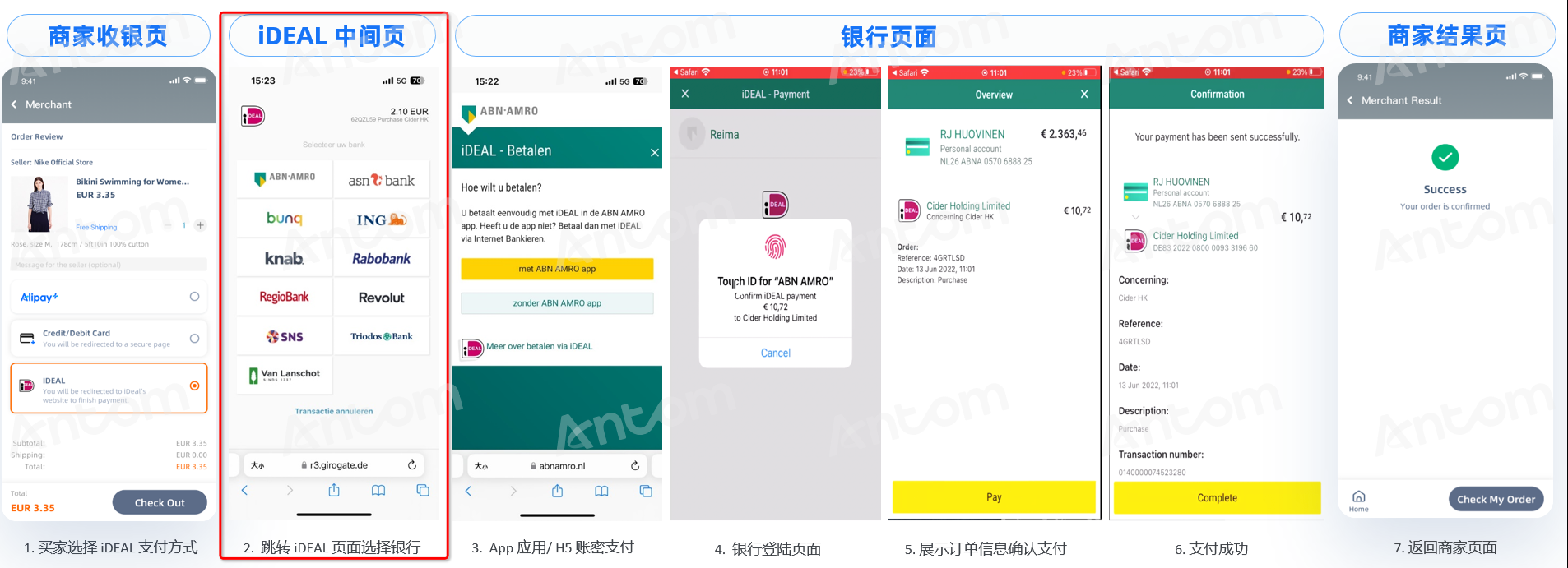
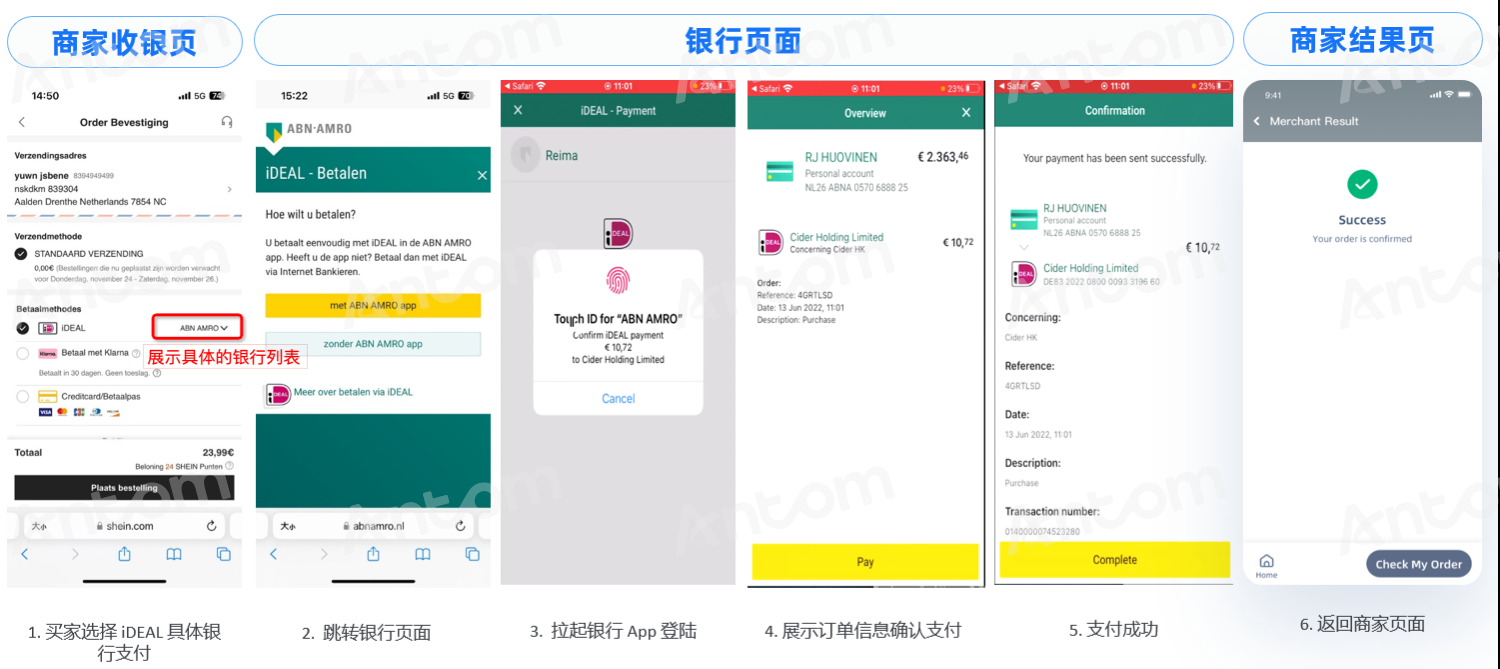
Table 1. Comparison of user experience between standard solution and bank pre-front solution
The differences between the standard solution and the optimized solution:
- Standard Solution: Buyers need to redirect to an intermediate iDEAL page to select a specific bank.
- Optimized Solution: Buyers can directly select a bank on the merchant's page, eliminating the need to redirect to an intermediate iDEAL page and reducing buyer drop-off.
Integration considerations
The integration steps for this solution are consistent with the standard integration process, requiring only minor adjustments to the input and output parameters of the interface.
When calling the pay API, you need to pass the payment method and specify the bank. For example, for the iDEAL payment method, if the buyer selects Rabobank as the bank under the iDEAL channel, you need to include the following parameters in the input of the pay API:
- paymentMethod.paymentMethodType: IDEAL
- paymentMethod.paymentMethodMetaData.bankIdentifierCode: RABONL2U
Supported payment methods
The following table shows the payment method enumeration values, bank abbreviations, and specific bank enumeration values corresponding to the payment methods supported by the bank pre-front solution.
Table 2. Supported payment methods for bank pre-front solution
Payment element pre-front solution
In a standard integration solution, buyers need to navigate to the payment method page to enter payment elements (such as login credentials, dynamic passwords, etc.) before completing the payment. However, this process can be time-consuming and often leads to higher buyer drop-off rates. To avoid this, you can collect payment elements on the merchant's page and pass them to the Antom Payment Orchestration (APO) through the pay API, eliminating the need for redirection and reducing buyer drop-off.
User experience
This pre-front capability also supports integration on web, WAP, and app platforms. The following figure compares the user experience between the standard solution and the optimized solution for a buyer using the OVO payment method on the merchant's app.
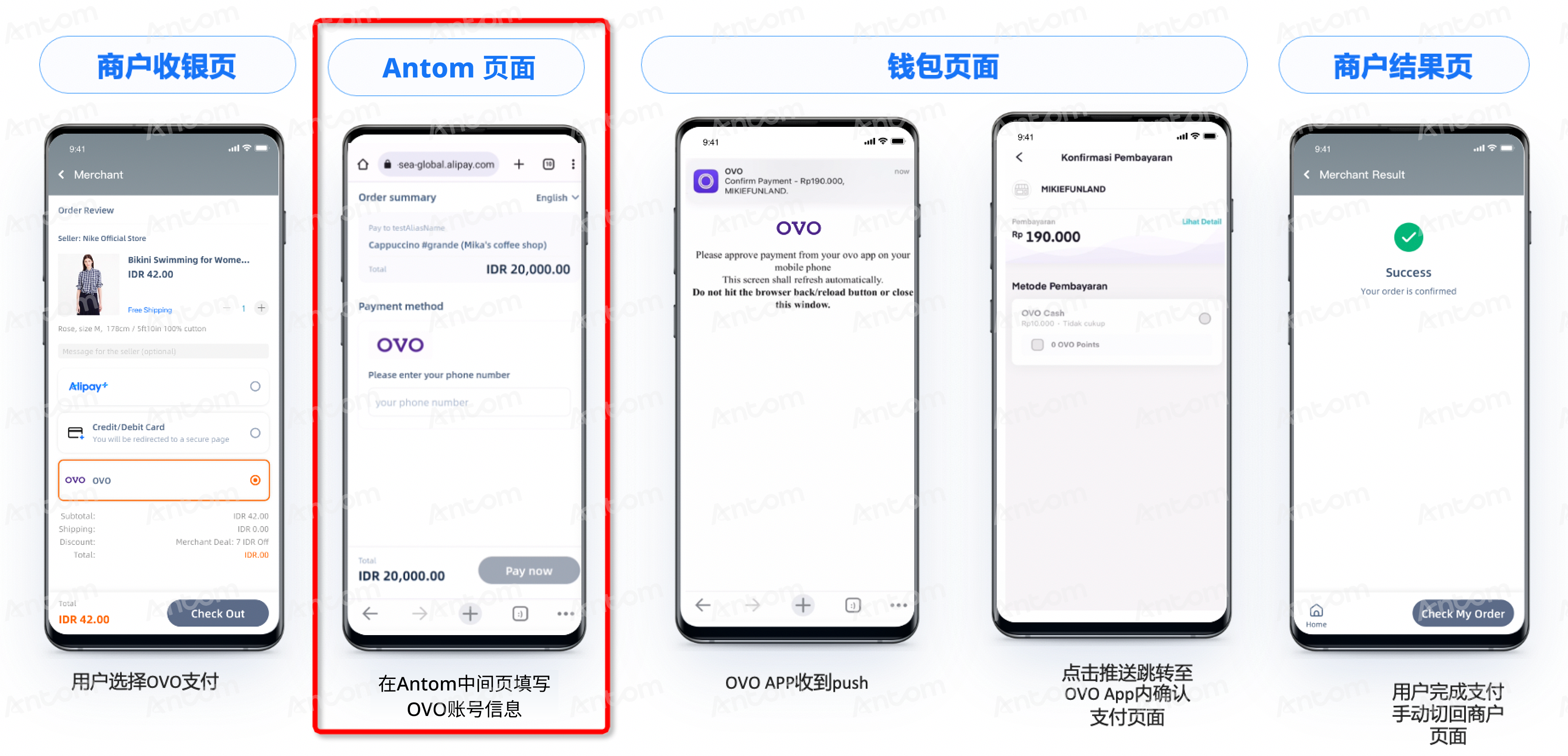
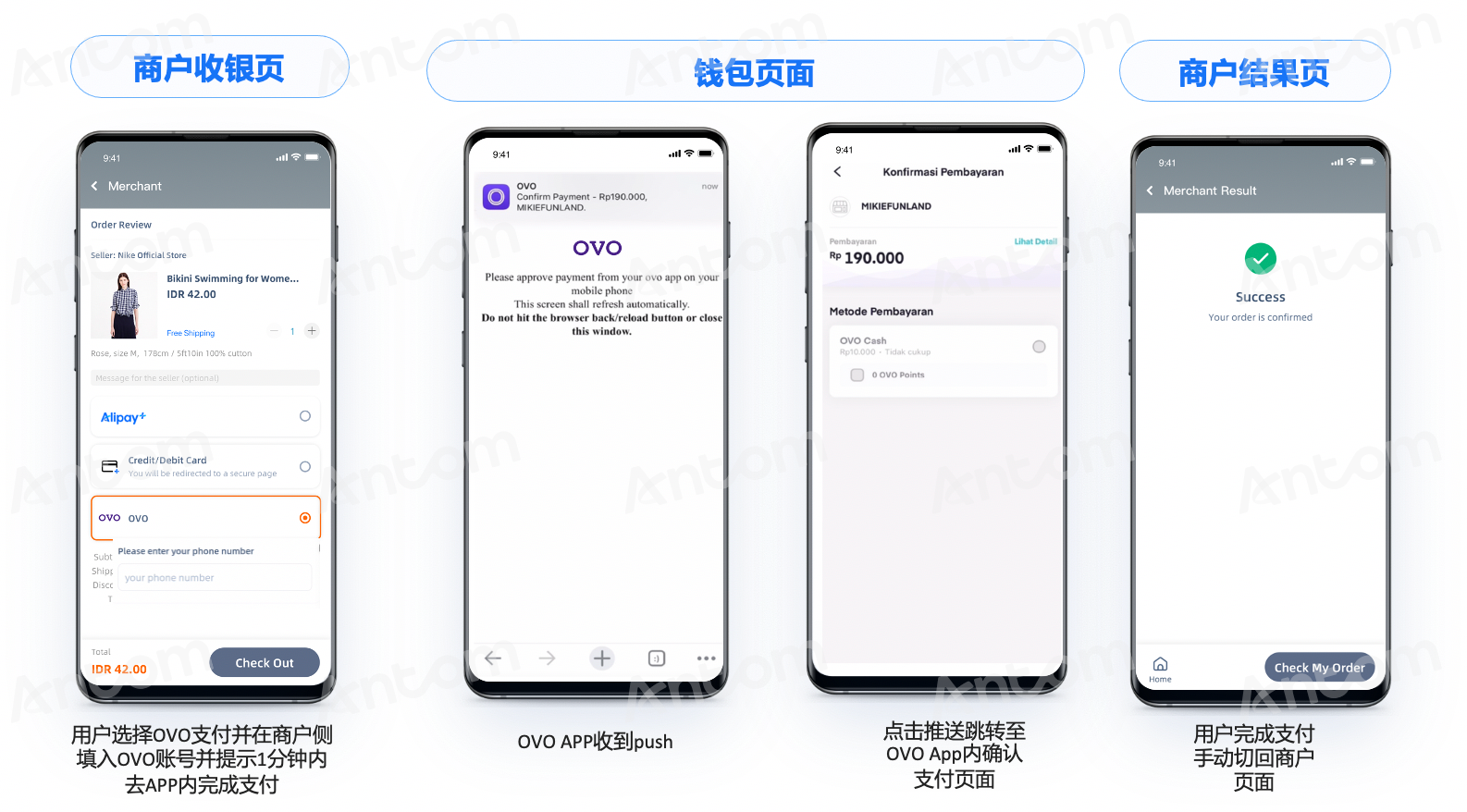
Table 3. Comparison of user experience between standard solution and payment element pre-front solution
Integration considerations
The integration steps for this solution are consistent with the standard integration process, requiring only minor adjustments to note:
- When calling the pay API, you need to pass the payment method and the corresponding payment elements. For example, for the BLIK payment method, if you collect the BLIK code on the merchant's side, you need to include the corresponding payment element in the pay API. Please refer to the supported payment method list for the parameter names of the payment elements.
- For P24 payment method, after you initiate the pay API request, you need to use the link returned to you by APO to redirect to P24 page first. For OVO and BLIK payment methods, after you initiate the pay API response, we recommend you to show the status of payment processing first, and then show the payment result to the buyer after the APO sends the payment result notification to you, or you inquire about the APO and get the payment result.
Supported payment methods
The following table shows the payment methods supported by the payment element pre-front solution, the payment elements they collect, the corresponding parameter names for the payment elements, and the best practices for implementing this solution.
Table 4. Supported payment methods for payment element pre-front solution.
QR code/password pre-front solution
In a standard integration solution, buyers need to navigate to the payment method page to scan a QR code or enter a payment password to complete the payment. However, this process can be time-consuming and often leads to higher buyer drop-off rates. To mitigate this, you can display the payment QR code or payment password on the merchant's page, reducing the need for redirection and minimizing buyer drop-off.
User experience
This pre-front capability supports integration on web, WAP, and app platforms. The following figure compares the user experience, best practices, and the standard and optimized solutions for a buyer using the AlipayHK payment method on the merchant's web platform for QR code pre-front mode and the bank transfer payment method on the merchant's app platform for password pre-front mode.
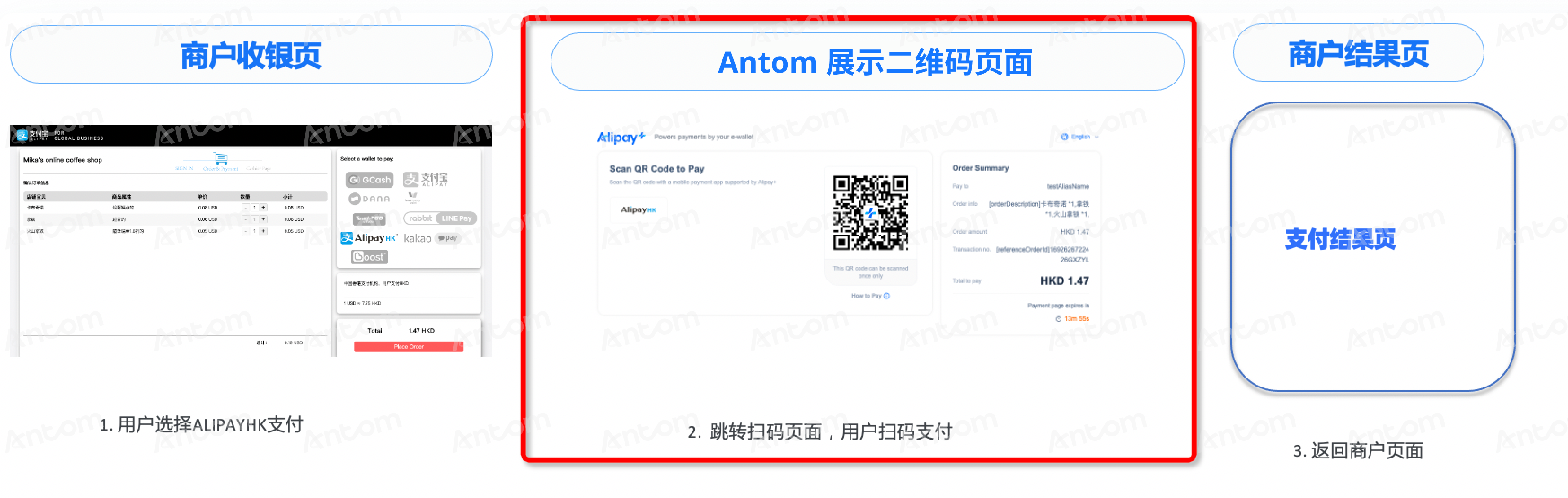
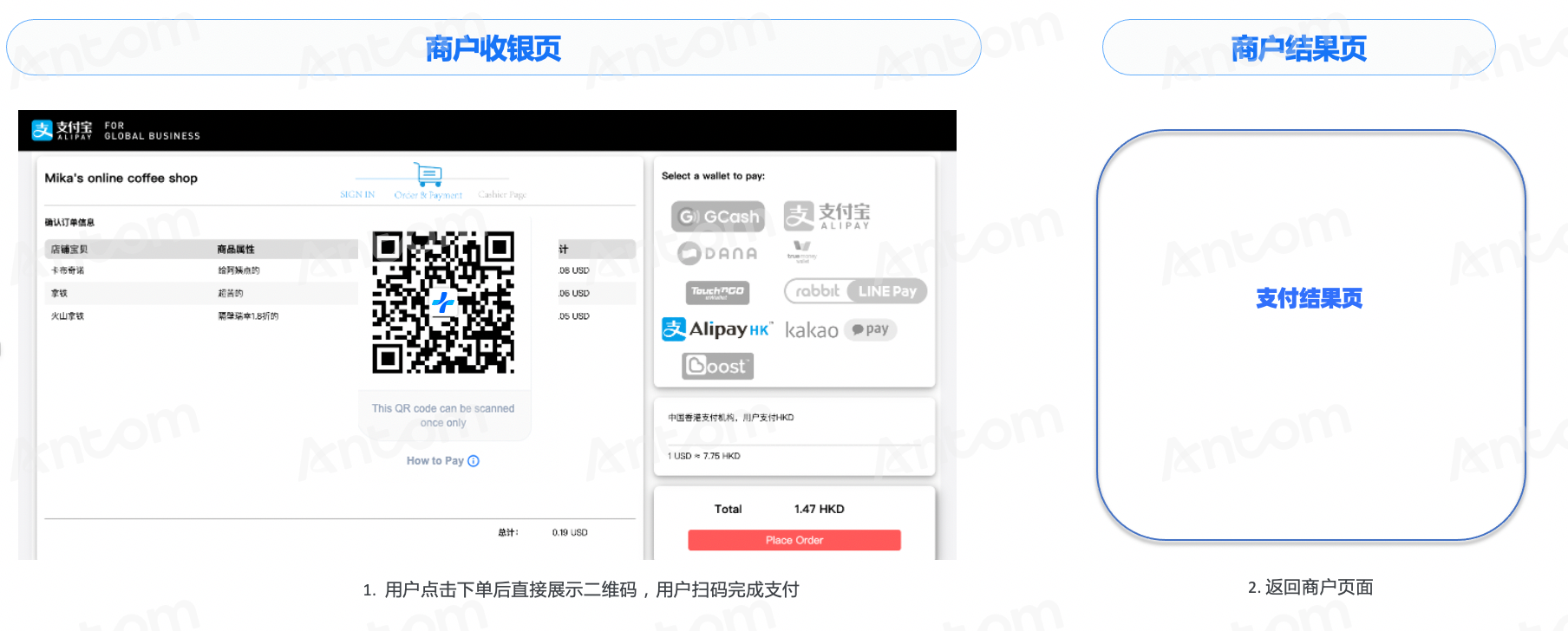
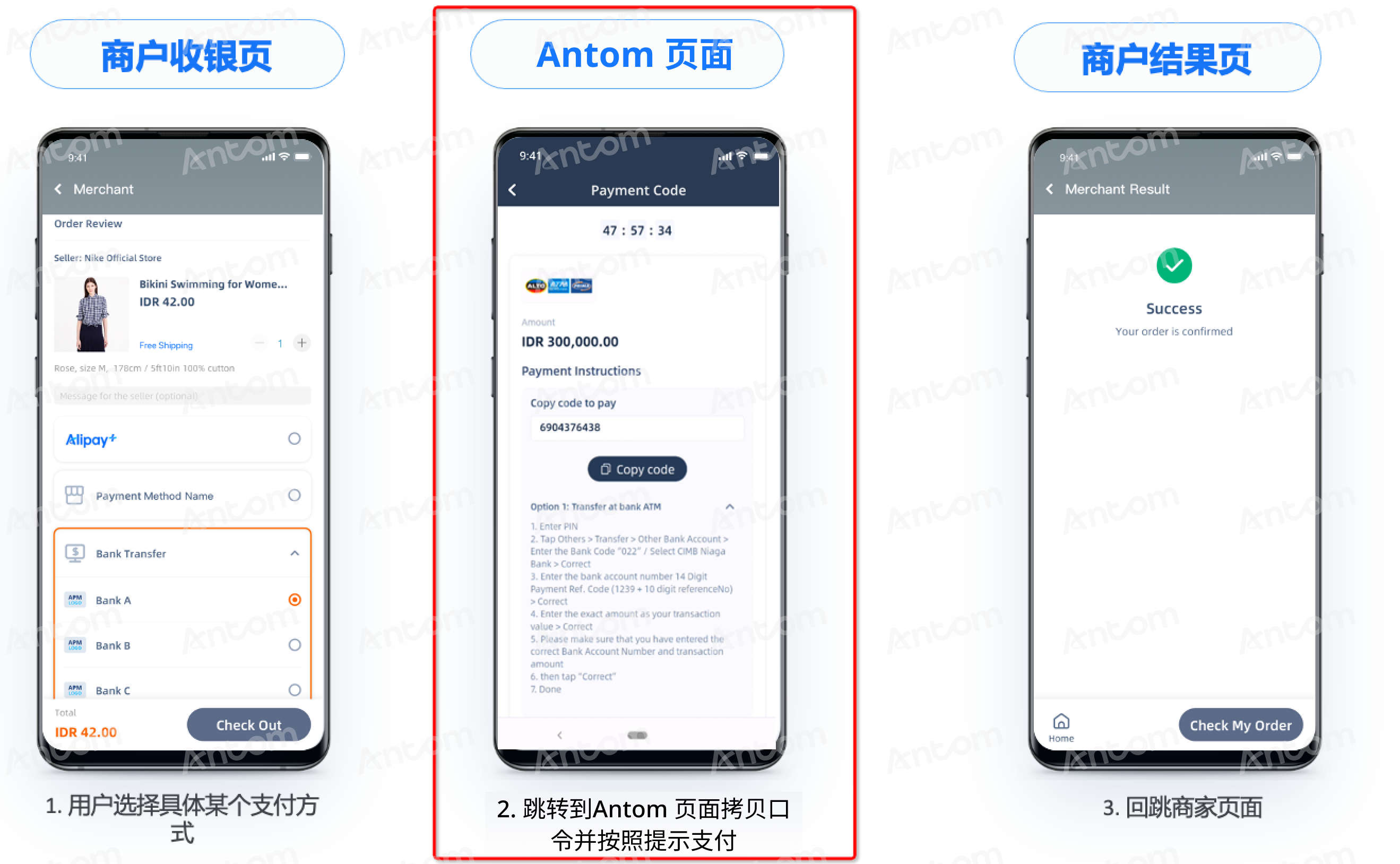
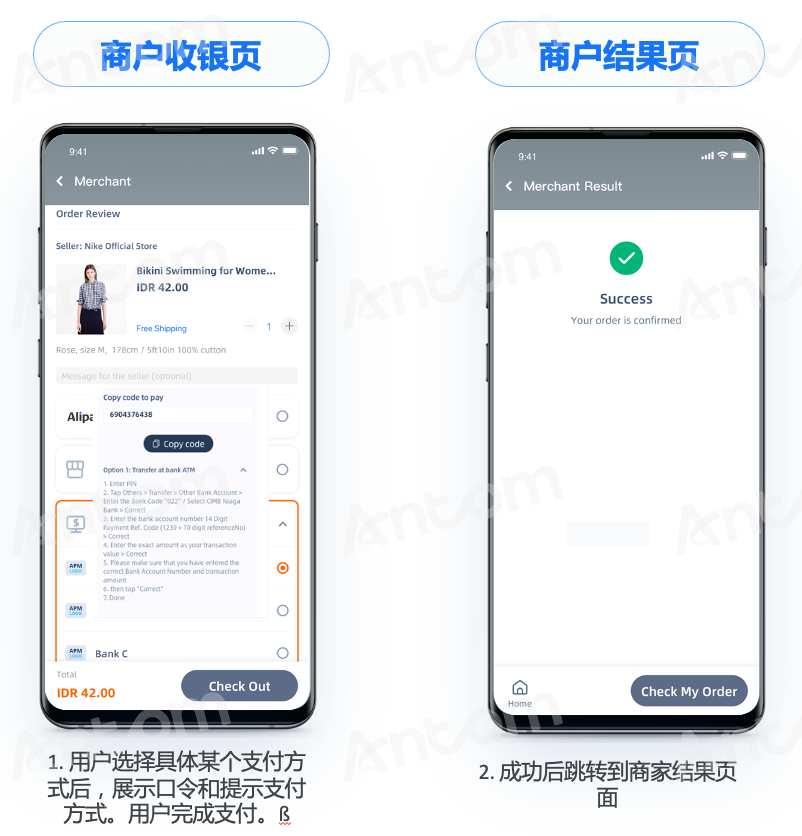
Table 5. Comparison of user experience between standard solution and QR Code/Password Pre-Front Solution
The differences between the standard solution and the optimized solution:
- Standard solution: Buyers need to redirect to an intermediate Antom page to scan the QR code or retrieve the password.
- Optimized solution: Buyers can directly scan the QR code or retrieve the password on the merchant's page, eliminating the need to redirect to an intermediate Antom page and reducing buyer drop-off.
Integration considerations
Although the integration steps for this solution are consistent with the standard integration process, there are some key differences to note:
In response to the pay request, you can obtain the payment QR code or payment password through the orderCodeForm.codeDetails.codeValue field. The payment QR code can be provided in text format (displayType =
TEXT
) or image format (displayType = MIDDLEIMAGE/SMALLIMAGE/BIGIMAGE
). The payment password is provided in text format. You can display the payment QR code or payment password on the merchant's page as needed.Supported payment methods
The following table shows the payment methods supported by the QR code/password pre-front solution and the recommended merchant-side implementation type for this capability.
Table 6. Supported payment methods for QR Code and Password Pre-Front Solution