
APM payments
The One-time Payments service provides a comprehensive payment solution for your website and applications, supporting seamless integration of desktop browsers, mobile browsers and other scenarios. With a one-time integration, you can quickly access a variety of online payment methods, including digital wallets and online banking, effectively reducing the technical barrier. The buyer can choose convenient and secure payment methods according to personal preferences and enjoy a better payment experience.
This article mainly covers APM payment methods integrated through an API.
User experience
Digital wallet
Digital wallet owns a system of independent accounts. Buyers can easily complete online or in-store payments by using their accounts, achieving an efficient, secure and convenient payment experience.


Payment flow
The payment flow of each payment method is composed of the following steps:
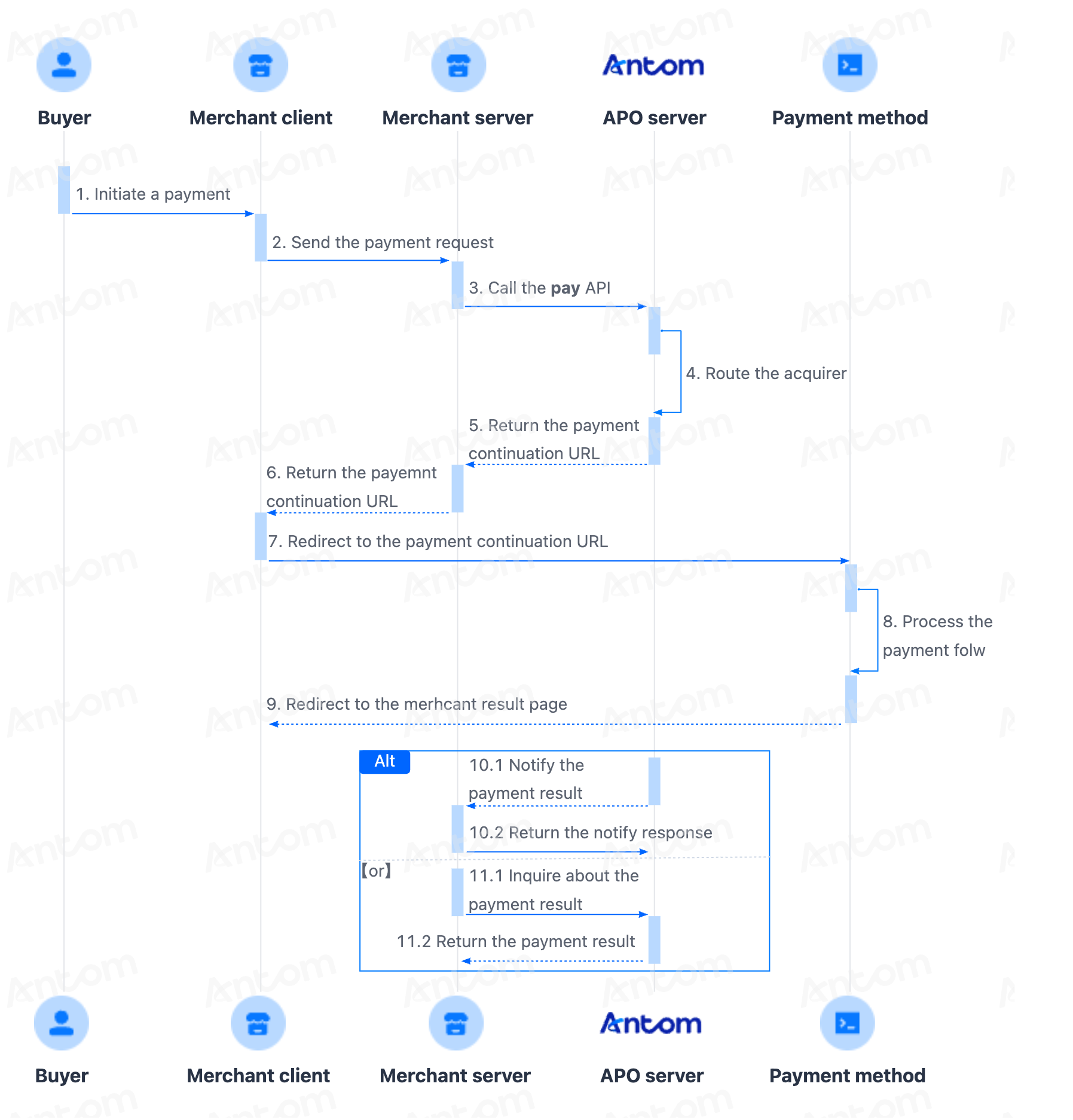
- The buyer enters the payment method selection page.
- Create a payment request.
After the buyer selects a payment method and submits the order, the merchant server calls the pay API to obtain the payment link to complete the payment based on the payment method, amount, and currency. - Handle the payment continuation URL.
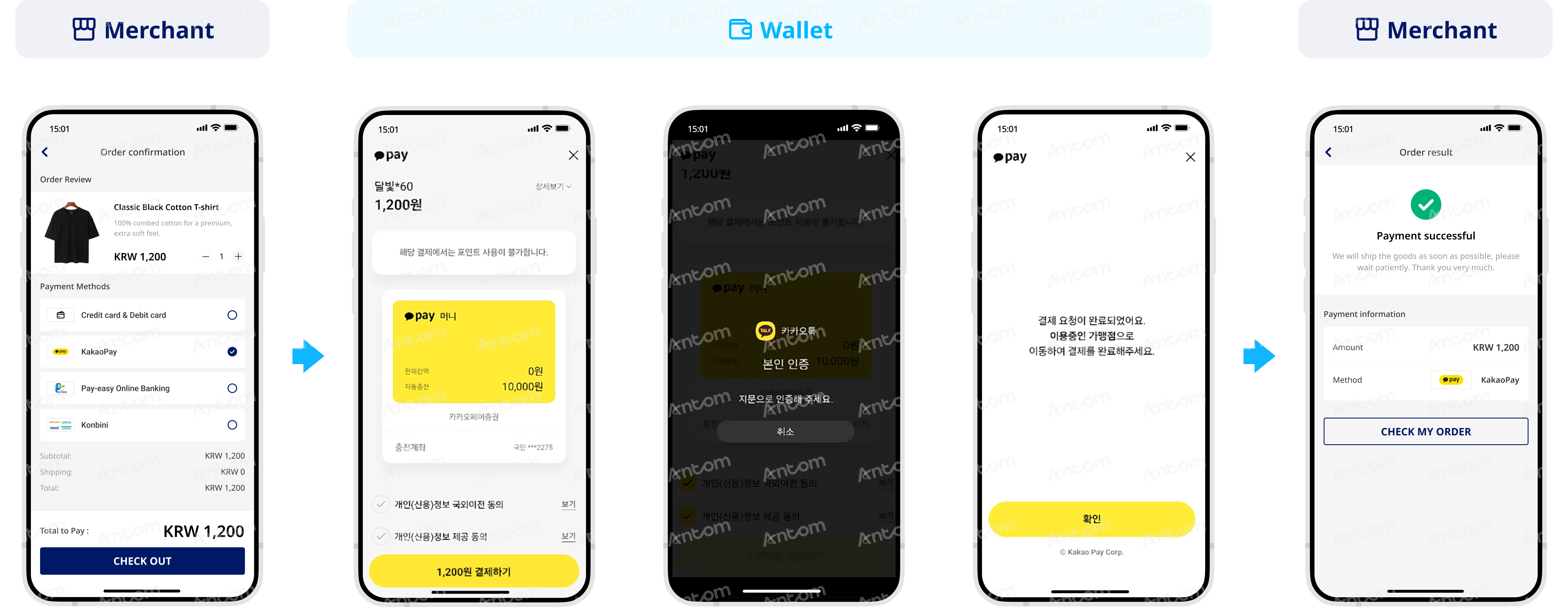
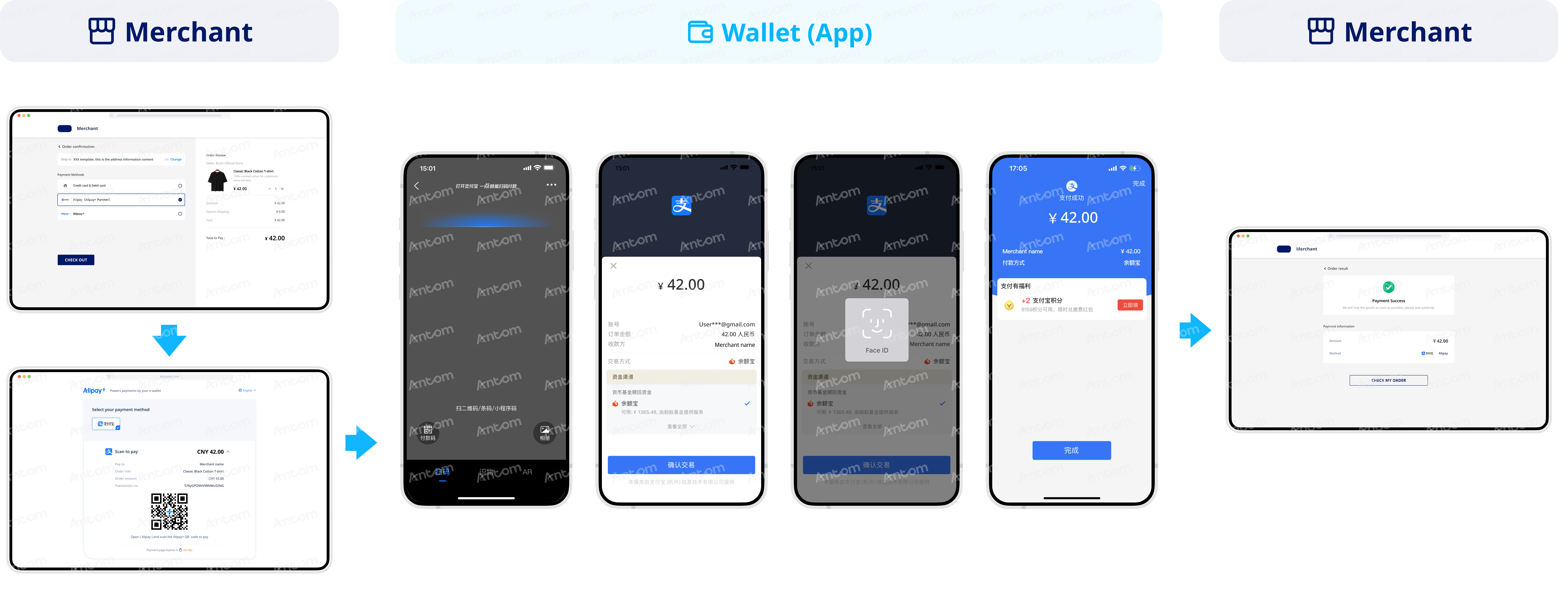
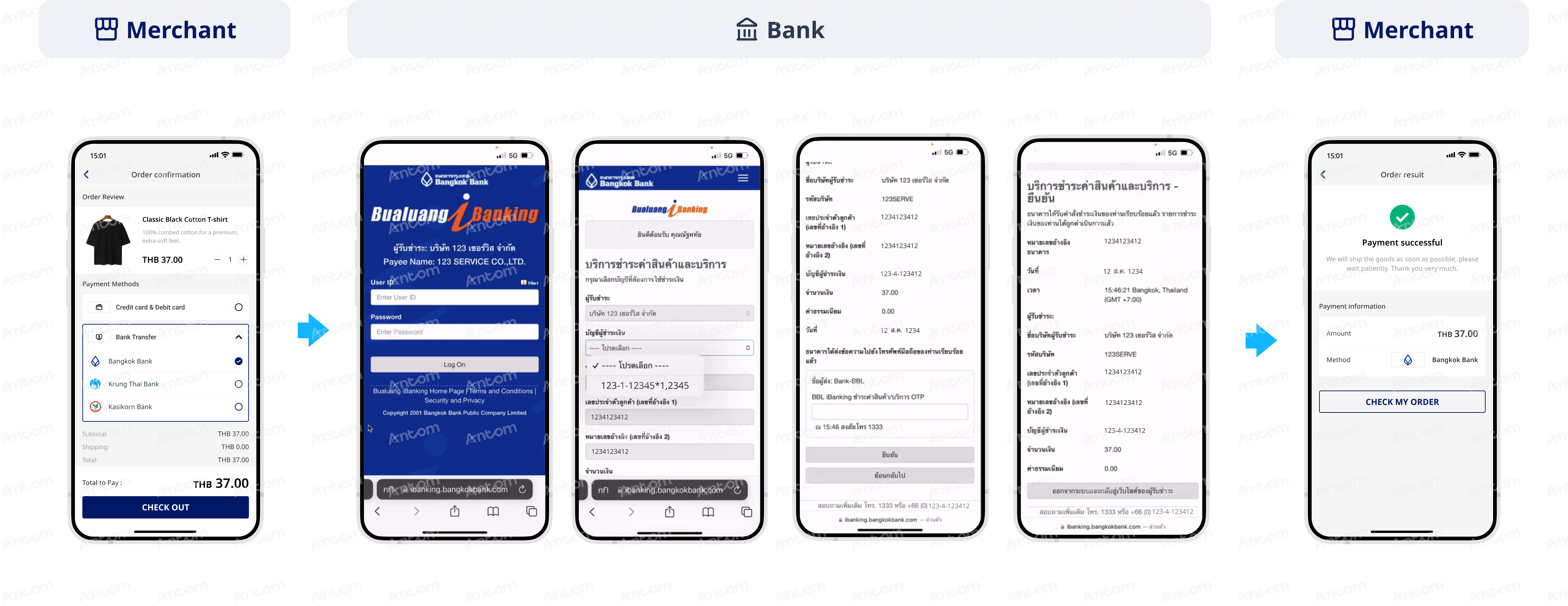
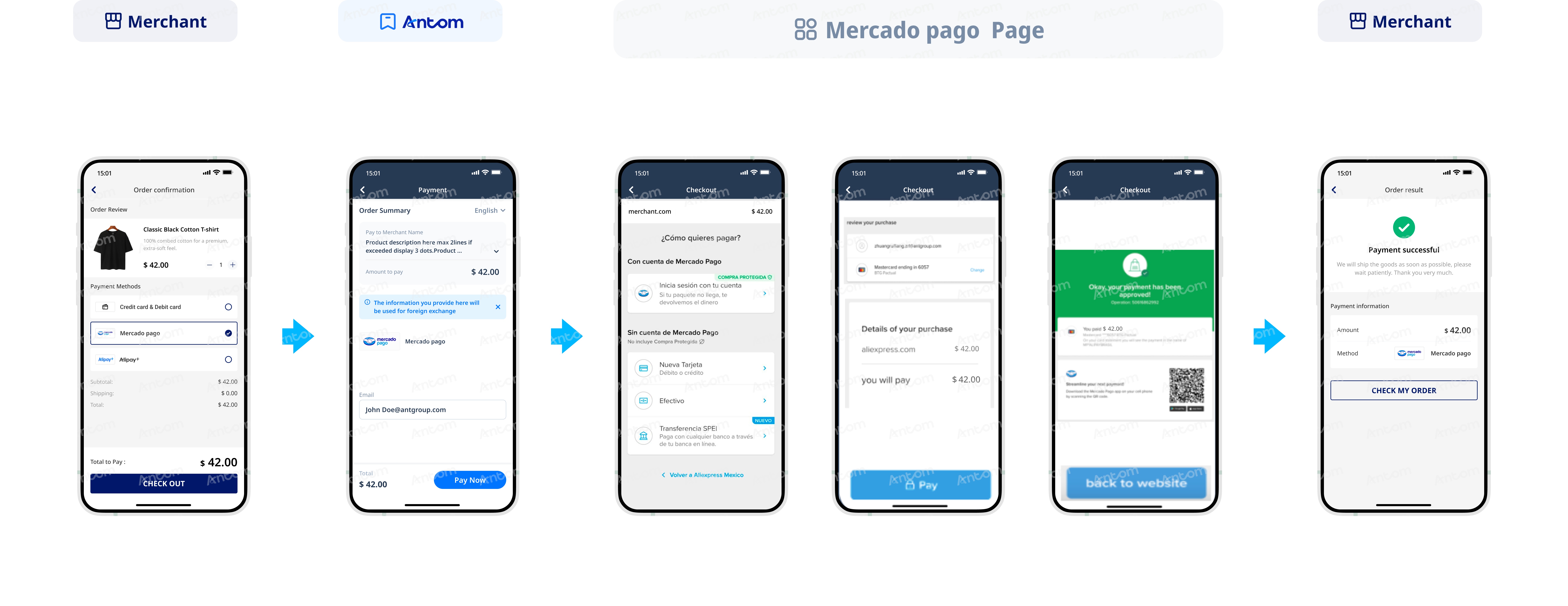
The merchant client redirects to the URL page returned by the payment request, or invokes the relevant application to complete the payment. The payment continuation URL proceeds the payment process with different operations based on the characteristics of payment methods, such as collecting information, redirecting buyers, invoking the app, displaying QR codes, and performing verifications. - Get the payment result.
The merchant server receives the payment result notification returned by the APO server, and processes the transaction according to the result.
Note: For PayPal and Pay by bank payment scenarios, the authorization-capture model is used. Steps 1 to 4 only complete the authorization process, meaning that after the buyer completes the payment, their funds remain in a frozen state. To transfer the buyer's frozen funds to your account, you must also integrate the capture step. The successful result of the capture should serve as the basis for your shipment.
Before you begin
Before you start integrating, read the Integration Guide and API Overview documents to understand the integration steps of the server-side API and the precautions for calling the API. Furthermore, ensure that the following prerequisites are met:
- Obtain a client ID and an agent token (applicable to ISV model)
- Complete the key configuration
- Complete the configuration of paymentNotifyUrl to receive the asynchronous notification
- Integrate the server-side SDK package, install the server-side library, and initialize a request instance. For more details, refer to Server-side SDKs.
Integration steps
Start your integration by taking the following steps:
- Add a list of payment methods
- Create a payment request
- Get the payment continuation URL
- Receive the asynchronous notification
Step 1: Add a list of payment methods
On the payment method list of the buyer order page, display payment method logos and names that need to be integrated for the transaction, allowing the buyer to choose based on their needs and preferences.
The logos and names of payment methods can be self-serviced through Brand asset.
If certain payment methods cannot be obtained online, please contact technical support for assistance.
Note: The payment method list page requires your own implementation.
Step 2: Create a payment request
Call the pay API to initiate a payment request, you need to collect the buyer's payment method, order information, device information, and payment amount.
The following key parameters are included in the payment request.
| Parameter name | Required | Description |
productCode | Yes | In this scenario, the field is fixed to CASHIER_PAYMENT. |
paymentRequestId | Yes | A unique ID generated by the merchant. |
paymentAmount | Yes | Payment amount, which is set to the smallest unit of the payment currency. |
paymentMethod | Yes | Payment method enumeration value. |
paymentRedirectUrl | Yes | The payment result page of the merchant side, which needs to be displayed according to the results of the server, and is not fixed as a successful page. |
paymentNotifyUrl | No | The payment result notification address, which can be specified via the API or set a fixed value in Antom Dashboard. |
settlementStrategy | No | The settlement currency of the payment. If you have signed multiple settlement currencies, you need to specify it in the API. |
order | Yes | Order information, including order amount, order ID, and order description. When the payment method is PayPal, please note the following subfields:
|
env.terminalType | Yes | The environment in which the buyer initiates a transaction.
|
env.osType | No | The environment in which the buyer initiates a transaction. When initiated on the merchant's mobile browser, env.osType is |
env.browserInfo.language | No | Specify the language of the user's browser. If not provided, it defaults to English. Note: This parameter is required when the payment method is PayPal. |
paymentFactor.isAuthorization | No | Indicates whether the payment scenario requires authorization. Valid values are:
|
| paymentFactor.captureMode | No | Indicates the method for capturing funds after the user authorizes the payment. Valid values are:
Note: For APM payments, set this parameter to |
paymentMethod.paymentMethodMetaData.bankIdentifierCode | No | The unique code of the bank. Note: For APM payments, specify this parameter if the value of paymentMethodType is |
For more information about the complete parameters, refer to the pay API.
The following shows a sample of how to call the pay API to initiate a payment:
public static void executePayWithCard() {
        AlipayPayRequest alipayPayRequest = new AlipayPayRequest();
        alipayPayRequest.setClientId(CLIENT_ID);
        alipayPayRequest.setPath("/ams/api/v1/payments/pay");
        alipayPayRequest.setProductCode(ProductCodeType.CASHIER_PAYMENT);

        // replace with your paymentRequestId
        alipayPayRequest.setPaymentRequestId("paymentRequestId01");

        // set amount
        Amount amount = new Amount();
        amount.setCurrency("HKD");
        amount.setValue("100");
        alipayPayRequest.setPaymentAmount(amount);

        // set paymentMethod
        PaymentMethod paymentMethod = new PaymentMethod();
        paymentMethod.setPaymentMethodType("ALIPAY_HK");
        alipayPayRequest.setPaymentMethod(paymentMethod);

        // set order Info
        Order order = new Order();
        order.setReferenceOrderId("referenceOrderId01");
        order.setOrderDescription("antom test order");
        order.setOrderAmount(amount);
        alipayPayRequest.setOrder(order);

        //set env Info
        Env env = new Env();
        env.setTerminalType(TerminalType.WAP);
        env.setClientIp("114.121.121.01");
        env.setOsType(OsType.ANDROID);
        alipayPayRequest.setEnv(env);

        // replace with your notify url
        alipayPayRequest.setPaymentNotifyUrl("http://www.yourNotifyUrl.com");

        // replace with your redirect url
        alipayPayRequest.setPaymentRedirectUrl("http://www.yourRedirectUrl.com");

        //make Payment
        AlipayPayResponse alipayPayResponse = null;
        try {
          alipayPayResponse = defaultAlipayClient.execute(alipayPayRequest);
        } catch (AlipayApiException e) {
          String errorMsg = e.getMessage();
          // handle error condition
        }
    }
The following code shows a sample of the request message:
{
  "paymentNotifyUrl": "http://www.yourNotifyUrl.com",
  "paymentRequestId": "paymentRequestId01",
  "env": {
    "terminalType": "WAP",
    "clientIp": "114.121.121.01",
    "osType": "ANDROID"
  },
  "paymentAmount": {
    "currency": "MYR",
    "value": "230"
  },
  "productCode": "CASHIER_PAYMENT",
  "paymentRedirectUrl": "http://www.yourRedirectUrl.com",
  "paymentMethod": {
    "paymentMethodType": "BOOST"
  },
  "order": {
    "orderAmount": {
      "currency": "MYR",
      "value": "230"
    },
    "referenceOrderId": "referenceOrderId01",
    "orderDescription": "antom test order"
  }
}
The following key parameters are included in the response message:
| Parameter name | Description |
result.resultStatus | Indicates the call status of the pay API. |
normalUrl | The URL that redirects users to a WAP or Web page in the default browser or the embedded WebView. |
applinkUrl | The URL that redirects users to open an app when the target app is installed, or to open a WAP page when the target app is not installed. |
schemeUrl | The URL scheme that redirects users to open an app in an Android or iOS system when the target app is installed. |
The following code shows a sample of the response message:
{
    "acquirerInfo": {
        "acquirerMerchantId": "2188120040699147",
        "acquirerName": "ALIPAY",
        "acquirerResultCode": "PAYMENT_IN_PROCESS",
        "acquirerResultMessage": "Payment is processing.",
        "acquirerTransactionId": "20250425194010800100188820290660379",
        "referenceRequestId": "PAYMENT_20250425100955370_AUTO"
    },
    "appIdentifier": "my.com.myboost",
    "applinkUrl": "https://myboost.app.link/IvWm7QZkfjb?%24fallback_url=https%3A%2F%2Fmsp.boost-my.com%2Fonlinepayment%2Fauthorise&source=alipay-connect&codeValue=https%3A%2F%2Fglobal.alipay.com%2F28100204009zSetrzUJKN49jpb2sf4m6IgNr",
    "normalUrl": "https://msp.boost-my.com/onlinepayment/authorise?source=alipay-connect&codeValue=https%3A%2F%2Fglobal.alipay.com%2F28100204009zSetrzUJKN49jpb2sf4m6IgNr",
    "orderCodeForm": {
        "codeDetails": [
            {
                "codeValue": "https://global.alipay.com/28100204009zSetrzUJKN49jpb2sf4m6IgNr",
                "displayType": "TEXT"
            },
            {
                "codeValue": "https://global.alipay.com/merchant/order/showQrImage.htm?code=https%3A%2F%2Fglobal.alipay.com%2F28100204009zSetrzUJKN49jpb2sf4m6IgNr&picSize=L",
                "displayType": "BIGIMAGE"
            },
            {
                "codeValue": "https://global.alipay.com/merchant/order/showQrImage.htm?code=https%3A%2F%2Fglobal.alipay.com%2F28100204009zSetrzUJKN49jpb2sf4m6IgNr&picSize=M",
                "displayType": "MIDDLEIMAGE"
            },
            {
                "codeValue": "https://global.alipay.com/merchant/order/showQrImage.htm?code=https%3A%2F%2Fglobal.alipay.com%2F28100204009zSetrzUJKN49jpb2sf4m6IgNr&picSize=S",
                "displayType": "SMALLIMAGE"
            }
        ],
        "expireTime": "2025-04-24T19:23:55-07:00"
    },
    "paymentActionForm": "{\"method\":\"GET\",\"paymentActionFormType\":\"RedirectActionForm\",\"redirectUrl\":\"https://myboost.app.link/IvWm7QZkfjb?%24fallback_url=https%3A%2F%2Fmsp.boost-my.com%2Fonlinepayment%2Fauthorise&source=alipay-connect&codeValue=https%3A%2F%2Fglobal.alipay.com%2F28100204009zSetrzUJKN49jpb2sf4m6IgNr\"}",
    "paymentAmount": {
        "currency": "MYR",
        "value": "230"
    },
    "paymentCreateTime": "2025-04-24T19:09:56-07:00",
    "paymentId": "20250425194010800100188820290660379",
    "paymentRequestId": "PAYMENT_20250425100955370_AUTO",
    "redirectActionForm": {
        "method": "GET",
        "redirectUrl": "https://myboost.app.link/IvWm7QZkfjb?%24fallback_url=https%3A%2F%2Fmsp.boost-my.com%2Fonlinepayment%2Fauthorise&source=alipay-connect&codeValue=https%3A%2F%2Fglobal.alipay.com%2F28100204009zSetrzUJKN49jpb2sf4m6IgNr"
    },
    "schemeUrl": "boostapp://inAppDeeplink?deeplink_path=deeplink/onetimepayment&source=alipay-connect&codeValue=https%3A%2F%2Fglobal.alipay.com%2F28100204009zSetrzUJKN49jpb2sf4m6IgNr",
    "result": {
        "resultCode": "PAYMENT_IN_PROCESS",
        "resultMessage": "payment in process",
        "resultStatus": "U"
    }
}
The table shows the possible values that the result.resultStatus field in the response message may return. Handle the result according to the guidance:
result.resultStatus | Message | Further actions |
| The payment is successful. | No further action is needed. |
| The payment is failed. | Close the current transaction order, or replace the paymentRequestId and initiate a payment request again. |
| Unknown reasons. |
|
Note: If you did not receive a response message, it might be due to a network timeout. Close the current transaction order, or replace the paymentRequestId and initiate a payment request again.
xxx
Common questions
Q: How to determine the type of URL that needs to be consumed in the response message?
A: Depending on the payment method and the type of payment on different terminals, Antom may return one or more of the following three URLs: normalUrl, applinkUrl, and schemeUrl. The merchant server needs to pass these URLs to the merchant front end, and you can choose any URL for redirect consumption.
Q: What is paymentId?
A: If you store the corresponding order number for subsequent refunds and reconciliations, you can specify paymentId.
Q: How to set terminalType?
A: The valid values of terminalType are:
- If the buyer initiates a transaction from PC, the terminalType needs to be specified as
WEB. - If the buyer initiates a transaction from the mobile browser, the terminalType needs to be specified as
WAP. Add the osType parameter and fill in the corresponding system parametersANDROIDorIOSaccording to the buyer's mobile phone. - If the buyer initiates a transaction from app, the terminalType needs to be specified as
APP.
Q: What is acquirerInfo?
A: The acquirerInfo returns information related to the corresponding acquirer and acquirer-side document details, including:
- acquirerName: The name of the acquirer.
- referenceRequestId: The reference number assigned by APO when requesting the acquirer.
- acquirerTransactionId: The transaction identifier provided by the acquirer.
If you need to use billing records of the acquirer, it is necessary to store these fields for subsequent reconciliation. For detailed information, please refer to Order number management.
Step 3: Get the payment continuation URL
After getting the payment continuation URL returned by Antom, the merchant server passes the address to the front end. The merchant front end redirects to the payment method page. The different types of payment continuation URL are shown in the following table:
Type | Description | Example URL |
normalUrl | The URL of an HTTPS address, used to redirect to the website page of the payment method on the same browser page. | URL=serverResponse.normal |
applinkUrl | The Android App Link or iOS Universal Link that is used for redirection in the payment process. | URL=serverResponse.applink |
schemeUrl | The scheme URL that is used to open a payment method app. | URL=serverResponse.scheme |
The following is the sample codes for loading payment continuation URL on the merchant front end:
Web
if (URL != null) {
    window.open(URL, '_blank');
}The following figure shows the effect of the payment method checkout page:
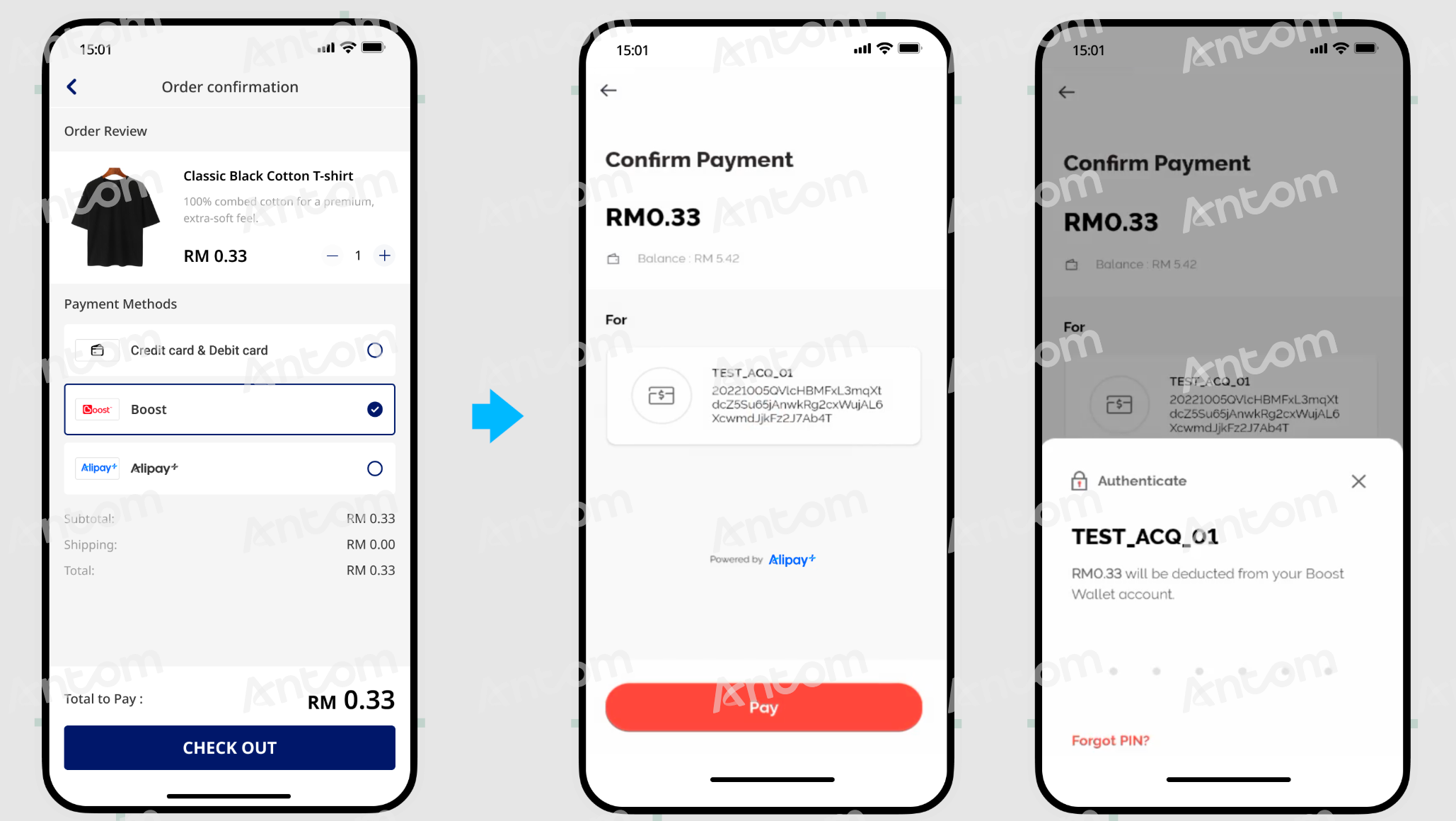
Different payment methods return different payment continuation URLs at different terminals. Antom returns different payment continuation URLs based on the paymentMethod and terminalType values you specified. Refer to How to properly use the payment continuation URL for more details.
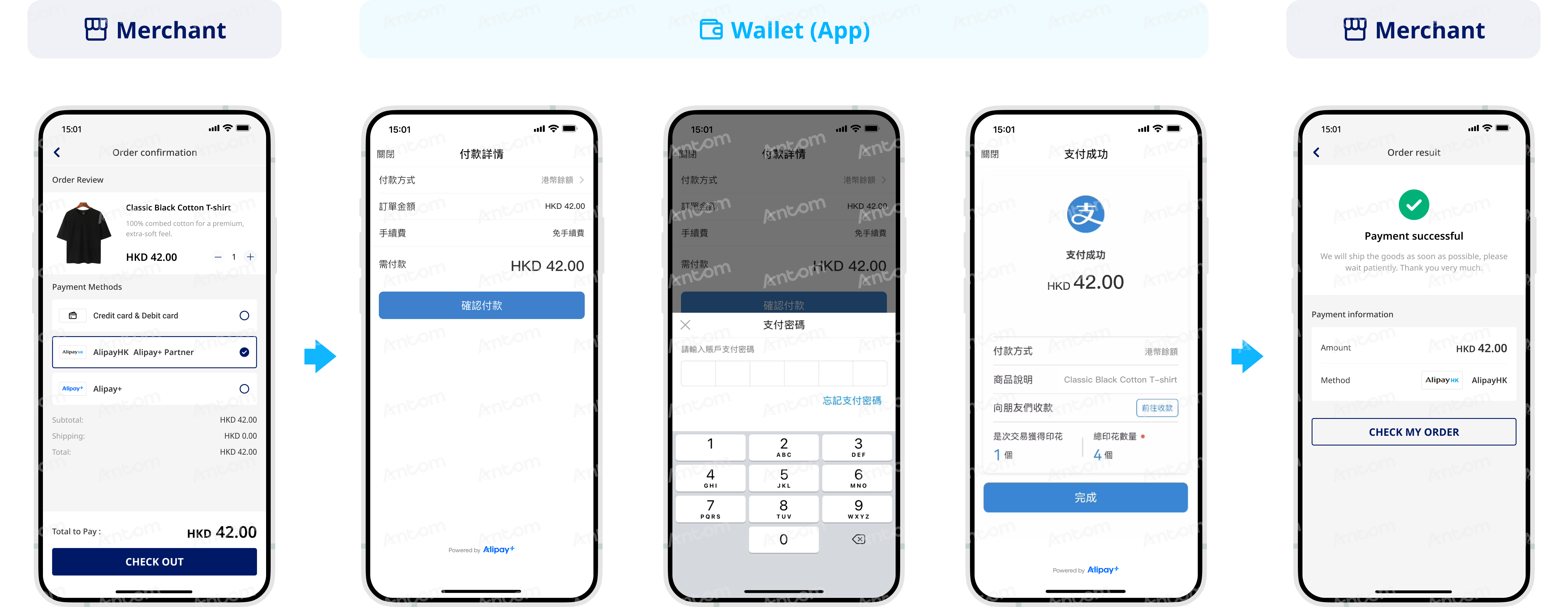
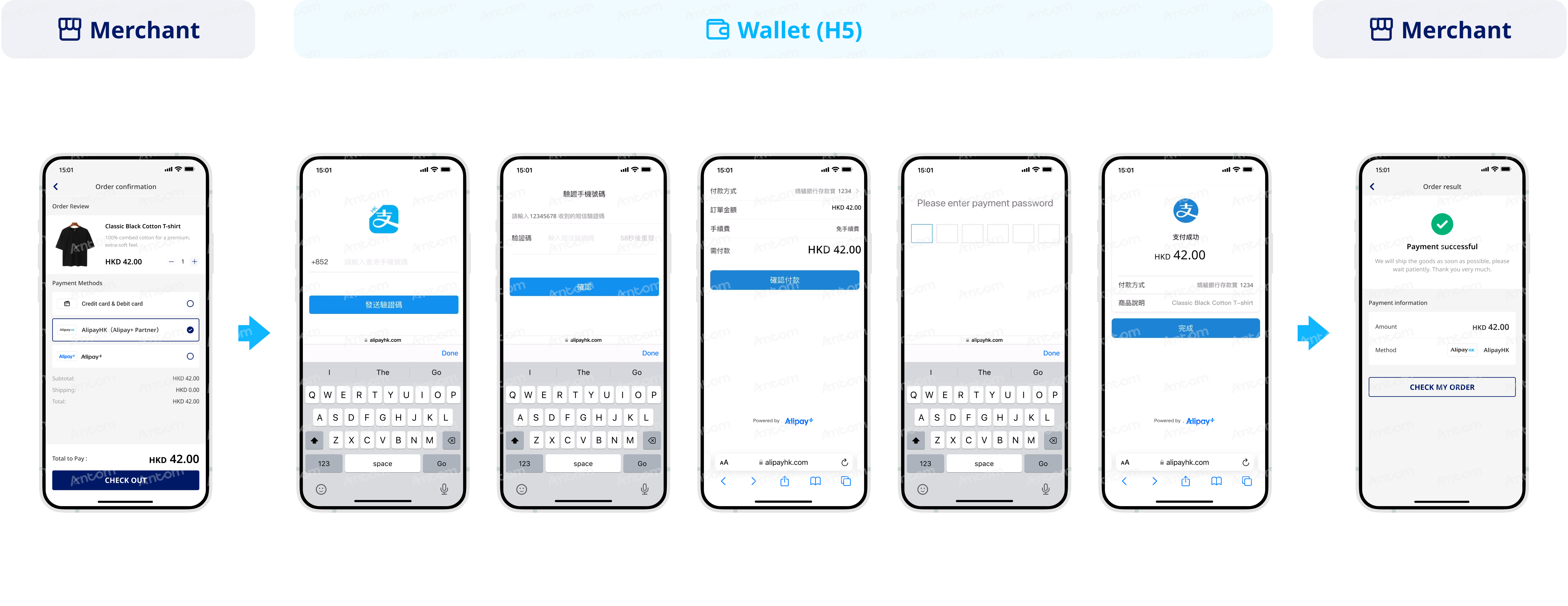
The following table lists the types of returned payment continuation URLs and user experience on different terminals. Refer to URLs returned for payment methods for more details.
Type | Description | User experience |
applinkUrl |
|
|
schemeUrl |
|
|
normalUrl |
|
|
Common questions
Q: How to handle different payment experiences?
A: You are not required to handle the experience of each payment method. However, redirection from the front end page to the normalUrl address is required. normalUrl will render the experience for each payment method and complete the payment process accordingly.
Q: How to display the payment result page?
A: In the case of successful or failed payments, you may be able to redirect back to the merchant page from the payment method side. To avoid misunderstandings, refer to the result returned by the Antom server, and do not fix paymentRedirectUrl to the payment successful page. If the transaction is initiated from the app platform, set paymentRedirectUrl as the merchant app scheme URL.
Q: Does redirecting to the results page mean the payment was successful?
A: The result page cannot be used as the basis for judging whether the payment is successful. There may be the following scenarios that cause the failure of the redirection to the merchant page:
- After making a successful payment, the buyer may not be redirected to the result page due to network or other reasons.
- If the buyer has not completed the payment, the buyer may be redirected back to the merchant page via the payment method side.
- Antom will not specify information that represents the payment result in the paymentRedirectUrl field.
Step 4: Receive the asynchronous notification
When a payment is completed or fails, Antom sends an asynchronous notification (notifyPayment) to the URL that you specified in the pay API via the paymentNotifyUrl parameter.
- Set the Webhook URL for receiving notifications. You can choose one of two ways to set an address to receive notifications:
- If each of your orders has a unique notification URL, it is recommended to set the notification URL in each request. You can specify the asynchronous notification address through the paymentNotifyUrl field of the pay API.
- If all your orders share a unified notification URL, you can set the notification URL in Antom Dashboard > Developer > Notification URL. Refer to Notification URL for more details.
Note: If the URL is specified in both the request and the Antom Dashboard, the value in the request takes precedence.
The following key parameters are included in the payment notification.
| Parameter name | Required | Description |
resultStatus | Yes | Indicates the status of the order payment result. |
paymentRequestId | Yes | A unique ID generated by the merchant. |
paymentAmount | Yes | Payment amount. |
For more information about the complete parameters, refer to notifyPayment.
The following is the notification request sample code:
{
  "notifyType": "PAYMENT_RESULT",
  "result": {
    "resultCode": "SUCCESS",
    "resultStatus": "S",
    "resultMessage": "success"
  },
  "paymentRequestId": "2020010123456789****",
  "paymentId": "2020010123456789****",
  "paymentAmount": {
    "value": "8000",
    "currency": "EUR"
  },
  "paymentCreateTime": "2020-01-01T12:01:00+08:30",
  "paymentTime": "2020-01-01T12:01:01+08:30"
}
The table shows the possible values that the result.resultStatus field in the asynchronous notification of payment results may return. Handle the result according to the guidance:
result.resultStatus | Message | Further actions |
| The payment is successful. | The following field information is available:
|
| The payment is failed. | Close the current transaction order, or replace the paymentRequestId and initiate a payment request again. |
- The result notification sent by Antom is signed by Antom, it is recommended that you verify the signature to confirm that the notification was sent by Antom. Refer to the following code example to verify the notification:
import javax.servlet.http.HttpServletRequest;

import org.springframework.http.ResponseEntity;
import org.springframework.web.bind.annotation.PostMapping;
import org.springframework.web.bind.annotation.RequestBody;
import org.springframework.web.bind.annotation.RestController;

import com.alipay.global.api.model.Result;
import com.alipay.global.api.model.ResultStatusType;
import com.alipay.global.api.response.AlipayResponse;
import com.alipay.global.api.tools.WebhookTool;

@RestController
public class PaymentNotifyHandleBySDK {

    /**
     * alipay public key, used to verify signature
     */
    private static final String SERVER_PUBLIC_KEY = "";

    /**
     * payment result notify processor
     * using <a href="https://spring.io">Spring Framework</a>
     *
     * @param request    HttpServletRequest
     * @param notifyBody notify body
     * @return
     */
    @PostMapping("/payNotify")
    public Object payNotifyHandler(HttpServletRequest request, @RequestBody String notifyBody) {

        // retrieve the required parameters from http request.
        String requestUri = request.getRequestURI();
        String requestMethod = request.getMethod();

        // retrieve the required parameters from request header.
        String requestTime = request.getHeader("request-time");
        String clientId = request.getHeader("client-id");
        String signature = request.getHeader("signature");

        Result result;
        AlipayResponse response = new AlipayResponse();

        try {
            // verify the signature of notification
            boolean verifyResult = WebhookTool.checkSignature(requestUri, requestMethod, clientId, requestTime, signature, notifyBody, SERVER_PUBLIC_KEY);
            if (!verifyResult) {
                throw new RuntimeException("Invalid notify signature");
            }

            // deserialize the notification body

            // update the order status with notify result

            // respond the server that the notification is received
            result = new Result("SUCCESS", "success", ResultStatusType.S);

        } catch (Exception e) {
            String errorMsg = e.getMessage();
            // handle error condition
            result = new Result("ERROR", errorMsg, ResultStatusType.F);
        }
        response.setResult(result);
        return ResponseEntity.ok().body(response);
    }

}- After receiving the notification, whether the authorization is successful or not, you are not required to sign the response, but each notification request must be responded to in the format specified below. Otherwise, Antom will resend the asynchronous notification.
{
    "result": {
        "resultCode": "SUCCESS",
        "resultStatus": "S",
        "resultMessage": "success"
    }
}
Common questions
Q: When will the notification be sent?
A: It depends on whether the payment is completed:
- If the payment is successfully completed, Antom will usually send you an asynchronous notification within 3 to 5 seconds. For some payment methods like Cash payment, the notification might take a bit longer.
- If the payment is not completed, Antom needs to close the order first before sending an asynchronous notification. The time it takes for different payment methods to close the order varies, usually defaulting to 14 minutes.
Q: Will the asynchronous notification be re-sent?
A: Yes, the asynchronous notification will be re-sent automatically within 24 hours for the following cases:
- If you didn't receive the asynchronous notification due to network reasons.
- If you receive an asynchronous notification from Antom, but you didn't make a response to the notification in the Sample code format.
The notification can be resent up to 8 times or until a correct response is received to terminate delivery. The sending intervals are as follows: 0 minutes, 2 minutes, 10 minutes, 10 minutes, 1 hour, 2 hours, 6 hours, and 15 hours.
Q: When responding to asynchronous notification, do I need to add a digital signature?
A: If you receive an asynchronous notification from Antom, you are required to return the response in the Sample code format, but you do not need to countersign the response.
Q: Do I need to verify the signature after receiving the payment result notification?
A: Yes. To ensure that the callback request is indeed sent by Antom, verification is required during signature verification. When assembling messages to be verified, you are required to process in the following standard order: <http-method> <http-uri> <client-id>.<request-time>.<request-body>. Note that request-body should be assembled directly from the original value, rather than parsed into JSON and then assembled.
After payments
The following describes how to actively query the transaction status, initiate transaction cancellations, and refund through Antom server after payments, helping you achieve a stable and reliable payment management experience.
Inquire about the authorized payment result
You can get the corresponding payment result from the Antom asynchronous notification or by actively inquiring the payment result. Call the inquiryPayment API to inquire about the payment result by specifying the following parameters:
| Parameter name | Required | Description |
paymentRequestId | No | The unique ID that is assigned by you to identify a payment request. |
For more information about the complete parameters, refer to the inquiryPayment API
The following is the sample code for calling the inquiryPayment API:
public static void inquiryPayment() {
    AlipayPayQueryRequest alipayPayQueryRequest = new AlipayPayQueryRequest();

    // replace with your paymentRequestId
    alipayPayQueryRequest.setPaymentRequestId("yourPaymentRequestId");

    AlipayPayQueryResponse alipayPayQueryResponse = null;
    try {
        alipayPayQueryResponse = CLIENT.execute(alipayPayQueryRequest);
    } catch (AlipayApiException e) {
        String errorMsg = e.getMessage();
        // handle error condition
    }
}
The following code shows a sample of the request message:
{
    "paymentRequestId": "REQUEST_2025032716493****"
}
The following code shows a sample of the response message:
{
  "actualPaymentAmount": {
    "currency": "THB",
    "value": "299"
  },
  "paymentAmount": {
    "currency": "THB",
    "value": "299"
  },
  "paymentId": "2025021719401080010018876027826****",
  "paymentMethodType": "TRUEMONEY",
  "paymentRedirectUrl": "https://kademo.intlalipay.cn/melitigo/Test_114.html",
  "paymentRequestId": "3IOS47F3C9B****",
  "paymentResultCode": "SUCCESS",
  "paymentResultMessage": "success.",
  "paymentStatus": "SUCCESS",
  "paymentTime": "2025-02-17T08:06:43-08:00",
  "pspCustomerInfo": {
    "pspName": "TRUEMONEY"
  },
  "result": {
    "resultCode": "SUCCESS",
    "resultMessage": "success.",
    "resultStatus": "S"
  }
}
Handle the result according to the paymentStatus field in the response:
paymentStatus | Message | Further actions |
| The payment is successful. | No further action is needed. |
| The payment is failed. | Close the current transaction order, or replace the paymentRequestId and initiate a payment request again. |
| The payment is under processing. | It is recommended to wait for a while before continuing to query the status or closing the order before querying again. |
Common questions
Q: What fields should be consumed when calling the inquiryPayment API?
A: Pay attention to these key parameters:
- result: Indicates the result of the inquiryPayment API call, the result of the order needs to be judged according to paymentStatus:
SUCCESSandFAILrepresent the final result.PROCESSINGrepresents the processing.
- paymentAmount: Indicates the payment amount.
Q: What is the recommended interval for initiating a query?
A: Call the inquiryPayment API constantly with an interval of 2 seconds until the final payment result is obtained or an asynchronous payment result notification is received.
Cancel
For orders completed with successful payment, if the buyer requests a cancellation or refund within the same day, you can cancel or unfreeze the order status through the cancel API provided by Antom. In addition, you can directly cancel orders that have not been paid. Refer to Cancel for more information on how to cancel an order.
Refund
Refer to Refund to learn about Antom refund rules and operation process.
Integration for special payment methods
Payment method features
This section aims to explain the differences in the supported features of each payment method.
Transaction cancellation
There are differences in the cancellation period for different payment methods, refer to Cancel for more information.
Refund
Different payment methods have different refund capabilities, mainly whether can support refunds and supported refund period. Refer to APO payment methods for more information on refund capabilities.
Default timeout
For more information on the default timeout supported by the payment methods, refer to Default timeout.
Other payment method features
Acquirer | Payment method | Feature | Suggestion |
Antom | PayPay | The length of the paymentRedirectUrl field. | The paymentRedirectUrl does not exceed 255 characters. |
Antom | PayPay | The number of refunds cannot exceed 20. | |
Antom | Sofort | When payment is successful, a | The merchant decides whether to ship the order after receiving |
Antom | Sofort | Refunds cannot be processed in | Transactions can only be canceled in |
Antom | Maybank | Notification is delayed for 5 minutes after payment is completed. | Show the status message for order confirmation to the buyer. |
Antom | BANCOMAT Pay OVO Pix | Unable to open the wallet automatically. | Manually open the wallet to complete the payment. |
Antom | Siam Commercial Bank | There is a fee for the payment. | Remind the buyer that there may be payment fees (the fees depend on the buyer's bank tier). |
Antom | Bank of Ayudhya | There is a fee for the payment. | Remind the buyer that there may be payment fees (the fees depend on the buyer's bank tier). |
Antom | GoPay Bangkok Bank (for mobile) Siam Commercial Bank (for mobile) Bank of Ayudhya (for mobile) KrungThai Bank (for mobile) | Not supported on PC. | |
Antom | NAVER Pay | Additional integration is required on the PC side. After logging in, the buyer will be redirected to a new tab instead of the original payment page. | Enable pop-up settings and open a new pop-up page using a separate browser object. |
Antom | Mercado Pago (Brazil) | The buyerEmail will be consumed, causing the payment to fail directly. | Specify the payerEmail. |
Antom | Express Bank Transfer | The paymentRedirectUrl passed in mobile side cannot contain the & symbol; otherwise, the redirection will fail. | Use other symbols instead. |
Best practices
Antom provides you with best practice solutions such as client-side optimization, the display of merchant page redirection, payment-retry solution, API timeout settings, and intermediate page optimization. For more details, refer to Best practices.