
Hosted mode
One-time Payments service provides a comprehensive payment solution for websites and applications, supporting seamless integration across multiple scenarios such as desktop and mobile devices. With a single integration, you can quickly access a variety of online payment methods, including digital wallets, online banking transfers, and card payments, effectively reducing technical barriers. Buyers can choose the most convenient and secure payment method based on their preferences, enjoying an enhanced payment experience.
This topic describes how to integrate card payment methods through the hosted mode. By adopting this mode, you delegate the payment information collection process to Antom. Since sensitive cardholder data does not pass through your servers, this approach helps you eliminate the compliance burden of PCI-DSS. You are not required to build a PCI-DSS compliant payment environment nor obtain PCI compliance certification.
User experience
The following images illustrate the user experience for a buyer's first-time payment or stored card payment:
First-time payment
During the first-time payment, you can prompt the buyer to opt in to save card details. This enables the use of stored card payments, subscription payments, automatic top-ups, and other scenarios in subsequent transactions, providing a faster payment experience and significantly increasing payment intent.
Web


Stored card payment
The buyer can directly select a saved card to complete payment without re-entering payment information.
Web


Order lifecycle
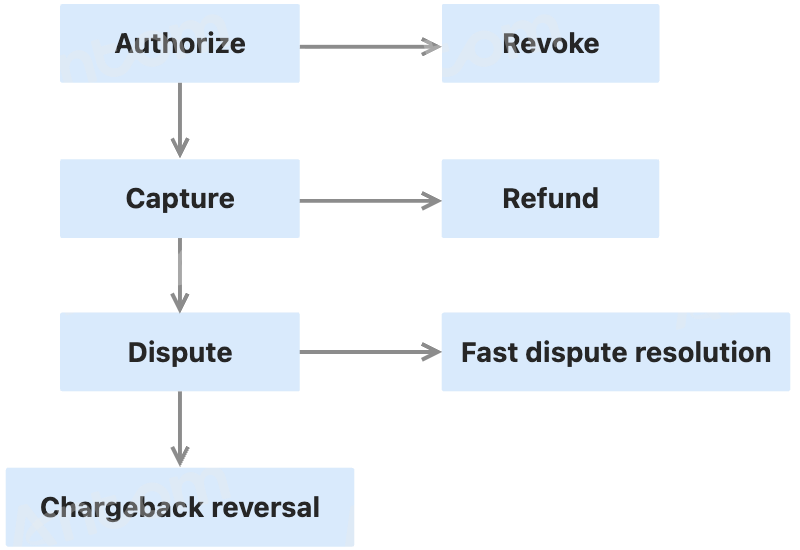
A card payment order mainly includes the following stages:
- Authorization: After the buyer completes the payment with a card, the funds will be frozen. You may cancel the order during the window period from when the order is placed until authorization is completed.
- Capture: Capture transfers the buyer’s frozen funds to your account. By default, Antom automatically initiates capture on your behalf. For details, refer to Capture. If capture is completed, you can refund the order within the window period if needed.
- Dispute: If the buyer initiates a chargeback or retrieval request with the card-issuing bank, you will need to manage the dispute process accordingly. For more information, refer to Dispute.
Payment flow
For card payments in the hosted mode, the payment flow is composed of the following steps:
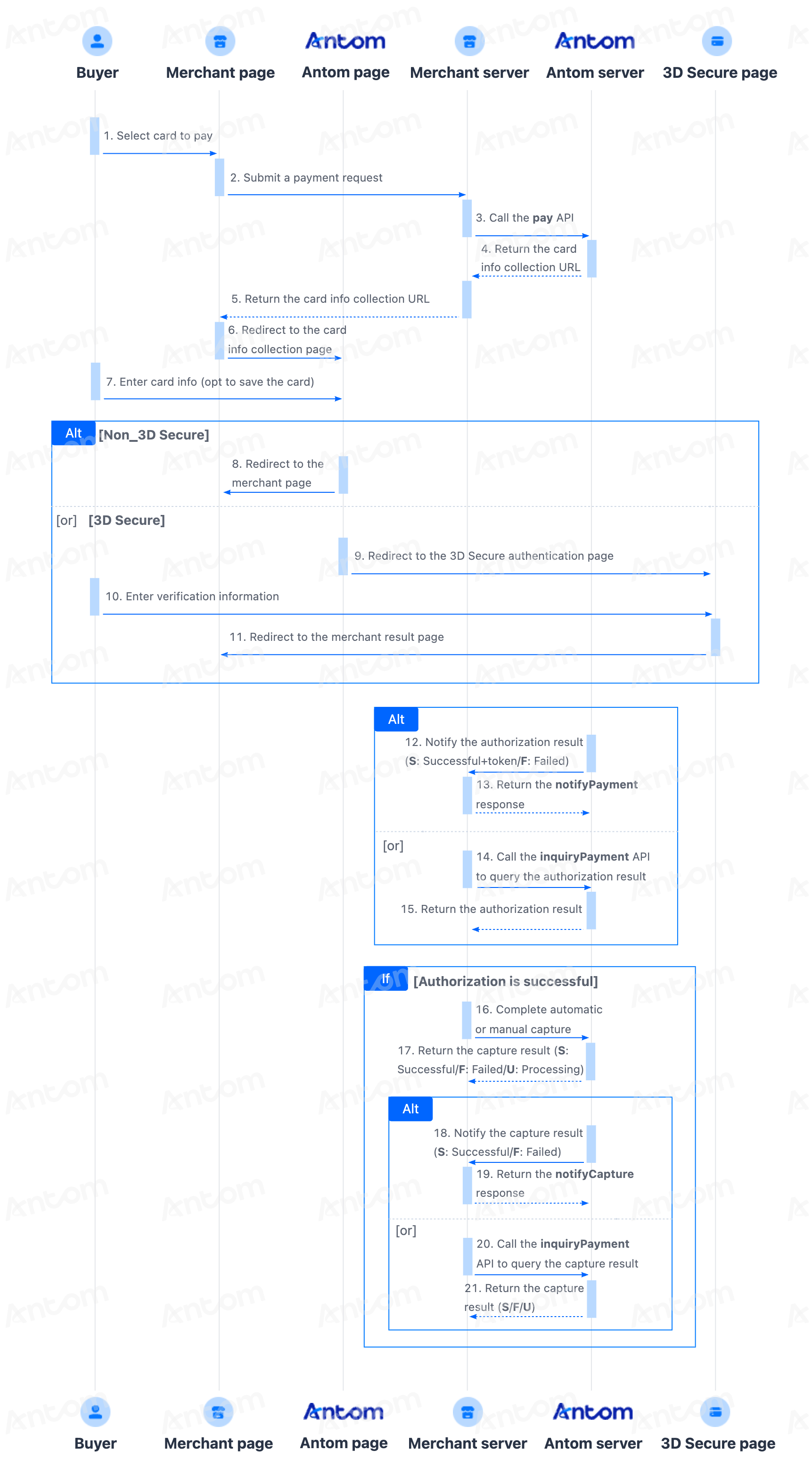
- The buyer selects card payment.
- Submit the payment request.
After the buyer submits payment, you need to call the pay (One-time Payments) API to submit the payment request. - Antom collects card information.
The merchant server obtains the Antom intermediate page URL to collect card information. The buyer is then redirected to the Antom intermediate page to enter card details, where they can choose whether to save the card information. - (Optional) Redirect the buyer to the 3DS authentication page.
Redirect the buyer to the 3DS authentication page to complete verification, and then returns to the merchant’s result page. - Obtain the authorization result.
The merchant server receives the authorization notification returned by Antom and performs corresponding business processing based on the result. - Obtain the capture result.
You can obtain the capture result through either of the following two methods:
- Asynchronous notification: Specify paymentNotifyUrl in the pay (One-time Payments) API or configure on Antom Dashboard to set the address for receiving asynchronous notifications. Upon capture completion, Antom will send you asynchronous notifications via the notifyCapture (One-time Payments) API.
- Synchronous inquiry: Call the inquiryPayment API to check the capture status.
Integration preparations
Before you start integrating, read the Integration Guide and API Overview documents to understand the integration steps of the server-side API and the precautions for calling the API. Furthermore, ensure that the following prerequisites are met:
- Obtain a client ID
- Complete the key configuration
- Complete the configuration of paymentNotifyUrl to receive the asynchronous notification
- Integrate the server-side SDK package, install the server-side library, and initialize a request instance. For more details, refer to Server-side SDKs.
Integration steps
Start your integration by taking the following steps:
- Initiate an authorized payment
- Redirect to the Antom intermediate page where buyers fill in their card information
- Obtain the authorization result
- Obtain the capture result
Step 1: Initiate an authorized payment
After the buyer submits payment, you need to collect key information such as the order information, device information, and payment amount, then call the pay (One-time Payments) API to submit the payment request.
The following are key parameters for initiating a payment request:
Type | Parameter name | Required | Description |
Basic parameters | productCode | Yes | In this scenario, the value is fixed as |
paymentRequestId | Yes | The unique ID assigned by the merchant to identify a payment request. Use different ID for each payment request. | |
paymentAmount | Yes | The payment amount that the merchant requests to receive in the order currency. | |
paymentMethod.paymentMethodType | Yes | Payment method enumeration value. For card payment scenarios, this value is fixed as | |
paymentRedirectUrl | Yes | Merchant-side payment result page. It needs to be displayed based on the server-side result, not a fixed success page. | |
paymentNotifyUrl | No | The payment result notification URL, which can be passed in through the API or set as a fixed value through Antom Dashboard. If both are set, the value in the API takes precedence. | |
settlementStrategy | Yes | Settlement strategy for the payment request. If the you have signed up multiple settlement currencies, the settlementCurrency parameter must be specified in the API. | |
paymentFactor.isAuthorization | Yes | Payment mode. For card payment scenarios, the value is fixed as | |
Order parameters | order.buyer | Yes | Buyer information. At least one of the following must be provided:
|
order.referenceOrderId | Yes | The unique ID to identify the order on the merchant side. | |
order.orderDescription | Yes | The summary description of the order on the merchant side. | |
Device parameters | env.terminalType | Yes | Terminal type of which the merchant service applies to. Valid values are:
|
env.osType | No | The operating system type from which the buyer initiated the transaction. Valid values:
| |
env.clientIp | Yes | The IP address of the client device. Required for card payment scenarios. | |
Card payment parameters (Refer to Card payment features) | paymentMethod.paymentMethodMetaData.is3DSAuthentication | No | Determine whether to set the transaction authentication type to 3DS based on risk and dispute history. Valid values are:
|
The above parameters are the basic parameters for creating a payment session, for full parameters and additional requirements for certain payment methods refer to pay (One-time Payments).
The following sample code shows how to call the pay (One-time Payments) API:
public static void payByCard() {
    AlipayPayRequest alipayPayRequest = new AlipayPayRequest();
    alipayPayRequest.setProductCode(ProductCodeType.CASHIER_PAYMENT);

    // replace with your paymentRequestId
    String paymentRequestId = UUID.randomUUID().toString();
    alipayPayRequest.setPaymentRequestId(paymentRequestId);

    // set amount
    Amount amount = Amount.builder().currency("SGD").value("4200").build();
    alipayPayRequest.setPaymentAmount(amount);

    // set paymentMethod
    PaymentMethod paymentMethod = PaymentMethod.builder().paymentMethodType("CARD").build();
    alipayPayRequest.setPaymentMethod(paymentMethod);

    // card info
    Map<String, Object> paymentMethodMetaData = new HashMap<String, Object>();
    paymentMethodMetaData.put("tokenizeMode", "ASKFORCONSENT");
    paymentMethod.setPaymentMethodMetaData(paymentMethodMetaData);

    // replace with your orderId
    String orderId = UUID.randomUUID().toString();

    // set buyer info
    Buyer buyer = Buyer.builder().referenceBuyerId("yourBuyerId").build();

    // set order info
    Order order = Order.builder().referenceOrderId(orderId)
    .orderDescription("antom testing order").orderAmount(amount).buyer(buyer).build();
    alipayPayRequest.setOrder(order);

    // set env info
    Env env = Env.builder().terminalType(TerminalType.WEB).clientIp("1.2.3.4").build();
    alipayPayRequest.setEnv(env);

    // set auth capture payment mode
    PaymentFactor paymentFactor = PaymentFactor.builder().isAuthorization(true).build();
    alipayPayRequest.setPaymentFactor(paymentFactor);

    // replace with your notify url
    alipayPayRequest.setPaymentNotifyUrl("https://www.yourNotifyUrl.com");

    // replace with your redirect url
    alipayPayRequest.setPaymentRedirectUrl("https://www.yourMerchantWeb.com");

    // pay
    AlipayPayResponse alipayPayResponse = null;
    try {
        alipayPayResponse = CLIENT.execute(alipayPayRequest);
    } catch (AlipayApiException e) {
        String errorMsg = e.getMessage();
        // handle error condition
    }
}
The following code shows a sample of the request message:
{
    "settlementStrategy": {
        "settlementCurrency": "SGD"
    },
    "productCode": "CASHIER_PAYMENT",
    "paymentNotifyUrl": "https://www.yourNotifyUrl.com",
    "paymentRequestId": "PAY_20***********0638",
    "paymentRedirectUrl": "https://www.yourMerchantWeb.com",
    "paymentFactor": {
        "isAuthorization": true,
        "captureMode": "AUTOMATIC"
    },
    "paymentMethod": {
        "paymentMethodMetaData": {
            "is3DSAuthentication":true
        },
        "paymentMethodType": "CARD"
    },
    "paymentAmount": {
        "currency": "SGD",
        "value": "7000"
    },
    "order": {
        "orderAmount": {
            "currency": "EUR",
            "value": "30000"
        },
        "orderDescription": "《Bad Romance》-Lady Gaga",
        "referenceOrderId": "ORDER_20***********0638",
        "buyer": {
            "buyerEmail": "gaga@gaga.com"
        }
    },
    "env": {
        "clientIp": "1.1.1.1",
        "osType": "IOS",
        "terminalType": "WAP"
    }
}
The following code shows a sample of the response, which contains the following parameters:
- result.resultStatus: The status of the authorized payment.
- normalUrl: The URL used to redirect to the Antom intermediate page.
{
    "normalUrl": "https://ac.alipay.com/page/antom-web-checkout-v2/checkout-page/pages/payment/index.html?shadow=true&sessionData=lVLs6TlvaMcZjF0L4fLhBZbpfjbvq9bTl4T6NLBEg2mXqPfPsL%2FqBGcO2dv7O2iDUmb6aFO9f5MihRxiKENQFA%3D%3D%26%26SG%26%26188%26%26eyJleHRlbmRJbmZvIjoie1wiZGlzcGxheUFudG9tTG9nb1wiOlwidHJ1ZVwifSIsInBheW1lbnRTZXNzaW9uQ29uZmlnIjp7InBheW1lbnRNZXRob2RDYXRlZ29yeVR5cGUiOiJBTEwiLCJwcm9kdWN0U2NlbmUiOiJDSEVDS09VVF9QQVlNRU5UIiwicHJvZHVjdFNjZW5lVmVyc2lvbiI6IjEuMCJ9LCJza2lwUmVuZGVyUGF5bWVudE1ldGhvZCI6ZmFsc2V9&shadow=true",
    "paymentActionForm": "{\"method\":\"GET\",\"paymentActionFormType\":\"RedirectActionForm\",\"redirectUrl\":\"https://ac.alipay.com/page/antom-web-checkout-v2/checkout-page/pages/payment/index.html?shadow=true&sessionData=lVLs6TlvaMcZjF0L4fLhBZbpfjbvq9bTl4T6NLBEg2mXqPfPsL%2FqBGcO2dv7O2iDUmb6aFO9f5MihRxiKENQFA%3D%3D%26%26SG%26%26188%26%26eyJleHRlbmRJbmZvIjoie1wiZGlzcGxheUFudG9tTG9nb1wiOlwidHJ1ZVwifSIsInBheW1lbnRTZXNzaW9uQ29uZmlnIjp7InBheW1lbnRNZXRob2RDYXRlZ29yeVR5cGUiOiJBTEwiLCJwcm9kdWN0U2NlbmUiOiJDSEVDS09VVF9QQVlNRU5UIiwicHJvZHVjdFNjZW5lVmVyc2lvbiI6IjEuMCJ9LCJza2lwUmVuZGVyUGF5bWVudE1ldGhvZCI6ZmFsc2V9&shadow=true\"}",
    "paymentAmount": {
        "currency": "SGD",
        "value": "7000"
    },
    "paymentCreateTime": "2024-12-25T00:48:53-08:00",
    "paymentId": "202412251940109000001882***********",
    "paymentRequestId": "PAYMENT_20***********2284_AUTO",
    "paymentResultInfo": {},
    "redirectActionForm": {
        "method": "GET",
        "redirectUrl": "https://ac.alipay.com/page/antom-web-checkout-v2/checkout-page/pages/payment/index.html?shadow=true&sessionData=lVLs6TlvaMcZjF0L4fLhBZbpfjbvq9bTl4T6NLBEg2mXqPfPsL%2FqBGcO2dv7O2iDUmb6aFO9f5MihRxiKENQFA%3D%3D%26%26SG%26%26188%26%26eyJleHRlbmRJbmZvIjoie1wiZGlzcGxheUFudG9tTG9nb1wiOlwidHJ1ZVwifSIsInBheW1lbnRTZXNzaW9uQ29uZmlnIjp7InBheW1lbnRNZXRob2RDYXRlZ29yeVR5cGUiOiJBTEwiLCJwcm9kdWN0U2NlbmUiOiJDSEVDS09VVF9QQVlNRU5UIiwicHJvZHVjdFNjZW5lVmVyc2lvbiI6IjEuMCJ9LCJza2lwUmVuZGVyUGF5bWVudE1ldGhvZCI6ZmFsc2V9&shadow=true"
    },
    "result": {
        "resultCode": "PAYMENT_IN_PROCESS",
        "resultMessage": "payment in process",
        "resultStatus": "U"
    }
}
The table below shows the possible values of result.resultStatus in the response. Please handle the result according to the guidance provided:
result.resultStatus | Message | Further action |
| The authorization failed. | Please close the current transaction or retry with a new paymentRequestId. |
| The authorization is being processed. |
|
Note: If no response is received, it may indicate a network timeout. You may close the current transaction or retry with a different paymentRequestId.
Common questions
Q: What is the purpose of paymentId and how should it be used?
A: If you need to store a corresponding order ID for future refunds and reconciliation, you can specify paymentId.
Q: How should I configure the terminalType parameter?
A: The valid values for terminalType are as follows:
WEB: Set terminalType toWEBif the transaction is initiated from a PC.WAP: Set terminalType toWAPif the transaction is initiated from a mobile browser. At the same time, please specify the osType parameter and set it toANDROIDorIOSbased on the buyer’s operating system.APP: Set terminalType toAPPif the transaction is initiated from within a mobile application.Q: Which type of transactions should be set as 3DS transactions?
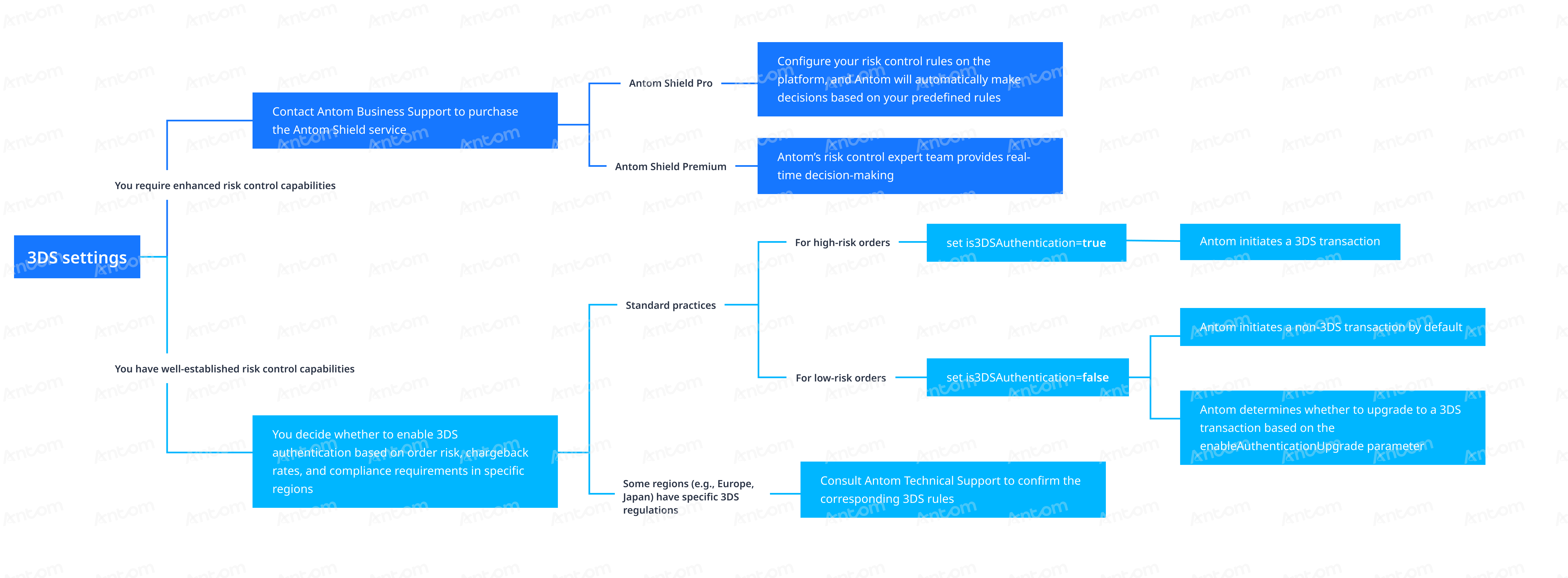
A: If you have purchased Antom Shield, Antom will intelligently determine whether a transaction requires 3DS authentication based on real-time risk models, transaction characteristics, and historical data. If you have robust risk control capabilities, you can decide whether to trigger 3DS authentication based on order risk, chargeback rates, and regional compliance requirements.
Q: If I do not set the is3DSAuthentication parameter, will Antom decide whether to initiate a 3DS transaction on my behalf?
A: No. If the is3DSAuthentication parameter is not set, non-3DS transactions will be initiated by default, which may expose you to risks such as card fraud and chargebacks. Only after purchasing the Antom Shield service will Antom’s risk control model automatically determine whether to apply 3DS authentication. In such cases, you do not need to set the is3DSAuthentication parameter.
Step 2: Redirect to the card information collection page
After the merchant server obtains the card information collection URL (normalUrl) returned by the response of pay (One-time Payments), it should pass this URL to the client side. The merchant client then redirects to the Antom intermediate page to collect the buyer's card information. If the transaction requires 3DS authentication, the Antom intermediate page will automatically redirect to the 3DS authentication page without requiring any additional action from you.
Web
After obtaining the normalUrl, you need to redirect the page to the card information collection page in a browser or open it in a new tab.
if (serverResponse.normalUrl != null) {
    window.open(serverResponse.normalUrl, '_blank');
}Antom server will return different normalUrl values based on the paymentMethod and terminalType parameters you provided, such as an H5 page https://checkout.antom.com/checkout-page/pages/payment/index.html?sessionData=T*****. This page may undergo redirects during the processing flow.
The following images demonstrate the user experience of redirecting to the card information collection page on Web or App platforms.
Web


Payment retry after failure
If a payment fails, Antom will determine whether to allow a retry on the hosted page based on the specific reason for the failure. During the buyer's retry process, Antom will not send authorization payment result notifications. You will only receive a notification after the buyer succeeds in payment or the order is closed due to timeout. Below is an example of the retry payment page presented to the buyer:
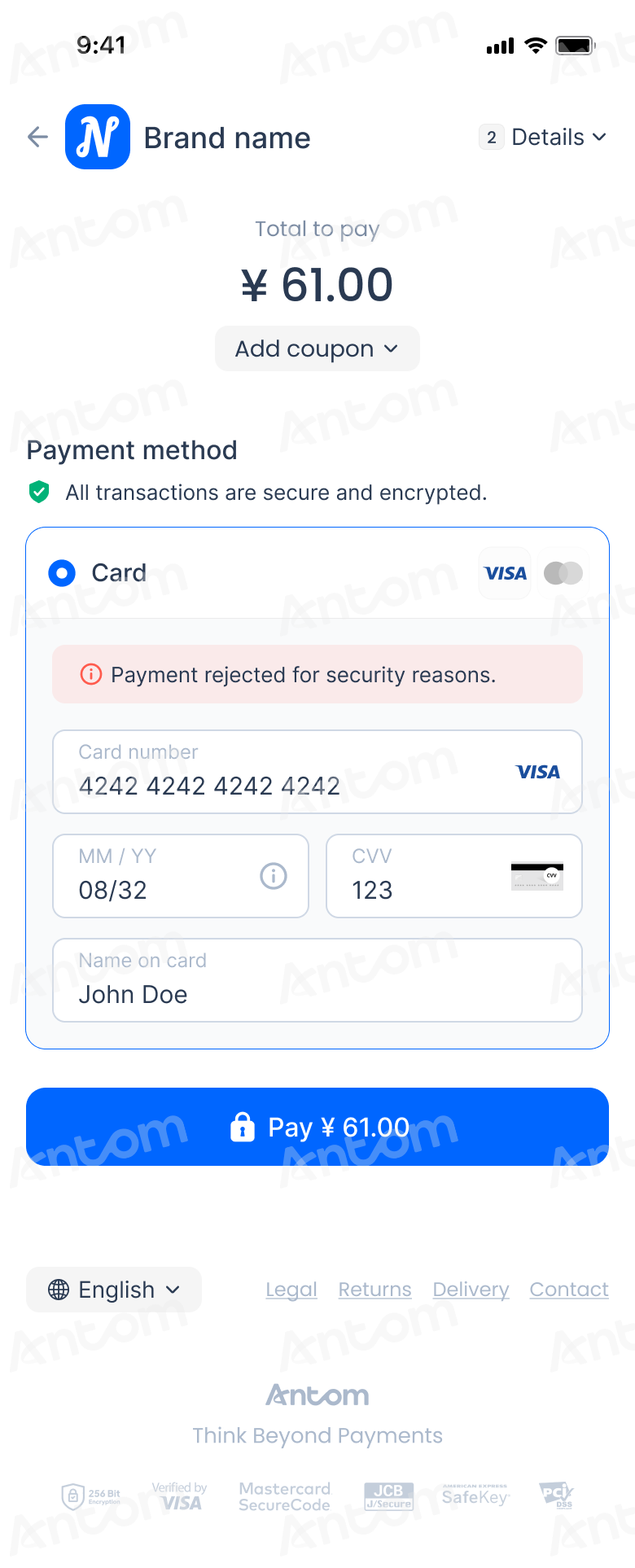
When the buyer modifies card information and resubmits, Antom will initiate a new payment retry to recover the transaction and improve the success rate. In this case, a single paymentRequestId on the merchant side may correspond to multiple paymentId, as shown in the table below:
paymentRequestId | Scenario | |
Merchant-side paymentRequestId_01 | Buyer places order for the first time, the pay (One-time Payments) API synchronously returns paymentId_1 | |
After the first payment fails, the buyer returns to the hosted page to retry, generating paymentId_2 | ||
After multiple failed payments, the buyer retries again, generating paymentId_N | ||
Note:
- It is recommended that you store the paymentId from the final asynchronous notification of authorization result for subsequent operations such as capture, refund, and dispute handling.
- If you still use the paymentId returned synchronously from the initial pay (One-time Payments) API call to initiate capture or refund, Antom remains compatible and will continue processing the transaction. However, in responses, notifications, and billing records, Antom will return the paymentId generated during the buyer's retry instead of the paymentId from the initial order. This applies specifically to:
- The paymentId in the notifyPayment request
- The paymentId in the synchronous response of the capture (One-time Payments) API
- The paymentId in the notifyCapture (One-time Payments) request
- The paymentId in the synchronous response of the refund API
- The paymentId in the notifyDispute requestThe transactionId in reconciliation records
Common questions
Q: How should I handle the returned card information collection URL (normalUrl)?
A: After obtaining the card information collection URL (normalUrl), process it based on your client type as follows:
- Web/WAP: Directly redirect the buyer to the URL.
- App: It is recommended to load the URL using a WebView component within the application.
If the transaction requires 3DS authentication, the Antom intermediate page will automatically redirect to the 3DS authentication page without requiring any additional action from you. Most issuers complete the 3DS authentication process in an H5 page, a few banks may require launching their official app for verification.
Q: How should the payment result page be displayed?
A: The payment result page must be rendered based on the result returned by the server. Do not set the paymentRedirectUrl as a fixed "payment success page", as this URL serves as a universal return endpoint—buyers may be redirected back to the merchant page regardless of whether the payment succeeded or failed.
Q: Does returning to the merchant result page indicate a successful payment?
A: No. Returning to the merchant page alone does not guarantee payment success. Key reasons include:
- Buyers may not be redirected to the result page due to network issues even after successful payment, or they may return manually without completing the payment.
- To prevent security risks such as parameter tampering, Antom does not append any payment result parameters to paymentRedirectUrl.
Q: Is the 3DS redirection URL returned by Antom a fixed domain?
A: No. The domain of the card information collection page returned by Antom is fixed. However, when a transaction requires 3DS authentication, the page will redirect to the card issuer's authentication page, and different issuers use different domains. Please avoid setting a domain allowlist in WebView.
Q: Can an iframe be used to load the card information collection URL (normalUrl) returned by Antom?
A: It is not recommended to load it within an iframe. The normalUrl returned by Antom is a complete payment page, not a partial component. Embedding it in an iframe would significantly degrade the user experience. Additionally, due to security policies or compatibility restrictions imposed by some card issuers, the page may not display or function properly within an iframe.
Step 3: Obtain the authorization result
Upon authorized payment success, failure, or order timeout, Antom will send the corresponding authorization results to you through server interaction. You can obtain the authorization result using one of the following methods:
- Receive asynchronous notifications from Antom
- Inquire about the result
Receive asynchronous notifications
Follow the steps below to receive and process asynchronous notifications from Antom:
- Configure the webhook URL to receive asynchronous notifications
When an authorized payment succeeds or fails, Antom will send an asynchronous notification to the webhook URL you set. You can choose one of the following two methods to configure the webhook URL for receiving notifications (if both are set, the URL specified in the request takes precedence):
- If each of your orders has a unique notification URL, it is recommended to set the webhook URL in each request. You can pass the asynchronous notification receiving URL for the specific order through paymentNotifyUrl in the pay (One-time Payments) API.
- If all your orders share a unified notification URL, you can set the webhook URL on Antom Dashboard through Developer > Notification URL. For detailed steps, refer to Notification URL.
Note:
- If the buyer does not complete identity verification after being redirected to the 3DS authentication page, Antom sends asynchronous notifications only after the order is closed. The default order closure time is 14 minutes.
- In certain failure scenarios (such as parameter abnormalities), the pay (One-time Payments) API will synchronously return
F(Failure) status in the response. In such cases, Antom will not send asynchronous notifications. You can close the order directly based on theFstatus.
The following code shows a sample of the asynchronous notification request:
{
    "actualPaymentAmount": {
        "currency": "EUR",
        "value": "7000"
    },
    "notifyType": "PAYMENT_RESULT",
    "paymentAmount": {
        "currency": "EUR",
        "value": "7000"
    },
    "paymentCreateTime": "2024-10-08T20:34:29-07:00",
    "paymentId": "20*********************96",
    "paymentRequestId": "PAY_20**********38",
    "paymentResultInfo": {
        "avsResultRaw": "",
        "cardBrand": "MASTERCARD",
        "cardNo": "41************54",
        "cvvResultRaw": "",
        "funding": "CREDIT",
        "issuingCountry": "CN",
        "paymentMethodRegion": "GLOBAL",
        "threeDSResult": {
            "cavv": "",
            "eci": ""
        }
    },
    "paymentTime": "2024-10-08T20:34:33-07:00",
    "result": {
        "resultCode": "SUCCESS",
        "resultMessage": "success.",
        "resultStatus": "S"
    }
}
The following table shows the possible values of result.resultStatus in the notification request of authorization result. Please handle the result according to the guidance provided:
result.resultStatus | Message | Further action |
| Authorization was successful. | The order can be proceeded with capture, and you need to store paymentId for subsequent capture or refund operations. |
| Authorization failed. | Please close the current transaction or submit a new order with a different paymentRequestId. |
- Verify the asynchronous notification
When you receive an asynchronous notification from Antom, you are required to return the response in the Sample code format, but you do not need to countersign the response.
You need to verify the signature of the notification sent by Antom:
import javax.servlet.http.HttpServletRequest;

import org.springframework.http.ResponseEntity;
import org.springframework.web.bind.annotation.PostMapping;
import org.springframework.web.bind.annotation.RequestBody;
import org.springframework.web.bind.annotation.RestController;

import com.alipay.global.api.model.Result;
import com.alipay.global.api.model.ResultStatusType;
import com.alipay.global.api.response.AlipayResponse;
import com.alipay.global.api.tools.WebhookTool;

@RestController
public class PaymentNotifyHandleBySDK {

    /**
     * alipay public key, used to verify signature
     */
    private static final String SERVER_PUBLIC_KEY = "";

    /**
     * payment result notify processor
     * using <a href="https://spring.io">Spring Framework</a>
     *
     * @param request    HttpServletRequest
     * @param notifyBody notify body
     * @return
     */
    @PostMapping("/payNotify")
    public Object payNotifyHandler(HttpServletRequest request, @RequestBody String notifyBody) {

        // retrieve the required parameters from http request.
        String requestUri = request.getRequestURI();
        String requestMethod = request.getMethod();

        // retrieve the required parameters from request header.
        String requestTime = request.getHeader("request-time");
        String clientId = request.getHeader("client-id");
        String signature = request.getHeader("signature");

        Result result;
        AlipayResponse response = new AlipayResponse();

        try {
            // verify the signature of notification
            boolean verifyResult = WebhookTool.checkSignature(requestUri, requestMethod, clientId, requestTime, signature, notifyBody, SERVER_PUBLIC_KEY);
            if (!verifyResult) {
                throw new RuntimeException("Invalid notify signature");
            }

            // deserialize the notification body

            // update the order status with notify result

            // respond the server that the notification is received
            result = new Result("SUCCESS", "success", ResultStatusType.S);

        } catch (Exception e) {
            String errorMsg = e.getMessage();
            // handle error condition
            result = new Result("ERROR", errorMsg, ResultStatusType.F);
        }
        response.setResult(result);
        return ResponseEntity.ok().body(response);
    }

}
Whether the payment is successful or not, each notification request must be responded to in the format specified below. Otherwise, Antom will resend the asynchronous notification.
{
  "result": {
    "resultCode": "SUCCESS",
    "resultStatus": "S",
    "resultMessage": "success"
  }
}
Common questions
Q: When will the notification be sent?
A: It depends on whether the payment is completed:
- If the payment is successfully completed, Antom will send you an asynchronous notification within 3 to 5 seconds.
- If the payment is not completed, Antom needs to close the order first before sending an asynchronous notification. The time it takes for different payment methods to close the order varies, usually defaulting to 14 minutes.
Q: Will the asynchronous notification be re-sent?
A: Yes, the asynchronous notification will be re-sent automatically within 24 hours for the following cases:
- If you didn't receive the asynchronous notification due to network reasons.
- If you receive an asynchronous notification from Antom, but you did not respond to the notification in the Sample code format.
The notification can be resent up to 8 times or until a correct response is received to terminate delivery. The sending intervals are as follows: 0 minutes, 2 minutes, 10 minutes, 10 minutes, 1 hour, 2 hours, 6 hours, and 15 hours.
Q: When responding to an asynchronous notification, do I need to add a digital signature?
A: If you receive an asynchronous notification from Antom, you are required to return the response in the Sample code format, but you do not need to countersign the response.
Q: Do I need to verify the signature upon receiving an authorization payment result notification?
A: Yes. Signature verification is necessary to ensure that the request was sent to you by Antom. When performing verification, the assembled message must strictly adhere to the following format:
<http-method> <http-uri> <client-id>.<request-time>.<request-body>. For the<request-body>part, you must use its original, unprocessed string value.
Q: Can the value
Sfor resultStatus in the asynchronous notification be used as the basis for shipping goods?A: No. Card payments involve two stages: authorization and capture. The resultStatus in the asynchronous notification only reflects the authorization result. The decision to ship goods should be based on the capture result.
Inquire about the result
You can also inquire about the authorization result by calling the inquiryPayment API using paymentRequestId from the payment request.
The following sample code shows how to call the inquiryPayment API:
public static void inquiryPayment() {
    AlipayPayQueryRequest alipayPayQueryRequest = new AlipayPayQueryRequest();

    // replace with your paymentRequestId
    alipayPayQueryRequest.setPaymentRequestId("yourPaymentRequestId");

    AlipayPayQueryResponse alipayPayQueryResponse = null;
    try {
        alipayPayQueryResponse = CLIENT.execute(alipayPayQueryRequest);
    } catch (AlipayApiException e) {
        String errorMsg = e.getMessage();
        // handle error condition
    }
}
The following sample code shows a request message:
{
  "paymentRequestId": "paymentRequestId01"
}
The following sample code shows a response message:
{
    "actualPaymentAmount": {
        "currency": "USD",
        "value": "5000"
    },
    "authExpiryTime": "2024-12-17T21:56:56-08:00",
    "cardInfo": {
        "cardBrand": "VISA",
        "funding": "CREDIT",
        "issuingCountry": "US"
    },
    "paymentAmount": {
        "currency": "USD",
        "value": "5000"
    },
    "paymentId": "20************56",
    "paymentMethodType": "CARD",
    "paymentRedirectUrl": "http://gol.alipay.net:8080/amsdemo/result?paymentRequestId=amsdmpay_yanfei_wzh_20240111_191505_666",
    "paymentRequestId": "paymentRequestId01",
    "paymentResultCode": "SUCCESS",
    "paymentResultInfo": {
        "avsResultRaw": "M",
        "cardBrand": "VISA",
        "cardNo": "************9954",
        "cvvResultRaw": "U",
        "funding": "CREDIT",
        "issuingCountry": "US",
        "networkTransactionId": "12********ew",
        "paymentMethodRegion": "GLOBAL",
        "threeDSResult": {
            "cavv": "",
            "eci": ""
        }
    },
    "paymentResultMessage": "success.",
    "paymentStatus": "SUCCESS",
    "paymentTime": "2024-12-10T21:56:57-08:00",
    "result": {
        "resultCode": "SUCCESS",
        "resultMessage": "success.",
        "resultStatus": "S"
    }
}
Please handle the result based on the value of the paymentStatus parameter in the response. For specific return values, refer to the API documentation.
Common questions
Q: What key parameters should I pay attention to when using the inquiryPayment API to check the authorization status?
A: Please note the following key parameters:
- paymentStatus: Indicates the authorization status of the order.
- paymentAmount: Indicates the payment amount, which can be used for amount verification.
- result: Only indicates the result of the API call. The actual authorization result should be determined based on the value of paymentStatus (
SUCCESSandFAILindicate final authorization results, whilePROCESSINGindicates the authorization is still being handled).Q: How often should I call the inquiryPayment API?
A: Begin polling immediately after calling the pay (One-time Payments) API, and poll constantly with an interval of 2 seconds until the final payment result is obtained or an asynchronous authorization result notification is received.
Step 4: Obtain the capture result
After successful authorization, Antom will automatically initiate capture for you, while you can also initiate capture manually. After capture, you can obtain the capture result either via asynchronous notification or active query. You should decide whether to ship goods based on the capture result. For specific operations, refer to Capture.
After payments
After completing the payment, you can perform the following actions:
Cancellation
In card payment scenarios, Antom supports transaction cancellation (void) under the following three situations:
- If a transaction is successfully authorized but automatic capture fails, Antom will automatically void the transaction after 7 days. You may also proactively cancel the transaction to prevent the buyer’s funds from being frozen for 7 days.
- If you capture manually but decide not to proceed with capturing an authorized order, you can call the cancel API to cancel the transaction and immediately release the funds.
- For transactions where authorization was not completed, you can call the cancel API to cancel the transaction directly to prevent duplicate charges.
Refer to Cancel for more details.
Common questions
Q: Can an order be canceled after successful capture?
A: No. Once an order is successfully captured, it cannot be canceled. If you need to process the funds for this order, please initiate a refund. For specific procedures, refer to Order lifecycle.
Q: Will an authorized order be automatically canceled if no capture is initiated?
A: Yes. For an authorized order, capture must be initiated within 7 days. Otherwise, Antom will automatically void the order to release the funds, without requiring you to call the cancel API. To prevent the buyer's funds from being frozen for 7 days, it is recommended to proactively call the cancel API to release the funds in advance.
Refund
Different payment methods have varying refund capabilities. To learn about Antom refund rules and how to initiate a refund for a successful transaction, refer to Refund.
Dispute
Antom provides dispute resolution services for contested transactions. For more information, refer to Dispute Guidance and Dispute resolution.
Card payment features
The hosted mode supports the following card payment features, click to get detailed information and usage instructions: