支付方式开通

注意:中文版本正在翻译中,即将发布。

Getting started

Why should I enable more payment methods?

Enabling locally preferred payment methods can significantly increase your conversion rate by offering customers their trusted way to pay. It builds trust, reduces cart abandonment, and helps you expand into new regions more effectively.

How do I decide which payment methods to enable?

Start from your target markets and buyer locations. For example, for Brazil, Pix is a must-have; in Southeast Asia, digital wallets like GCash, DANA, and GrabPay SG are popular.

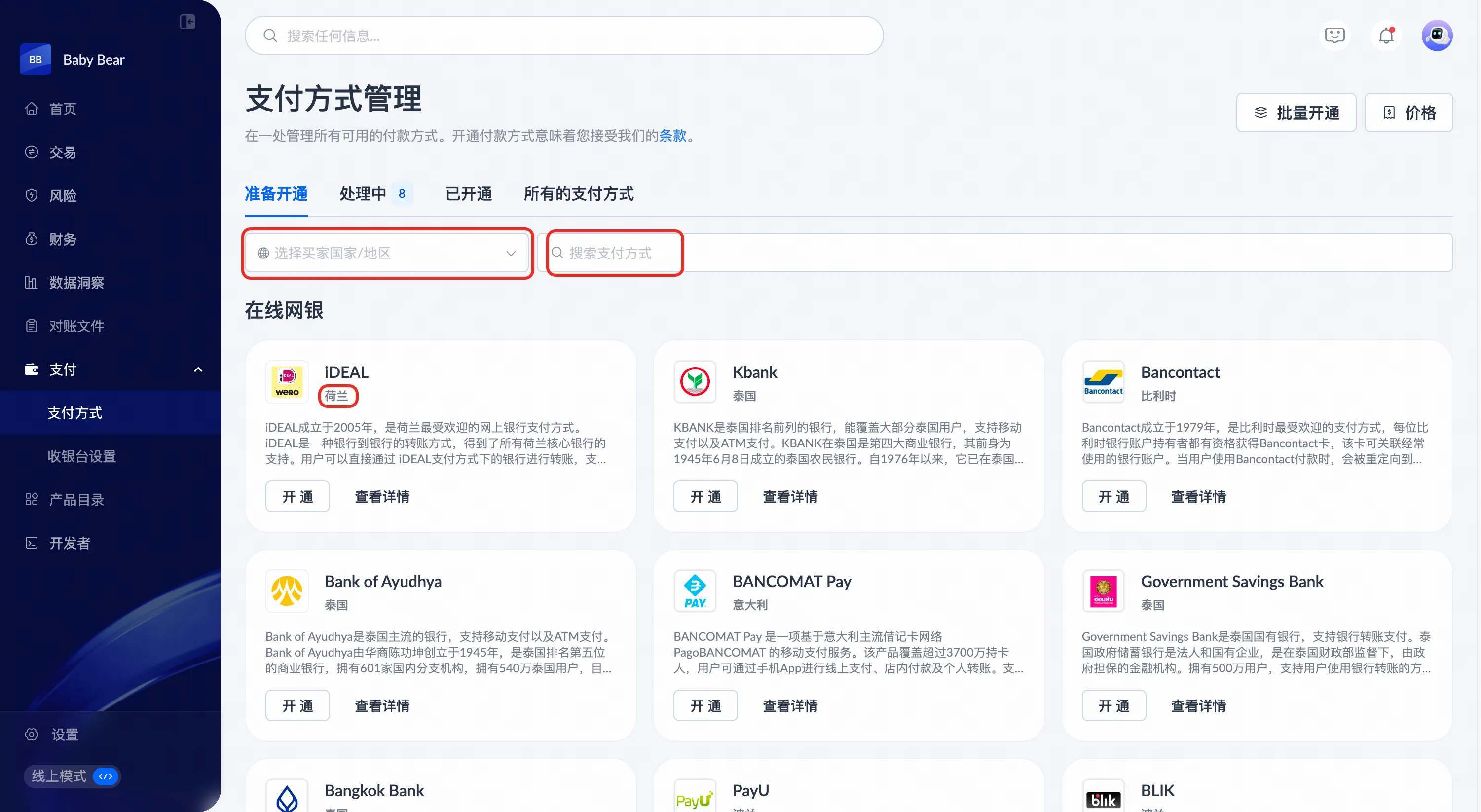
For reference, navigate to Payments > Payment methods. Use the shopper region tag under each payment method as a guide or configure Select shopper country/region to locate your suitable payment methods. You can also search for the most commonly used payment methods in the countries where you sell.

image.png

When can I start enabling payment methods?

You must complete your KYC verification and merchant onboarding, and switch to Live mode before you can enable payment methods in the production environment.

Can I enable payment methods in the Test mode?

Payment methods in Test mode are for integration testing only and cannot be used for real transactions. You can simulate some payment methods in Test mode based on API reference.

You must complete your KYC verification and merchant onboarding, and switch to Live mode before accepting live payments.

Restrictions and product capabilities

Are there restrictions for specific payment methods?

Yes. Availability depends on merchant country, buyer country, and sometimes business type. To check the coverage and supported countries, refer to the payment methods overview.

What is the Tokenized Payment capability?

Tokenized Payment allows you to charge customers automatically after a one‑time authorization. It supports multiple client types (Web, WAP, App) and enables:

  • One‑click or recurring payments;
  • Reduced friction and customer loss from failed manual payments.

If your business has subscriptions, memberships, or repeat purchases, we recommend enabling Tokenized Payment where available. For more information, please refer to Tokenized Payment.

Application

How long does it take for a payment method to be enabled after submission?

The time required to enable a payment method after submission depends on the specific payment method, its onboarding requirements, and any involved acquirers.

In general, typical processing times are:

  • Payment methods without reporting requirements: approximately 3–5 working days.
  • Payment methods with reporting requirements: approximately 10–30 working days.

Actual activation time may vary based on:

  • Completeness and accuracy of submitted documents.
  • KYC checks, risk assessment, and compliance review.
  • Scheme or acquirer review and approval.
  • Acquirer processing time.

For example, for certain local payment methods in Japan, the acquirer onboarding process may involve the following steps:

  1. Submit an email to the acquirer with merchant information.
  2. Acquirer provides approval with MID and MCC in 3–7 calendar days.
  3. Acquirer configures the MID in 7 calendar days.

After activation, you can check the activation status by logging into Antom Dashboard to track the status. For more details, please refer to Enable payment methods.

How will I know when a payment method is active?

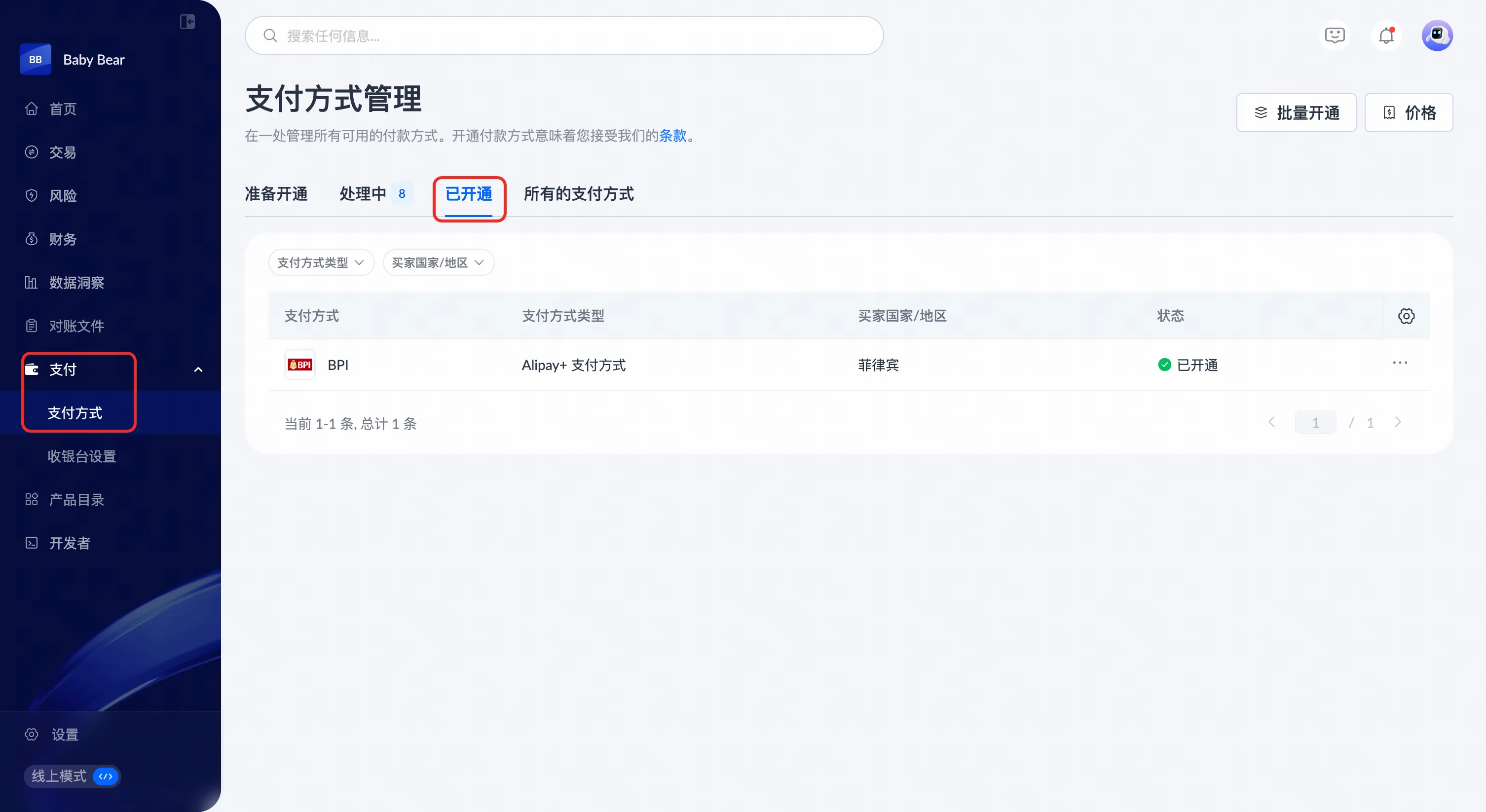
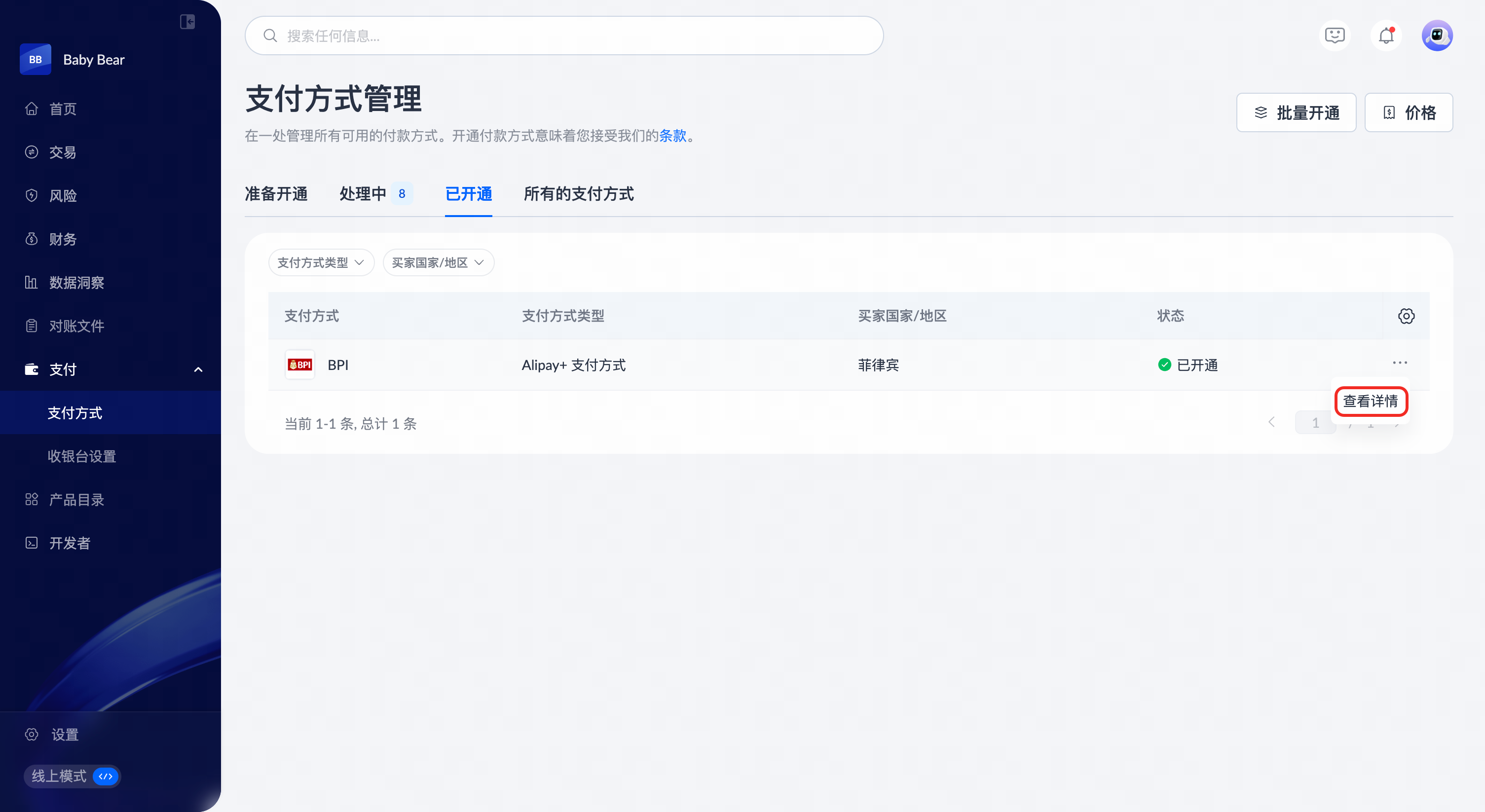
In the Payments > payment methods module, click the Active tab to view active payment methods. All successfully enabled payment methods are listed there.

image.png

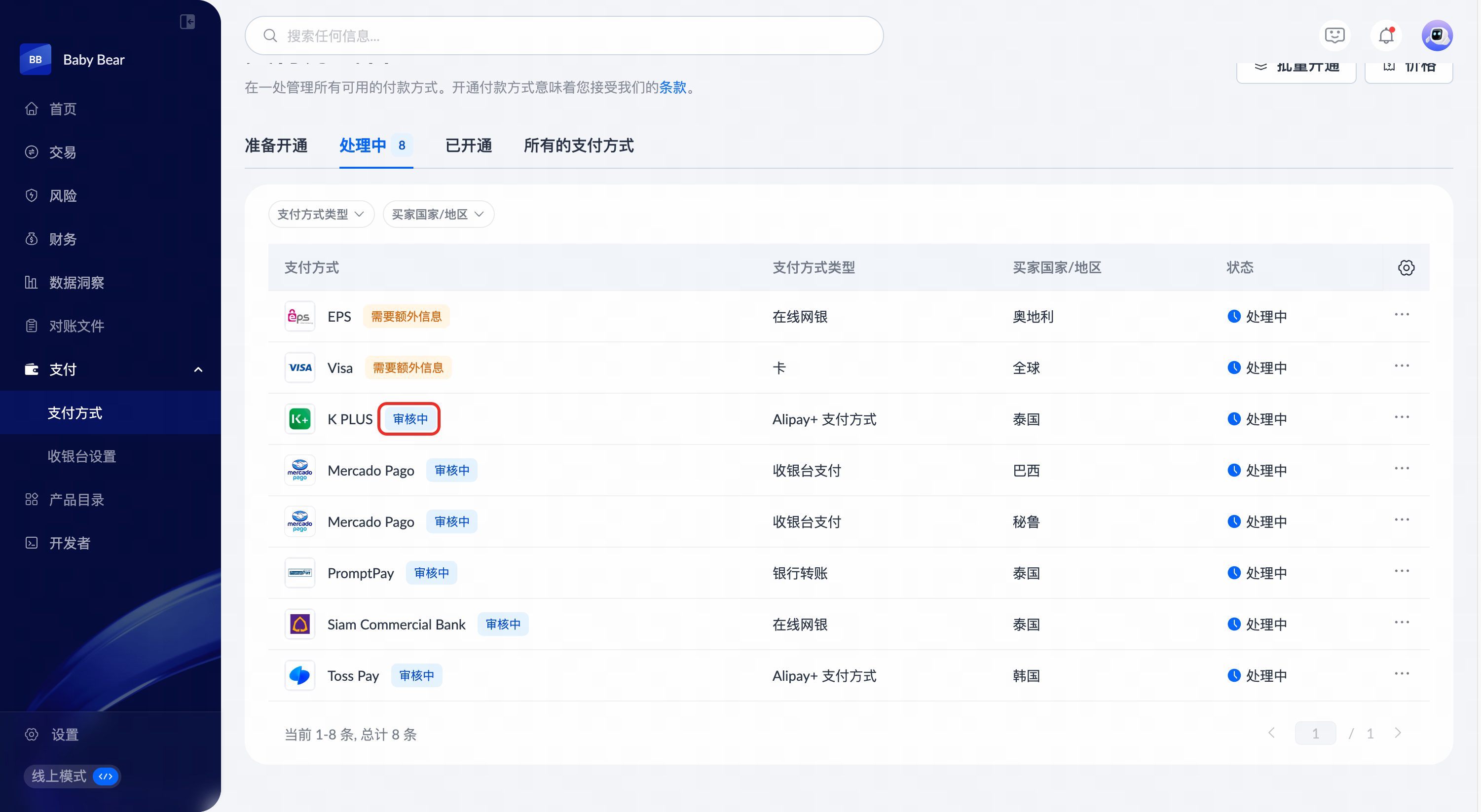
Why is my payment method still under review?

Every application is reviewed by multiple parties (KYC, risk, acquirers, and sometimes schemes). This may take time, especially for high‑risk industries or payment methods requiring extra reporting.

Note: For more details on a specific application, please contact us at global.service@antom.com with your merchant ID and payment method name.

If my application shows "Need to modify" or "Additional information required", what should I do?

If your application shows either status, please address it based on the instructions below:

  • For Need to modify, some information you submitted was incorrect or inconsistent.
  • For Additional information required, some information was missing in your previous submission.

Take the following steps according to the status message received:

  1. In the Payments > Payment methods > Pending module, locate payment methods with the Need to modify/Additional information required reminder. Click Edit information/Add information.
  2. Correct all the required fields or provide the missing details to resubmit.

image.png

image.png

If I made a mistake on my information form, can I edit it after submitting?

If the enablement status is already Processing, you cannot edit the form directly. Please contact our support team immediately with your merchant ID and the corrections needed. We will do our best to update your application before it is finalized.

image.png

What should I do if my application for a payment method was rejected? Can I re‑apply?

Applications may be rejected due to mismatched information, unsupported business types, or higher‑risk business models. The rejection email or Antom Dashboard notification usually includes a reason. If you are unsure about the reason or next steps, contact global.service@antom.com.

If corrections are possible, you can re‑apply though the following steps:

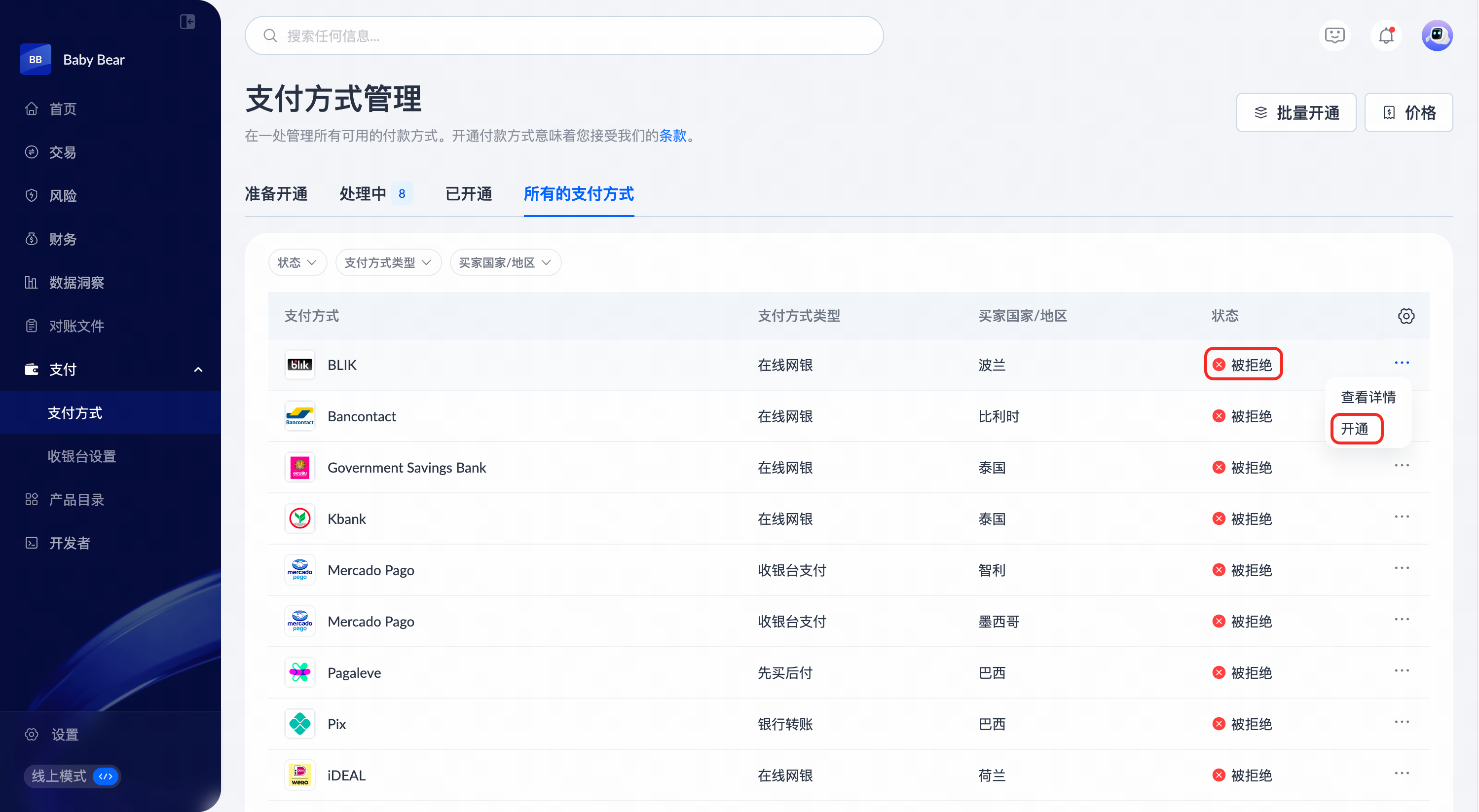
  1. Navigate to Payments > Payment methods > All payment methods. Locate the payment method where its status is labelled Rejected.
  2. Click Enable now for the payment method and follow the single enablement steps.

image.png

Management

Can I disable a payment method after enabling it?

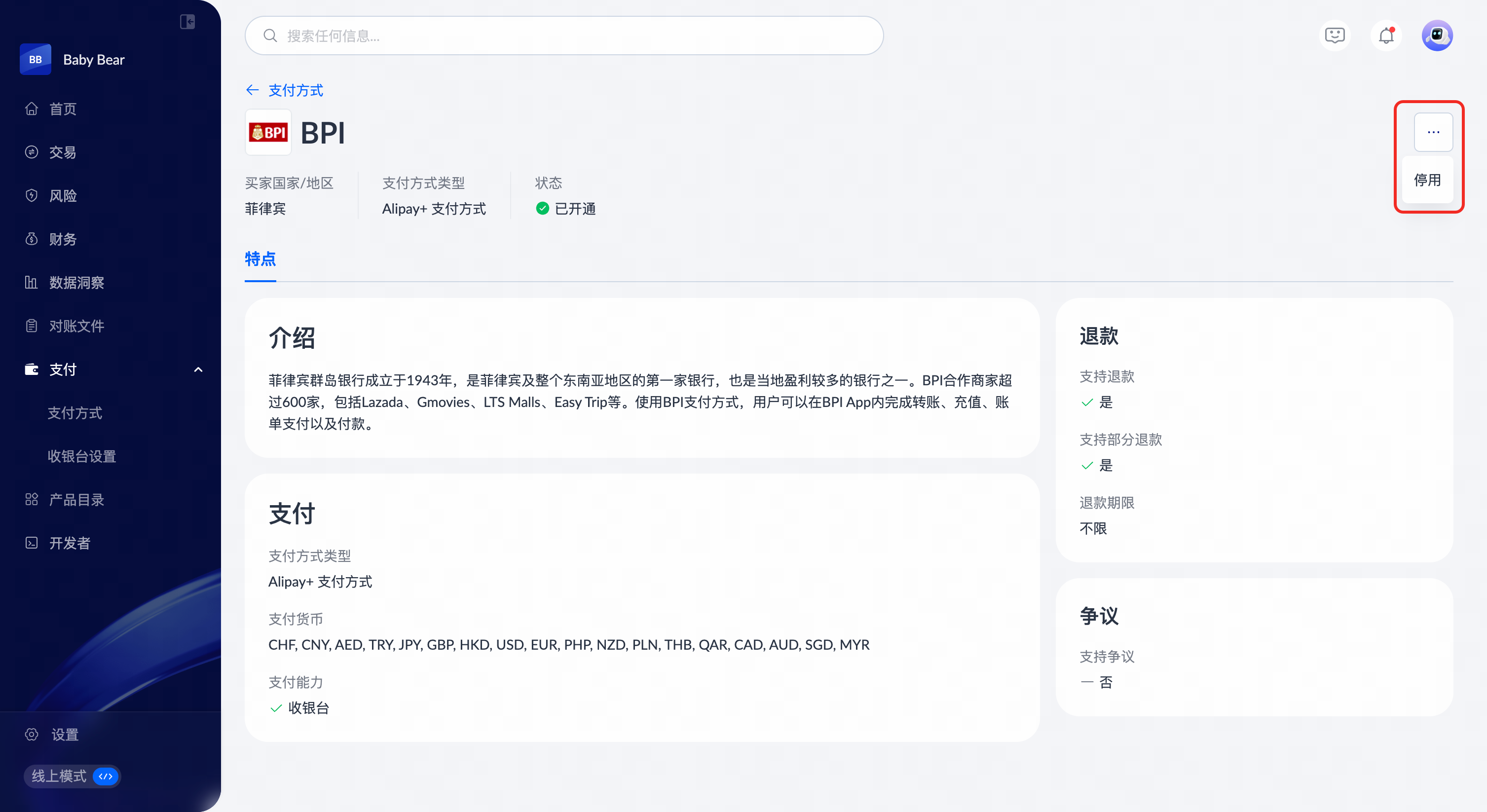
Yes. Please follow the steps below to operate:

  • Navigate to Payments > Payment methods > Active.
  • Click View details for the payment method.
  • On the details page, click the menu icon in the top‑right corner and select Deactivate.

Note: Once deactivated, new payments via that payment method will be blocked, but existing transactions and refunds remain available.

image.png

image.png

Can I re‑enable a disabled payment method?

Yes, you can re-enable payment methods in most cases. Please follow the steps below to operate:

  • Navigate to Payments > Payment methods > All payment methods. Locate the NONE or Rejected payment method.
  • Click Enable now for the payment method and follow the single enablement steps.

Note: Some payment methods may require a short review if your business details have changed.

Pricing and fees

Are there any fees for enabling or using these payment methods?

There is no fee to enable a payment method. But each payment method has its own transaction fees, typically a percentage of the transaction amount, and in some cases, an additional fixed fee per transaction.

You can view details and compare payment methods by clicking Payments > Payment methods > Price.

Troubleshooting

How do I resolve the "Ongoing Activation Conflict Detected" error?

The error message is prompted when there is an ongoing application for the same payment method. You may have submitted previously either through Antom Dashboard, our backend, or your account manager.

To avoid conflicts and duplicated reviews, contact your account manager or email (global.service@antom.com) to get advice on the existing application and further steps.

Testing and integration

What are the next steps after payment methods are enabled?

Once the status is Enabled, the payment method is live and ready to accept payments. It is recommended that you perform the following steps to test the usability of the payment method:

  1. Perform a small live transaction (e.g., USD 1.00) using that payment method on your website/app.
  2. Confirm that the payment appears correctly in your dashboard under Transactions.
  3. Issue a refund for that transaction from the dashboard to complete the full cycle.

This ensures your front‑end, integration, and settlement flow are all working correctly.

How do I display the newly enabled payment method on my website/app?

Enabling a payment method in Antom dashboard makes it available to your account, but you must expose it to buyers by meeting the following requirements:

  • Your technical team should render the available payment methods on your Checkout Page through integration.
  • You should make the payment methods available for display and use by adding payment methods.

Note: If you are already using Antom Checkout Page solution, most new payment methods require minimal or no code changes, beyond updating your front‑end to show the payment method and any required logos.