
WooCommerce plugin installation guide
This guide will walk you through installing the Antom Payments plugin for your WooCommerce store.
Install the plugin
You can download and install plugins from your WordPress or WooCommerce website:
Through the WordPress website
- Log in to WordPress as an administrator.
- In the left menu, go to Plugins > Add New.
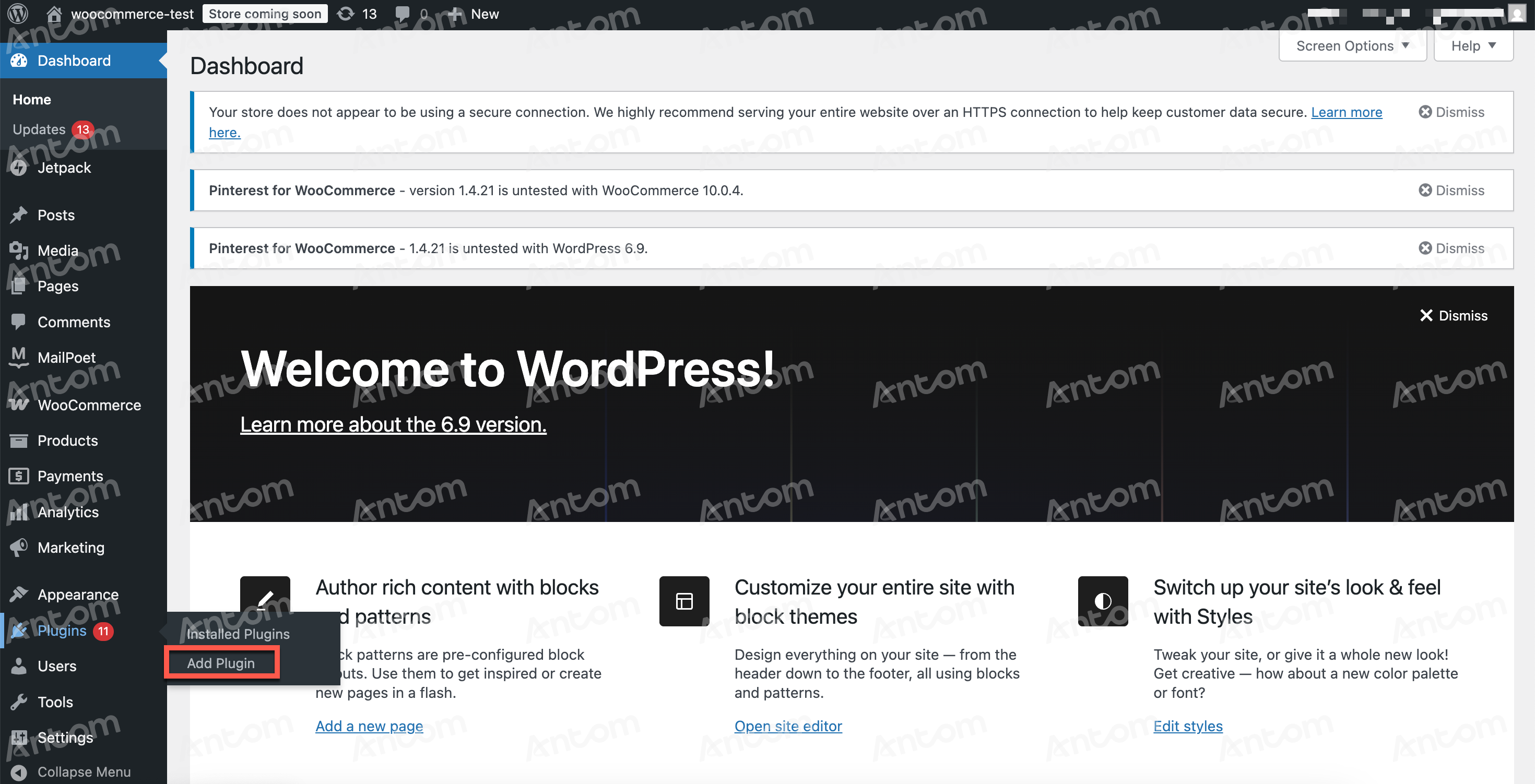
- Search for Antom Payments in the search bar on the right and select Antom Payments by Atom.
- After reading the relevant information of the plug-in, click Install and activate. The system displays that the download is complete, which indicates that the plug-in is installed successfully.
Through the WooCommerce website
- Log in to WooCommerce website, click on Extensions and select WooCommerce Marketplace.
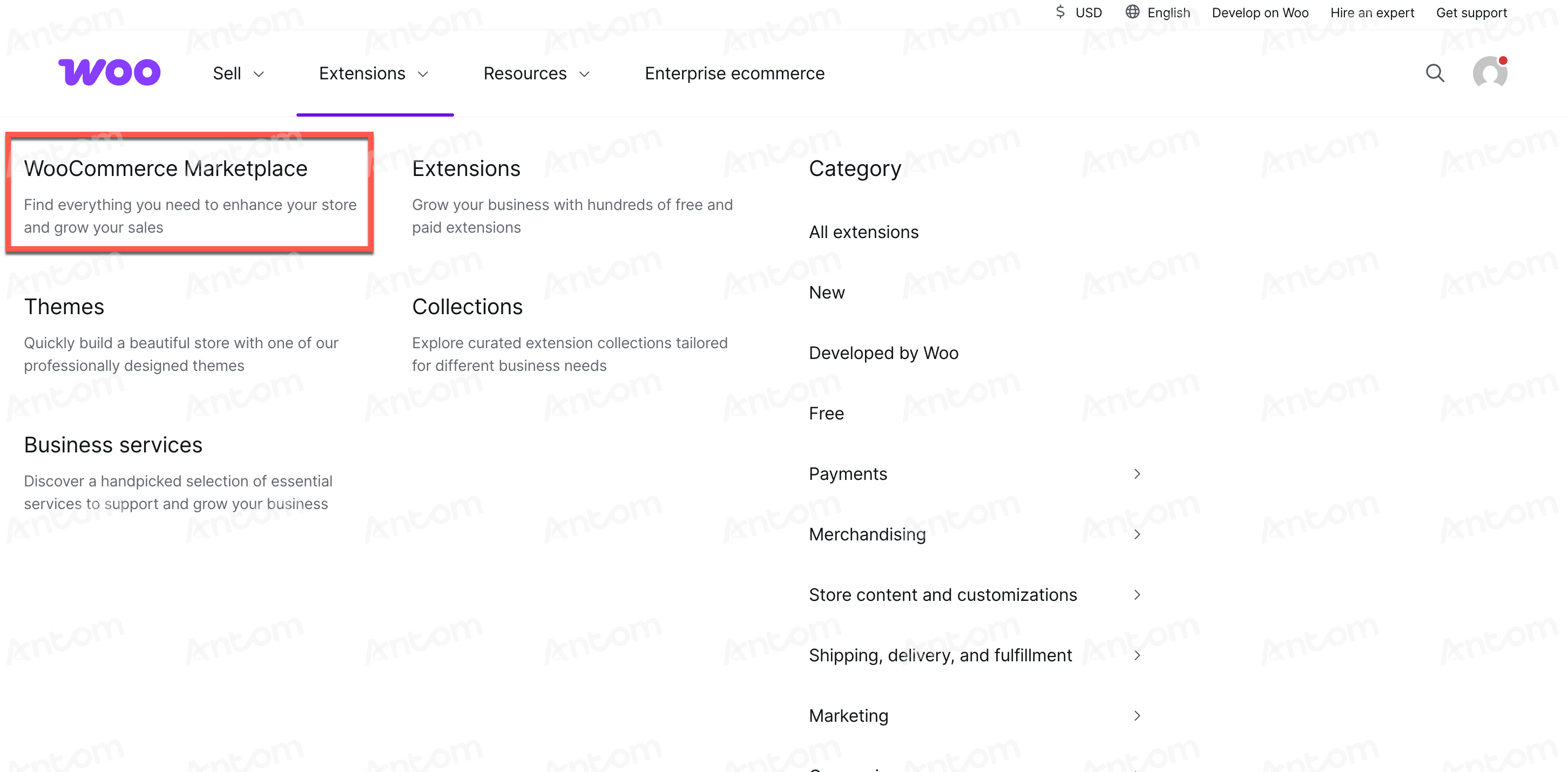
- In the search bar, type Antom Payments and click on the plugin.
- Follow the instructions to install the Antom plugin. Once installed, go to the Antom Dashboard to Register an account.
Create an Antom account
Follow the steps below to register your Antom account for WooCommerce business.
Note: Antom account for WooCommerce business has to be created by clicking the Register new account button. Account registered in other channels cannot be used for WooCommerce business.
Step 1: Register an account
After installing and activating the plugin, click Register new account on the Payments page of the plugin to register an account, or click on this registration link to register directly.
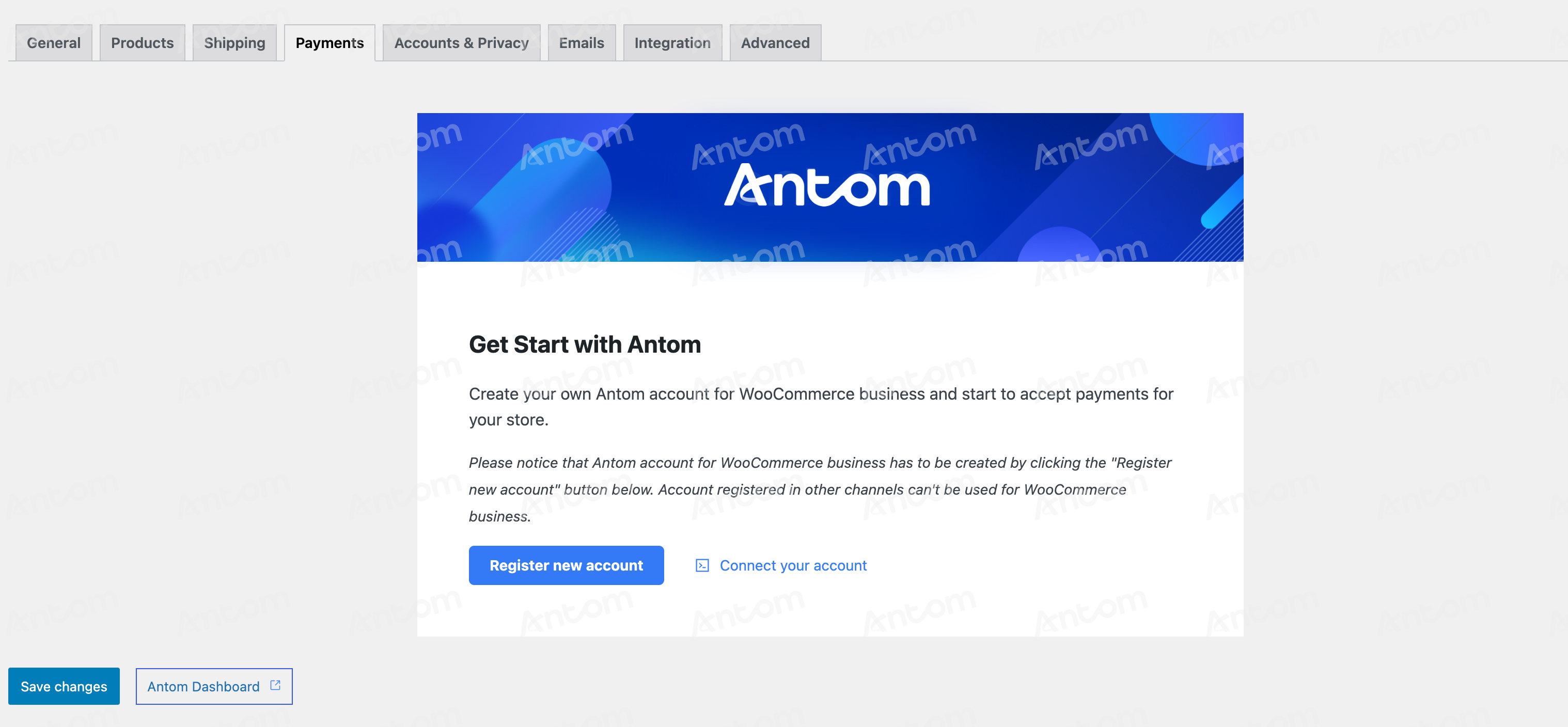
Step 2: Submit KYC and activate your account
- After registering your account, log in to Antom Dashboard,click the Start button on the homepage, and follow the on-screen instructions to complete and submit your KYC information. Wait for approval to activate your account.
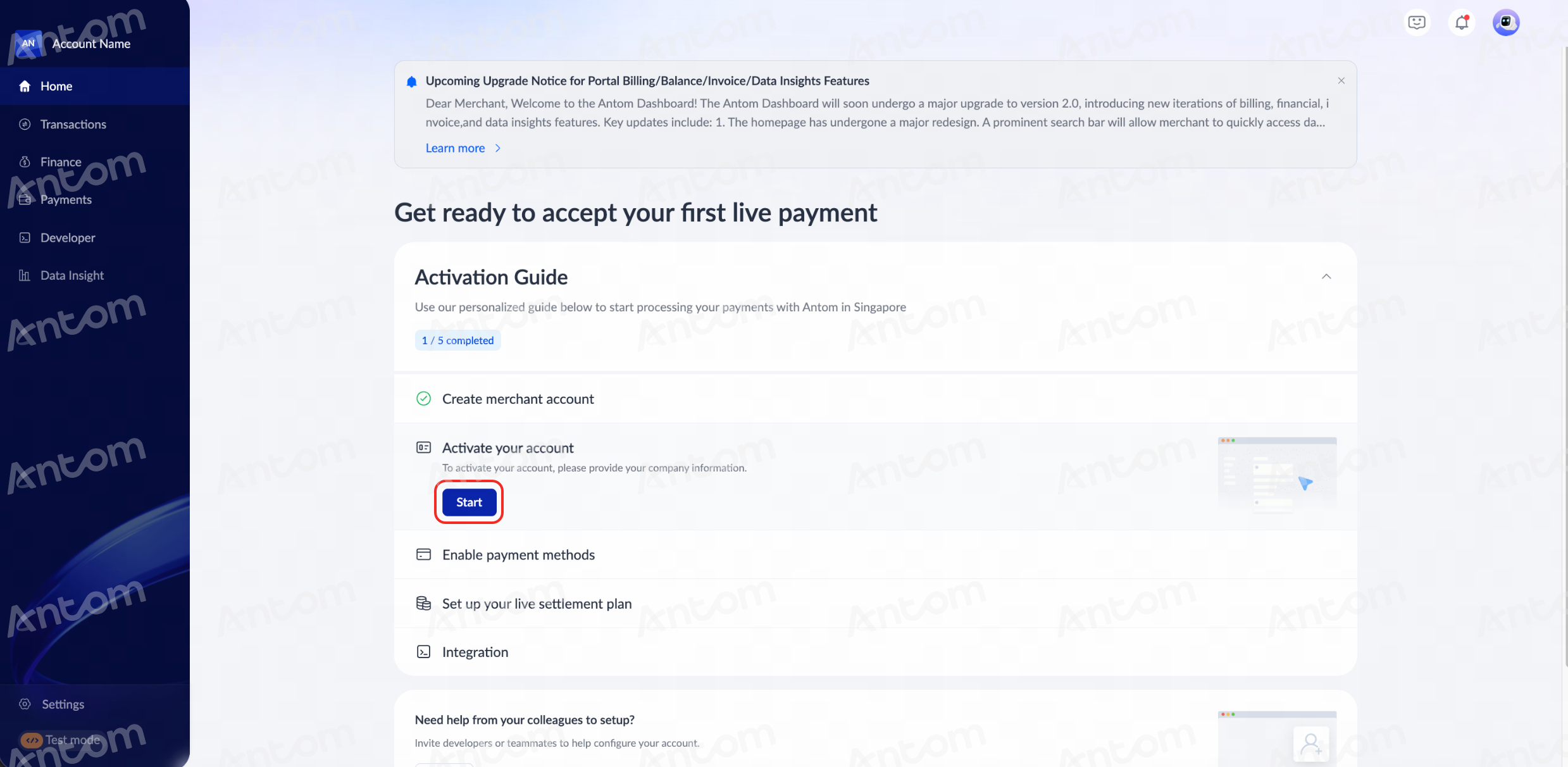
Note: The activation approval process usually takes 1–2 days. Before your account is activated, Antom Dashboard cannot be switched to production mode. You may first test your plugin in the sandbox environment. For details, please refer to Test the plugin in sandbox.
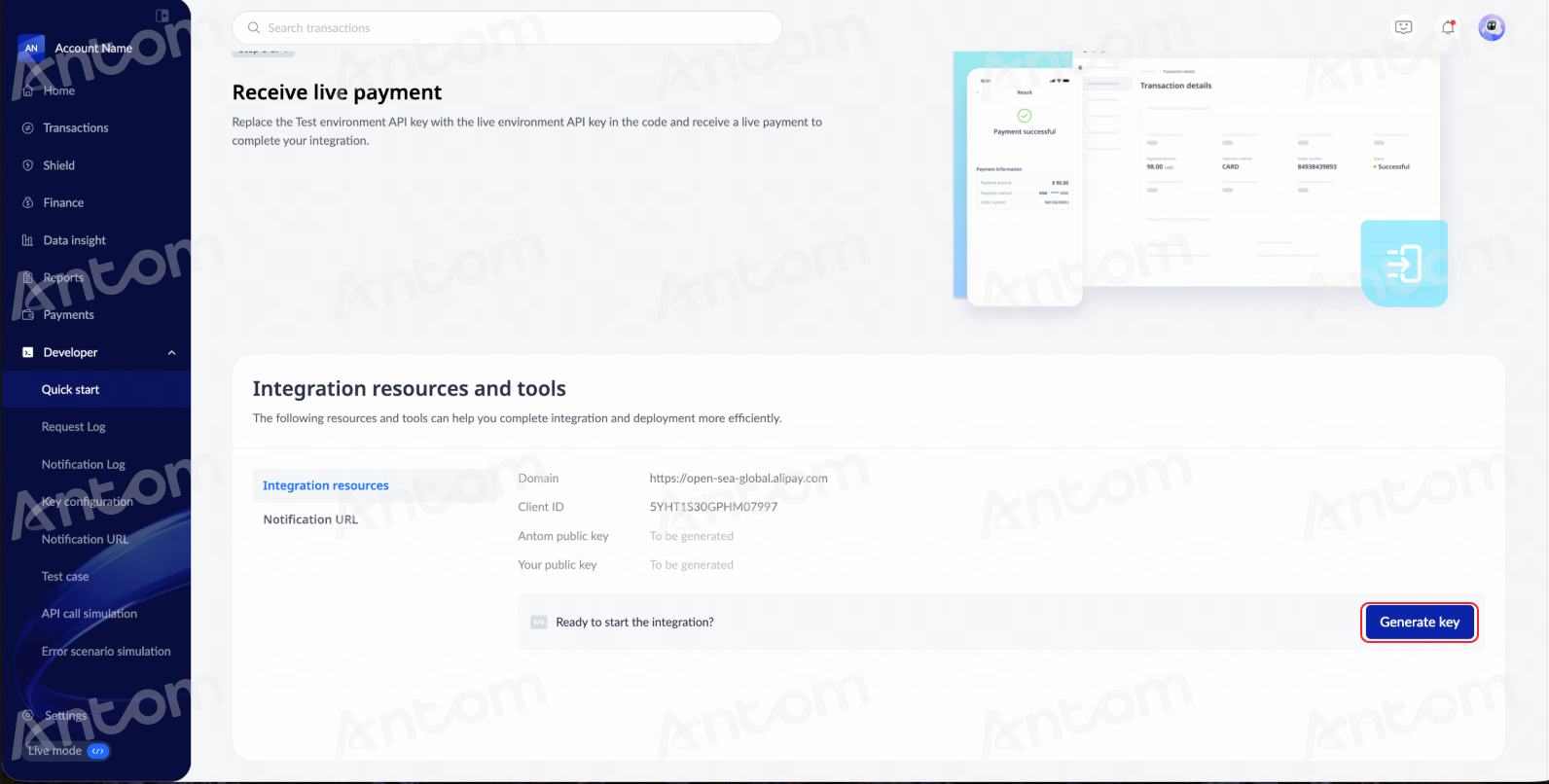
- After the account activation is approved, click Generate key to obtain the required information for plugin configuration. For detailed steps, refer to Generate keys.
Step 3: Enable payment method
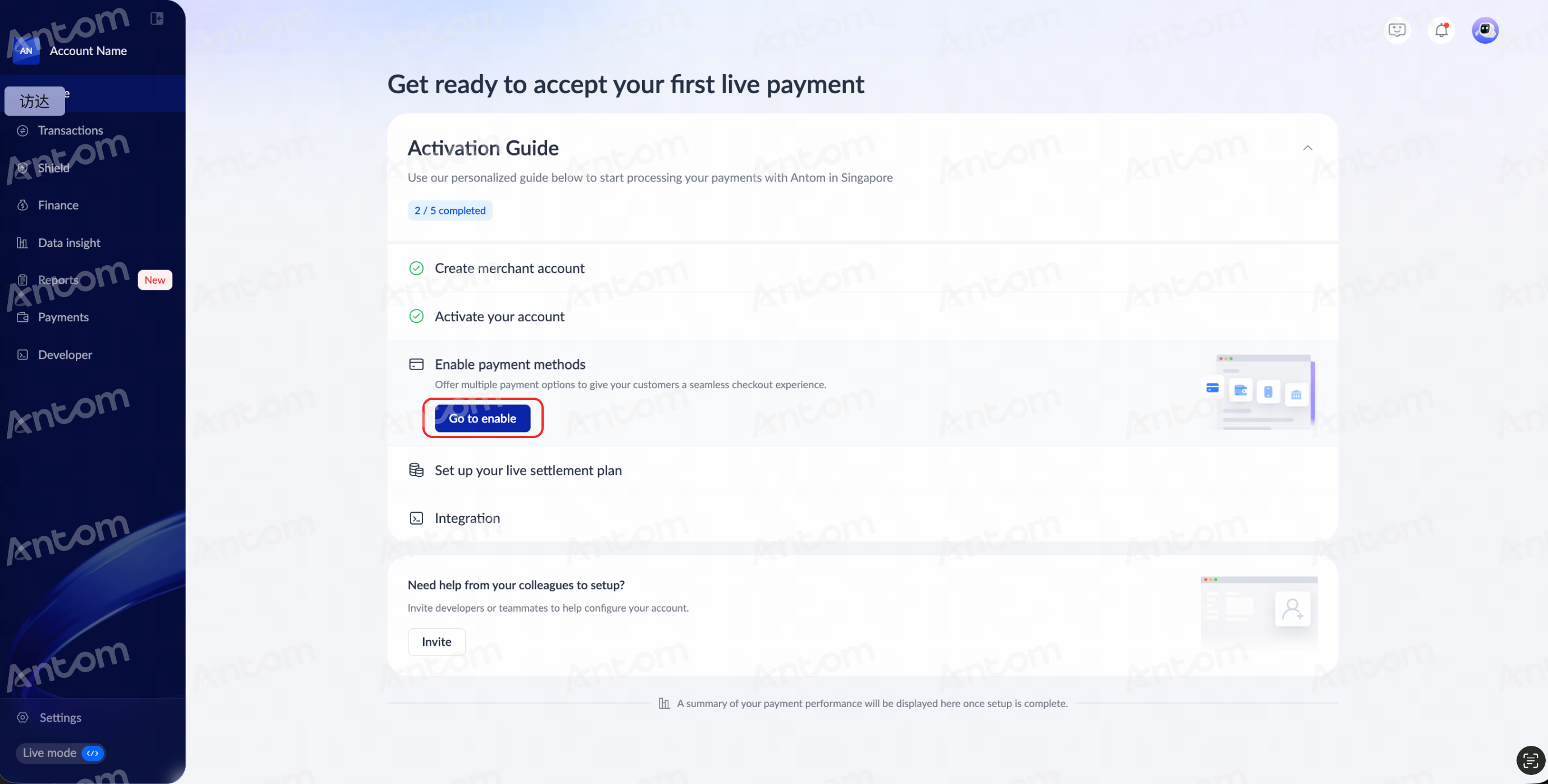
- When you receive the account onboarding approval email, log in to the Antom Dashboard and click Go to Enable to start configuring your desired payment methods.
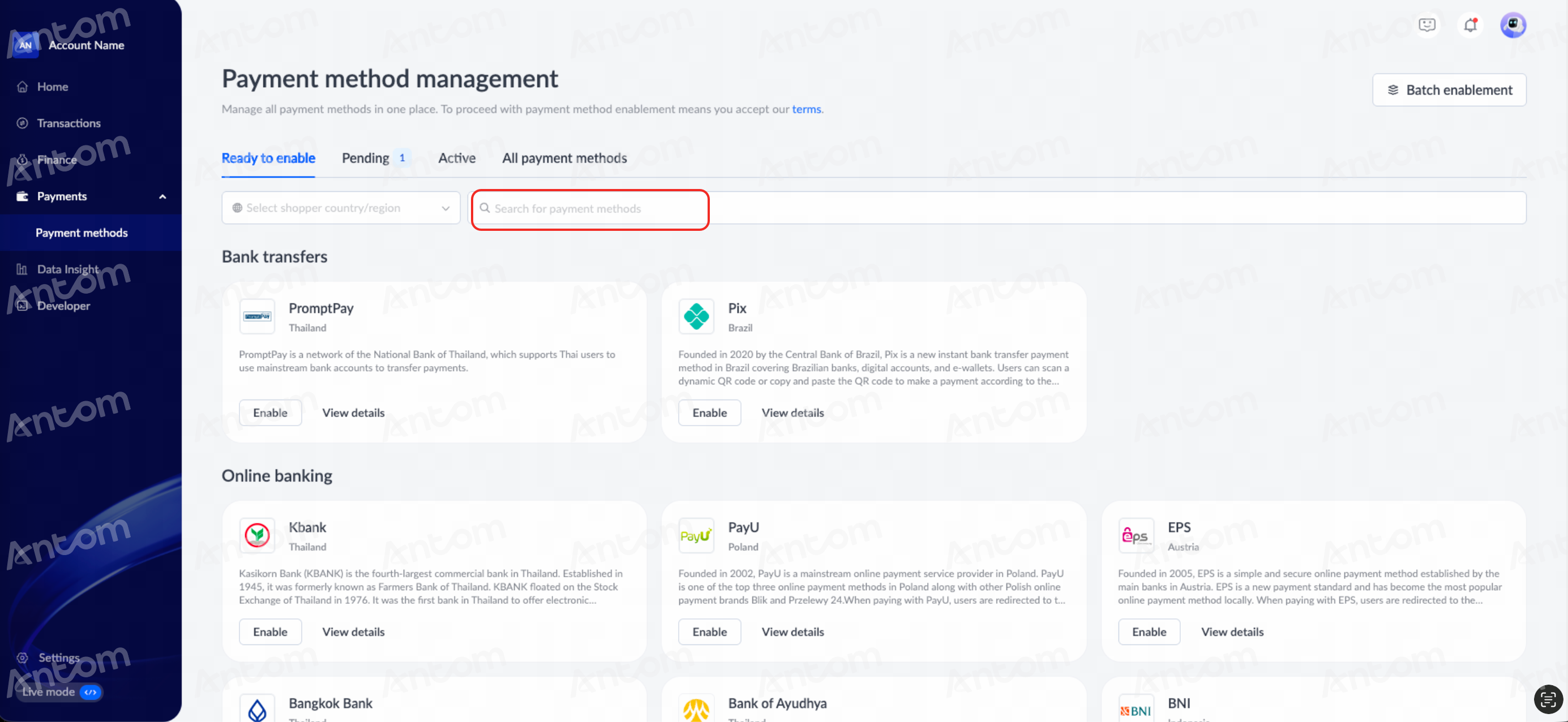
- On the Payment method management page, search for your preferred payment methods.
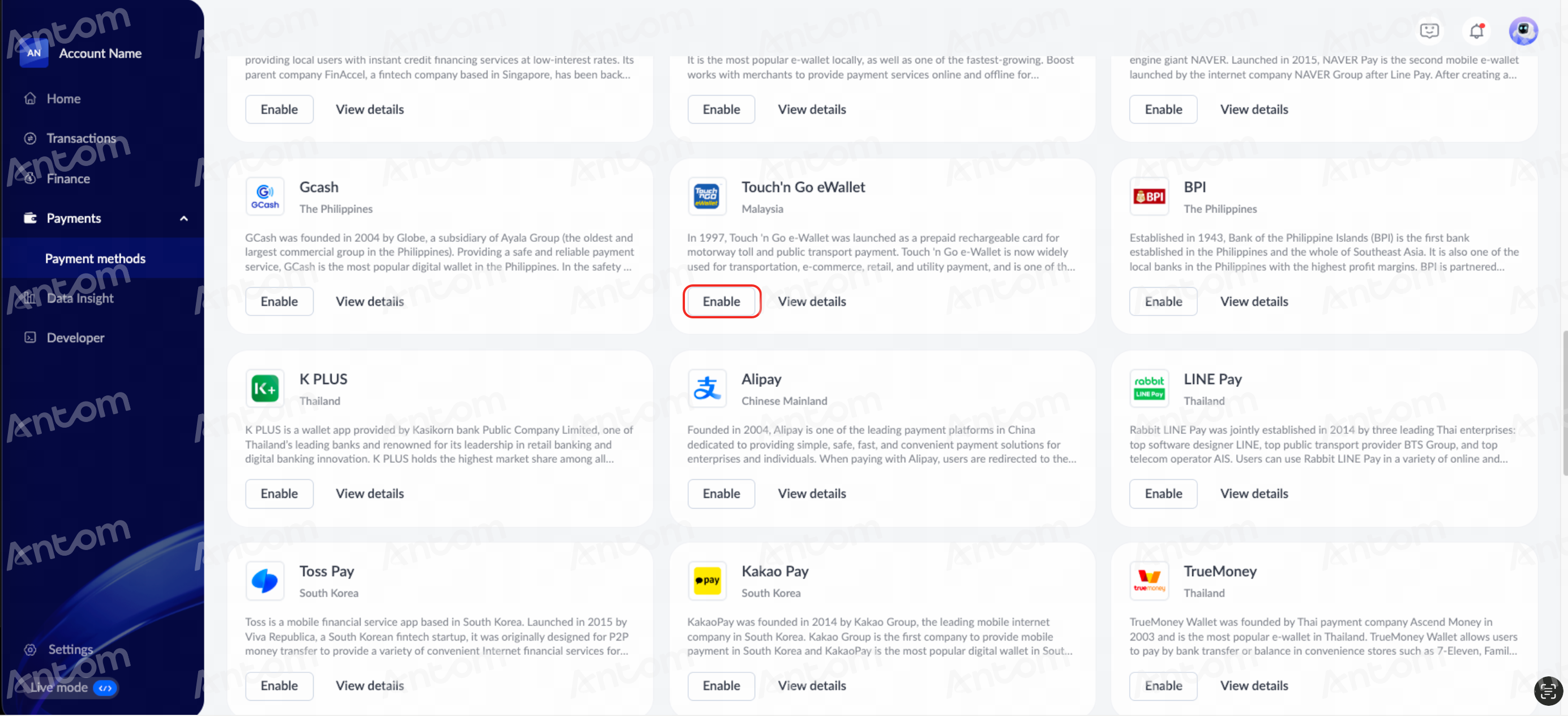
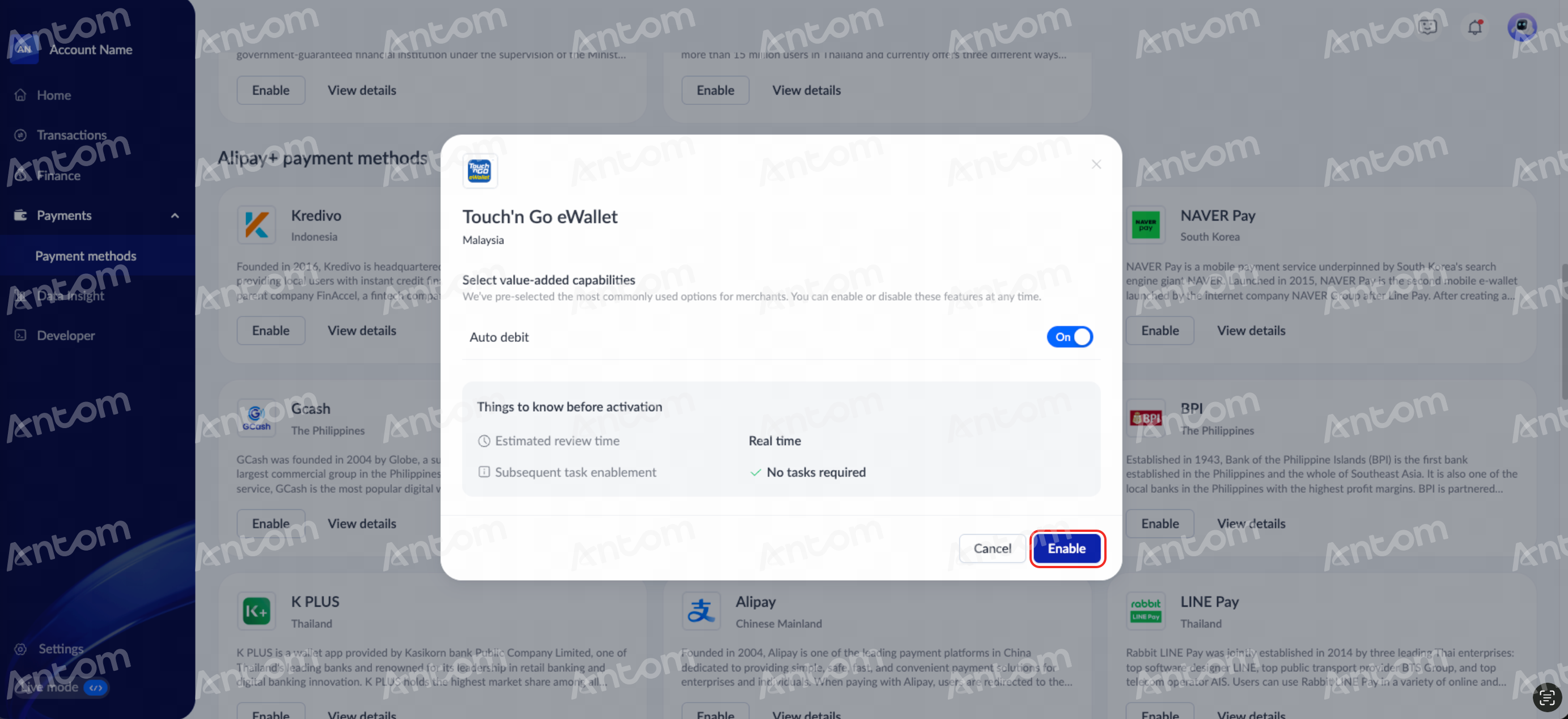
- After selecting the payment method, click Enable to activate it. Once you have read the payment method configuration notes, click Enable again to confirm activation of the payment method.
 |  |
- Return to the plugin configuration page and enable the corresponding payment methods as needed.
All-in-one payments
Click Complete setup on the right side of Antom Payments to enter the configuration page. Enable the approved payment method, then click Save changes to confirm activation.

|

|
Based on the configuration in the WooCommerce admin panel, the checkout page displayed to customers is as follows:


- In production mode, you can change your settlement currency and bind your settlement card. For details, please refer to View settlement info.
Test the plugin in sandbox
Before you officially open the plugin to users, we recommend testing the plugin in sandbox mode, according to the following steps. If you do not need to integrate the sandbox test, please skip this step and proceed to the Configure the plugin section.
- Click Connect your account or Settings to access the plugin configuration page.

- Check the Enable Test Mode box.
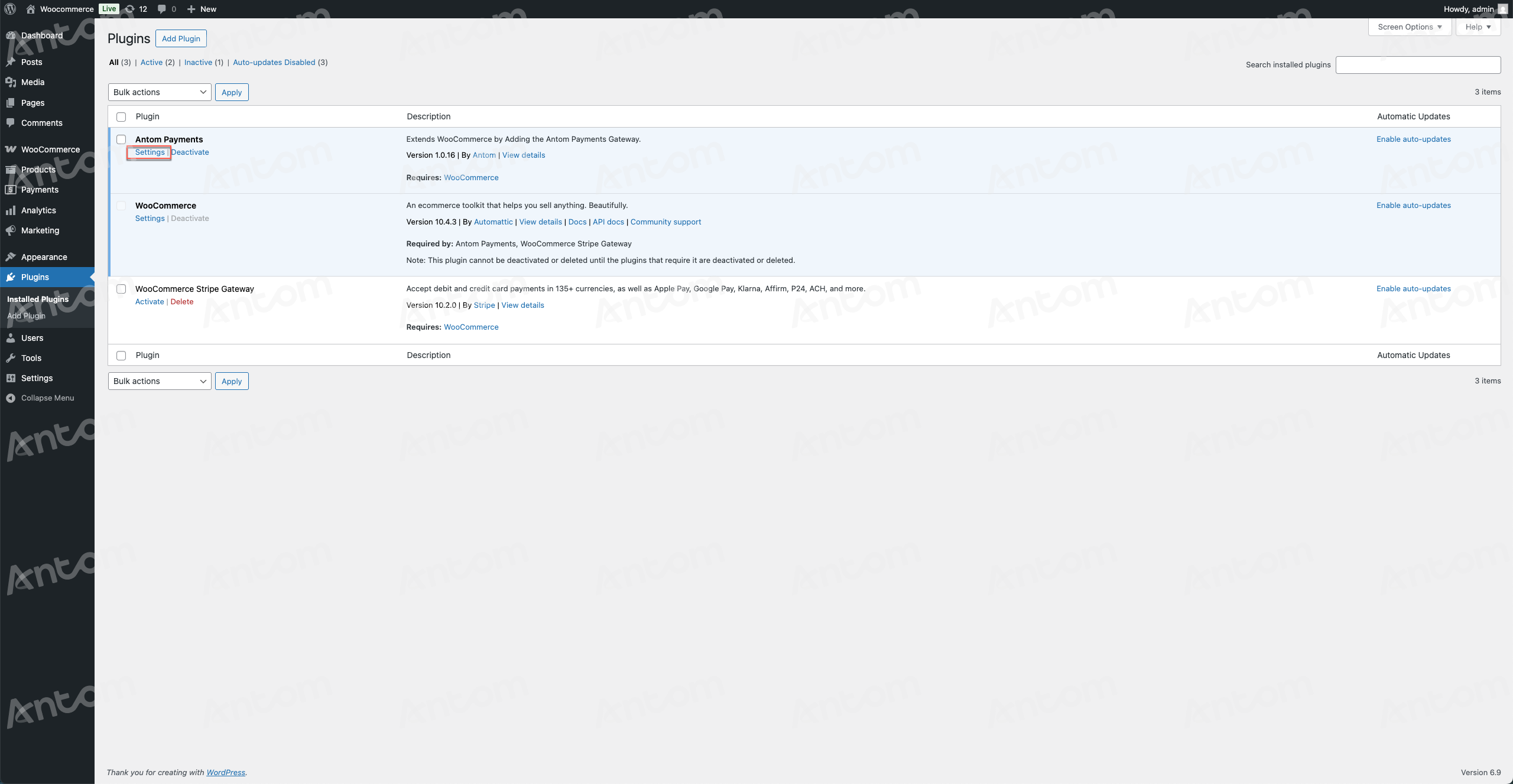
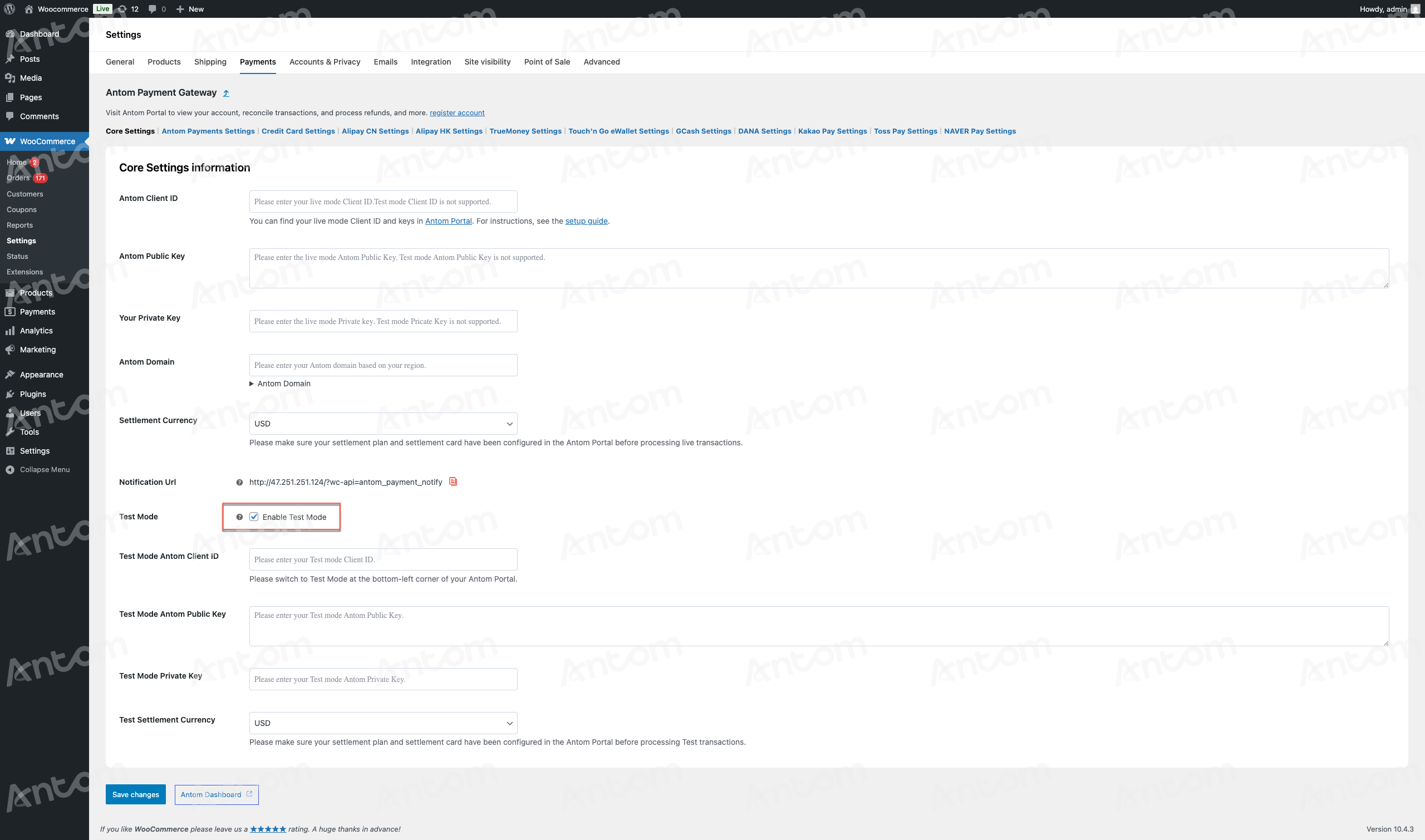
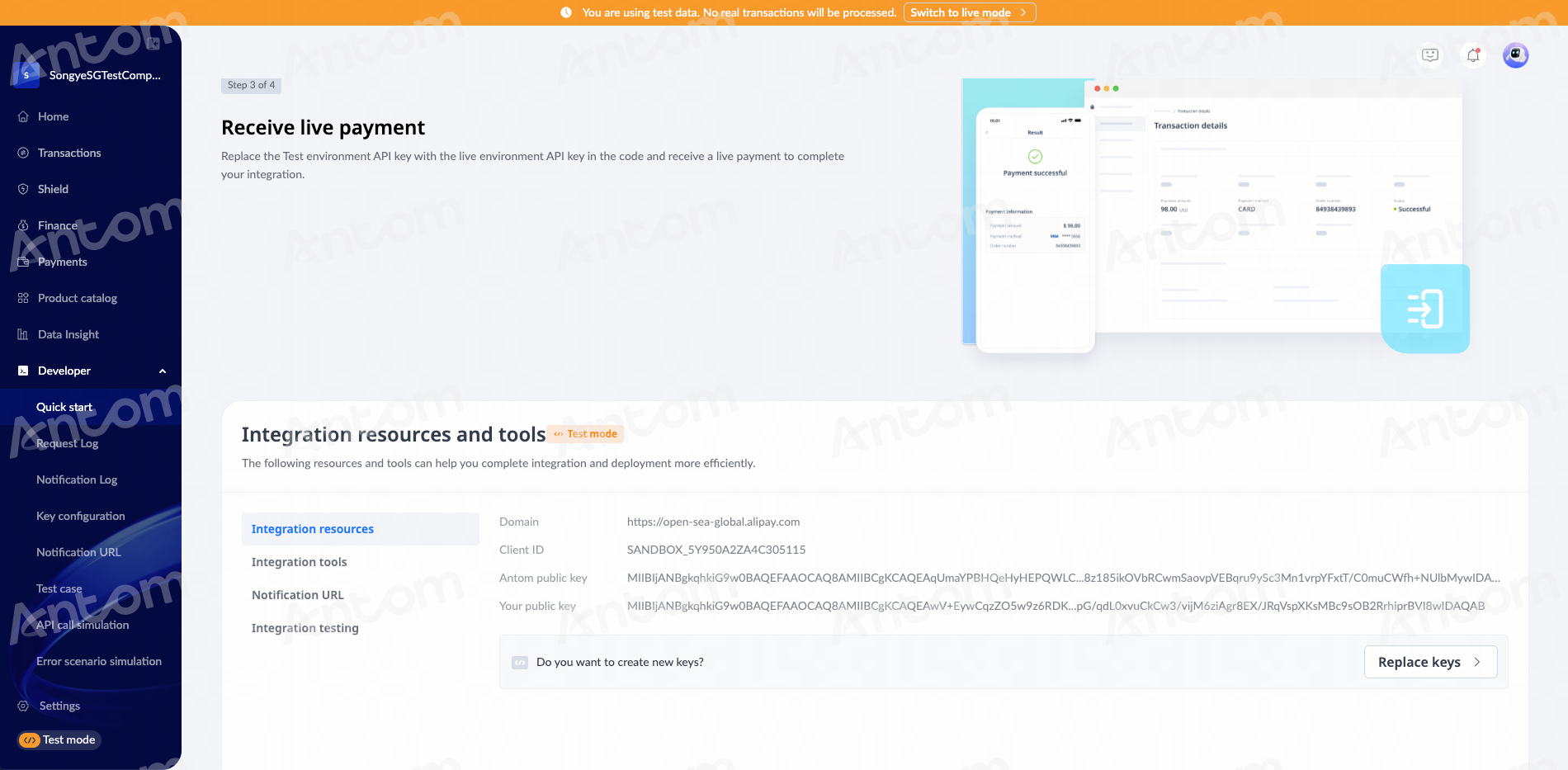
- Click Antom Dashboard to obtain configuration information in test mode. Refer to Sandbox configuration for the detailed process.
- Test Mode Antom ClientId: The unique ID assigned to your account in test mode.
- Test Mode Antom Public Key: The public key provided to you in test mode.
- Test Mode Your Private Key: The key used for authentication that matches the public key you configured on Antom Dashboard.
Note: Enable the test mode on Antom Dashboard to obtain configuration information for the test mode.
- Configure the Notification URL in test mode to receive payment notifications.
- Go to your store and add a product to your cart.
- Proceed to checkout.
- Enter the required billing details. We recommend using a real email address so that you can receive the order confirmation.
- Select the wallet payment provided by the Antom Payments plugin and check the terms and conditions box.
- Click Place order. You'll be redirected to the code-scanning page. Use the wallet app scan the code and complete the payment.
- Sign in to your WordPress account as an administrator. Select WooCommerce in the left menu. Your test order is displayed with a Processing status. You can also view this order payment request in Antom Dashboard.
Configure the plugin
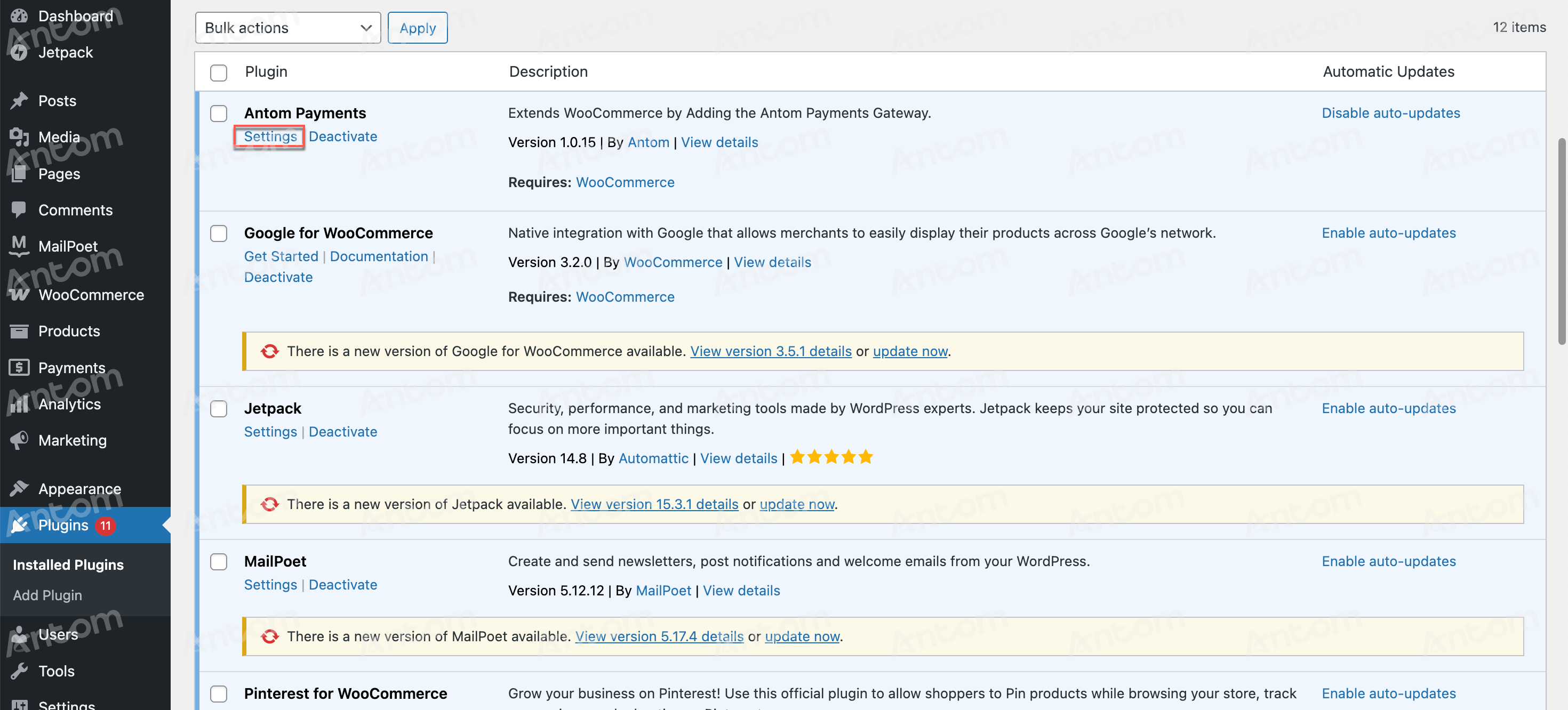
1. After your Antom account is successfully activated, log in to WordPress website and click the Settings button under the Antom Payments plugin to enter the plugin configuration page.
 | 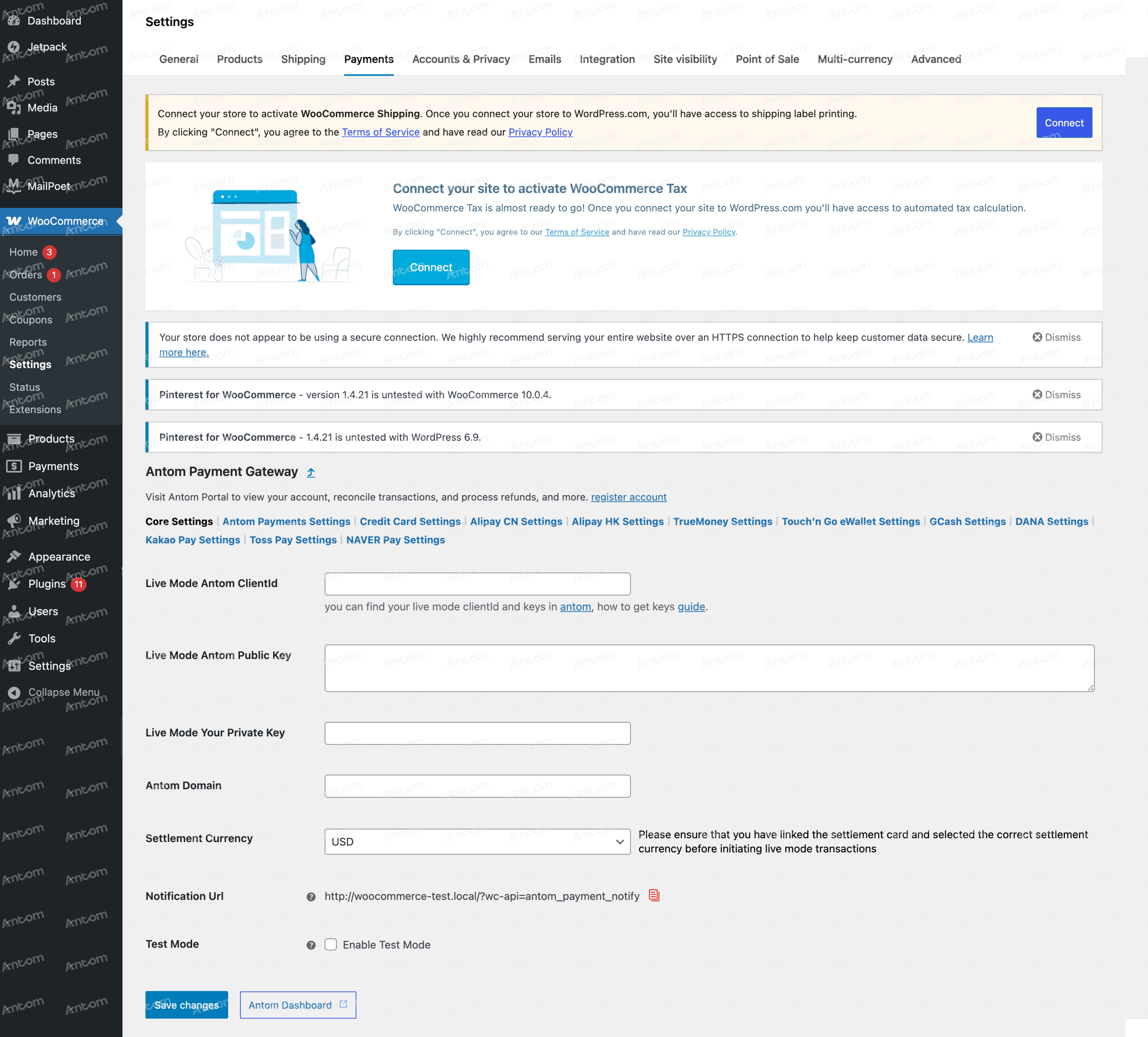 |
- Click Antom Dashboard to obtain the following configuration information. For detailed steps, please refer to Go live.
- Live Mode Antom ClientId: The unique ID assigned to your account in live mode.
- Live Mode Antom Public Key: The public key provided to you in live mode.
- Live Mode Your Private Key: The key used for authentication that matches the public key you configured on Antom Dashboard.
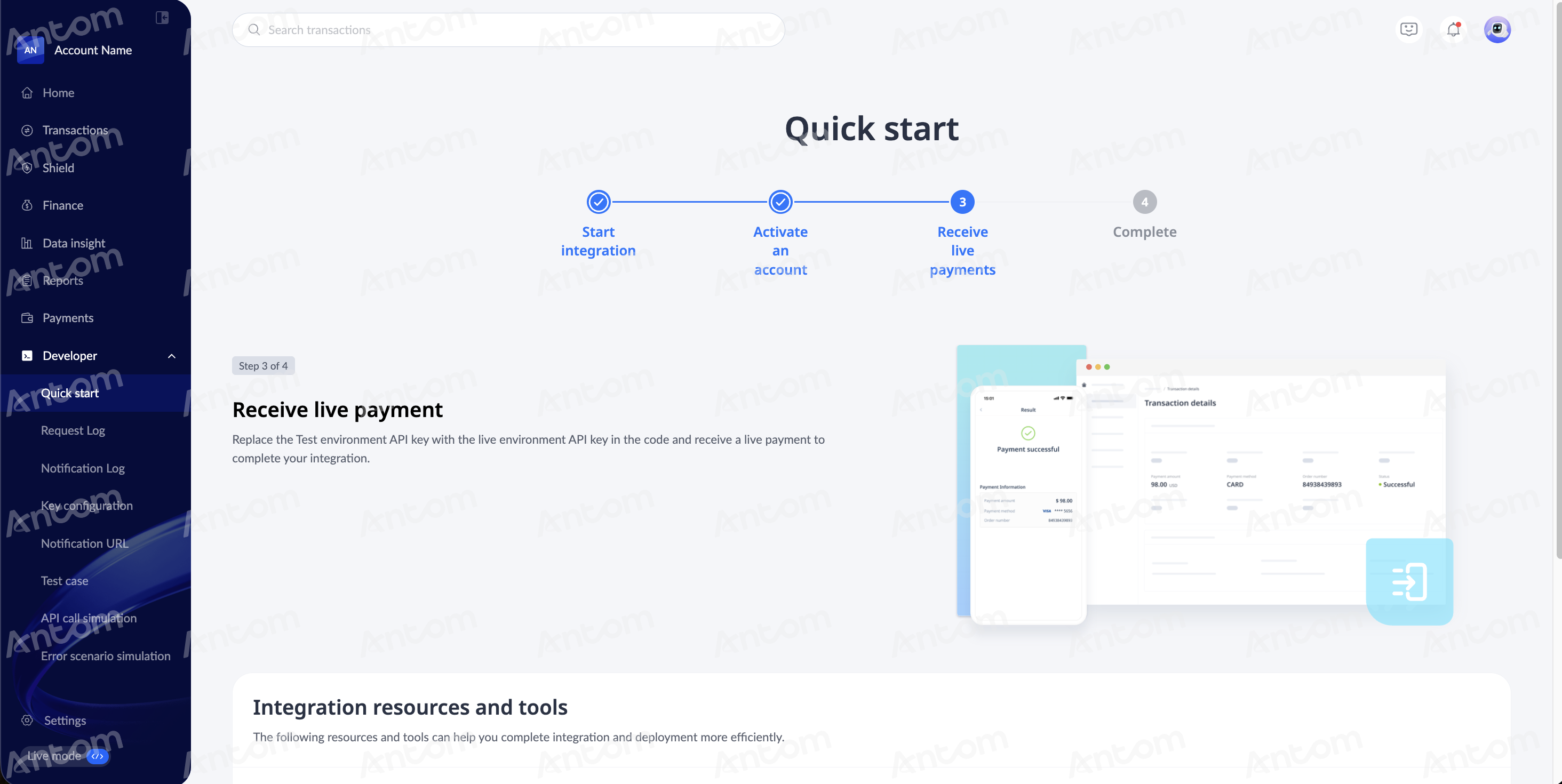
- View the bound settlement card and settlement currency on the Settlement overview page.
Note: Before initiating a transaction in live mode, ensure that you have completed the settlement card binding in Antom Dashboard and specified the corresponding currency on the plugin configuration page.
Configure the notification URL
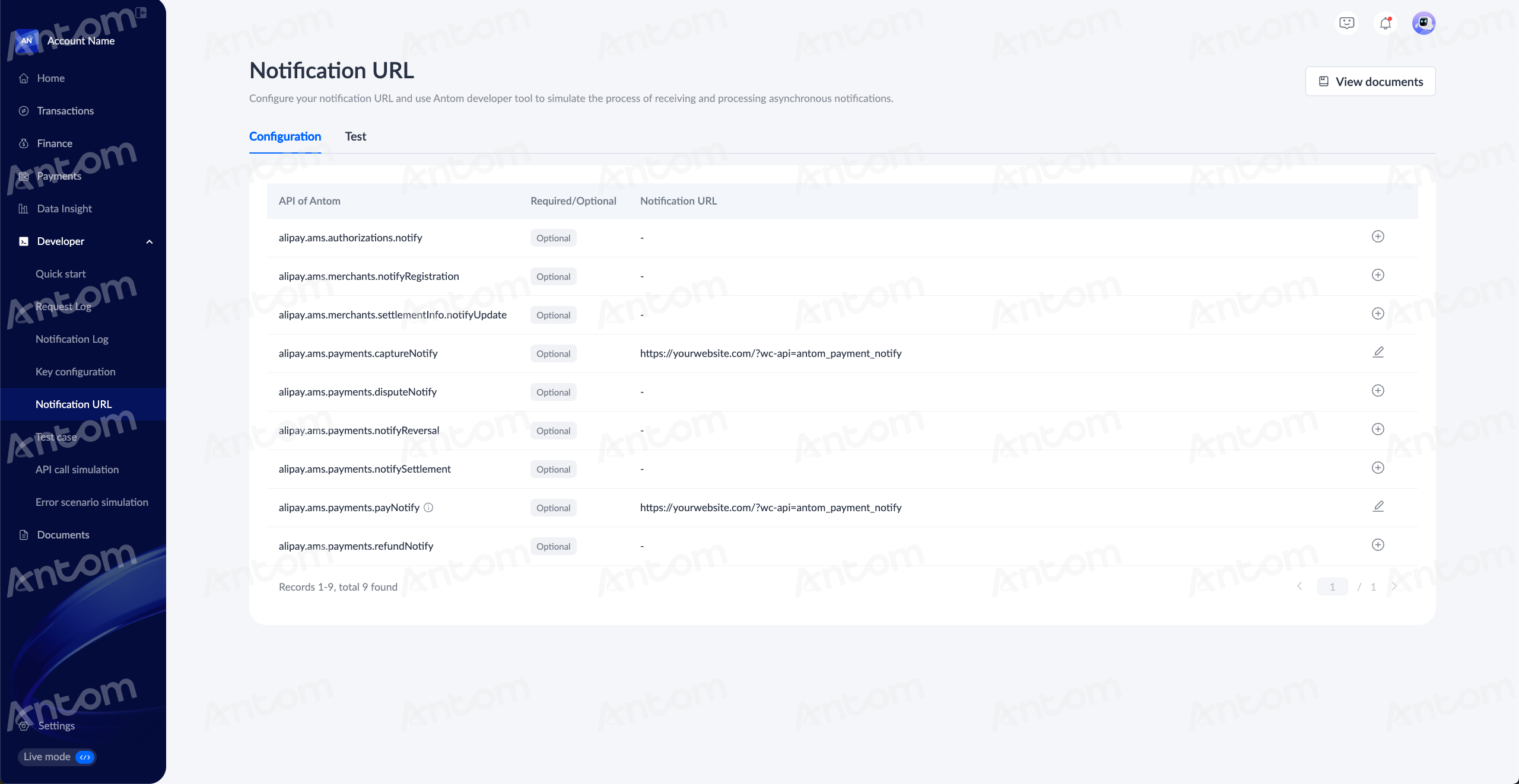
After setting up the plugin configuration information, you need to configure the notification URL in live mode to receive payment notifications as following steps.
- Obtain the notification URL in the Notify Url option of the Antom Payments plugin.
- Set alipay.ams.payments.payNotify and alipay.ams.payments.captureNotify on Notification URL page in live mode.
Test notification URL in live
In order to test whether you can receive the notification correctly in the live mode, you can initiate a payment request (such as AlipayHK). If you do not have an AlipayHK wallet to pay, you can wait until the payment expires (The default is 15 minutes; when you set the inventory expiration time, the payment expiration time is equal to your inventory expiration time). At this time, Antom will send a notification to your WordPress, setting the order status to FAIL.
- If your notification configuration is correct, the order status will be set to FAIL after the deadline.
- If the order status remains pending payment, it indicates that your notification may not be configured correctly. You need to check whether the notification URL, public/private key, and clientId on the plugin configuration page are consistent with those on the Antom Dashboard.
Go live
Before going live, please review the following checklist. After completing these checks, you will be ready to process real transactions with the plugin.
- Ensure you have completed a payment in sandbox and the order status has been successfully updated.
- Ensure the Enable Test option is unenabled on the plugin setting page.
- Ensure the payment method has been activated on Antom Dashboard Payment methods page.
- Ensure the notification address has been configured on Antom Dashboard Notification URL page.