
Shopify plugin installation guide
This document will guide you through the installation of the official Antom Shopify plugins and explain how to create and activate a Shopify account in the Shopify admin portal. Currently, Antom offers two official Shopify plugins: Antom (Ant Intl) – Credit Card and Antom Payments (Ant Intl). The installation process for each plugin is detailed in the following sections.
Antom (Ant Intl) - Credit Card
Step 1: Install the plugin
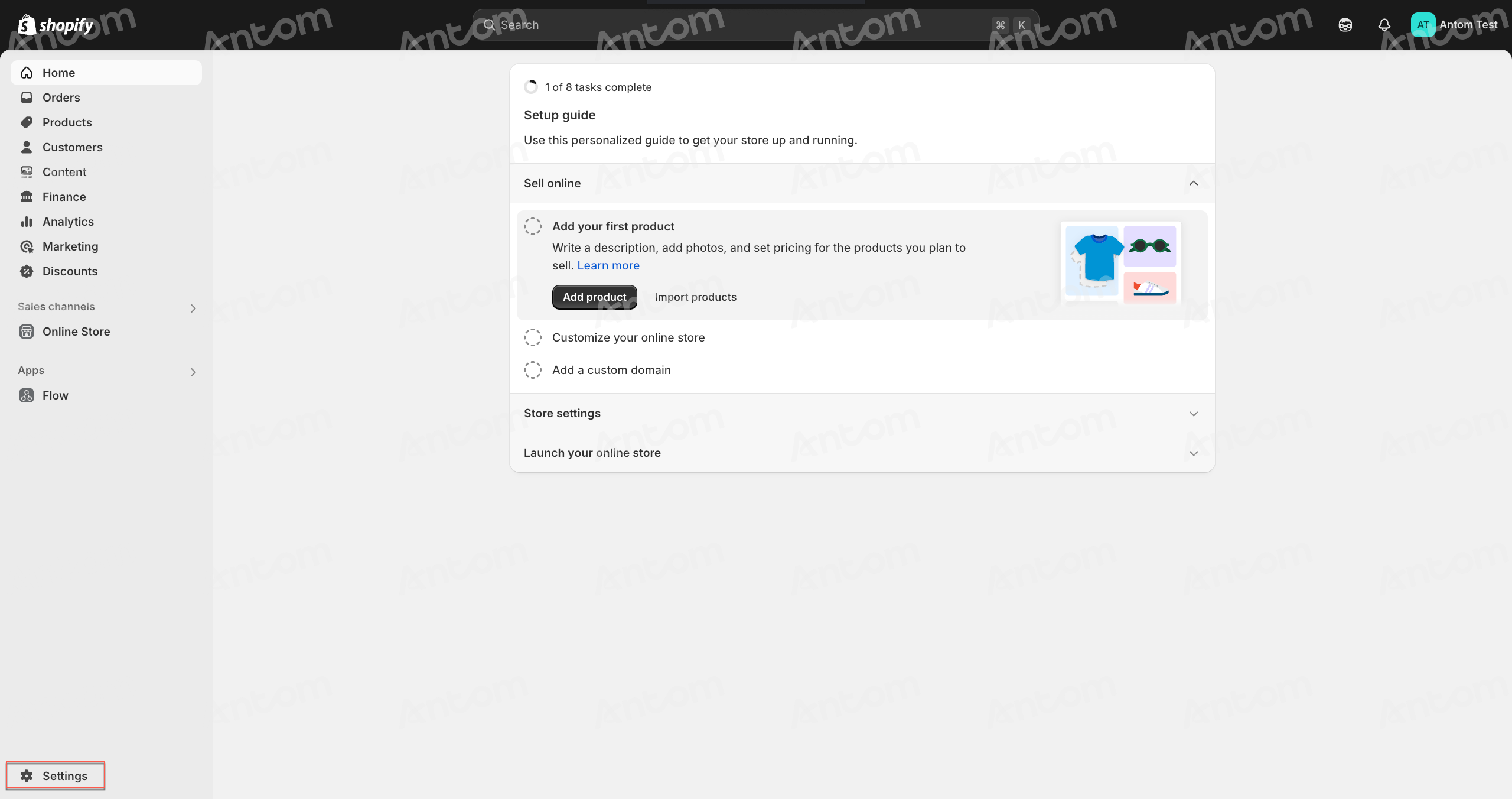
- Log in to your Shopify admin portal and click Settings to open the settings page.
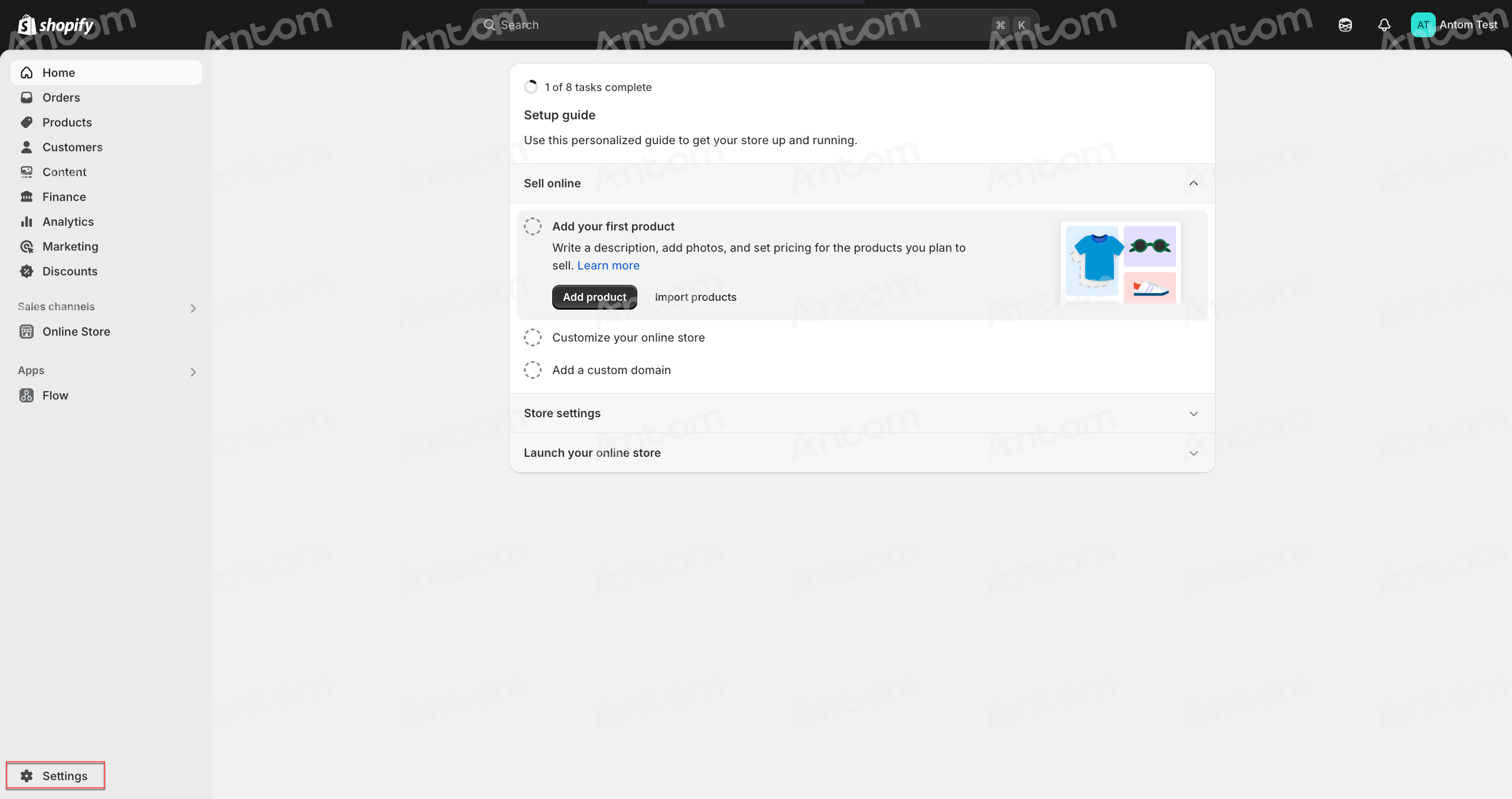
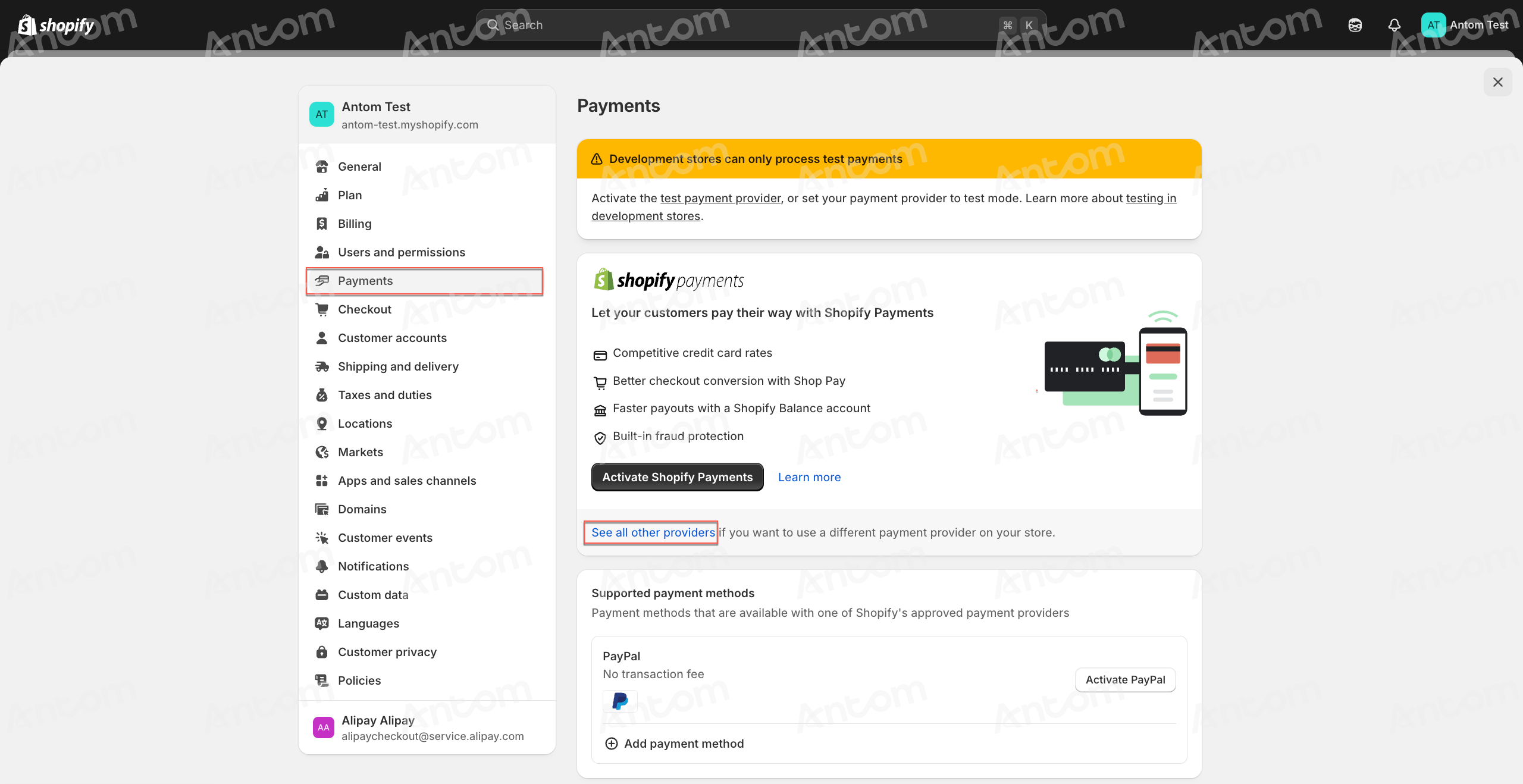
- On the Settings page, click Payments in the left navigation panel, then click See all other providers.
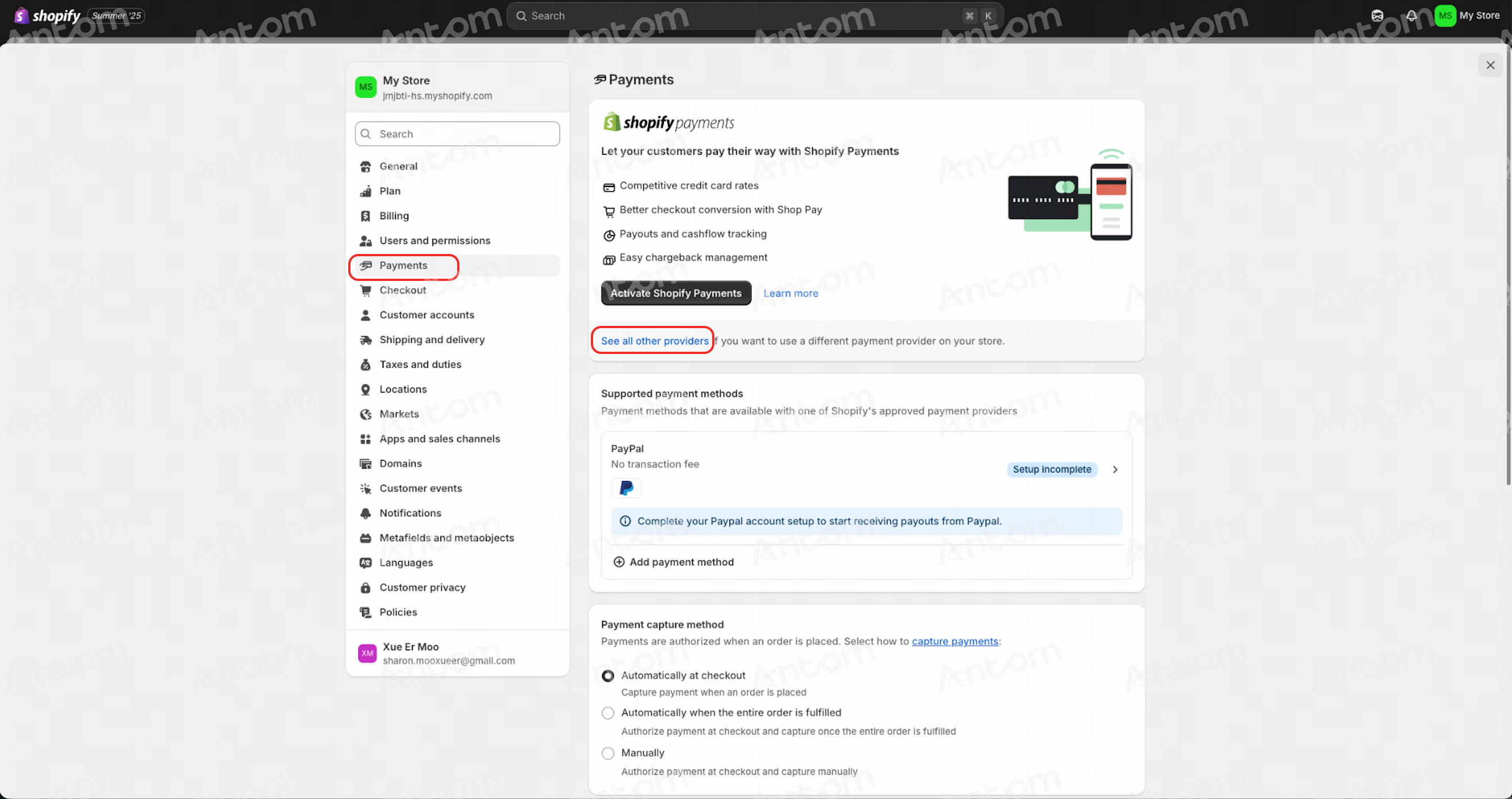
- Search for and click on Antom (Ant Intl) - Credit Card in the list.
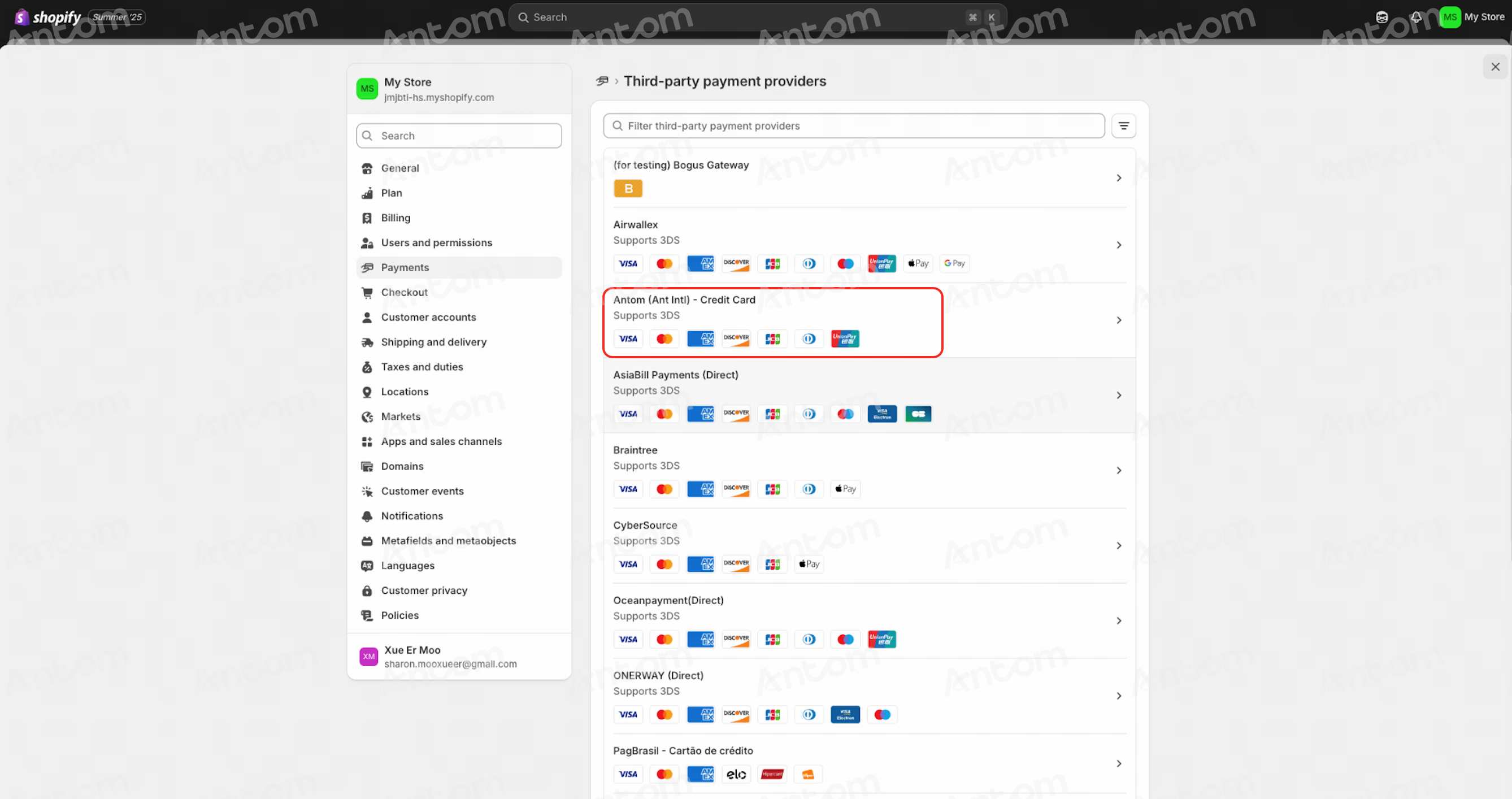
- Click Install to enter the installation page. After reading the installation notice, click Install again to begin the installation.
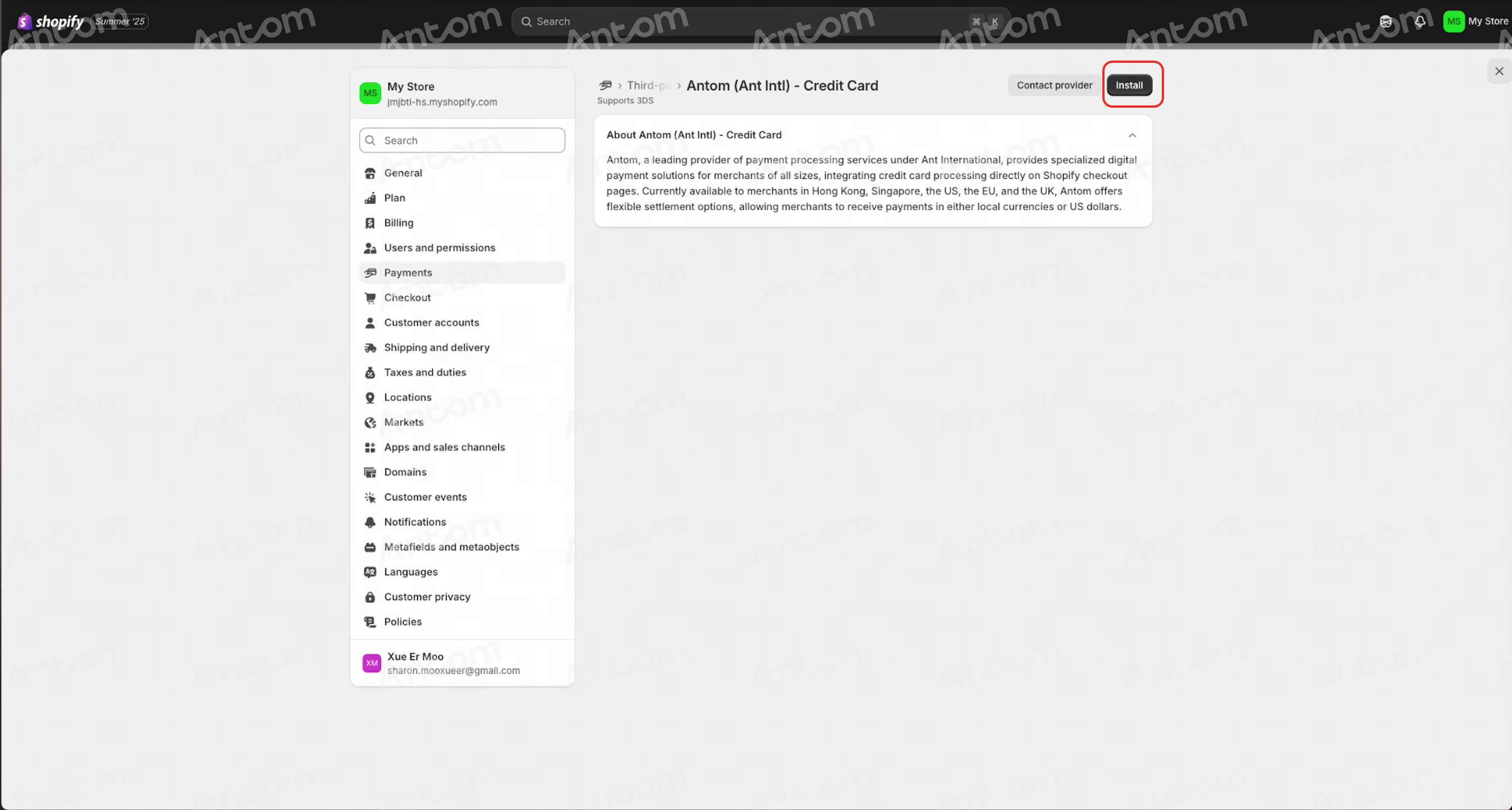 | 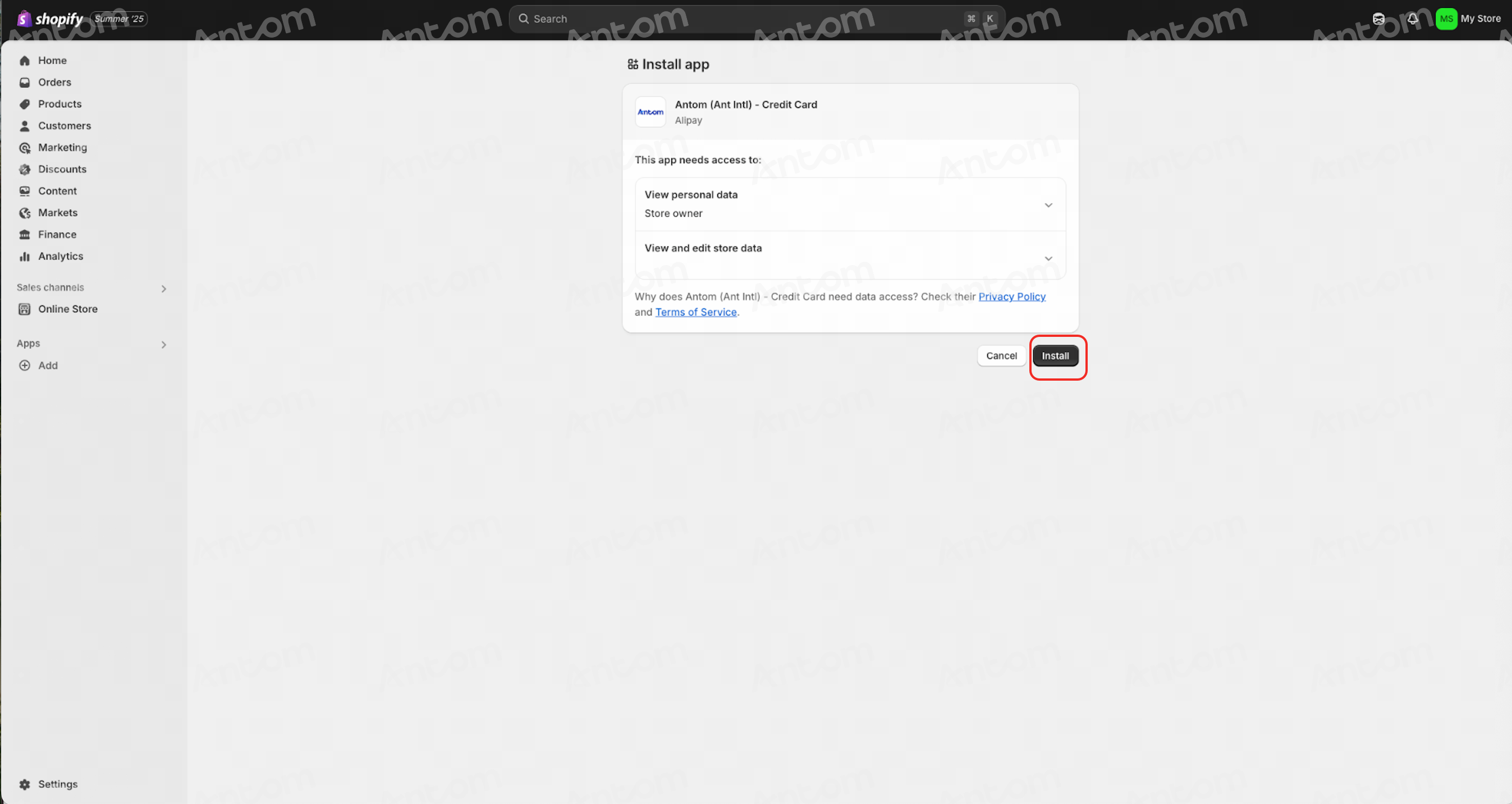 |
Step 2: Create and activate Antom account
- After completing the installation on the Shopify page, you will be automatically redirected to the Antom Dashboard. When logging in for the first time, you need to create an Antom account.
Note: Before submitting your registration, please make sure that the Merchant Registration Location is correct. This information cannot be modified once the registration is completed.
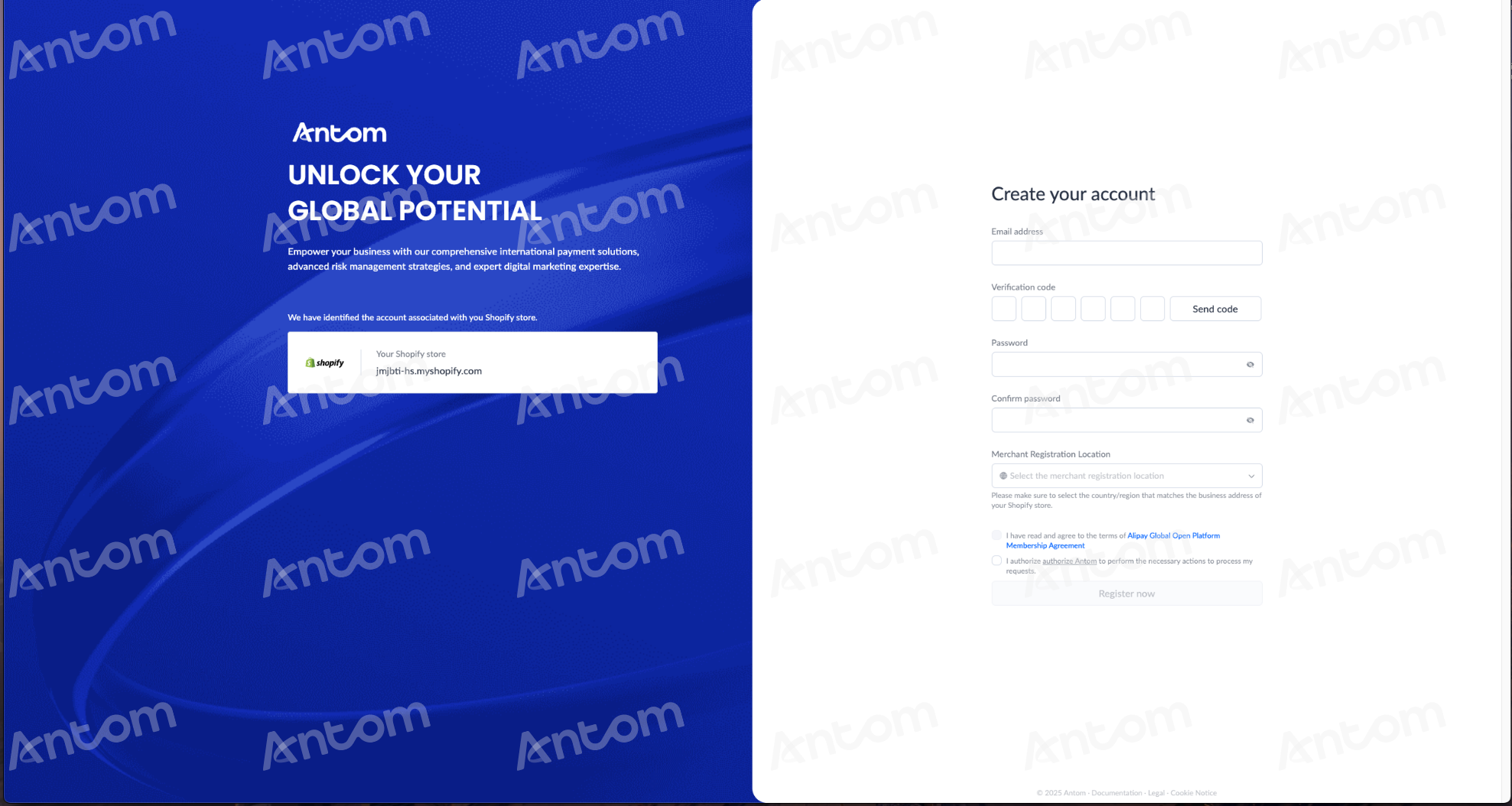
- Depending on your region, follow the related steps to activate your Antom account.
US/UK merchants
a. Follow the on‑screen instructions according to your region to complete the KYC form. After filling in the required information, review all details, check the box to agree to the terms and conditions, and click Confirm and submit to complete the application. Before submitting, please make sure the Company Type is correct. Once the KYC review is approved, this information cannot be modified.
b. After the KYC form is submitted, it will enter Antom’s review process, which is expected to take 7–9 business days.

c. After the review is approved, click here on the Antom Dashboard homepage, or log in to the Shopify admin panel to configure your payment methods.


Step 3: Enable payment method
Note: Merchants from Hong Kong or Singapore must complete this step. If you are based in the United Kingdom or the United States, please skip this step and proceed directly to Step 4: Activate the payment method on the Shopify.
- Once your Antom account is approved, log in to the Antom Dashboard and click Go to enable on the homepage.
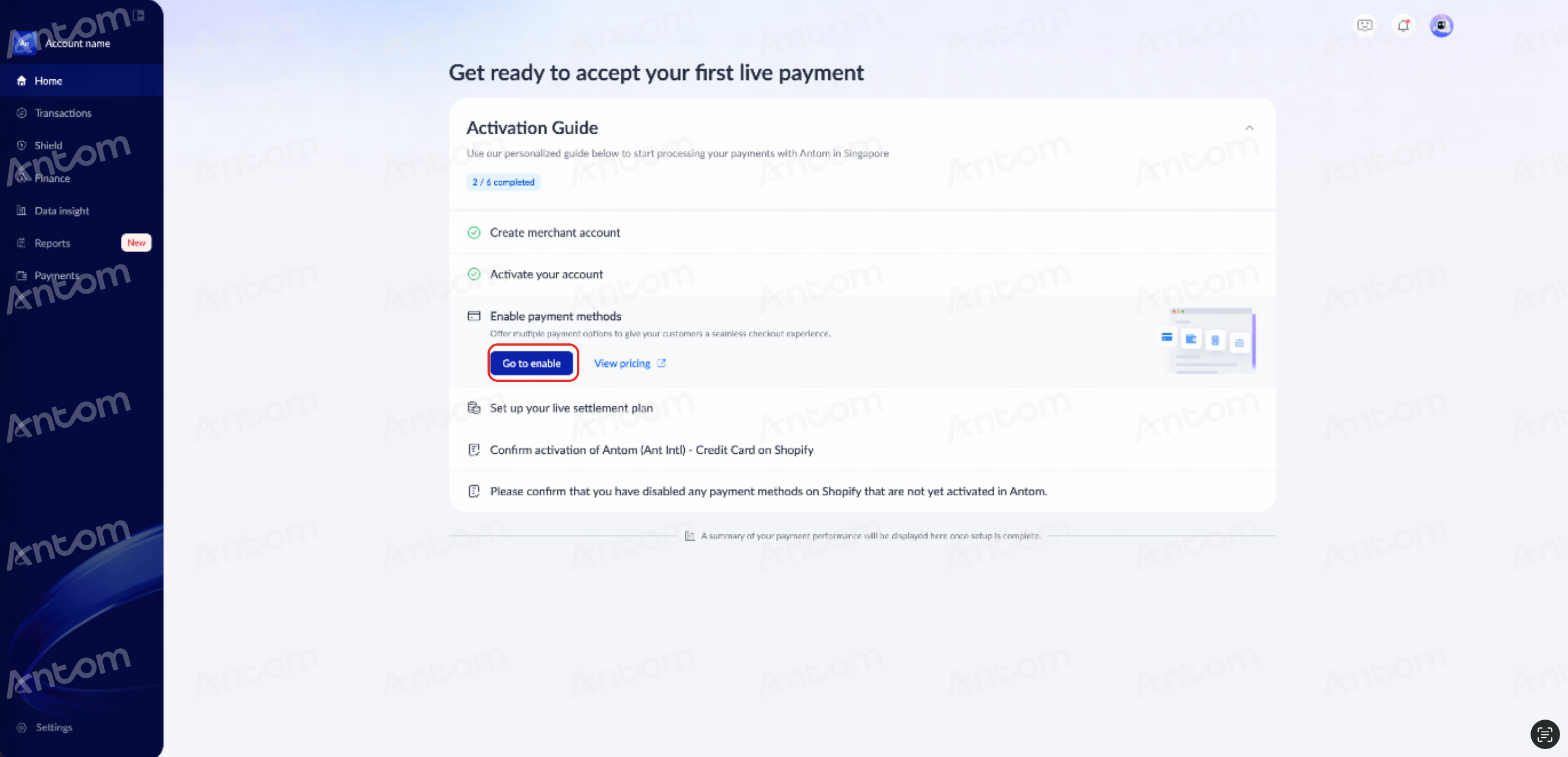
- Select the payment method you wish to activate and click Enable. In the pop-up window, click Enable again to confirm.
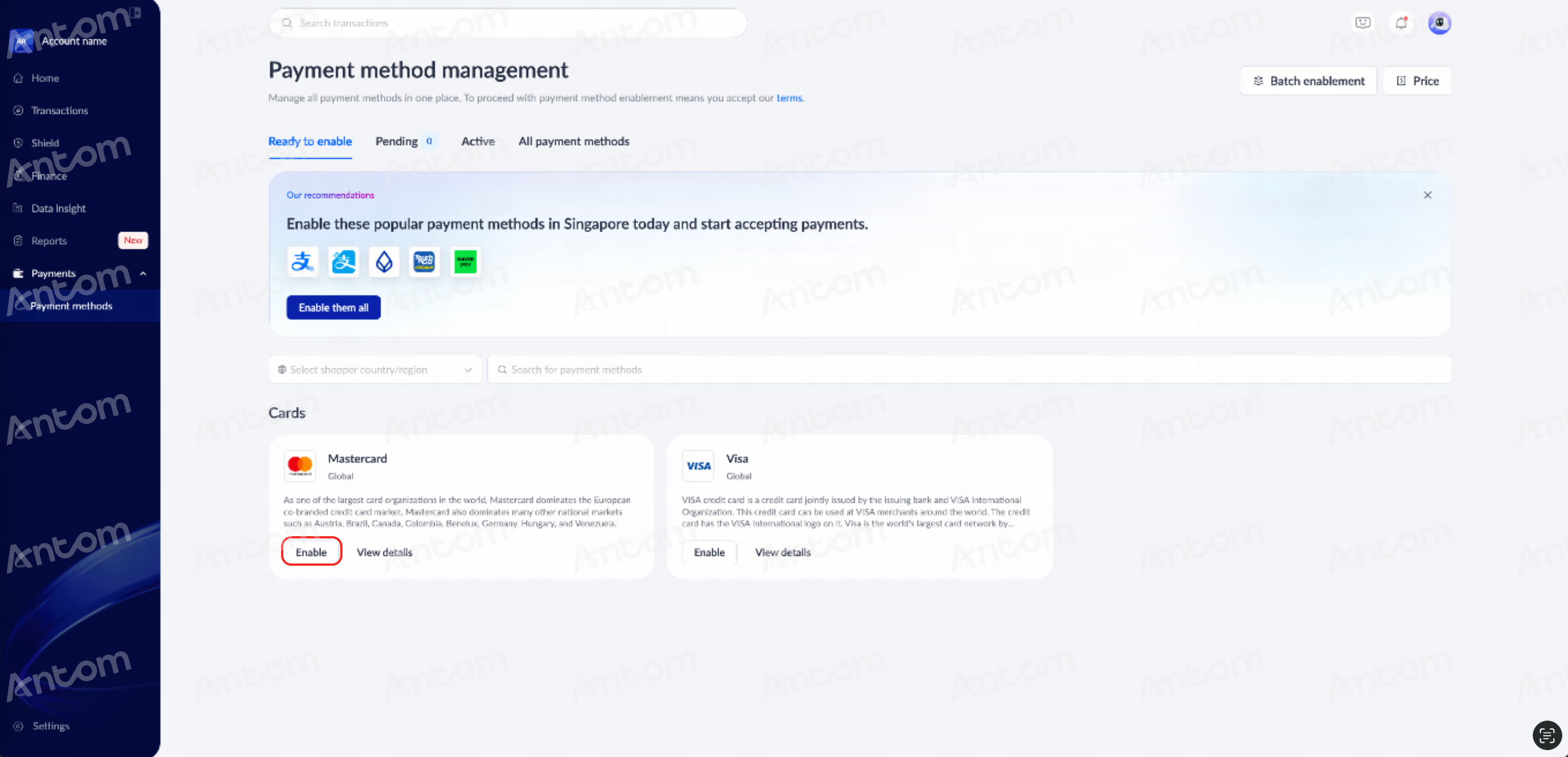 | 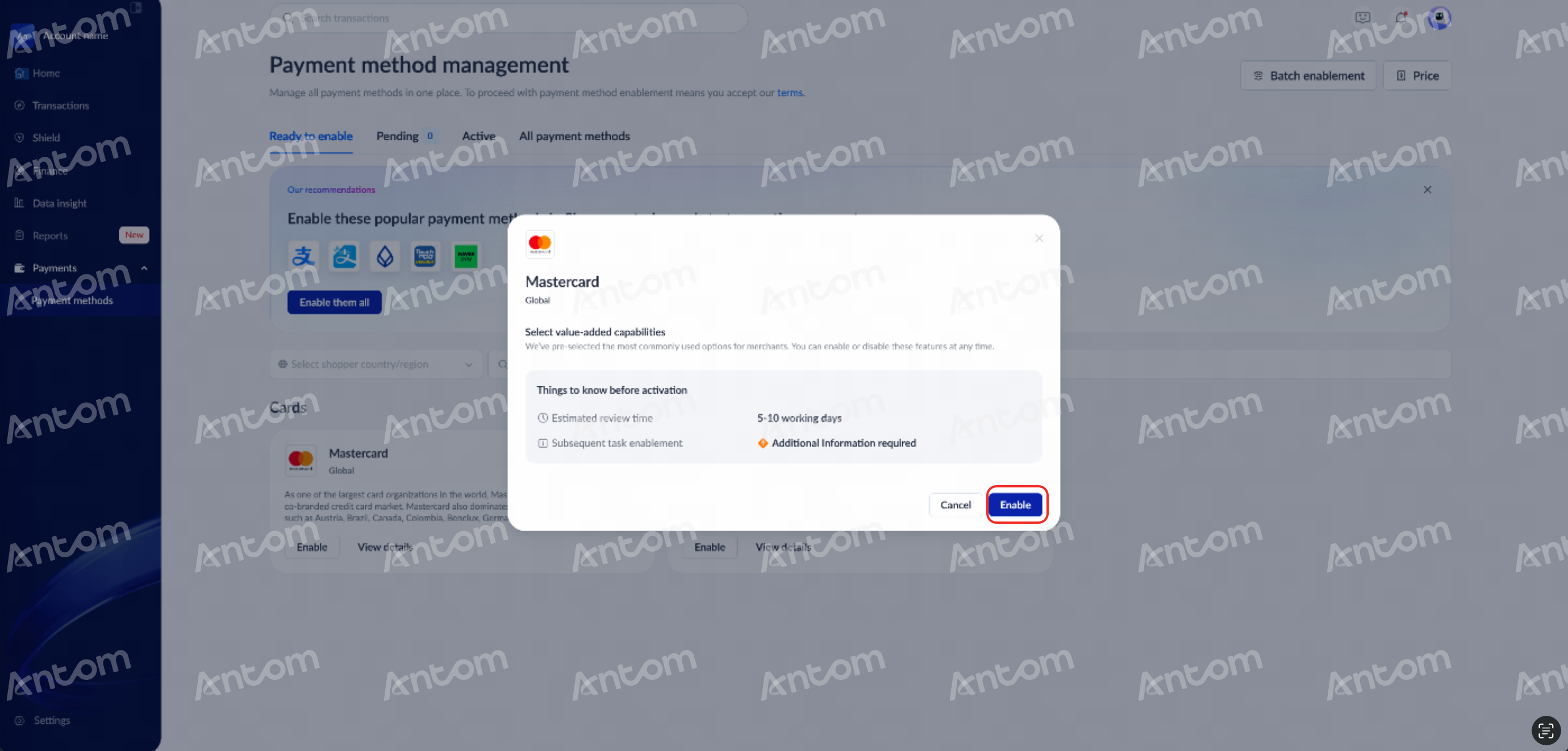 |
Note: For certain payment methods, additional information is required for activation. Please provide the necessary details as prompted on the page, then click Confirm and submit. Upon successful submission, the message Your activation is submitted will be displayed.
- Fill in the required information as guided. Once submitted, you will be redirected to the Shopify platform to activate the payment methods you have set up in the Antom Dashboard.
Step 4: Activate payment method on Shopify
- Log in to your Shopify admin portal, and navigate to Settings > Payments > See all other providers > Antom (Ant Intl) – Credit Card.
 |  |
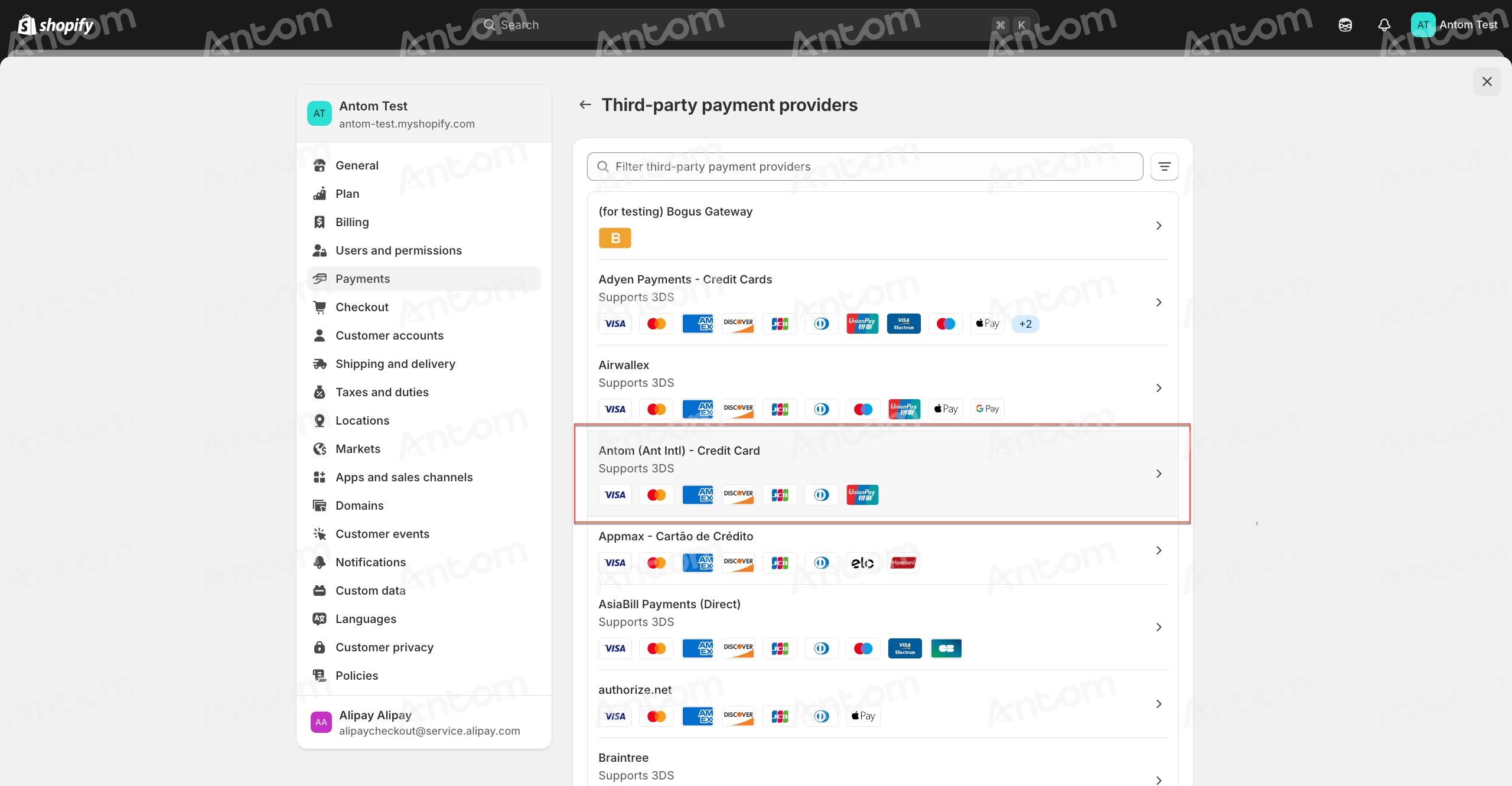
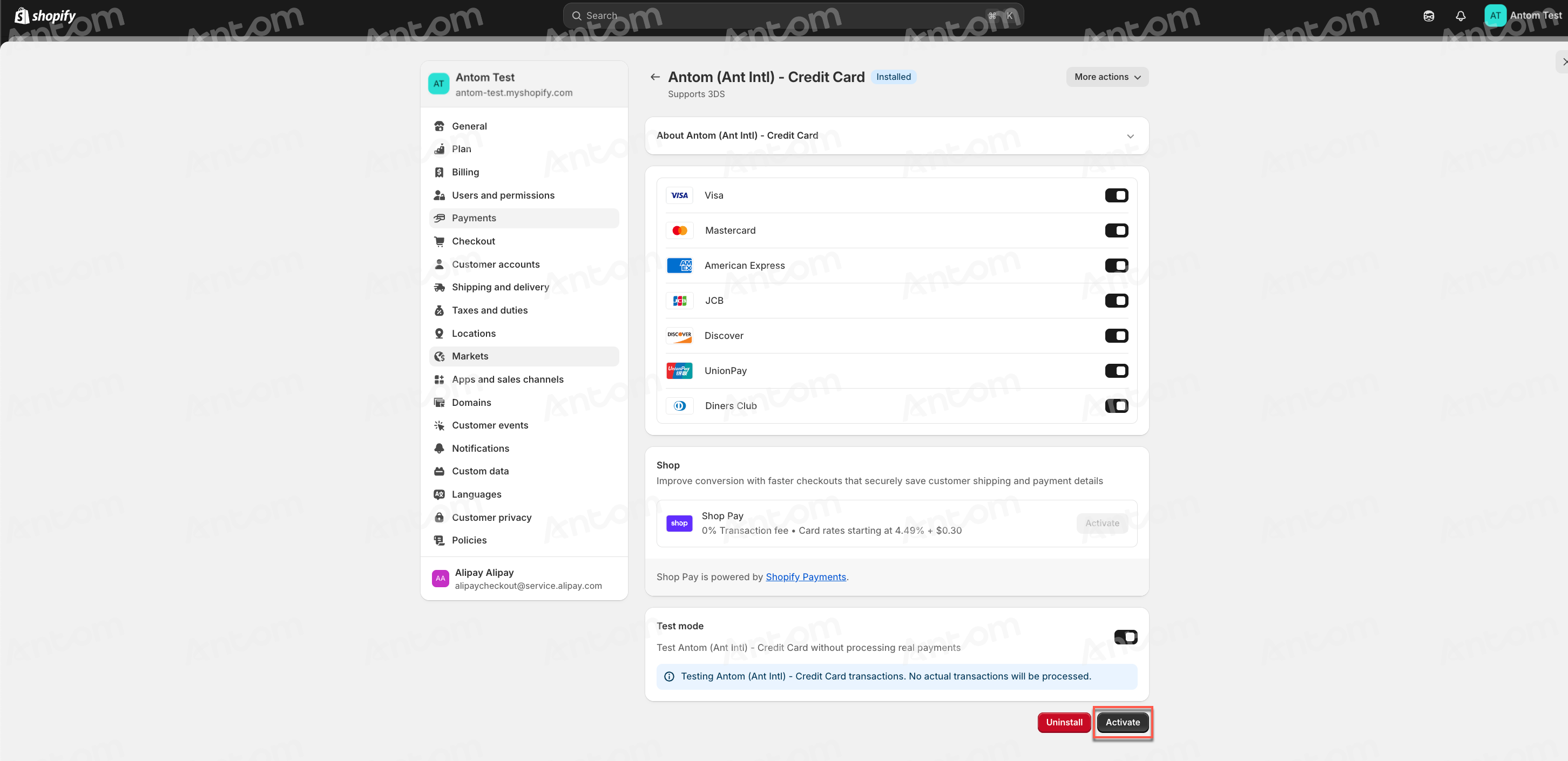
- Select the card brands you want to configure and activate, then click Activate to complete the setup.
Note: Only activate payment methods on Shopify that you have previously enabled in the Antom Dashboard. Disable any unactivated methods to prevent errors.
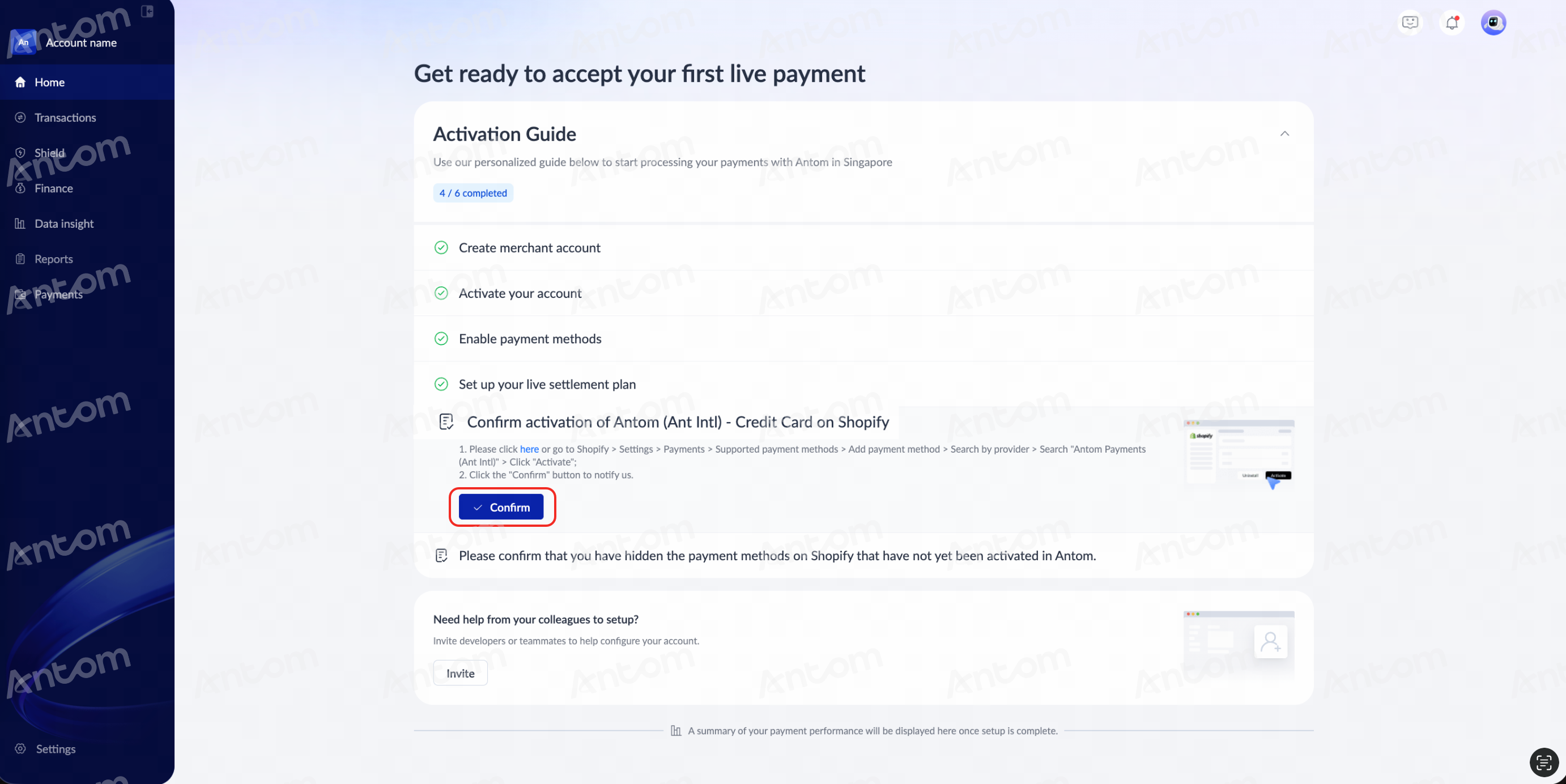
- Return to the Antom Dashboard homepage and click Confirm to complete the payment method activation process.
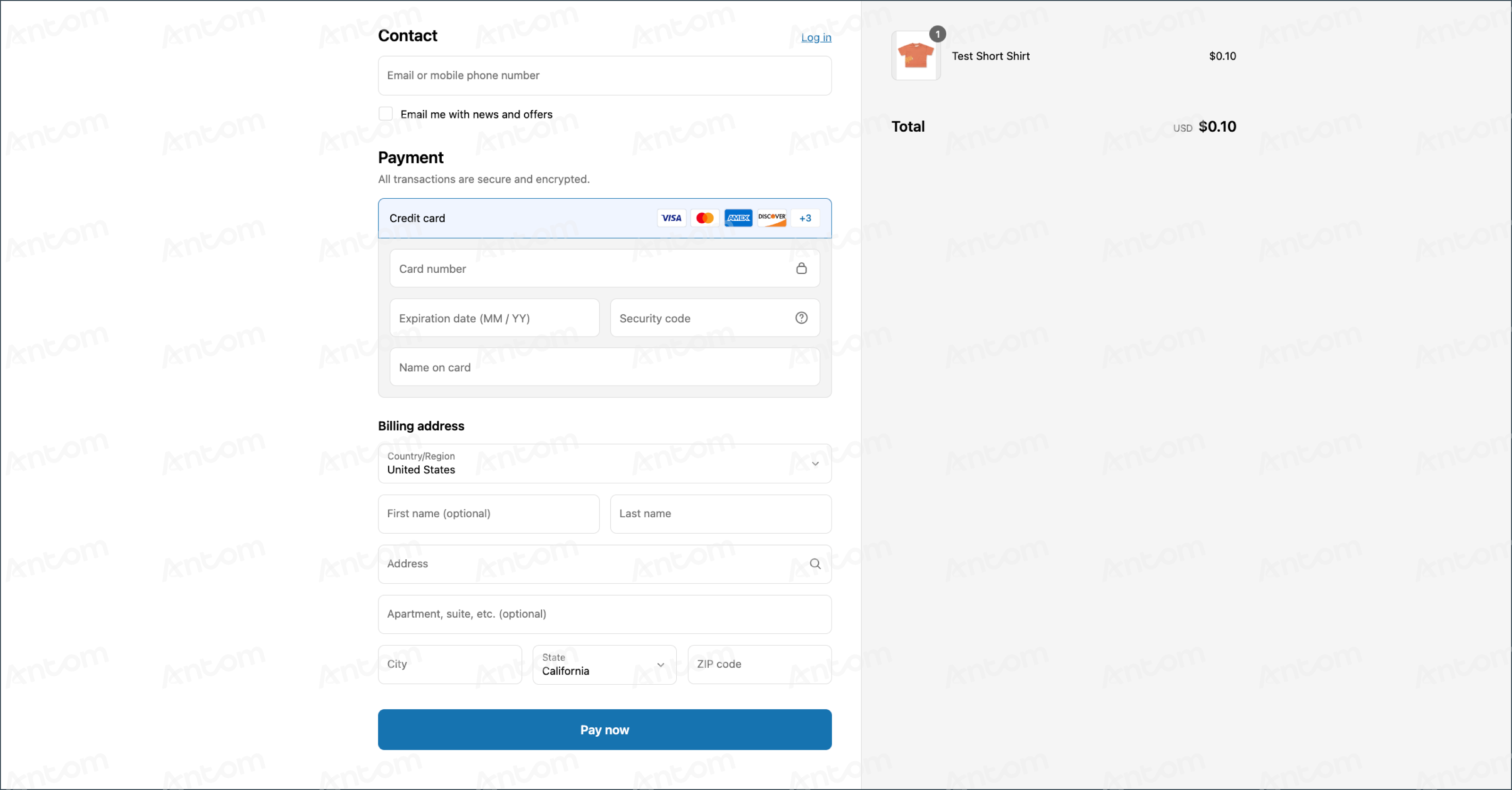
After successfully configuring the Antom (Ant Intl) - Credit Card plugin, your checkout page will support credit card payment services provided by Antom.
Antom Payments (Ant Intl)
Step 1: Install the plugin
- Log in to your Shopify admin portal and click Settings to open the settings page.
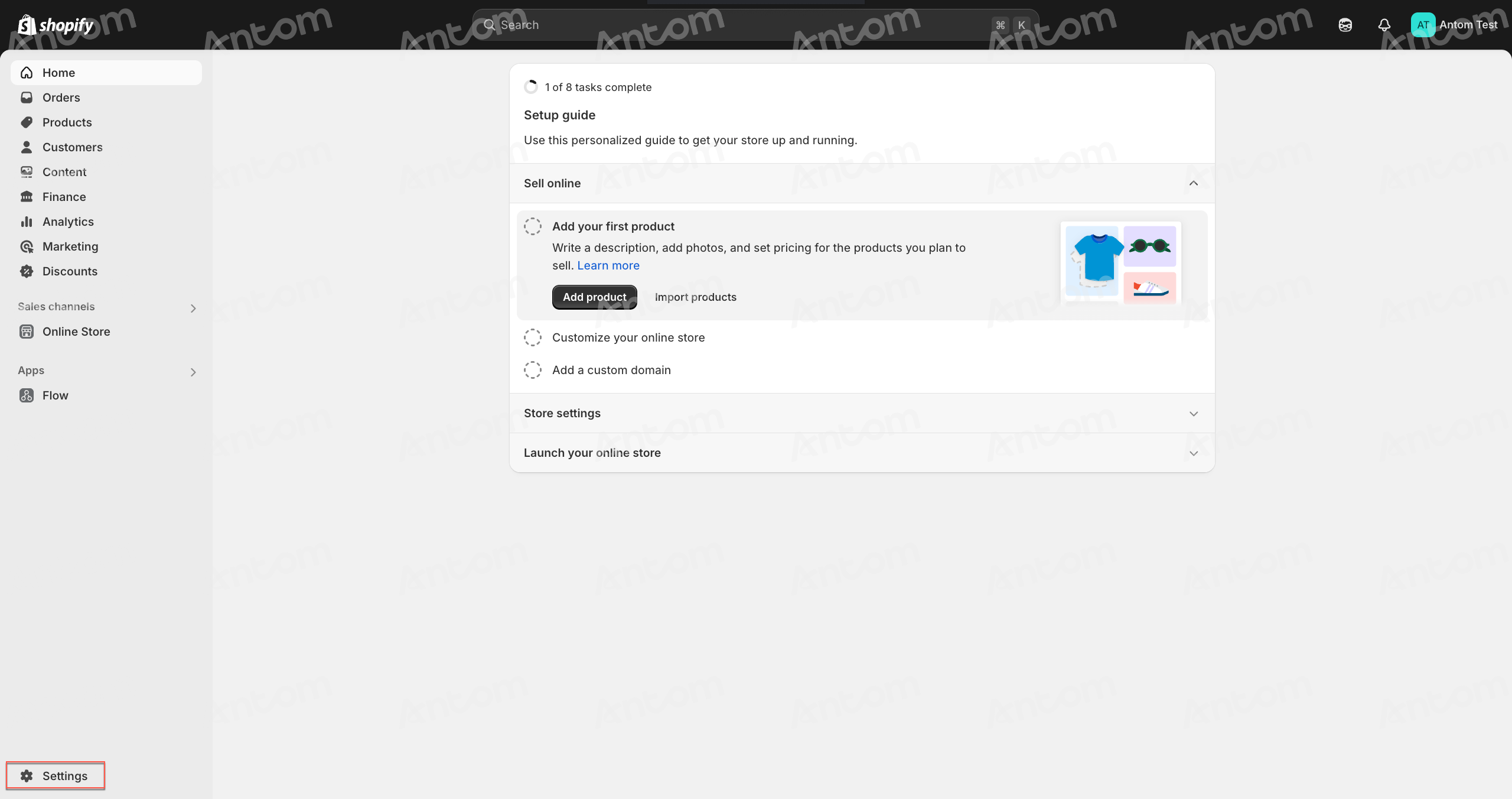
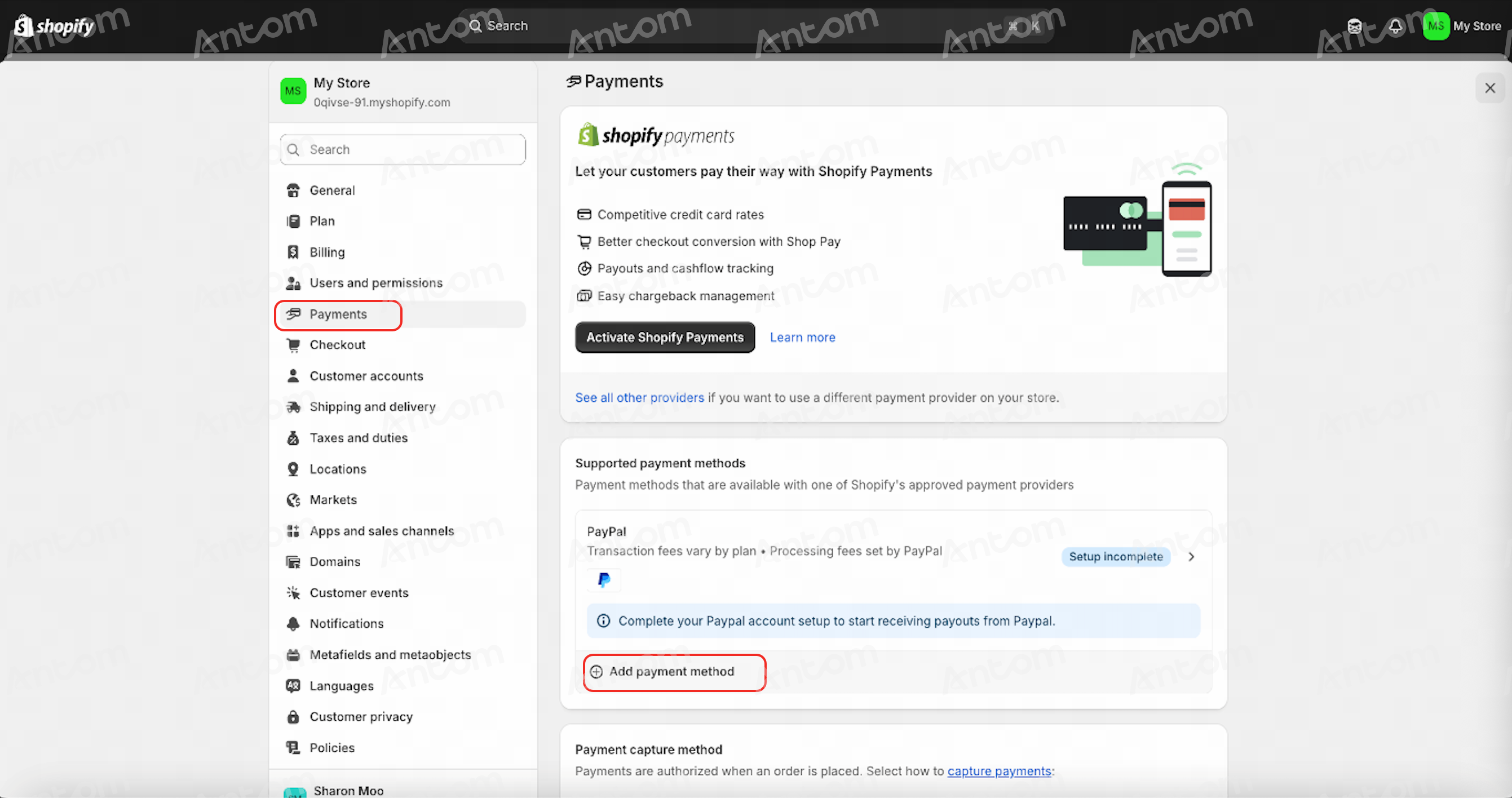
- On the Settings page, click Payments in the left navigation panel, and click Add payment method.
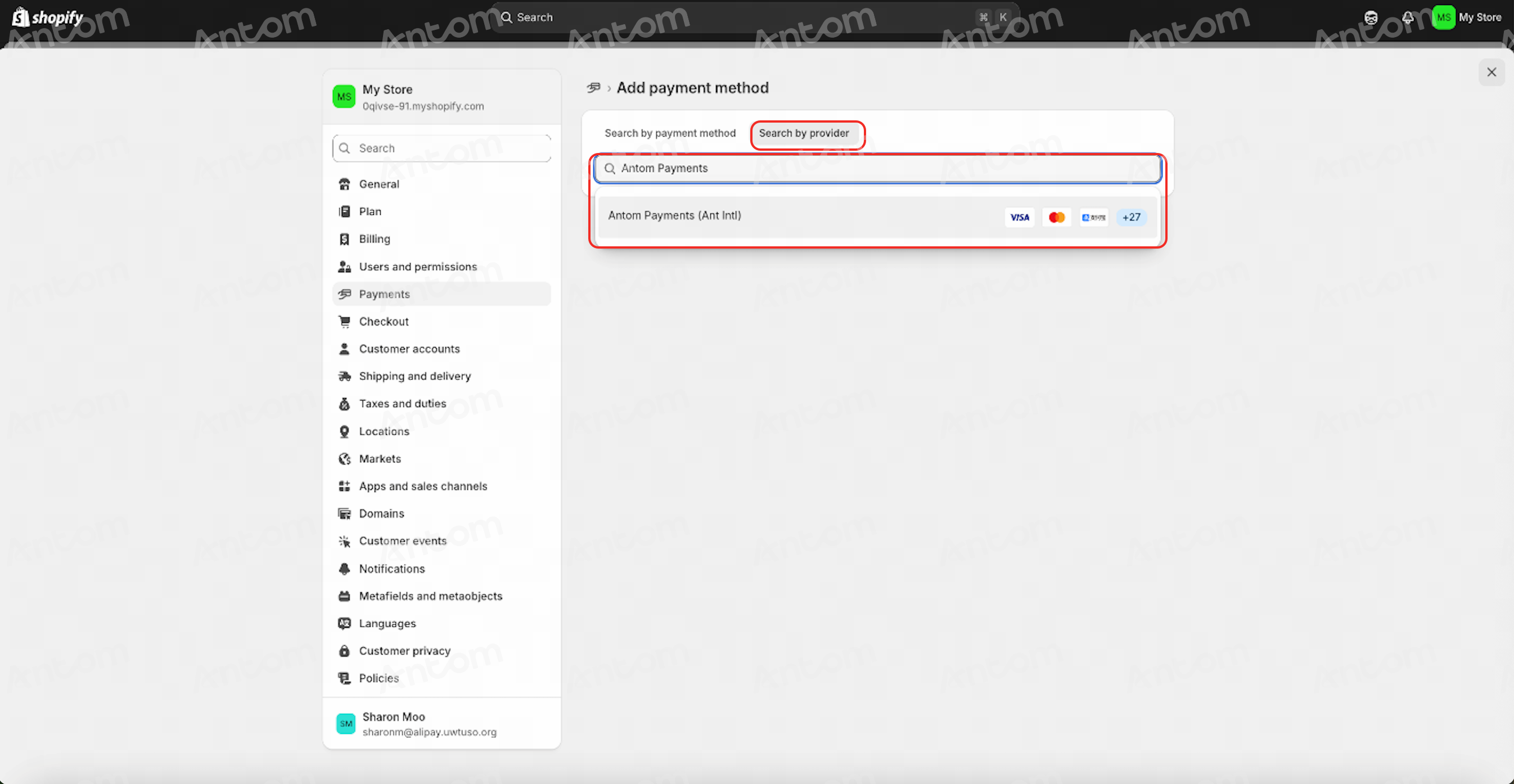
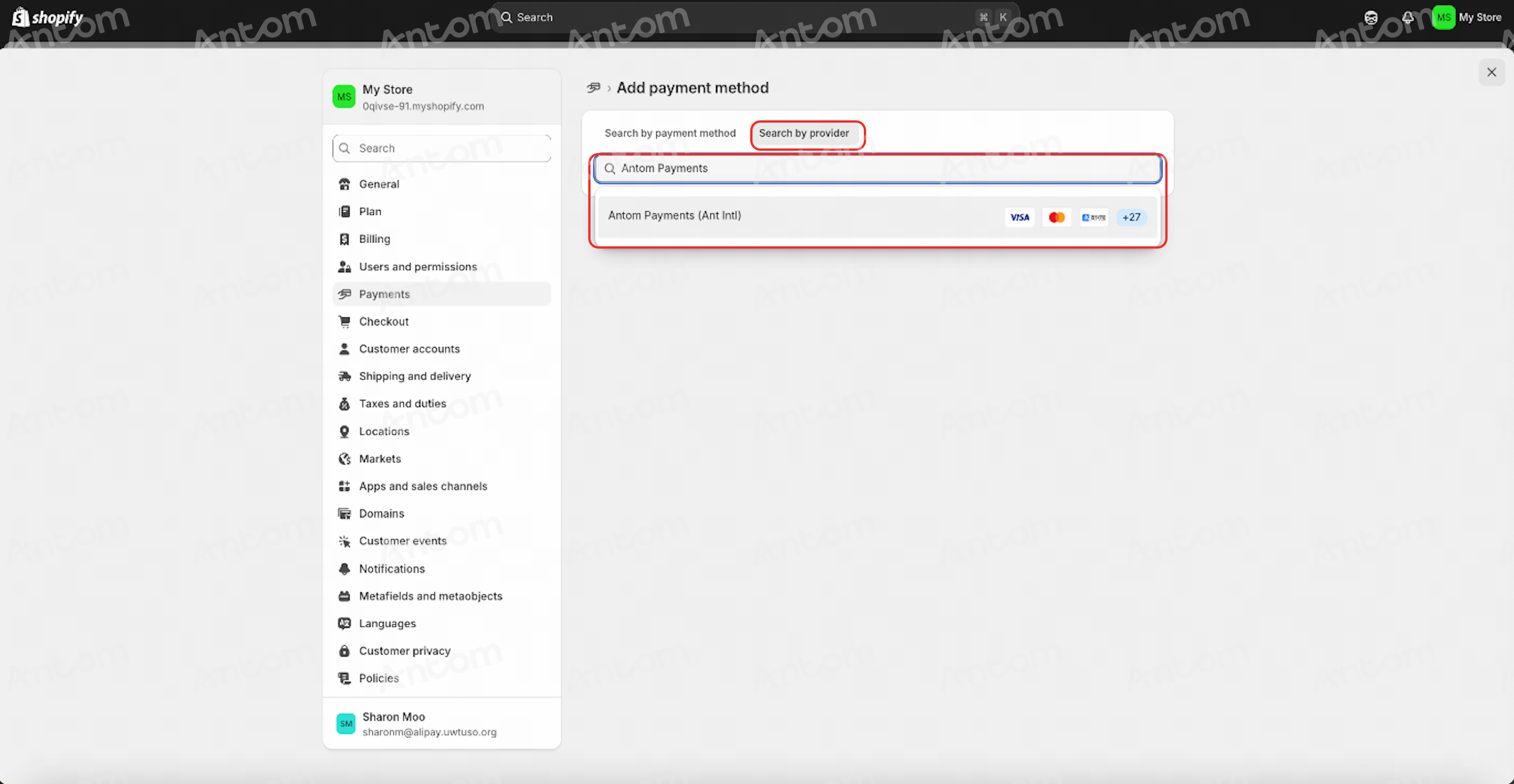
- On the Add payment method page, click Search by provider, and search for and click Antom Payments in the list.
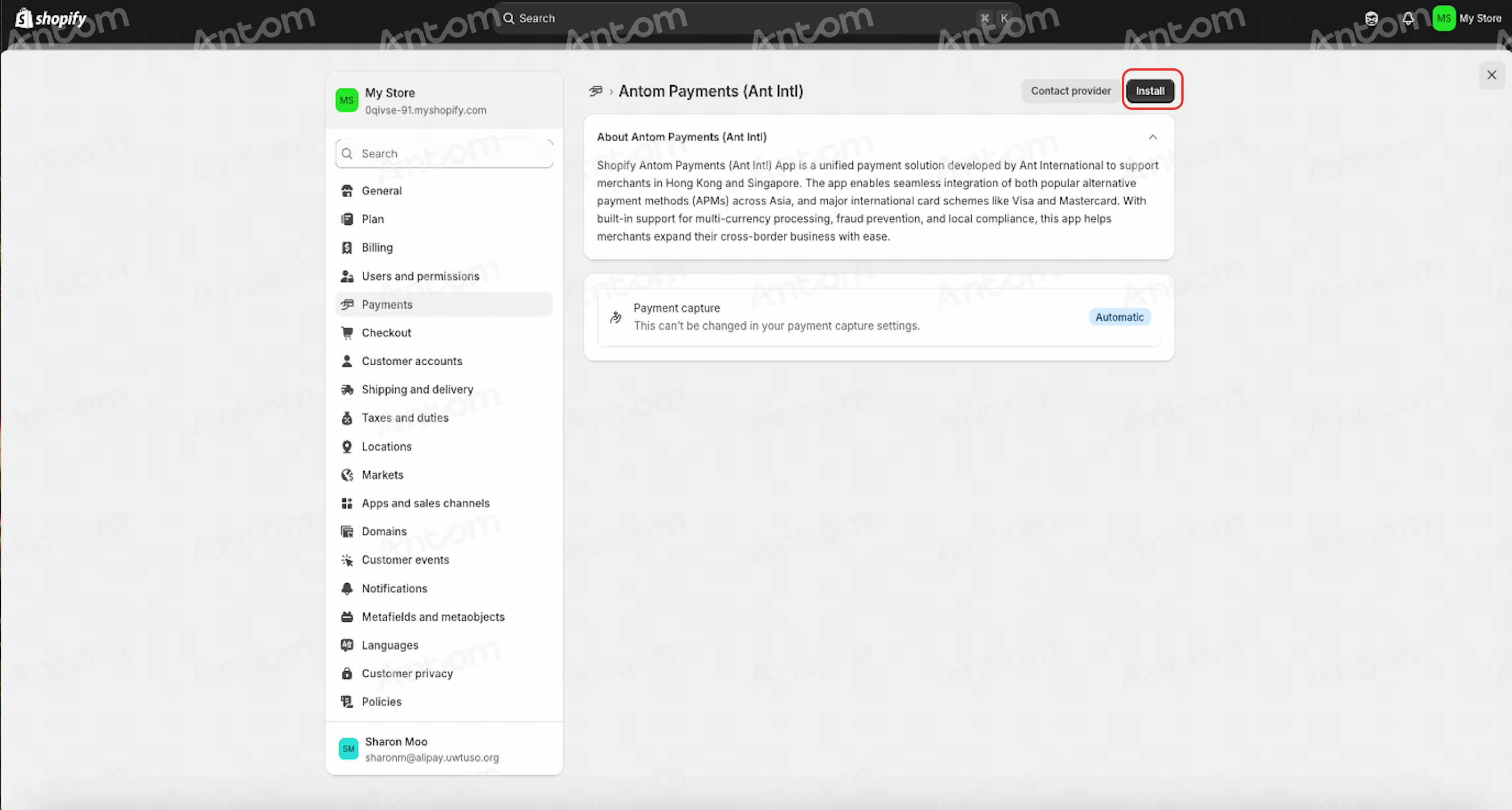
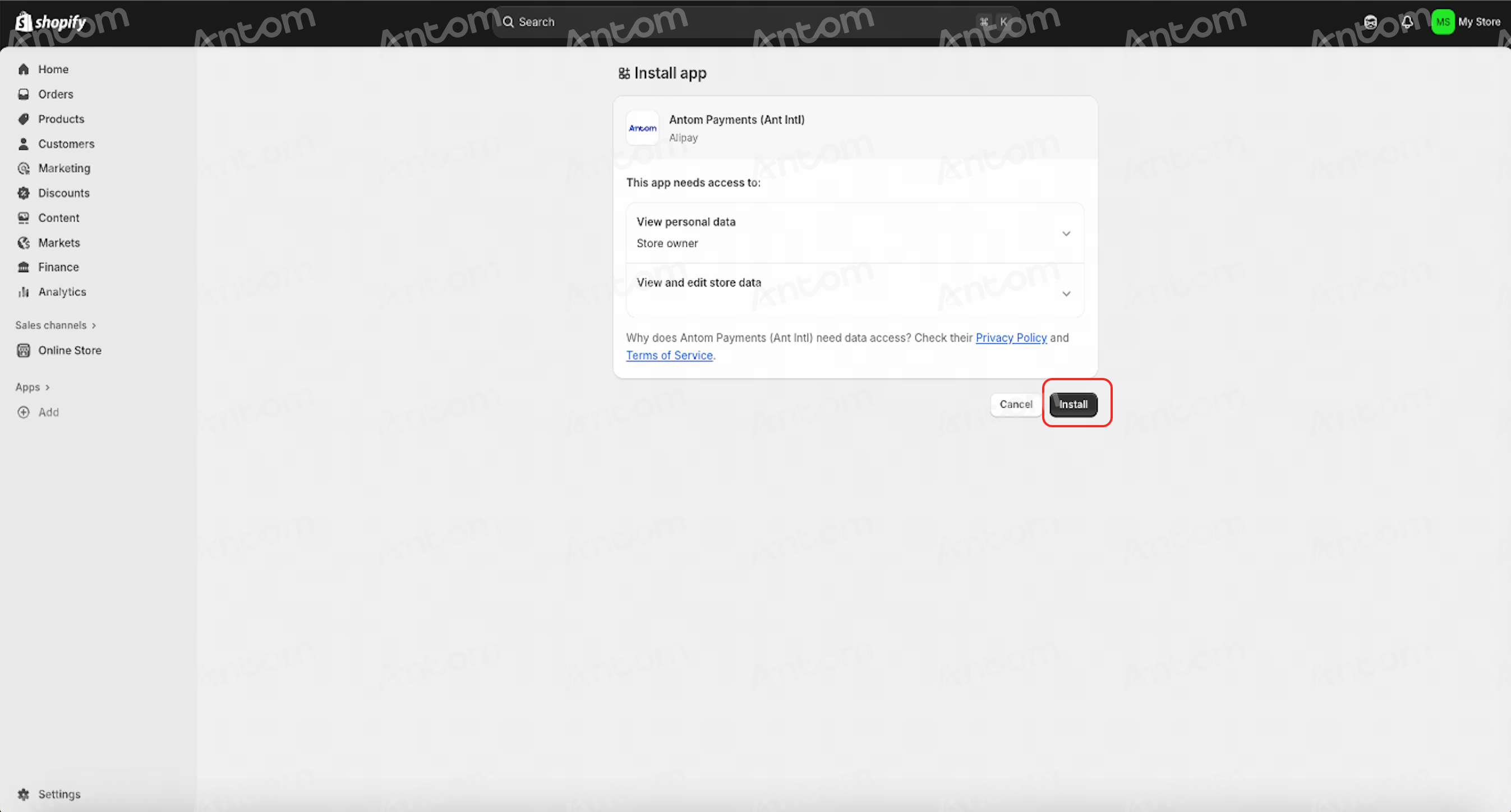
- On the Antom Payments (Ant Intl) page, click Install to open the installation page. After reviewing the plugin information and installation notice, click Install again to begin the installation.
 |  |
Step 2: Create and activate Antom account
- After completing the installation on the Shopify page, you will be automatically redirected to Antom Dashboard. When logging in for the first time, you need to create an Antom account.
Note: Before submitting your registration, please make sure that the Merchant Registration Location is correct. This information cannot be modified once the registration is completed.
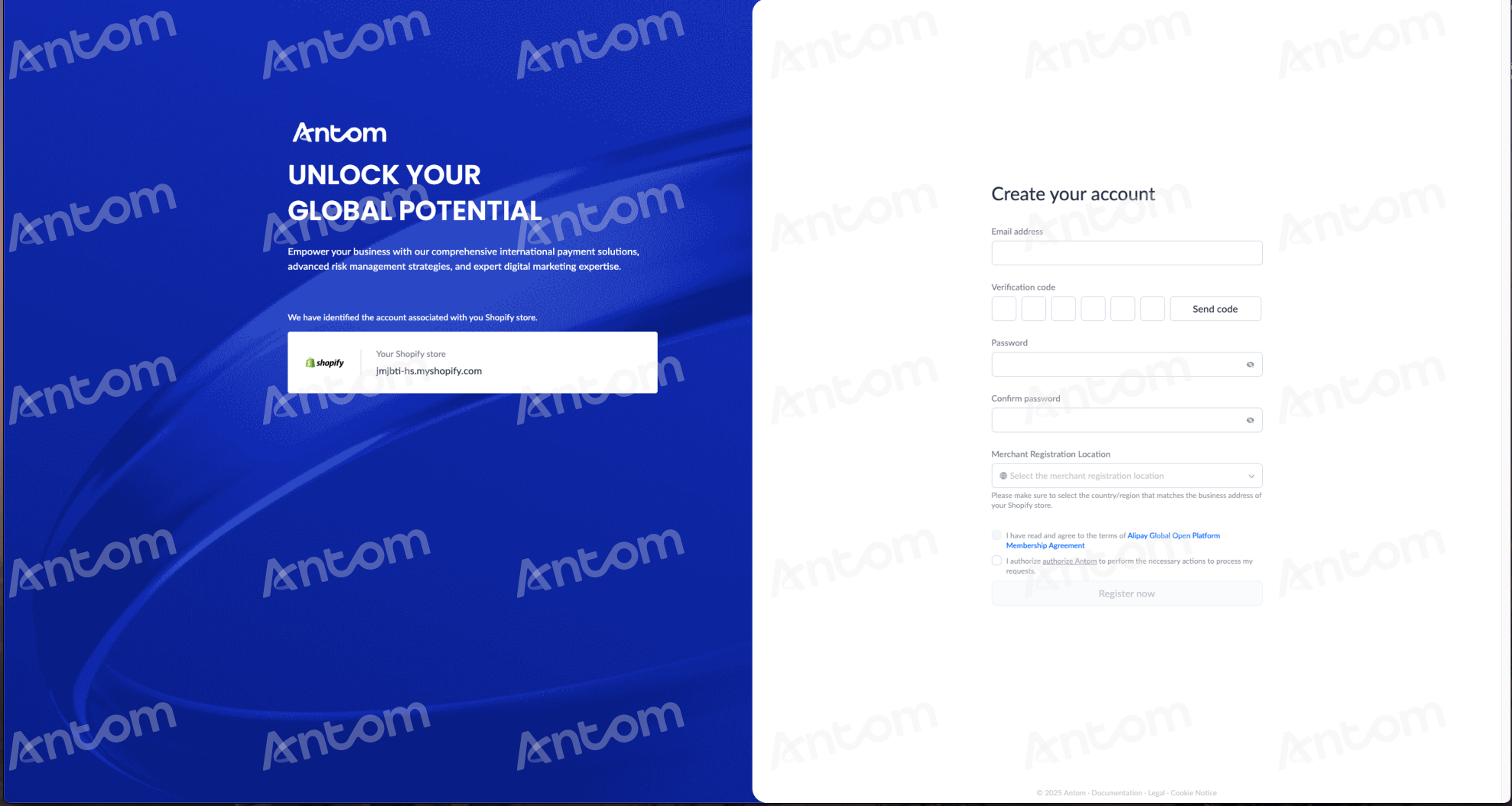
- After creating your account, you will be taken to the Antom online registration form. Click the Start button there to begin activating your account.
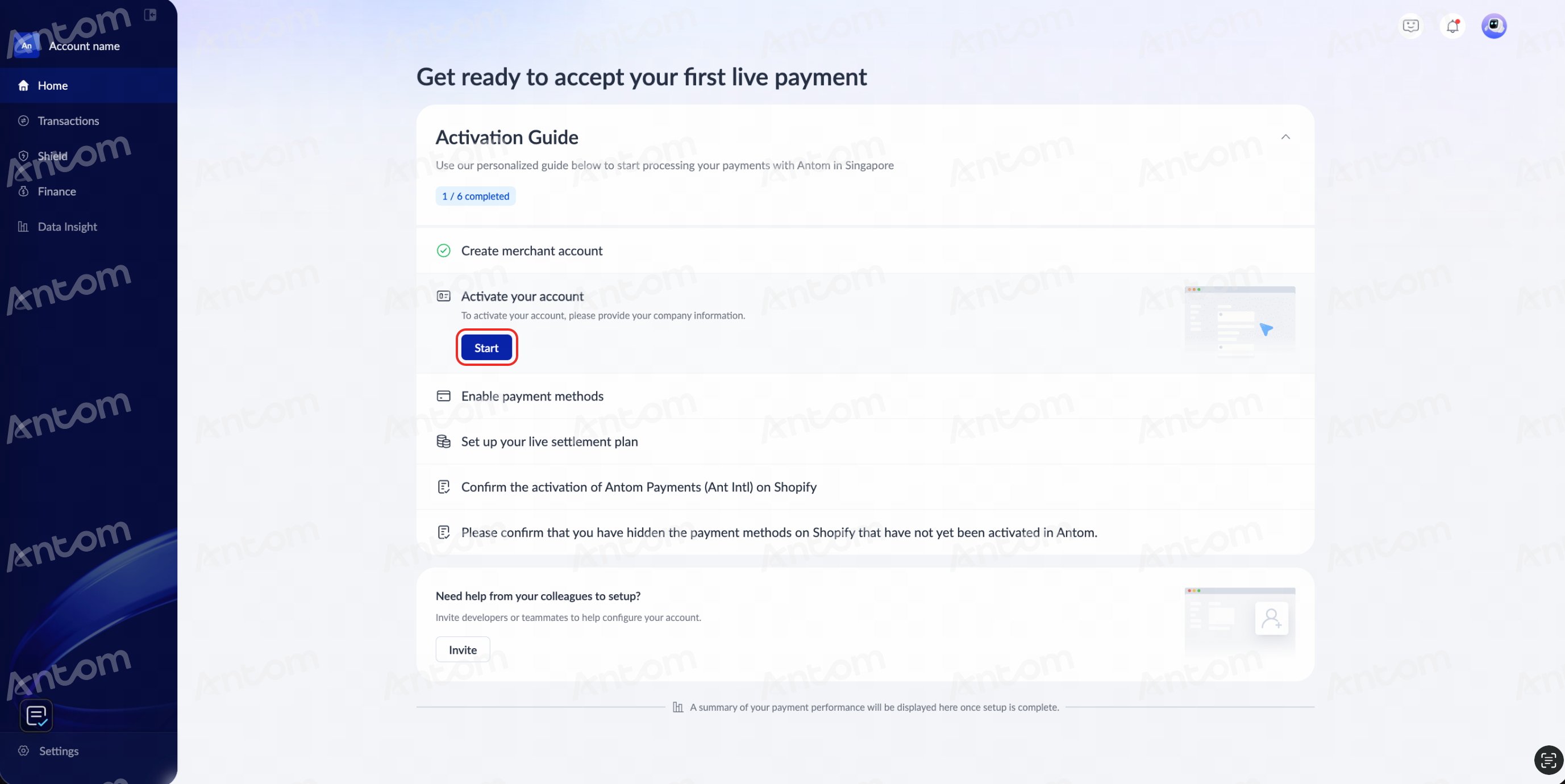
- Follow the on‑screen instructions according to your region to complete your KYC information. After filling in the required details, review the information carefully, check the box to agree to the Terms and Conditions, and click Confirm and submit to complete the application.
- Once successfully submitted, the application will enter Antom’s review process, and the page will automatically redirect to the Antom Dashboard. The review is expected to take approximately one business day, and you will receive an email notification once it is approved.
Step 3: Enable payment method
- Log in to Antom Dashboard, click Go to enable on the homepage, and select Payment methods from the drop‑down menu.
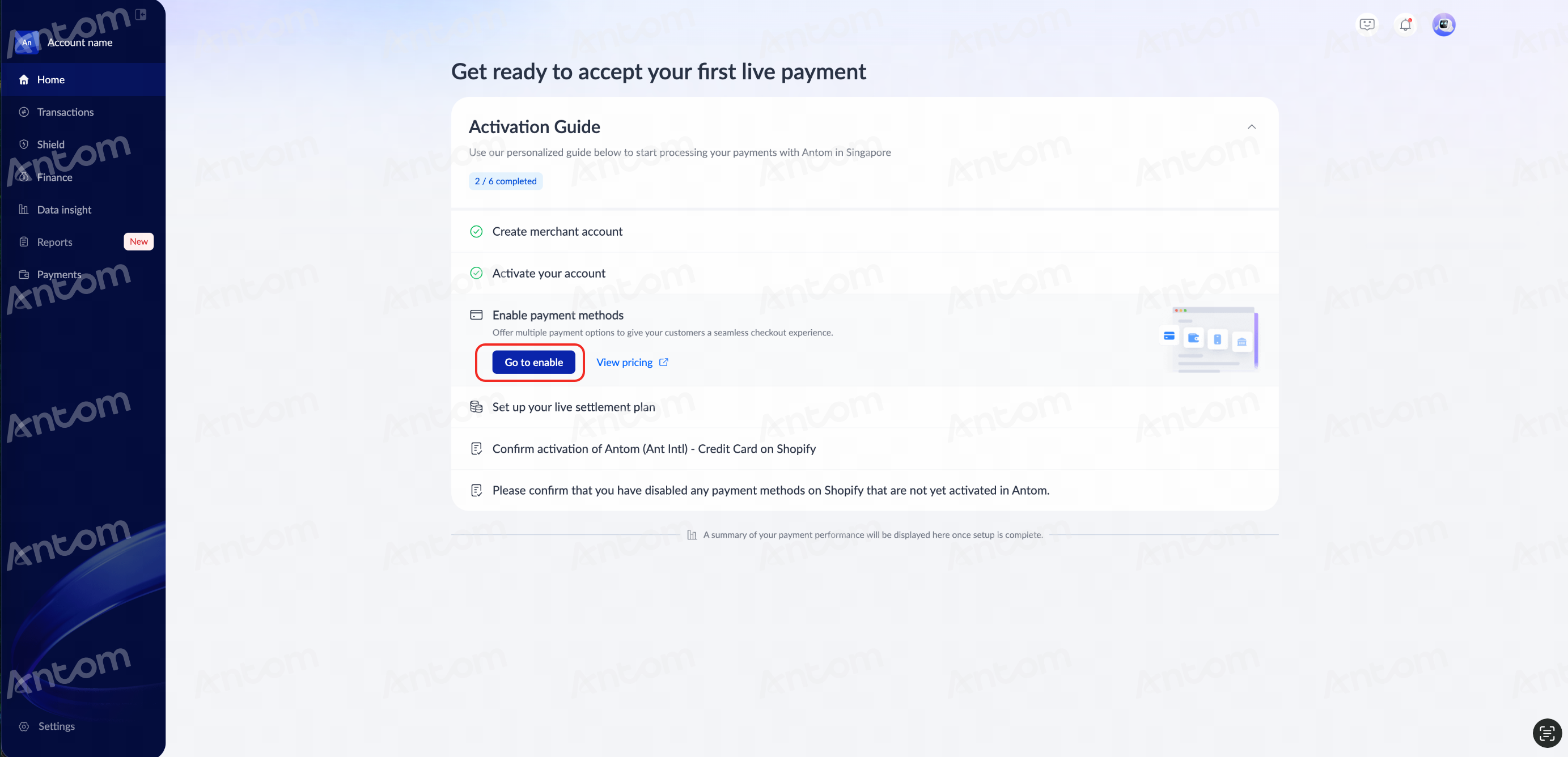
- On the Payment method management page, select the payment method you want to configure. After reviewing the payment method activation notice, click Enable to activate it.
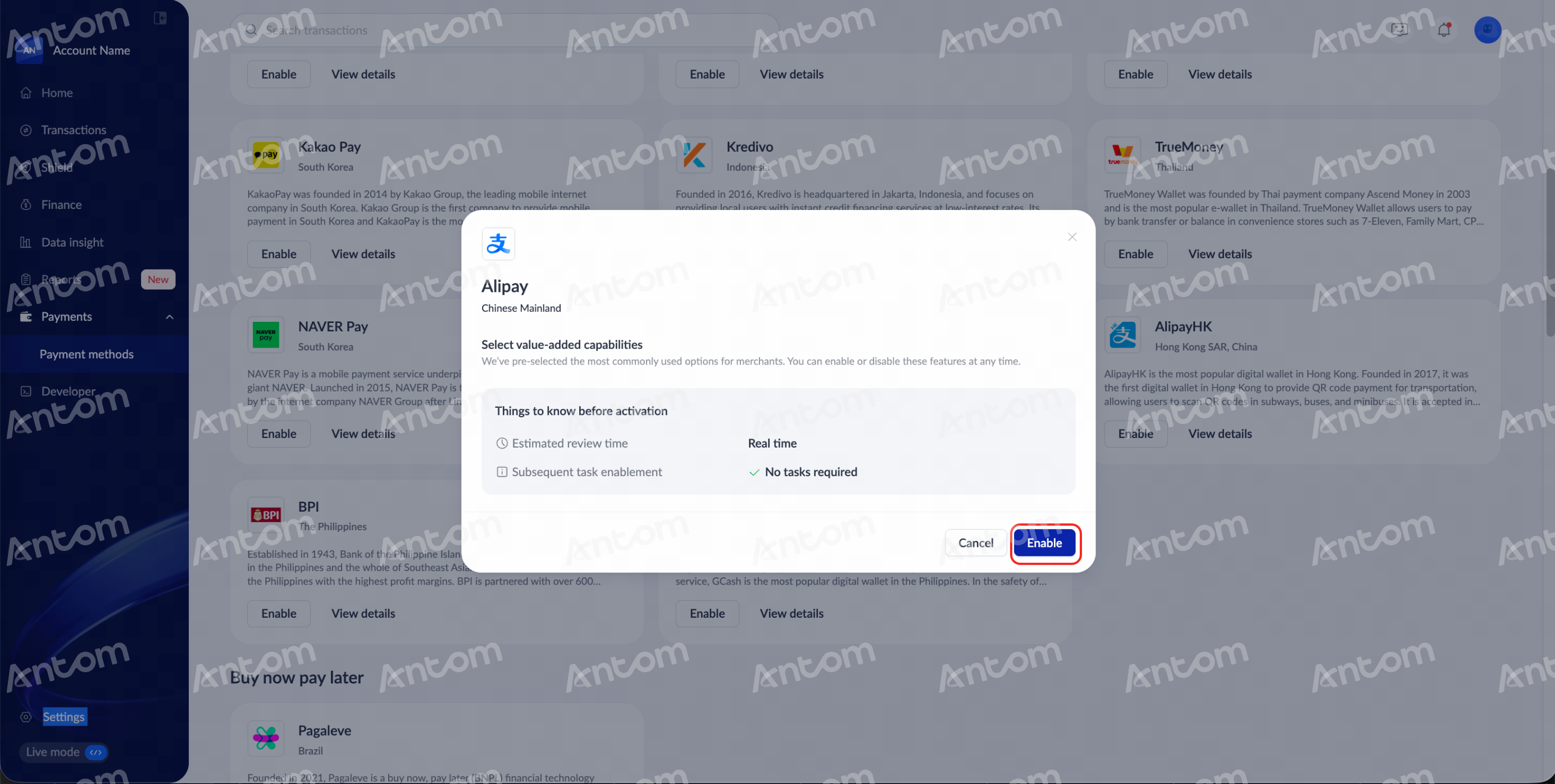
Note:
- Some payment methods require additional information during activation. Please follow the on‑screen instructions to provide the required details, and click Confirm and submit. Once submitted successfully, the page will display Your activation is submitted.
- Certain payment methods may require additional review after submission. Meanwhile, you can click Go to setup to configure the settlement plan simultaneously.
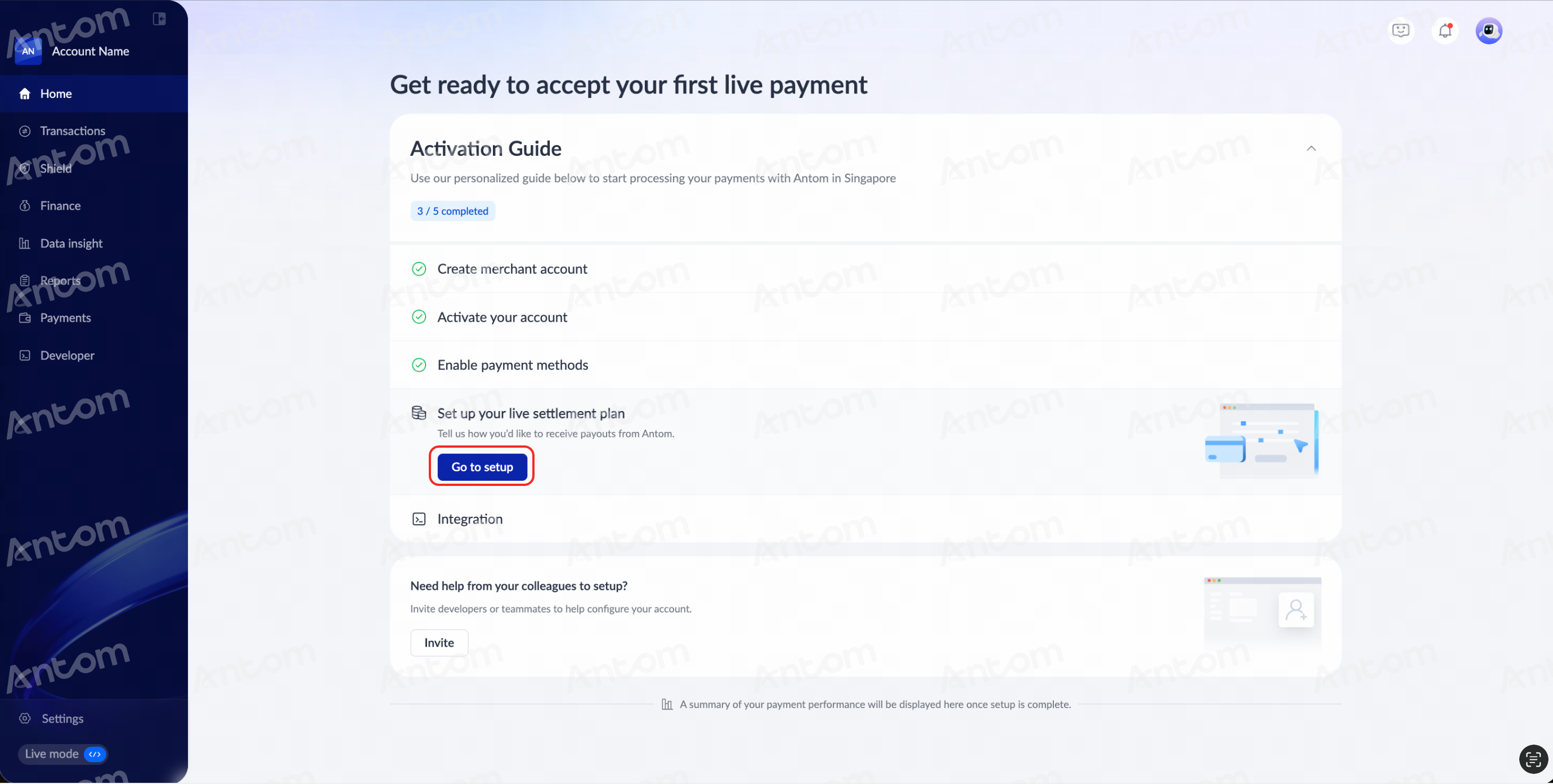
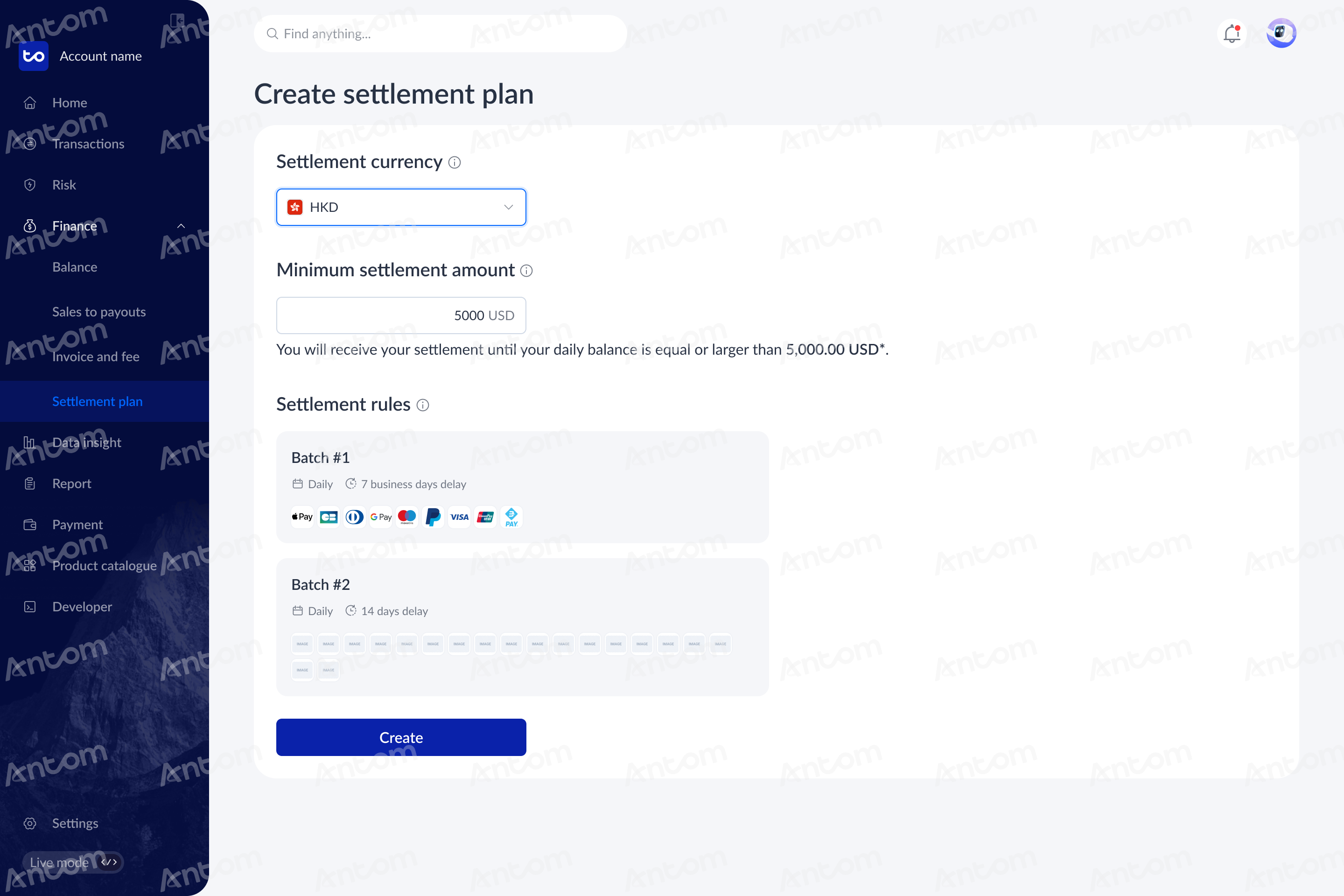
- On the Create settlement plan page, select the settlement currency and set the Minimum settlement amount.
Note: A USD 10 handling fee will be charged for each transaction below USD 5,000.
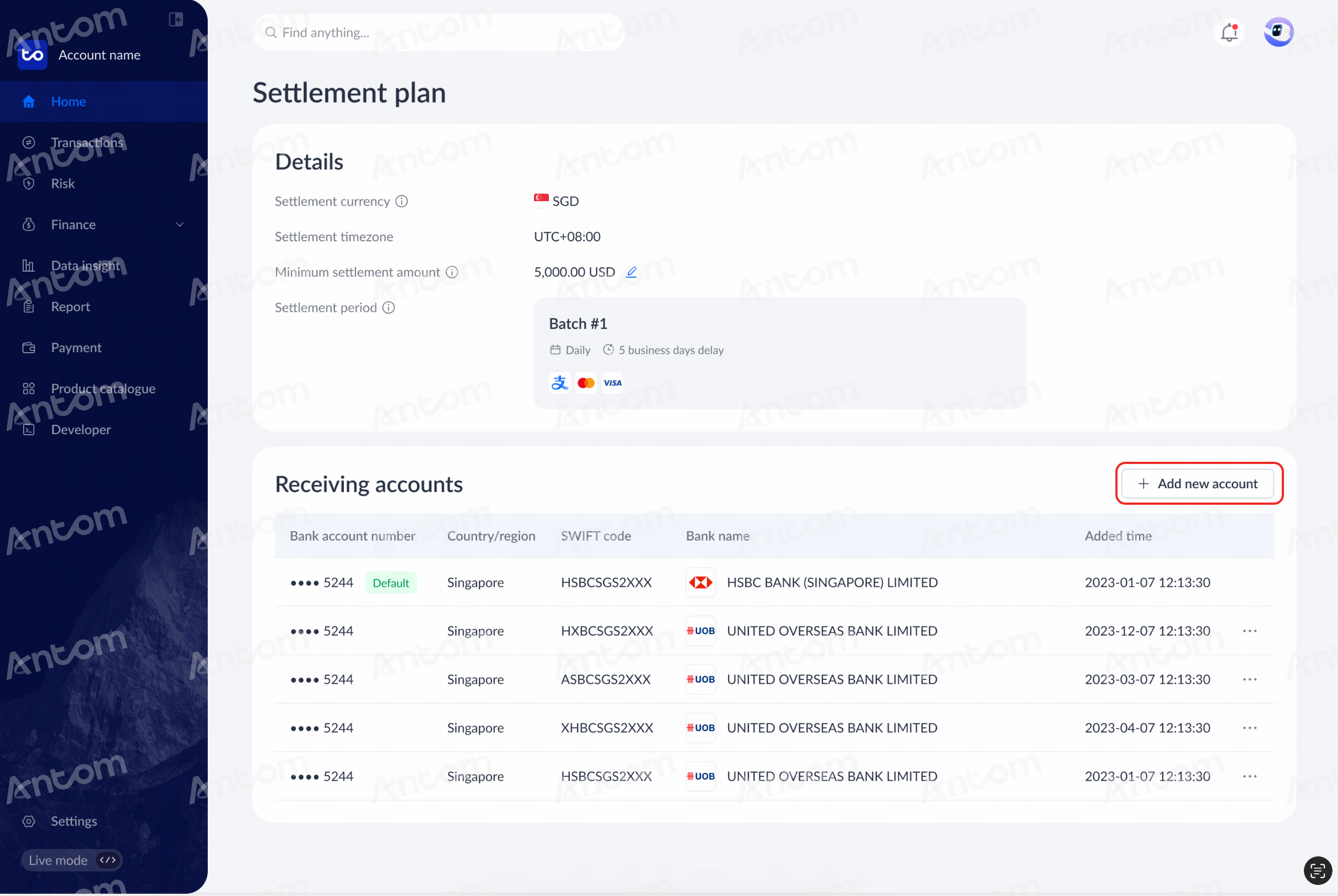
- After completing the setup, click Add new account and fill in the required information to link your receiving account.
Step 4: Activate payment method on Shopify
- After successfully activating the payment methods in the Antom Dashboard, activate them on the Shopify side using one of the following methods:
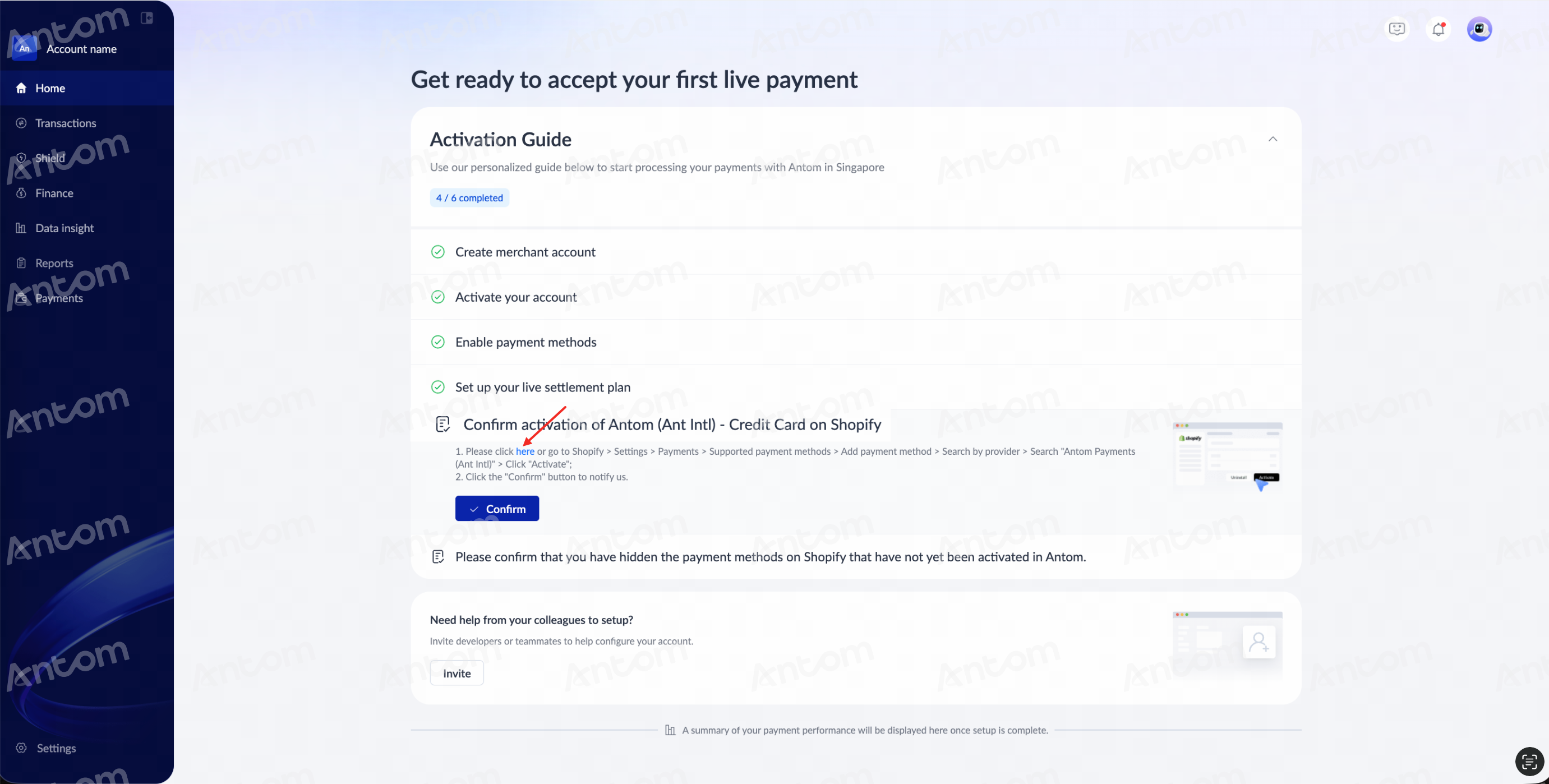
- Return to the homepage and scroll down to Confirm the activation of Antom Payments (Ant Intl) on Shopify, and click here to be redirected to the Shopify admin portal.
- Log in to the Shopify admin portal, and go to Settings > Payments > Add payment method to activate the payment methods.
| 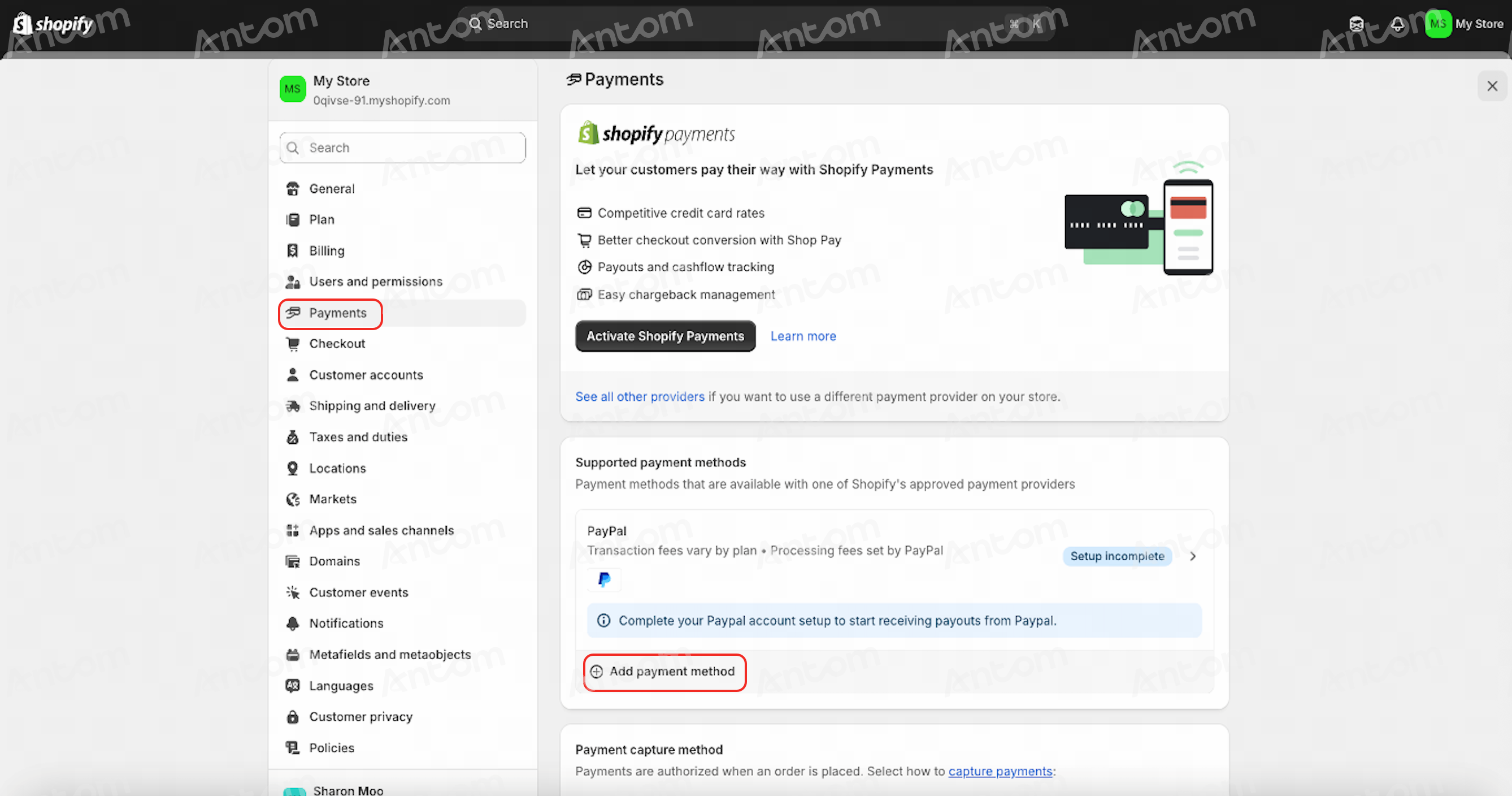 |
- On the Add payment method page, click Search by provider, and search for and click Antom Payments in the list.
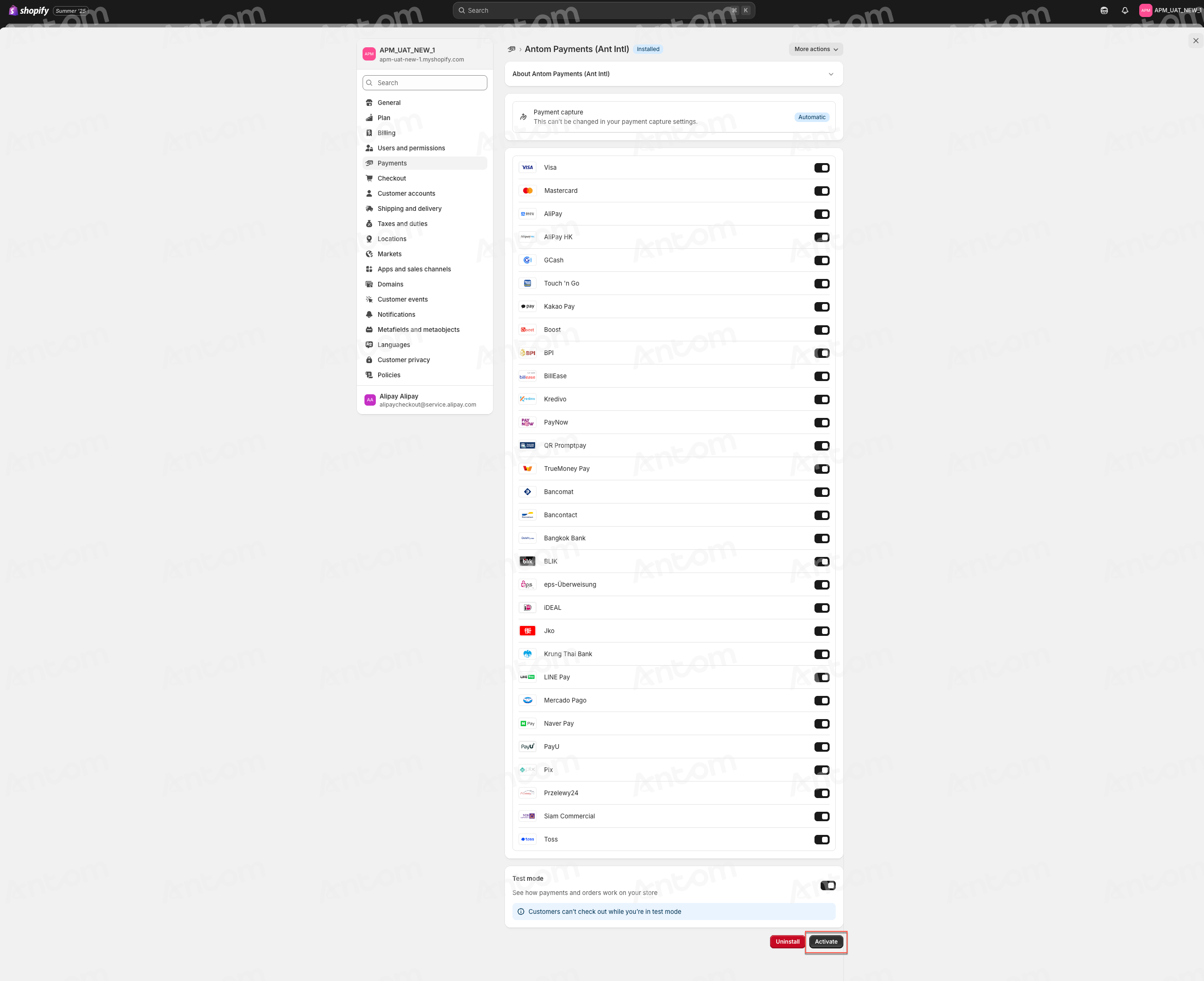
- On the Shopify page, click Activate to complete the setup.
Note: Only activate payment methods on Shopify that you have previously enabled in the Antom Dashboard. Disable any unactivated methods to prevent errors.
- Return to the Antom Dashboard homepage and click Confirm to complete the payment method activation process.

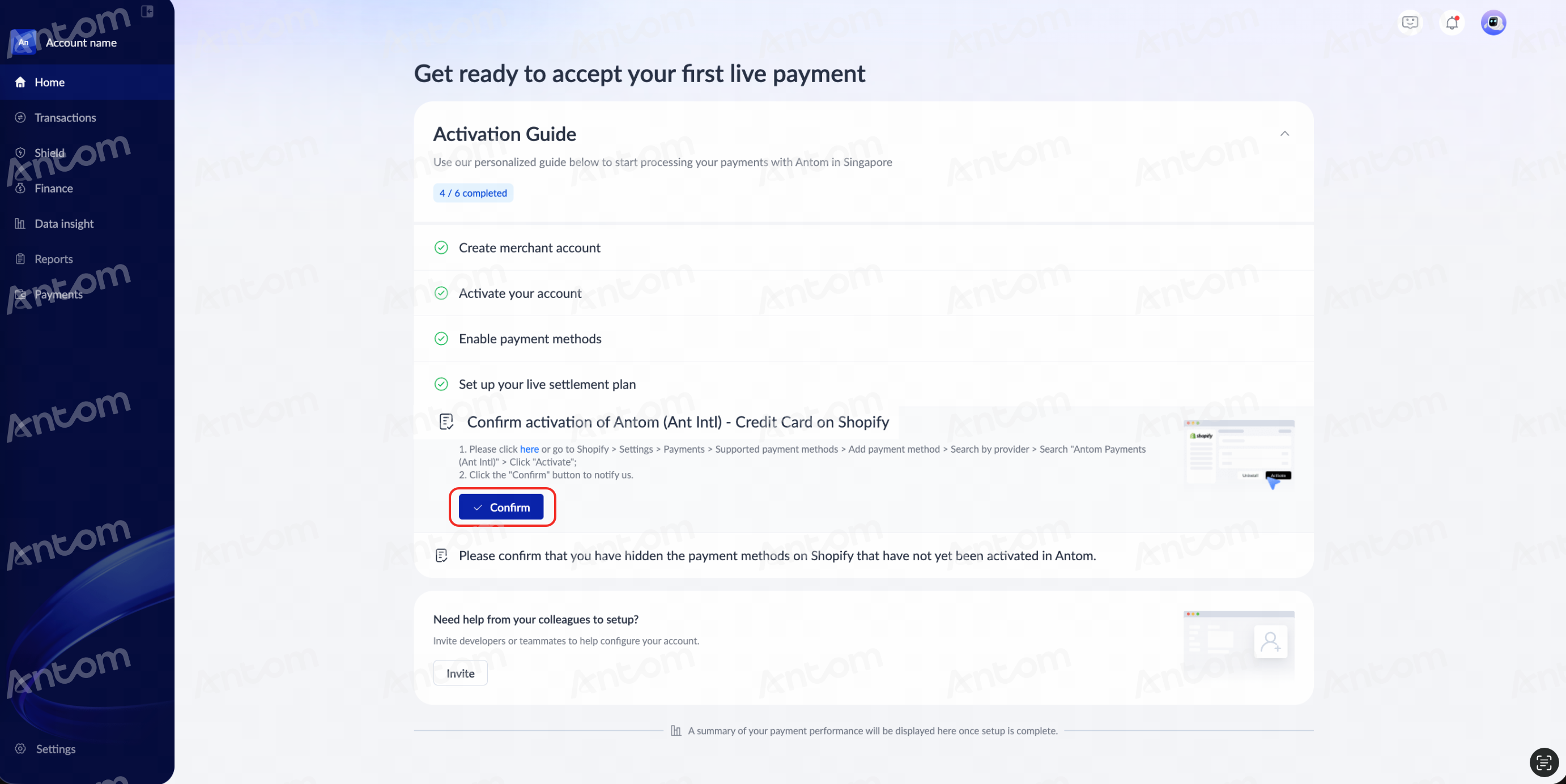
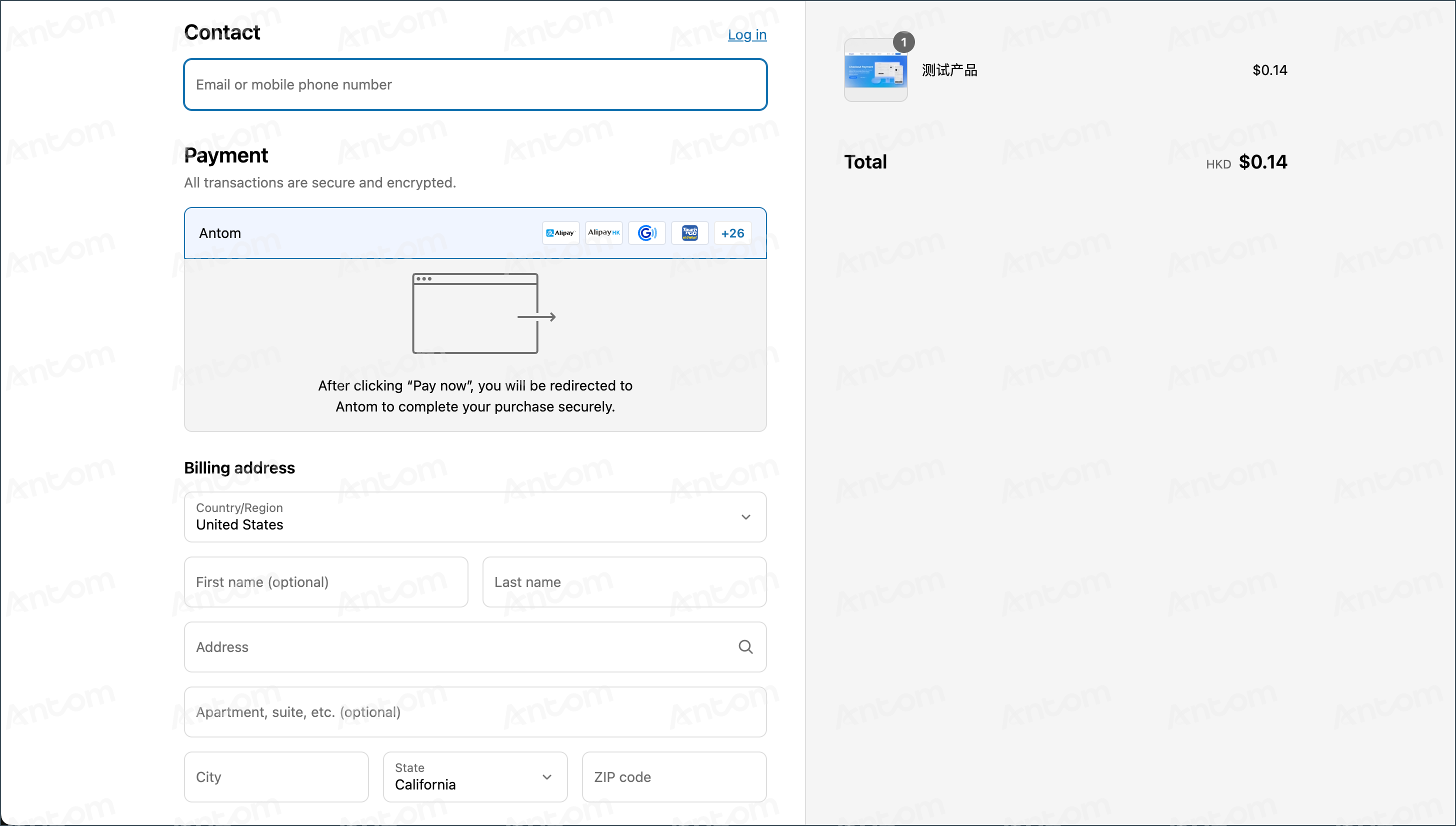
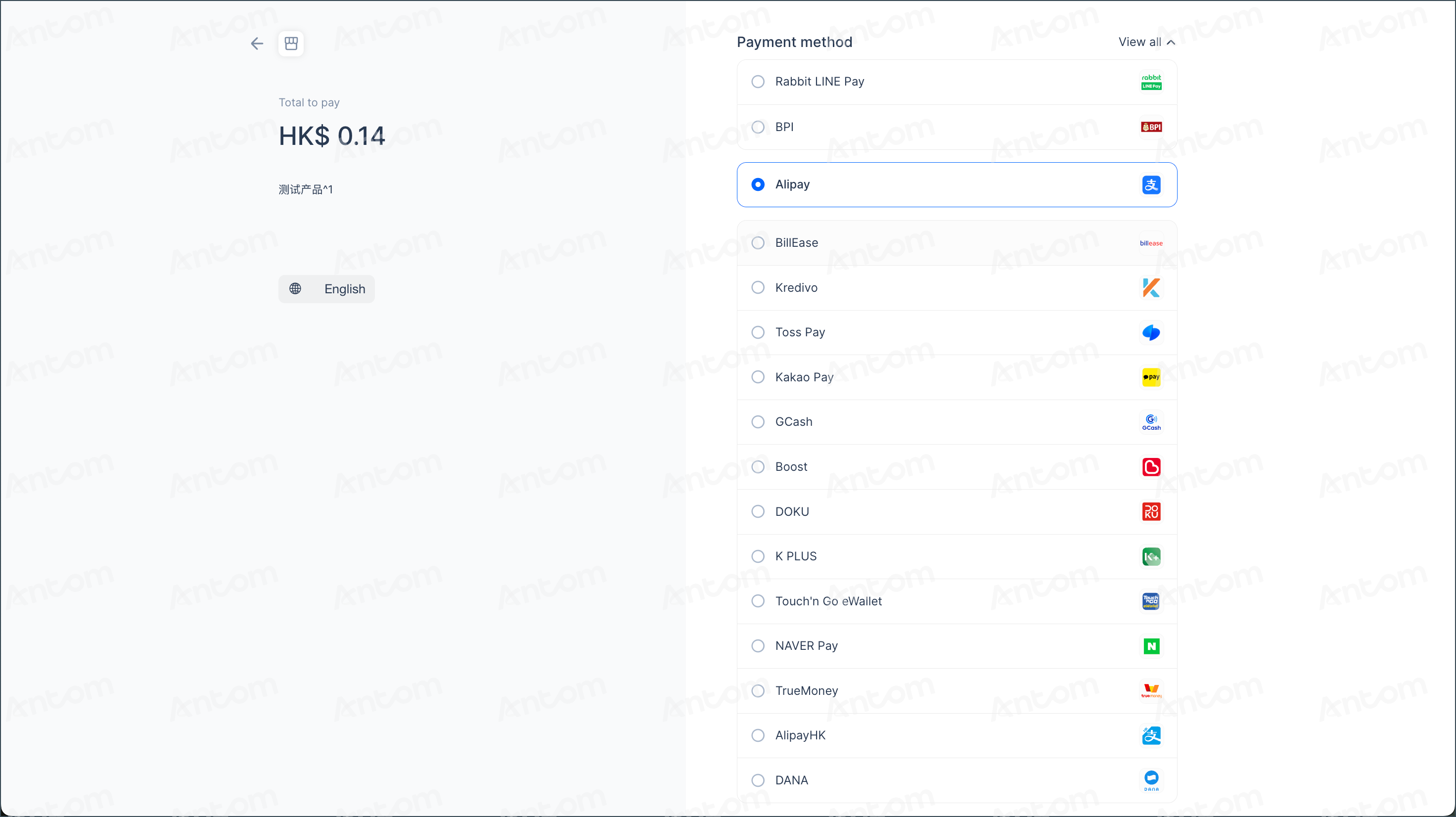
After successfully configuring the Antom Payments (Ant Intl) plugin, your checkout page will support digital wallets and other APMs provided by Antom.
 |  |