
Tokenized Payment
This article introduces the integration solution to support auto debit from a desktop web browser. After integration, you can build online auto debit function for your website. Once the buyer completes the initial authorization, subsequent payments do not require re-entering the password and can be processed directly through your website. This feature is suitable for business scenarios that require fast payment deductions.
User experience
The following figures show the buyer's experience during the authorization and payment process:
Authorization
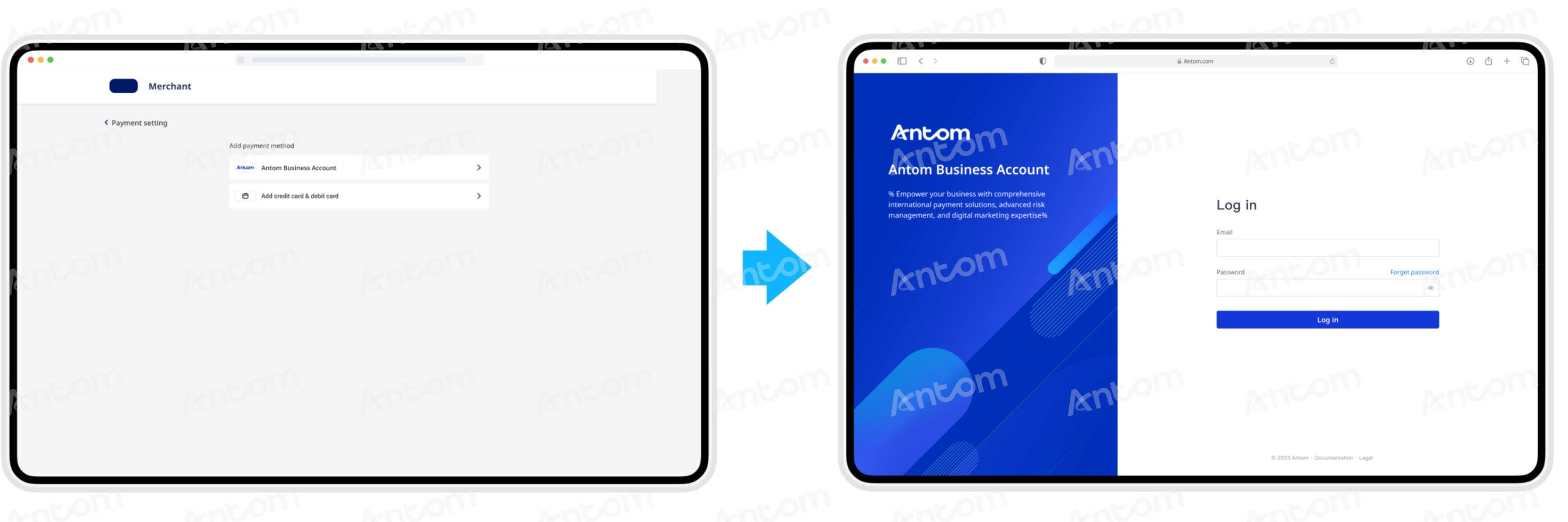
The buyer is redirected to the Antom webpage, where they complete authorization by entering their account credentials. Currently, only authorization initiated from the merchant's web terminal is supported.


Payment flow
The payment process consists of the following integration steps:
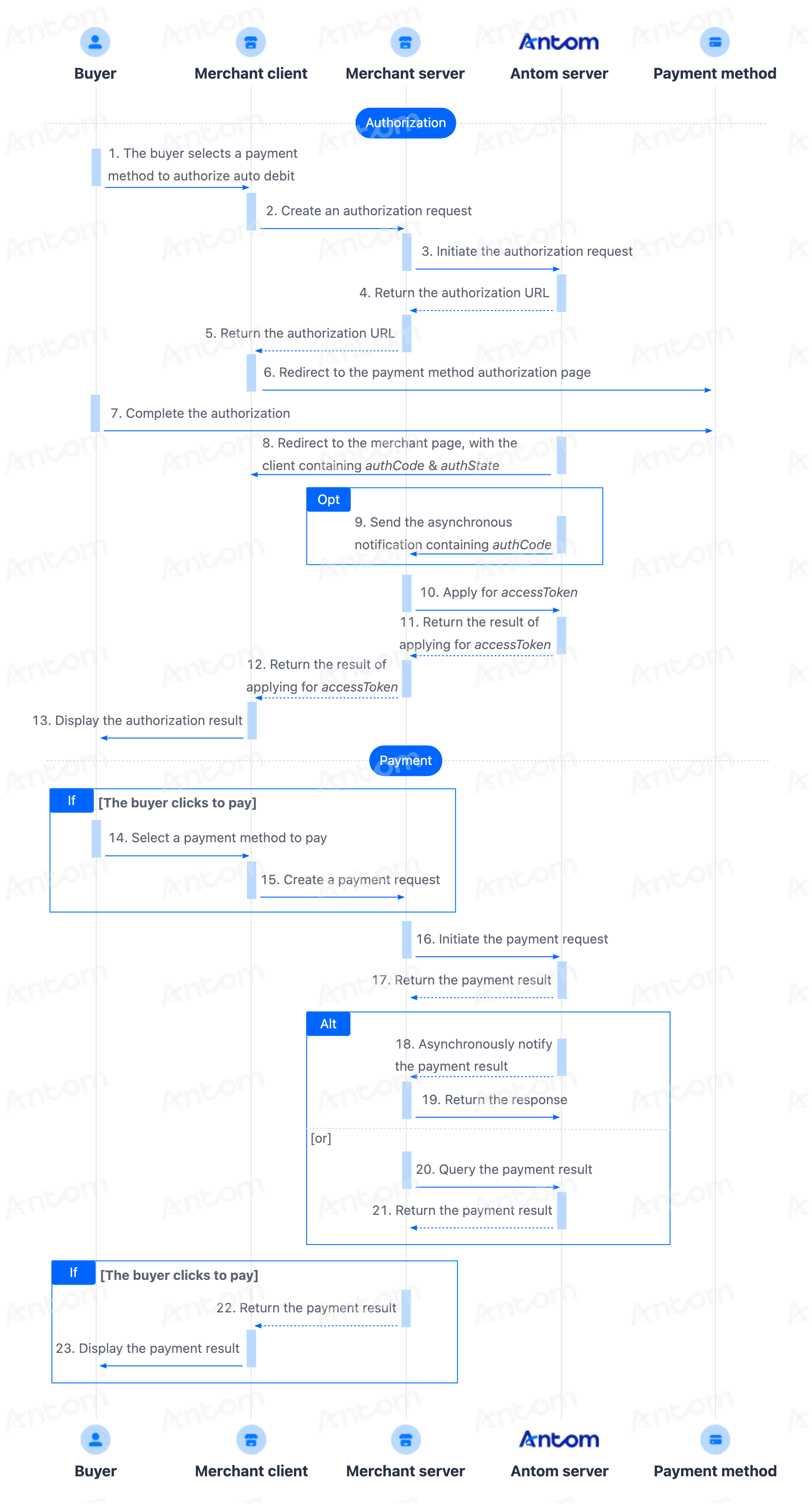
- The buyer lands on the checkout page.
- Obtain the authorization URL.
- After the buyer selects a payment method, call the consult API to obtain the authorization URL.
- Obtain the authorization result.
- You can obtain the authorization result through the reconstructed URL returned by the payment method or through asynchronous notification.
- Apply for a payment token.
- Call the applyToken API to apply for the payment token (accessToken), and store the corresponding token after obtaining it.
- Initiate a payment and obtain the payment result.
- After obtaining the buyer's authorization, you can directly call the pay (Tokenized Payment) API to initiate the auto debit service and obtain the payment result through the inquiryPayment API or notifyPayment.
Integration preparations
Before you start integrating, read the Integration Guide and API Overview documents to understand the integration steps of the server-side API and the precautions for calling the API. Furthermore, ensure that the following prerequisites are met:
- Obtain a client ID
- Complete the key configuration
- Complete the configuration of paymentNotifyUrl to receive the asynchronous notification
- Integrate the server-side SDK package, install the server-side library, and initialize a request instance. For more details, refer to Server-side SDKs.
Integration steps
You can obtain the buyer's authorization and conduct a Tokenized Payment by completing the following integration steps:
- Get and redirect to the authorization URL
- Obtain the authorization code
- Apply for a payment token
- Initiate a Tokenized Payment
- Obtain payment results
Step 1: Get and redirect to authorization URL
1. Call the consult API
Specify the following parameters in the consult request:
Parameter name | Is required? | Description |
customerBelongsTo | Yes | The wallet that the buyer uses. In the context of Antom Business Account, the value of this parameter is fixed as |
authRedirectUrl | Yes | The redirection URL that the buyer is redirected to after the buyer agrees to authorize. This value is provided by you. |
terminalType | Yes | Terminal type of which the merchant service applies to. In this case, the value is fixed at WEB. Currently, only PC is supported. |
authState | Yes | The unique ID generated by you to identify a consult request. |
scopes | Yes | The authorization scope. In this context, the value is fixed at AGREEMENT_PAY. |
The following code shows how to call the consult API to obtain the authorization URL:
public static void authorizationConsult() {
    AlipayAuthConsultRequest alipayAuthConsultRequest = new AlipayAuthConsultRequest();

    // replace with your authState
    String authState = UUID.randomUUID().toString();
    alipayAuthConsultRequest.setAuthState(authState);

    // set the target payment method for which you are requesting authorization
    alipayAuthConsultRequest.setCustomerBelongsTo(CustomerBelongsTo.TOSSPAY);

    // set the authorization scope
    alipayAuthConsultRequest.setScopes(new ScopeType[]{ScopeType.AGREEMENT_PAY});

    // set terminalType
    alipayAuthConsultRequest.setTerminalType(TerminalType.WEB);

    // replace with your authRedirectUrl
    alipayAuthConsultRequest.setAuthRedirectUrl("http://www.yourRedirectUrl.com");

    // do authorization consult
    AlipayAuthConsultResponse alipayAuthConsultResponse;
    try {
        alipayAuthConsultResponse = CLIENT.execute(alipayAuthConsultRequest);
    } catch (AlipayApiException e) {
        String errorMsg = e.getMessage();
        // handle error condition
    }
}
The following code shows a sample of the request message:
{
  "authRedirectUrl": "https://www.alipay.com",
  "authState": "STATE-2348729823419",
  "customerBelongsTo": "ANTOM_BIZ_ACCOUNT",
  "osType": "ANDROID",
  "scopes": [
    "AGREEMENT_PAY"
  ],
  "terminalType": "WEB"
}
The consult API response includes the authorization URL (normalUrl) that the buyer needs to be redirected to. The following parameters are returned in the consult response:
Parameter name | Is required? | Description |
normalUrl | Yes | The URL that redirects buyers to a WAP or web page in the default browser or the embedded WebView. |
result.resultCode | Yes | The result code that indicates the result of calling API. |
The following code shows a sample of the response message:
{
    "normalUrl": "http://page.alipay.net/page/antom-web-checkout-v2/aba-page/pages/auto-debit/index.html?requestHost=http%3A%2F%2Fimgs-50.sggz00b.dev.alipay.net%2Fmgw.htm&sessionData=d%2BS5ZKdIDx%2BhKUl3jkhBVF9eQXMMS2tLO%2BhFc7BWVtOkjaQV982mcQW5GfOnCaGTlrpaD2EI5zsp2%2BUju6eEhg%3D%3D%26%26SG%26%26188&groupId=GROUP_20241001122147828",
    "result": {
        "resultCode": "SUCCESS",
        "resultMessage": "success.",
        "resultStatus": "S"
    }
}
2. Redirect to the authorization URL
After obtaining the normalUrl, your server will pass this link to the client, and your front-end page will redirect the buyer's link to the specified address of the normalUrl. The following is a code example for the client to load a URL in the web terminal:
if (URL != null) {
    window.open(URL, '_blank');
}
The following figure shows the rendering effect of the payment method authorization page:
Step 2: Obtain the authorization code
Redirect to the merchant page
When the buyer performs authorization on the relevant payment method authorization page, the authorization may be successful or fail. In the event of authorization success or failure, the following describes the subsequent redirects:
- Authorization success: If the authorization is successful, the buyer will be redirected back to the merchant page. The merchant page address is a reconstructed URL consisting of authRediectUrl, authCode, and authState. However, the redirection may fail due to network issues or buyer actions.
- Authorization failure:
- If the buyer cancels the authorization or exits the authorization page, some payment methods will redirect the buyer back to the merchant page. The merchant page address is determined by authRediectUrl.
- If the buyer does not authorize before the timeout or authorization fails, the buyer will not be redirected back to the merchant page.
Obtain the authorization code
After the buyer completes the authorization, you can obtain the authorization code (authCode) in one of the following ways:
- Obtain authCode from the reconstructed URL returned by the payment method.
- Obtain authCode from the asynchronous notification of authorization sent by Antom.
Obtain authCode from reconstructed URL
After the buyer's authorization process is completed, the buyer is to be redirected to the reconstructed URL returned by the payment method. This URL consists of three parts:
- The value of the authRedirectUrl parameter that you specified in the consult API.
- The authCode returned by Antom business account.
- The value of the authState parameter that you specified in the consult API.
The following sample shows a reconstructed URL:
https://www.alipay.com/?authCode=d2f60253-ecdc-e9bc-27d1-566970191040&authState=663A8FA9-D836-48EE-8AA1-1FF682989DC7You can obtain the authCode value from the reconstructed URL. However, before using the authCode value, it is necessary to check whether the value of authState in the reconstructed URL is consistent with the value of the authState parameter you specified in the consult API, and do one of the following:
- If the authState values do not match, the reconstructed URL is considered unreliable, as malicious events such as attacks may have occurred during the redirection process. In this case, the authCode value in the URL cannot be used.
- If the authState values match, use the authCode value to apply for the payment token using the applyToken API.
Common questions
Q: Can both methods be used to obtain authCode?
A: Yes. If multiple authCode values are received, use the first one received. Do not reuse the same authCode when requesting a payment token.
Q: How to determine authorization failure?
A: If you do not receive authCode within 1 hour, the authorization can be considered failed. You can guide the buyer to re-initiate authorization.
Step 3: Apply for a payment token
Call the applyToken API within 10 minutes after obtaining authCode to apply for the payment token (accessToken). Otherwise, authCode will expire and become invalid. Only after obtaining accessToken can subsequent auto debit payments be made from the buyer's account.
When calling the applyToken API, specify the following parameters correctly in the request:
Parameter name | Is required? | Description |
grantType | Yes | Specify the fixed value |
customerBelongsTo | Yes | Specify the target payment method for which you are requesting authorization. |
authCode | Yes | Specify the value of authCode that you obtained. |
The following code is a sample of applying for the payment token:
AlipayAuthApplyTokenRequest alipayPayRequest = new AlipayAuthApplyTokenRequest();
alipayPayRequest.setClientId(CLIENT_ID);
alipayPayRequest.setPath("/ams/sandbox/api/v1/authorizations/applyToken");

alipayPayRequest.setGrantType(GrantType.AUTHORIZATION_CODE);
alipayPayRequest.setCustomerBelongsTo(CustomerBelongsTo.Antom business account);
alipayPayRequest.setAuthCode("663A8FA9D83648EE8AA11FF68298XXXX");

//apply for the token
AlipayPayResponse alipayPayResponse = null;
try {
    alipayPayResponse = defaultAlipayClient.execute(alipayPayRequest);
} catch (AlipayApiException e) {
    String errorMsg = e.getMessage();
    // handle error condition
}
The following sample is a request message for applying for the payment token:
{
  "authCode": "663A8FA9D83648EE8AA11FF68298XXXX",
  "customerBelongsTo": "ANTOM_BIZ_ACCOUNT",
  "grantType": "AUTHORIZATION_CODE"
}
In the response, you will receive the following key parameter:
- accessToken: The payment token.
The following sample is a response message:
{
    "accessToken": "28208803011714191738919323000j9i8i8fU2f17100XXXX",
    "accessTokenExpiryTime": "2125-02-07T17:08:43+08:00",
    "extendInfo": "{\"userLoginId\":\"haiqing.XXX@antgroup.com\",\"userId\":\"218812021964XXXX\"}",
    "userLoginId": "haiqing.XXX@antgroup.com",
    "result": {
        "resultCode": "SUCCESS",
        "resultMessage": "success.",
        "resultStatus": "S"
    }
}
The following table shows the possible values of result.resultStatus in the response message for applying for the payment token. Handle the result according to the guidance provided:
result.resultStatus | Message | Further action |
| The request was successful. | Successfully obtained accessToken, and the following fields are returned:
|
| Unknown error. | Call the API again with the same parameters. If the issue persists, contact Antom Technical Support. |
| The request failed. | Handle the relevant issues based on result.resultCode message. Since authCode can only be used once, you need to start over from Step 1 to obtain and redirect to the authorization URL. After obtaining the new authCode, call the applyToken API again. |
Notes:
- For historical reasons, the above key parameters apply to new merchants. The token is valid for 100 years. If you have used the accessTokenExpiryTime, refreshToken and refreshTokenExpiryTime fields before, you can continue to maintain the original logic.
- If no response is received, it may indicate a network timeout. Call the API again with the same parameters. If the issue persists, contact Antom Technical Support.
- If you are able to receive a response after calling the API, but the payment token (accessToken) is not returned in the response, take the following actions:
- If result.resultStatus value is
U, use the same parameters and parameter values to initiate the request again. If the value of result.resultStatus isF, address the associated issues based on the prompts provided by result.resultCode. - If you need to call the applyToken API again to obtain a payment token, since the authCode can only be used once, you need to start over again from Step 1 to get the authorization URL, redirect to the authorization URL, get a new authCode, and then call the applyToken API again.
- If you need to display the authorized account to the buyer, use the value of userLoginId returned in the applyToken API. The returned value of this field has been desensitized and can be displayed directly.
Common questions
Q: Can I obtain the payment token through asynchronous notifications?
A: No. The payment token can only be applied for by calling the applyToken API.
Q: How long is the token valid for?
A: 100 years.
Step 4: Initiate a Tokenized Payment
Once you have obtained the buyer's authorization, you can provide the Tokenized Payment service directly to buyers without requiring them to undergo the authorization process for each payment.
Specify the following parameters when initiating a Tokenized Payment:
Field Type | Field Name | Is required? | Description |
Base fields | paymentRequestId | Yes | The unique ID assigned by a merchant to identify a payment request. |
| paymentAmount | Yes | The payment amount that you requests to receive in the order currency. | |
paymentRedirectUrl | Yes | The merchant page URL that the buyer is redirected to after the payment is completed. | |
| paymentNotifyUrl | No | The URL that is used to receive the payment result notification. You can also set the URL to receive the result notification on Antom Dashboard. | |
paymentMethod.paymentMethodType | Yes | The payment method type that is included in payment method options. | |
| paymentMethod.paymentMethodId | Yes | The unique ID of the payment method that belongs to a buyer. The value of this field is the value of accessToken obtained by calling the applyToken API. | |
Order fields | order.orderAmount | Yes | The order amount of the merchant that directly provides services or goods to the customer. |
order.referenceOrderId | Yes | The unique ID to identify the order on the merchant side. | |
| order.goods | Yes | Goods information, including the ID, name, price, and quantity of the goods in the order. Please note:
| |
| order.buyer | Yes | Buyer information, including the ID, name, phone number, and email of the buyer. This parameter must be associated with two other mandatory parameters, referenceBuyerId and buyerName.fullName. | |
order.transit | No | Trip information, including trip modes, legs of trips and passenger information. This field is required if it is a transaction related to flight tickets. If the transit is a required field, then the following five fields must be provided: transitType, legs.departureTime, legs.departureAddress.city, legs.arrivalAddress.city, and legs.carrierNo. |
The parameters listed above are not comprehensive. See the pay (Tokenized Payment) API for a complete list of parameters and any additional requirements for specific payment methods.
The following code shows a sample of the request messages in different payment scenarios:
Flight tickets scenario
{
    "order": {
        "transit": {
            "transitType": "FLIGHT",
            "legs": [
                {
                    "departureTime": "2024-11-27T12:01:01+08:00",
                    "departureAddress": {
                        "city": "SZX" //IATA three-digit code is required
                    },
                    "arrivalAddress": {
                        "city": "HKG" //IATA three-digit code is required
                    },
                    "carrierNo": "111"
                }
            ]
        },
        "orderAmount": {
            "currency": "CNY",
            "value": "1000"
        },
        "orderDescription": "Cappuccino #grande (Mika's coffee shop)",
        "referenceOrderId": "ORDER_2022111414171****",
        "buyer": {
            "referenceBuyerId": "test1234****",
            "buyerName": {
                "fullName": "Dehua Skr Liu"
            }
        },
        "goods": [
            {
                "referenceGoodsId": "GoodsId-32078",
                "goodsUnitAmount": {
                    "currency": "CNY",
                    "value": "1000"
                },
                "goodsQuantity": "1",
                "goodsName": "ticket-date-flight number-departure-arrival"
            }
        ]
    },
    "env": {
        "terminalType": "WEB"
    },
    "paymentAmount": {
        "currency": "CNY",
        "value": "1000"
    },
    "paymentMethod": {
        "paymentMethodType": "ANTOM_BIZ_ACCOUNT",
        "paymentMethodId": "28208803000517871730802054000MyNIvBt2HK17100****"
    },
    "settlementStrategy": {
        "settlementCurrency": "CNY"
    },
    "paymentNotifyUrl": "https://www.alipay.com/notify",
    "paymentRequestId": "PAY_2022111414171****",
    "productCode": "AGREEMENT_PAYMENT"
}The following code shows an example of a response:
{
  "actualPaymentAmount": {
    "currency": "HKD",
    "value": "1000"
  },
  "paymentAmount": {
    "currency": "HKD",
    "value": "1000"
  },
  "paymentCreateTime": "2024-10-21T21:00:53-07:00",
  "paymentId": "2024102219401080010018874020964****",
  "paymentRequestId": "paymentRequestId_172956965****",
  "paymentTime": "2024-10-21T21:01:08-07:00",
  "result": {
    "resultCode": "SUCCESS",
    "resultMessage": "success.",
    "resultStatus": "S"
  }
}
Step 5: Obtain payment results
After the buyer completes the payment or the payment times out, get the corresponding payment result in one of the following ways:
- Receive the asynchronous notification sent by Antom
- Inquire about the payment result
Inquire about the result
You can also inquire about the payment result by calling the inquiryPayment API using paymentRequestId from the payment request.
Parameter name | is required? | Description |
paymentRequestId | Yes | The payment request ID generated by the merchant. |
The following is the sample code:
{
  "paymentRequestId": "10152024052741013451092402****"
}
The following sample code shows the response message of the inquiryPayment API:
{
  "actualPaymentAmount": {
    "currency": "HKD",
    "value": "1000"
  },
  "paymentAmount": {
    "currency": "HKD",
    "value": "1000"
  },
  "paymentId": "2024052719401080010018842022553****",
  "paymentMethodType": "ANTOM_BIZ_ACCOUNT",
  "paymentRedirectUrl": "https://xxx.com/bgt_launch_app_callback.html?browser_callback_new=1&chTransId=SO000124052709420662253642020002",
  "paymentRequestId": "10152024052741013451092402****",
  "paymentResultCode": "SUCCESS",
  "paymentResultMessage": "success",
  "paymentStatus": "SUCCESS",
  "paymentTime": "2024-05-27T02:27:27-07:00",
  "result": {
    "resultCode": "SUCCESS",
    "resultMessage": "success.",
    "resultStatus": "S"
  }
}
The result field represents the result of the API call. The result of the order needs to be judged according to paymentStatus:
SUCCESS: Indicates payment is successful.FAIL: Indicates payment failed.PROCESSING: Indicates payment is being processed.CANCELLED: Indicates that the payment has been cancelled.
Receive the asynchronous notification
When a payment is completed or fails, Antom sends an asynchronous notification (notifyPayment) to the address that you specified in the pay (Tokenized Payment) API via the paymentNotifyUrl parameter. If the address of each payment is the same, you can also configure the address in Antom Dashboard.
The following is the notification request sample code:
{
  "actualPaymentAmount": {
    "currency": "HKD",
    "value": "1000"
  },
  "notifyType": "PAYMENT_RESULT",
  "paymentAmount": {
    "currency": "HKD",
    "value": "1000"
  },
  "paymentCreateTime": "2024-05-27T02:27:13-07:00",
  "paymentId": "2024052719401080010018842022553****",
  "paymentRequestId": "10152024052741013451092402****",
  "paymentResultInfo": {},
  "paymentTime": "2024-05-27T02:27:27-07:00",
  "result": {
    "resultCode": "SUCCESS",
    "resultMessage": "success.",
    "resultStatus": "S"
  }
}
If you receive an asynchronous notification from Antom, you are required to return the response in the Sample code format, but you do not need to countersign the response. You need to verify the signature of the payment notification sent by Antom. How to verify the signature of the notification and make a response to the notification, see Process the notification.
Whether the payment is successful or not, each notification request must be responded to in the format specified below. Otherwise, Antom will resend the asynchronous notification.
{
  "result": {
    "resultCode": "SUCCESS",
    "resultStatus": "S",
    "resultMessage": "Success"
  }
}
Common questions
Q: When will the notification be sent?
A: It depends on whether the payment is completed:
- If the payment is successfully completed, Antom will send you an asynchronous notification within 3 to 5 seconds.
- If the payment is not completed, Antom needs to close the order first before sending an asynchronous notification. The default time for Tokenized Payment is 1 minute.
Q: Will the asynchronous notification be re-sent?
A: Yes, the asynchronous notification will be re-sent automatically within 24 hours for the following cases:
- If you didn't receive the asynchronous notification due to network reasons.
- If you receive an asynchronous notification from Antom, but you did not respond to the notification in the Sample code format.
The notification can be resent up to 8 times or until a correct response is received to terminate delivery. The sending intervals are as follows: 0 minutes, 2 minutes, 10 minutes, 10 minutes, 1 hour, 2 hours, 6 hours, and 15 hours.
Q: When responding to an asynchronous notification, do I need to add a digital signature?
A: If you receive an asynchronous notification from Antom, you are required to return the response in the Sample code format, but you do not need to countersign the response.
Q: What key parameters are required in notifications?
A: Note the following key parameters:
- result: Indicates the payment result of the order.
- paymentRequestId: The payment request ID for consultation, cancellation, and reconciliation.
- paymentId: The payment order ID generated by Antom, used for refund and reconciliation.
- paymentAmount: Indicates the payment amount.
Q: If the currency in the buyer's Antom business account is inconsistent with the currency specified in the payment request, will the transaction fail?
A: Yes, the transaction will fail.
After payments
After completing the payment, you can perform the following actions:
Revoke authorization
Once the buyer completes the authorization process, you are required to grant your buyer the ability to revoke authorization. Refer to Revoke authorization for more information.
Cancel
After the buyer places an order, you can close that order using the cancel API within a limited period. Transactions can be canceled at any time from the order placement until 00:15 (GMT+8) on T+1 day (T is the transaction day). Refer to Cancel for detailed steps.
Refund
After the transaction is paid successfully, You can initiate a refund for a successfully paid transaction by calling the refund API. Refer to Refund for detailed steps.
Reconciliation
After the transaction is completed, use the financial reports provided by Antom for reconciliation. For more information on how to reconcile and the settlement rules of Antom, refer to Reconciliation.
Best practices
Antom provides you with best practice solutions such as the display of payment results, payment-retry solution, and API timeout settings. For more details, refer to Best practices.