
如何正确使用支付推进链接
在调用 pay(单笔支付)接口后,根据支付过程中所使用的支付方式,接口响应中会返回不同类型的支付推进链接。本文为您提供针对不同客户端类型的支付推进链接的最佳实践。有关每种支付方式返回的支付推进链接 的详细信息,请参阅支付方式返回链接。
支付推进链接的类型
对于不同类型的商户客户端(Web、WAP、App),不同的支付方式在 pay(单笔支付)接口的响应中返回以下三种类型的支付推进链接之一或全部,以继续支付流程。
类型 | 描述 |
normalUrl | 一个 HTTPS 地址的链接,用于在同个浏览器页面上重定向到支付方式的网站页面。 示例:https://msp.boost-my.com/onlinepayment/authorise?source=alipay-connect&codeValue=https%3A%2F%2Fglobal.alipay.com%2F2810020400931LFH2t2mq1jjJ8zSetyv31VU |
applinkUrl | 在支付过程中用于重定向的 Android App Link 或 iOS Universal Link。 示例:https://myboost.app.link/IvWm7QZkfjb?%24fallback_url=https%3A%2F%2Fmsp.boost-my.com%2Fonlinepayment%2Fauthorise&source=alipay-connect&codeValue=https%3A%2F%2Fglobal.alipay.com%2F2810020400931LFH2t2mq1jjJ8zSetyv31VU |
schemeUrl | 用于打开支付方式应用的 URL scheme。 示例:boostapp://inAppDeeplink?deeplink_path=deeplink/onetimepayment&source=alipay-connect&codeValue=https%3A%2F%2Fglobal.alipay.com%2F2810020400931LFH2t2mq1jjJ8zSetyv31VU |
Web
本节提供了关于如何在 WEB 类型的终端中进行支付推进链接操作的信息。对于电脑网站上的支付,pay(单笔支付)接口的响应中包含标识为 normalUrl 的支付推进链接。
打开链接
获取到 normalUrl 值后,您需要使用支付推进链接将买家重定向到支付页面。建议您在新标签页中打开链接,引导买家完成支付。打开新页面的代码如下:
if (serverResponse.normalUrl != null) {
    window.open(serverResponse.normalUrl, '_blank');
}
用户体验
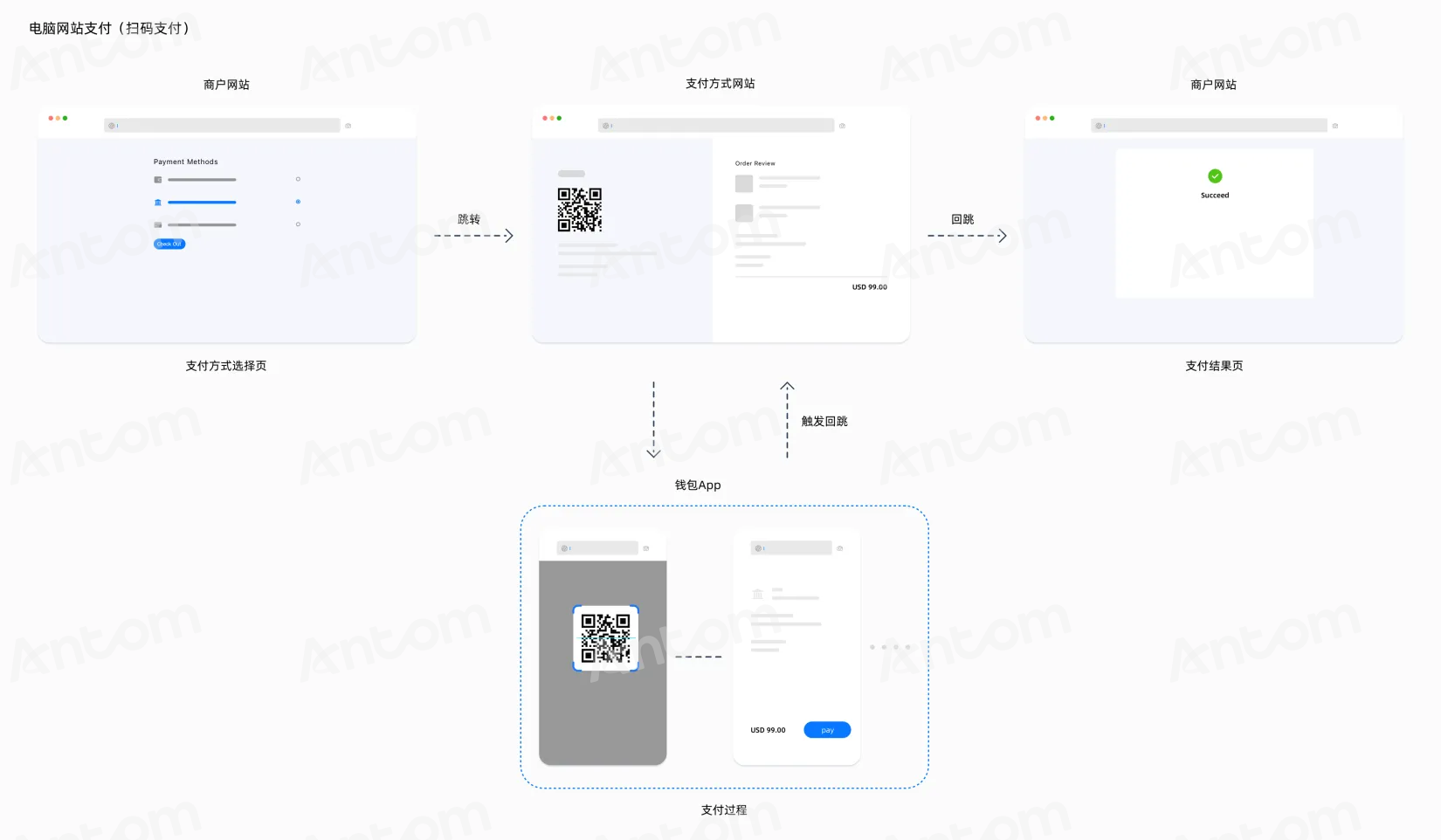
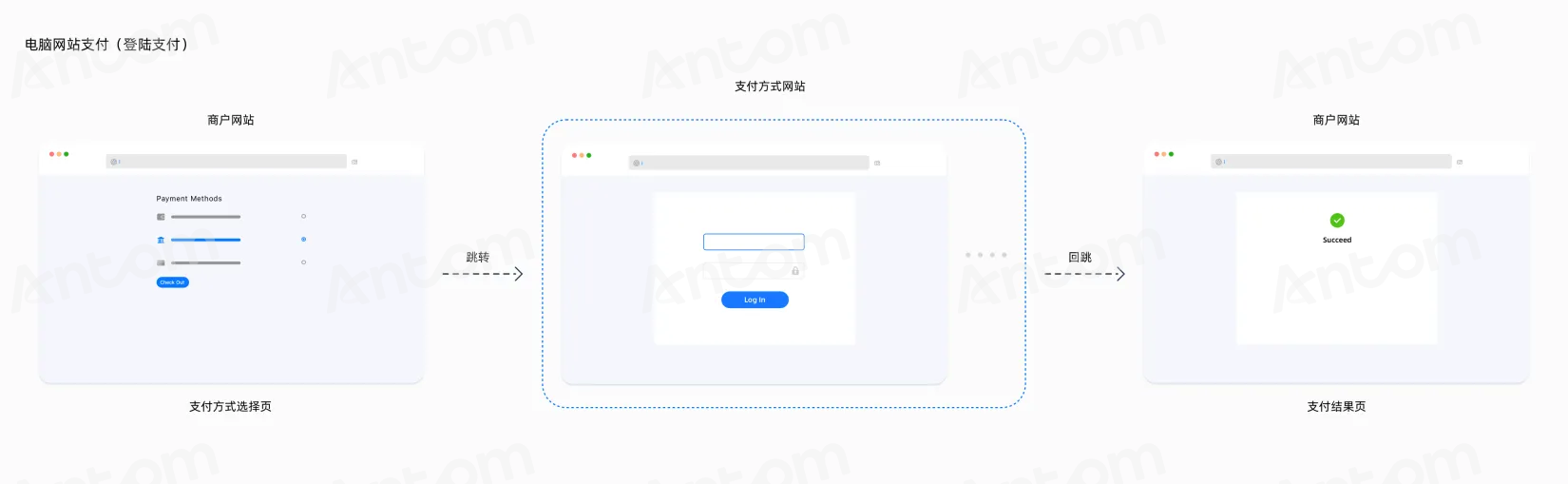
使用 normalUrl 渲染的支付页面可能是二维码扫描页或登录页。以下图表展示了这两种情况下的支付流程:
二维码扫描页面 |
|
登录页面 |
|
WAP
本节提供了在WAP终端类型下如何处理支付推进链接的信息。对于移动网站上的支付,pay(单笔支付)接口的响应可能包含以下一个或多个支付推进链接:
- normalUrl
- applinkUrl
- schemeUrl
选择链接
如果 pay(单笔支付)接口的响应中只包含三个链接之一,直接将接收到的链接用作跳转链接。如果收到多个链接,建议根据以下指导选择链接:
- iOS 系统:优先使用 applinkUrl ,然后是 schemeUrl ,最后是 normalUrl 。
- Android 系统:优先使用 schemeUrl ,然后是 applinkUrl ,最后是 normalUrl 。
打开链接
要使用 JavaScript 的重定向方法打开链接,可以使用以下代码:
window.location.href = URL;用户体验
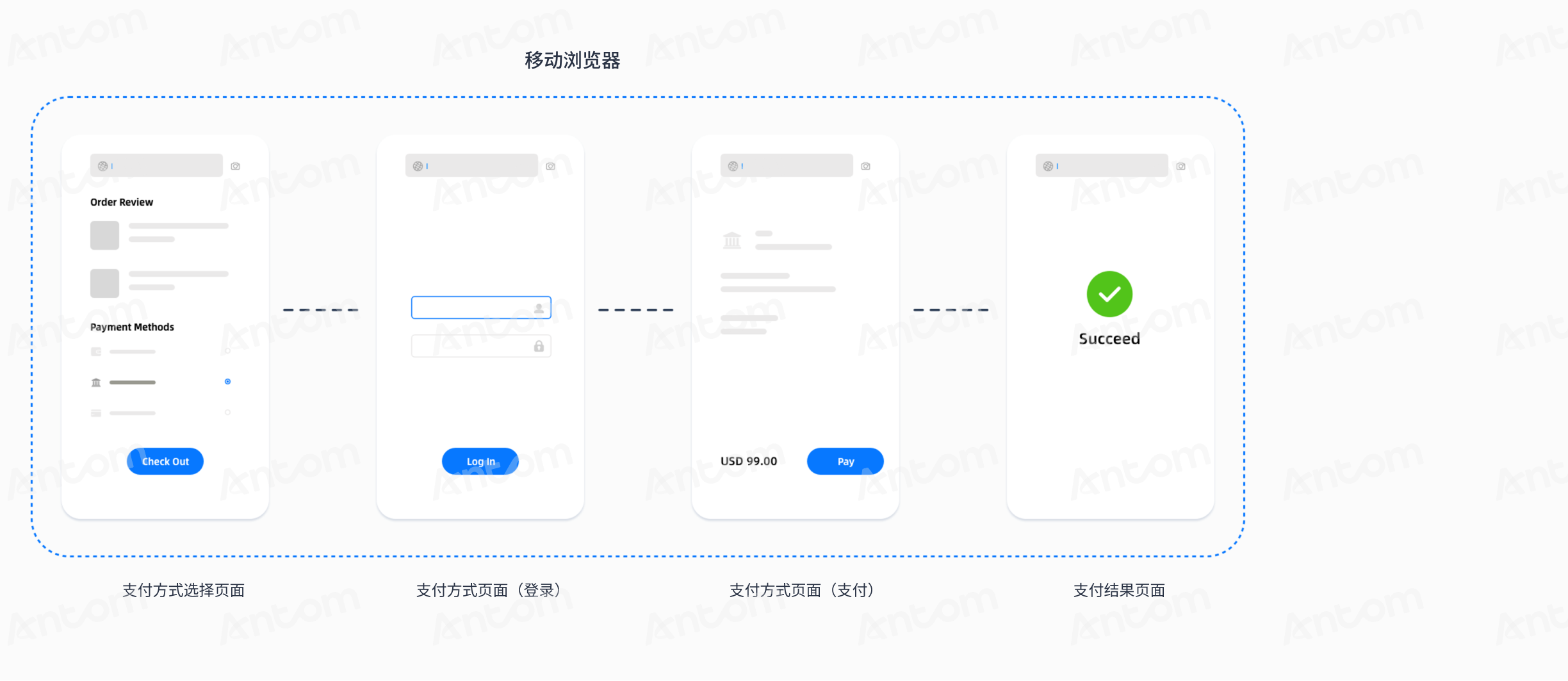
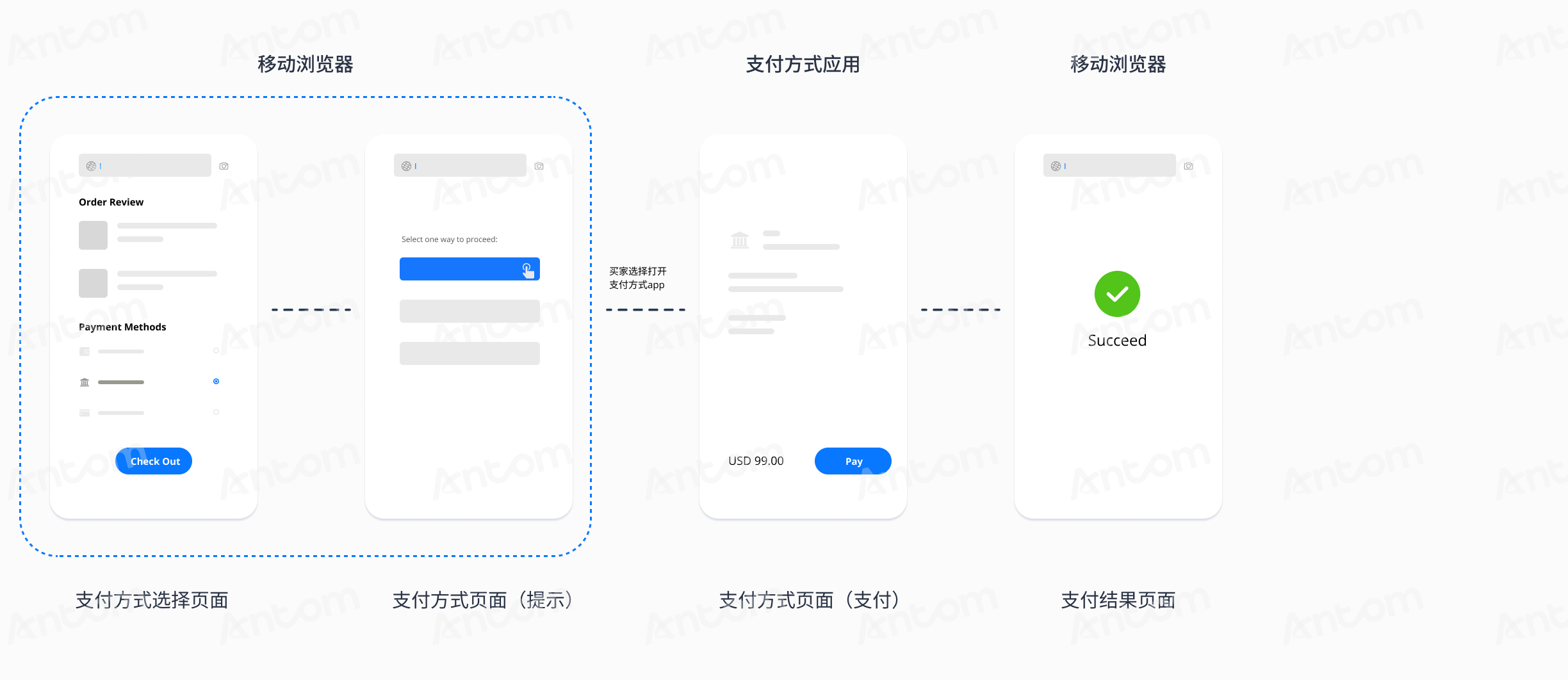
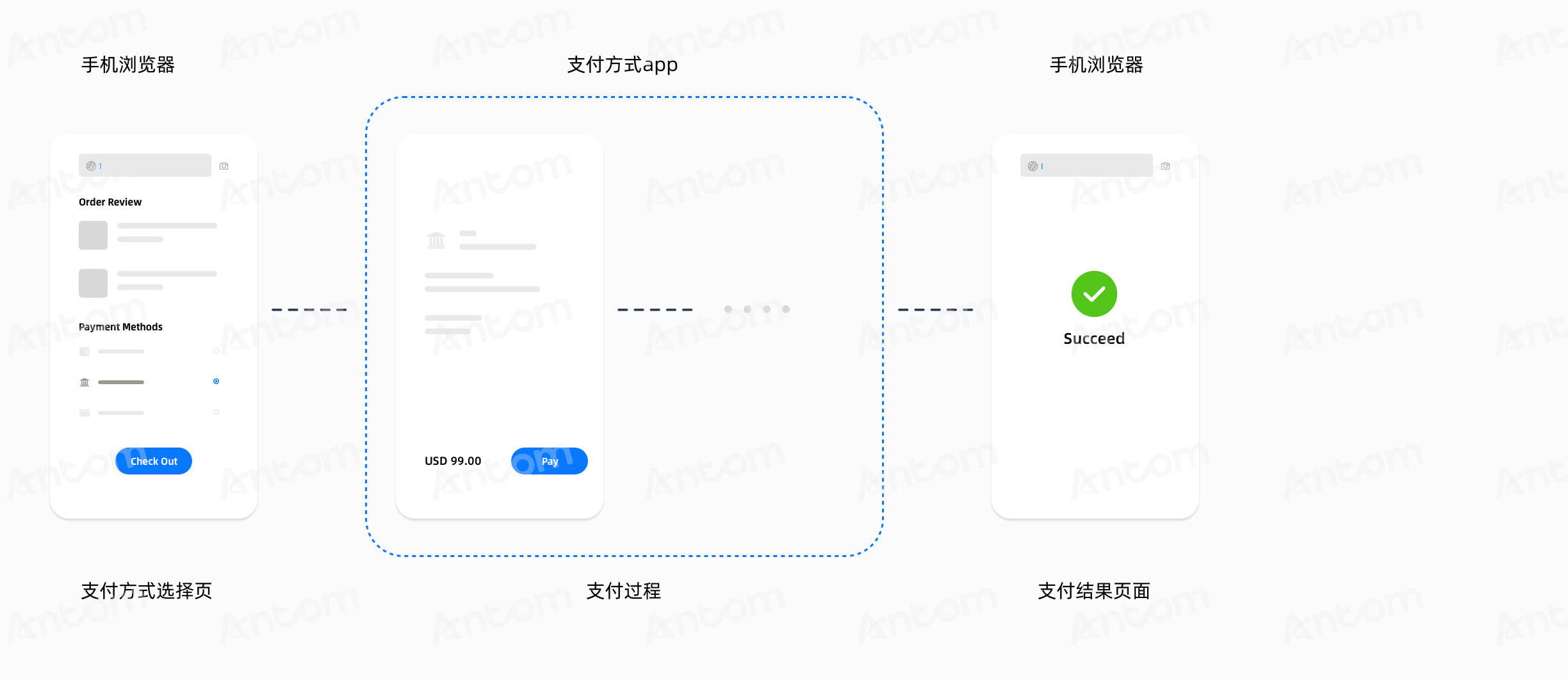
类型 | 支付体验 |
normalUrl | 买家从您的移动网页页面被重定向到支付方式的移动网页页面。在支付方式的移动网页上显示的内容取决于支付方式,可以分为以下两类:
|
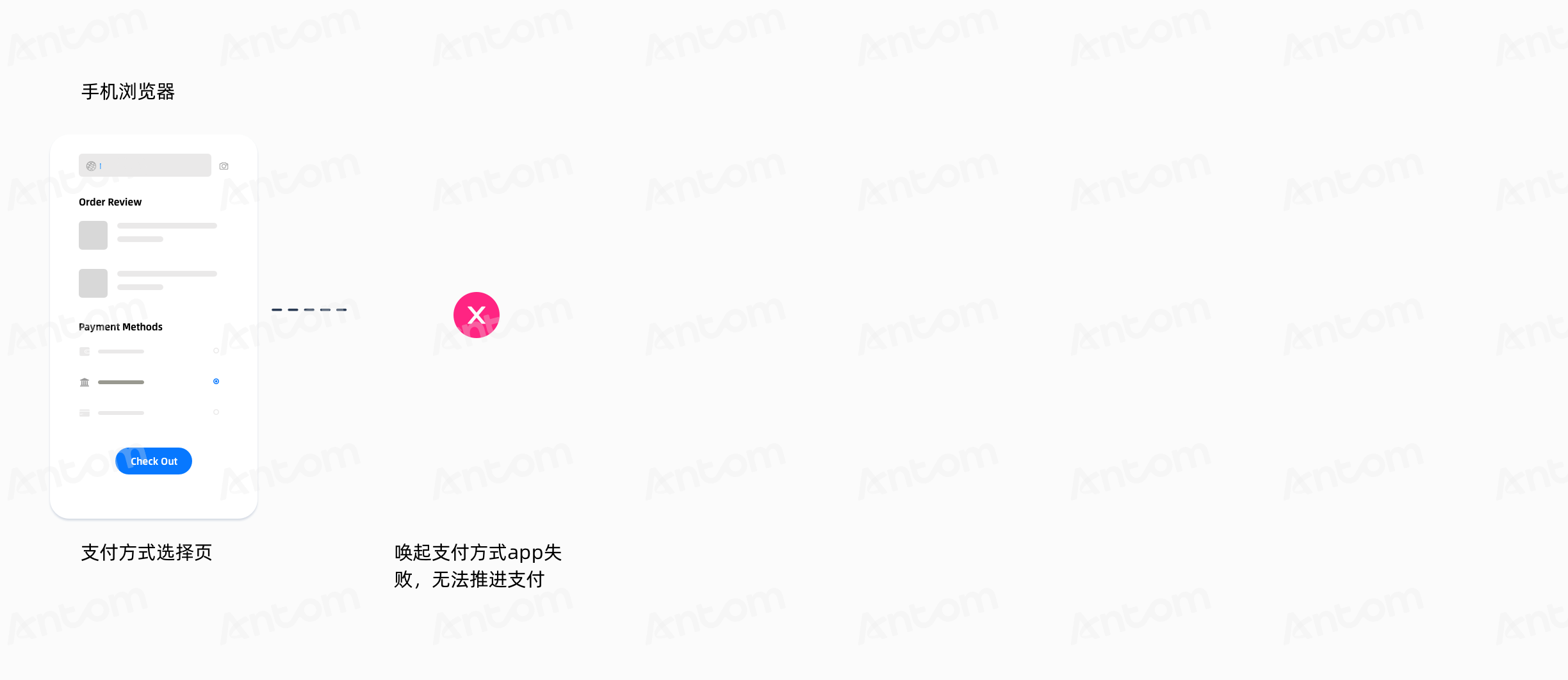
applinkUrl | 根据买家是否安装了支付方式的应用,后续支付流程会自动确定:
|
schemeUrl | 支付体验取决于买家是否已安装支付方式的应用:
|
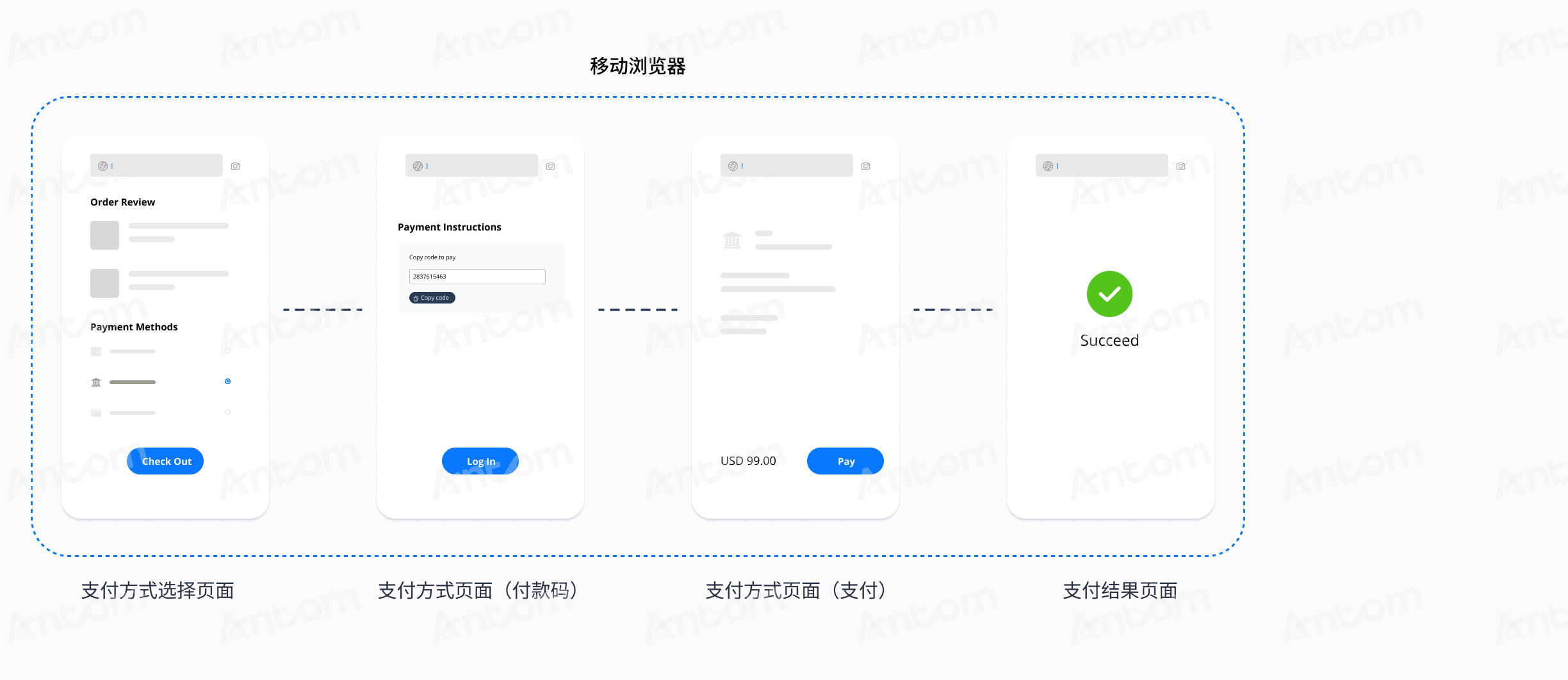
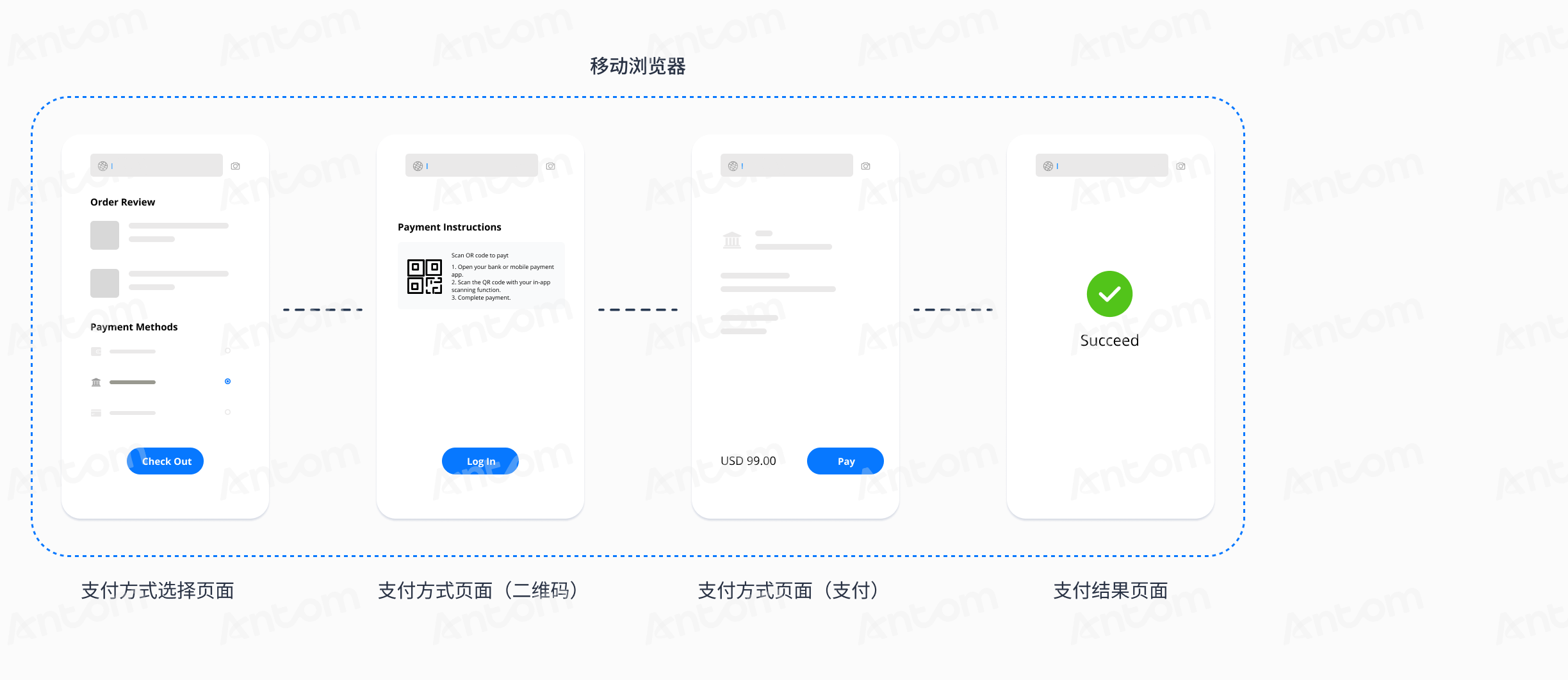
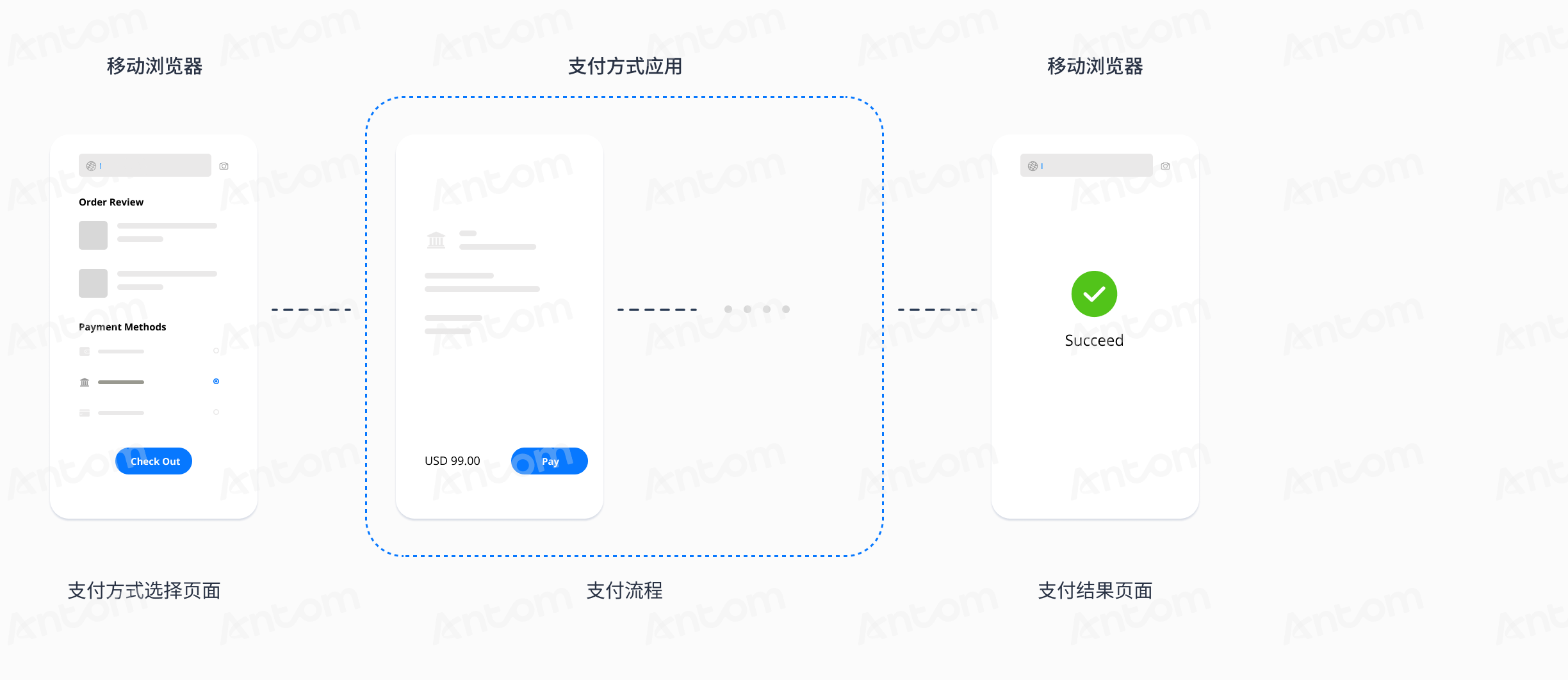
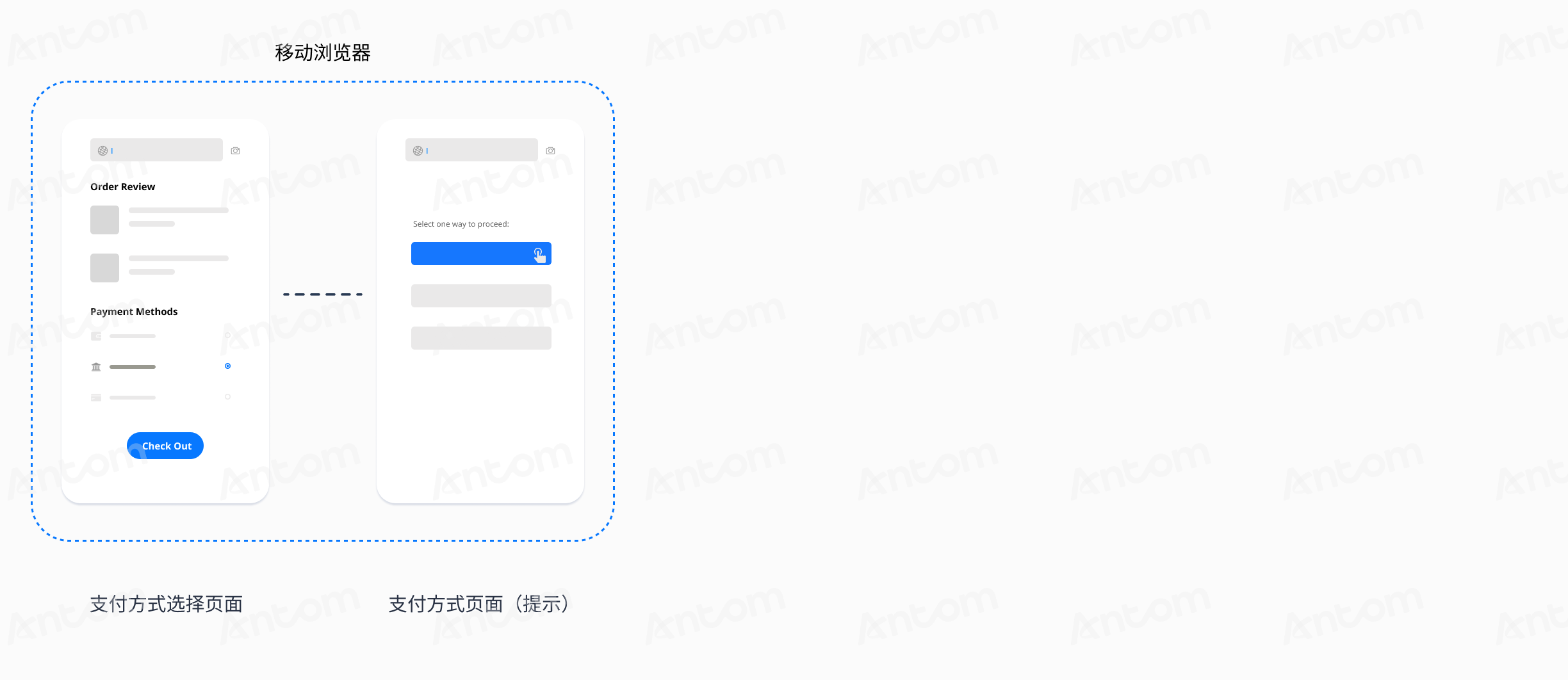
APP
本节介绍了如何在 APP 类型的终端上处理支付推进链接。对于移动应用支付, pay(单笔支付)接口的响应可能包含以下一个或多个支付推进链接:
- normalUrl
- applinkUrl
- schemeUrl
注意:对于移动应用支付,除了上述提到的重定向链接参数外,pay(单笔支付)接口的响应还包含 appIdentifier 参数。此参数是对应支付方式应用的包名,用于判断是否已安装该应用以进行应用内支付。它也可以用于避免在 Android 上出现消歧对话框。
选择链接
如果 pay(单笔支付)接口响应中只包含三个链接中的一个,直接将接收到的链接用作跳转链接。如果您收到多个链接,建议根据以下指导选择链接:
- iOS 系统:优先使用 applinkUrl,然后是 schemeUrl,最后是 normalUrl。
- Android 系统:优先使用 schemeUrl,然后是 applinkUrl,最后是 normalUrl。
打开链接
对于 Android 和 iOS,使用以下重定向方法之一打开支付推进链接:
iOS
对于 iOS
使用以下方法之一打开支付推进链接:
- 推荐 重定向到应用外部:调用 iOS 方法打开支付推进链接。
- 在应用内重定向:在应用内打开支付推进链接。
- 使用 WKWebView
- 使用 WKWebView 和 JSBridge
- 使用 SafariViewController
- 取决于支付方式应用是否安装:在应用程序内部或外部打开支付推进链接。
重定向到应用外部
调用 iOS 方法来打开支付推进链接会导致重定向到应用外部。以下代码示例展示了如何使用 iOS 系统中的 iOS 方法,将买家从您的应用重定向到支付方式应用。
if ([[[UIDevice currentDevice] systemVersion] floatValue] >= 10.0) {
    [[UIApplication sharedApplication] openURL:[NSURL URLWithString:Url] options:@{} completionHandler:nil];
}else{
    [[UIApplication sharedApplication] openURL:[NSURL URLWithString:Url]];
}
应用内重定向
使用以下链接类型才可以在应用内打开支付推进链接:
- normalUrl
- applinkUrl
注意:某些支付方式不支持在移动网站上支付。打开 normalUrl 意味着通过重定向调用相应的支付方式应用,而 WKWebView 会拦截这个重定向。您需要使用 WKWebView 的 decidePolicyForNavigationAction 方法,并调用 iOS 方法来打开支付推进链接,以实现从您的 WKWebView 到支付方式应用的重定向。
使用 WKWebView
以下示例代码展示了如何使用 WKWebView 在 iOS 应用内加载支付方式页面:
// Initialize webview configuration
WKWebViewConfiguration *configuration = [[WKWebViewConfiguration alloc]init];
// Initialize webView
WKWebView *webView = [[WKWebView alloc]initWithFrame:CGRectMake(0, 0, [UIScreen mainScreen].bounds.size.width, [UIScreen mainScreen].bounds.size.height) configuration:configuration];
webView.navigationDelegate = self;
//Load the payment method URL
[webView loadRequest:[NSURLRequest requestWithURL:[NSURL URLWithString:Url]]];
[self.view addSubview:self.webView];
以下示例代码展示了如何使用 WKWebView 的 decidePolicyForNavigationAction方法实现从您的 WKWebView 重定向至支付方式应用:
- (void)webView:(WKWebView *)webView decidePolicyForNavigationAction:(WKNavigationAction *)navigationAction decisionHandler:(void (^)(WKNavigationActionPolicy))decisionHandler{
    // WKWebView intercepts the redirection by default. Enable the redirection in the following ways.
    // Operations such as opening Safari
    NSURL *url = navigationAction.request.URL;
    NSString *absoluteString = url.absoluteString;
    NSString *scheme = url.baseURL.scheme;

    DLog(@"navigationAction.request.URL.absoluteString=====> %@", absoluteString);
    if ([absoluteString isEqualToString:@"about:blank"]) {
        decisionHandler(WKNavigationActionPolicyCancel);
    }
    if (!([absoluteString containsString:@"https://"] || [absoluteString containsString:@"http://"])) {
        if ([absoluteString containsString:@"://"]) {
            NSString *urlHeader =  [absoluteString componentsSeparatedByString:@"://"][0];
            [MBProgressHUD showAutoMessage:[NSString stringWithFormat:@"Scheme\n%@://",urlHeader] toView:self.view];
            dispatch_after(dispatch_time(DISPATCH_TIME_NOW, (int64_t)(2.0 * NSEC_PER_SEC)), dispatch_get_main_queue(), ^{
                [self openAppWithUrlStr:navigationAction.request.URL];
                decisionHandler(WKNavigationActionPolicyAllow);
            });
        }
    } else {
        decisionHandler(WKNavigationActionPolicyAllow);
    }
}
使用 WKWebView 和 JSbridge
使用 WKWebView 和 JSBridge 可以优化买家的支付体验,但这需要强大的开发能力。通过 WKWebView 结合使用 JSBridge 打开URL对项目的维护和可扩展性有益,同时也能提升性能和安全性。利用 JSBridge 可以促进网页与原生应用之间的交互,使 WAP 页面能够直接调用应用的原生方法。下面的代码示例展示了如何在 WKWebView 中使用 JSBridge。
[self.wkWebView evaluateJavaScript:bridge completionHandler:nil];使用 SFSafariViewController
SFSafariViewController 支持打开和渲染 normalUrl、applinkUrl 以及 schemeUrl。与 WebView 相比,它具有更全面的功能和更简单的集成方式。关于如何使用 SFSafariViewController 来打开支付推进链接,请参阅 SFSafariViewController 用户指南。下面的代码示例展示了如何使用 SFSafariViewController。
SFSafariViewController *safariVC = [[SFSafariViewController alloc] initWithURL:Url entersReaderIfAvailable:NO];
safariVC.delegate = self;
[self.navigationController presentViewController:safariVC animated:YES completion:nil];
取决于是否安装支付方式应用
您必须首先检查买家是否已安装了支付方式应用,然后决定支付推进链接的打开方式。如果买家已经安装了支付方式应用,您可以采用应用内重定向流程。否则,采用应用外重定向流程。 要检查买家是否已安装支付方式应用,请执行以下步骤:
- 在 info.plist 中的配置里添加 LSApplicationQueriesSchemes。请注意,info.plist 中方案的数量是有限制的。
- 使用
canOpenURL方法来确定支付方式应用是否已安装。参考以下代码:
NSString *walletSchemeUrl = @"gcash://";

if ([[UIApplication sharedApplication] canOpenURL:[NSURL URLWithString:walletSchemeUrl]]){
    // The payment method app is installed. Open the app directly.
    [[UIApplication sharedApplication] openURL:[NSURL URLWithString:Url] options:@{} completionHandler:nil];

    return YES;
} else {
    // The payment method app is not installed. We recommend that you load the mobile website in WebView.
    SFSafariViewController *safariVC = [[SFSafariViewController alloc] initWithURL:Url entersReaderIfAvailable:NO];
    safariVC.delegate = self;
    [self.navigationController presentViewController:safariVC animated:YES completion:nil];

    return NO;
}
Android
对于 Android
使用以下方法之一打开支付推进链接:
- 推荐 重定向到应用外部: 调用 iOS 方法打开支付推进链接。
- 在应用内重定向: 在应用内打开支付推进链接。
- 使用 WKWebView
- 使用 WKWebView 和 JavascriptInterface
- 使用 Custom Tabs plug-in
- 取决于支付方式应用是否安装:在应用程序内部或外部打开支付推进链接。
重定向至应用外部
调用 Android 方法来打开支付推进链接会导致重定向到应用外部。以下代码示例展示了如何使用 Android 方法打开支付推进链接来实现从您的应用重定向到支付方式应用。
try {
    Intent intent = new Intent(Intent.ACTION_VIEW, Uri.parse(Url));
    intent.addFlags(Intent.FLAG_ACTIVITY_NEW_TASK);
    // use the startActivity function to redirect to the wallet app
    startActivity(intent);
} catch (Exception e) {
    e.printStackTrace();
}
使用该方法可能会弹出消歧对话框。
应用内重定向
使用以下链接类型才可以在应用内打开支付推进链接:
- normalUrl
- applinkUrl
注意:某些支付方式不支持在移动网站上支付。打开 normalUrl 意味着通过重定向调用相应的支付方式应用,而 WKWebView 会拦截这个重定向。您需要使用 WKWebView 的 shouldOverrideUrlLoading方法,并调用 Android 方法来打开支付推进链接,以实现从您的 WKWebView 到支付方式应用的重定向。
使用 WebView
以下示例代码展示了如何使用 WKWebView 在 Android 应用内加载支付方式页面:
WebView webView = findViewById(R.id.webview);
//Set webview
webView.setWebViewClient(new WebViewClient() {
    @Override
    public boolean shouldOverrideUrlLoading(WebView view, WebResourceRequest request) {
        view.loadUrl(request.getUrl().toString());
        return super.shouldOverrideUrlLoading(view, request);
    }});

WebSettings webSettings = webView.getSettings();
//Enable javascript
webSettings.setJavaScriptEnabled(true);
//Enable scaling
webSettings.setSupportZoom(true);
//Enable scaling controls (buttons)
webSettings.setBuiltInZoomControls(true);
//Webview has two cache modes. Cache is not used here.
webSettings.setCacheMode(WebSettings.LOAD_NO_CACHE);
//Allow JavaScript to open a new tab (false by default)
webSettings.setJavaScriptCanOpenWindowsAutomatically(true);
//Allow JavaScript to load local storage
webSettings.setDomStorageEnabled(true);
//WAP cache size (settings are not needed)
//webSettings.setAppCacheMaxSize(1024 * 1024 * 8);
//WAP cache path
String absolutePath = getApplicationContext().getCacheDir().getAbsolutePath();
//WAP cache size
webSettings.setAppCachePath(absolutePath);
//Set whether to allow WebView to access files (true by default)
webSettings.setAllowFileAccess(true);
//Allow WAP cache to be saved
webSettings.setAppCacheEnabled(true);
//In preview mode, if the page width exceeds the WebView display, scale down the page to fit WebView (false by default)
webSettings.setLoadWithOverviewMode(true);
//Support the viewport HTML meta tag
webSettings.setUseWideViewPort(true);
//Load the payment method URL
webView.loadUrl(Url);
为 WebView 设置 WebViewClient,使用 WebViewClient.shouldOverrideUrlLoading 方法来阻止链接,然后调用 Android 方法。详情参考下列示例代码:
@Override
public boolean shouldOverrideUrlLoading(WebView view, WebResourceRequest request) {
    if (request.getUrl().toString().startsWith("http")) {
        view.loadUrl(request.getUrl().toString());
        return super.shouldOverrideUrlLoading(view, request);
    } else {
        view.onPause();
        view.stopLoading();
        try {
          Intent intent = Intent.parseUri(uri, Intent.URI_INTENT_SCHEME);
          intent.setFlags(Intent.FLAG_ACTIVITY_NEW_TASK);
          view.getContext().startActivity(intent);
        } catch (URISyntaxException e) {
          //Alert that this scheme is not supported
        }
        return false;
    }
}注意:如果你的应用程序有一个可以重定向到的受信任应用程序的白名单,请妥善配置该白名单,考虑与较旧版本的兼容性问题,并尽量减少应用程序的发布次数。
使用 WebView 和 JavascriptInterface
使用这种方法将优化买家的支付体验,但这需要强大的开发能力。我们建议你在 WebView 中使用 JavascriptInterface。利用 JavascriptInterface 可以帮助促进 Android 应用与 WebView 之间的双向通信,使得移动端网页可以直接调用应用的原生方法,这让你的应用更加灵活和强大,并且有利于项目后续的维护和改进。下面的代码示例展示了如何在 WebView 中使用 JavascriptInterface。
- 在 WebView 中声明 JavascriptInterface。
@JavascriptInterface
    public void openActivity(String url) {
        //Add the code if needed
        try {
        Intent intent = Intent.parseUri(uri, Intent.URI_INTENT_SCHEME);
        intent.setFlags(Intent.FLAG_ACTIVITY_NEW_TASK);
        context.startActivity(intent);
    } catch (Exception e) {
        Toast.makeText(context, "App not installed", Toast.LENGTH_SHORT).show();
    }
}- 在 WebView 中添加 JavascripInterface
mWebView.addJavascriptInterface(this, "bridge");- 使用以下代码打开支付推进链接
window.bridge.openActivity("Url");使用自定义标签页
自定义标签页支持打开和渲染 normalUrl、applinkUrl 以及 schemeUrl。与 WebView 相比,它具有更全面的功能和更简便的集成方式。下面的代码示例展示了如何使用自定义标签页。
- 在 build.gradle 文件中添加自定义标签页。
dependencies {
    ...
    implementation "androidx.browser:browser:1.4.0"
}- 使用自定义标签页在你的应用中打开 Chrome 标签页。
// Use CustomTabsIntent.Builder to configure CustomTabsIntent.
// Use CustomTabsIntent.Builder.build() to create CustomTabsIntent
// Use CustomTabsIntent.launchUrl() to launch the URL

CustomTabsIntent.Builder builder = new CustomTabsIntent.Builder();
CustomTabsIntent customTabsIntent = builder.build();
customTabsIntent.launchUrl(this, Uri.parse(url));关于如何使用自定义标签页打开链接详见自定义标签用户指南.
取决于支付方式应用是否安装
你必须首先检查买家是否已安装了支付方式应用,然后据此处理支付推进链接的打开方式。如果买家已经安装了支付方式应用,你可以采用应用内重定向流程。否则,采用应用外重定向流程。 要检查支付方式应用是否已安装,请执行以下步骤:
- 为了遵守 Android 系统的隐私和安全策略,需要在 AndroidManifest.xml 中添加<queries>标签,以确保支付推进链接可以调用对应的支付方式应用。支付方式应用的包名需要在<queries>标签中配置。你可以从 Antom 返回的 pay(单笔支付) 响应中的 appIdentifier 参数获取对应值,或者联系 Antom 技术支持获取。
<?xml version="1.0" encoding="utf-8"?>
<manifest xmlns:android="http://schemas.android.com/apk/res/android"
          xmlns:tools="http://schemas.android.com/tools"
          package="com.llw.scandemo">

  ...
  <queries>
    <package android:name="th.co.truemoney.wallet" />
    <package android:name="com.eg.android.AlipayGphone" />
    <package android:name="my.com.tngdigital.ewallet" />
    ...
  </queries>
  ...

</manifest>- 确定是否已安装支付方式应用并调用支付页面:
String Url = "applinkUrl/schemeUrl";
try {
    Intent intent = new Intent(Intent.ACTION_VIEW, Uri.parse(Url));
    intent.addFlags(Intent.FLAG_ACTIVITY_NEW_TASK);
    intent.setPackage("my.com.tngdigital.ewallet");
    // Determine whether the payment method app is installed
    PackageManager packageManager = MainActivity.this.getPackageManager();
    List<ResolveInfo> activities = packageManager.queryIntentActivities(intent, 0);

    if (activities.size() <= 0) {
        // The payment method app is not installed. We recommend that you open the mobile website URL in WebView.

        intent = new Intent(MainActivity.this, WebviewActivity.class);
        intent.setData(Uri.parse(Url));
        startActivity(intent);
    } else {

        // The payment method app is installed. Open the payment method app directly.
        startActivity(intent);
    }
} catch (Exception e) {
    // Handle exceptions
    e.printStackTrace();
}
每种重定向方法的优缺点
每种重定向方法都有其优点和缺点。我们建议您根据操作系统和集成场景选择最适合的重定向方法。
重定向方法 | 描述 | |
应用外重定向:调用 Android/iOS 方法打开支付推进链接。 | Antom 推荐使用此方法。
| |
在应用内重定向 |
| WKWebView/WebView 是内置控件,可以在应用中嵌入一个网络浏览器。您可以使用它来加载网站链接。
|
| 基于 WKWebView/WebView 的升级解决方案。使用 JSBridge/JavascriptInterface 后,可以直接在 WebView 中调用 Android/iOS 方法来打开 支付推进链接 。
| |
| 由 iOS/Android 提供,用于在应用内打开 支付推进链接 。相比 WebView,它具有更全面的功能 。
| |
根据支付方式应用是否已安装,在应用外打开支付推进链接,或在应用内打开支付推进链接。 | 根据支付方式应用的安装情况,提供不同的重定向方法。
| |
每种重定向方法的用户体验
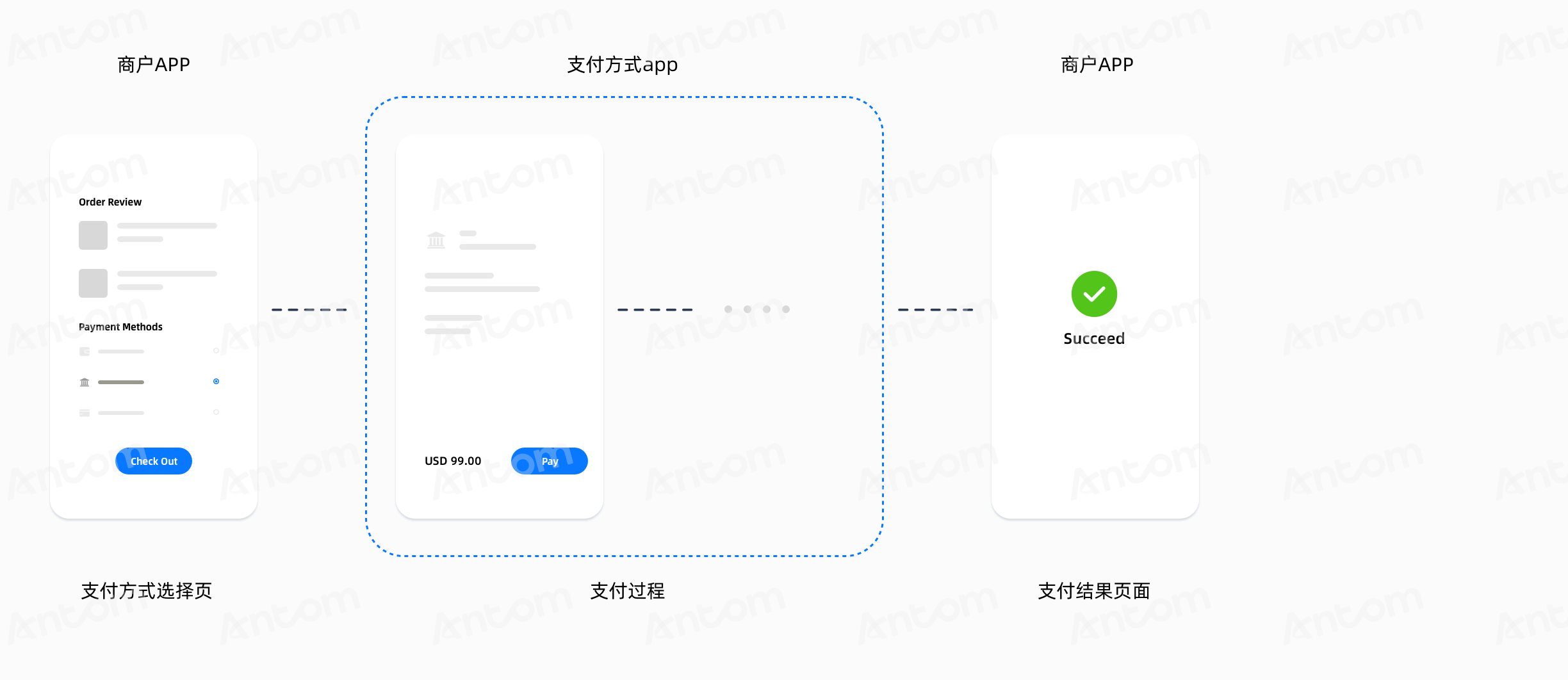
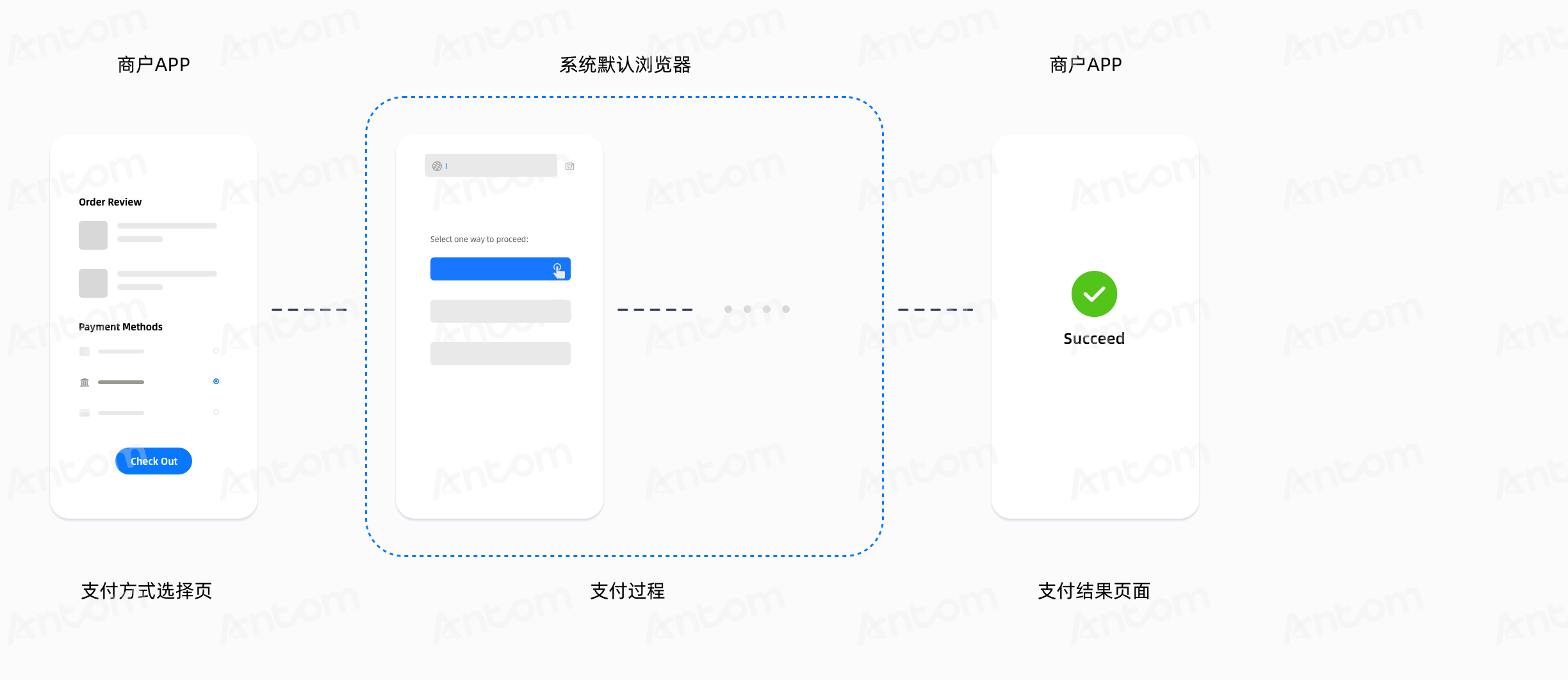
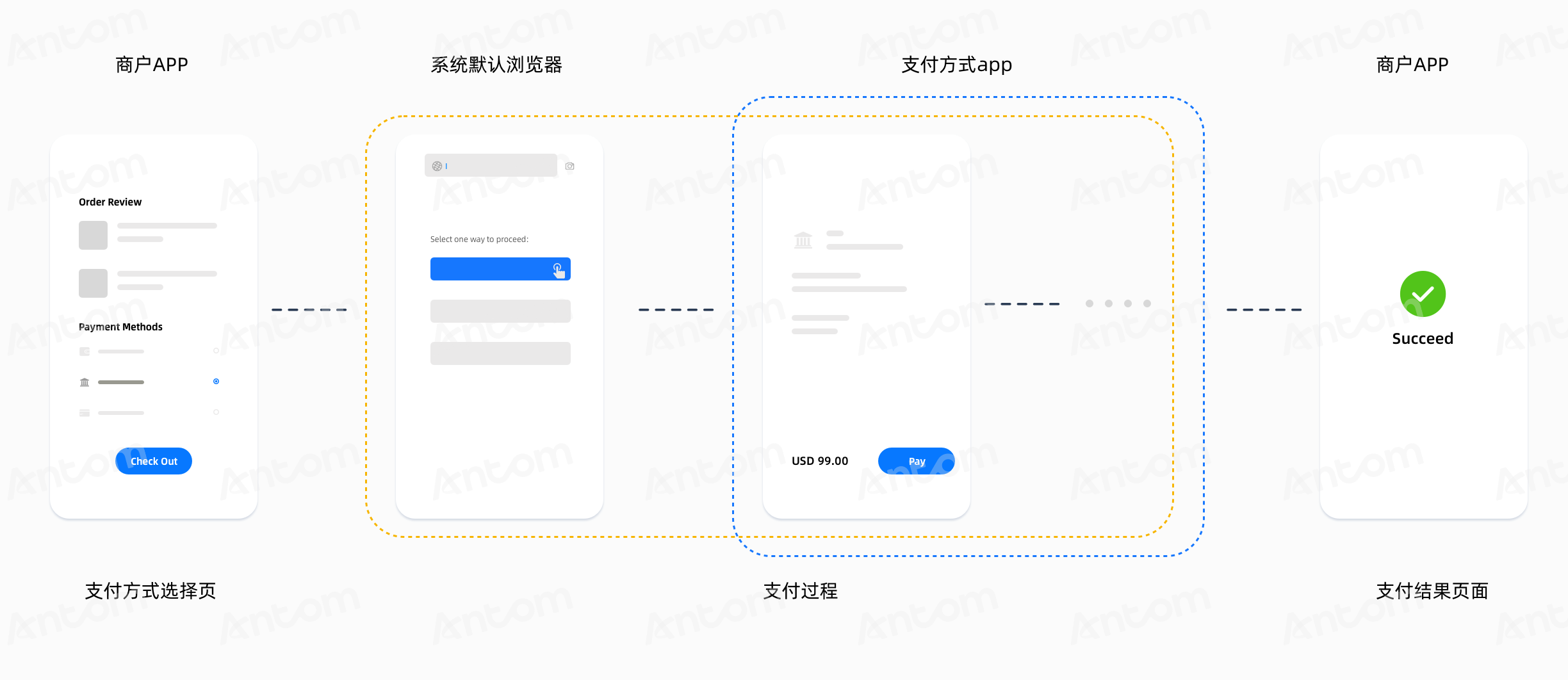
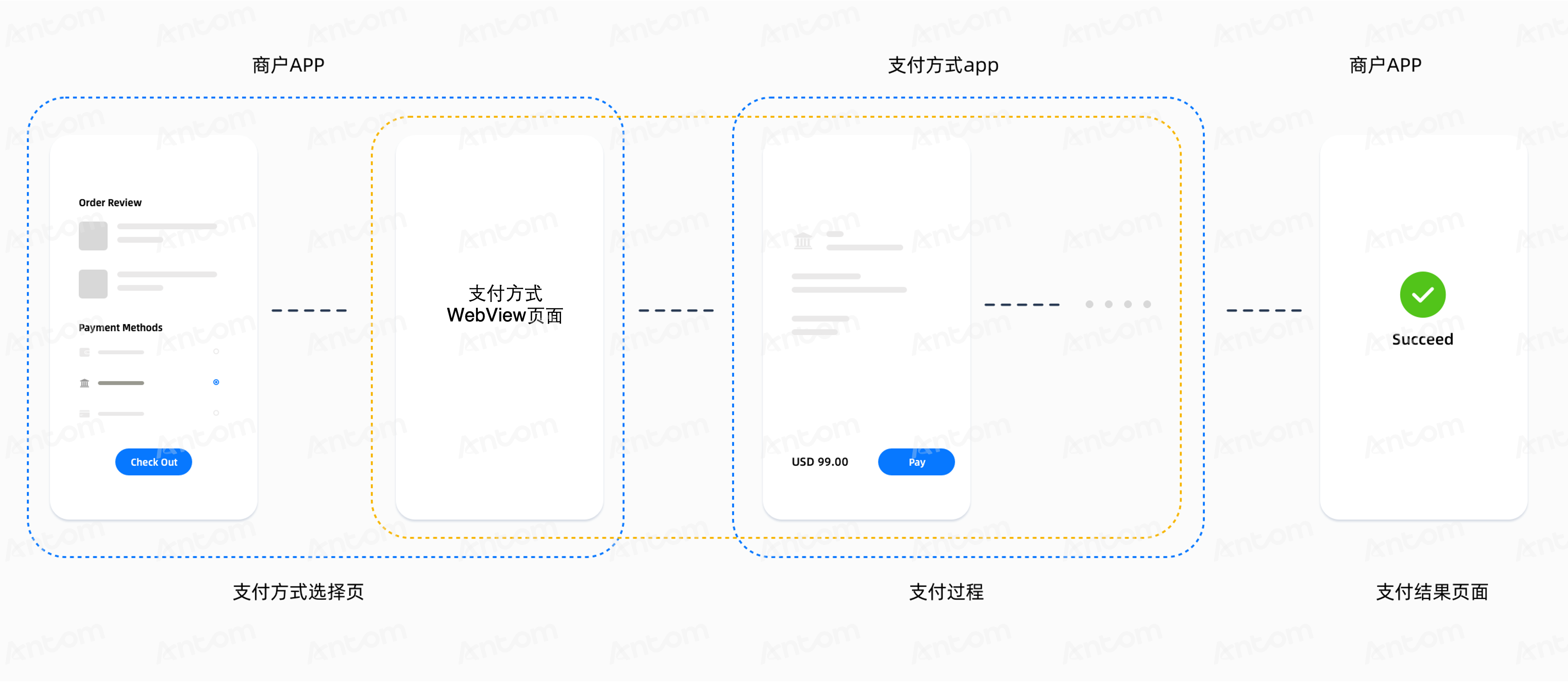
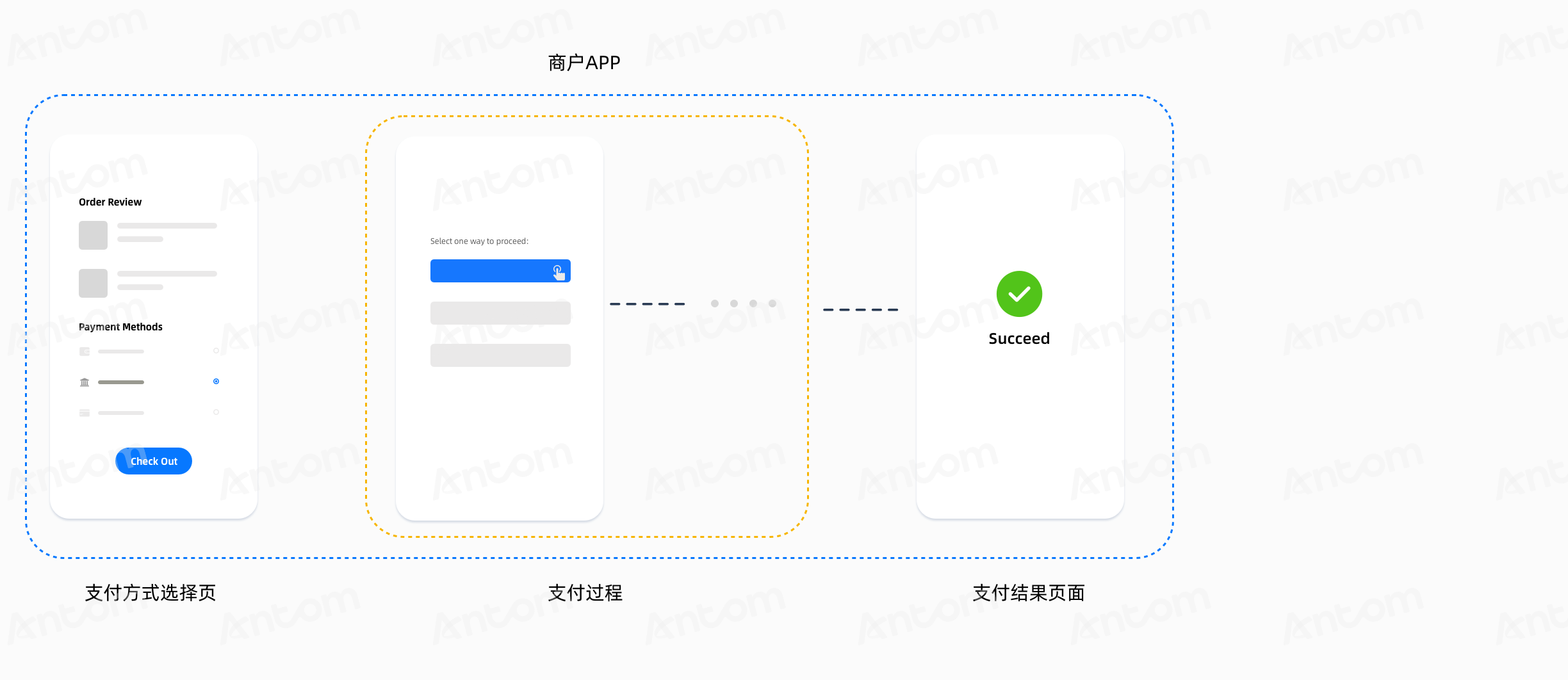
与支付推进链接不同开启方式相对应的支付流程如下:
重定向方法 | 支付流程 |
在应用外重定向:调用 Android/iOS 方法来打开支付推进链接。 | 在应用程序外部进行重定向。支付流程取决于买家是否已安装支付方式应用:
|
在应用程序内重定向 | 有两种支付体验:从您的应用中重定向和在您的应用内重定向。
|
配置重定向方法的最佳实践
建议您根据不同的支付方式固定配置支付推进链接,或者根据支付方式、设备环境和链接类型进行路由。以下是一个基于不同支付方式的固定配置示例:
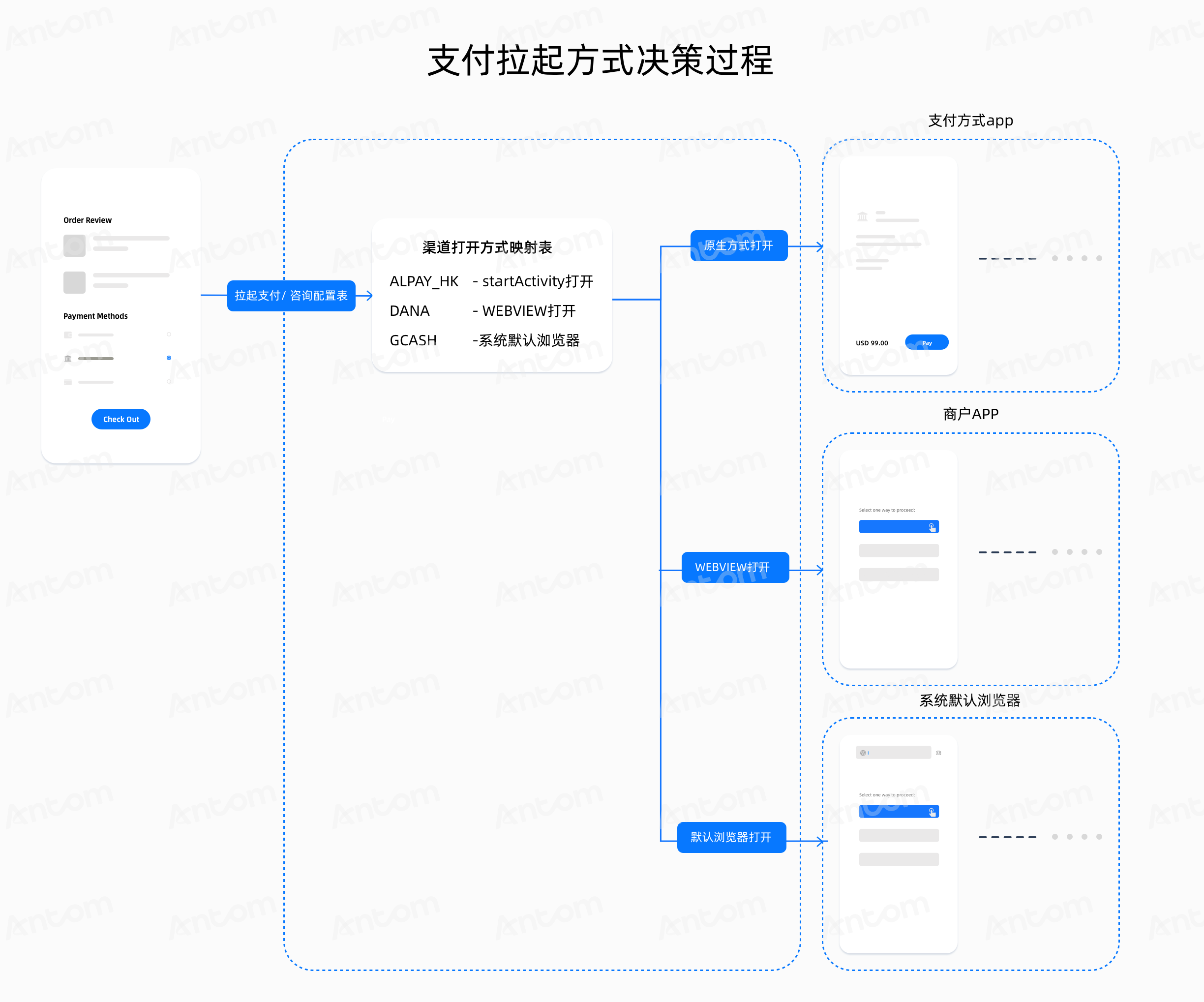
对于每种支付方式,建议您根据以下逻辑确定支付推进链接的打开方式:
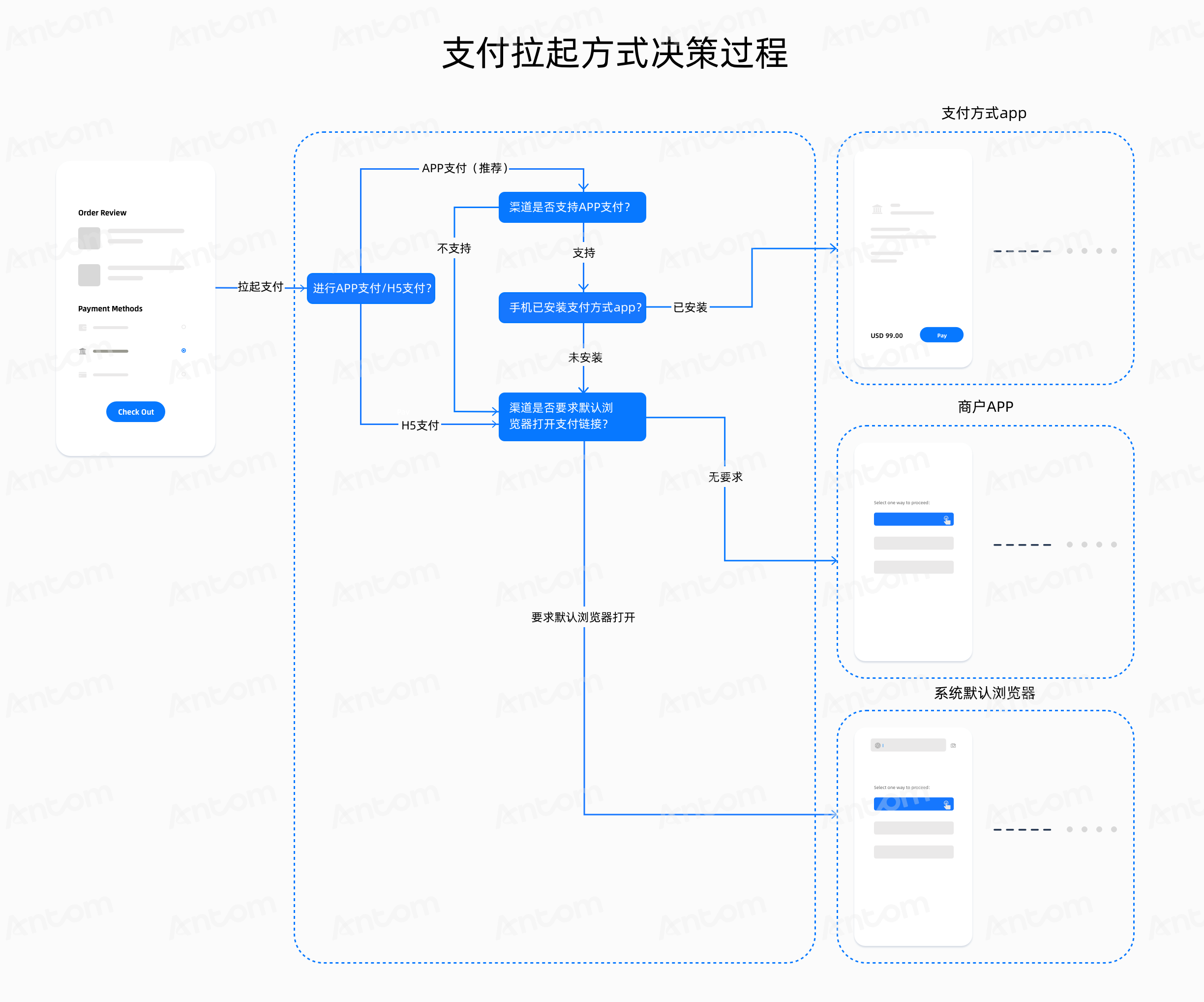
常见问题解答:什么是消歧对话框
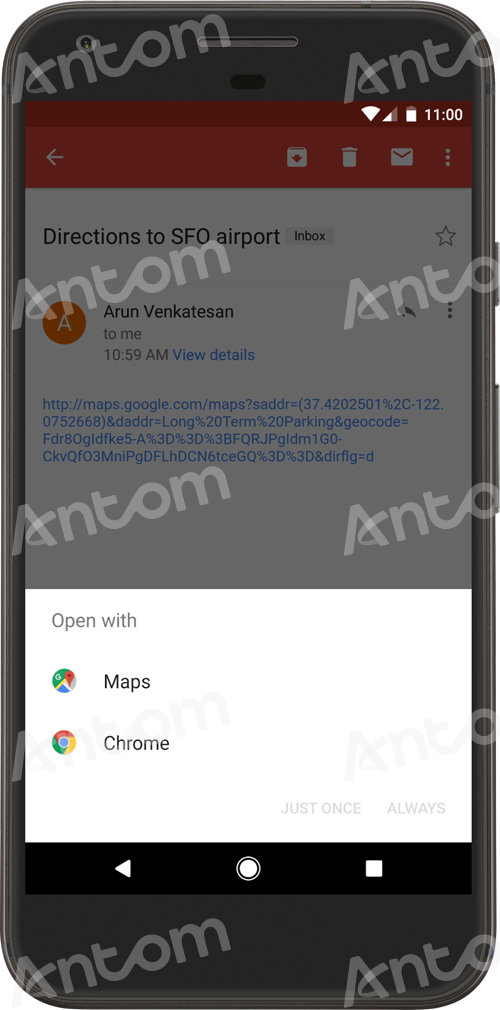
Android App Link 在安装应用时向 Google 服务器请求验证。如果验证失败,Android App Link 将变得无效,当买家尝试通过此类链接打开应用时,会出现消歧对话框。买家需要手动选择如何打开链接。
此图显示了当买家点击 Android App Link 时出现的消歧对话框示例。买家需要手动选择如何打开链接:使用谷歌地图或谷歌浏览器。 | |
防止出现消歧对话框
当出现消歧对话框时,买家需要手动选择打开应用的方式,这可能影响支付成功率。因此,您需要通过以下方式(根据需要)防止消歧对话框的出现:
- 如果买家已安装支付方式应用,指定支付方式的包名并打开支付方式的链接。
- 如果买家未安装支付方式应用,使用以下示例代码来打开链接。
Intent intent = new Intent(Intent.ACTION_VIEW, Uri.parse(applinkUrl));
intent.addFlags(Intent.FLAG_ACTIVITY_NEW_TASK);
//Specify the package name of the payment method
intent.setPackage(walletPackageName);
PackageManager packageManager = MainActivity.this.getPackageManager();
//Check whether there is an app that supports opening this link.
List<ResolveInfo> activities = packageManager.queryIntentActivities(intent, 0);
if (activities.size() <= 0) {
   //The payment method app is not installed. Initialize the Intent object. This link will be opened by the default Android method.
   intent = new Intent(Intent.ACTION_VIEW, Uri.parse(applinkUrl));
   intent.setFlags(Intent.FLAG_ACTIVITY_NEW_TASK);
     startActivity(intent);
} else {
  //The payment method app is installed. Specify the package name of the payment method and open the payment method URL. The disambiguation dialog box will not appear.
     startActivity(intent);
}