Risk & dispute management
You can complete the following tasks under Data insight > Risk & dispute management module:
- View data in Card and Non-card modes
- Download data
- Use common settings
View data in Card and Non-card modes
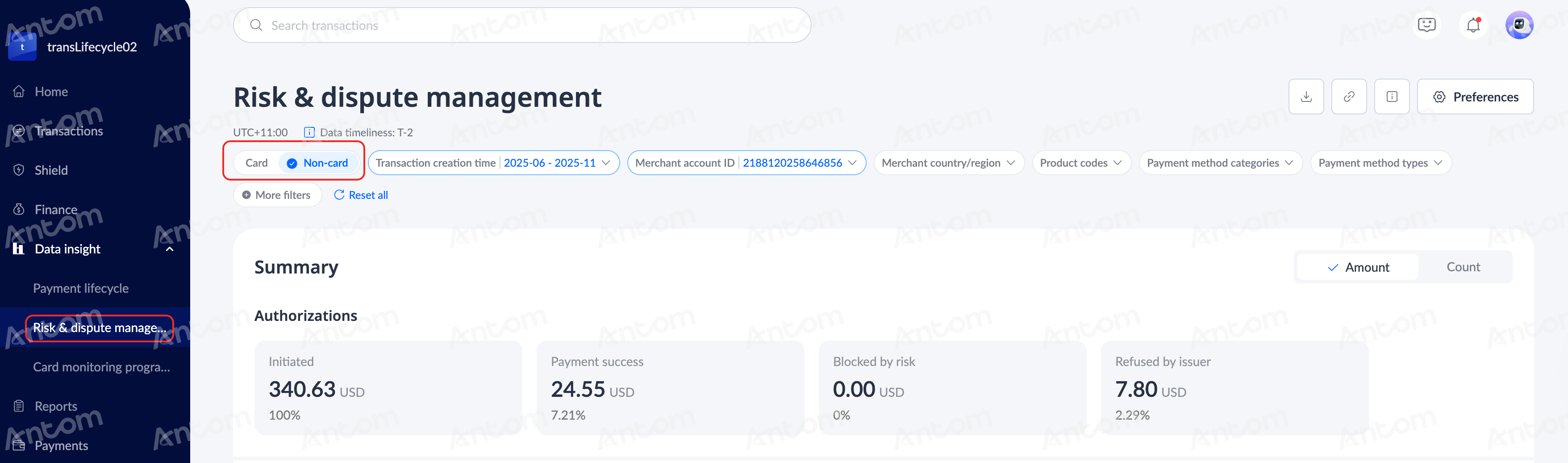
On the Risk & dispute management page, you can use filters to view data in card and non-card modes. You can switch Card and Non-card mode according to your needs. This change will affect the entire page.
Filter risk and dispute records
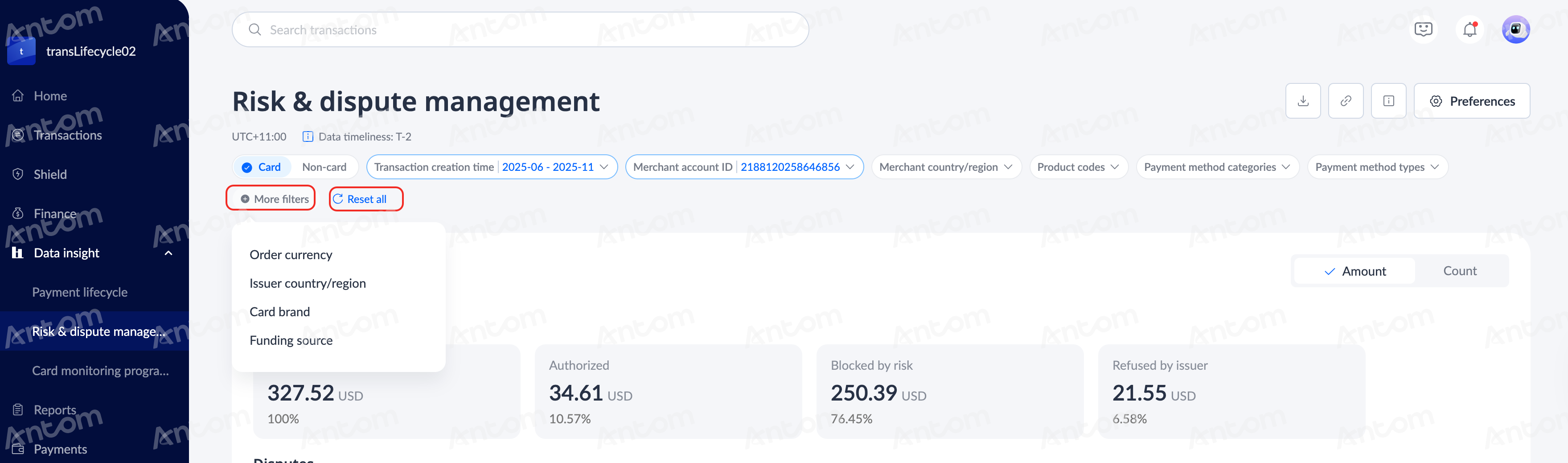
You can use filters such as Transaction creation time, Merchant account ID, Product code, and Payment method types to filter transactions. Click More filters to customize the options for the filter area.
Different modes support different customization options. Only the card mode supports Issuer country/region and Card brand filters. After filtering, click Reset all to clear previous filtering records.
View data details
The data displayed in card and non-card modes are different. The details are as follows:
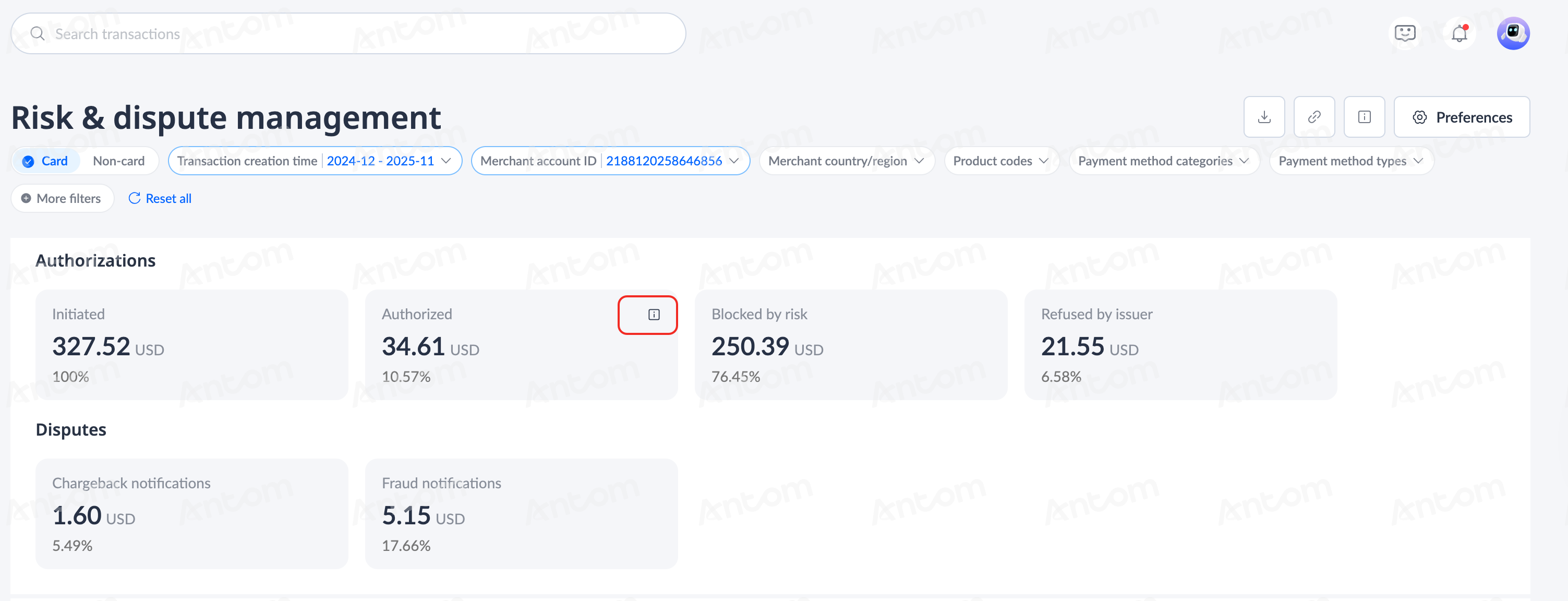
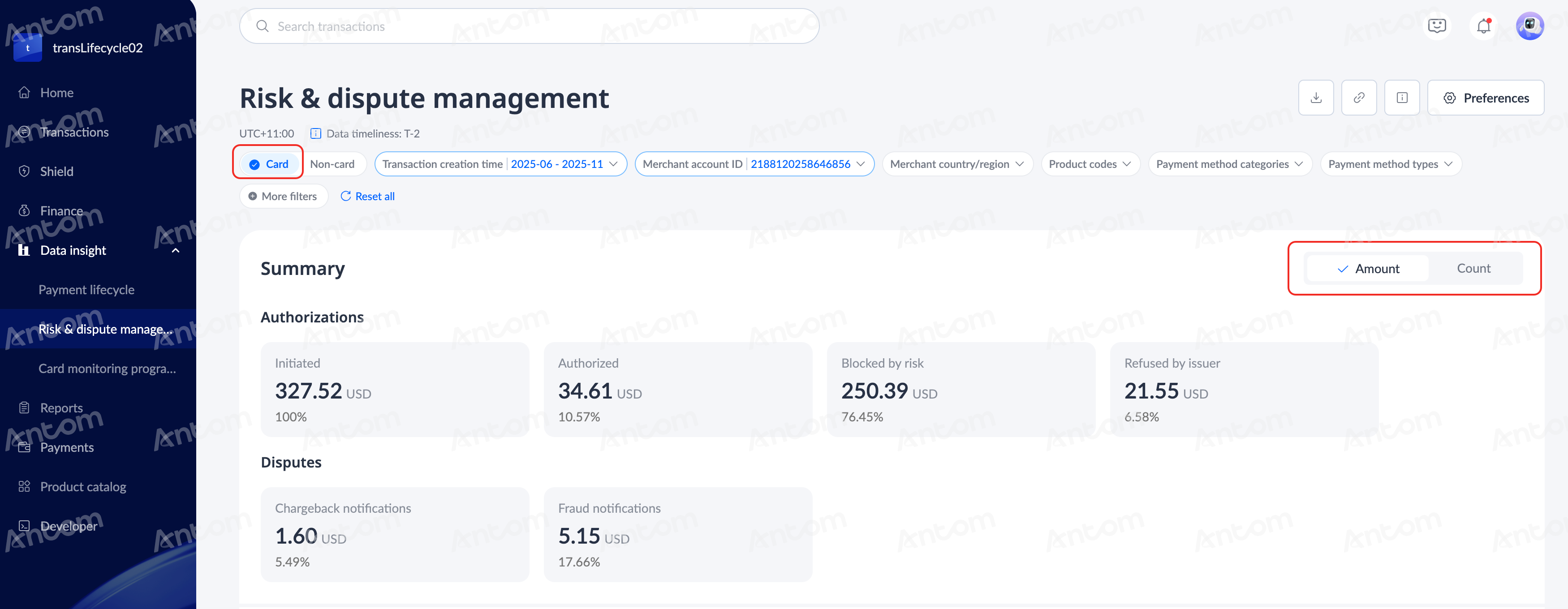
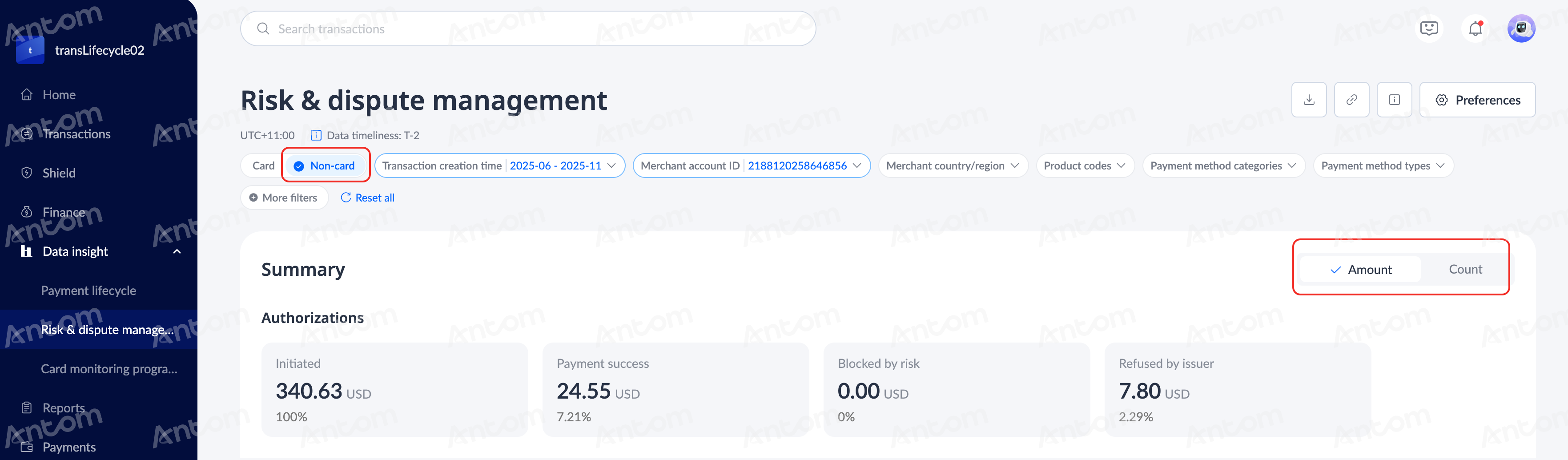
Summary
The Card mode includes Disputes and Authorizations. In Non-card mode, only Authorizations is displayed. Click the switch button in the upper right corner to switch to the Amount and Count sections to view the corresponding data as needed.
|
|
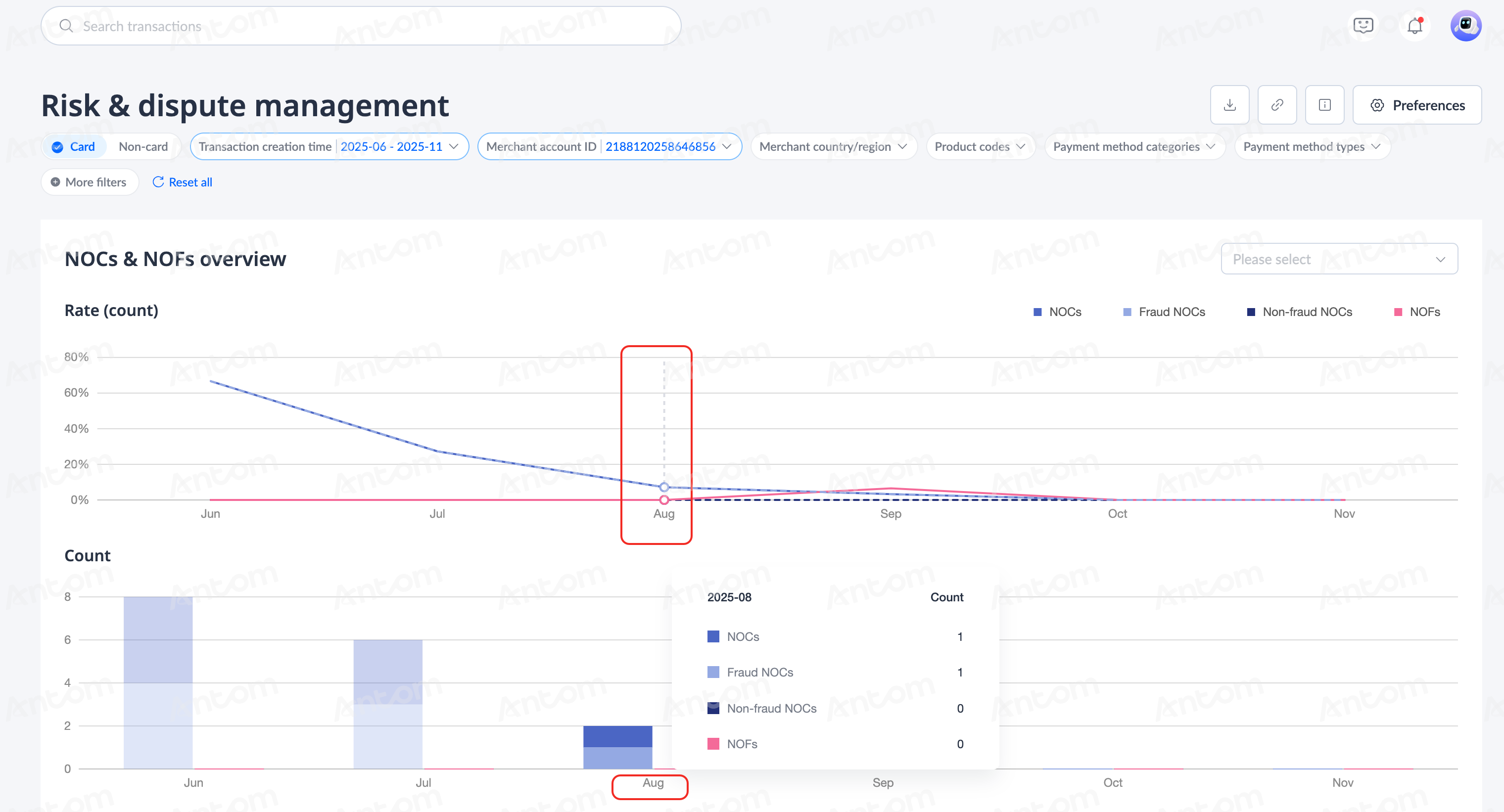
NOCs & NOFs overview
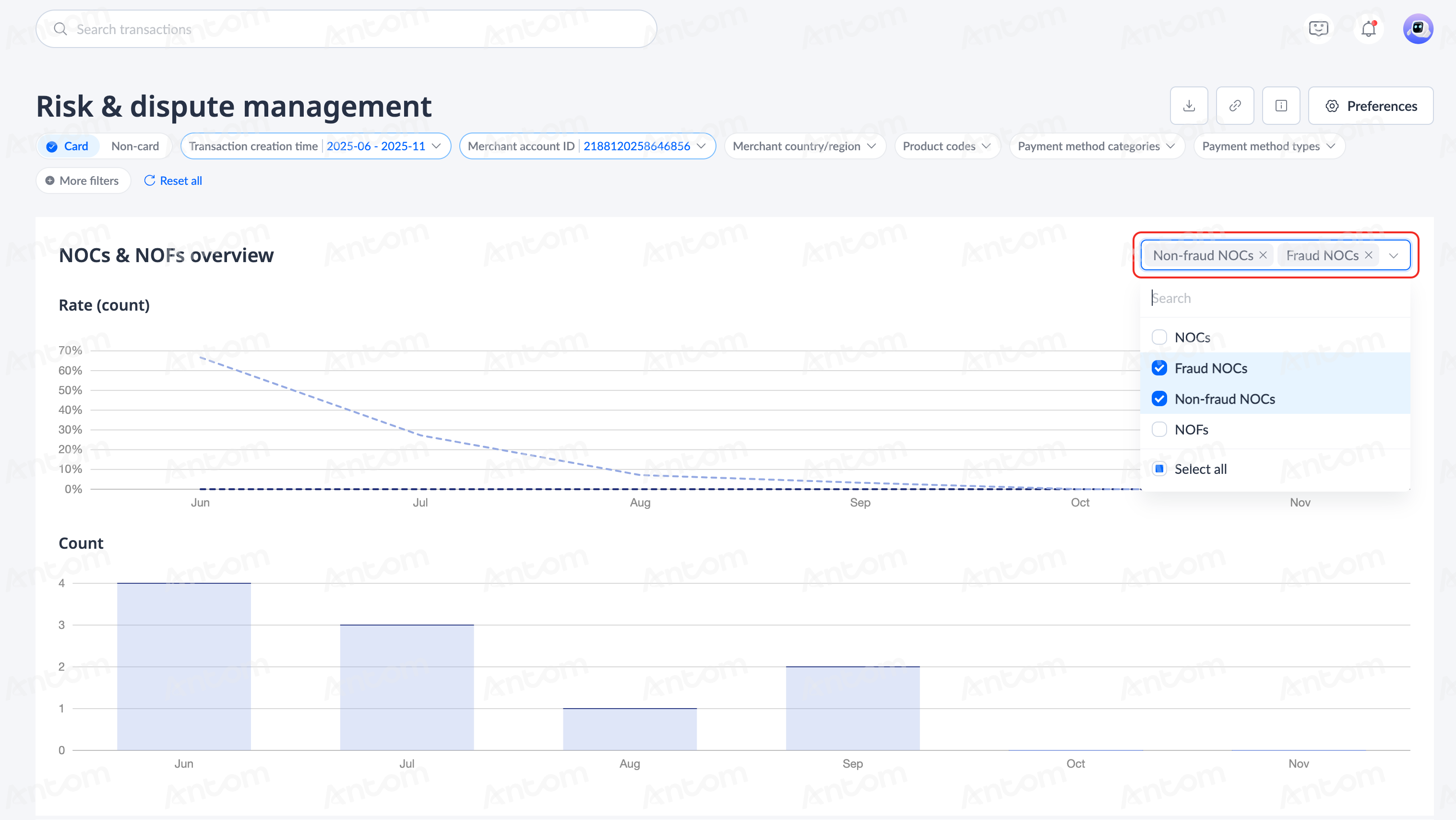
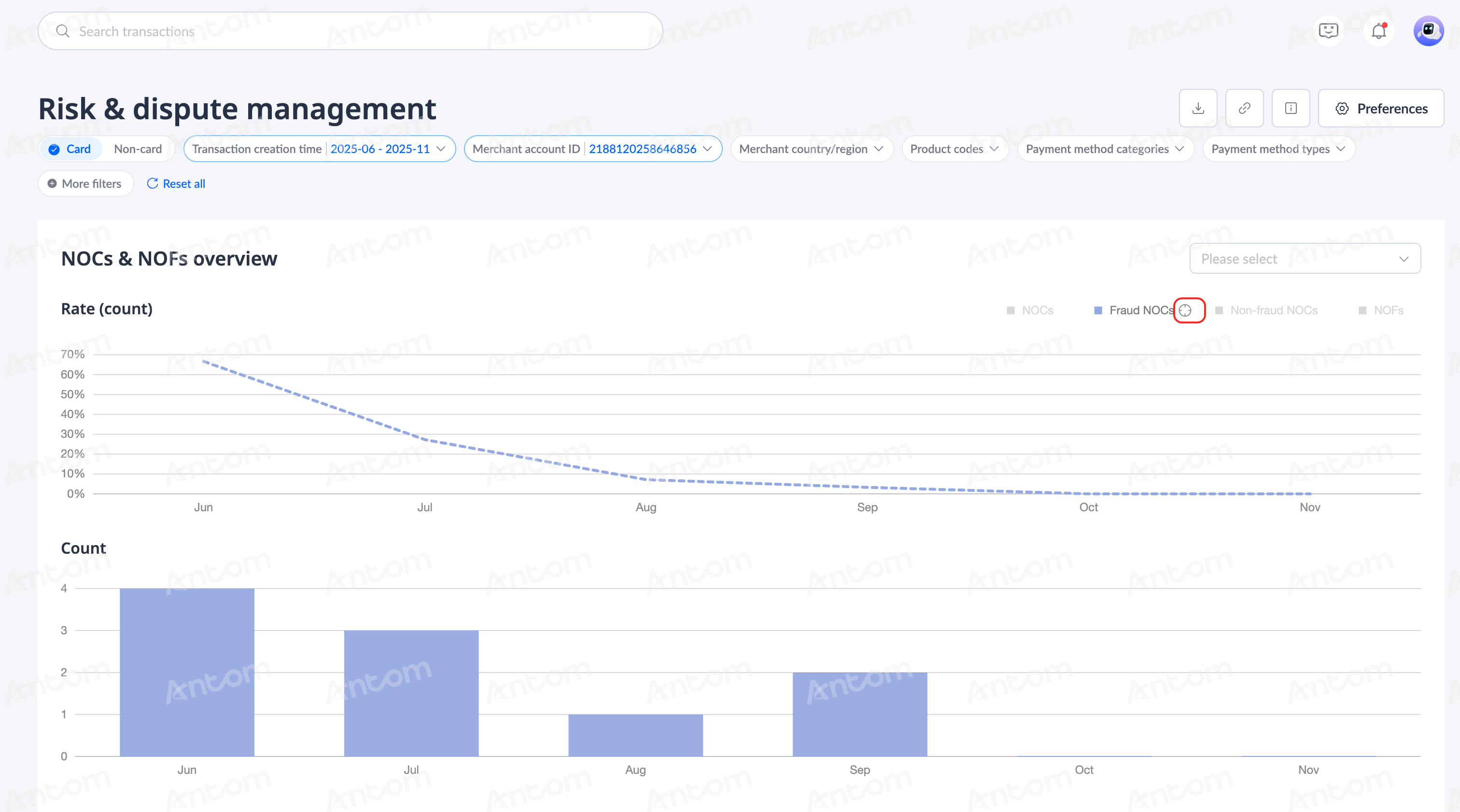
This part is displayed in Card mode only, including two-part charts of rate and count. The data indicators are NOCs, NOFs, Fraud NOCs and Non-fraud NOCs. You can do the following in this area:
- Filter: Click the drop-down box in the upper right corner of the icon to change the data options displayed in the chart area. You can customize this area as needed.
- Data display: The chart area displays 4 parts of data indicators by default. Click the crosshair icon next to the color block to close other color blocks, click the crosshair icon again to cancel.
- Positioning: Hover the cursor over the time of the chart to view the specific data of the day. When the cursor slides to a specific time, the charts for other times will be grayed out.
Blocked and refused transactions
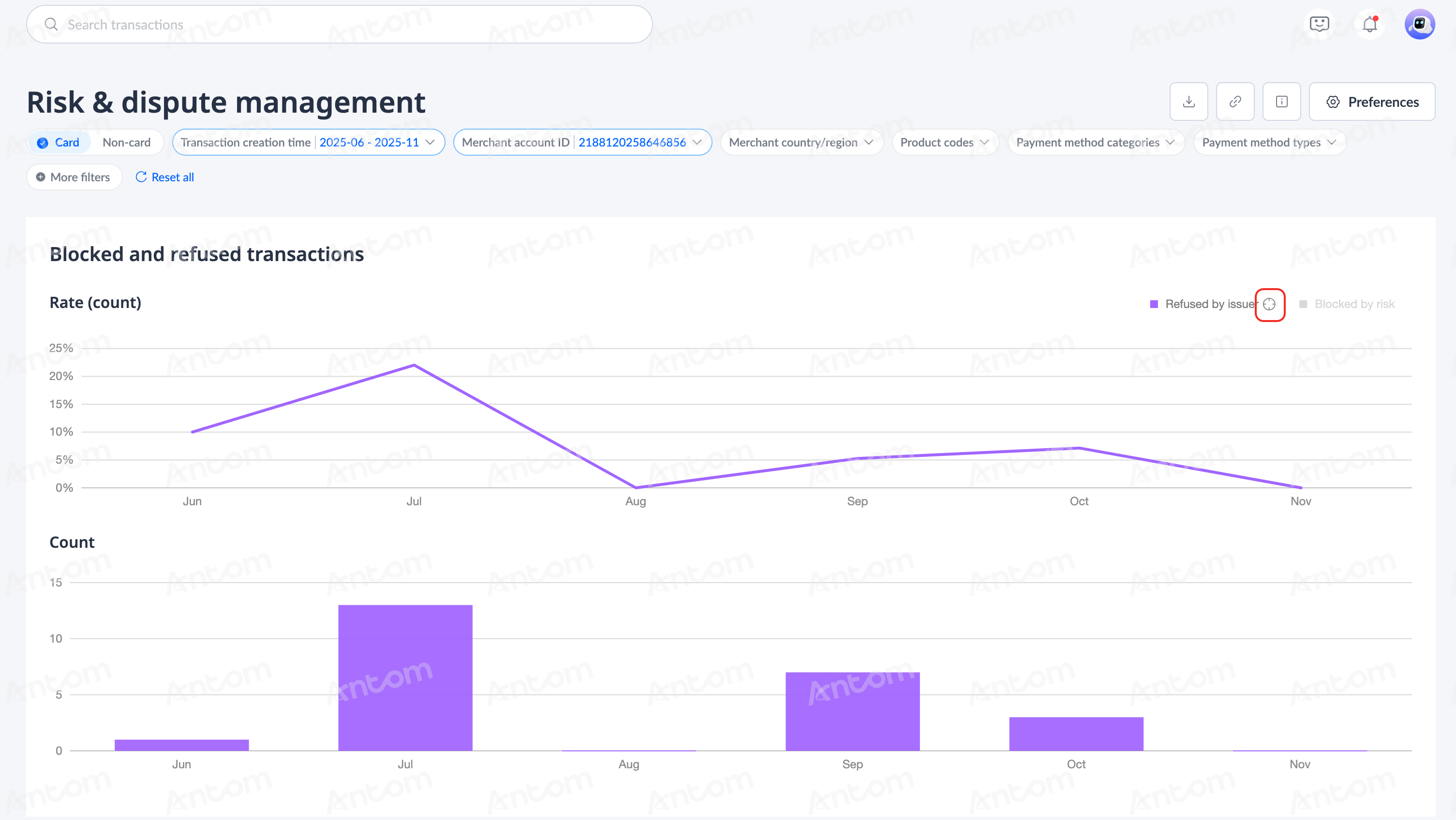
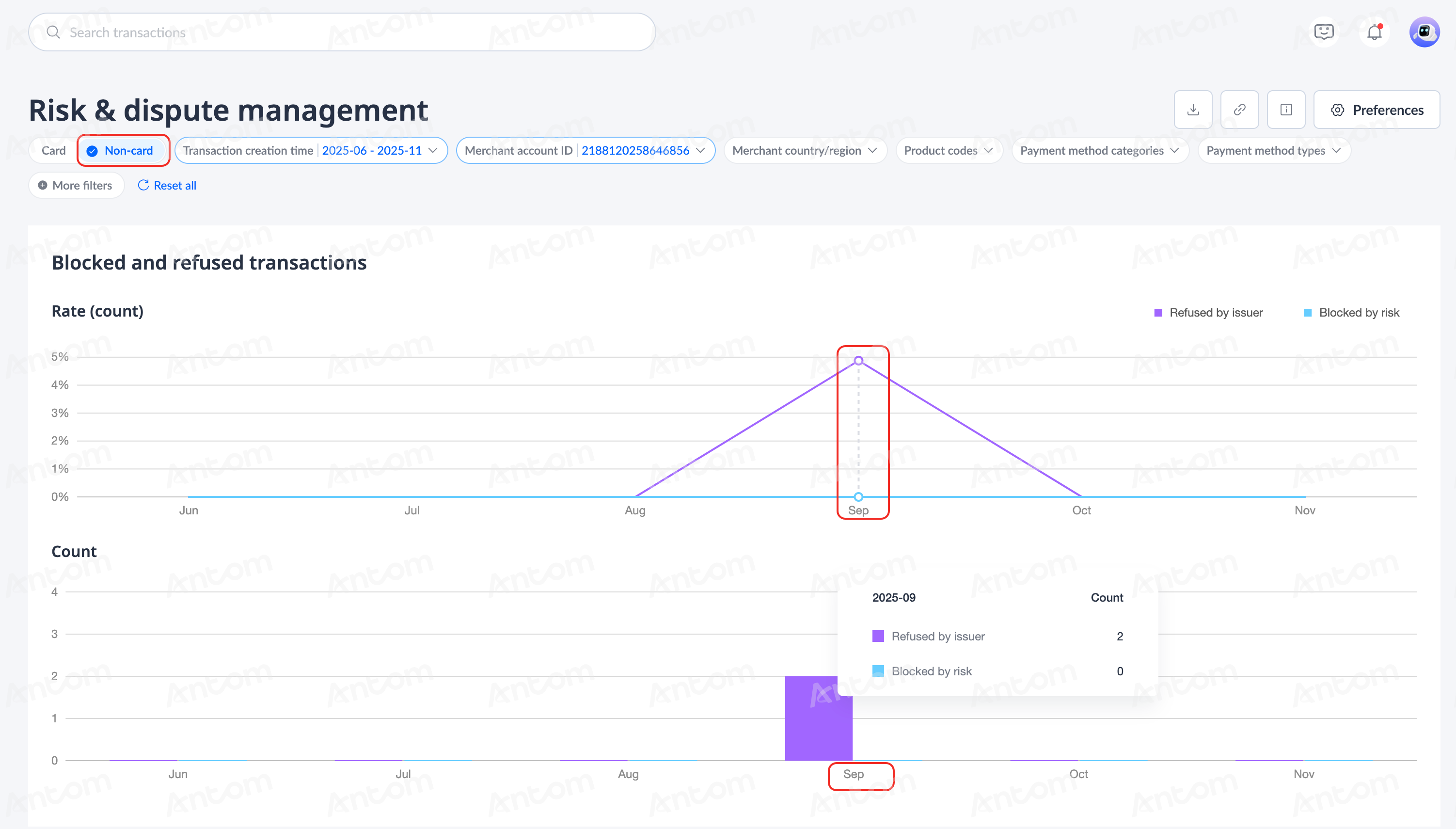
This chart is displayed in both Card and Non-card modes, including the Rate and Count charts, with the data indicators Refused by issuer and Blocked by risk. You can do the following in this area:
- Data display: The chart area displays 2 parts of data indicators by default. Click the crosshair icon next to the color block to close other color blocks, click the crosshair icon again to cancel.
- Positioning: Hover the cursor over the time of the chart to view the specific data of the day. When the cursor slides to a specific time, the charts for other times will be grayed out.
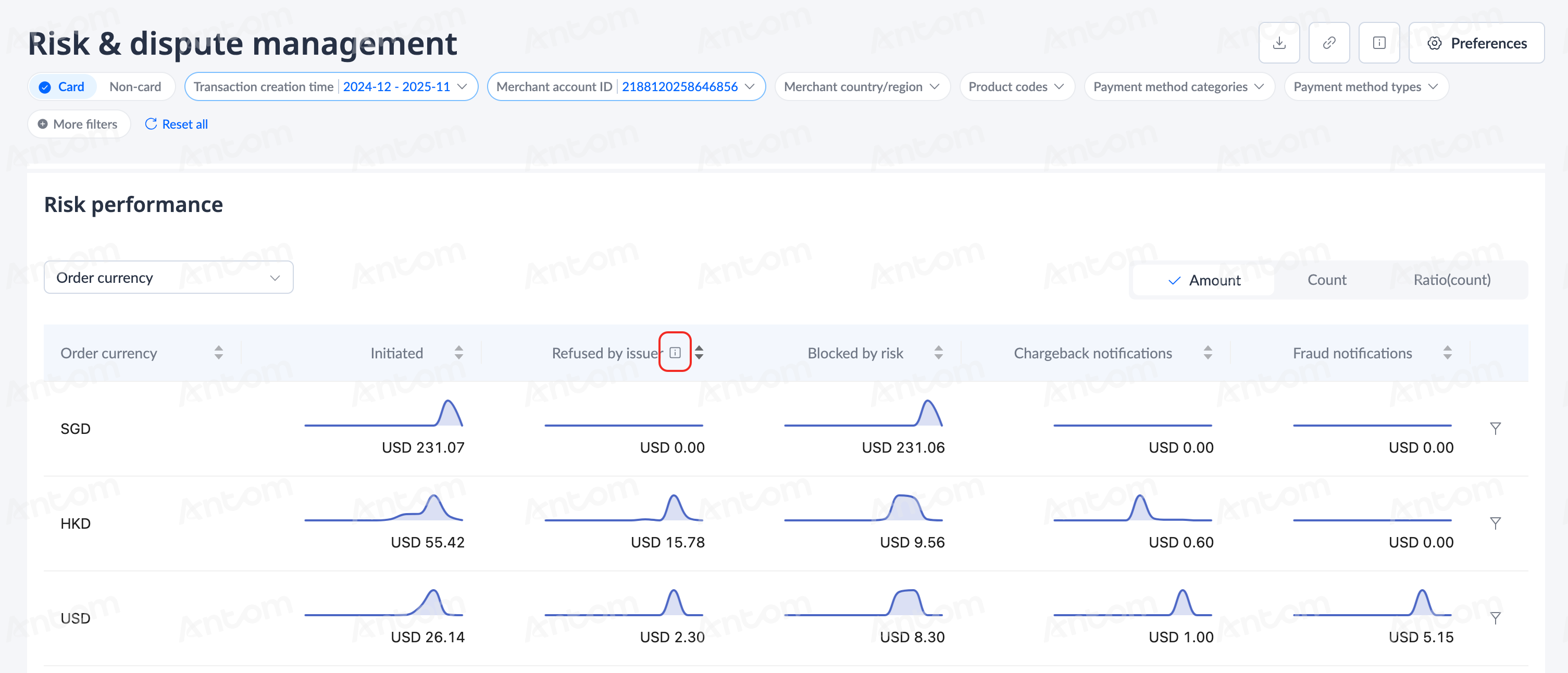
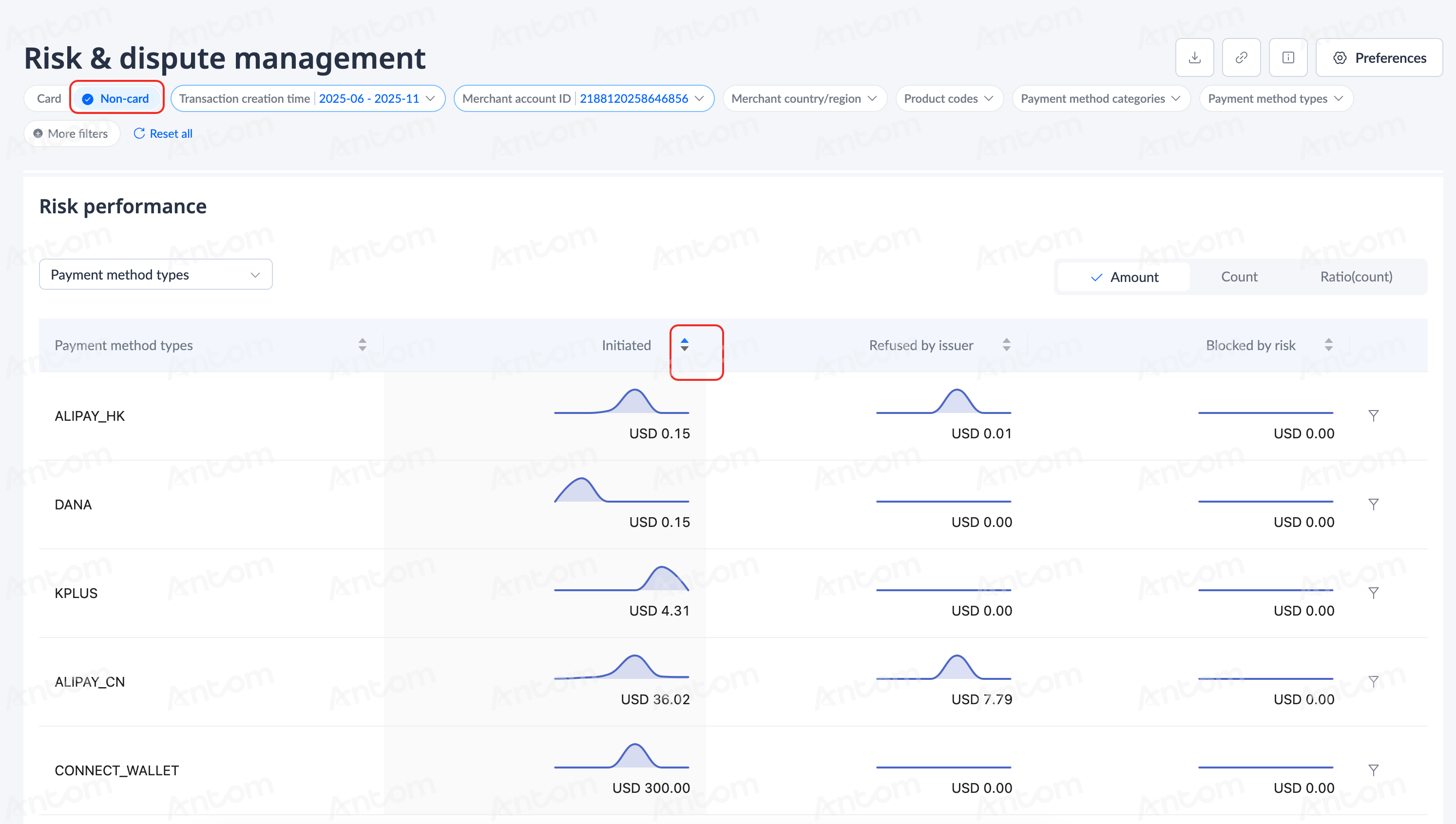
Risk performance
This chart is displayed in both Card and Non-card modes. Click the switch button in the upper right corner to switch to the Amount, Count and Ratio sections to view the corresponding data as needed. You can do the following in this area:
- Filter: This area supports two filtering functions:
- Click the drop-down box at the top left of the list to choose to display data for different options, which are the same as those in the filter area at the top of the page.
- In the data list, click the filter icon in the right column to apply this option as a global filter.
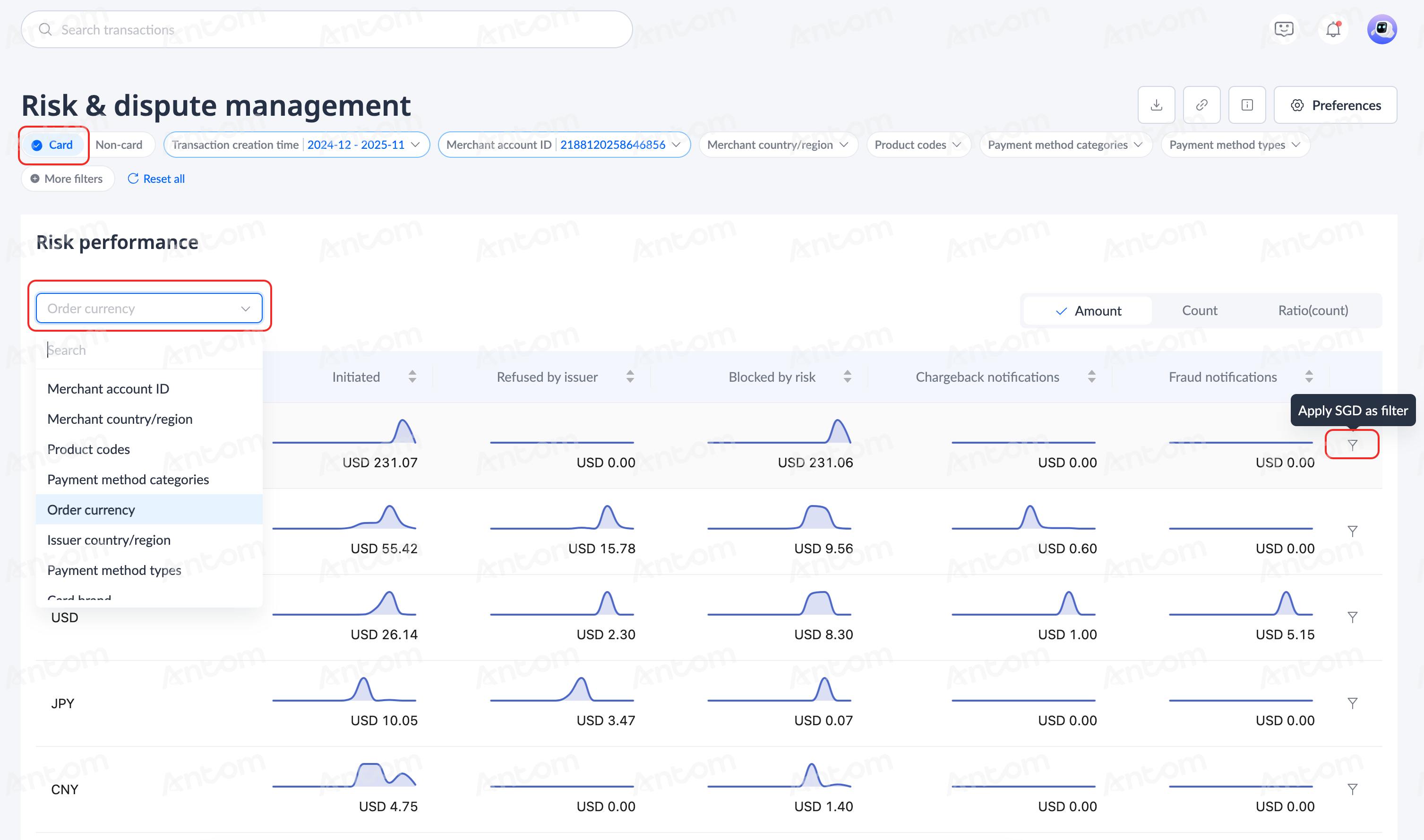
- Sorting: Click the sort icon on the list header to sort the list data in forward or reverse order.
Download data
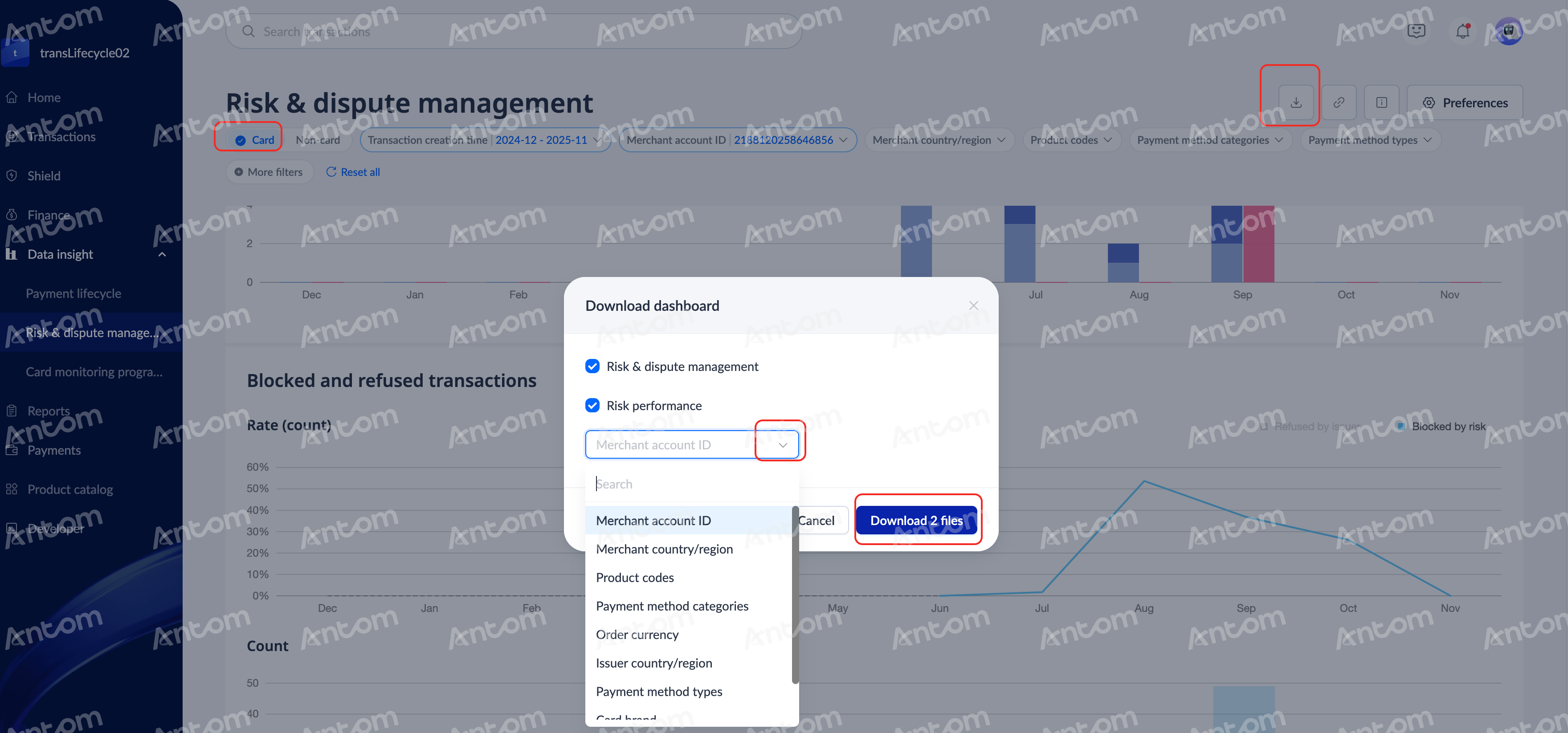
On the Risk & dispute management page, you can download files under the current filter conditions.
Click the Download icon and choose to download one or two files as needed in the Download dashboard pop-up window. You can select the required condition type in the drop-down box, and the downloaded file will be the data under this filter condition.
Note: If you only download the Risk & dispute management file, you will not be able to filter.
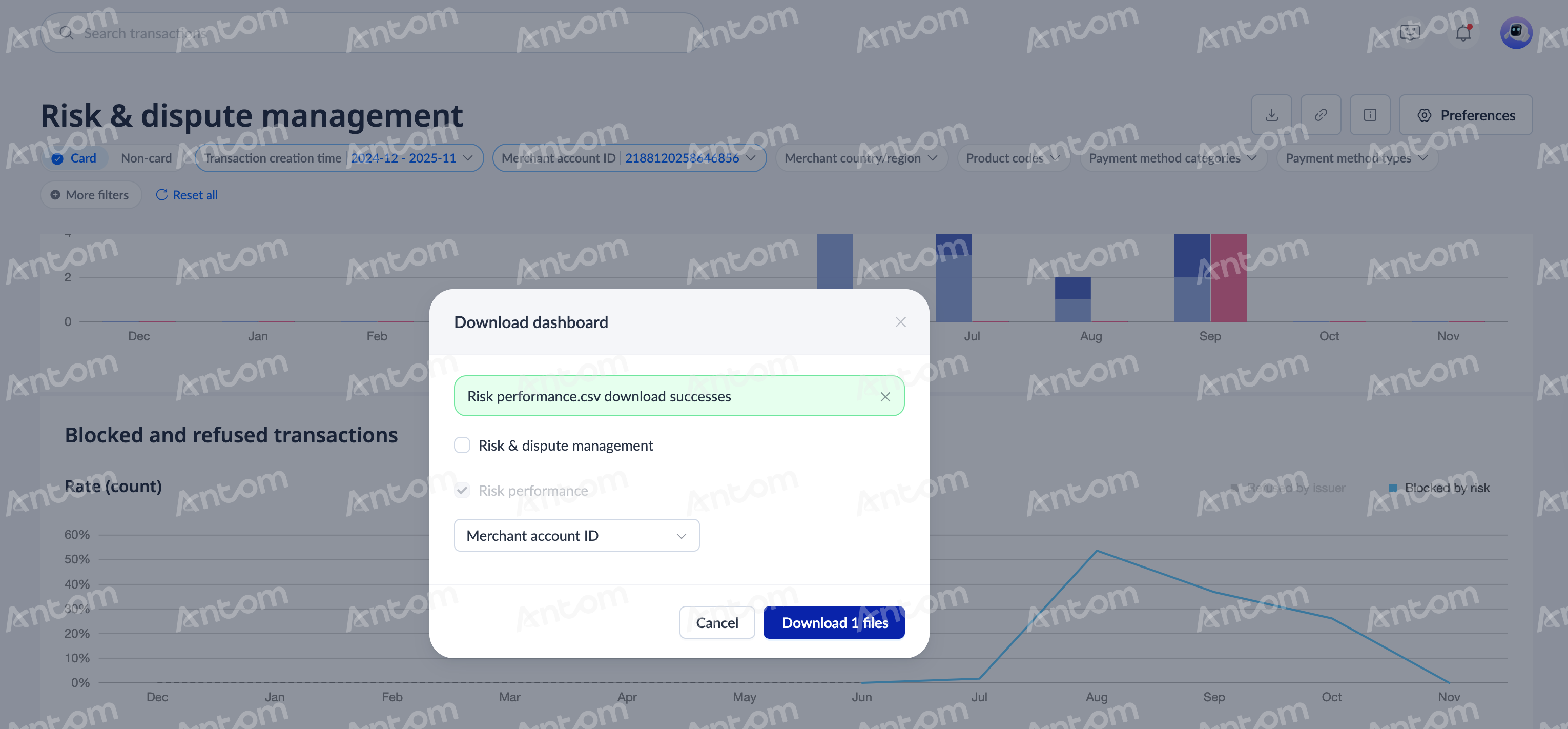
After selecting the number of files and filtering conditions, click download file to complete.
Use common settings
On the Risk & dispute management page, you can do the following:
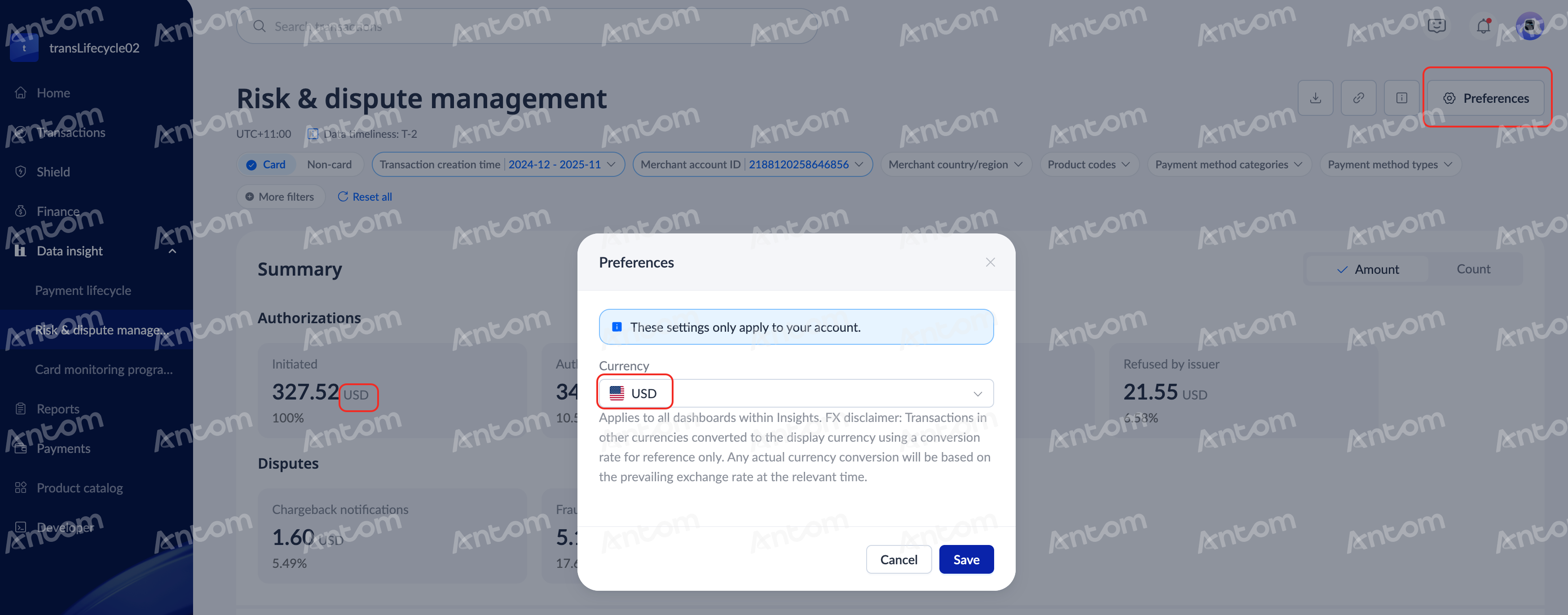
- Set the currency: Click Preferences in the upper right corner of the page. In the Preferences pop-up window, you can set the currency type for this page. After the setting is completed, the currency will be applied to all amount areas under the Data insight module.
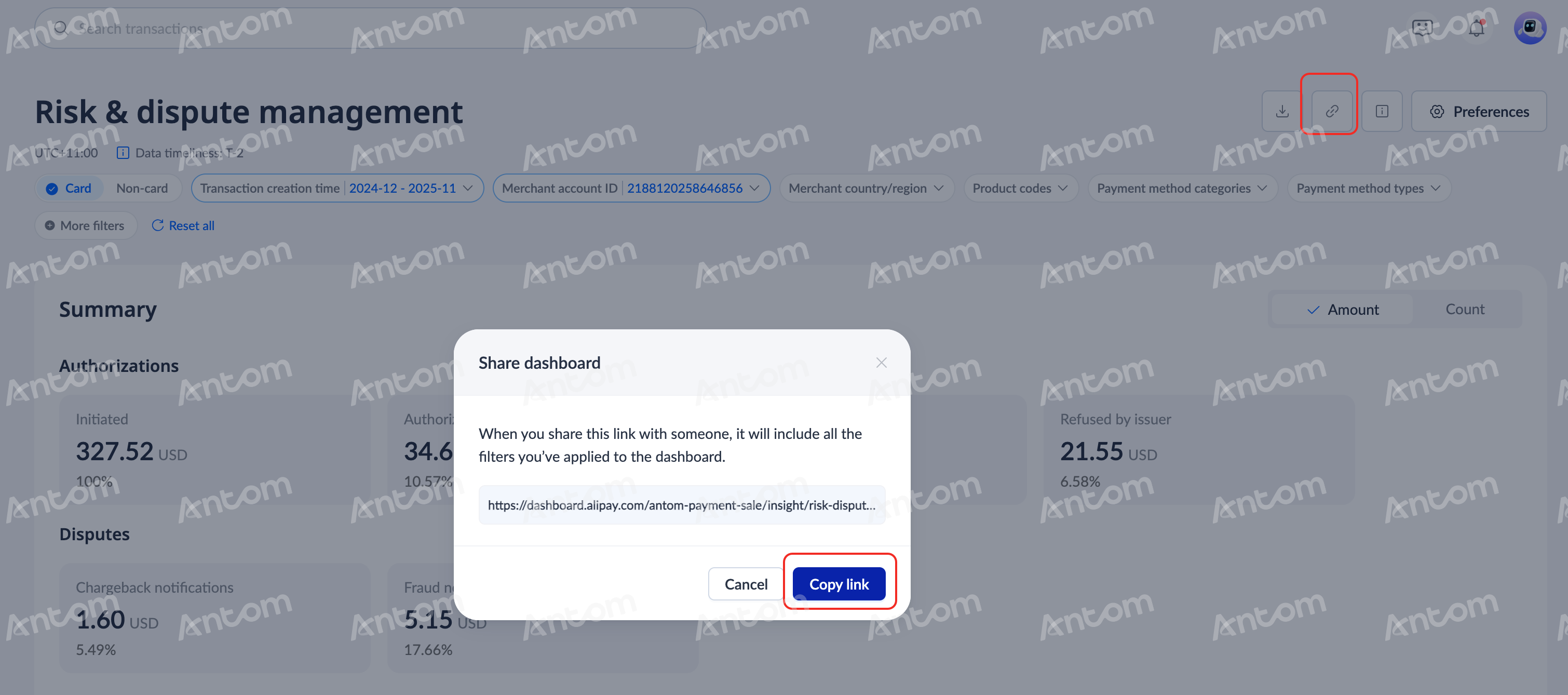
- Share dashboard data: Click the Share icon at the top right of the page, and a link containing the current configuration conditions will appear in the Share dashboard pop-up window. Click Copy link to share your dashboard data.
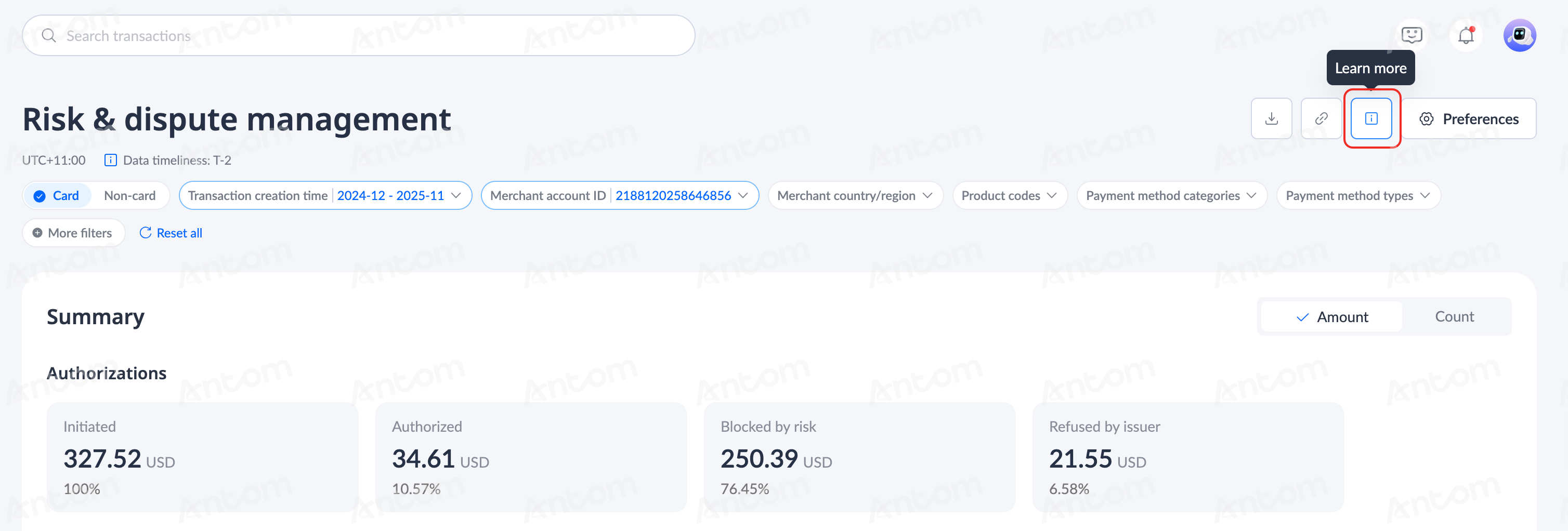
- View definitions: Click the Learn more icon in the upper right corner of the page to view the definitions of terms contained in the current page.
|
|
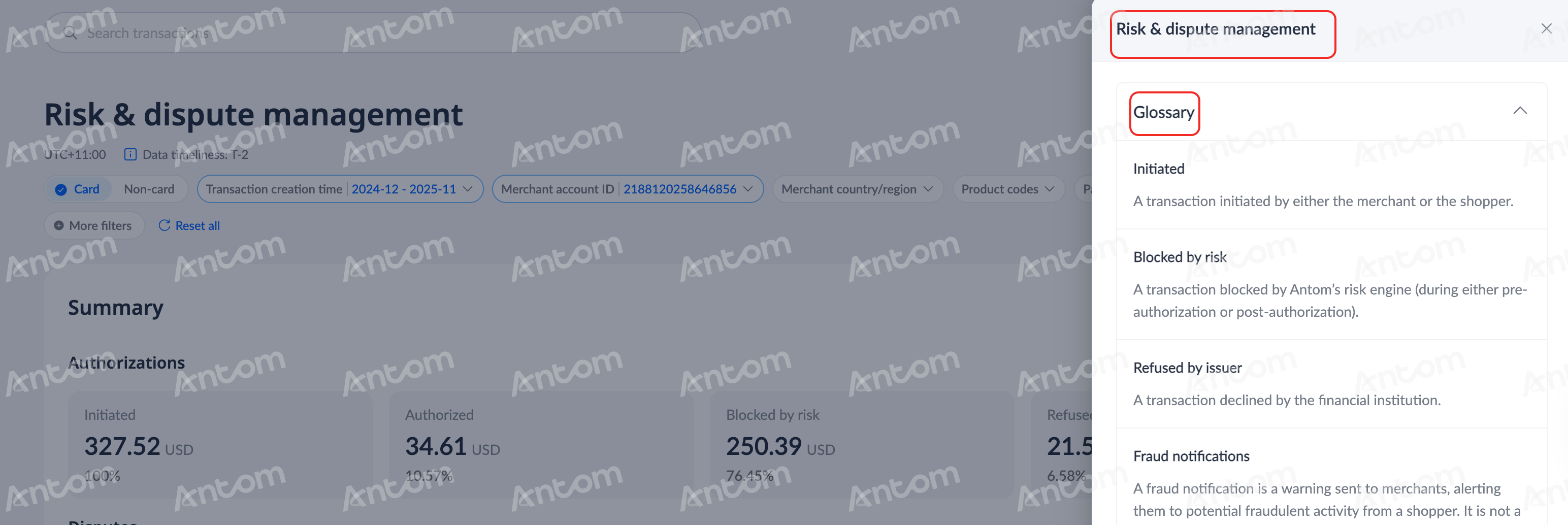
You can also click the tip icon on each card in the Summary area, or the tip icon at the header of the Risk Performance list to view the corresponding explanation.
|
|